


 Video Converter Ultimate
 Screen Recorder
 Reparație video
 Descărcare sigură
Cum să redimensionați o imagine în Powerpoint fără a degrada calitatea
În ultima vreme, mulți oameni își prezintă totul în format digital, mai degrabă decât în mod tradițional, chiar și înainte de pandemie. Pe măsură ce tindem spre viitor, totul poate deveni mai ușor cu ajutorul tehnologiei și al software‑ului pentru prezentarea afacerii, a materialelor vizuale, a ideilor, a vânzărilor etc., iar toate acestea le poți face în PowerPoint. Poți avea acest program de prezentare pe dispozitivul tău pentru scopul său specific. Mai mult, mulți utilizatori caută o modalitate de a redimensiona imaginea în acest program de prezentare. Ești dispus să înveți cum să redimensionezi o imagine în PowerPoint? Continuă să citești acest articol, deoarece vom acoperi informațiile pe care trebuie să le știi despre acest subiect.

Partea 1. Cum să redimensionați o imagine în PowerPoint folosind 2 moduri eficiente pe care le puteți utiliza [Individual și Multiple]
Când reglați lungimea și înălțimea imaginii pe fiecare diapozitiv, puteți fie să setați o dimensiune exactă, fie să modificați raportul de aspect trăgând cadrul. Deși o puteți face aici în mod natural, apare o oarecare distorsiune atunci când dimensiunea imaginii este schimbată. Așadar, dacă doriți să știți cum să redimensionați imaginile pe mai multe diapozitive în PowerPoint sau individual, puteți urma pașii pe care îi adăugăm mai jos. Urmați-l în consecință și îl veți redimensiona în mai puțin de un minut.
3 moduri de a redimensiona imaginea pe PowerPoint [individual și lot]
1. Redimensionarea imaginii prin tragerea cadrului
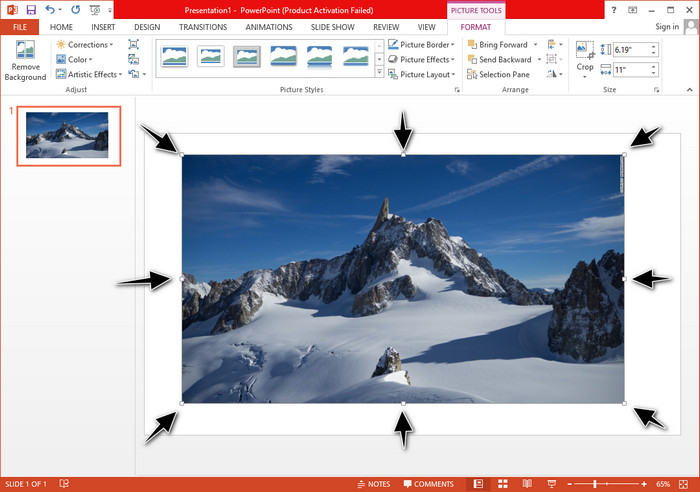
După ce ați încărcat imaginea pe PowerPoint, veți vedea puncte mici pe ea. Aceste puncte de pe imagine sunt reglabile, ceea ce înseamnă că puteți redimensiona în mod liber fotografia în funcție de specificațiile dvs. Odată ce modificați lungimea, înălțimea nu va fi la fel ca și ajustarea dimensiunii.
2. Redimensionarea imaginii prin modificarea înălțimii și lungimii
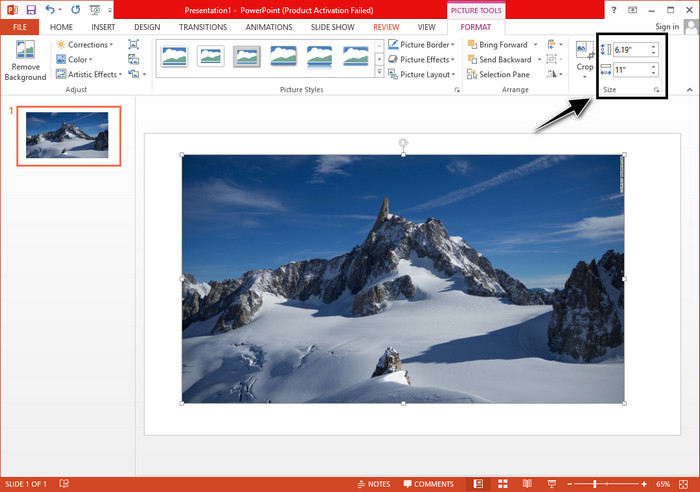
Când încărcați imaginea în PowerPoint, faceți clic pe fila Format pentru a schimba imaginea la o anumită dimensiune. În partea superioară, puteți adăuga înălțimea și lungimea exactă. Cu toate acestea, odată ce ați schimbat o măsurătoare, cealaltă va fi ajustată automat, deoarece raportul de aspect principal este activ.
3. Redimensionarea în serie a imaginilor în PowerPoint
Ce ar trebui să faci pentru a modifica mai multe imagini pe un singur diapozitiv PowerPoint? Pentru a face acest lucru, trebuie să încarci fotografiile pe diapozitiv. După ce ai încărcat mai multe imagini pe diapozitiv, trebuie să ții apăsată tasta Control, apoi să selectezi fiecare imagine pe care vrei să o redimensionezi. Urmează opțiunea de redimensionare pe care vrei să o folosești dintre cele prezentate mai sus: trage cadrul sau modifică valoarea numerică.
Partea 2. Cum să redimensionați o imagine în PowerPoint fără a distorsiona gratuit [Serviciul web]
Cum redimensionezi o imagine în PowerPoint fără să o deformezi? Poți folosi FVC Free Image Upscaler pentru a redimensiona automat fotografia pe care o încarci și pe care vrei să o utilizezi într‑o prezentare PowerPoint. Deși este un instrument online, performanța sa este mai bună decât funcția de redimensionare din PowerPoint, deoarece generează PPI pentru a preveni estomparea imaginii chiar dacă trebuie să o redimensionezi. Te întrebi sau vrei să folosești acest instrument și să începi să‑ți redimensionezi imaginea? În acest caz, urmează pașii de mai jos, prin care îți arătăm cum să folosești acest instrument cât mai ușor posibil.
Avantajele redimensionării unei fotografii folosind FVC Free Image Upscaler:
◆ Poți folosi acest redimensionator de fotografii gratuit, fără pierderi de calitate.
◆ Acceptă o gamă largă de formate pe care le puteți încărca.
◆ Are tehnologie AI puternică care vă poate ajuta să redimensionați orice fotografie.
◆ Puteți accesa această soluție web pe orice motor de căutare pe care îl aveți pe desktop.
◆ Nu este necesară nicio instalare sau descărcare înainte de a-l folosi.
Pași despre cum să redimensionați fără deformare folosind FVC Free Image Upscaler:
Pasul 1. Deschide site‑ul acestui redimensionator făcând clic pe acest link.
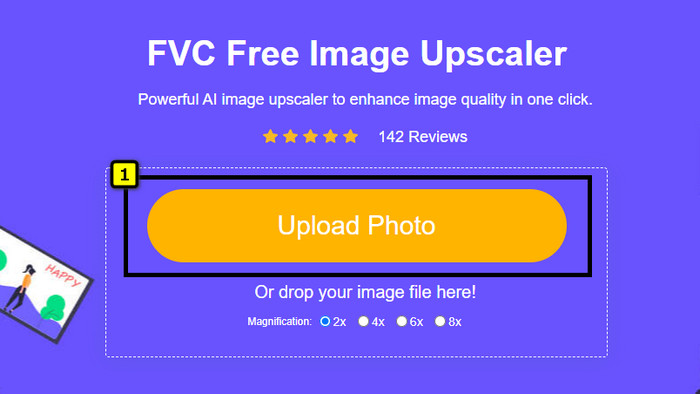
Pasul 2. Când site‑ul s‑a deschis, fă clic pe Upload Photo pentru a adăuga fotografia pe care vrei să o redimensionezi și să o folosești în prezentarea ta PowerPoint.
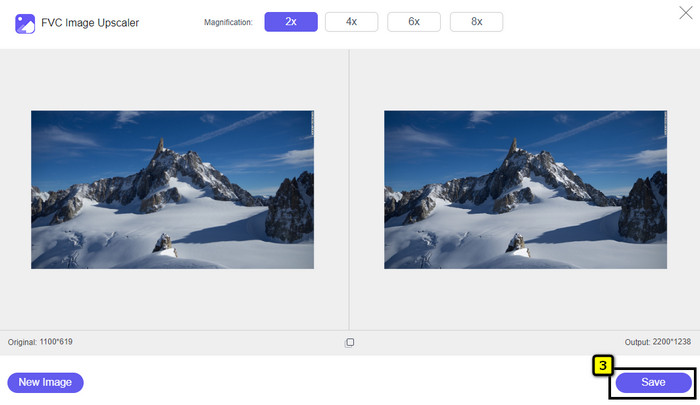
Pasul 3. După încărcarea imaginii, așteaptă să se proceseze. Selectează Mărirea pe care vrei să o aplici imaginii tale, alegând dintre opțiunile 2x, 4x, 6x sau 8x.
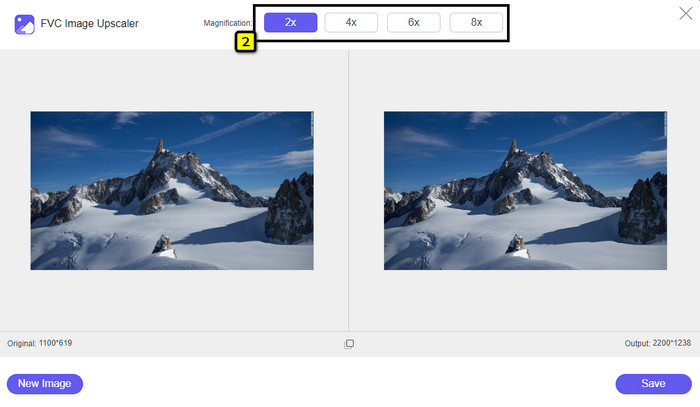
Pasul 4. Fă clic pe Save pentru a exporta imaginea redimensionată pe care ai modificat‑o aici. Atât de simplu, imaginea redimensionată va fi salvată în memoria locală, fără nicio deformare sau estompare suplimentară.
Partea 3. Întrebări frecvente despre cum să redimensionați o imagine în PowerPoint
Care este lungimea și înălțimea maximă a unei fotografii pentru Powerpoint?
Când redimensionați imaginea la dimensiunea maximă pentru Powerpoint ca ecran lat, puteți seta pixelul la 1280 x 720 px. Dar când îl afișați pe ecran, va trebui să urmați raportul de aspect 16:9, care este 1920 x 1080 px.
Există vreo comandă rapidă pentru a redimensiona fotografia în PowerPoint?
Pentru a modifica înălțimea imaginii, trebuie să țineți apăsată tasta Shift, apoi să faceți clic pe săgeata sus pentru a crește și pe săgeata în jos pentru a micșora înălțimea acesteia. Pentru cei care doresc să modifice lățimea imaginii, puteți ține din nou apăsată tasta Shift, apoi apăsați săgeata dreapta pentru a crește lățimea și săgeata stânga pentru a micșora lățimea conform preferințelor dvs.
De ce imaginea mea a devenit neclară după redimensionarea în PowerPoint?
Când sunteți pe cale să redimensionați imaginea în PowerPoint, imaginea a fost întinsă și există șansa ca imaginea să devină neclară. Dar dacă doriți un editor de imagini capabil să creeze pixeli în timp ce sunt modificări ale dimensiunii, atunci puteți evita să aveți o imagine pixelată în PowerPoint.
Pot folosi GIF-uri pentru Powerpoint?
Da, puteți folosi GIF-uri pe fiecare diapozitiv din PowerPoint. Cu toate acestea, atunci când dimensiunea GIF nu este favorizată în dimensiunea dorită, va trebui să o redimensionați. Și rezultatul GIF-ului redimensionat a devenit neclar sau pixelat.
Concluzie
În concluzie, poți învăța cele trei tehnici de redimensionare a imaginii în PowerPoint urmând tutorialul pe care l‑am inclus în această postare. Deși o poți face cu ușurință în programul de prezentare, uneori apare deformarea imaginii atunci când îi schimbi dimensiunile. Poți rezolva această problemă folosind instrumentul online pe care l‑am menționat, deoarece nu deformează nicio imagine redimensionată aici. Cu pașii pe care i‑am adăugat, poți învăța cum să redimensionezi imaginea în FVC Free Image Upscaler.
-
 Cea mai bună aplicație Photo Resizer online, offline, Android și iPhone
 Care sunt cele mai bune aplicații de redimensionare a fotografiilor? Faceți clic pe pagină pentru a afla primele cinci cele mai puternice aplicații de redimensionare a fotografiilor pe care le puteți utiliza pentru a îmbunătăți sau a redimensiona fișierul.
-
 Cum să redimensionați imaginea – Adobe Redimensionați imaginea [Online și Offline]
 Dacă sunteți în căutarea unei imagini de redimensionare Adobe, atunci avem soluția pentru dvs. Vizualizați această postare în detaliu pentru a afla cum să redimensionați imaginile folosind Adobe pe computer.
-
 Cum să redimensionezi fotografia pentru Facebook [Pași rapidi și simpli]
 Dacă întâmpinați probleme la încărcarea unei imagini de dimensiuni mari pe Facebook, avem o soluție pentru dvs. Finalizați acest articol pentru a afla cum să redimensionați fotografiile pentru Facebook.
