


 Video Converter Ultimate
 Screen Recorder
 Reparație video
 Descărcare sigură
Cele mai ușoare metode despre cum să eliminați sigla ManyCam de pe dispozitiv
Ți-ar plăcea să afli cum să elimini logo-ul ManyCam de pe Windows și Mac? În acest caz, acest articol îți va prezenta diferite metode de a elimina un logo din videoclipurile tale, pe care merită să le încerci. Redarea videoclipurilor preferate cu watermark-uri sau logo-uri poate fi deranjantă. Nu te poți bucura de ele și devin o distragere a atenției. Uneori nici măcar nu mai poți vedea anumite părți ale videoclipurilor din cauza watermark-urilor, imaginilor, textelor sau logo-urilor. Din fericire, poți folosi aplicații software excelente, cu funcție de eliminare a watermark-ului, pentru a îndepărta aceste obiecte inutile din videoclipurile tale.
Cu ajutorul acestor aplicații, nu vei mai fi niciodată dezamăgit. Dacă sunteți interesat să cunoașteți cele mai bune metode pentru a elimina sigla ManyCam, cea mai bună alegere este să citiți acest articol.

Partea 1: Cum să eliminați sigla ManyCam prin activarea abonamentului
Dacă vrei să înveți cum să elimini watermark-urile din ManyCam, ești în locul potrivit. ManyCam este un software de live streaming disponibil atât pe Windows, cât și pe Mac. Această aplicație îți permite să creezi transmisiuni unice pe platformele tale, să realizezi tutoriale, prezentări de afaceri, streaming de jocuri și multe altele. În plus, are și alte funcții excelente de care te poți bucura, precum adăugarea de muzică, înregistrarea ecranului, adăugarea de ecran verde, streaming de jocuri etc. Pentru creatorii de conținut, ManyCam este valoros și util. Oferă instrumentele esențiale de care au nevoie, cum ar fi screencasting-ul și înregistrarea ecranului, ceea ce le face munca mult mai comodă.
Cu toate acestea, de fiecare dată când creați sau editați videoclipul, există o siglă manycam în partea inferioară a videoclipului, ceea ce este deranjant. Din fericire, puteți elimina acest logo activând abonamentul la ManyCam. Urmați acești pași de mai jos pentru a afla cum să eliminați sigla manycam prin activarea abonamentului.
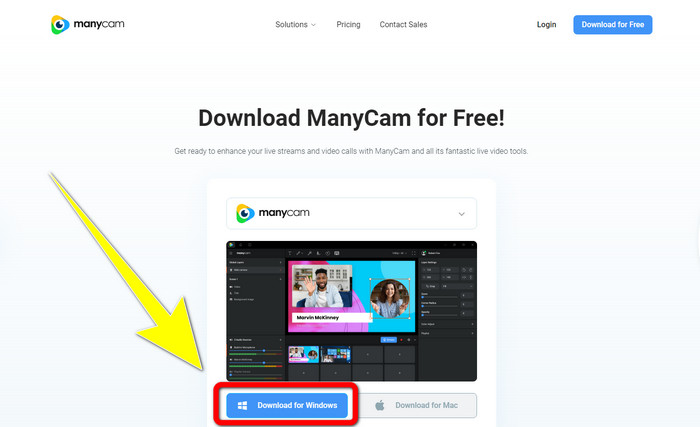
Pasul 1: Pentru a descărca ManyCam, fă clic pe butonul Download for Windows. Apoi continuă cu procesul de instalare.
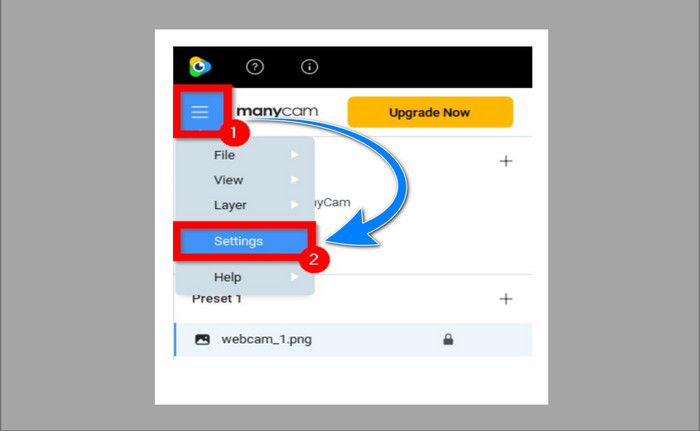
Pasul 2: Lansează aplicația pe computer și fă clic pe pictograma tip „sandviș” din ManyCam, apoi mergi la Settings > Account și conectează-te la contul creat după ce ai cumpărat abonamentul.
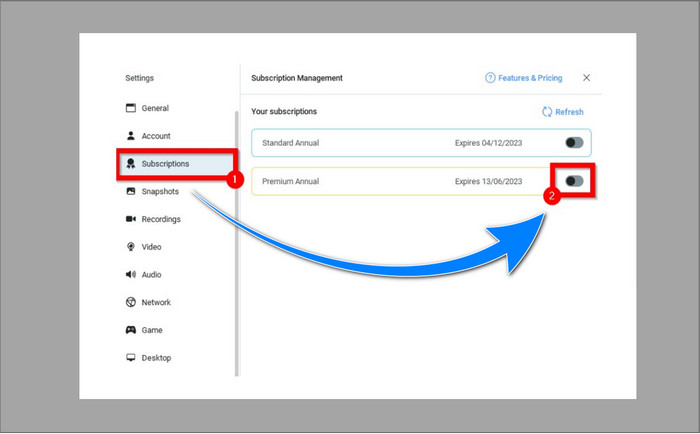
Pasul 3: Mergi la fila Subscription pentru a te asigura că abonamentul este activat.
Pasul 4: Dacă abonamentul este deja activ, va apărea un mesaj Pop-up, iar procesul este finalizat.
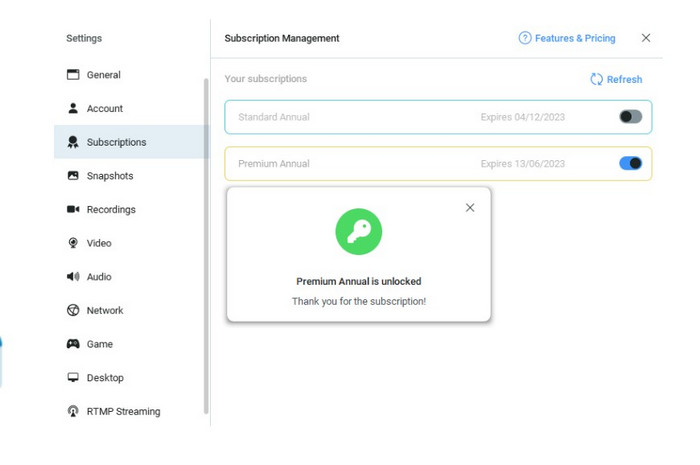
Dacă aplicația dvs. ManyCam este deja activată, filigranele sau sigla de pe videoclipurile dvs. vor fi eliminate automat. Vă puteți bucura de vizionarea videoclipurilor dvs. preferate fără a întâlni filigrane pe ele.
Partea 2: Cum să eliminați sigla ManyCam fără abonament
Vrei să elimini gratuit watermark-ul din ManyCam? Pe lângă aplicația ManyCam, poți folosi și o altă aplicație pentru a elimina logo-ul ManyCam. Cea mai bună aplicație pe care o poți utiliza este Video Converter Ultimate. Această aplicație poate elimina obiectele inutile din videoclipurile tale, precum text, watermark-uri, logo-uri etc. În plus, Video Converter Ultimate are multe instrumente de editare de care te poți bucura, cum ar fi controlul vitezei video, îmbunătățirea videoclipului, adăugarea și eliminarea watermark-urilor, corecția culorilor, amplificator de volum și altele. Cel mai bun instrument pe care îl poți folosi pentru a elimina watermark-uri cu ajutorul Video Converter Ultimate este funcția Video Watermark Remover.
Acest instrument vă va ajuta să eliminați cu ușurință filigranele. În plus, această aplicație este disponibilă atât pe Windows, cât și pe Mac. De asemenea, nu vă va fi greu să utilizați această aplicație. De asemenea, acceptă mai multe formate de fișiere audio și video, cum ar fi MP4, FLV, MOV, MKV, MP3, AAC și multe altele. Dacă doriți să eliminați sigla ManyCam folosind Video Converter Ultimate, acest articol vă va arăta două moduri. Aceste moduri folosesc decuparea video și dispozitivul de îndepărtare a filigranelor video.
1. Folosind Video Cropper
Pasul 1. Descarcă FVC Video Converter Ultimate și treci la procesul de instalare.
Descărcare gratuită pentru Windows 7 sau o versiune ulterioară Descărcare securizată
Descărcare gratuită pentru MacOS 10.7 sau o versiune ulterioară Descărcare securizată
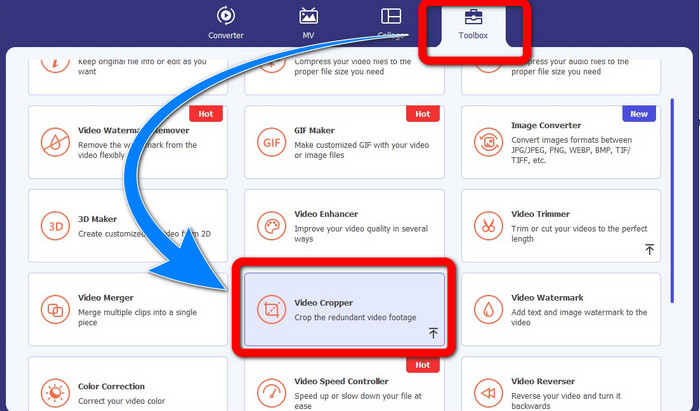
Pasul 2: După instalare, lansează aplicația. Fă clic pe Toolbox > Video Cropper.
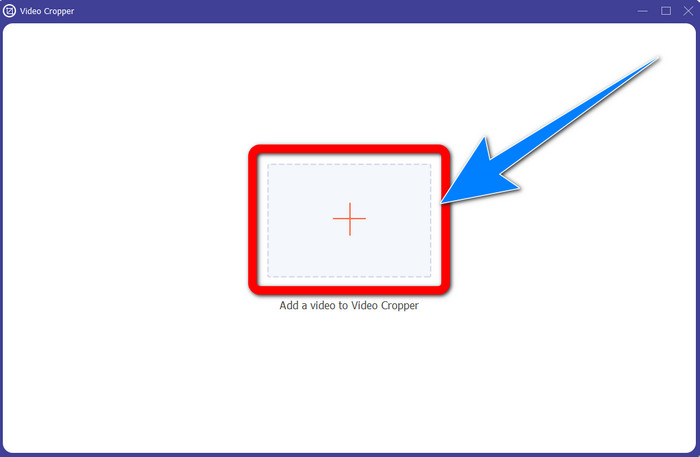
Pasul 3: După ce ai făcut clic pe Video Cropper, va apărea o nouă interfață. Apasă pe butonul cu semnul Plus și adaugă videoclipurile tale cu watermark ManyCam.
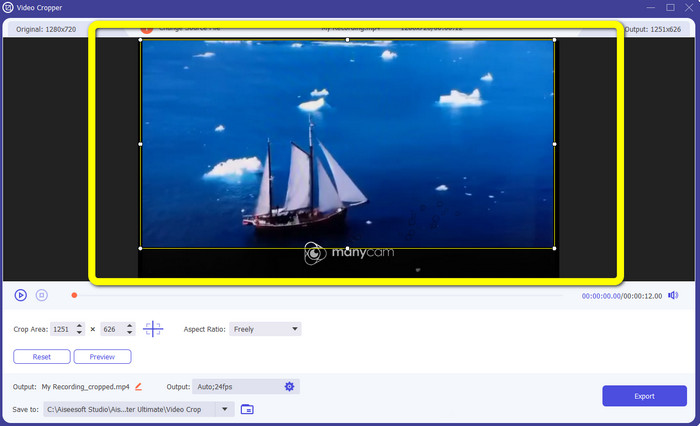
Pasul 4: După ce fișierul a fost adăugat, poți decupa videoclipul și elimina watermark-ul.
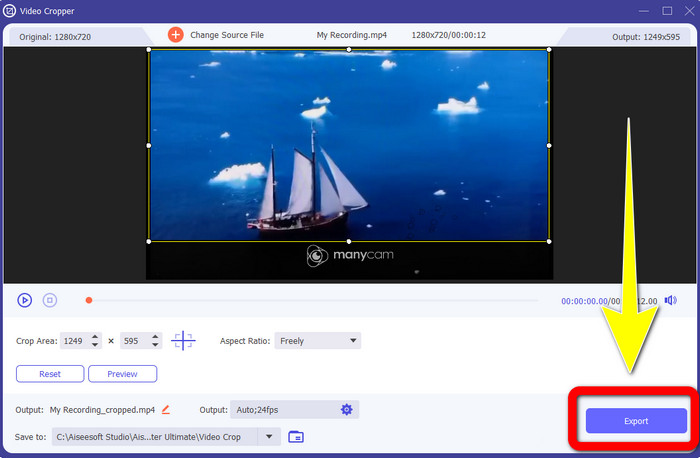
Pasul 5: Când watermark-ul a fost eliminat, fă clic pe butonul Export pentru a-ți salva rezultatul final. Acum poți reda videoclipul preferat fără watermark.
2. Folosind Video Watermark Remover
Pasul 1: Deschide aplicația. Mergi la Toolbox > Video Watermark Remover.
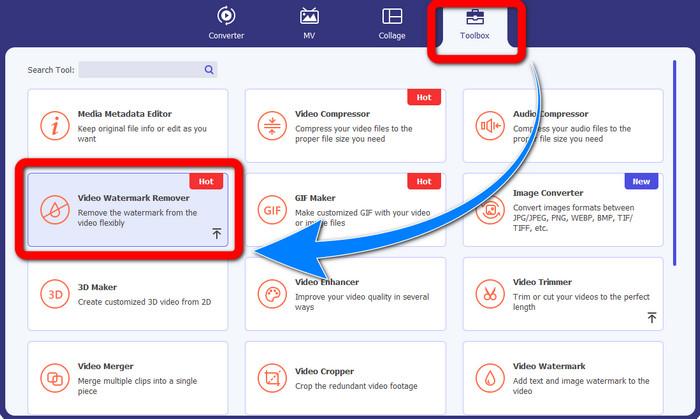
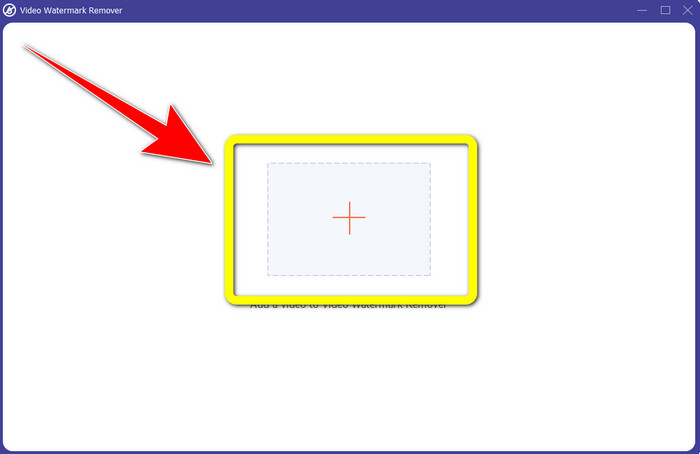
Pasul 2: După ce ai făcut clic pe Video Watermark Remover, va apărea o altă interfață. Apasă pe butonul cu semnul Plus pentru a atașa videoclipul tău cu watermark-uri ManyCam.
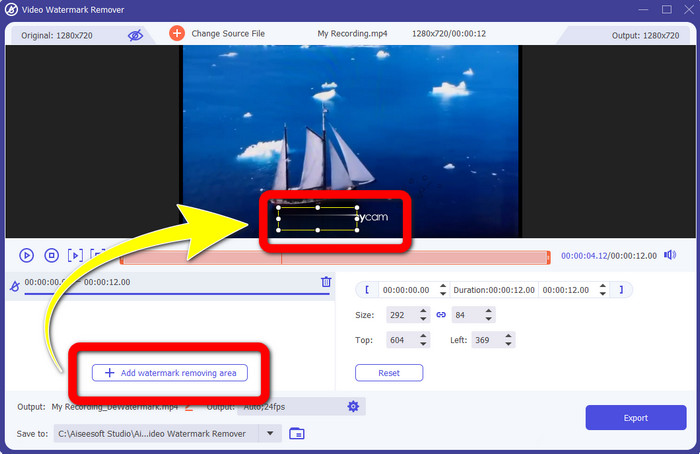
Pasul 3: După ce ai atașat videoclipul, fă clic pe Add Watermark Removing Area, iar în videoclip va apărea o casetă. Trage caseta peste watermark pentru a-l acoperi.
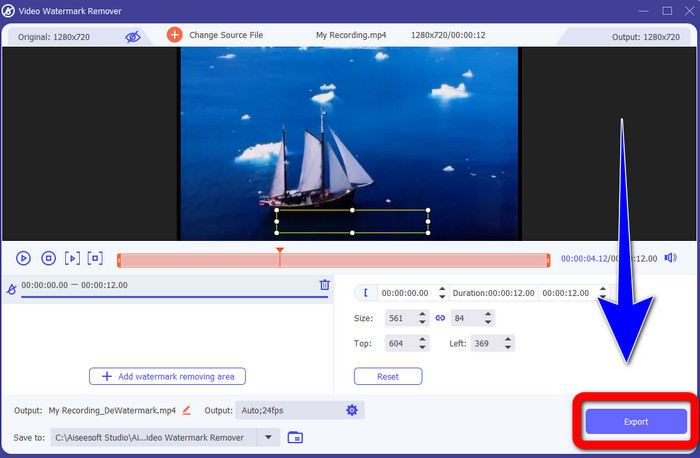
Pasul 4: După ce ai terminat de eliminat watermark-urile din videoclipurile tale, fă clic pe Export pentru a-ți salva rezultatul. Aceasta este cea mai bună metodă de a elimina gratuit logo-ul ManyCam.
Partea 3: Întrebări frecvente despre eliminarea siglei ManyCam
Cât timp va dura eliminarea siglei?
Nu trebuie să așteptați mai mult deoarece procesul de eliminare a siglei sau a oricăror obiecte inutile va dura doar câteva secunde.
Pot elimina sigla ManyCam de pe telefonul meu?
Da! Puteți elimina sigla ManyCam de pe dispozitivele Android sau iPhone folosind diferite aplicații software cu dispozitive de îndepărtare a filigranelor. Căutați aplicația în magazinul dvs. de jocuri sau în magazinul de aplicații și încercați să utilizați acele aplicații pe care le puteți vedea în primele rezultate.
Există o modalitate mai bună de a elimina filigranele de pe Mac-ul meu?
Desigur, da! Poți folosi o aplicație excelentă, cu funcție de eliminare a watermark-ului, pentru a elimina watermark-urile de pe Mac. Această aplicație este Video Converter Ultimate. Este perfectă atât pe Windows, cât și pe Mac. Acest software te poate ajuta să elimini obiectele inutile din videoclipurile tale, cum ar fi logo-uri, watermark-uri, imagini și text.
Pot folosi instrumentul de decupare din aplicația ManyCam pentru a elimina sigla ManyCam?
Din păcate, nu! Folosirea instrumentului de crop pentru a elimina logo-ul ManyCam nu este eficientă. Chiar dacă încerci să decupezi videoclipul pentru a elimina logo-ul, acesta tot va apărea. Singura soluție pentru a îndepărta logo-ul este activarea abonamentului în ManyCam.
În afară de ManyCam, există o modalitate alternativă de a elimina filigranele de pe videoclipurile mele?
Da este! În afară de ManyCam, există mai multe aplicații cu dispozitiv de îndepărtare a filigranelor pe care le puteți utiliza fără a cumpăra. Una dintre cele mai bune aplicații pe care le puteți utiliza pentru a elimina filigranele de pe videoclipurile dvs. este Video Converter Ultimate. Este simplu și ușor de utilizat, ceea ce este potrivit pentru începători.
Concluzie
Pe baza informațiilor de mai sus, poți învăța cum să elimini logo-ul ManyCam pe Windows și Mac. Poți folosi aplicația ManyCam pentru a elimina cu ușurință logo-ul după activarea abonamentului. În plus, dacă vrei să folosești gratuit o aplicație cu funcție de eliminare a watermark-ului, trebuie să utilizezi Video Converter Ultimate. Această aplicație te va ajuta foarte mult să ștergi obiectele inutile din videoclipurile tale.
-
 Cele mai ușoare metode despre cum să eliminați filigranul din fotografii
 Ești iritat de filigranele de pe fotografiile tale? Nu vă faceți griji! Acest articol va oferi metode simple și ușoare de a elimina filigranele din fotografiile dvs.
-
 Cum să eliminați filigranul Powtoon folosind 4 metode eficiente
 Citiți acest articol pentru a afla cum să eliminați filigranul Powtoon folosind cele mai bune instrumente pe care le-am inclus aici și un tutorial.
-
 Apowersoft Watermark Remover Review - Caracteristici, argumente pro și contra și prețuri
 Apowersoft Watermark Remover este una dintre cele mai bune eliminări de filigrane care acceptă online și offline, faceți clic pe aceasta pentru a afla mai multe!
