


 Video Converter Ultimate
 Screen Recorder
 Reparație video
 Descărcare sigură
Cele mai ușoare modalități de a elimina logo-ul din videoclip utilizând Windows Movie Maker
Cum să elimini logo-ul din videoclipuri folosind Windows Movie Maker? Aceasta este cea mai frecventă întrebare a persoanelor care adoră să își urmărească filmele preferate, clipurile video, prezentările de tip slideshow și altele. Nu este deloc satisfăcător să urmărești un videoclip în timp ce vezi un logo pe ecran. Însă nu mai trebuie să îți faci griji. Avem metode eficiente pentru a elimina logo-ul din videoclipurile tale folosind Windows Movie Maker. De asemenea, există și un alt instrument pe care îl poți folosi pentru a elimina logo-ul, în afară de Windows Movie Maker. Dacă vrei să afli mai multe despre această altă aplicație și despre aceste metode simple, continuă să citești acest articol.

Partea 1: Cum să eliminați sigla din videoclip utilizând Windows Movie Maker
Dacă folosești Windows, trebuie să încerci Windows Movie Maker pentru a elimina un logo din videoclipurile tale. De asemenea, acest instrument poate folosi diverse metode pentru a elimina elemente din videoclipuri, precum logo-uri, filigrane, texte, ștampile și altele. În plus, Windows Movie Maker este un software de editare video care îi ajută pe utilizatori să creeze și să îmbunătățească videoclipuri. Mai mult, are o interfață simplă, ceea ce face procesul mai ușor, fiind perfect pentru utilizatorii neprofesioniști. Când elimini logo-ul, îl poți înlocui cu alte elemente, cum ar fi imagini sau text. În plus, această aplicație are numeroase instrumente de editare de care te poți bucura, precum tăierea, îmbinarea, rotirea și decuparea videoclipurilor. Poți, de asemenea, să adaugi tranziții, texte, efecte și multe altele. Dacă vrei să afli această metodă ușoară, urmează pașii de mai jos.
Pasul 1: Mai întâi, descarcă Windows Movie Maker pe computerul tău cu Windows. Așteaptă să se finalizeze instalarea, apoi deschide aplicația.
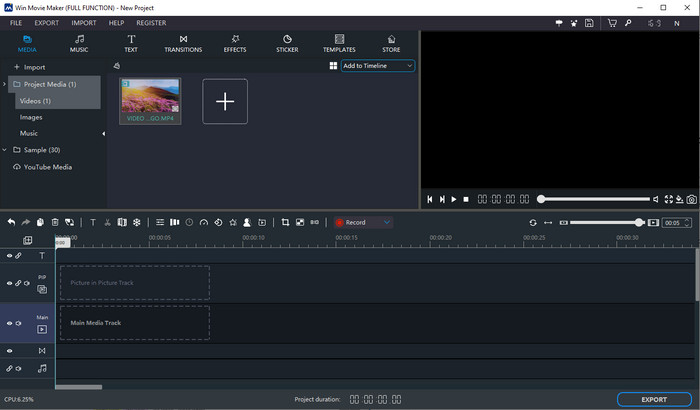
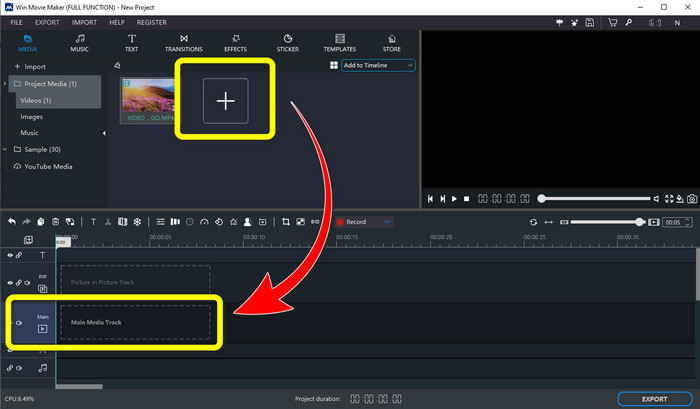
Pasul 2: Fă clic pe pictograma semnului Plus pentru a adăuga videoclipul tău cu logo. Apoi, după ce videoclipul a fost adăugat, trage-l pe Main Media Track (pista media principală).
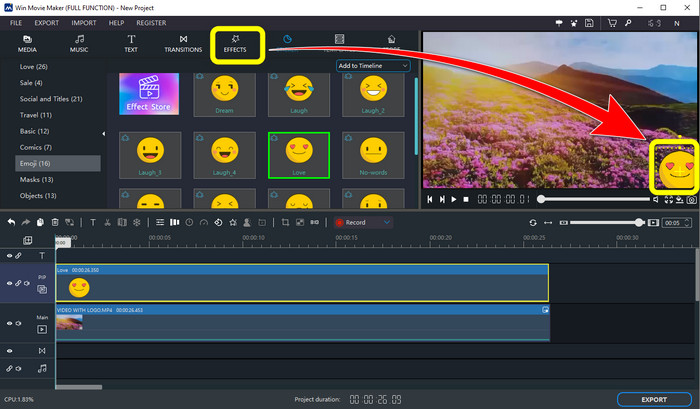
Pasul 3: Pentru a înlocui logo-ul, fă clic pe butonul Sticker. Apoi alege autocolantul dorit sau orice alt element și poziționează-l în zona unde se află logo-ul pentru a-l acoperi.
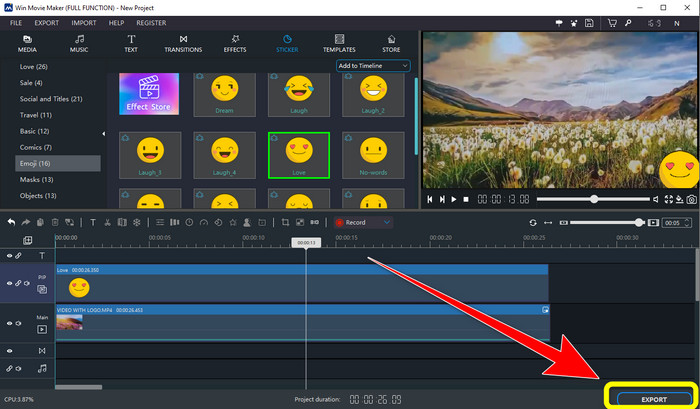
Pasul 4: Pentru ultimul pas, după ce ai terminat de acoperit logo-ul din videoclip, selectează butonul Export pentru a salva rezultatul final.
Partea 2: Cel mai bun mod alternativ de a elimina sigla din videoclip
Video Converter Ultimate este una dintre cele mai bune alternative la Windows Movie Maker pentru a elimina cu ușurință logo-urile din videoclipurile tale. Această aplicație îți permite să elimini elemente nedorite, cum ar fi filigrane, logo-uri, semnături, ștampile și altele. În plus, poți folosi instrumentul de decupare pentru a elimina logo-urile plasate la marginea sau în colțurile videoclipului. Video Converter Ultimate oferă o interfață simplă și intuitivă, potrivită pentru utilizatorii neprofesioniști. Pe lângă eliminarea logo-urilor din videoclipuri, acest software îți pune la dispoziție diverse instrumente de editare de care te poți bucura. Are un compresor video, un controler de viteză video, un creator de GIF-uri, creator de colaje, instrumente de adăugare și eliminare a filigranelor, rotire video și multe altele. De asemenea, suportă diferite formate de fișiere, precum MP4, MKV, FLV, MOV, XVID, DIVX, TRP, MTS etc. În final, Video Converter Ultimate este disponibil atât pe Windows, cât și pe Mac, ceea ce este convenabil pentru utilizatori. Urmează aceste ghiduri detaliate pentru a elimina logo-urile din videoclipuri folosind funcțiile Video Watermark Remover și Video Cropping.
Utilizarea funcției Video Watermark Remover
Pasul 1: Mai întâi, descarcă Video Converter Ultimate și instalează-l pe Windows sau Mac.
Descărcare gratuită pentru Windows 7 sau o versiune ulterioară Descărcare securizată
Descărcare gratuită pentru MacOS 10.7 sau o versiune ulterioară Descărcare securizată
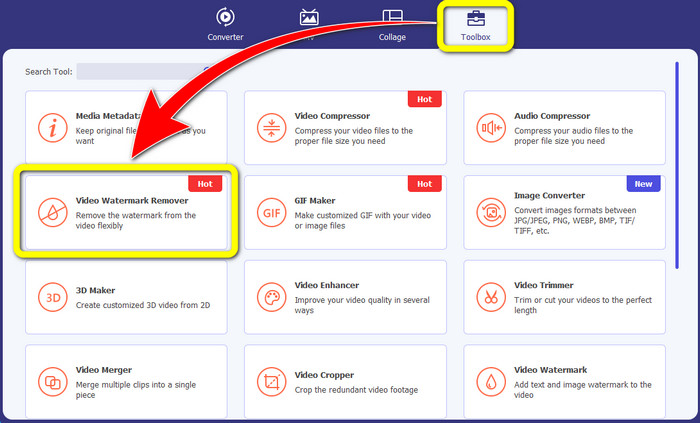
Pasul 2: După lansarea aplicației, mergi la panoul Toolbox, caută Video Watermark Remover și selectează această opțiune.
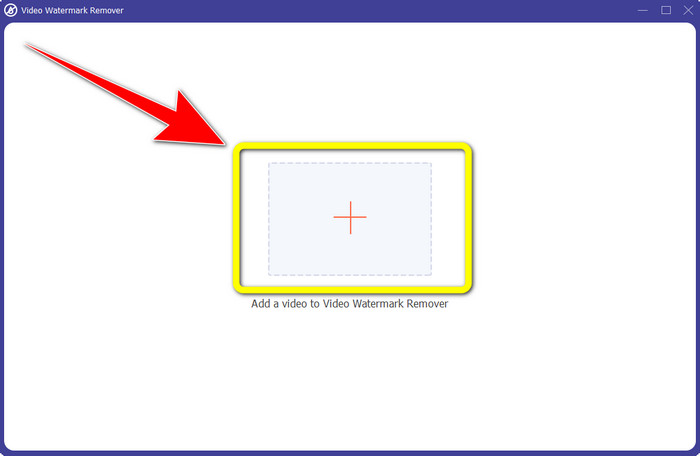
Pasul 3: Apoi va apărea o altă interfață. Fă clic pe pictograma semnului plus pentru a adăuga videoclipul din care vrei să elimini logo-ul.
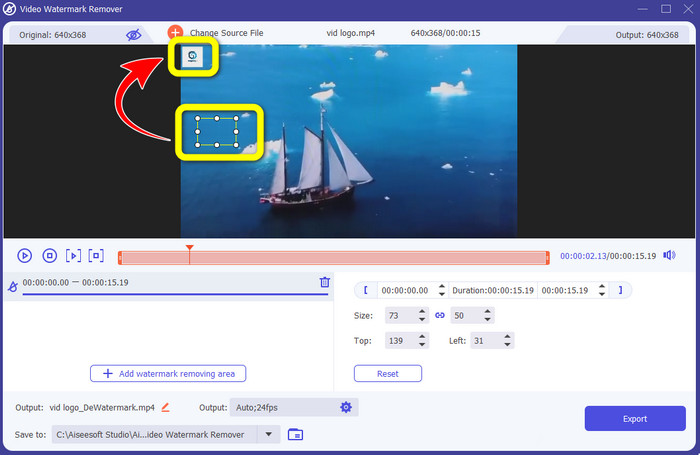
Pasul 4: Dacă ai atașat deja fișierul, pe ecran va apărea o căsuță mică. Trage această casetă peste zona cu logo pentru a o acoperi.
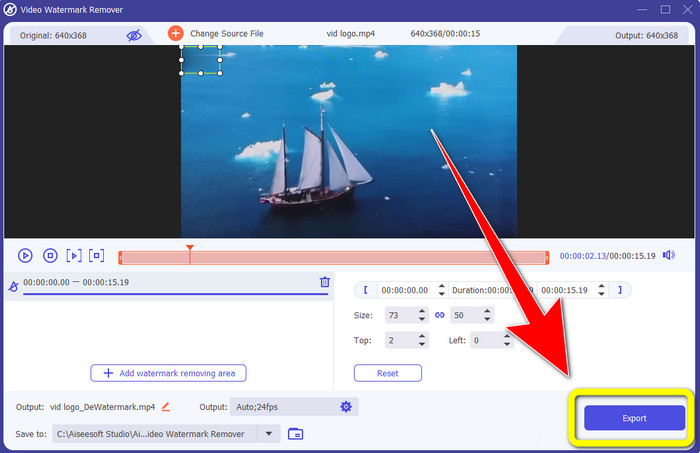
Pasul 5: După ce ai terminat de eliminat logo-ul din videoclipurile tale, selectează butonul Export pentru a exporta și salva videoclipul fără logo.
Utilizarea funcției Video Cropper
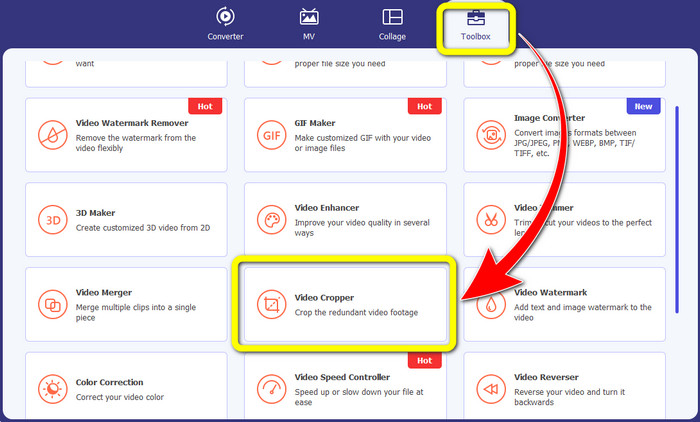
Pasul 1: Mai întâi, fă clic pe panoul Toolbox. Apoi găsește instrumentul Video Cropper și selectează-l.
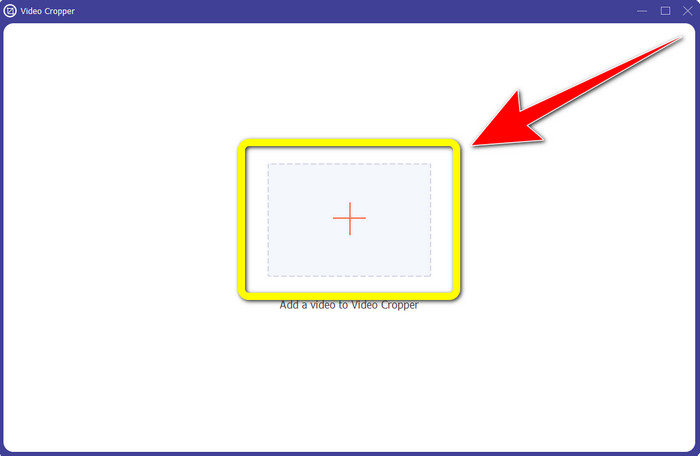
Pasul 2: Apoi poți face clic pe butonul cu semnul Plus pentru a importa videoclipul cu logo.
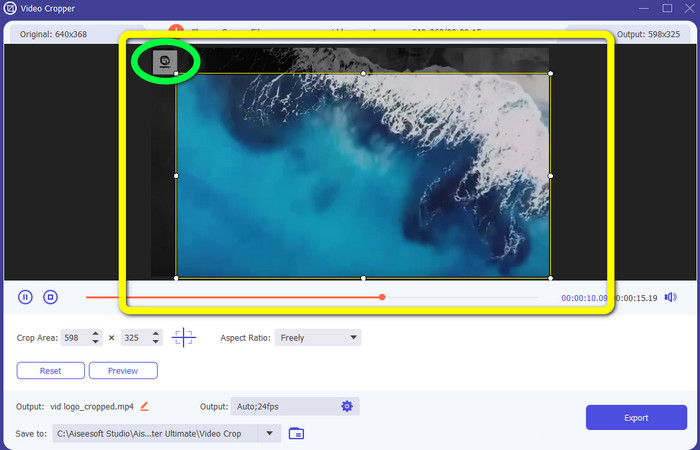
Pasul 3: În această funcție, poți tăia părțile laterale sau partea superioară și inferioară a videoclipului pentru a elimina logo-ul din videoclip.
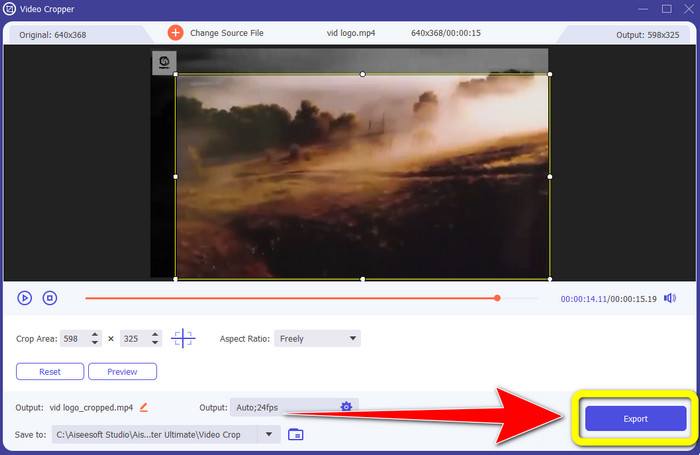
Pasul 4: Pentru ultimul pas, fă clic pe butonul Export și salvează videoclipul pe computer.
Partea 3: Întrebări frecvente despre eliminarea siglei din videoclip utilizând Windows Movie Maker
Cât timp va dura să-mi exporti videoclipul în Windows Movie Maker după eliminarea siglei?
Folosind Windows Movie Maker, vă puteți exporta videoclipul în doar un minut după eliminarea siglei.
Care aplicație este cea mai bună atunci când eliminați sigle dintr-un videoclip?
Dacă ești în căutarea celei mai bune și mai fiabile aplicații cu funcție de eliminare a logo-urilor, poți folosi Video Converter Ultimate. Această aplicație îți permite să te bucuri de videoclipurile tale după ce ai eliminat logo-urile din ele.
Există o aplicație utilă pe care să o pot folosi pentru a elimina siglele din videoclipuri folosind telefonul meu?
Desigur că da! Poți folosi aplicația PicLab. Este disponibilă atât pe Android, cât și pe iPhone. Iată un ghid general:
1. Descarcă PicLab pe telefon și deschide aplicația.
2. Atașează fișierul și selectează instrumentul marker.
3. Alege partea pe care vrei să o elimini, apoi apasă pe ștergere și salvează.
Este posibil să eliminați sigla dintr-un videoclip fără a pierde calitatea?
Da, bineînțeles! Cea mai recomandată aplicație pe care o poți folosi este Video Converter Ultimate.
Există un instrument online pe care îl pot folosi pentru a elimina o siglă din videoclipurile mele?
Cu siguranță, da! Poți folosi multe instrumente online pentru a elimina un logo din videoclipurile tale. Poți folosi Apowersoft Online Watermark Remover. Iată câțiva pași simpli pentru a utiliza acest instrument:
1. Accesează site-ul Apowersoft Online Watermark Remover și fă clic pe butonul remove watermark from video.
2. Atașează fișierul. Folosește caseta pentru a acoperi logo-ul.
3. Fă clic pe Erase și descarcă videoclipul.
Concluzie
Acest articol ți-a oferit metode excelente despre cum să elimini un logo dintr-un videoclip folosind Windows Movie Maker pe computer. De asemenea, pe lângă utilizarea Windows Movie Maker, acest articol îți propune și una dintre cele mai bune alternative pentru a elimina un logo din videoclipurile tale. Această aplicație de încredere este Video Converter Ultimate. Acest software te poate ajuta să elimini logo-ul prin două metode simple. Prima este instrumentul Video Watermark Remover, iar cealaltă este instrumentul Video Cropper.
-
 Cum să eliminați filigranul Bandicam fără efort [3 moduri eficiente]
 Cum să eliminați filigranul Bandicam? Cu instrumentele, adăugăm aici că vei ști cum să faci față eficient!
-
 Cum să eliminați filigranul iStock utilizând cele mai eficiente moduri
 Cum să eliminați filigranul iStock de pe videoclipuri și imagini? Dacă cauți o cale de ieșire pentru a scăpa de filigran, citește asta!
-
 Eliminați filigranul DaVinci Resolve de pe videoclipurile exportate cu un tutorial complet
 Pentru a elimina filigranul Davinci Resolve, va trebui să utilizați un instrument sau să cumpărați versiunea oficială a acestuia, continuați să citiți aceasta pentru a afla mai multe.
