


 Video Converter Ultimate
 Screen Recorder
 Reparație video
 Descărcare sigură
100% Modalități gratuite de a comprima dimensiunea fișierului M4V de la GB la MB
Formatul de fișier M4V, similar cu MP4, este un container video excelent produs de Apple. Puteți reda fișiere M4V pe aproape toți jucătorii populari, cum ar fi iTunes, QuickTime, VLC Media Player, RealPlayer și multe altele. Uneori, este posibil să găsiți că videoclipul dvs. M4V este prea mare pentru a fi stocat sau distribuit. În această situație, trebuie să reduceți dimensiunea fișierului.
If you don’t know how to compress M4V, you can try the options below.

Partea 1. Cum se poate comprima M4V online gratuit
După cum am menționat, poate fi puțin greu să editați și să partajați un fișier video mare pe YouTube, Facebook, Instagram sau alte site-uri de streaming. Deoarece aceste site-uri au de obicei o limitare strictă a dimensiunii videoclipului pe care îl încărcați. În plus, fișierele mari pot ocupa mult spațiu pe computer, unitate de disc, telefon, unitate flash, card de memorie etc.
Therefore, when you have a large M4V file, you’d better shrink the size with a professional video compressor. If you are looking for a free program, why not try FVC Free Video Compressor? It is completely free to use. What’s more, it is an online compressing tool, which means you can compress any video to the desired size without installing huge software on your computer.
Îl puteți folosi pe orice browser principal, cum ar fi Google Chrome, Mozilla Firefox și Microsoft Edge. Și nu va fi adăugat niciun filigran la videoclipul comprimat. Puteți chiar să vă bucurați de videoclipuri cu o calitate ridicată a imaginii.
Iată pașii pentru a comprima online fișiere mari M4V.
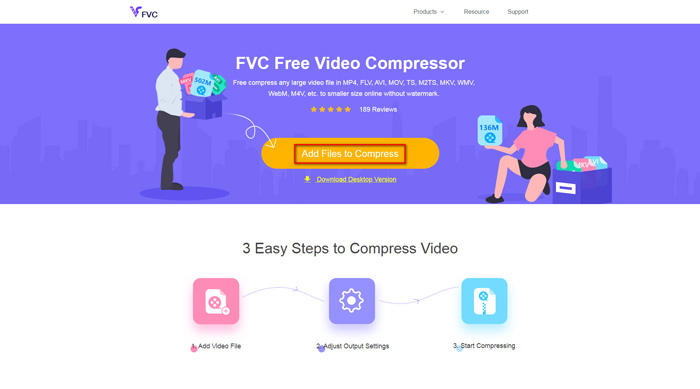
Step 1. Go to the website of FVC Free Video Compressor on your browser. You will see an Add Files to Compress button in the banner. Click it and follow the instruction to download and install the FVC launcher on your computer.
Step 2. After that, you need to select the M4V file you want to compress. Then you can move the slider behind the Size box to adjust and find the exact file size you want effortlessly. You can also change the resolution and bitrate separately according to your needs.
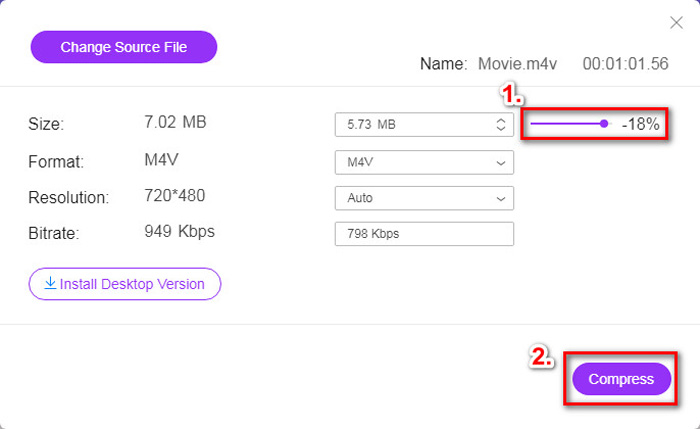
Step 3. If you want to compress M4V to MP4, then you should choose MP4 as the output format here. If not, you can click Compress in the right corner directly. Select a folder to save the compressed video and wait for a few seconds to get the wanted video.
Partea 2. Cum se reduce dimensiunea fișierului M4V pe Mac / Windows
As M4V is a format developed by Apple, you can also use Apple’s default player, QuickTime Player, to compress M4V files on Mac. Also, QuickTime Player offers a Windows version for PC users. But you should notice that the latest version for Windows is QuickTime 7.7.9 which is released in 2016. So, if what you want is a newly released program, you can try FVC Free Video Compressor that can even handle 4K videos.
Oricum, urmați pașii de mai jos pentru a reduce dimensiunea fișierului M4V în QuickTime.
Step 1. Open the M4V file waiting to be compressed with QuickTime.
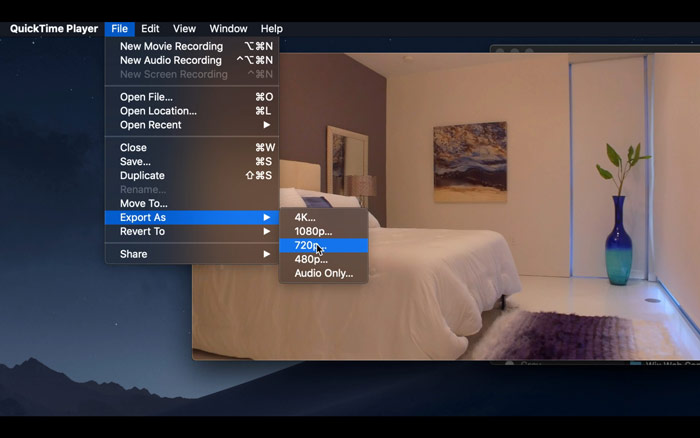
Step 2. Locate the File menu in the upper left corner. Click it and find the Export As option from the list. Then pick a resolution that is lower than the original video to compress the video. After all, we don’t want to increase the size here.
Step 3. If you don’t want to change the saving path, you can straight click Save. Please wait patiently to export the video.
Partea 3. Întrebări frecvente despre comprimarea M4V
1. Pot redenumi M4V în MP4?
No, if what you mean is to convert M4V to MP4 by renaming the suffix to .mp4. Because their encoding is not the same. You should rely on a more professional tool to convert M4V to MP4.
2. Acceptă YouTube formatul M4V?
Din păcate, YouTube acceptă doar un număr limitat de formate de fișiere care nu includ M4V. Deci, dacă doriți să încărcați videoclipul M4V pe YouTube, ar trebui să îl convertiți într-un format acceptat de YouTube, cum ar fi MP4.
3. Cum se îmbină mai multe videoclipuri M4V într-unul?
If you have several M4V video files that need to be combined into one, you can try FVC Free Online Video Merger to merge various video files.
Concluzie
Now you have 2 simple and free ways to compress M4V file. If you are a Mac user, you can use QuickTime Player to reduce the video size. But if you are not satisfied with fixed resolutions QuickTime provides or you are using a Windows PC, you can give FVC Free Video Compressor a shot.
-
 Convertor M4V în MP3 - 4 cele mai bune metode pentru a extrage MP3 din fișiere M4V
 Când doriți să extrageți cu ușurință audio MP3 din videoclipurile M4V, puteți afla mai multe despre cele mai bune 4 convertoare M4V în MP3 pentru a obține fișierele audio dorite din articol.
-
 4 moduri de a converti filme QuickTime în MP4 gratuit pe telefon / computer
 Citiți și obțineți 4 moduri de a converti gratuit QuickTime în videoclipuri MP4 pe telefon sau computer. Puteți schimba cu ușurință formatul de fișier de la MOV la MP4 pe Windows / Mac / iPhone / Android / online.
-
 4 cele mai bune convertoare MP4 în M4V pentru a transforma videoclipurile MP4 în M4V cu ușurință
 Când trebuie să schimbați fișierele MP4 în M4V, ar trebui să aflați mai multe detalii despre diferențele dintre cele două formate, precum și cele mai bune convertoare MP4 în M4V din articol.
