


 Video Converter Ultimate
 Screen Recorder
 Reparație video
 Descărcare sigură
Tehnici de primă clasă despre cum să convertiți MPEG în M4V
Is your MPEG file not playable on QuickTime Player? If that is your problem, then the most excellent solution you can try is to convert your MPEG file to M4V format. You can play an M4V file on QuickTime Player and other Media Players. In this guidepost, we will give you the best three methods you can do to convert MPEG to M4V instantly with the help of Mac and online tools. In addition, we will show you the differences between the MPEG file format and M4V. So that you will get an idea about these two formats. Let’s read this article already and learn more about these methods.

Partea 1: Care sunt diferențele dintre MPEG și M4V
Consultați tabelul de mai jos pentru a vedea informațiile despre formatele de fișiere MPEG și M4V.
| MPEG | M4V | |
| Descriere | Când MPEG-1 a fost creat în 1993, a câștigat rapid popularitate ca format de stocare atât pentru audio, cât și pentru video. Acum este tipul media care este cel mai compatibil la nivel mondial. Când formatul a apărut inițial, era inovator și înaintea timpului său, furnizând fișiere de o calitate rezonabilă, micșorându-le în același timp dimensiunea și comprimând datele, făcând simplă încărcarea și descărcarea fișierelor. Aceste caracteristici au permis difuzarea audio digitală, TV digitală și video. Deoarece MPG este depășit și nu mai este protejat de brevete, numeroase hardware și software Mac și Windows sunt echipate cu suport nativ pentru video și audio MPEG. | M4V, un tip de container video în care fișierele iTunes pot stoca date audio și video. Cel mai bine este să achiziționați fișiere audio sau video din magazinul iTunes dacă acestea sunt Apple FairPlay DRM protejate împotriva vizionării și copierii neautorizate. Deoarece formatul se bazează pe structura MPEG-4, practic orice player contemporan poate afișa fișiere neprotejate. |
| Categoria de fișiere | Video | Video |
| Extensie de fișier | .mpeg | .m4v |
| Dezvoltator | ISO, IEC | măr |
| Programe asociate | VLC Media Player LAN video Windows Media Player | Quicktime Player VLC Media Player Apple iTunes |
Partea 2: Metodă excelentă de a converti MPEG în M4V folosind Mac
You can download the Video Converter Ultimate to easily convert MPEG to M4V on Mac. It has a high-speed conversion process of 30x faster than other converters. Also, it offers batch conversion. In this way, you can convert your MPEG file to M4V format, and at the same time, you can convert more files simultaneously. With this kind of process, you can ensure that you can convert numerous files in a short period of time. You can also convert your MPEG file to other formats, such as MOV, MKV, WMV, MP4, AVI, FLV, and 100+ more. Furthermore, Video Converter Ultimate is not only reliable in converting. If you want to crop your MPEG video before converting it, you can do it here in this application. This converter offers a cropping tool to cut and crop your video to remove the parts you don’t want to see. Also, if you plan to create a photo collage, you can use this application. It offers a collage maker feature. With this feature, you can use free templates with various designs, and also it has numerous filters you can use. In this way, making a fantastic collage is possible. If you desire to discover more about this application, you have to try utilizing it yourself.
Funcții
◆ Convertiți peste 100 de formate de fișiere video, inclusiv M4V, MPEG, MKV, WMV, MOV, FLV, AVI, MP4 și multe altele.
◆ Poate crea un colaj cu șabloane și filtre gratuite.
◆ Oferă diverse instrumente de editare, cum ar fi amplificator video, compresor, corectare a culorilor, cropper etc.
◆ Capabil să realizeze un videoclip muzical atractiv cu teme gratuite.
◆ Poate încetini și accelera un videoclip de la 0,125x până la 8x mai rapid.
◆ Poate comprima video și audio.
Pro
- Perfect pentru utilizatorul neprofesionist.
- Poate converti fișiere de 30 de ori mai rapid decât viteza normală de conversie.
- Are o interfață intuitivă.
- Oferă proces de conversie în lot.
Contra
- Trebuie să achiziționați software-ul pentru a vă bucura de caracteristicile excelente ale versiunii pro.
Urmați ghidul simplu de mai jos pentru a converti MPEG în M4V folosind Mac.
Step 1: Click the Download button to download and install Video Converter Ultimate on your Mac. After that, launch the application.
Descărcare gratuită pentru Windows 7 sau o versiune ulterioară Descărcare securizată
Descărcare gratuită pentru MacOS 10.7 sau o versiune ulterioară Descărcare securizată
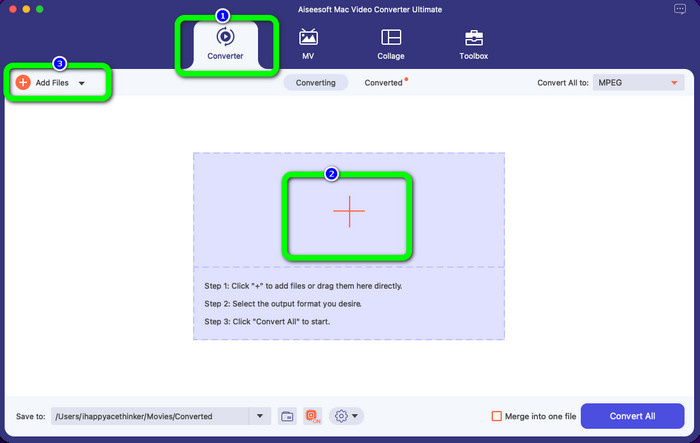
Step 2: After opening the application, you will see the four options on the upper part of the interface. Select the Converter option and click the Plus icon on the middle part of the interface to add the MPEG video you want to convert. You can also click the Add Files button.
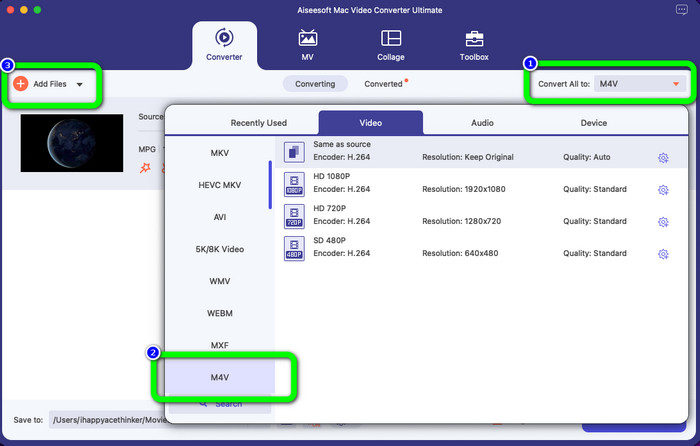
Step 3: When you insert your MPEG video file, select the Convert All to button at the upper right of the interface. Then the format options will show up on your screen. Click the M4V file, which is your desired output format. This tool offers batch conversion, so you can click the Add Files button to add more files you want to convert.
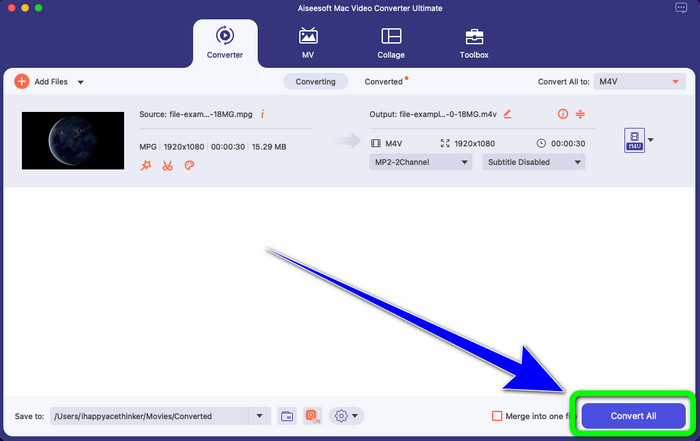
Step 4: If you are done changing the MPEG file to your desired format, click the Convert All button to save your final video with an M4V file format.
Partea 3: Cel mai bun mod de a converti online MPEG în M4V
The best way to convert MPEG to M4V using an online tool is FVC Free Video Converter Online. It is a versatile video converter that has the capability to convert almost all formats, such as AVI, MOV, MP4, FLV, TS, and more. Also, you can convert your MPEG file while still keeping its original quality. Also, this converter is 100% free, so you can use this tool limitlessly without spending any money. Follow the simple steps below to convert MPEG to M4V using FVC Free Video Converter Online.
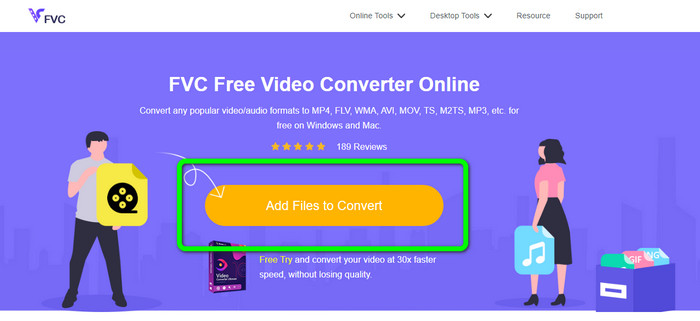
Step 1: Open your browser and visit the FVC Free Video Converter Online website. Next, click the Add Files to Convert button. Your folder will appear on your screen, and pick the MPEG file you want to convert.
Step 2: After adding your MPEG video file, you will see the format options on the lower part of the interface. Select your desired output format, which is the M4V file.
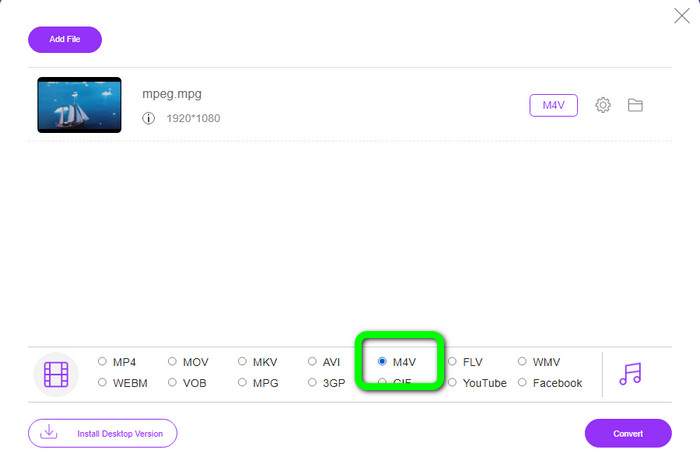
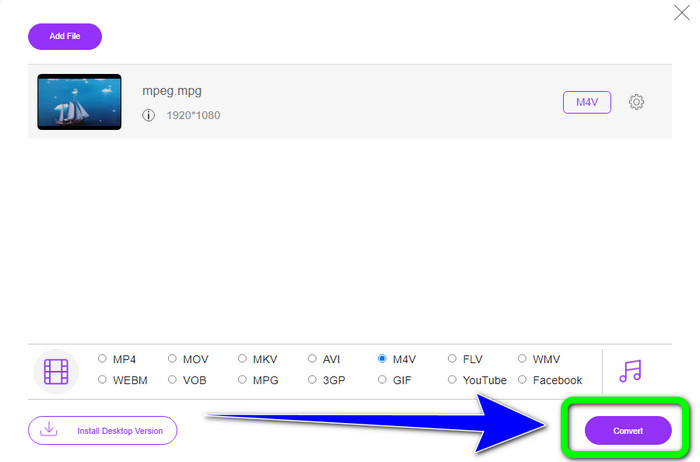
Step 3: For the final step, click the Convert button after selecting the M4V file format. Then, save it in your desired location. Wait for the conversion process, and click OK. This tool also helps you convert MP4 to M4V online.
Partea 4: Întrebări frecvente despre conversia MPEG în M4V
Cum se utilizează FFmpeg pentru a converti MPEG în M4V?
Descărcați FFmpeg pe computer. Apoi deschideți promptul de comandă. Comutați linia de comandă la „Desktop”. Comanda de conversie începe cu FFmpeg -i, urmată de numele și tipul de fișier al fișierului sursă, precum și de numele și tipul de fișier al fișierului de ieșire. Apoi, apăsați „Enter” și așteptați procesul de conversie. După conversie, veți vedea fișierul convertit pe desktop.
VLC poate converti MPEG în MP4?
Yes. A popular cross-platform media player, VLC can play all major file types, including MP4, MPEG, AVI, MOV, and more. The player may be used to quickly and easily convert your MPG files to MP4 because it also enables file conversion.
Pot folosi un instrument excelent online pentru a converti fișiere MPEG în alte formate?
Yes, of course! You can use FVC Free Video Converter Online. This online tool can instantly convert your MPEG file to other formats without changing the video quality.
Concluzie
The two methods shown above are the best solution to convert MPEG to M4V file format. You can use the Video Converter Ultimate if you want a downloadable converter. And if you prefer using an online tool, you can use FVC Free Video Converter Online.
-
 3 moduri de a converti MPG în 3GP pe Windows și Mac [gratuit]
 Dacă căutați modalități de a converti MPG în 3GP, citiți acest articol pentru a afla cele mai bune modalități de a converti MPG în 3GP pe Windows și Mac.
-
 Cum să convertiți MPG în DivX fără a avea pierderi de calitate
 Căutați o aplicație fără probleme pe care să o puteți utiliza pentru a converti MPG în DivX? Acest articol vă va oferi diferite metode eficiente pe care trebuie să le încercați.
-
 Cum să convertiți M4V în DivX gratuit pe Mac [Cele mai bune instrumente]
 Căutați modalități de a converti M4V în DivX gratuit? Am enumerat cele mai bune convertoare pentru a vă converti fișierul M4V în DivX pe Mac.
