


 Video Converter Ultimate
 Screen Recorder
 Reparație video
 Descărcare sigură
Metode extraordinare pentru a converti MTS în M4V instantaneu
Vrei un convertor eficient pentru dispozitivul tău? Atunci îți vei face o idee citind informațiile din acest articol. Îți vom arăta diverse moduri de a converti MTS în M4V folosind Mac și Windows. De asemenea, vei descoperi un instrument online pe care îl poți încerca pentru a converti mai multe fișiere.

Partea 1: Diferențele dintre MTS și M4V
Pentru a vedea diferențele dintre aceste două formate de fișiere, consultați detaliile din tabelul de mai jos.
| MTS | M4V | |
| Extensie de fișier | Extensia de nume de fișier al fișierului video AVCHD (Advanced Video Coding High Definition) este MTS. Are o extensie de fișier .mts și include un videoclip HD MPEG înregistrat cu anumite mărci și modele de camere video, inclusiv JVC, Sony, Canon și Sanyo. Se poate deschide pe multe programe software și acceptă videoclipuri HD de până la 1080i x 720p. | Apple Inc. a creat formatul de container video digital M4V. În ceea ce privește structura, este în mod rezonabil comparabil cu binecunoscutul MP4, dar fișierele M4V pot veni cu DRM. Principalul format video pentru videoclipuri de pe iTunes Store în prezent este M4V, care poate multiplexa mai multe date audio și video. |
| Dezvoltat de | Sony/Panasonic | Compania Apple. |
| Programe asociate | VLC Media Player Apple Final Cut Pro X Roxio Creator NXT Pro 7 | Media Player Classic KMPlayer VLC Media Player Zoom Player |
| Tip MIME | video/mp2t | video/x-m4v |
Partea 2: Metode excelente pentru a converti mai multe MTS în M4V folosind Mac
Dacă doriți să convertiți MTS în M4V folosind Mac, puteți încerca FVC Video Converter Ultimate. Acest instrument offline poate converti fișiere instantaneu, deoarece are o viteză de conversie de 30 de ori mai mare. În plus, acest instrument oferă conversie în lot, ceea ce face posibilă conversia mai multor formate de fișiere simultan. De asemenea, aproape toate formatele video pot fi încărcate în această aplicație, deoarece acceptă numeroase formate de fișiere, inclusiv MKV, MOV, MP4, FLV, AVI, SWF și multe altele. De asemenea, puteți edita fișierul video MTS. Vă puteți baza pe acest instrument dacă aveți mai multe fișiere MTS și doriți ca acestea să se combine, deoarece oferă un instrument de fuziune video. În acest fel, puteți îmbina mai multe videoclipuri MTS într-o singură bucată. De asemenea, dacă doriți să reglați volumul videoclipului dvs. MTS, puteți utiliza instrumentul de amplificare a volumului. Cu ajutorul acestei aplicații offline, poți schimba cu ușurință volumul videoclipului tău. Există mai multe funcții de care vă puteți bucura folosind Video Converter Ultimate.
Funcții
◆ Poate converti peste 100 de formate de fișiere video.
◆ Oferă un creator de videoclipuri muzicale cu multe teme gratuite.
◆ Crearea unui colaj cu șabloane gratuite și filtru este disponibilă.
◆ Oferă instrumente de editare precum un controler de viteză video, compresor și decupare.
◆ Poate elimina filigranele dintr-un videoclip.
Urmați pașii de bază de mai jos pentru a converti fișierul video MTS în format M4V utilizând FVC Video Converter Ultimate pe Mac.
Pasul 1: Folosind Mac-ul tău, descarcă FVC Video Converter Ultimate făcând clic pe butonul Download de mai jos. Apoi pornește aplicația.
Descărcare gratuită pentru Windows 7 sau o versiune ulterioară Descărcare securizată
Descărcare gratuită pentru MacOS 10.7 sau o versiune ulterioară Descărcare securizată
Pasul 2: În mijlocul interfeței, apasă pictograma Plus pentru a adăuga fișierul video MTS. Poți, de asemenea, să tragi fișierul direct în căsuță.
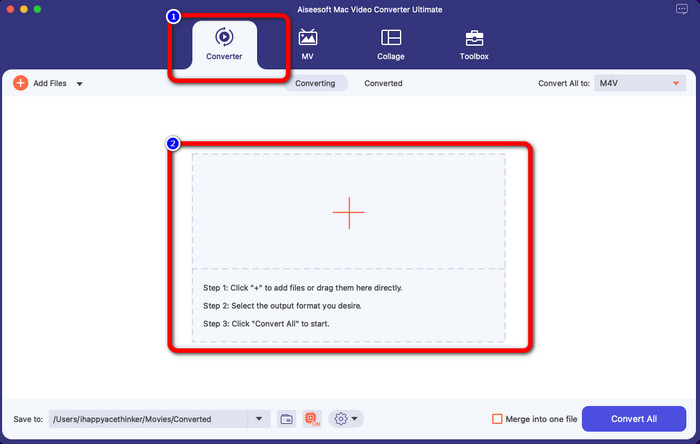
Pasul 3: Pentru următoarea procedură, vei vedea butonul Convert All to în partea dreaptă sus a interfeței. Apasă pe el pentru a vedea opțiunile de format, apoi selectează formatul de fișier M4V. Pentru a adăuga mai multe fișiere MTS, apasă butonul Add Files în partea stângă sus a interfeței.
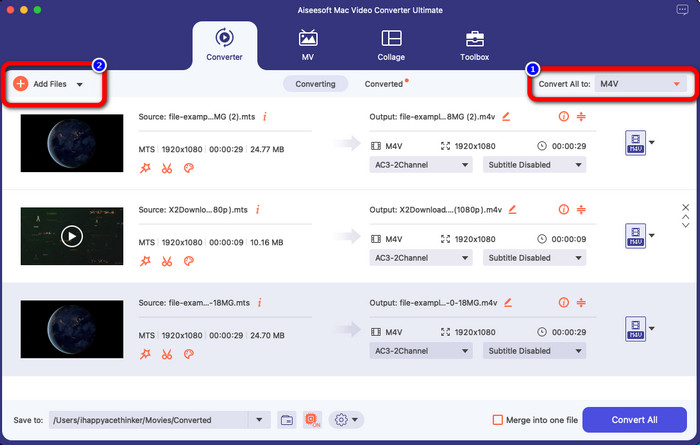
Pasul 4: După ce ai convertit toate fișierele MTS în format M4V, apasă butonul Convert All și salvează rezultatul final în locația dorită.
Partea 3: Cum să convertiți gratuit mai multe fișiere MTS în M4V pe Windows
În această parte, vei descoperi cum să convertești mai multe fișiere MTS într-un singur M4V folosind Windows. Pentru a converti fișiere MTS, poți utiliza FVC Free TS Converter. Poate converti fișierele tale video de 10 ori mai rapid decât viteza medie de conversie. Oferă conversie în lot, astfel încât poți converti mai multe fișiere dintr-o singură dată. În acest fel, nu te vei plictisi convertind fișiere unul câte unul. În plus, are o interfață intuitivă, cu metode de bază, ceea ce îl face mai potrivit pentru utilizatori. Dacă vrei să convertești mai multe fișiere MTS în format M4V folosind FVC Free TS Converter pe Windows, urmează pașii simpli de mai jos.
Funcții
◆ Convertiți formate de fișiere video, cum ar fi AVI, MOV, MPEG, MP4, DIVX, XVID etc.
◆ Oferă un Video Enhancer.
◆ Capabil de înregistrare pe ecran.
◆ Poate reda orice disc Blu-ray.
◆ Oferă conversie în lot.
Pasul 1: Descarcă FVC Free TS Converter pe Windows făcând clic pe butonul Download de mai jos. Pornește aplicația după procesul de instalare.
Descărcare gratuităPentru Windows 7 sau versiuni ulterioareDescărcare sigură
Descărcare gratuităPentru MacOS 10.7 sau versiuni ulterioareDescărcare sigură
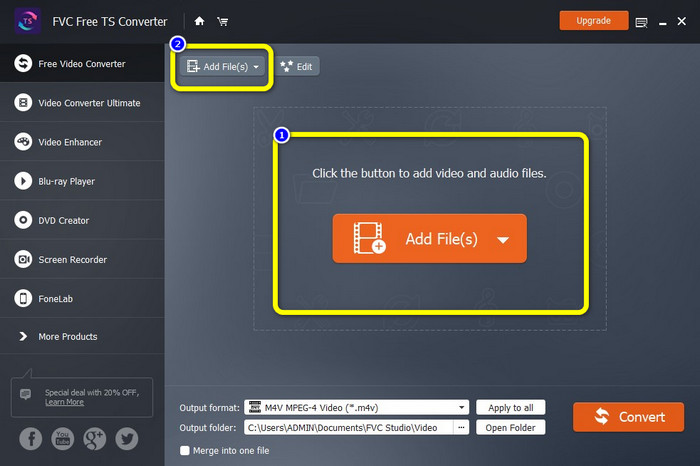
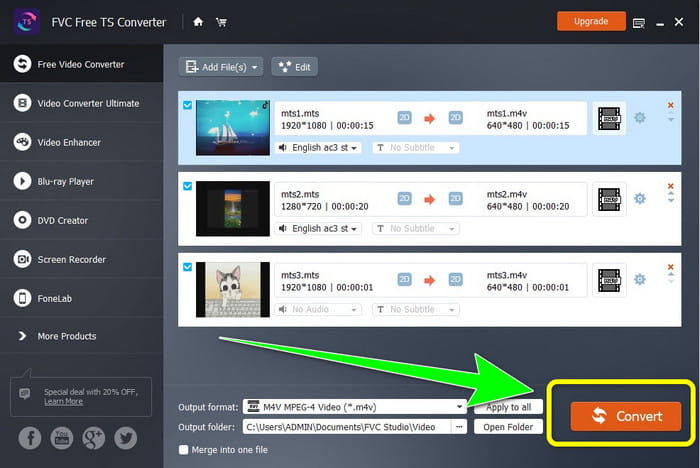
Pasul 2: După lansarea aplicației, apasă butonul Add Files din centru pentru a încărca fișierele MTS. Poți, de asemenea, să dai clic pe celălalt buton Add Files din partea superioară a interfeței pentru a adăuga mai multe fișiere MTS pe care vrei să le convertești.
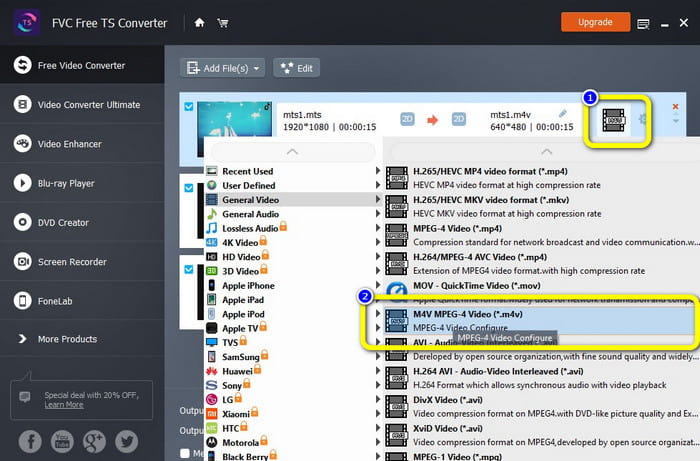
Pasul 3: Dă clic pe opțiunile de format din partea dreaptă a interfeței. Apoi selectează formatul de fișier M4V ca format de ieșire. Urmează aceeași procedură pentru fișierele MTS rămase.
Pasul 4: Apasă butonul Convert pentru a converti mai multe fișiere MTS în format M4V.
Partea 4: Cele mai bune modalități de a converti MTS în M4V utilizând aplicația online
Când convertești MTS în M4V folosind un instrument online, cel mai bun convertor pe care îl poți folosi este FVC Free Video Converter Online. Cu ajutorul acestui instrument, poți converti cu ușurință fișierul MTS în M4V. Sunt necesari doar trei pași pentru a converti fișierele. De asemenea, acest instrument online este complet gratuit. Așadar, fără alte introduceri, hai să convertim MTS în format de fișier M4V. Urmează pașii pe care ți i-am oferit!
Funcții
◆ Convertiți mai multe fișiere, cum ar fi MP4, FLV, WMA, MOV, MTS, M4V etc.
◆ Permite conversia în lot.
◆ Accesibil atât pe Mac, cât și pe Windows.
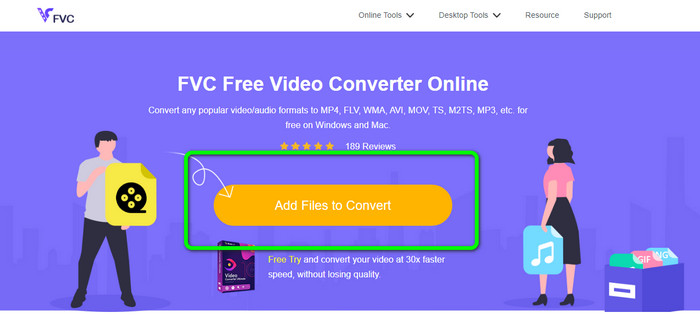
Pasul 1: Vizitează site-ul FVC Free Video Converter Online. Apoi apasă butonul Add Files to Convert pentru a încărca videoclipul MTS.
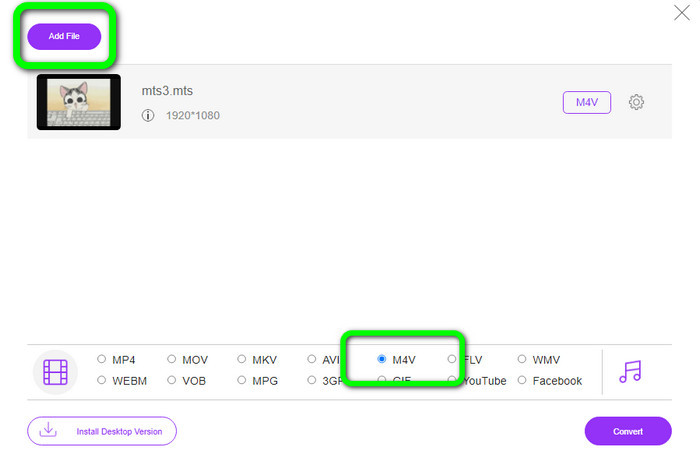
Pasul 2: În continuare, selectează formatul M4V din opțiunile de format din partea de jos a interfeței. Poți, de asemenea, să dai clic pe butonul Add File pentru a converti mai multe fișiere.
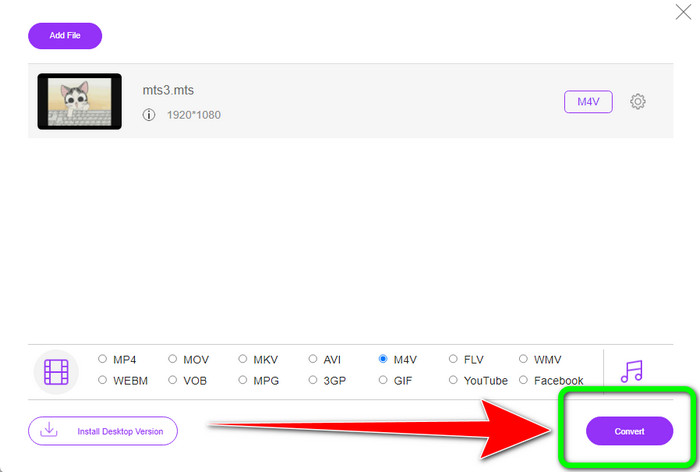
Pasul 3: După ce ai selectat formatul dorit, poți apăsa butonul Convert pentru a salva videoclipul în format de fișier M4V.
Partea 5: Întrebări frecvente despre conversia MTS în M4V
1. Este MTS un format bun?
Da. Codecurile video HD 720p și 1080i sunt acceptate de MTS, un MPEG de înaltă definiție și formatul video de flux de transport H.264. Oamenii se referă frecvent la fișierele MTS ca AVCHD, create împreună de Sony și Panasonic și lansate într-un format de înaltă calitate în 2006.
2. Cum pot converti MTS în MP4?
Poți folosi aplicațiile menționate mai sus. Aceste convertoare sunt eficiente și utile pentru convertirea MTS în MP4 și în alte formate de fișiere.
3. De ce ai folosi M4V?
Fișierele M4V pot avea subtitrări soft și protecție DRM pentru a opri pirateria și pentru a le îngreuna distribuirea fișierelor între dispozitive.
Concluzie
Cele trei aplicații de mai sus sunt cele mai bune convertoare pe care le poți folosi pe dispozitivele tale. Dacă ești utilizator de Windows, poți folosi FVC Video Converter Ultimate. Dacă folosești Mac, poți încerca FVC Free TS Converter. În cele din urmă, poți utiliza FVC Free Video Converter Online dacă preferi o aplicație online. Aceste convertoare pot converti MTS în M4V fără probleme.
-
 MTS VS M2TS - Diferența dintre MTS și M2TS
 Ce este fișierul MTS sau M2TS? Care este diferența dintre M2TS și MTS? Cum pot urmări fișierul MTS sau M2TS înregistrat de camera video? Găsiți toate răspunsurile în această postare
-
 Top 5 jucători M4V pentru Windows / Mac / Android / iOS pe care ar trebui să-i cunoașteți
 Când nu vă puteți reda videoclipurile M4V pe QuickTime Player, ar trebui să aflați mai multe de la cele 5 playere excelente M4V pentru Windows, Mac, Android și iOS din acest articol
-
 [Rezolvat] Cum se convertesc MTS în MKV la calitate originală
 Vă întrebați cum puteți converti MTS în MKV gratuit? În acest articol, am enumerat cele mai bune convertoare gratuite MTS în MKV
