


 Video Converter Ultimate
 Screen Recorder
 Reparație video
 Descărcare sigură
Soluții pentru a tăia videoclipuri online [Tutoriale pas cu pas]
Cum îți faci videoclipul lung mai scurt? Dacă nu cunoști cele mai bune metode pe care le poți folosi, atunci ai un motiv să citești acest ghid. În timp ce parcurgi acest articol, îți vom oferi toate informațiile esențiale despre micșorarea duratei videoclipului tău. De asemenea, îți vom prezenta programe de editare video online și offline pe care le poți utiliza. În acest fel, vei avea mai multe șanse să‑ți atingi obiectivul. Așadar, fără alte introduceri, citește această postare și află cum să tai un videoclip online.

Partea 1. Metode excelente de a tăia videoclipuri online
1. InVideo
Unul dintre instrumentele utile de editare video pe care le puteți găsi online este trimmerul video InVideo. Acest software bazat pe web oferă un aspect ușor de utilizat. După ce accesați site-ul web, nu este necesar să instalați instrumentul. Tot ce trebuie să faceți este să adăugați videoclipul și puteți trece deja la tăierea. În plus, deoarece are un aspect simplu, va exista și o metodă de înțeles. În acest fel, indiferent dacă sunteți un utilizator profesionist sau neprofesionist, puteți utiliza InVideo. Mai mult, InVideo este accesibil pe aproape toate platformele web. Puteți utiliza instrumentul pe Google Chrome, Mozilla Firefox, Internet Explorer și multe altele. Cu toate acestea, InVideo are unele dezavantaje. Când utilizați versiunea gratuită, InVideo nu poate oferi o calitate video înaltă. De asemenea, poate oferi doar o calitate video scăzută, ceea ce este nesatisfăcător. Dacă doriți o calitate video excelentă, trebuie să cumpărați un plan de abonament. Urmați pașii de mai jos pentru a tăia/decupa videoclipul folosind trimmerul video InVideo.
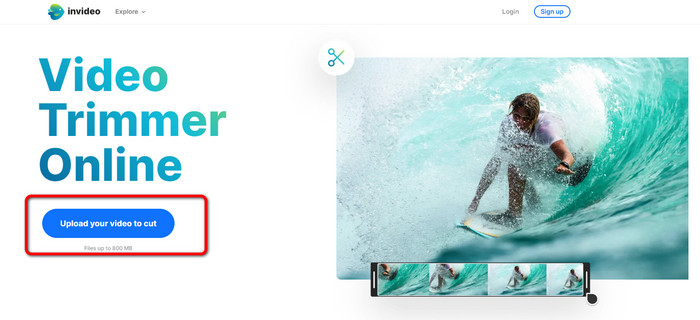
Pasul 1. Deschide browserul și accesează site‑ul oficial InVideo. Apoi, dacă ești deja pe pagină, apasă butonul Upload your video to cut. Când apare fereastra cu fișiere pe ecran, selectează videoclipul pe care dorești să îl tai și deschide‑l.
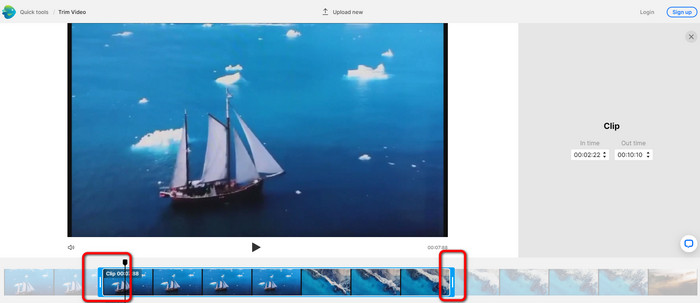
Pasul 2. După ce ai selectat un videoclip, vei fi direcționat în secțiunea unde îl poți decupa. Pentru a decupa videoclipul, mișcă cursoarele de la fiecare capăt al clipului până la momentul dorit.
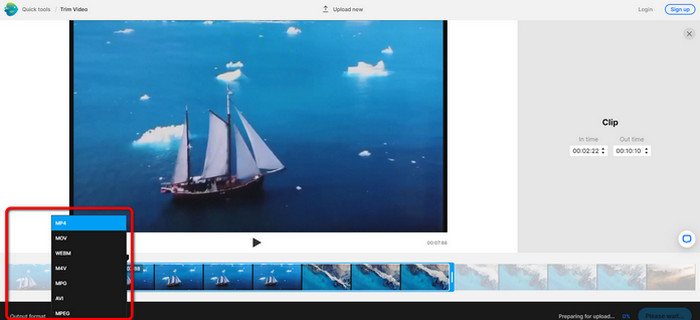
Pasul 3. După ce îți tai videoclipul, îl poți salva în diverse formate. Mergi la opțiunea Output Format din partea stângă jos a interfeței. Apoi, când apar opțiunile de format, selectează formatul de ieșire preferat. După aceea apasă Done.
Pasul 4. Trebuie să îți creezi un cont InVideo sau să te conectezi cu un cont deja existent înainte de a putea salva videoclipul. După ce îți introduci datele de conectare, videoclipul tău va fi disponibil pentru salvare în câteva secunde.
2. Ezgif
Un alt tăietor video online gratuit este Ezgif. Are proceduri simple pentru scurtarea unui videoclip. Ezgif este un instrument online gratuit, astfel încât nu trebuie să te gândești să cheltui vreun ban. În plus, poți accesa instrumentul online din toate browserele. Printre ele se numără Google, Edge, Firefox, Explorer și altele. Totuși, serviciul online acceptă doar GIF. Așadar, dacă vrei să tai un videoclip într‑un alt format, Ezgif nu este unealta potrivită. De asemenea, în timpul utilizării apar numeroase reclame deranjante pe ecran. Astfel, devine deranjant să editezi un videoclip.
Pasul 1. Accesează site‑ul Ezgif și selectează opțiunea Cut.
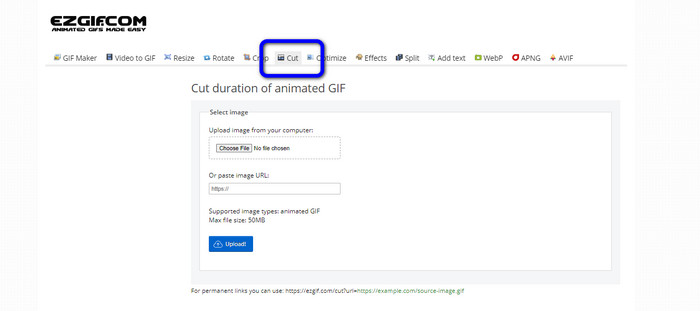
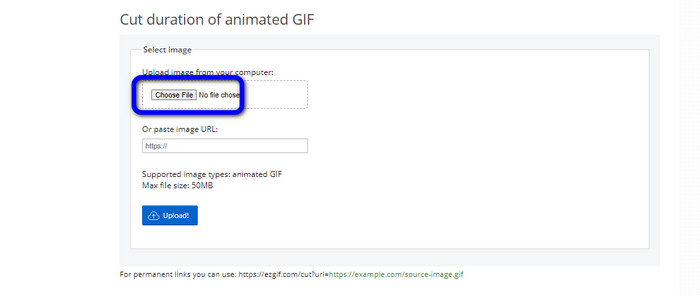
Pasul 2. Apoi, apasă butonul Choose File. După aceea, adaugă fișierul GIF pe care vrei să îl încarci din folderul de pe computer.
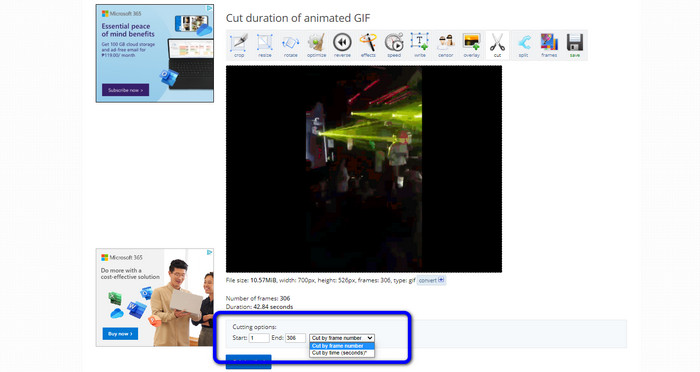
Pasul 3. După ce ai încărcat fișierul GIF, îl poți deja tăia. Există două moduri de a tăia fișierul GIF: poți tăia după numărul de cadre sau după timp. Taie‑l în funcție de metoda pe care o preferi.
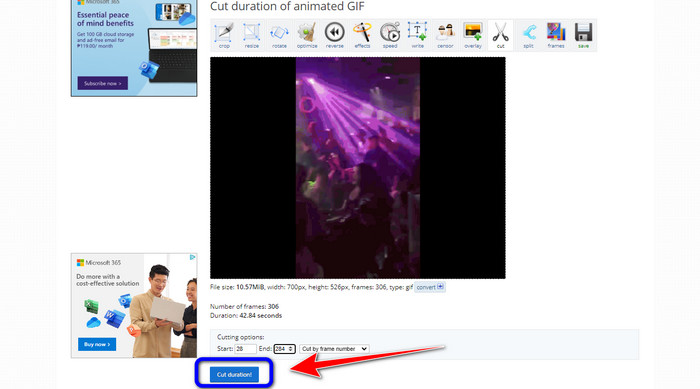
Pasul 4. Apasă butonul Cut Duration pentru a începe procesul de tăiere.
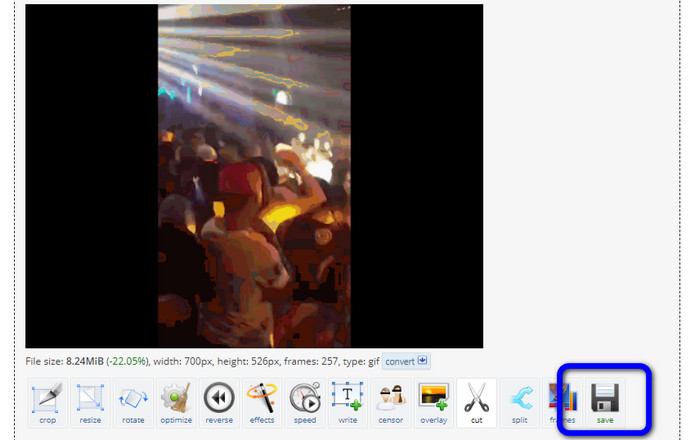
Pasul 5. După aceea, versiunea editată va apărea. Apasă opțiunea Save pentru a descărca rezultatul final pe computer.
3. Kapwing
Pentru a tăia videoclipul, poți folosi și programul online Kapwing Video Trimmer. Acest instrument bazat pe web este capabil să taie un videoclip printr‑o metodă ușor de utilizat. În plus, poți accesa unealta de pe diverse browsere. Printre ele se numără Chrome, Mozilla, Edge și altele. Mai mult, Kapwing acceptă diferite formate video, precum MP4, MOV, AVI, FLV, WEBM și altele, ceea ce îl face convenabil pentru toți utilizatorii. Totuși, Kapwing are și unele dezavantaje. Are reclame deranjante care apar mereu pe ecran. În plus, în versiunea gratuită îți permite să încarci doar videoclipuri cu rezoluție de până la 720p. De asemenea, adaugă watermark‑uri supărătoare după editarea videoclipului. Dacă vrei să obții videoclipul fără watermark și să te bucuri de mai multe funcții, trebuie să achiziționezi un plan de abonament.
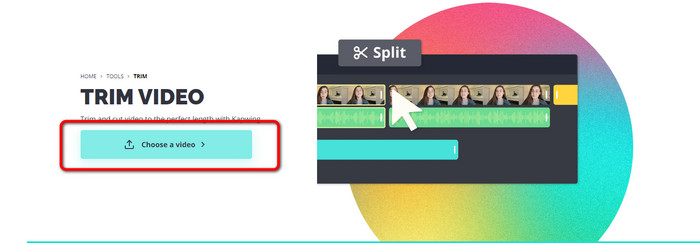
Pasul 1. Accesează site‑ul Kapwing. Apoi apasă opțiunea Choose a video pentru a trece la interfața principală a instrumentului.
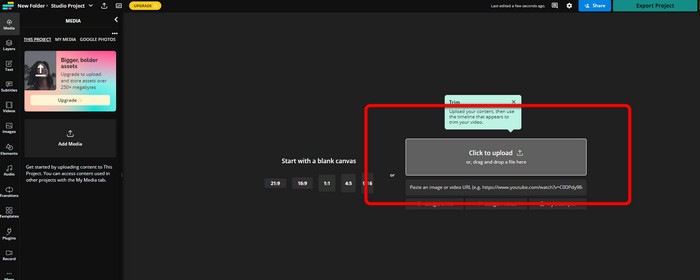
Pasul 2. Apasă butonul Click to upload pentru a introduce videoclipul din folderul de fișiere.
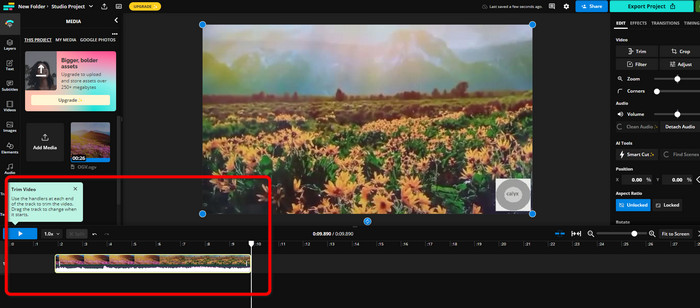
Pasul 3. Când videoclipul este deja pe timeline, poți apăsa și trage mânerele de la fiecare capăt pentru a începe tăierea clipului.
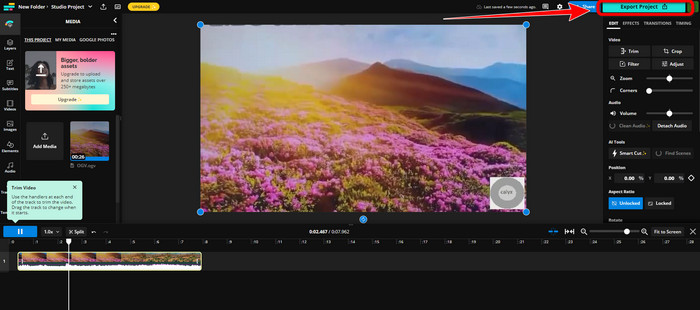
Pasul 4. Când ai terminat, mergi în colțul din dreapta sus al interfeței și apasă butonul Export Project. În acest fel, poți salva videoclipul editat pe desktop.
Partea 2. Mod alternativ de a tăia videoclipul offline
Folosește Video Converter Ultimate pentru a edita videoclipuri offline în cel mai bun mod posibil. Acest instrument îți permite să decupezi și/sau să tai clipul foarte simplu. Are, de asemenea, o interfață simplă, cu o navigare ușor de înțeles, ceea ce îl face ideal pentru toți utilizatorii. Produsul final poate fi salvat și în diferite formate. Printre acestea se numără MOV, AVI, MP4, MKV și altele. Mai sunt și alte lucruri pe care le poți face când tai videoclipuri. Poți face diverse ajustări accesând opțiunile de ieșire (Output). Poți modifica rata de cadre, rezoluția, encoderul, calitatea videoclipului etc. În plus, Video Converter Ultimate nu va adăuga watermark‑uri pe videoclipul editat. Astfel, poți viziona filmul editat fără elemente deranjante. De asemenea, atât utilizatorii de Windows, cât și cei de Mac pot accesa Video Converter Ultimate. Asta înseamnă că programul este convenabil pentru ambele sisteme de operare. Urmează instrucțiunile detaliate de mai jos pentru a începe să tai videoclipul.
Pasul 1. Apasă butonul Download de mai jos pentru a instala Video Converter Ultimate pe computer. Deschide programul după finalizarea instalării.
Descărcare gratuită pentru Windows 7 sau o versiune ulterioară Descărcare securizată
Descărcare gratuită pentru MacOS 10.7 sau o versiune ulterioară Descărcare securizată
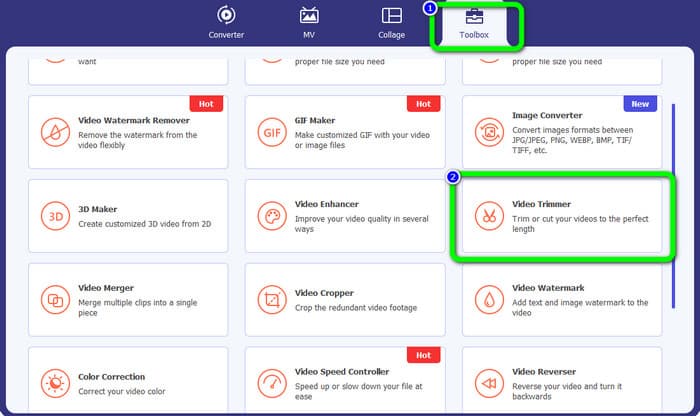
Pasul 2. În interfață, apasă meniul Toolbox și selectează instrumentul Video Trimmer.
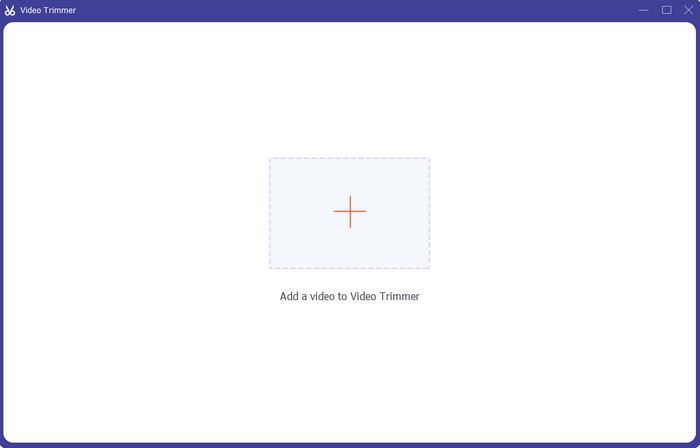
Pasul 3. Când noua interfață apare pe ecran, apasă semnul Plus pentru a introduce videoclipul pe care dorești să îl editezi.
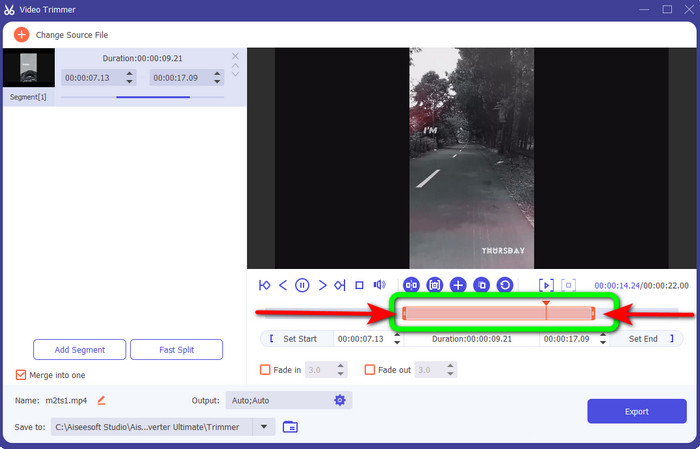
Pasul 4. Apoi poți deja să începi să îți editezi videoclipul în această secțiune. Poți muta marginea clipului pentru a controla cum vrei să tai/decupi videoclipul. Poți mișca marginile din dreapta și din stânga în funcție de nevoile tale.
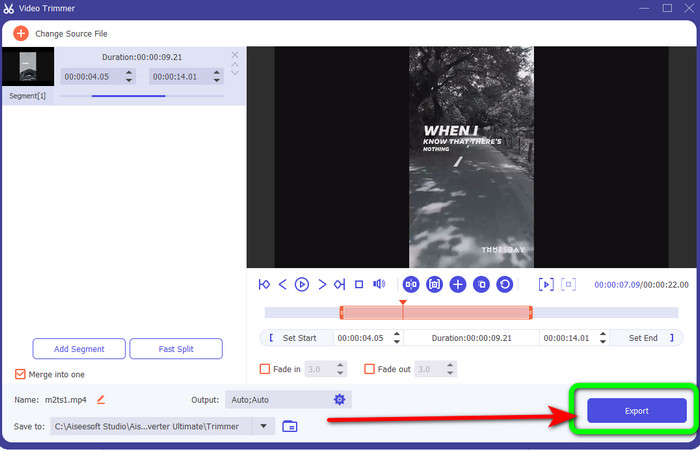
Pasul 5. Când ești mulțumit de videoclip, apasă butonul Export pentru a continua cu exportarea. Apoi salvează videoclipul final și editat.
Partea 3. Întrebări frecvente despre cum să tăiați videoclipuri online
Cum să tăiați un videoclip pe un iPhone?
După pornire, atingeți videoclipul pe care doriți să îl editați în aplicația Imagini. Faceți clic pe Editați. Modificați orele de începere și oprire trăgând glisoarele de pe fiecare parte a cronologiei video. Utilizați butonul de redare pentru a vedea o previzualizare a videoclipului editat. Alegeți Salvare videoclip sau Salvare videoclip ca clip nou după ce ați selectat Terminat.
Cum să tăiați videoclipuri în Shotcut?
Trageți fișierul video în cronologia după ce l-ați importat în Shotcut. Plasați capul de redare la începutul segmentului pe care doriți să îl tăiați. Apoi apăsați tasta de comandă rapidă I. Apăsați tasta O după ce avansați capul de redare până la încheierea secțiunii. Segmentul ar fi acum separat de restul videoclipului.
Care este cel mai bun software pentru a tăia fișierele MP4 offline?
Dacă vrei să tai fișiere MP4 offline, folosește Video Converter Ultimate. Acest program gratuit la descărcare îți permite să tai fișiere MP4 fără bătăi de cap.
Concluzie
Acestea sunt cele mai bune metode de a tăia un videoclip online. Poți folosi toate instrumentele de editare video menționate mai sus pentru tăierea unui clip. Totuși, când folosești un instrument online, există momente în care nu va funcționa bine din cauza unei conexiuni slabe la internet. În acest caz, folosește Video Converter Ultimate. Este un program ce poate fi descărcat și care îți permite să editezi videoclipuri fără conexiune la internet.
-
 [4 moduri] Cum să-ți accelerezi cu ușurință videoclipurile online
 Vrei să accelerezi un videoclip online? Citiți acest articol pentru a afla mai multe despre accelerarea unui videoclip în diferite moduri posibile.
-
 Cum să tăiați și să îmbinați melodiile online - cele mai bune 4 moduri pe care ar trebui să le cunoașteți
 Când doriți să tăiați și să îmbinați melodiile online pentru a crea o piesă muzicală, puteți afla mai multe despre cele mai bune 4 instrumente online pentru a tăia melodiile și a combina fișiere din articol.
-
 Descoperiți cel mai bun aparat de tuns MP4 cu procedură și informații
 Vrei să înveți cum să tai videoclipuri precum vloggerii pe care îi urmărești? Apoi continuați să citiți această postare pentru a afla ce trimmere MP4 puteți folosi.
