


 Video Converter Ultimate
 Screen Recorder
 Reparație video
 Descărcare sigură
Reducerea sunetului: Cum să convertiți WAV în format OGG pentru dimensiuni mai mici de fișiere
Fișierele audio mari pot consuma multă memorie pe computerul sau dispozitivul tău mobil atunci când lucrezi cu ele. Convertirea acestor fișiere din format WAV în OGG le reduce considerabil dimensiunea, făcându-le mai ușor de gestionat și transmis. În acest articol, vom analiza avantajele convertirii fișierelor WAV în format OGG și îți vom arăta pas cu pas cum să faci acest lucru. De asemenea, vom prezenta câteva dintre cele mai bune programe pentru această sarcină, astfel încât să obții cea mai bună calitate audio posibilă. Așadar, fie că ești muzician, realizator de podcasturi sau pur și simplu cineva care vrea să-și organizeze înregistrările audio, acest articol este pentru tine.

Partea 1. Comparația dintre OGG și WAV
Iată un grafic de comparație care subliniază diferențele dintre conversia WAV în OGG. Le puteți verifica pentru referință.
| WAV | OGG | |
| Mărime fișier | Mare | Mic |
| Comprimare | Necomprimat | Comprimat |
| Calitate audio | Calitate superioară | Calitate superioară |
| Compatibilitate | Compatibil pe scară largă | Mai puțin compatibil |
| Suport platformă | Suportat pe toate platformele | Suport limitat pe unele platforme |
| Editarea | Ușor de editat | Puțin mai dificil de editat |
Partea 2. Cel mai bun mod de a converti WAV în OGG sau OGG în WAV
1. FVC Video Converter Ultimate
FVC Video Converter Ultimate este un software puternic de conversie video, care te poate ajuta să convertești rapid și ușor fișierele audio WAV în formatul comprimat OGG. Cu o interfață intuitivă și prietenoasă, poți selecta cu ușurință fișierele WAV, alege formatul OGG și porni procesul de conversie în doar câteva clicuri.
În plus, FVC Video Converter Ultimate include funcții avansate de editare video, permițându-vă să decupați, să decupați, să adăugați filigrane și să aplicați diferite filtre fișierelor audio înainte de conversie. Această caracteristică poate fi utilă dacă trebuie să faceți ajustări minore sau să îmbunătățiți calitatea fișierelor audio înainte de a le converti în format OGG. Prin urmare, dacă doriți să convertiți în loturi OGG în WAV sau invers, urmați pașii de mai jos:
Pasul 1. Instalează programul și importă fișiere OGG sau WAV
FVC Video Converter poate fi descărcat și instalat de pe site-ul oficial. Lansează aplicația și selectează butonul cu semnul Plus pentru a importa fișierul audio care urmează să fie convertit.
Descărcare gratuităPentru Windows 7 sau versiuni mai recenteDescărcare sigură
Descărcare gratuităPentru MacOS 10.7 sau versiuni ulterioareDescărcare sigură
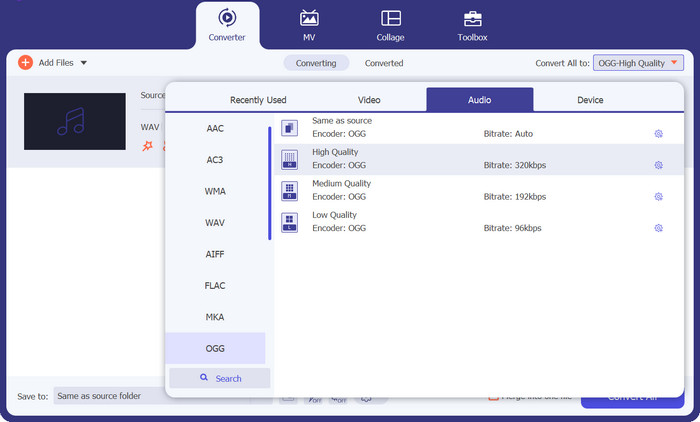
Pasul 2. Selectează OGG ca format de ieșire
Dând clic pe meniul derulant Profile și selectând OGG din lista de formate disponibile, poți alege OGG ca format de ieșire. De asemenea, poți modifica setările de ieșire selectând butonul Settings, dacă este necesar. Acest lucru îți permite să schimbi parametri precum rata de biți, frecvența de eșantionare și canalele.
Pasul 3. Introdu locația de ieșire
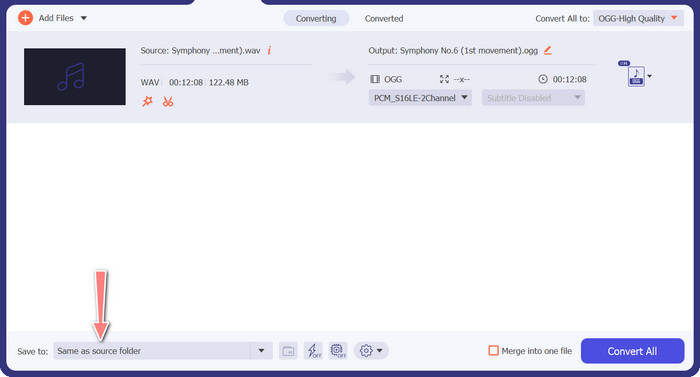
Selectând butonul Browse de lângă câmpul Output Folder, poți alege folderul de ieșire în care dorești să salvezi fișierul convertit.
Pasul 4. Conversia fișierului WAV în OGG
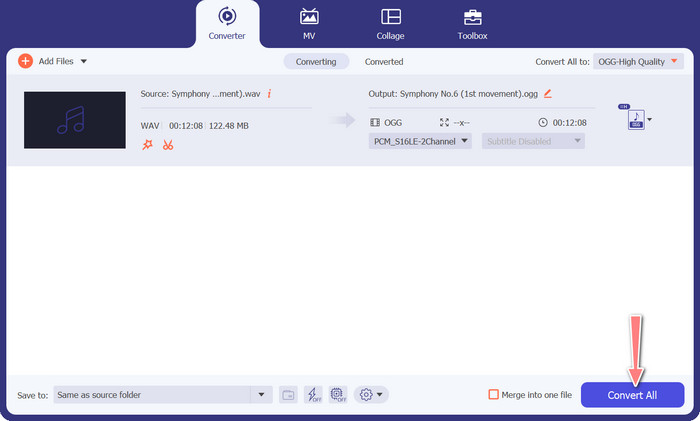
După ce ești mulțumit de opțiuni, dă clic pe butonul Convert All pentru a începe conversia. FVC Free Video Converter va începe să convertească fișierul WAV în format OGG. Bara de progres indică stadiul procesului de conversie, precum și timpul estimat rămas.
2. Convertor audio gratuit online
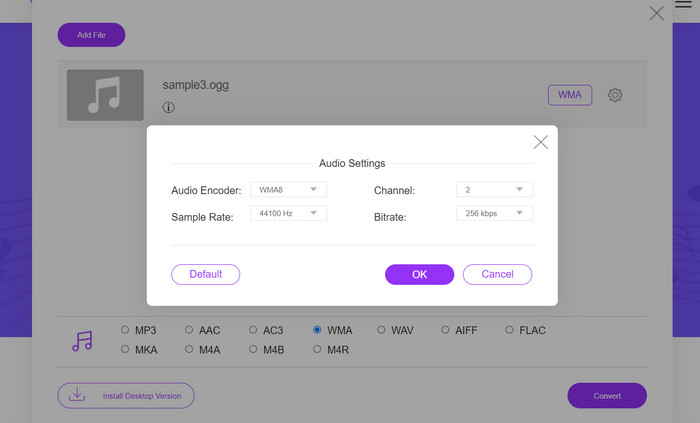
Free Audio Converter Online este un instrument puternic pentru convertirea online a fișierelor WAV în OGG. Utilizatorii pot adăuga rapid fișiere WAV sau OGG și le pot converti în format OGG folosind interfața sa simplă. Convertorul permite, de asemenea, modificarea setărilor de ieșire, cum ar fi rata de biți și frecvența de eșantionare, pentru a obține calitatea dorită a fișierelor OGG. Procesul de conversie este rapid și simplu, iar utilizatorii își pot descărca fișierele modificate direct de pe site.
Pasul 1. Accesează site-ul Free Video Converter Online folosind browserul tău preferat.
Pasul 2. Încarcă fișierul OGG pe care dorești să îl convertești în WAV făcând clic pe butonul Add Files to Convert.
Pasul 3. Selectează OGG ca format de ieșire din lista de formate acceptate din meniul Audio. De asemenea, poți specifica rata de biți și calitatea de ieșire pentru fișierul OGG.
Pasul 4. Pentru a începe procesul de conversie, dă clic pe butonul Convert. Așa se realizează conversia OGG în WAV online.
Partea 2. Convertiți OGG în WAV sau WAV în OGG cu Audacity
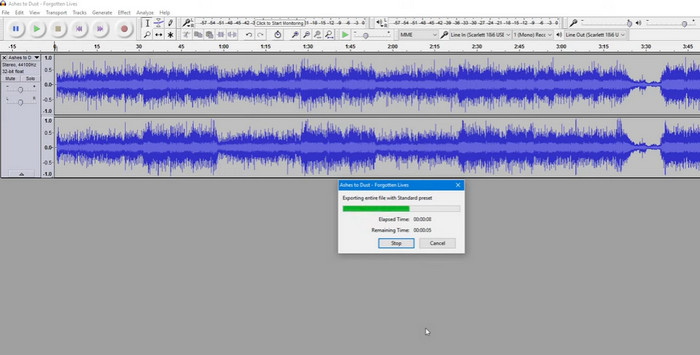
Acest instrument este un software de editare audio open-source care poate converti fișiere MP3 în fișiere OGG. Audacity oferă o varietate de instrumente și efecte de editare pe lângă conversie, permițând utilizatorilor să își modifice și să-și îmbunătățească fișierele audio, făcându-l un instrument versatil pentru operațiunile de editare și conversie audio.
În plus, Audacity este disponibil pentru Windows, macOS și Linux, ceea ce îl face disponibil pe scară largă. Audacity este o alternativă bună pentru oricine dorește să convertească fișierele WAV în format OGG datorită capabilităților sale sofisticate și ușurinței de utilizare. Examinați ghidul de mai jos pentru a afla cum funcționează acest program.
Pasul 1. Descarcă și instalează Audacity pe PC. Deschide Audacity, apoi fișierul OGG sau WAV pe care dorești să îl editezi. Poți face acest lucru selectând File > Open, apoi navigând și selectând fișierul WAV de pe computer.
Pasul 2. După ce fișierul WAV este deschis în Audacity, dă clic pe File, apoi pe Export. În caseta de dialog Export Audio, selectează OGG Vorbis Files ca tip de fișier.
Pasul 3. Poți ajusta calitatea fișierului OGG deplasând cursorul Quality. Setările de calitate mai ridicate vor crește dimensiunea fișierului, în timp ce setările mai scăzute o vor reduce, dar pot diminua calitatea piesei.
Pro
- Are capacitatea de a converti în loturi WAV în OGG.
- Convertiți OGG în WAV pe Windows, macOS și Linux.
Contra
- Programul nu are o comunitate de suport dedicată.
Partea 3. Convertiți OGG în WAV sau WAV în OGG cu VLC
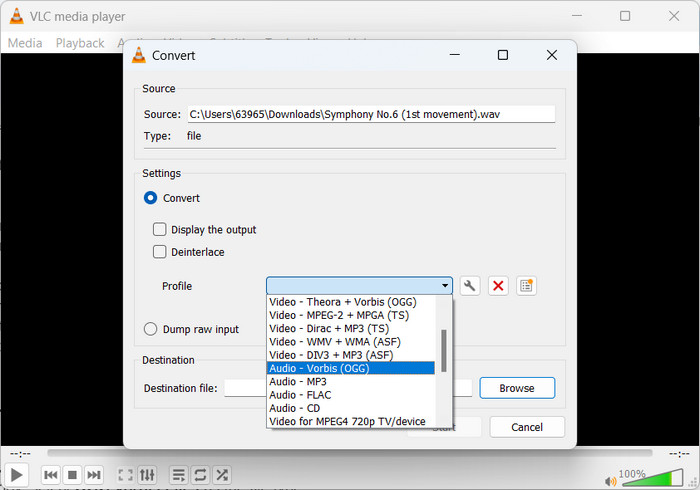
VLC media player este un instrument multimedia puternic care este utilizat pe scară largă pentru redarea diferitelor tipuri de fișiere media. Este posibil ca mulți utilizatori să nu știe că acest program funcționează bine și pentru a converti instrumentul OGG în WAV pentru Mac. Cu instrumentul său de conversie încorporat, VLC media player poate converti rapid și ușor fișierele WAV în format OGG, permițând utilizatorilor să se bucure de muzica lor preferată într-o varietate de formate. Pentru toate nevoile dvs. de conversie audio, VLC media player oferă o soluție simplă și ușor de utilizat, indiferent dacă doriți să convertiți un singur fișier sau un lot de fișiere. Urmați acești pași pentru a afla cum să convertiți un fișier MP3 într-un fișier OGG:
Pasul 1. Pentru a reda un fișier video, pornește VLC și alege din bara de meniu a playerului. Opțiunea Convert / Save va apărea într-un meniu derulant; selecteaz-o.
Pasul 2. Fă clic pe butonul Add și alege fișierul WAV pe care dorești să îl convertești din zona File Selection. Când ești gata să convertești sau să salvezi fișierul, este momentul să faci clic pe butonul Convert / Save.
Pasul 3. Fă clic pe meniul derulant Profile și alege Audio - Vorbis (OGG) ca profil preferat.
Pasul 4. Fă clic pe butonul Browse din dreapta secțiunii Destination pentru a specifica o nouă locație și un nou nume de fișier pentru fișierul convertit. Conversia poate fi pornită făcând clic pe butonul Start din partea de jos a ferestrei.
Pro
- Interfață ușor de utilizat.
- Acceptă multe formate video și audio.
Contra
- Posibilă pierdere a calității audio.
Lecturi suplimentare:
Transformă MP3 în OGG și bucură-te de o calitate superioară a sunetului
Cum să convertești gratuit MP4 în WAV pe desktop sau online [2023]
Partea 4. Întrebări frecvente despre conversia OGG în WAV
Pot converti mai multe fișiere WAV în format OGG simultan?
Da, multe programe de conversie audio, inclusiv FVC Video Converter Ultimate, acceptă conversia lot, care vă permite să convertiți simultan WAV în format OGG.
Este posibil să convertiți fișierele OGG înapoi în format WAV?
Da, este posibil să convertiți fișierele OGG înapoi în format WAV utilizând un software de conversie audio. Cu toate acestea, rețineți că calitatea audio poate fi afectată dacă fișierul WAV original a fost comprimat în format OGG.
Pot converti fișierele mele WAV în alte formate audio în afară de OGG?
Da, majoritatea software-ului de conversie audio acceptă o gamă largă de formate audio, inclusiv MP3, AAC, FLAC și multe altele.
Concluzie
Convertirea fișierelor tale din format WAV în OGG poate oferi mai multe avantaje, precum reducerea dimensiunii fișierului și menținerea unei calități audio ridicate. În același timp, cu instrumentele potrivite de conversie audio și cu puține cunoștințe de bază, poți converti cu ușurință fișierele audio în formatul care se potrivește cel mai bine nevoilor tale.
-
 Jucători OGG excelenți pentru Windows și Mac pe care nu trebuie să-i ratezi
 Când doriți să redați sunetul dvs. preferat în format OGG, mai ales atunci când există mai puțin spațiu de stocare. Puteți afla mai multe despre cei mai buni 5 jucători OGG din acest articol.
-
 Aflați cum să convertiți MP3 într-un format WAV
 Vrei să știi cum să convertești MP3 în WAV? Determinați care dintre instrumente produce cea mai bună conversie de calitate pe care o puteți obține.
-
 2 Cele mai bune moduri de a edita metadatele OGG pe care ar trebui să le încercați gratuit
 Trebuie să editați metadatele OGG? Ei bine, vă puteți ocupa cu ușurință de editarea etichetelor folosind software-ul corect. Dacă nu aveți unul, citiți acest articol este o necesitate.
