


 Video Converter Ultimate
 Screen Recorder
 Reparație video
 Descărcare sigură
Funcția Instantaneu VLC - Iată Ghidul pentru a face capturi de ecran în VLC Media Player
Când redați un tutorial video sau un film în VLC player, cum faceți o captură de ecran în VLC Media Player? Indiferent dacă trebuie să capturați un instantaneu ca miniatură sau să adăugați o adnotare la un anumit cadru, puteți utiliza pur și simplu caracteristica Instantanee ascunse a VLC.
Cum faceți instantanee cu VLC Media Player? După ce ați luat cadrele dorite, unde sunt salvate capturile de ecran? Este posibil să salvați instantaneele în formatele dorite? Când doriți să aflați mai multe detalii despre proces, precum și cea mai bună alternativă, puteți găsi câteva informații utile din articol.

Partea 1: Cum să faceți instantanee în VLC și să găsiți locația
1. Cum să faceți captură de ecran în VLC Media Player
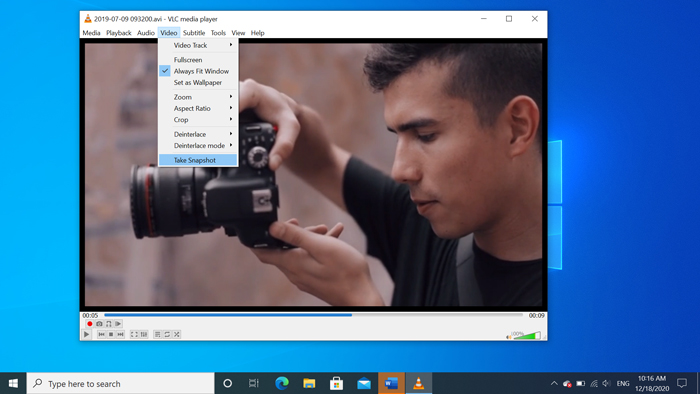
Dacă utilizați cel mai recent VLC Media Player, există o pictogramă a camerei în partea de jos a interfeței cu utilizatorul. Doar faceți clic pe cameră pentru a face o captură de ecran în VLC Media Player. Pentru cealaltă versiune, puteți utiliza tastele rapide sau butoanele pentru a captura capturile de ecran după cum urmează.
Pasul 1: După ce ai instalat VLC Media Player, poți lansa programul pe computer. După aceea, poți importa în playerul media filmele dorite.
Pasul 2: Când ajungi la cadrul dorit din care vrei să faci o captură în VLC, dă clic pe meniul Video și alege opțiunea Take Snapshot pentru a salva captura dorită.
De asemenea, puteți utiliza comanda rapidă pentru a face o captură de ecran în VLC. Iată cea implicită pentru referință. SHIFT + S pentru Windows, Command + ALT + S pentru Mac și CTRL + ALT + S pentru Linux.
Pasul 3: Apoi vei vedea o miniatură pop-up cu captura în partea de sus a VLC Media Player, precum și locația fișierului salvat și numele fișierului. Totuși, aceasta va dispărea în câteva secunde.
2. Unde sunt salvate capturile de ecran ale VLC
Dacă nu puteți obține informațiile din miniatura pop-up, aici sunt destinațiile implicite pentru capturile de ecran VLC. Desigur, puteți face mai multe instantanee pentru a afla mai multe despre folderul de destinație al instantaneelor.
Windows 7/8/10: C: UsersusernameMy Pictures
Windows XP: C: Documentele mele Imaginile mele
Mac OS X: Instantaneele sunt salvate în Desktop /
Linux: Instantaneele sunt salvate în $ (HOME) /. Vlc /
3. Cum se configurează preferințele pentru instantanee în VLC
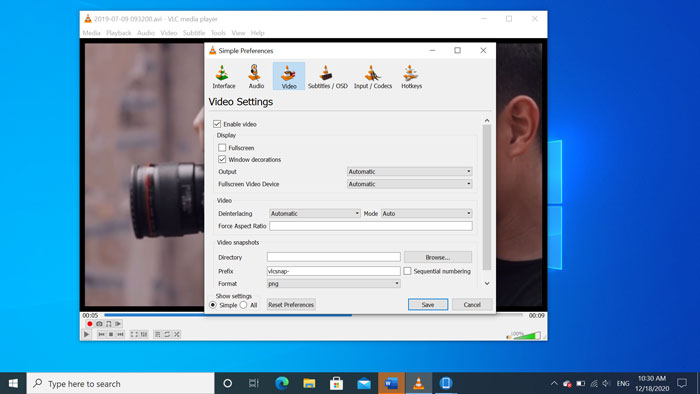
Este posibil să configurezi preferințele pentru capturi de ecran (snapshots)? Atunci când vrei să schimbi formatul sau folderul de destinație, poți merge la meniul Tools și să selectezi Preferences pentru a ajusta setările.
Director video: După ce ai dat clic pe butonul Browse, poți alege locația pentru capturile VLC, de exemplu desktopul sau o altă destinație folosită frecvent.
Prefix: va adăuga un prefix și un sufix la capturile de ecran capturate în VLC Media Player. Bifați caseta de numerotare secvențială dacă doriți să utilizați numere în loc de data / ora curentă.
Format: Puteți alege JPG, PNG și TIFF ca format foto de ieșire.
Partea 2: Alternativa online a VLC pentru a face capturi de ecran
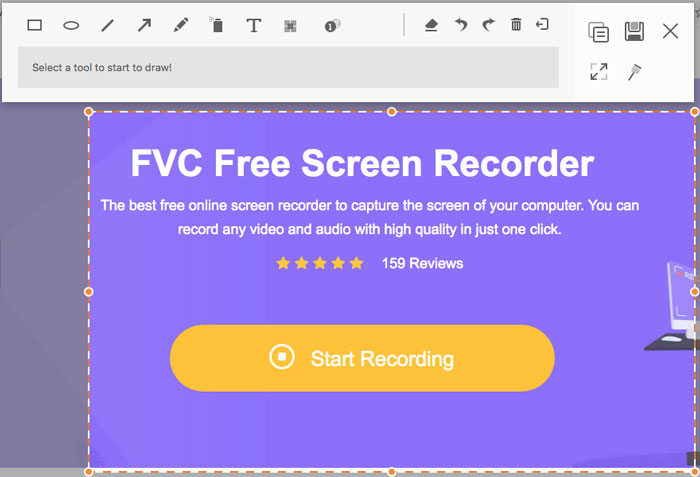
VLC Media Player este o metodă simplă de a face capturi de ecran din videoclipuri. Dar atunci când trebuie să adaugi adnotări, să ajustezi cadrul de capturat sau să faci orice fel de captură pe Windows și Mac, FVC Free Screen Recorder este o alternativă online la VLC pentru realizarea de capturi. Îți permite să înregistrezi orice video și audio la calitate înaltă cu un singur clic. În plus, poți gestiona captura de ecran direct în cadrul recorderului video online.
- 1. Capturați filme, desktop și multe alte activități pe computer.
- 2. Modificați tastele rapide, folderul de destinație, calitatea video / audio și multe altele.
- 3. Editați captura de ecran în timp real, cum ar fi liniile, textul, evidențierea, linia etc.
- 4. Oferiți înregistrare gratuită pe ecran fără filigran și alte restricții.
- 5. Înregistrați videoclipuri de înaltă calitate.
Pasul 1: Mergi la recorderul de ecran online și dă clic pe pictograma Start Recording pentru a descărca și instala programul de instalare. Apoi poți lansa recorderul de ecran online pentru a captura orice activitate de pe computer.
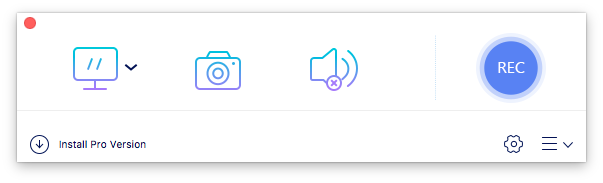
Pasul 2: După ce ai lansat recorderul de ecran online, dă clic pe pictograma camerei pentru a face o captură online, ca alternativă la VLC. Ajustează zona de captură cu ajutorul mouse-ului pentru a obține captura dorită.
Pasul 3: După aceea, poți adăuga adnotări, cum ar fi filigran, casetă explicativă (callout), săgeată, text și multe alte elemente în captura de ecran. În plus, poți gestiona captura direct în cadrul programului.
Partea 3. Întrebări frecvente despre captura de ecran a VLC Media Player
1. Cum se ajustează tastele rapide pentru realizarea capturii de ecran în VLC?
Dacă există un conflict de taste rapide (hotkeys), mai ales când desfășori și alte activități, poți merge la meniul Tools și să alegi opțiunea Preferences. Apoi poți selecta butonul Hotkeys și să introduci „snapshot” în câmpul de căutare. Dă clic pe Take video snapshot și apasă noua tastă sau noua combinație de taste pentru capturile VLC.
2. Cum să capturați instantanee în VLC cu cea mai bună calitate?
Când trebuie să faceți o captură de ecran video în VLC cu calitatea originală, puteți alege modul ecran complet și puteți alege formatul fișierului ca PNG. Pentru a evita orice imagine neclară, puteți face o pauză la un anumit cadru pe care doriți să îl capturați în prealabil.
3. Este posibil să capturați o captură de ecran a filmelor YouTube în VLC?
Da. Pentru a face capturi de ecran din filmele de pe YouTube în VLC, poți reda fluxul video al filmelor YouTube direct în playerul media. Dă clic pe opțiunea Media și alege Open Network Stream. Apoi introdu URL-ul direct al videoclipului de pe YouTube. După aceea, poți reda videoclipul și să faci captura dorită în consecință. De asemenea, poți încerca FVC Free Screen Recorder sau alte instrumente de înregistrare, precum DU Screen Recorder, pentru a realiza captura.
Concluzie
Realizarea instantaneelor video în VLC Media Player este o sarcină simplă. Dar când doriți să localizați folderul de destinație, să modificați setările pentru instantanee sau chiar să alegeți o alternativă online, FVC Free Screen Recorder este întotdeauna cea mai bună alegere pentru a vă ajuta.
-
 Recenzie Snagit 2021 - Pro, contra și cea mai bună alternativă
 Care este cea mai bună alternativă la Snagit? Există un instrument de captare a ecranului ca Snagit? Această postare va examina Snagit și va împărtăși cea mai bună alternativă la Snagit pentru a captura ecranul.
-
 Înregistrare ecran QuickTime - Înregistrați videoclipuri cu audio pe Mac și PC
 Ecranul de înregistrare cu audio pe Mac este util. Playerul încorporat, QuickTime Player poate face acest lucru. Citiți-i postarea și știți cum să capturați ecranul cu sunet pe Mac și PC.
-
 Revizuirea imparțială a jucătorului real și a celor mai bune alternative
 Vei alege Real Player pentru a juca media player, ar trebui să citești scurta noastră introducere și recenzie imparțială, precum și să afli mai multe despre cea mai bună alternativă din articol.
