


 Video Converter Ultimate
 Screen Recorder
 Reparație video
 Descărcare sigură
Cum putem reda muzică pe Xbox One: în timp ce ne jucăm sau pe CD-uri
Grandoarea scenei de joc ți-a făcut capul să răsune cu muzică pasională? Deși multe jocuri Xbox au coloane sonore remarcabile, suntem siguri că toată lumea are propria listă de melodii preferate. Cine nu și-ar dori coloana sonoră perfectă pentru a atinge victoria sau acțiunea captivantă?
Din fericire, există cu siguranță o modalitate prin care putem reda muzică pe Xbox One! Poți încerca să asculți melodii de pe platforme precum Apple Music, Spotify și Pandora și chiar să redai muzică de pe CD-uri în timp ce te joci. Nimic din toate acestea nu este dificil – ți-am pregătit cele mai detaliate instrucțiuni. Iar cele mai bune playere multimedia îți vor fi recomandate.

Partea 1. Cum să redați muzică pe Xbox One în timp ce vă jucați
Poți reda muzică pe Xbox One? Vestea bună este că Xbox One permite deja utilizatorilor să redea muzică pe această platformă. Ți-am pregătit trei opțiuni care îți permit să deschizi melodii prin diferite platforme. Poți alege ce cale să urmezi în funcție de nevoile tale reale.
Utilizarea aplicațiilor muzicale
Trebuie să fii atent la selectarea software-ului muzical care acceptă această operațiune, cum ar fi Groove, Pandora, VLC Media Player, iHeartRatio, Spotify, SoundCloud și așa mai departe. Acestea pot fi găsite în magazinul de aplicații al Xbox One.
Iată cum poți reda muzică pe Xbox One cu o aplicație muzicală în timp ce te joci.
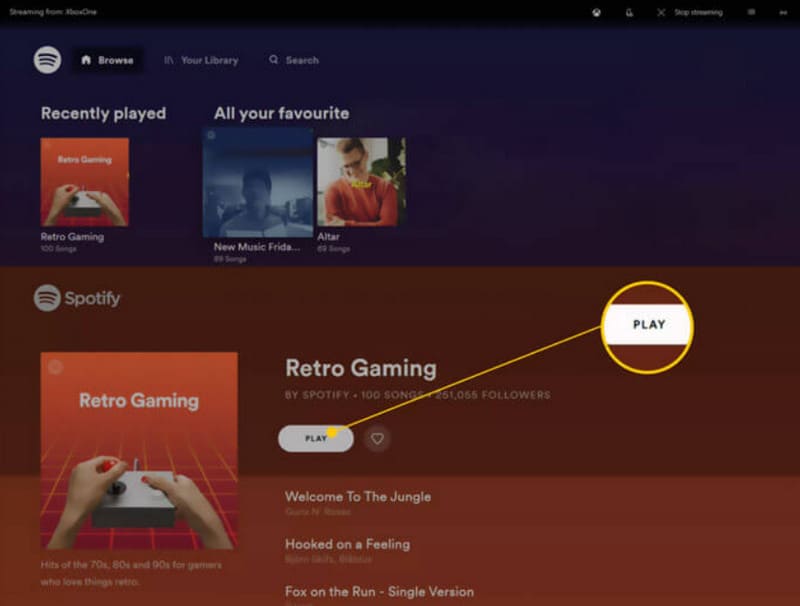
Pasul 1. Pornește Xbox One. Mergi la Xbox Store și descarcă o aplicație de muzică, precum Spotify sau Pandora.
Pasul 2. Deschide aplicația de muzică. Conectează-te cu contul tău.
Pasul 3. Redă muzica pe care vrei să o asculți. Apoi începe să te joci. Muzica va continua să se redea în fundal.
Dacă ai pregătit fișierele muzicale pe care vrei să le redai, îți recomandăm să folosești un player profesional – Aiseesoft Blu-ray Player. Indiferent dacă muzica ta este stocată pe un DVD, pe un disc Blu-ray sau local, pe un computer conectat la Xbox One, acest player versatil te poate ajuta! Citește despre el și apoi folosește-l în cel mai bun mod posibil.
Playerul Blu-ray Aiseesoft acceptă aproape toate formatele populare. Dacă doriți să ascultați mai multe piese muzicale, puteți crea liste de redare pe această platformă. De asemenea, puteți seta parametri pentru a ajusta efectul de redare al fișierelor audio.
Descărcare gratuităPentru Windows 7 sau o versiune ulterioarăDescărcare sigură
Descărcare gratuităPentru macOS 10.7 sau o versiune ulterioarăDescărcare sigură
Iată cum poți reda muzică pe Xbox One în timp ce te joci cu playerul Blu-ray Aiseesoft.
Pasul 1. Descarcă și instalează Aiseesoft Blu-ray Player pe dispozitivul tău. Apasă pe Open File. Caută și selectează fișierul audio pe care vrei să îl redai.
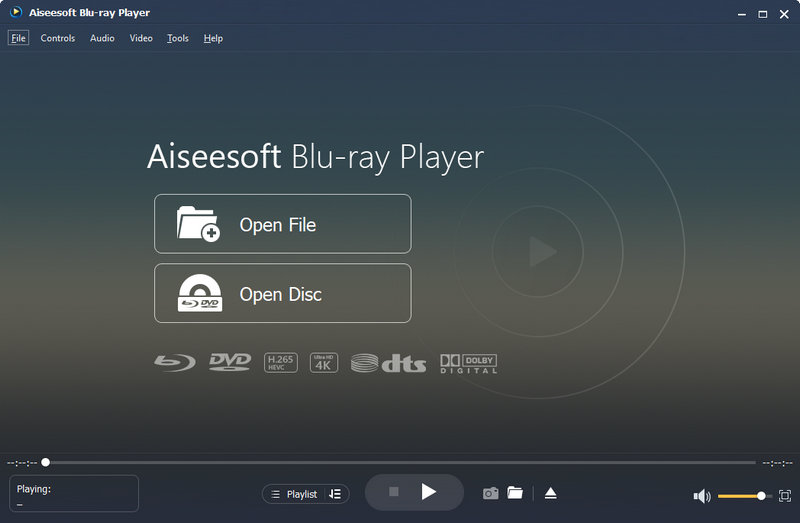
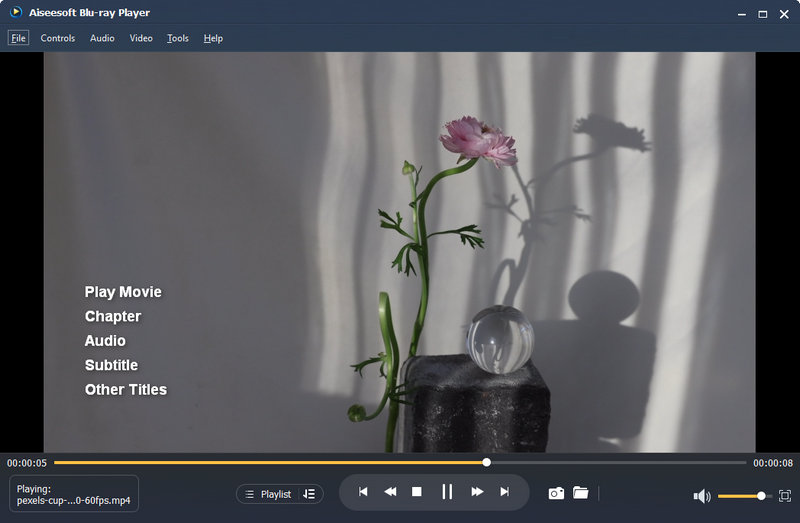
Pasul 2. Programul va încărca fișierul audio ales și va începe redarea. În interfață poți ajusta volumul sau poți reda
Redarea muzicii de pe USB sau de pe dispozitive externe
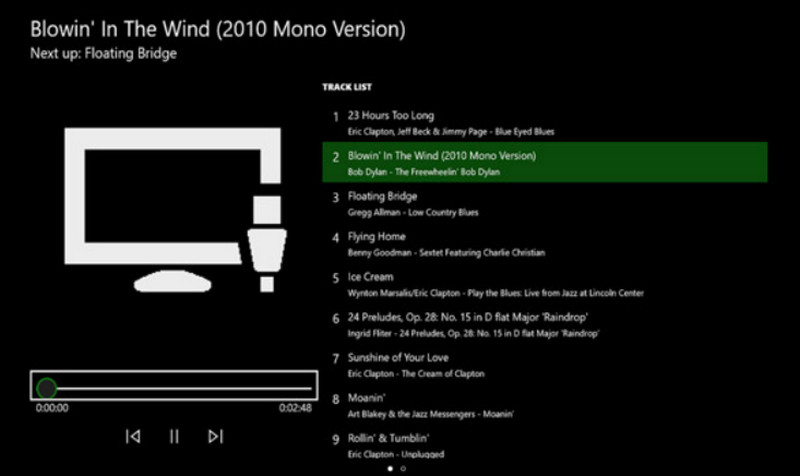
Magazinul de aplicații Xbox One are un instrument numit Simple Background Music Player. Acest instrument vă permite să redați muzică pe Xbox One prin intermediul unui stick USB.
Iată cum se aplică această metodă.
Pasul 1. Mai întâi, formatează stickul USB în FAT32 sau NTFS. Apoi deschide-l și creează un folder nou numit Xbox One Library.
Pasul 2. Adaugă melodia pe care vrei să o asculți în folderul Xbox One Library. Formatul audio trebuie să fie MP3, WMA, FLAC sau AAC.
Dacă fișierul tău audio este în alte formate, cum ar fi WAV, convertește mai întâi WAV în MP3 înainte de redare.
Pasul 3. Descarcă Simple Background Music Player din Xbox Store. După instalare, închide aplicația.
Pasul 4. Introdu dispozitivul USB în Xbox One. Acum, deschide Simple Background Music Player.
Pasul 5. Apasă butonul Y de pe controllerul Xbox. Fișierele tale muzicale vor începe să se redea.
Partea a 2-a. Cum se redau CD-uri muzicale pe Xbox One
Poți reda CD-uri muzicale pe Xbox One
Am cumpărat CD-ul cu albume preferate, pot reda conținutul pe Xbox One? Absolut. Va trebui să citești conținutul CD-ului pe Xbox One prin intermediul altor instrumente, cum ar fi Groove Music. Aceste instrumente sunt disponibile în App Store.
Cum se redau CD-uri pe Xbox One
Pasul 1. Asigură-te că unitatea de disc a consolei Xbox One este goală. Ejecteaz-o și introdu CD-ul pe care vrei să-l redai.
Pasul 2. Dacă Groove Music nu este instalat pe Xbox One, vei fi direcționat către App Store. Apoi descarcă aplicația pe dispozitivul tău.
Dacă o ai deja, când introduci CD-ul, aceasta va fi lansată automat.
Pasul 3. Alege Launch și deschide aplicația de muzică. Apasă pe My Music.
Pasul 4. Acum selectează Audio CD. Apasă pe Play all.
Partea 3. Spotify nu se redă pe Xbox One: Remedieri
Spotify Xbox One nu redă muzică? Mai mulți utilizatori se confruntă cu aceeași problemă. Am investigat cauza acestei probleme și vă recomandăm să încercați următoarele soluții.
• Verificarea conexiunii la rețea
Dacă viteza actuală a internetului este prea lentă sau conexiunea este instabilă, atunci Spotify poate face erori la redarea muzicii. Puteți încerca o altă conexiune WiFi sau de rețea de date.
• Ștergeți memoria cache a Xbox One
Prea multă memorie cache poate cauza diverse erori în sistem. Poți încerca să ștergi memoria cache în mod regulat. Apasă și ține apăsat butonul de pornire al dispozitivului Xbox One până când acesta se oprește. Apoi, deconectează cablul de alimentare. Așteaptă zece secunde, apoi pornește-l din nou.
• Reporniți sau actualizați Xbox și Spotify
Repornirea dispozitivului sau a aplicației este cea mai rapidă metodă de a remedia o eroare temporară. Opriți mai întâi Spotify și reporniți Xbox One. Apoi, încercați să redați muzică din nou. Dacă aplicațiile au versiuni noi, actualizați-le.
• Reinstalați Spotify.
Accesați meniul Jocurile și aplicațiile mele de pe Xbox One. Selectați „Vezi tot”. Găsiți Spotify acolo și faceți clic pe „Dezinstalare”. Apoi, accesați magazinul de aplicații și descărcați-l din nou.
Dacă niciuna dintre metodele de mai sus nu rezolvă problema, încercați să contactați Spotify sau echipa de asistență tehnică Xbox One.
Partea 4. Întrebări frecvente despre redarea muzicii pe Xbox One
Poți reda muzică pe Xbox One?
Da, poți. Descarcă aplicații de muzică precum Spotify sau Pandora din Xbox App Store. Apoi găsește și redă melodiile tale preferate în aceste playere muzicale pe Xbox One.
Ce aplicații muzicale funcționează cu Xbox?
Spotify, Apple Music, Pandora, Amazon Music, SoundCloud, Vevo, Dolby Access și Tuneln Ratio sunt aplicațiile muzicale compatibile acum cu Xbox One.
Poți reda Apple Music pe Xbox One?
Da, poți. Din 2022, utilizatorii pot obține Apple Music din magazinul de aplicații Xbox. Îl pot descărca pe dispozitivele lor și pot reda melodiile preferate.
Concluzie
Redarea muzicii pe Xbox One este perfect posibilă. Fie că asculți muzică în aplicația Music, fie că redai melodii de pe un stick USB, CD etc., îți explicăm tot ce trebuie să faci. Sperăm că informațiile de aici îți vor fi de ajutor. Încearcă acum și fă-ți experiența de gaming mai captivantă.
-
 Top 10 aplicații Music Player pentru a vă bucura de fișiere muzicale pe diferite platforme
 Pentru a asculta melodiile și albumele preferate pe un computer și pe un dispozitiv mobil fără probleme, puteți intra în top 10 cele mai bune aplicații de redare muzicală.
-
 7 editori populari de etichete muzicale pe Windows, Mac și dispozitive mobile
 Etichetele muzicale sunt populare pentru aranjarea muzicii din biblioteca dvs. în funcție de datele din interior. Dacă vrei să-l schimbi? Citiți detaliile de mai jos pentru a afla mai multe.
-
 Modalități eficiente despre cum să faci fișiere MKV pe Xbox One S 2025
 Descoperiți modalități care vă pot ajuta să redați fișiere MKV pe Xbox One S folosind unele dintre cele mai bune convertoare.
