


 Video Converter Ultimate
 Screen Recorder
 Reparație video
 Descărcare sigură
Videoclipul MP4 nu se afișează în Premiere Pro: Motive și soluții de învățat
Premiere Pro este un instrument profesional excelent pentru editarea videoclipurilor. Totuși, uneori începe să dea erori, provocând probleme de redare care îți întrerup munca. Este, de asemenea, frustrant când încerci să editezi fluid, iar videoclipul continuă să aibă lag sau să se blocheze sau, mai rău, să nu apară deloc. Este o problemă des întâlnită de mulți utilizatori ai Adobe Premiere Pro. Din fericire, există modalități de a aborda această problemă. Identificând exact de ce fișierul video MP4 nu apare în Premiere Pro și urmând pașii prezentați în acest ghid, poți reveni la editare și redare fără dureri de cap. Așadar, hai să începem și să intrăm direct în subiect!
Partea 1. De ce videoclipul MP4 nu apare în Premiere Pro
Pentru cei care întâmpină erori în Premiere Pro când vine vorba de afișarea videoclipurilor MP4, aici am adunat câteva dintre motivele pentru care se întâmplă acest lucru.
Versiune software:
Poate fi versiunea de Premiere Pro pe care o utilizați. Cu alte cuvinte, este posibil să utilizați software învechit care nu este compatibil pentru anumite formate de fișiere sau funcții MP4.
Limitări hardware:
Poate fi și din cauza hardware-ului sistemului tău. Este posibil ca dispozitivul tău să nu îndeplinească cerințele necesare pentru a decoda și afișa corect fișierul MP4 în Premiere Pro.
Amplasarea fișierului:
Urmează locația fișierului. Fișierul tău MP4 poate fi aflat într-un director la care Premiere Pro nu are acces din cauza permisiunilor sau a unor probleme legate de calea fișierului.
Fișier corupt:
Un alt motiv pentru care videoclipul MP4 nu apare în Premiere Pro este faptul că fișierul ar putea fi corupt. Acest lucru poate împiedica Premiere Pro să îl citească corect.
Incompatibilitate de codec:
Dacă fișierul MP4 nu este corupt, atunci este posibil să fie codat cu un codec pe care Premiere Pro nu îl acceptă.
Setări de import incorecte:
Ar trebui, de asemenea, să iei în considerare verificarea setărilor de import. Setările de import incorecte sau metadatele asociate fișierului MP4 pot face ca acesta să nu apară în Premiere Pro.
Cache corupt:
Desigur, la fel ca în alte programe, memoria cache media din Premiere Pro se poate corupe. Dacă se întâmplă acest lucru, apar probleme la importarea sau afișarea fișierului MP4.
Partea 2. Metode de rezolvare a problemei cu Premiere Pro care nu afișează videoclipurile MP4
Convertește MP4 într-un format compatibil:
Dacă fișierul tău MP4 este principalul motiv al acestei probleme, ia în considerare convertirea lui în alte formate video. Asta fiind spus, îți recomandăm cu tărie să folosești un convertor video puternic, care să producă sigur un fișier de ieșire de înaltă calitate, optim pentru utilizarea în Premiere Pro.
Bonus: Folosește FVC Video Converter Ultimate pentru conversia video
Video Converter Ultimate, recomandat de FVC, este disponibil atât pentru Windows, cât și pentru Mac, fiind accesibil tuturor. Vine cu o interfață ușor de utilizat și se bazează pe o tehnologie de accelerare hardware ultra-rapidă extrem de avansată, care crește viteza de conversie de până la 120 de ori. Mai mult, nu se limitează doar la conversia MP4; acceptă peste 1000 de alte formate din care poți alege formatul de ieșire.
Dincolo de simpla conversie de format, oferă o gamă de instrumente de editare puternice în caseta sa de instrumente (Toolbox). Aceste instrumente, bazate pe inteligență artificială, asigură îmbunătățirea și editarea fluentă a videoclipurilor tale, fără bătăi de cap! Acum, haide să aprofundăm procesul de conversie în lot pe care îl oferă, urmând pașii de mai jos.
Descărcare gratuităPentru Windows 7 sau versiuni ulterioareDescărcare sigură
Descărcare gratuităPentru MacOS 10.7 sau versiuni ulterioareDescărcare sigură
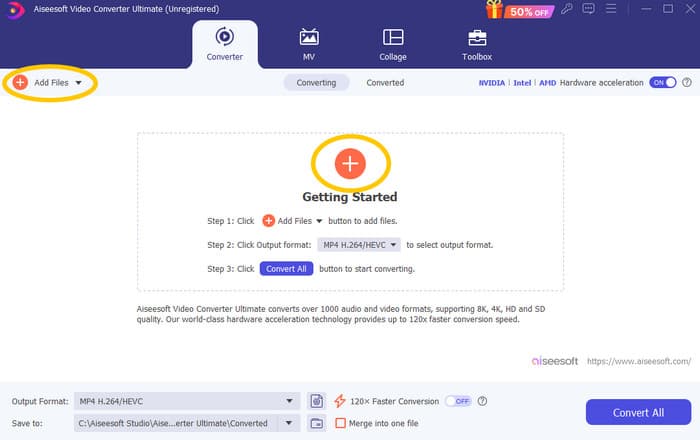
Pasul 1. Presupunem că ai instalat deja software-ul pe computer. Îl poți porni acum și apăsa butonul Add pentru a importa fișiere. De asemenea, poți utiliza fila Add Files sau poți trage fișierele din folderul tău.
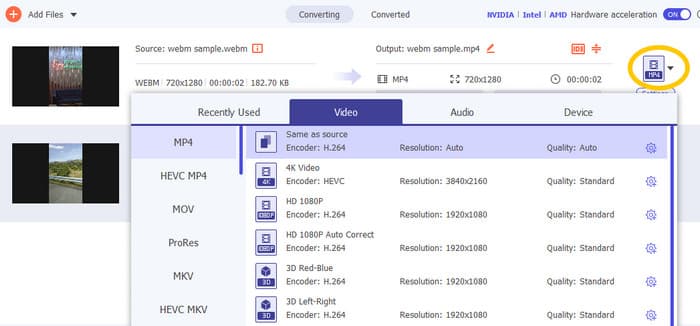
Pasul 2. Apoi, dă clic pe săgeata derulantă din secțiunea de format de ieșire și alege formatul dorit din meniul Video. Apasă pe encoderul ales pentru a-l aplica.
Pasul 3. Când totul este setat corect, apasă butonul Convert All pentru a porni conversia.

Repară fișierele MP4 corupte:
Dacă videoclipul MP4 nu apare în Premiere Pro, este posibil să fie corupt. Astfel, poți folosi un instrument dedicat de reparare video, cum ar fi Video Repair, pentru a remedia eventualele probleme de corupere. Poți repara rapid și reda un fișier deteriorat, fără complicații. Se mândrește cu o rată de succes excelentă și este foarte ușor de folosit, în doar câteva clicuri. Mai mult, software-ul funcționează prin copierea părților bune dintr-un videoclip de probă pentru a repara secțiunile stricate, asigurând astfel o redare fluentă. În plus, acceptă repararea fișierelor MP4 și a multor alte formate, păstrând în siguranță informațiile tale. Iată cum să îți repari fișierul MP4 corupt.
Pasul 1. Descarcă instrumentul de reparare video pe computer și deschide-l pentru a începe.
Descărcare gratuităPentru Windows 7 sau versiuni ulterioareDescărcare sigură
Descărcare gratuităPentru MacOS 10.7 sau versiuni ulterioareDescărcare sigură
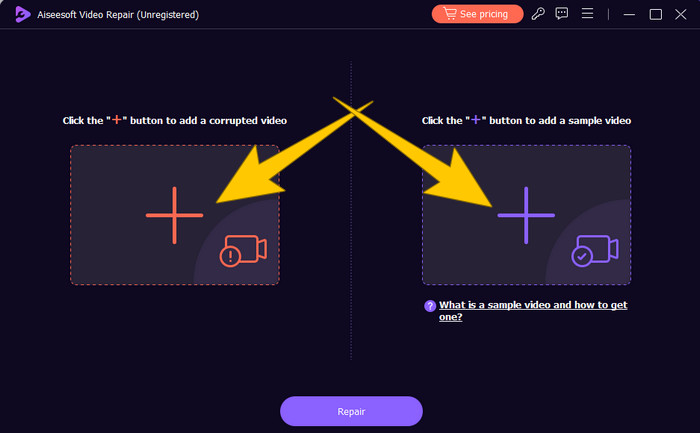
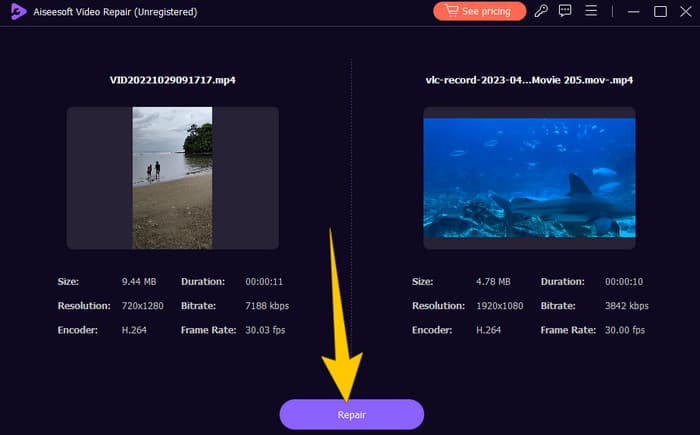
Pasul 2. În interfața principală, apasă butonul roșu Plus pentru a încărca videoclipul MP4 corupt. Apoi, apasă pe cel albastru pentru a încărca videoclipul de probă.
Pasul 3. După importarea fișierelor, este timpul să le repari. Pentru aceasta, apasă butonul Repair.
Repornește computerul și resetează Premiere Pro:
Ia în considerare resetarea Premiere Pro și repornirea computerului pentru a reîmprospăta resursele sistemului. Procedând astfel, poți și reseta preferințele la setările implicite, ceea ce uneori poate rezolva problemele de compatibilitate.
Șterge fișierele cache:
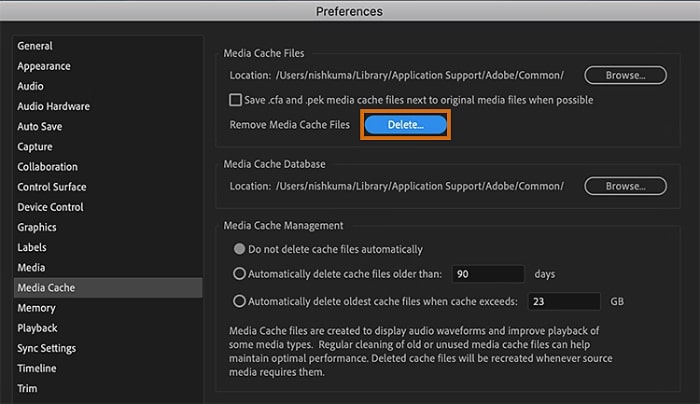
Ștergerea fișierelor cache din Premiere Pro este întotdeauna recomandată. Așadar, șterge fișierele cache pentru a elimina orice date corupte sau învechite care ar putea cauza problema. Trebuie doar să mergi la Edit>Preferences>Media Cache>Delete.
Schimbă setările în Premiere Pro:
În final, verifică setările din Premiere Pro și asigură-te că se potrivesc cu specificațiile fișierelor tale MP4. Aici intră rata de cadre, rezoluția și codec-ul. Da, ajustând aceste setări pentru a corespunde fișierelor MP4, problemele de compatibilitate pot fi uneori rezolvate.
Partea 3. Întrebări frecvente despre Premiere Pro și problema cu MP4 care nu apare
Ce ar trebui să fac dacă fișierele mele MP4 au un codec incompatibil, ceea ce duce la faptul că nu apar în Premiere Pro?
Dacă fișierele tale MP4 au un codec incompatibil, poți folosi un convertor video HD, cum ar fi Video Converter Ultimate, pentru a le converti într-un format compatibil.
De ce nu apar fișierele mele MP4 în Premiere Pro?
Fișierele MP4 pot să nu apară în Premiere Pro din diferite motive, cum ar fi un codec incompatibil, probleme cu setările din Premiere Pro sau coruperea fișierului.
Pot depana problema fișierelor MP4 care nu apar în Premiere Pro?
Da, poți depana problema verificând codec-ul fișierelor MP4, pentru a te asigura că acestea corespund codec-urilor acceptate de Premiere Pro. De asemenea, poți încerca să repari fișierele MP4 corupte și să ajustezi setările Premiere Pro, dacă este necesar.
Concluzie
Acest articol prezintă motivele pentru care fișierele video MP4 nu apar în Premiere Pro. De asemenea, sunt oferite soluții, astfel încât să îți faci o idee despre cum să rezolvi problema. De cele mai multe ori, fișierul video este cel care cauzează problema. Prin urmare, trebuie să te asiguri că este în stare bună de fiecare dată când îl deschizi în Premiere Pro.
-
 Metode rapide și simple de a sincroniza audio și video în Adobe Premiere Pro
 Vrei să știi cum să sincronizezi audio și video în Premiere Pro? Atunci acest articol ți se potrivește, deoarece l-am testat noi înșine, cu pași reali și simpli.
-
 Cum să accelerezi un videoclip în Premiere Pro și cu ajutorul alternativelor sale
 Vrei să știi cum să folosești Premiere Pro pentru a accelera un videoclip? Atunci ești în articolul potrivit, deoarece oferim pașii necesari și alte alternative accesibile.
-
 Videoclipurile de pe Instagram nu pornesc? Iată cum le poți repara
 Meta descriere: Încarci videoclipuri pe Instagram și nu pornesc? Nu te îngrijora, deoarece acest articol îți va oferi explicații și soluții rapide pentru această problemă. Citește acum!
