


 Video Converter Ultimate
 Screen Recorder
 Reparație video
 Descărcare sigură
Cum să înregistrezi jocul pe PS5 fără limită [Regulari cuprinzătoare]
În doar trei ani, PlayStation 5 s‑a vândut extraordinar de bine. A depășit pragul de 50 de milioane de unități vândute de la lansare, fiind o consolă cu hardware grozav și suport pentru gaming 4K. Acum, dacă vrei să‑ți afișezi abilitățile de gamer sau să‑ți împărtășești momentele epice de joc cu fanii tăi, înregistrarea pe un PlayStation 5 este o opțiune excelentă. Dacă te întrebi cum să înregistrezi pe PS5, consola vine cu o funcție utilă care îți permite să capturezi, să ajustezi și să distribui aventurile tale de gaming pe diverse platforme. Dar cum faci, mai exact, toate acestea? Rămâi alături de noi pentru a descoperi cum să înregistrezi și să faci capturi de ecran pe PS5, inclusiv cum să faci acest lucru folosind o tehnică de înregistrare fără limită de timp.

Partea 1. Cum să înregistrezi jocul pe PS5
Cu siguranță, PS5 vine cu un recorder încorporat care te va ajuta să înregistrezi jocul tău uluitor. Cu toate acestea, merită să rețineți că recorderul consolei dvs. are limitări și eficiență. Când vine vorba de eficacitate, este sigur să spunem că este foarte eficient în producerea de videoclipuri înregistrate de înaltă calitate. Pe de altă parte, când vine vorba de limitările sale, trebuie să rețineți că această consolă vă poate permite doar să înregistrați maxim 60 de minute de timp de joc. În afară de asta, vă va permite doar să produceți videoclipuri în MP4 și WebM ca formate de ieșire acceptate.
Între timp, pentru întrebarea despre cum să înregistrați ecranul pe recorderul de joc încorporat al PS5, permiteți pașii de mai jos să vă ofere răspunsuri.
Înregistrați un joc
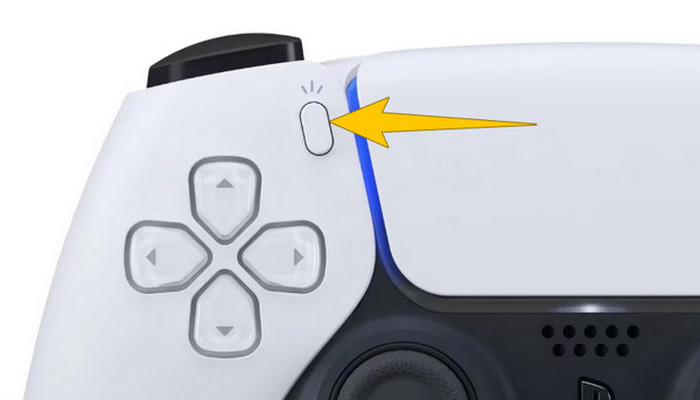
Pasul 1. Ia controllerul DualSense și apasă butonul de deasupra butoanelor săgeată. Acesta reprezintă funcția Create și poate fi apăsat când ești pe punctul de a începe înregistrarea gameplay‑ului.
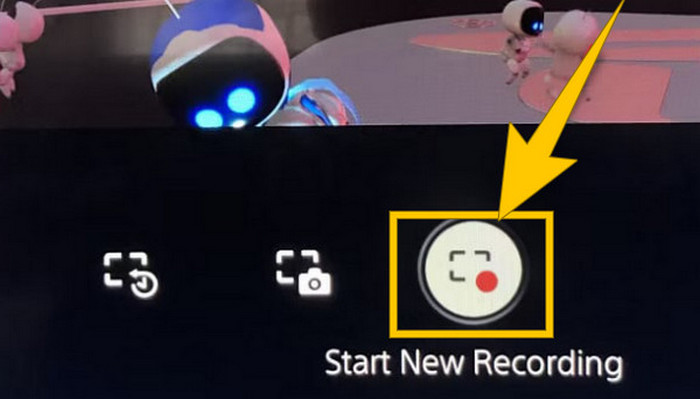
Pasul 2. După ce ai apăsat butonul, uită‑te pe ecran și selectează opțiunea Start New Recording. Vei vedea această opțiune în partea de jos. Imediat va începe înregistrarea, așa că poți porni jocul.
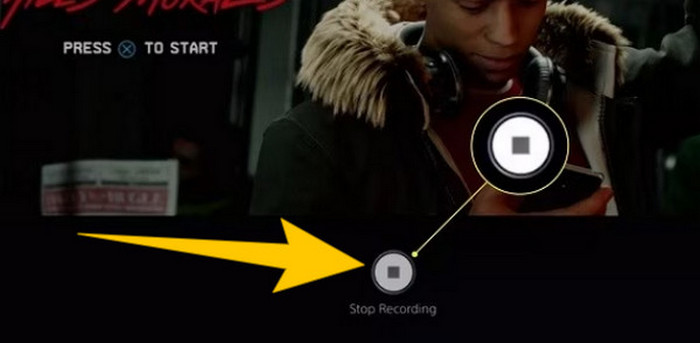
Pasul 3. Presupunând că ți‑ai terminat sesiunea de joc, iată cum oprești înregistrarea gameplay‑ului pe PS5. Trebuie doar să apeși din nou butonul Create, iar de data aceasta să alegi Stop Recording, opțiune pe care o vei vedea pe ecran.
Descărcați înregistrările
După înregistrare, PS5 va salva automat rezultatul în Galeria Media, unde sunt păstrate toate fișierele. Acum, dacă doriți să păstrați o copie pentru dispozitivul dvs. separat, este regretabil să vă spunem că galeria menționată nu are opțiunea de descărcare. Cu toate acestea, există încă o modalitate de a păstra fișierele.
Pasul 1. Conectează cardul SD extern sau unitatea USB la consolă. Apoi, accesează Media Gallery și deschide‑o.
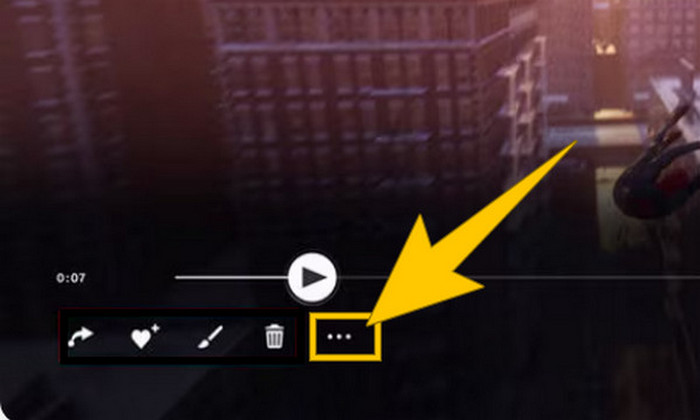
Pasul 2. Selectează înregistrarea de ecran salvată recent. Apoi apasă pe butonul Ellypsis, adică pictograma cu trei puncte din partea de jos a ecranului, împreună cu celelalte opțiuni afișate.
Pasul 3. După ce ai dat click, selectează opțiunea Copy to USB Drive pentru a începe copierea videoclipului înregistrat pe USB. După finalizare, transferă videoclipul pe dispozitivul pe care vrei să păstrezi fișierul înregistrat.
Partea 2. Cum să înregistrați ecranul pe PS5 la calitate 4K fără limită
Nu te îngrijora dacă PlayStation 5 îți permite să captezi doar până la o oră de gameplay la o calitate bună. Știm cât de frustrant este pentru majoritatea gamerilor și, în plus, nu toate jocurile acceptă această funcție. Așadar, pentru înregistrări nelimitate în 4K la toate jocurile PS5, ai putea să arunci o privire la FVC Screen Recorder. Acest program de înregistrare a ecranului nu îți limitează durata de înregistrare, ci doar este condiționat de spațiul de stocare al computerului tău. În plus, nu îți va încetini jocul. Cu acest recorder de jocuri excelent, îți poți ajusta și înregistrările înainte de a le salva. De fapt, poți să tai, să unești, să comprimi, să convertești, să editezi metadate, să îmbunătățești înregistrarea și să o distribui foarte ușor pe platformele alese de tine.
De asemenea, merită remarcat faptul că FVC Screen Recorder oferă diverse instrumente de înregistrare pentru a vă îndeplini sarcinile de înregistrare. Cu acesta, puteți înregistra video, audio, ferestre, camere web, telefoane etc. Remarcabil, vă puteți bucura de înregistrările fără filigrane încorporate în ele! Deci, pentru a afla mai multe despre Screen Recorder-ul FVC, urmați pașii de mai jos pentru a vedea cum să înregistrați ecranul pe PS5.
Pasul 1. Descarcă FVC Screen Recorder pe computer. Pentru aceasta, apasă pe butonul Free Download, apoi urmează instrucțiunile pentru a instala și deschide programul.
Descărcare gratuităPentru Windows 7 sau versiuni mai noiDescărcare sigură
Descărcare gratuităPentru MacOS 10.7 sau versiuni mai noiDescărcare sigură
Pasul 2. Odată ajuns în interfața FVC, găsește și apasă pe instrumentul Game Recorder. Acesta se află în partea dreapta‑central a ecranului. De acolo, apasă pe săgeata mică de lângă Select the Game pentru a alege fereastra în care este afișat PS5‑ul tău.
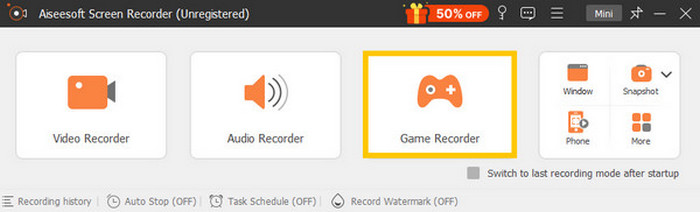
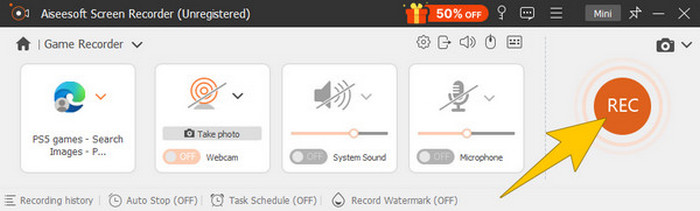
Pasul 3. După ce ai selectat fereastra, vei observa că recorderul se va concentra pe ea. În mod remarcabil, poți decide și dacă vrei să incluzi webcamul pentru o înregistrare picture‑in‑picture, sunetul de sistem și sunetul de la microfon. Când totul este setat, apasă butonul REC pentru a începe jocul și înregistrarea.
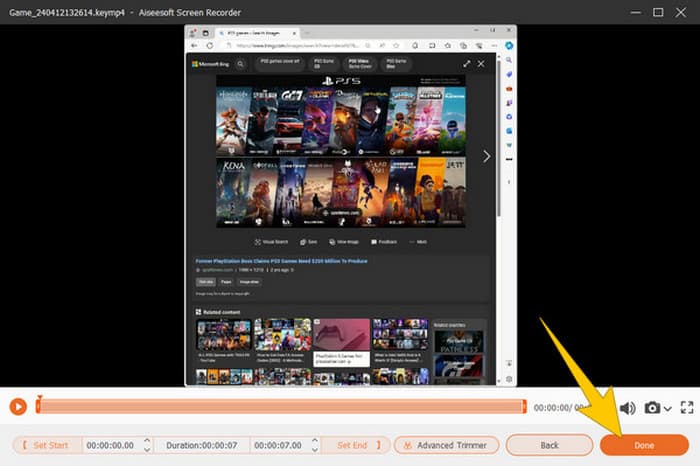
Pasul 4. Când ai terminat de înregistrat, apasă butonul Stop de pe bara plutitoare. Apoi poți ajusta videoclipul folosind instrumentele de editare oferite în noua fereastră. După aceea, apasă butonul Done pentru a salva fișierul înregistrat în galerie.
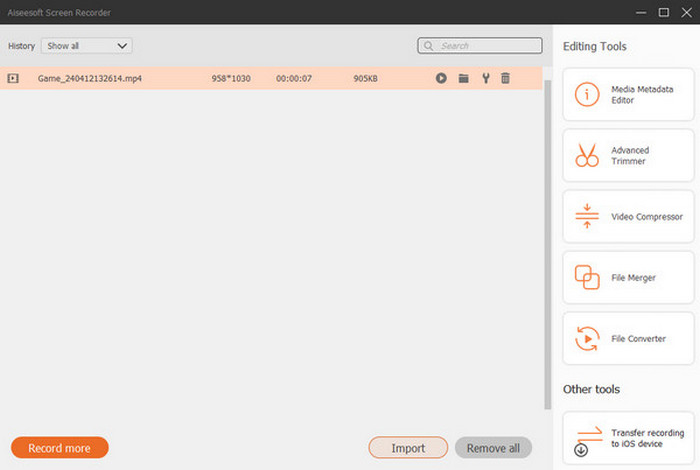
Pasul 5. Acesta este un pas opțional. Dar, dacă vrei să îți distribui înregistrarea pe conturile tale de social media, poți să dai click dreapta pe cea mai recentă înregistrare de gameplay și să selectezi opțiunea Share. De asemenea, poți folosi instrumente avansate suplimentare de editare pentru a‑ți îmbunătăți înregistrările.
Dacă doriți să aflați mai multe despre acest recorder, iată mai multe sfaturi de învățat.
Citește mai departe
5 metode eficiente de a înregistra ecranul în format GIF pe Mac & Windows
Cum să înregistrezi cascadoriile epice, clutche‑urile sau tutorialele din Minecraft
Partea 3. Întrebări frecvente despre înregistrarea jocului pe PS5
Cum dezactivați înregistrarea jocului pe PS5?
Pentru a opri sau a opri înregistrarea jocului pe PS5, trebuie doar să apăsați butonul Creare de pe controlerul de joc. Apoi, pe ecran, faceți clic pe opțiunea Opriți înregistrarea.
Unde pot vedea clipurile mele de joc înregistrate pe PS5?
Clipurile de joc înregistrate sunt stocate în secțiunea Captură din Galeria principală. Puteți accesa această galerie din ecranul de pornire. Cu acesta, puteți vizualiza, edita și partaja clipurile dvs. așa cum vă permite galeria.
Cum îmi voi partaja înregistrările pe PS5?
Puteți partaja clipurile după înregistrarea pe PS5 direct din Galeria de captură. Trebuie doar să selectați clipul pe care doriți să îl partajați, să faceți clic pe butonul Opțiuni de pe controler și să selectați opțiunea Partajare.
Concluzie
Nu mai este nevoie să întrebi cum să înregistrezi pe PS5, deoarece acest articol ți‑a prezentat metodele implicite și cele mai bune. Bucură‑te astfel de înregistrări de gameplay calitative și de durată, exact cum îți dorești. Apoi, împărtășește soluțiile cu ceilalți gameri, pentru ca și ei să aibă aceeași experiență de înregistrare palpitantă pe PS5!
-
 5 dintre cele mai importante programe de înregistrare a jocurilor pe care un jucător trebuie să le cunoască [2024]
 Ești un jucător care dorește să înregistreze un joc? Apoi, acest articol vă va oferi cel mai bun recorder de jocuri pe care îl puteți folosi pentru a experimenta noi culmi de joc.
-
 Top 5 aplicații Android Screen Recorder pe care trebuie să le achiziționați în 2024
 Întâmpinați probleme pentru că nu puteți face o înregistrare a ecranului pe Android? Dacă da, acest articol a analizat înregistratoarele de ecran Android pe care le puteți descărca.
-
 Top 5 Zoom Meeting Recorder pentru a înregistra întâlniri pe Zoom [2024]
 Trebuie să înregistrați o întâlnire cu zoom pentru a nu rata detaliile importante ale întâlnirii dvs.? Dacă da, acest articol oferă cele mai bune înregistratoare cu zoom pe care ar trebui să le cunoașteți.
