


 Video Converter Ultimate
 Screen Recorder
 Reparație video
 Descărcare sigură
Cum să setați melodia Spotify tonul de apel - Un ghid complet
Spotify oferă utilizatorilor din întreaga lume o bibliotecă vastă de muzică, podcasturi și alte tipuri de conținut audio. Milioane de melodii sunt disponibile pentru a fi ascultate la cerere. Dacă vrei, de asemenea, să setezi muzica frumoasă pe care o oferă drept ton de apel pe smartphone-ul tău, trebuie mai întâi să descarci fișierul audio selectat pe dispozitiv. Partea bună este că această procedură nu este complicată. În acest articol, vom împărți întreaga operațiune despre cum să faci dintr-o melodie Spotify tonul tău de apel în trei părți și vom analiza în detaliu fiecare parte pentru tine. Când îți pregătești tonurile de apel, este posibil să ai nevoie să decupezi o porțiune din fișierul audio. Ținând cont de acest lucru, îți vom recomanda și unul dintre cele mai profesionale instrumente de editare audio și video. De asemenea, vor fi oferite răspunsuri la unele întrebări frecvente despre configurarea tonurilor de apel.

Partea 1. Descărcați melodia Spotify pentru ton de apel
Puteți folosi Spotify pentru tonuri de apel? Răspunsul este da, desigur. Ceea ce trebuie să știți înainte de a continua oficial este că în prezent nu puteți descărca muzică direct pe dispozitiv prin Spotify și să le setați ca tonuri de apel. Prin urmare, avem nevoie de ajutorul unor instrumente. Conform sondajului nostru, Spotify Downloader este o alegere destul de bună. Tot ce trebuie să faceți este să deschideți site-ul său oficial în browser, să copiați linkul către muzica preferată și să-l inserați în secțiunea corespunzătoare. Astfel, veți putea descărca fișierul direct pe computer. Dacă aveți probleme cu acesta, vă vom explica pașii în secțiunea următoare.
Iată ce trebuie să faceți pentru a descărca melodii Spotify pentru tonuri de apel cu Spotify Downloader.
Pasul 1. Accesează site-ul oficial Spotify Downloader folosind browserul tău.
Pasul 2. Deschide aplicația Spotify pe telefon. Apoi, găsește sunetul pe care dorești să îl descarci.
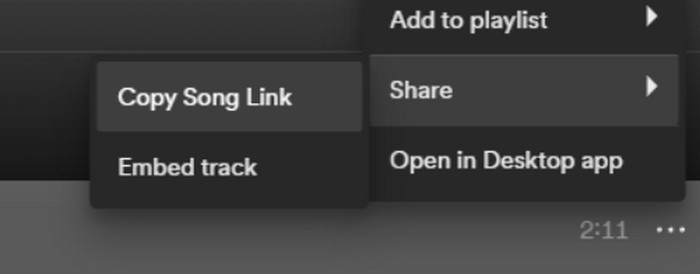
Pasul 3. Atinge pictograma cu trei puncte și alege Share > Copy Link.
Pasul 4. Acum poți merge la pagina Spotify Downloader. Lipește linkul copiat și apasă pe Submit.
Pasul 5. Când procesul s-a încheiat, apasă pe Download.

Partea 2. Faceți un cântec Spotify ton de apel
După ce ați descărcat muzica preferată pe dispozitiv, puteți începe să o editați. Putem edita punctul culminant al melodiei sau partea ta preferată a melodiei și putem face din o melodie Spotify tonul de apel. Trebuie remarcat faptul că telefoanele iPhone și Android acceptă diferite formate audio de tonuri de apel. În prezent, iPhone acceptă doar tonuri de apel în format M4R, în timp ce telefoanele Android acceptă în prezent MP3, M4A, WAV și OGG. Dacă descoperiți că formatul de fișier audio nu îndeplinește cerințele de mai sus, puteți folosi un convertor de format profesional pentru a vă ajuta.
În acest caz, îți recomandăm să încerci un instrument complet de editare audio, FVC ales Video Converter Ultimate, pentru a realiza editarea „all-in-one” a melodiilor. Pe lângă funcția de bază de conversie de format, acesta permite și editarea duratei fișierului audio, ajustarea volumului și a pistei audio, precum și adăugarea de efecte fade-in sau fade-out pentru tonurile tale de apel. Vei avea foarte puțin sau chiar deloc timp de așteptare suplimentar în timp ce îl folosești pentru a-ți procesa fișierele. Te va ajuta să modifici parametrii fișierelor audio cu o eficiență ridicată.
Descărcare gratuită pentru Windows 7 sau o versiune ulterioară Descărcare securizată
Descărcare gratuită pentru MacOS 10.7 sau o versiune ulterioară Descărcare securizată
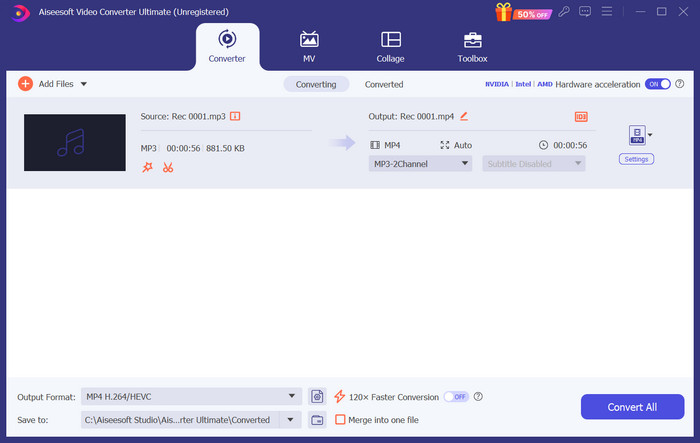
Aici, vă vom învăța cum să creați un ton de apel din Spotify cu FVC Video Converter Ultimate.
Pasul 1. Descarcă și instalează FVC Video Converter Ultimate pe computer. Asigură-te că ai stocat melodia preferată pe dispozitiv.
Pasul 2. Deschide acest software pe desktop și fă clic pe Add Files pentru a încărca melodia Spotify pe această platformă.
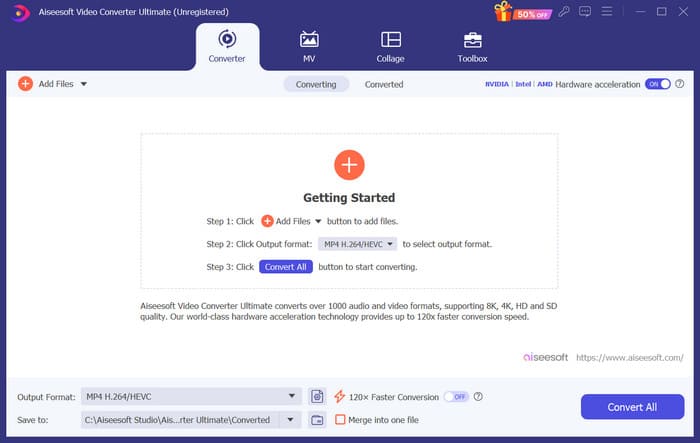
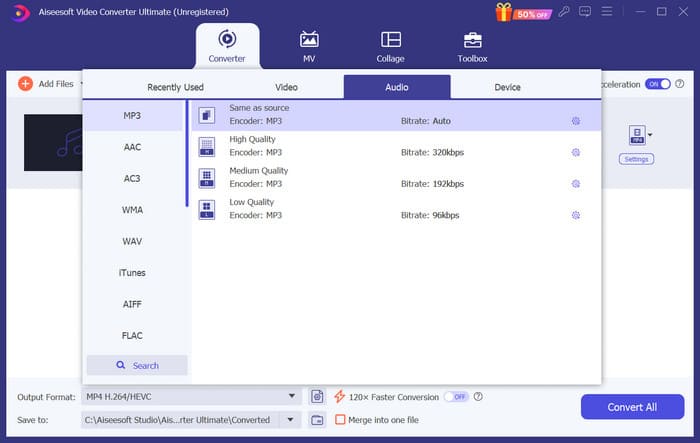
Pasul 3. Pentru a converti formatul tonului tău de apel, deschide meniul derulant de lângă Output Format. Apoi poți alege formatul dorit din toate opțiunile de sub Audio.
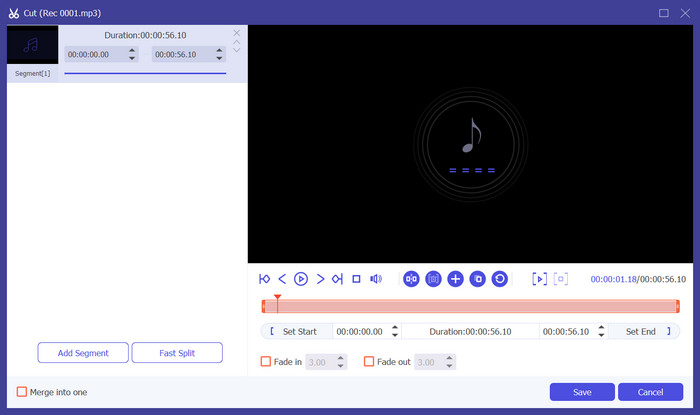
Pasul 4. Pentru a selecta o parte a melodiei ca ton de apel al telefonului, apasă pe Cut. Vei intra apoi în pagina de decupare. Trage cursorul pentru a alege porțiunea pe care vrei să o păstrezi. În această fereastră, poți de asemenea să adaugi efecte fade-in și fade-out tonului tău de apel.
Pasul 5. Pentru a modifica volumul sau pista audio a fișierului, apasă pe Edit. Pe noua pagină poți chiar previzualiza direct rezultatul editării. Pentru a păstra modificările, apasă pe OK.
Pasul 6. După ce ai terminat de configurat tonul de apel, apasă pe Convert All pentru a exporta fișierul.
Partea 3. Setați melodia Spotify ca ton de apel
Acum că avem noul nostru ton de apel pregătit și l-am editat la lungimea potrivită, trebuie să facem ultimul pas: setați melodia Spotify ca ton de apel pentru apelurile primite pe telefon. Având în vedere că diferite dispozitive funcționează diferit, vă vom ghida în configurarea acestuia pe dispozitivul dvs. atât de pe telefoanele iPhone, cât și de pe cele Android.
Android
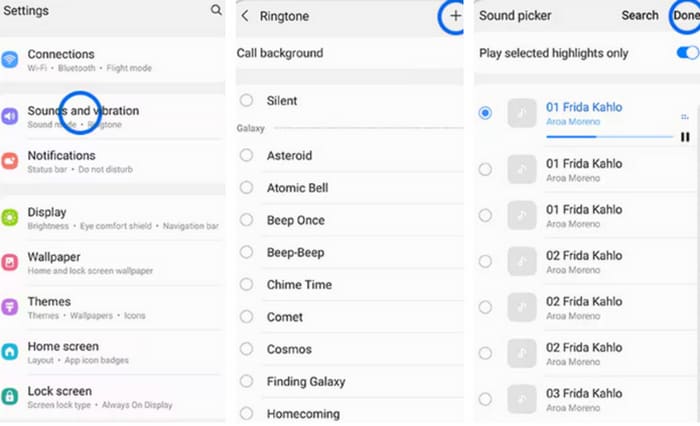
În această secțiune, vă vom ghida prin setarea melodiilor Spotify la tonuri de apel pe telefonul dvs. Android. Vom folosi un telefon Samsung ca exemplu. Înainte de a începe, ar trebui să transferați melodia Spotify pe telefon. Transformarea prin cablu USB sau Bluetooth sunt ambele rute care pot fi referite.
Pasul 1. Mergi la Settings pe telefon și atinge Sounds & vibration > Phone ringtone > My Sounds.
Pasul 2. Atinge Add și alege melodia Spotify editată din toate fișierele de pe telefonul tău mobil.
Pasul 3. Pentru a salva modificarea, atinge Done. Acum ai adăugat cu succes o melodie Spotify ca ton de apel pe telefonul tău Samsung.
iPhone
Dacă vrei să creezi un ton de apel pentru iPhone, este posibil să fie nevoie să folosești instrumente terțe. Cel mai popular instrument este GarageBand și îți vom explica cum să setezi melodii Spotify drept tonuri de apel pe iPhone.
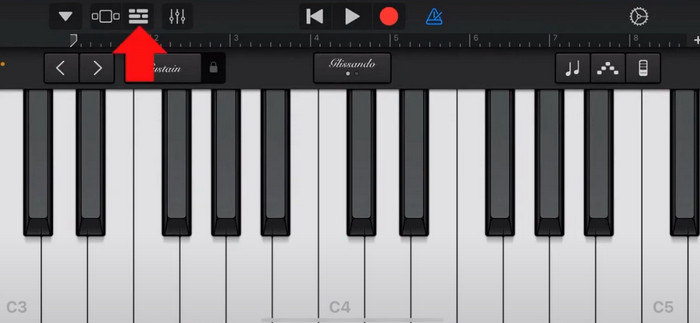
Pasul 1. Descarcă și pornește GarageBand pe iPhone. Alege Project.
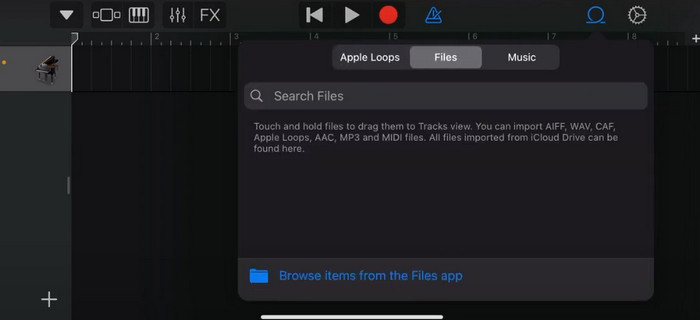
Pasul 2. După aceea, alege Loop > Files. Pentru a selecta melodia Spotify, selectează Browse items from the Files app.
Pasul 3. Pune fișierul Spotify decupat pe cronologie (timeline).
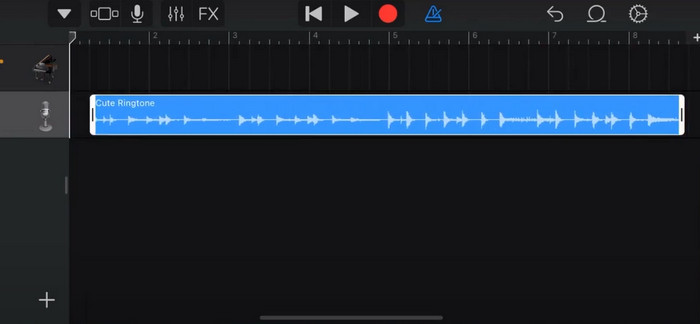
Pasul 4. Dezactivează Metronome. Apoi atinge pictograma cu săgeata în jos și alege My Songs.
Pasul 5. Ține apăsat pe clipul audio și atinge Share.
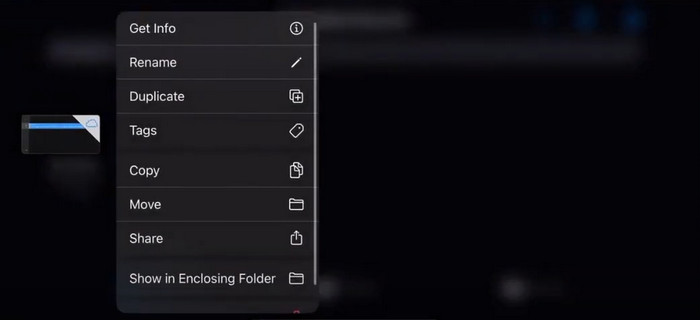
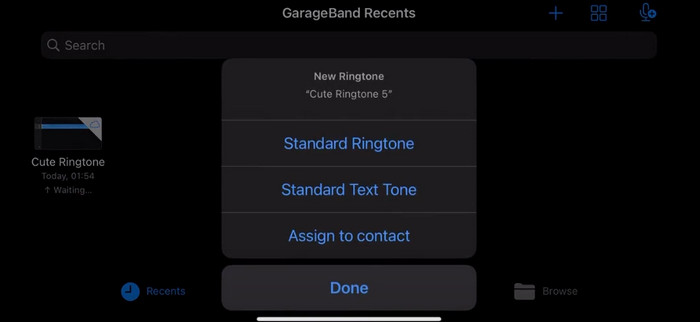
Pasul 6. Alege Ringtone > Export. Atinge Use sound as > Standard Ringtone.
Partea 4. Întrebări frecvente despre crearea unui cântec Spotify pentru tonul de apel
Pot folosi direct o melodie Spotify ca ton de apel?
Spotify nu permite utilizatorilor să folosească direct o melodie din aplicație ca ton de apel pe un dispozitiv mobil. Cu toate acestea, există metode alternative pe care le puteți utiliza pentru a seta o melodie Spotify ca ton de apel. Puteți achiziționa melodia care vă place dintr-un magazin de muzică digitală, cum ar fi iTunes sau Google Play Music. Există instrumente terțe care vă permit să convertiți melodiile Spotify în fișiere MP3.
Cum fac un ton de apel personalizat pentru iPhone-ul meu fără iTunes?
Dacă doriți să creați un ton de apel personalizat pentru iPhone fără a utiliza iTunes, puteți utiliza GarageBand, o aplicație muzicală disponibilă pe dispozitivele iOS. Această metodă vă permite să vă personalizați tonul de apel cu clipurile audio preferate de pe dispozitiv.
Cum să convertești Spotify într-un ton de apel iPhone fără computer?
Convertirea unei melodii Spotify direct într-un ton de apel iPhone fără a utiliza un computer este dificilă. Cu toate acestea, puteți găsi câteva metode alternative pentru a obține un rezultat similar. De exemplu, puteți utiliza o aplicație de creare a tonurilor de apel sau puteți alege GarageBand.
Concluzie
Mai sus ți-am oferit o prezentare completă despre cum să setezi o melodie Spotify ca ton de apel pentru apelurile primite. Am acoperit toți pașii și ți-am pus la dispoziție un instrument modern de editare audio, Video Converter Ultimate, recomandat de FVC, pentru a te ajuta să îți personalizezi melodia. Dacă dorești, acest instrument te ajută, de asemenea, să transformi cu ușurință un videoclip în ton de apel. Suntem convinși că vei găsi instrucțiunile de care ai nevoie.
-
 Cel mai bun tutorial Cum să convertiți WAV în ton de apel în cel mai scurt timp
 Doriți să convertiți WAV într-un ton de apel fără efort? Instrumentele noastre ușor de utilizat fac treaba! Bucurați-vă de conversie audio de înaltă calitate într-o clipă - fără bătăi de cap de tehnologie. Încearcă-le astăzi!
-
 Cum să faci o notă vocală un ton de apel pe iPhone și Android
 Dacă doriți să transformați o notă vocală într-un ton de apel, citiți acest articol. Indiferent dacă sunteți un utilizator iPhone sau un utilizator Android, puteți găsi soluții în conținutul nostru.
-
 5 dispozitive de tăiere MP3 pentru a tăia cu ușurință orice sunet [Actualizat 2024]
 Aveți nevoie de un dispozitiv de tăiere MP3 pentru a tăia sunetul? În acest caz, citiți acest articol, deoarece vă oferim instrumentele de care depindeți pentru o tăiere audio ușoară.
