


 Video Converter Ultimate
 Screen Recorder
 Reparație video
 Descărcare sigură
Îmbinați fișierele WAV fără probleme cu instrumente software și sfaturi
Indiferent dacă ești novice în editarea audio sau profesionist, a combina fișiere WAV folosind instrumentele și tehnicile potrivite este esențial pentru a te asigura că două fișiere WAV diferite sunt îmbinate și exportate cu o calitate fără pierderi. Pe de altă parte, căutarea instrumentului potrivit poate consuma timp și efort din partea utilizatorului. Totuși, cu ajutorul acestui articol, vom explora diverse instrumente, cu pașii pentru a le parcurge eficient, precum și sfaturi care să te ajute să începi și să faci procesul mai simplu și mai eficient.

Partea 1. Combinați fișierele WAV fără pierderi în câteva secunde [cu accelerare GPU]
Când vrei să combini două fișiere WAV într-un singur fișier de export, cea mai bună și mai ușoară modalitate este să folosești Video Converter Ultimate, recomandat de FVC. Acest software de la Aiseesoft este accesibil tuturor tipurilor de utilizatori, deoarece poate fi descărcat gratuit de pe site-ul său oficial. Acest instrument include funcții pentru editare video și audio, cu posibilitatea de a îmbina mai multe fișiere WAV într-un singur fișier. În plus, software-ul este integrat cu o tehnologie de procesare de mare viteză, ceea ce face îmbinarea și exportul fișierelor WAV mult mai eficiente pentru utilizator. Pentru a naviga ușor sarcina de îmbinare a fișierelor WAV, urmează ghidul de mai jos.
Pasul 1. Descarcă și instalează programul de îmbinare a fișierelor WAV pe computer, apoi deschide-l.
Descărcare gratuită pentru Windows 7 sau o versiune ulterioară Descărcare securizată
Descărcare gratuită pentru MacOS 10.7 sau o versiune ulterioară Descărcare securizată
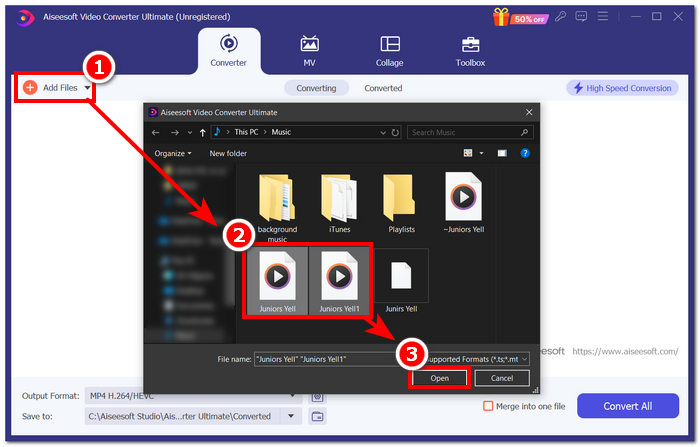
Pasul 2. Odată ce te afli în interfața software-ului, dă clic pe butonul Add Files din colțul din stânga sus. Apoi deschide și alege fișierele WAV pe care vrei să le îmbini într-un singur fișier și apoi apasă pe butonul Open.
Pasul 3. După ce ai încărcat fișierele WAV pe care vrei să le îmbini în software, pune o bifă la meniul Merge into one file, aflat lângă butonul Convert All, în partea din dreapta jos a interfeței.
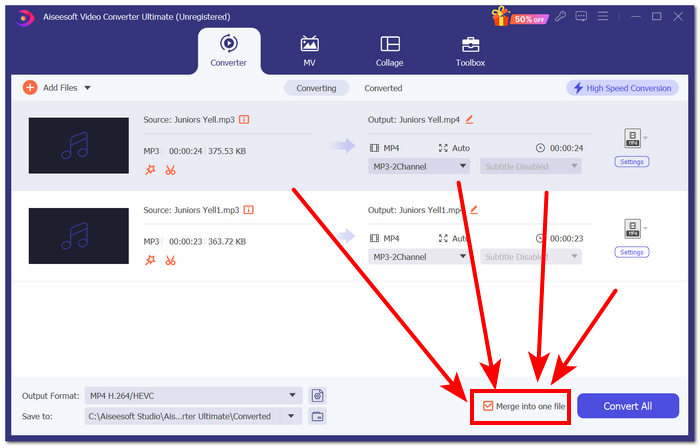
Pasul 4. Dă clic pe butonul Convert All pentru a începe procesul de îmbinare, iar fișierele vor fi exportate automat în folderul tău de descărcări.

Sfaturi
• Puteți îmbina simultan mai multe fișiere WAV în instrumentul software.
• În colțul din stânga jos al interfeței software, puteți controla formatul de ieșire în cel mai dorit format de fișier înainte de a-l exporta.
• De asemenea, puteți schimba destinația fișierului WAV îmbinat accesând și alegând folderul desemnat, situat în colțul din stânga jos al interfeței software.
• Pentru a maximiza tehnologia de procesare de mare viteză atunci când îmbinați și exportați fișierul WAV, activați setarea Conversie de mare viteză situată în colțul din dreapta sus al interfeței software.
• De asemenea, acest instrument acceptă diverse formate, iar tu poți combina fișiere MP4, MKV, FLV, MP3, FLAC și multe alte formate între ele.
Partea 2. Combinați fișiere WAV online
Când vi se pare destul de dificilă îmbinarea fișierelor WAV printr-un instrument bazat pe software, o soluție online ar putea fi cea de care aveți nevoie. Descript este un instrument bazat pe web care funcționează ca un instrument de editare audio, video și transcriere într-unul singur. Îmbinarea fișierelor WAV este relativ ușoară, deoarece instrumentul bazat pe web folosește AI pentru a îmbina automat fișierele WAV de intrare în momentul în care le încărcați și le permite utilizatorilor să le previzualizeze înainte de a le descărca.
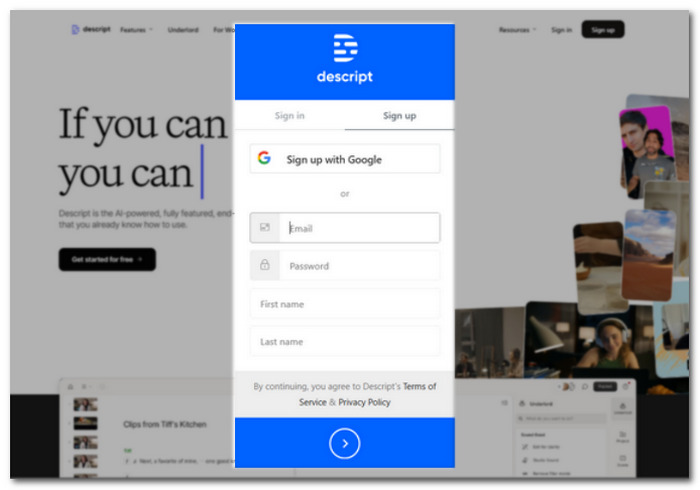
Pasul 1. Accesează site-ul oficial Descript și creează-ți un cont pentru a putea folosi software-ul ca să îți combini fișierele WAV.
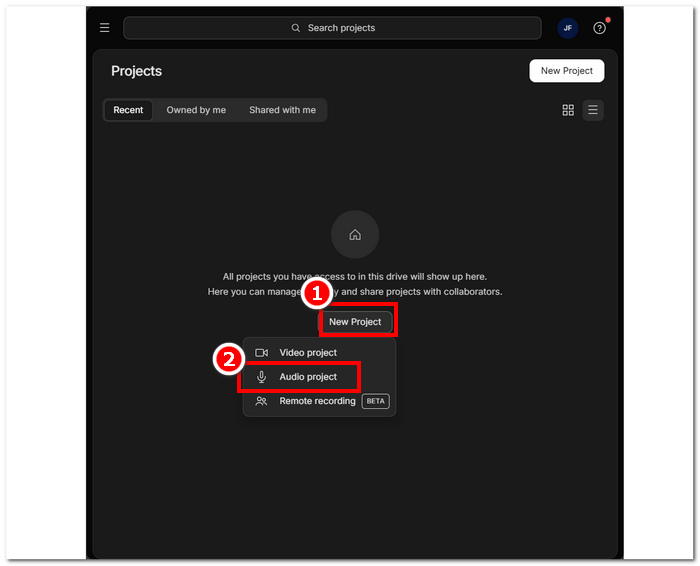
Pasul 2. După ce te conectezi în interfața instrumentului, dă clic pe New Project > Audio Project.
Pasul 3. Încarcă fișierele WAV pe care vrei să le combini și să le îmbini într-un singur fișier în câmpul Upload a file pus la dispoziție în interfața instrumentului.
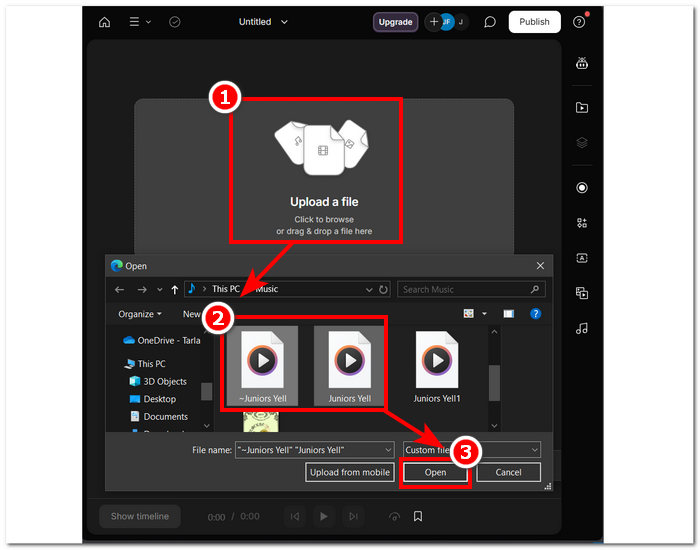
Pasul 4. În timp ce fișierele tale WAV sunt încărcate în interfața instrumentului, va apărea o fereastră. Aceasta îți va permite să decizi dacă vrei să fie combinate automat. Pune o bifă pentru a permite procesul de îmbinare cu ajutorul AI, apoi dă clic pe butonul Done.
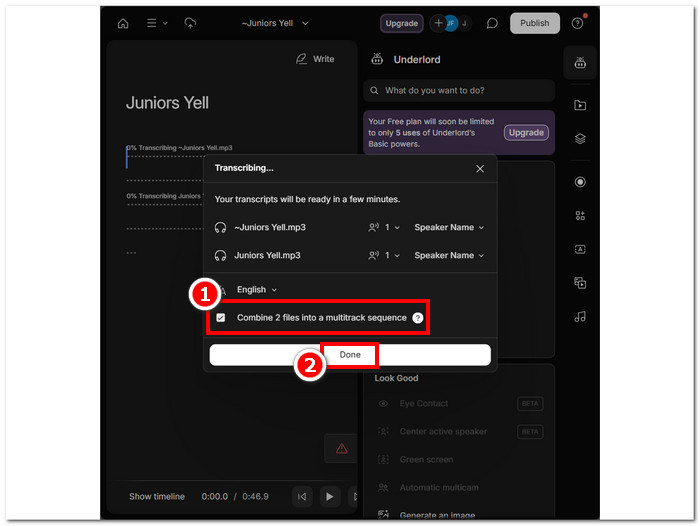
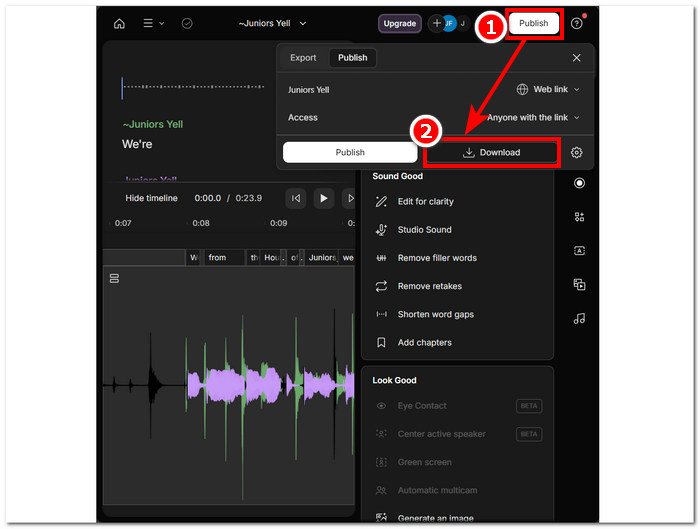
Pasul 5. Așteaptă ca instrumentul să termine îmbinarea fișierelor WAV. După finalizare, poți reda rezultatul pentru a verifica dacă AI a făcut o treabă bună în combinarea fișierelor și a face ajustări, dacă este necesar. Când ești mulțumit, dă clic pe Publish > Download pentru a descărca pe computer fișierul WAV îmbinat.
Sfaturi
• Înainte de a descărca fișierele WAV combinate, asigurați-vă că ați verificat cu atenție piesa audio pentru a evita rupturi.
• Familiarizarea cu instrumentul vă poate ajuta la fixarea eficientă a procesului de îmbinare a fișierelor WAV.
Partea 3. Combinați fișierele WAV cu Audacity
Fiind un editor audio open-source, Audacity poate, de asemenea, îmbina piste precum fișierele WAV, gratuit, fără costuri suplimentare. Acest software gratuit a ajutat utilizatorii în sarcinile lor de editare audio și a făcut îmbinarea fișierelor WAV mult mai ușoară. Audacity le permite utilizatorilor să adauge mai multe fișiere WAV deodată, oferind totodată și suport pentru importul diferitelor formate audio. Mai mult, are o funcție rapidă pentru a aranja fiecare pistă perfect, una după alta, la finalul celei precedente, ceea ce face procesul de îmbinare mult mai simplu, fără grija suprascrierii. Prin urmare, urmarea ghidului detaliat de mai jos te va ajuta să navighezi mai bine software-ul.
Pasul 1. Descarcă software-ul Audacity pe computer. După ce îl ai instalat, deschide-l și încarcă fișierele WAV pe care vrei să le îmbini într-un singur fișier.
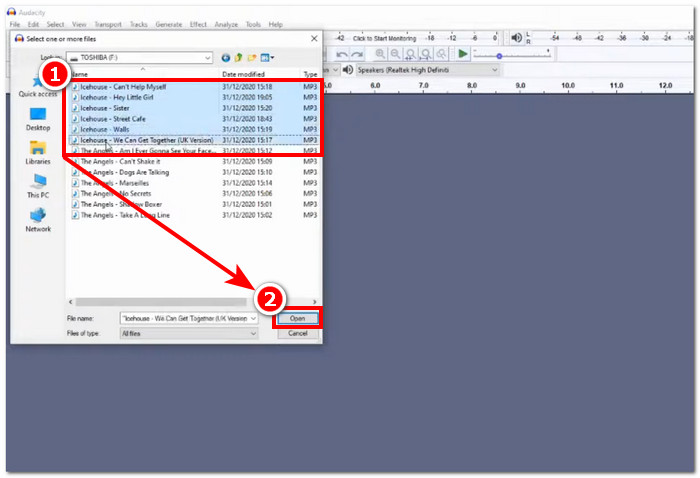
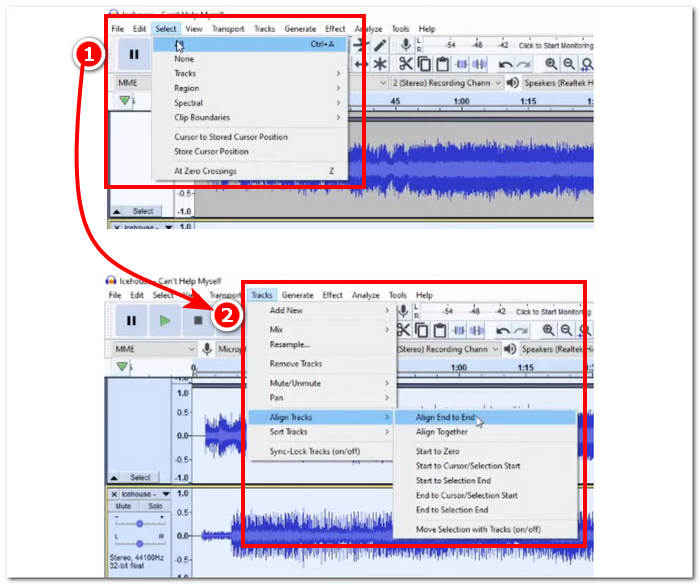
Pasul 2. După ce fișierele tale WAV sunt încărcate în interfața instrumentului, începe prin a selecta toate fișierele pistă dând clic pe opțiunea Select > All din meniul de sus al instrumentului. Apoi aliniază piesele WAV selectate: dă clic pe secțiunea Track, iar sub Align Tracks selectează Align End to End.
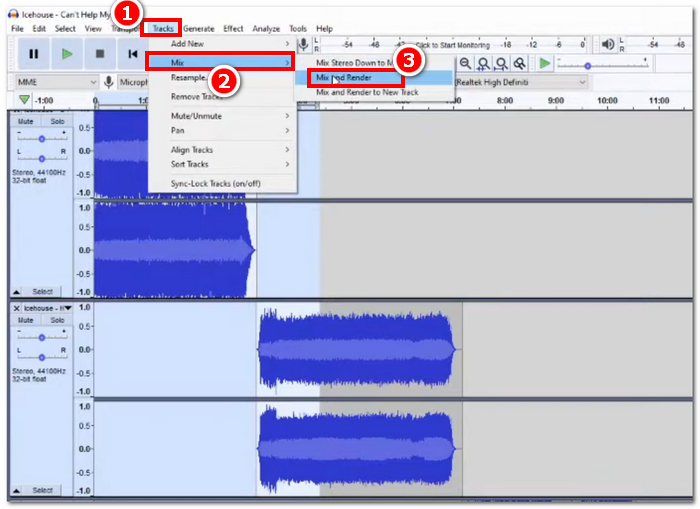
Pasul 3. După ce fișierele WAV sunt aliniate cap la cap, dă clic pe secțiunea Track, iar sub funcția Mix selectează Mix and Render pentru a începe procesul de îmbinare.
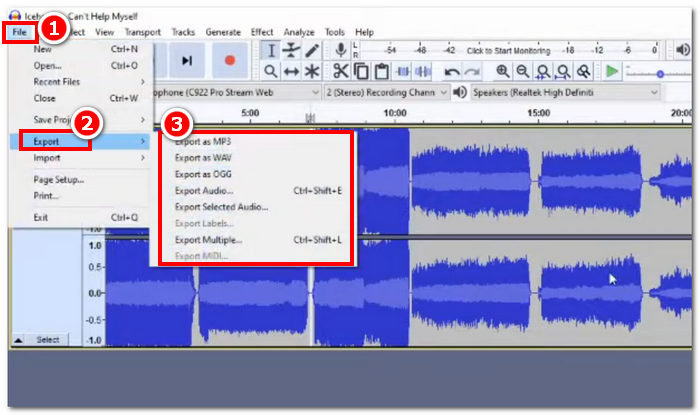
Pasul 4. După ce procesul de îmbinare s-a încheiat, poți exporta fișierul WAV dând clic pe File > Export și alegând formatul de ieșire dorit din cele disponibile.
Sfaturi
• Când exportați fișierele WAV combinate, alegeți să exportați ca WAV, deoarece menține calitatea audio originală.
Partea 4. Combinați fișiere WAV utilizând FFmpeg
Un alt instrument software open-source pentru manipularea audio și video este FFmpeg. Acest cadru multimedia puternic poate fi folosit ca convertor și pentru editare multimedia, cum ar fi fișiere video, audio și alte fișiere media. În gestionarea sarcinilor precum îmbinarea fișierelor WAV, software-ul introduce un cod specific în promptul de comandă pentru a începe procesul de îmbinare numit concatenarea fișierelor WAV într-un singur fișier de ieșire. Mai jos este un ghid detaliat despre cum să utilizați FFmpeg ca fuziune de fișiere WAV.
Pasul 1. Accesează site-ul FFmpeg și instalează programul corespunzător dispozitivului pe care îl folosești.
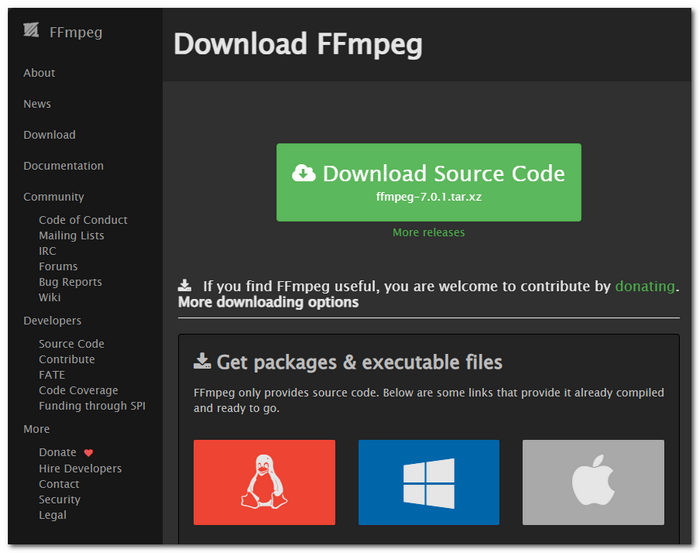
Descărcați fișierul zip de pe site și creați un folder nou în calea sistemului pentru a stoca toate executabilele FFmpeg, inclusiv mutarea fișierului zip în folder.
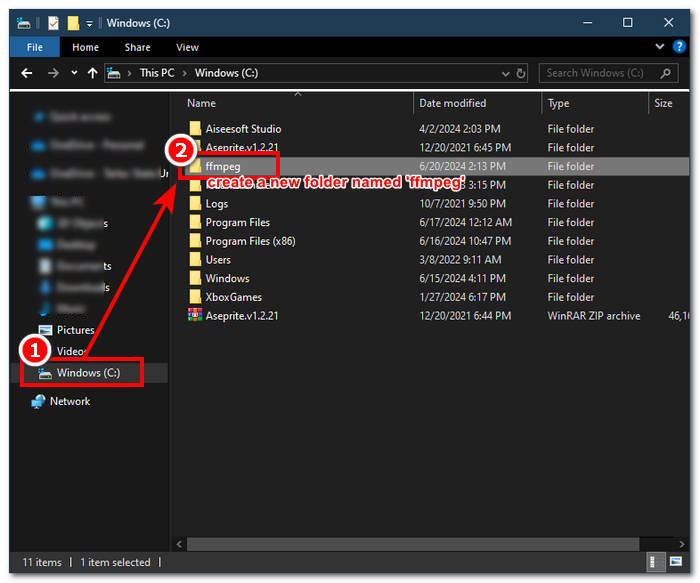
Pasul 2. Mută fișierele tale WAV în folderul ffmpeg pe care tocmai l-ai creat și pregătește-le redenumindu-le în ‘input1.wav’ și ‘input2.wav’ în director.

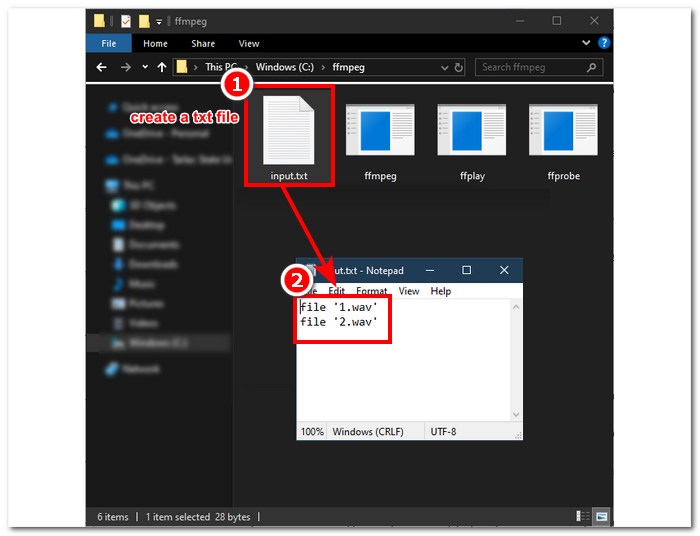
Notă: Apoi, în același folder, creează un fișier numit ‘input.txt’ și introdu următorul conținut:;
file 'input1.wav'
file 'input2.wav'
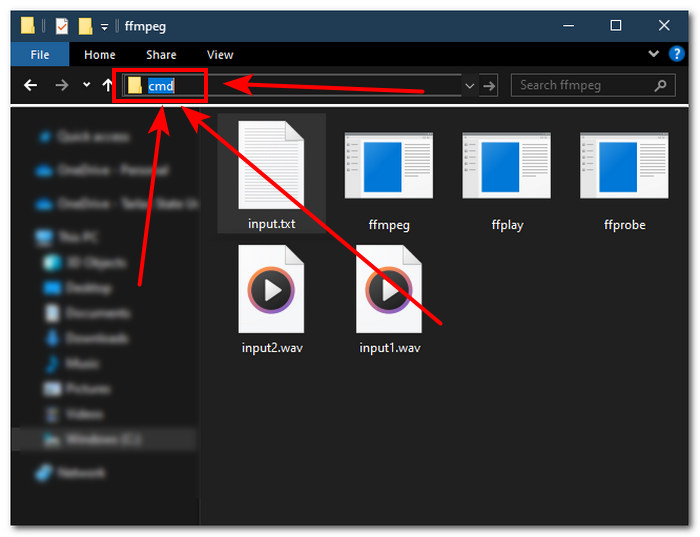
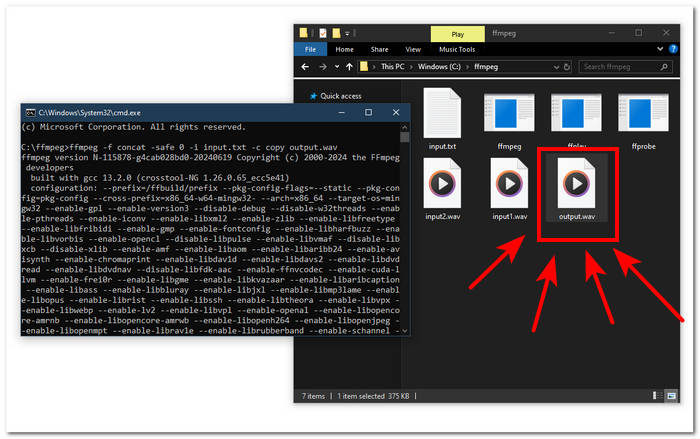
Pasul 3. Rulează linia de comandă FFmpeg tastând ‘cmd’ în câmpul folderului de fișiere aflat în partea de sus a ferestrei și apasă Enter.
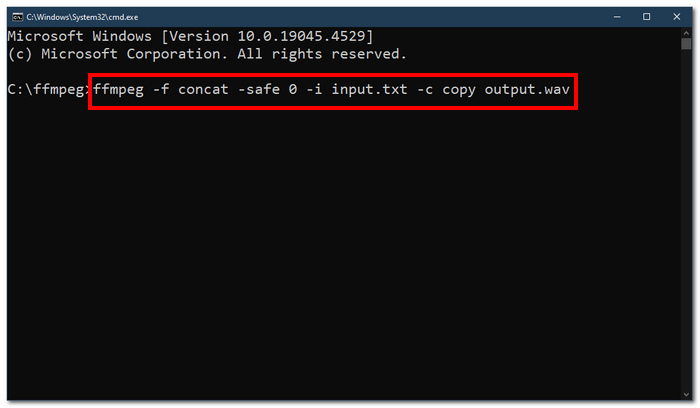
Pasul 4. După ce ai intrat în linia de comandă FFmpeg, introdu următoarea comandă și apasă Enter:;
ffmpeg -f concat -safe 0 -i input.txt -c copy output.wav
Pasul 5. Un nou fișier WAV va apărea în folderul tău, ceea ce înseamnă că ai îmbinat cu succes fișierele WAV într-un singur fișier.
Sfaturi
• Deoarece instrumentul se bazează pe linia de comandă, este important să fiți familiarizat și să cunoașteți linia de comandă de bază pentru o navigare eficientă a instrumentului.
• Păstrați toate folderele și fișierele legate de FFmpeg într-un singur folder pentru organizare și acces ușor.
• Urmăriți tutoriale și citiți ghiduri de pe internet atunci când doriți să faceți alte sarcini decât îmbinarea fișierelor WAV.
Partea 5. Întrebări frecvente despre cum să combinați fișierele WAV
Puteți amesteca fișiere WAV?
Da, puteți amesteca fișiere WAV utilizând software terță parte creat pentru a îmbina fișiere WAV, cum ar fi Video Converter Ultimate și Audacity alese de FVC.
VLC poate îmbina fișierele audio?
VLC media player nu are capacitatea de a îmbina fișiere WAV, deoarece este creat exclusiv pentru streaming media și conversie media.
Cum să îmbinați fișierele video în Windows Media Player?
Windows Media Player nu acceptă editarea fișierelor WAV, cu atât mai puțin fuzionarea fișierelor WAV. Windows Media Player este un software creat pentru dispozitivele Windows concepute pentru a reda conținut media.
Care este cel mai simplu mod de a combina fișiere audio?
Cel mai simplu mod de a îmbina fișiere WAV este să utilizați Video Converter Ultimate, ales de FVC; acest software este proiectat cu tehnologie de procesare de mare viteză pentru a fi convenabil pentru utilizatorii cu cea mai mică experiență în sarcini de editare audio, cum ar fi combinarea fișierelor WAV.
Combinarea fișierelor WAV poate afecta calitatea audio?
Da, instrumentele software pot afecta puternic calitatea unui fișier WAV, în funcție de calitatea software-ului pe care îl utilizați. Poate avea cea mai slabă calitate atunci când utilizați un instrument de schiță. Când utilizați instrumente software de încredere și de încredere, cum ar fi Video Converter Ultimate, Audacity și multe altele alese de FVC, vă poate ajuta la menținerea calității originale.
Concluzie
În concluzie, îmbină fișierele WAV folosind instrumentele software prezentate pentru a le combina eficient și a le exporta cu o calitate fără pierderi. Merită subliniat că găsirea instrumentelor potrivite și învățarea modului de utilizare a acestora este o parte esențială a procesului. Astfel, de la utilizarea unor programe complexe precum Video Converter Ultimate, recomandat de FVC, până la instrumentul avansat în linie de comandă FFmpeg, articolul a avut grijă să includă pașii și sfaturile utile, astfel încât tot ce trebuie să faci este să îi urmezi pentru un proces de îmbinare simplu și lipsit de bătăi de cap.
-
 Cum pot converti MP4 în WAV online gratuit
 Încercați din greu să convertiți MP4 în WAV? Nu știți ce convertor vă poate ajuta cu asta perfect fără a plăti un ban? Citiți această postare și veți primi răspuns la toate întrebările dvs.
-
 Recenzie a celor mai buni 10 playere MP3 gratuite
 Care este cel mai bun player de muzică MP3? Cum pun muzică pe un player MP3? Cum se descarcă playerul de muzică MP3? Această postare vă oferă o recenzie detaliată a celor mai bune 10 playere MP3 gratuite pentru Windows PC și Mac.
-
 Cele mai bune 8 playere MOV pentru PC și Mac pentru a reda fișiere video QuickTime MOV
 Aflați mai multe despre cele mai bune 8 playere MOV disponibile atât pentru Windows, cât și pentru Mac. Puteți alege cea dorită și potrivită pentru a reda fișiere MOV cu calitatea originală.
