


 Video Converter Ultimate
 Screen Recorder
 Reparație video
 Descărcare sigură
Ghid detaliat despre cum să inversați sunetul în Audacity [2024]
Inversarea pieselor audio poate adăuga o dimensiune și o culoare unică producțiilor tale muzicale, generând efecte sonore captivante pentru povestirea creativă. Acest stil este utilizat pe scară largă și devine popular atunci când vine vorba de îmbogățirea proiectelor audio cu profunzime și originalitate. Deci, dacă editați audio în Audacity și doriți să adăugați o întorsătură inversând-o, sunteți în locul potrivit!
În acest articol, vă vom ghida prin pași detaliați despre cum să inversați sunetul în Audacity și vă vom împărtăși sfaturi valoroase pentru a vă ajuta să profitați la maximum de această funcție. Până la sfârșitul acestui ghid, veți fi gata să inversați piesele audio și să explorați cu ușurință noi orizonturi creative. Așadar, pregătiți-vă să vă transformați proiectele audio și să descoperiți potențialul interesant al sunetului inversat!

Partea 1. Cum să inversați sunetul în Audacity
Audacity este un program conceput pentru a permite utilizatorilor să editeze fișiere audio fără a fi nevoie de instrumente premium costisitoare, asigurând rezultate de înaltă calitate fără costuri. Ca instrument open-source, este accesibil tuturor și oferă o listă lungă de funcții care se găsesc de obicei în software-ul plătit. Printre gama sa de capabilități, Audacity se remarcă prin capacitatea sa de a inversa piesele audio. Această caracteristică permite utilizatorilor să fie creativi cu privire la modul în care doresc să sune audio. De obicei, editorii își inversează sunetul, deoarece adaugă un efect unic proiectelor lor.
Iată cum poți inversa un fișier audio în Audacity.
Pasul 1. Descarcă și instalează Audacity pe computer.
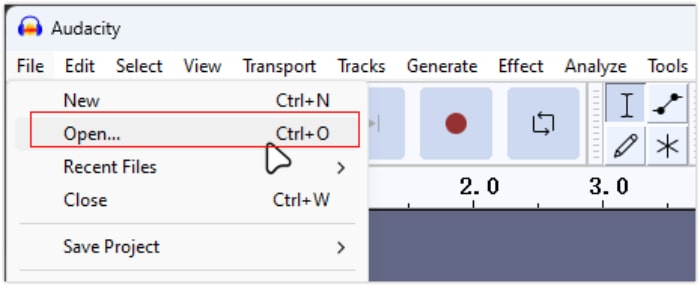
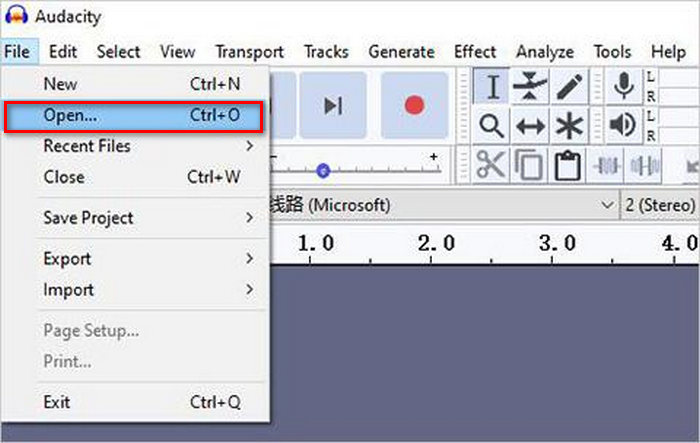
Pasul 2. Deschide programul, mergi la meniul File din colțul stânga sus și selectează Open. De acolo, caută pe computer pentru a găsi și selecta fișierul audio sau trage și plasează în program fișierul audio pe care vrei să îl inversezi.
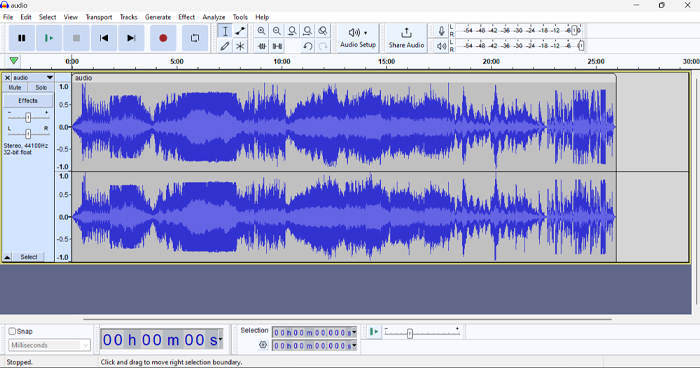
Pasul 3. Acum, dă clic pe pista audio, mergi la fila Select și alege All pentru a selecta întregul fișier audio.
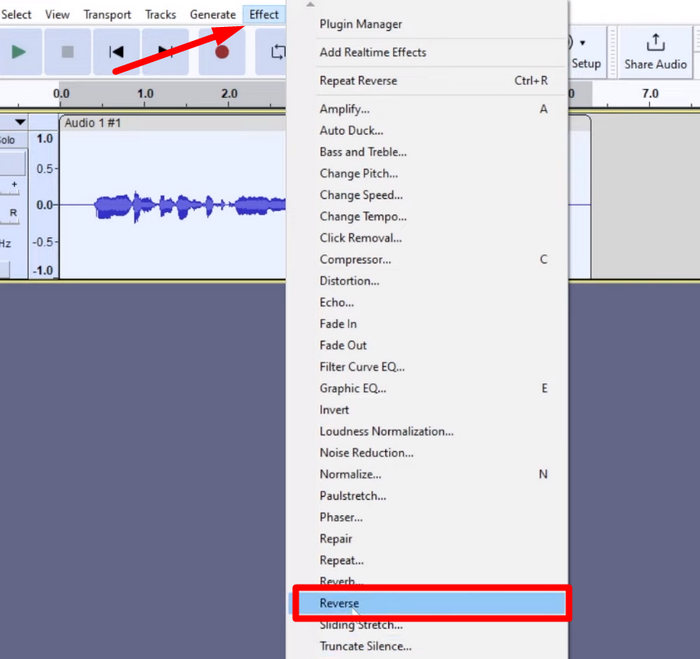
Pasul 4. Pentru a inversa sunetul, mergi la fila Effect și selectează Reverse din meniul derulant. Audacity va procesa și va inversa clipul audio selectat.
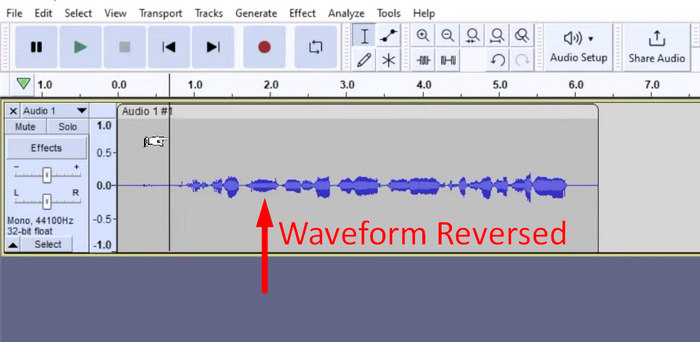
Pasul 5. Poți previzualiza audio inversat apăsând bara de spațiu de pe tastatură. Alternativ, folosește comenzile de redare din colțul stânga sus al ferestrei Audacity și fă clic pe butonul Play.
Pasul 6. În final, pentru a exporta fișierul audio inversat, revino la meniul File și, în cadrul acestuia, alege Export. În acest fel, sunetul va fi salvat ca un fișier nou. Între timp, nu uita să alegi formatul audio preferat înainte de a le exporta.
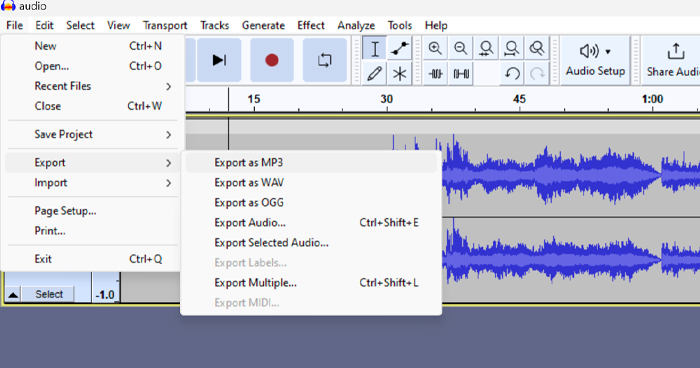
Din cauza unor probleme legate de pierderea neașteptată a lucrării, salvați în mod regulat proiectul în timp ce editați pentru a preveni orice pierdere a progresului. Vă puteți salva rapid munca utilizând Ctrl + S pe Windows sau Cmd + S pe Mac. În plus, luați în considerare utilizarea numelor de fișiere descriptive și organizarea fișierelor într-un folder dedicat pentru a vă menține proiectele bine organizate și ușor accesibile.
Partea 2. Cum să inversați o parte a audio în Audacity
Există cazuri în care utilizatorii au dorit doar să inverseze o parte a sunetului în Audacity, poate pentru că există doar anumite secțiuni pe care doresc să le sublinieze sau să creeze un efect distinct. Pașii de mai jos sunt aproape la fel ca și cum să inversați o pistă întreagă. Cu toate acestea, selectarea unei părți a unui sunet este puțin dificilă și necesită accent în pași pentru a evita confuzia, în special pentru începători.
Iată cum poți inversa doar o parte dintr-un fișier audio în Audacity.
Pasul 1. Când te afli în interfața principală a programului, mergi la meniul File din colțul stânga sus și selectează Open. De acolo, caută pe computer pentru a găsi și selecta fișierul audio sau trage și plasează în program fișierul audio pe care vrei să îl inversezi.
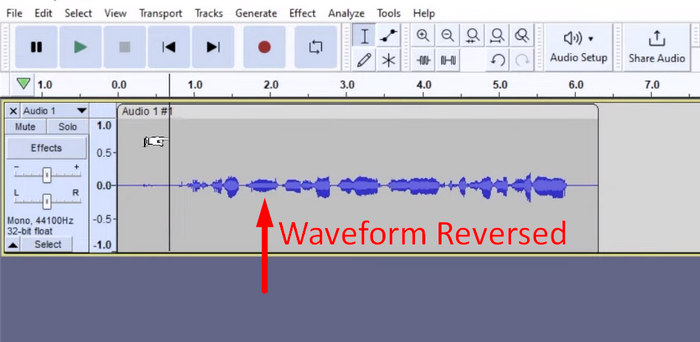
Pasul 2. Acum, pentru a selecta partea de audio pe care vrei să o inversezi, folosește funcția Zoom pentru a mări forma de undă și trage cu mouse-ul pentru a selecta porțiunea sau partea de audio pe care vrei să o inversezi doar pe ea.
Pasul 3. Pentru a inversa sunetul, mergi la fila Effect și selectează Reverse din meniul derulant. Audacity va procesa și va inversa clipul audio selectat.
Pasul 4. Poți previzualiza audio inversat apăsând bara de spațiu de pe tastatură. Alternativ, folosește comenzile de redare din colțul stânga sus al ferestrei Audacity și fă clic pe butonul Play.
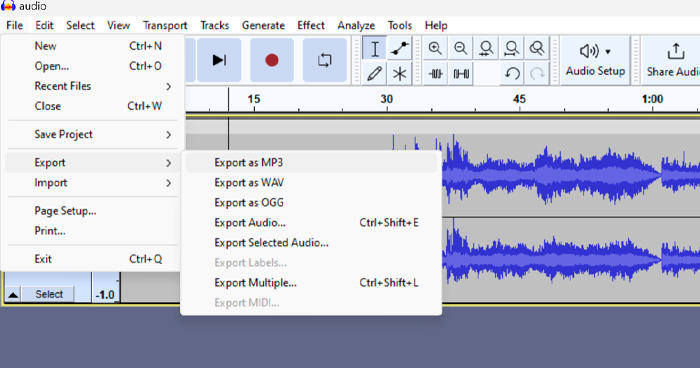
Pasul 5. În final, pentru a exporta fișierul audio inversat, selectează Export din meniul File. Alege Export as și selectează formatul de fișier audio preferat înainte de a le exporta în cele din urmă.
Când selectezi o parte anume dintr-un fișier audio pentru a o inversa în Audacity, asigură-te că faci zoom suficient pe forma de undă pentru a vedea clar unde începe și unde se termină porțiunea respectivă. Acest lucru te ajută să faci selecții precise și să eviți includerea unor părți nedorite din audio. În plus, înainte de a inversa, folosește unealta Clip Split, dacă este necesar, pentru a împărți fișierul audio în segmente mai mici, de exemplu, pentru tăierea unui fișier MP3, făcând astfel mai ușoară manipularea și editarea independentă a unor secțiuni specifice. Această abordare îți oferă un control mai bun asupra editării și asigură faptul că audio inversat obține efectul dorit fără întreruperi.
Partea 3. Reverse Audio/Video cu Audacity Alternative
Dacă preferi între timp o modalitate mai simplă și mai ușoară de a inversa audio sau video, poți folosi această alternativă la Audacity, și anume FVC-picked Video Converter Ultimate. Acest pachet complet pentru video și audio este cunoscut pentru capabilitățile sale puternice de conversie, dar, pe lângă asta, este de asemenea excelent pentru utilizatorii care au nevoie de o metodă comodă de inversare a fișierelor audio sau video.
Pasul 1. Pe computer, descarcă și instalează FVC-picked Video Converter Ultimate.
Descărcare gratuită pentru Windows 7 sau o versiune ulterioară Descărcare securizată
Descărcare gratuită pentru MacOS 10.7 sau o versiune ulterioară Descărcare securizată
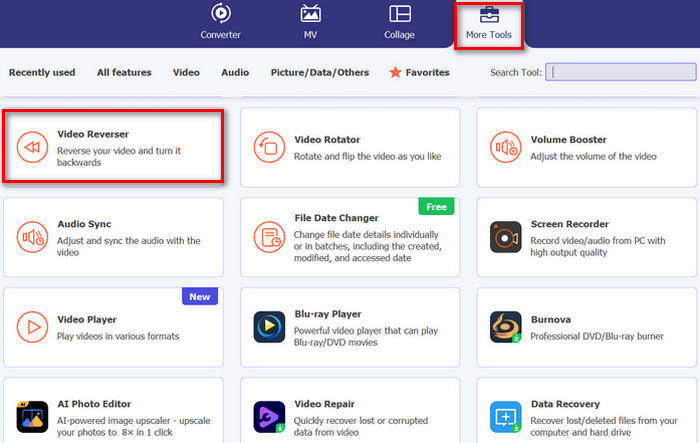
Pasul 2. Deschide programul și mergi la fila Moretools. De acolo, selectează Video Reverser.
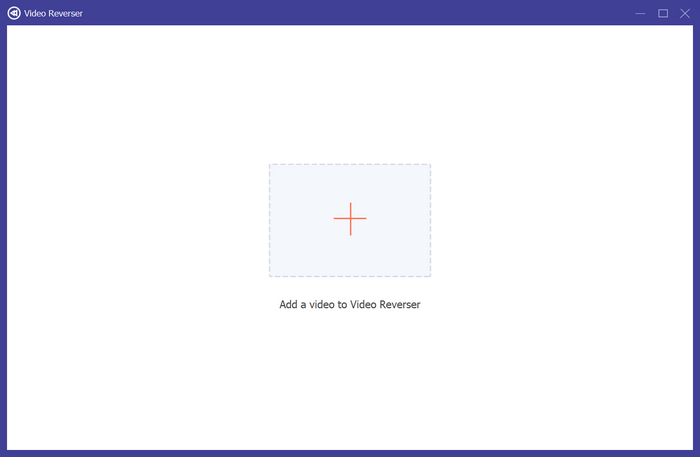
Pasul 3. Acum, importă fișierul audio sau video pe care vrei să îl inversezi făcând clic pe butonul Add a Video to Video Reverser.
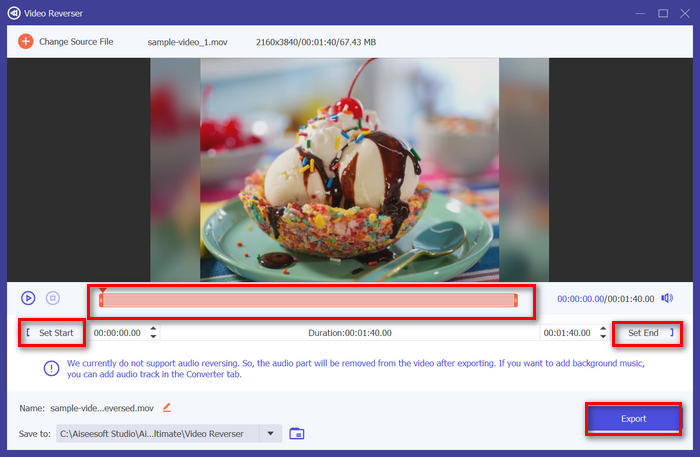
Pasul 4. Odată ajuns în interfața Video Reverser, dacă dorești să inversezi întregul fișier, poți pur și simplu să mergi la butonul Export pentru a-ți inversa automat fișierul. Dar dacă vrei să inversezi doar o parte, poți glisa bara și alege cu atenție partea din audio sau video pe care vrei să o inversezi. Alternativ, poți pur și simplu să introduci timpul de început și timpul de final al porțiunii de fișier pe care vrei să o inversezi. După ce ai terminat, apasă doar butonul Export.
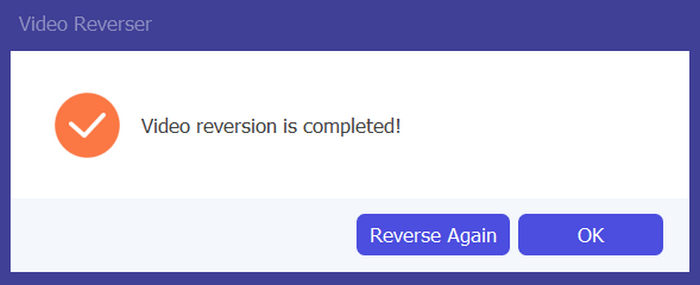
Pasul 5. Când exportul este finalizat, vei primi acest mesaj și vei putea accesa videoclipul inversat în folderul de pe computer.
Iată-l! Ușor, nu? Nu trebuie să vă confundați cu o interfață complexă. Cu Video Converter Ultimate, ales de FVC, tot ce ai nevoie este la îndemâna ta.
Partea 4. Întrebări frecvente despre inversarea sunetului în Audacity
Cum să anulați efectul audio invers în Audacity?
Dacă ați inversat o în Audacity și doriți să o anulați, puteți reveni cu ușurință la sunetul original. Pur și simplu accesați meniul Editare din colțul din stânga sus al interfeței Audacity și selectați Undo Reverse. Mai mult, puteți folosi comanda rapidă de la tastatură Ctrl + Z pentru Windows sau Cmd + Z pentru Mac pentru a anula ultima acțiune. Acest lucru va readuce sunetul la starea inițială înainte ca efectul invers să fie aplicat.
Ce formate audio acceptă Audacity pentru inversarea sunetului?
Audacity acceptă diverse formate audio populare, cum ar fi WAV, MP3, FLAC, AIFF și OGG.
Puteți distorsiona sunetul în Audacity?
Da. Puteți distorsiona sunetul în Audacity. Audacity oferă mai multe efecte și instrumente care vă permit să aplicați distorsiuni pieselor dvs. audio. Pentru a adăuga acest lucru, accesați Efect, faceți clic pe Distorsion and Modulation și alegeți Distortion.
Puteți converti audio în Audacity?
Da, poți. Audacity acceptă o mulțime de formate audio. Dacă descoperi, de exemplu, că vreun fișier audio nu este compatibil cu dispozitivul tău, poți folosi Audacity pentru a converti cu ușurință AIFF în MP3.
Concluzie
În concluzie, să înveți cum să inversezi audio în Audacity este simplu și adaugă efecte unice proiectelor tale audio sau video. Urmează pașii detaliați pentru a începe să inversezi pistele audio chiar de astăzi. Pentru o alternativă mai ușoară, încearcă FVC-picked Video Converter Ultimate. Pregătit să fii creativ? Încearcă oricare dintre aceste metode chiar acum!
-
 Alăturați-vă gratuit la MOV - Cum să îmbinați două fișiere MOV într-unul
 Poate fi dificil pentru începători să se alăture mai multor videoclipuri MOV împreună. Deci, există o modalitate simplă și rapidă de a combina fișiere MOV? Dacă există, atunci cum să-l folosiți? Această postare vă va ajuta să obțineți aceste răspunsuri.
-
 4 moduri de a îmbina videoclipurile împreună gratuit pe Windows / Mac / Online
 Iată 4 modalități rapide de a îmbina videoclipurile împreună într-un videoclip nou. Fără limită de dimensiune sau format de fișier video. Vă puteți alătura cu succes 2, 3, 4 și chiar mai multor videoclipuri în diferite formate și rezoluții.
-
 Ghid concret pentru a vă alătura fișierelor M4V pe Windows și Mac gratuit
 Dacă sunteți în căutarea unei soluții pentru a combina fișiere video M4V într-unul, nu ratați niciodată acest pasaj. Aici vom vorbi despre cele mai bune două metode de a combina fișiere video M4V.
