


 Video Converter Ultimate
 Screen Recorder
 Reparație video
 Descărcare sigură
Cum să vă convertiți fișierele TS în format FLV fără pierderi de calitate
This guide focuses on how to convert TS to FLV. Generally speaking, there are two kinds of video formats, commonly used and others. FLV is one of the commonly used video formats developed for internet, while TS belongs the latter kind. TS, standing for Video Transport Stream, is used to store MPEG-2 video data. They are often seen on DVDs. Anyway, let's start the journey now.

Partea 1: Top 3 moduri simple de a converti TS în FLV pe desktop
Modul 1: Convertiți TS în FLV cu convertorul FLV gratuit
As its name indicated, FVC Free FLV Converter is just the FLV converter you need to turn TS to FLV, so that you can watch your files or share them on social media. It is total free to use with no watermark or other limit. It even provides some features you can only find in paid software.
Principalele caracteristici ale celui mai bun convertor FLV
- 1. Conversia între FLV și alte formate video cu ușurință.
- 2. Protejați calitatea video și audio în timpul conversiei.
- 3. Batch gestionează mai multe fișiere video TS în același timp.
Descărcare gratuităPentru Windows 7 sau versiuni ulterioareDescărcare sigură
Descărcare gratuităPentru MacOS 10.7 sau versiuni ulterioareDescărcare sigură
Cum se convertesc fișiere TS în FLV gratuit
Step 1: Import TS files
Lansați cel mai bun convertor FLV după ce îl instalați pe computer. Apoi faceți clic pe butonul Adăugați fișiere pentru a importa toate fișierele TS de pe DVD sau computer. Apoi videoclipurile vor apărea în zona bibliotecii.

Step 2: Set output format
If you need to edit the videos, click the Edit button to open the video editor window. If not, go to the bottom, click and expand the Output format option. Then search for FLV in the General Video tab and select it.

Step 3: Convert TS to FLV
Next, set a specific folder to save the FLV output files by hitting the Browse button. Finally, click on the Convert button at bottom right corner to begin converting TS to FLV.

Modul 2: Cum se convertește TS în FLV prin VLC
VLC este un alt mod de a converti TS în FLV gratuit, deoarece este un proiect open-source. Este disponibil pentru PC, Mac și Linux. Costurile sunt evident. Calitatea ieșirii nu este foarte bună, iar procedura este complexă. Dacă nu vă deranjează, efectuați pașii de mai jos.
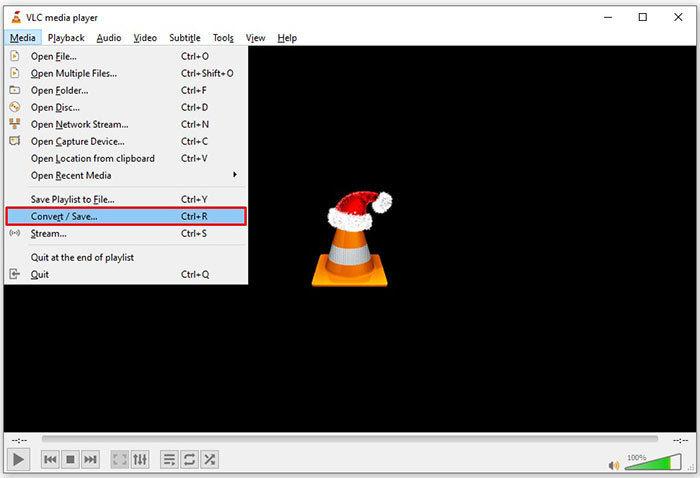
Step 1: Open VLC, click Media menu and choose Convert/Save. The open-media dialog will pop up.
Step 2: Click the Add button and add a TS file into VLC. Hit Convert/Save button to move on.
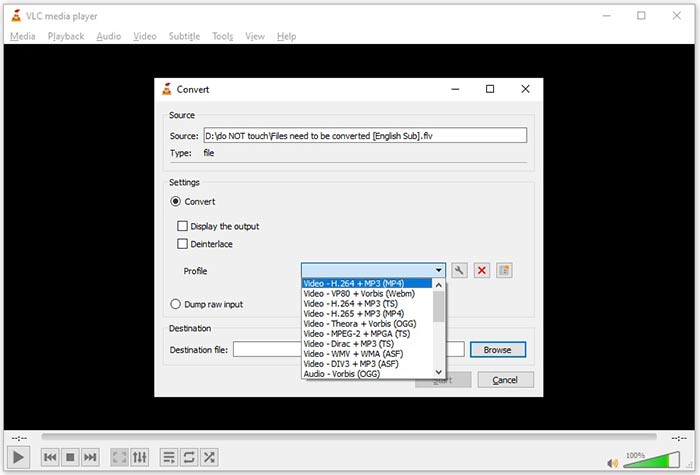
Step 3: Open the Profile option and choose the output format. If you cannot find FLV in Profile, click the Profile Edit button, enter FLV in Profile Name box, select FLV and click Create. Then select FLV from Profile.
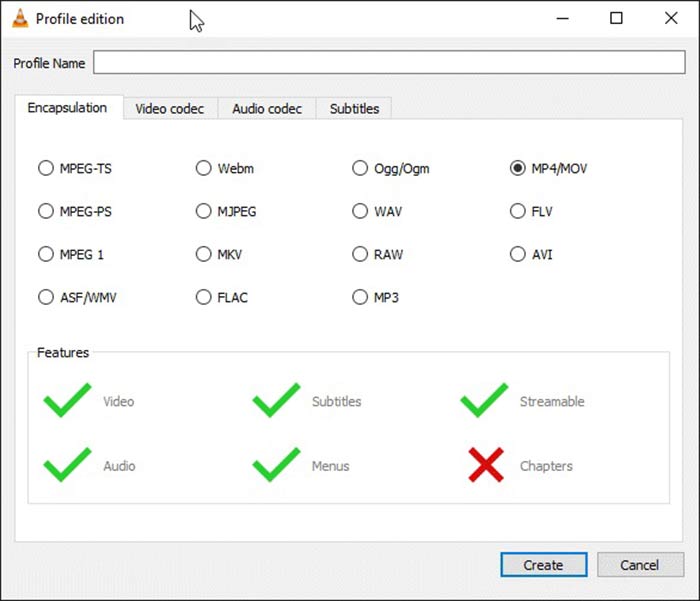
Step 4: Hit the Browse button to set the destination folder and click the Start button.
Modul 3: Cum se convertește TS în FLV prin FormatFactory
FormatFactory este un program gratuit de conversie a fișierelor pentru PC-uri. Vă permite să convertiți fișiere TS în FLV fără a plăti un ban. Cu toate acestea, acceptă doar conversia cu pierderi. Înseamnă că calitatea videoclipului dvs. va fi redusă. În plus, nu este disponibil pe Mac sau Linux.
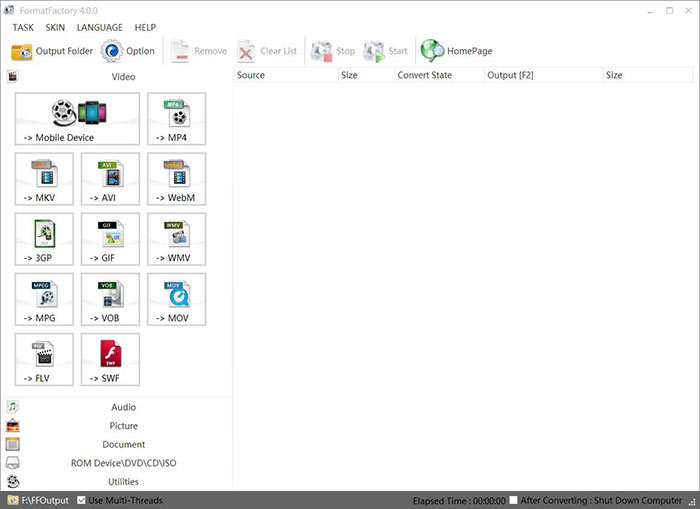
Step 1: Run the free TS to FLV converter, go to the Video section and select FLV.
Step 2: Click the Add File button and import the TS video files from your computer. Hit OK to confirm it.
Step 3: Next, click on the Start button to initiate converting TS to FLV on PC. It takes a while since the freeware is very slow. When it is done, you can go to the directory under Output section to find the FLV files.
Partea 2: Cum se convertește TS în FLV online
VLC and other video converting software all need you to install on your hard disk. It takes space of your internal memory. You may wonder whether you can convert TS to FLV without installing software. The answer is FVC Free Online Video Converter. It works online and is free of charge. Although does not provide bonus features, it is enough to meet you basic need on video converting.
Step 1: Open https://www.free-videoconverter.net/free-online-video-converter/ in a web browser and click the Add Files to Convert button to download the launcher.

Step 2: Once downloading is done, the launcher will pop up. Click the Add File button to upload the TS files. This web app supports batch conversion. Go to the bottom and select FLV at the bottom.
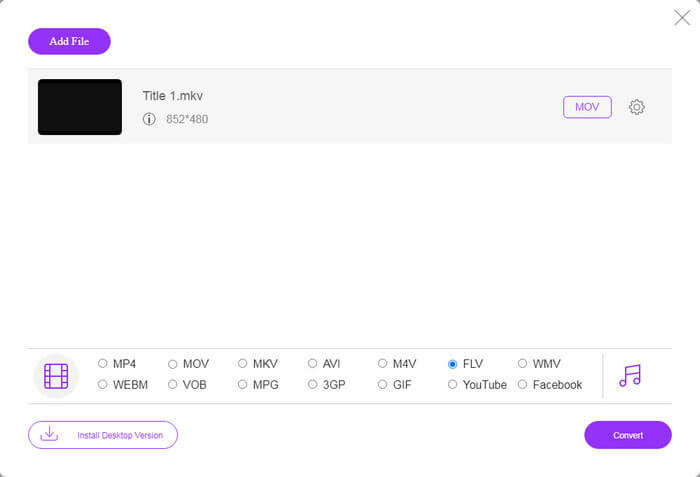
Step 3: If you are ready, click on the Convert button to trigger the TS to FLV conversion. The app works fast, but the real time is determined by your internet connection. Wait for the converting to finish and download the FLV output.
Don't Miss:
- • Ghid cuprinzător despre cum să convertiți TS în MP4
- • Cum se convertește fișierul TS în MP3, AIFF, ALAC, FLAC și mai multe formate audio pe Windows / Mac
Partea 3: Întrebări frecvente despre convertirea TS în FLV
De ce nu pot converti TS în alte formate?
TS este formatul de fișier video pentru DVD. Majoritatea DVD-urilor comerciale sunt criptate și protejate prin drepturi de autor. Acest lucru vă împiedică, de asemenea, să convertiți fișiere TS dacă nu aveți software-ul de conversie video adecvat.
Pot deschide TS în Windows Media Player?
Windows Media Player nu poate deschide fișiere DVD sau TS, deci nu puteți reda TS în WMP. Alternativ, puteți utiliza un player video terță parte, cum ar fi VLC. Sau trebuie să instalați un pachet de codec suplimentar pentru WMP.
Cum să vizionați fișiere TS?
Doar câteva playere media acceptă fișiere TS, cum ar fi VLC. Playerele media încorporate de pe PC și Mac, Windows Media Player și QuickTime Player nu sunt compatibile cu TS. O altă modalitate de a viziona fișiere TS este de a le arde pe DVD.
Concluzie
Acum, ar trebui să învățați cel puțin patru moduri de a converti fișiere TS în videoclipuri FLV pentru partajare online sau redare pe dispozitive digitale. Ca format video pentru filme DVD, TS nu este utilizat pe scară largă pe computer sau dispozitive mobile. Este logic că majoritatea playerelor media nu o pot deschide. Convertor FLV gratuit FLV; totuși, vă ajută să schimbați cu ușurință TS în FLV. Mai multe întrebări? Vă rugăm să le scrieți sub această postare și vă vom răspunde.
-
 3 pași simpli pentru a inscripționa fișiere video / fișiere _TS pe DVD pe Mac / Windows
 Cum convertesc și scriu fișiere TS pe disc DVD? Acest ghid pas cu pas vă va arăta cum să copiați fișiere și foldere TS pe DVD pe Windows / Mac, astfel încât să puteți viziona fișiere TS pe DVD player sau TV.
-
 6 moduri simple de a converti TS în AVI / MKV / MOV / WMV pe Windows / Mac
 Doriți să convertiți rapid fișiere TS în AVI / MKV / MOV / WMV? Acest articol prezintă convertoare video online și offline cu ghid complet. Poate puteți obține cel mai bun convertor TS gratuit aici.
-
 Comprimarea fișierelor video TS - Cum să comprimați fișierele TS în dimensiuni mai mici
 Când doriți să salvați fișierele video TS de înaltă definiție pe dispozitivele dvs., ar trebui să aflați mai multe despre cum să comprimați fișierele video TS în dimensiuni mai mici din acest articol.
