


 Video Converter Ultimate
 Screen Recorder
 Reparație video
 Descărcare sigură
Cum se convertesc fișiere FLV în videoclipuri iPhone fără a pierde calitatea
Este bine cunoscut faptul că iPhone și iPad sunt echipate cu ecrane de ultimă generație. Este firesc ca vizionarea de filme pe dispozitivele iOS să fie o activitate populară. Totuși, utilizatorii de iOS se confruntă mereu cu o barieră de format atunci când redau filme. De exemplu, fișierele FLV, care sunt destul de răspândite, nu sunt acceptate de software‑ul nativ al Apple. De aceea împărtășim acest ghid, pentru a vă ajuta să convertiți FLV în format video pentru iPhone pe desktop sau online, cu ușurință.

Partea 1: Cel mai bun software gratuit pentru a converti FLV în video iPhone
În mod nativ, iPhone acceptă M4V, o parte din formatul MP4, MOV și o parte din AVI. Acest lucru face dificilă conversia FLV în format compatibil cu iPhone. FVC Free FLV Converter este un instrument puternic. El oferă presetări pentru a converti direct fișierele multimedia în format pentru iPhone. Mai important, este complet gratuit de utilizat.
Caracteristici principale ale celui mai bun convertor gratuit FLV în video pentru iPhone
- 1. Convertiți cu ușurință fișierele FLV în format video iPhone.
- 2. Includeți o mulțime de presetări pentru iPhone, iPad și multe altele.
- 3. Oferiți funcții bonus extinse, cum ar fi îmbunătățirea videoclipurilor.
Descărcare gratuităPentru Windows 7 sau versiuni ulterioareDescărcare sigură
Descărcare gratuităPentru MacOS 10.7 sau versiuni ulterioareDescărcare sigură
Cum se convertește FLV în video iPhone în lot
Pasul 1: Adăugați fișiere FLV
Rulați cel mai bun convertor gratuit FLV în video pentru iPhone imediat ce îl instalați pe computer. Apoi faceți clic pe butonul Add File(s) pentru a deschide fereastra de selectare a fișierelor. Găsiți și selectați toate fișierele FLV pe care doriți să le redați pe iPhone și faceți clic pe Open. Convertorul acceptă conversia în lot (batch).

Pasul 2: setați formatul de ieșire
După încărcarea fișierelor FLV, le veți vedea pe toate în zona bibliotecii. Mergeți în partea de jos, faceți clic pe opțiunea Output format și extindeți‑o. Selectați Apple iPhone din listă și alegeți modelul dispozitivului dvs. Apoi software‑ul va optimiza parametrii în mod corespunzător. Va seta formatul de ieșire pentru toate fișierele FLV. Dacă doriți să modificați un anumit parametru, faceți clic pe pictograma Gear pentru a deschide fereastra de profil.

Pasul 3: convertiți FLV în video iPhone
În continuare, faceți clic pe butonul Open Folder, selectați folderul de destinație și confirmați. În mod implicit, software‑ul va salva videoclipurile pentru iPhone în biblioteca dvs. video, dar o puteți schimba după preferințe. La final, faceți clic pe butonul Convert pentru a începe conversia fișierelor FLV în videoclipuri pentru iPhone.

În plus, programul acceptă și conversia videoclipurilor FLV pentru Xbox, PS4, Samsung, Apple TV sau alte dispozitive populare.
Partea 2: Cum să convertiți FLV în format iPhone online
Unii oameni nu doresc să instaleze software pe hard disk. Uneori, este posibil să aveți nevoie să convertiți fișiere FLV în videoclipuri pentru iPhone doar ocazional. În astfel de cazuri, aplicațiile web de conversie video, precum FVC Free Online Video Converter, sunt o alegere portabilă. Ele vă pot satisface nevoile fără a instala niciun software. În plus, nu cer nici o plată sau înregistrare. Spre deosebire de alte aplicații web, nu au nici limită de dimensiune a fișierului, astfel încât puteți încărca un număr nelimitat de fișiere FLV pentru conversie.
Pasul 1: Deschideți https://www.free-videoconverter.net/free-online-video-converter/ într-un browser web pentru a accesa pagina principală. Apăsați butonul Add Files to Convert și descărcați lansatorul (launcherul).

Pasul 2: După ce descărcarea se încheie, lansatorul va porni automat. Apoi faceți clic pe butonul Add File din colțul din stânga sus și încărcați fișierele FLV pe care intenționați să le redați pe iPhone.
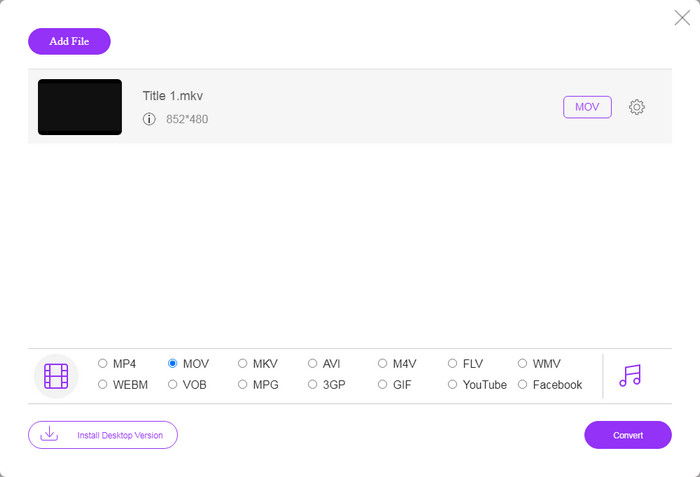
Pasul 3: Localizați zona de formate din partea de jos și selectați MOV, care este cel mai acceptat format video pentru dispozitivele iOS. Faceți clic pe butonul Convert, iar aplicația web va realiza online conversia din FLV în format pentru iPhone. Așteptați finalizarea procesului și descărcați rezultatul pe hard disk.
Dacă doriți să resetați opțiunile, faceți clic pe pictograma Setări și le veți găsi în dialogul Setări, cum ar fi rezoluția, codecul etc.
Partea 3: Întrebări frecvente despre conversia FLV în video iPhone
Puteți reda fișiere FLV pe iPhone fără conversie?
Singura modalitate de a reda fișiere FLV pe iPhone fără conversie este instalarea unui player FLV terț, precum VLC pentru iOS. Apoi vă puteți urmări cu ușurință filmele preferate.
Unde sunt salvate videoclipurile pe iPhone?
Videoclipurile pe care le înregistrați și le transferați pe iPhone vor fi salvate în aplicația Poze. Dacă descărcați un videoclip utilizând o aplicație, acesta va fi salvat în aplicație. Oricum, nu puteți accesa sistemul de fișiere pe iPhone sau iPad.
Ce tipuri de fișiere sunt utilizate de iPhone pentru videoclipuri?
Pe iPhone, H.264 este singurul codec video acceptat. Când vine vorba de formate video, MOV și MP4 sunt strâns legate. Pentru înregistrarea video pe iOS, Apple folosește noul codec video H.265 sau HEVC.
Concluzie
Acum, ar trebui să înțelegeți cum să deschideți și să redați fișiere FLV pe iPhone. Se pare că nu puteți deschide videoclipuri FLV direct pe iPhone. Cel mai bun mod este să vă convertiți fișierele în format acceptat de iPhone, cum ar fi MOV. Apoi, puteți reda videoclipurile fără probleme. FVC Free FLV Converter este unul dintre cele mai bune convertoare video FLV către iPhone gratuite. Nu numai că este ușor de utilizat, dar poate produce și o calitate excelentă a ieșirii. Mai multe întrebări? Vă rugăm să scrieți mai jos.
-
 3 metode ușoare de a converti FLV în AVI pe desktop și online
 1. Convertiți cu ușurință videoclipurile FLV în alte formate multimedia. 2. Suportă aproape toate formatele video, cum ar fi AVI, MP4, MKV etc. 3. Procesează în lot sute de fișiere FLV pe conversie.
-
 Top 3 moduri de a converti FLV în WMV pe Windows și Mac
 Căutați cel mai bun mod de a converti FLV în WMV fără a pierde calitatea pe PC sau Mac? Ești norocos, deoarece aici împărtășim trei metode pentru a face treaba cu ușurință.
-
 Ghid concret pentru încărcarea videoclipurilor FLV pe YouTube
 Încărcați FLV pe YouTube, dar nu a reușit? Puteți rezolva această problemă pe cont propriu și puteți converti FLV în codecuri acceptate de YouTube urmând ghidul nostru pas cu pas.
