


 Video Converter Ultimate
 Screen Recorder
 Reparație video
 Descărcare sigură
Top 3 moduri de a converti FLV în MOV
Din cauza unor formate nesuportate sau din alte motive, trebuie să convertești FLV în MOV, mai ales atunci când folosești un Mac.
Trebuie să știi că fișierele FLV nu sunt acceptate în mod nativ de QuickTime Player și iMovie. Așadar, nu poți deschide sau edita direct fișiere FLV pe Mac. Indiferent de motiv, acest articol îți va arăta cum să convertești FLV în MOV.

Din fericire, există o mulțime de convertoare video, inclusiv multe online gratuite, care te pot ajuta să îți transformi cu ușurință fișierele FLV în MOV. Acest articol îți va prezenta 3 excelente convertoare FLV în MOV. Când ai descărcat videoclipuri FLV de pe site-uri de partajare video, te poți baza pe ele pentru a realiza conversia din FLV în MOV.
Partea 1. Conversia FLV la MOV online gratuit
Așa cum am menționat mai sus, există un număr mare de convertoare FLV în MOV online gratuite oferite pe piață. În cazul în care nu știi pe care ar trebui să îl folosești, îți recomandăm cu sinceritate popularul FVC Free Online Video Converter pentru a converti FLV în QuickTime MOV.
Pasul 1: Deschide browserul și accesează acest site de conversie online din FLV în MOV. Îl poți folosi în orice browser web, inclusiv Chrome, IE, Safari și Firefox.
Descărcați versiunea pentru desktop pentru a converti fișiere în lot.
Pasul 2: Dă clic pe butonul Add Files to Convert pentru a instala rapid un launcher pentru conversia FLV. După aceea, va apărea o fereastră pop-up în care poți răsfoi și încărca fișierul FLV.

Pasul 3: Când intri în fereastra principală a convertorului, poți vedea acolo listate câteva formate video populare precum MP4, MOV, AVI, FLV, M4V, MKV, VOB, MPG, WMV și altele. Aici trebuie să selectezi MOV ca format de ieșire.
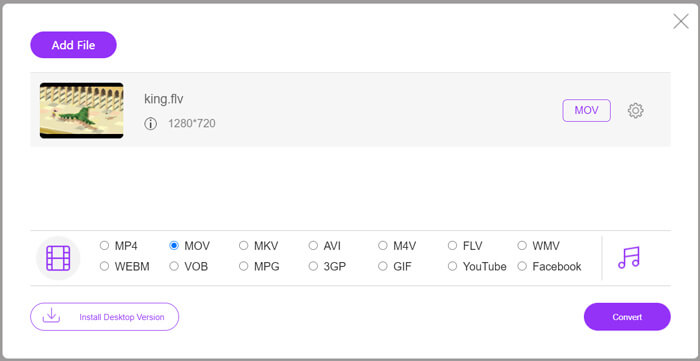
Pasul 4: Înainte de conversia finală din FLV în MOV, poți face clic pe pictograma Settings pentru a personaliza mai multe setări video și audio, cum ar fi rezoluția video, encoderul, bitrate-ul, rata de cadre, volumul audio, canalul audio și altele. După aceea, poți da clic pe butonul Convert pentru a începe conversia FLV în MOV online.
Partea 2. Schimbați FLV în MOV cu VLC
VLC este un player media open‑source care oferă și câteva funcții de conversie de bază. Dacă ai VLC Media Player instalat pe Mac sau pe un PC cu Windows, te poți baza pe el pentru a-ți converti fișierele FLV.
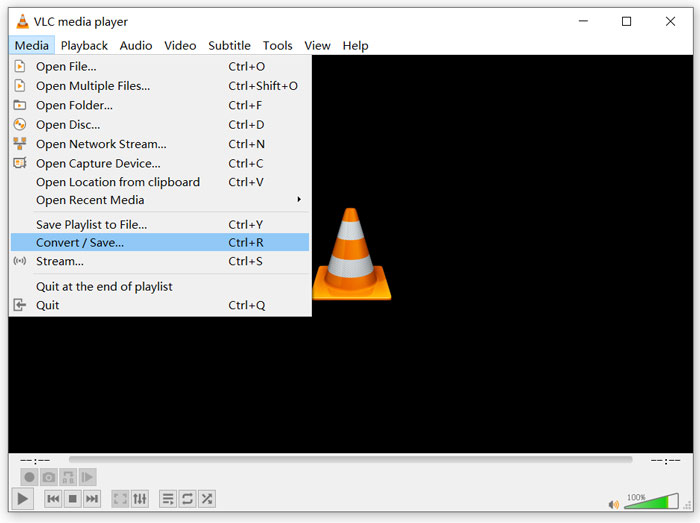
Pasul 1: Deschide VLC Media Player pe computer și dă clic pe meniul Media. Din lista derulantă, selectează opțiunea Convert/Save. Dacă folosești VLC pe Mac, aici trebuie să dai clic pe meniul File și apoi să selectezi opțiunea Convert/Stream.
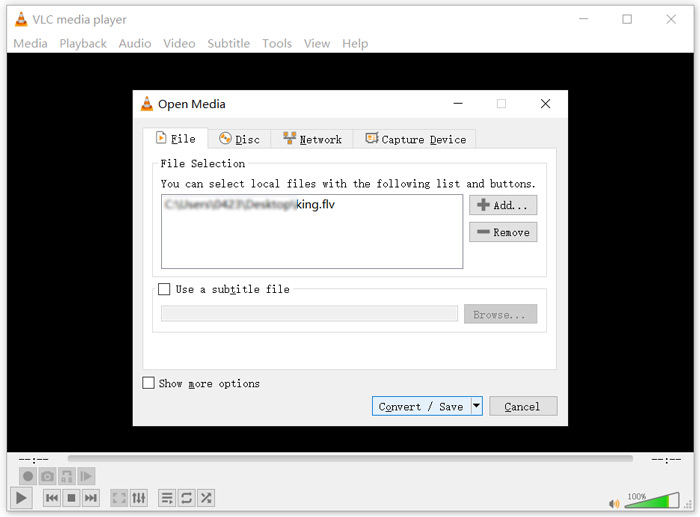
Pasul 2: Acum ești în fereastra Open Media. Aici poți da clic pe butonul Add pentru a importa fișierul FLV pe care vrei să îl convertești. Apoi dă clic pe butonul Convert/Save pentru a continua.
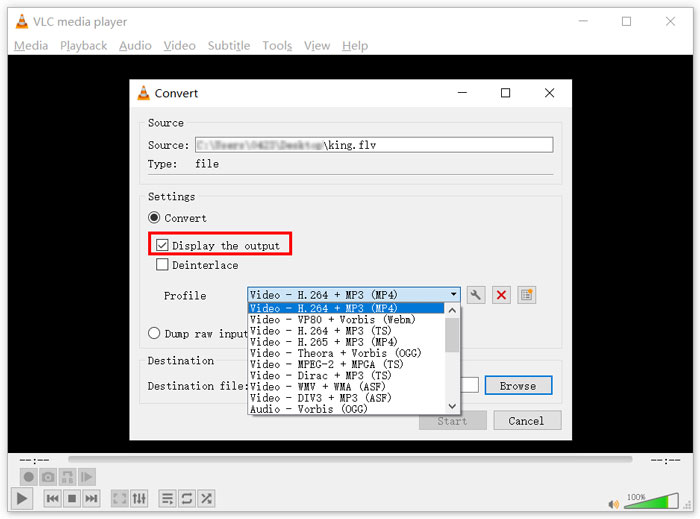
Pasul 3: Din lista derulantă Profile, alege un format de ieșire potrivit. Aici poți converti FLV în MP4, TS, OGG, WebM, YouTube HD, MP3, FLAC și multe altele. Bifează căsuța din fața opțiunii Display the output. Dă clic pe butonul Browse pentru a selecta un folder de destinație potrivit pentru fișierul FLV convertit. În acest pas, poți oferi videoclipului de ieșire extensia de fișier .mov.
Pasul 4: După toate aceste operațiuni, poți da clic pe butonul Start pentru a realiza conversia FLV.
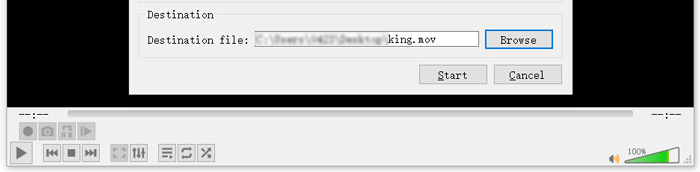
VLC Media Player va începe automat redarea videoclipului de ieșire. Vei vedea mesajul Converting file în partea de sus a ferestrei VLC. Nu închide complet VLC până când conversia nu este finalizată.
Partea 3. Cel mai bun mod de a converti FLV în MOV fără pierderi de calitate
Când vrei să convertești FLV în MOV, poți apela și la o soluție profesională. Aici îți recomandăm cu tărie software‑ul complet pentru conversia FLV în MOV, Video Converter Ultimate. În comparație cu convertorul FLV în MOV online gratuit și VLC, acesta oferă mai multe funcții și suportă mai multe formate. Mai important, poate converti FLV în MOV menținând calitatea originală.
- 1. Convertiți orice videoclip precum MKV, AVI, MP4, WMV, FLV în MOV fără a pierde calitatea.
- 2. Convertiți videoclipuri HD și SD de 8K / 5K / 4K, 1080p / 720p în peste 500 de formate precum MOV, MP4, AVI, MP3 și multe altele.
- 3. Editați videoclipuri precum tăiați, rotiți, decupați, îmbinați etc. și adăugați filtre și efecte și îmbunătățiți calitatea.
- 4. Caseta de instrumente poate comprima FLV, edita informații despre metadatele FLV, poate crea GIF-uri din FLV și multe altele.
Descărcare gratuită pentru Windows 7 sau o versiune ulterioară Descărcare securizată
Descărcare gratuită pentru MacOS 10.7 sau o versiune ulterioară Descărcare securizată
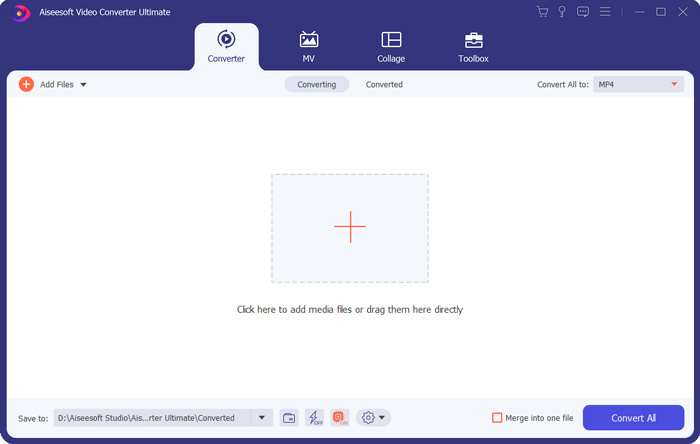
Pasul 1: Instalează gratuit și pornește acest convertor FLV în MOV pe Mac sau PC cu Windows. Asigură‑te că folosești funcția Converter. Apoi dă clic pe pictograma mare plus pentru a adăuga fișierul(ele) FLV.
Pasul 2: Dă clic pe pictograma format din partea dreaptă a fișierului FLV importat. Setează MOV ca format de ieșire din lista derulantă.
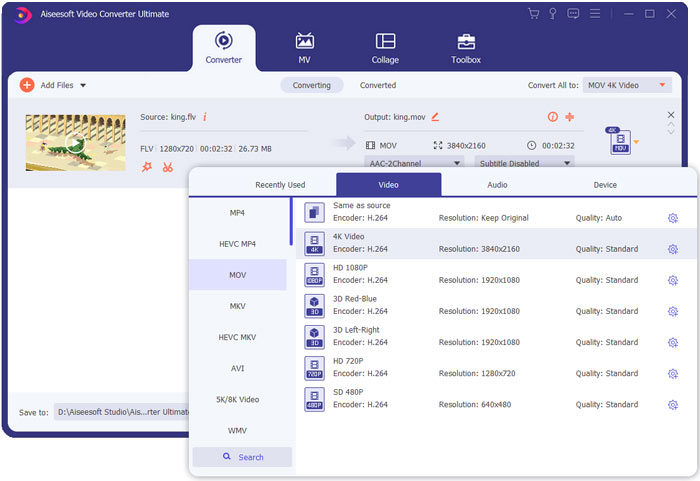
Pasul 3: După cum poți vedea mai sus, acest convertor FLV este dotat cu multe funcții de editare. Așadar, înainte de conversia FLV în MOV, îl poți edita, adăuga filtre, efecte sau personaliza alte setări în funcție de nevoile tale. După aceea, poți da clic pe butonul Convert All pentru a începe procesul de conversie.
FLV vs. MOV
Adobe Flash Player a folosit FLV pentru a furniza conținut video, cum ar fi filme și emisiuni TV. În prezent, Adobe nu mai dezvoltă playerul și recomandă utilizatorilor să-l dezinstaleze din motive de securitate. Cu toate acestea, puteți utiliza în continuare formatul FLV pe multe programe non-Adobe/Macromedia.
Formatul MOV poate fi utilizat pentru stocarea unui film, a unei emisiuni TV, a unui videoclip scurt sau a unui film de acasă. De fapt, este salvat în formatul de fișier QuickTime (QTFF), care a fost introdus de Apple în 1991. Fișierele MOV sunt adesea folosite atunci când oamenii doresc să salveze un videoclip de înaltă calitate.
Partea 4. Întrebări frecvente despre convertirea FLV în MOV
FLV vs MOV, Care este diferența dintre FLV și MOV?
FLV, Flash Video File, este un fișier video compatibil cu Flash dezvoltat de Adobe Systems. Conține un header scurt, pachete intercalate de video, audio și metadate. FLV a fost inițial conceput pentru a încorpora fluxuri video în aplicațiile Adobe. Un fișier FLV include un flux video de 640x360 și un flux audio cu 44,1 KHz, 2 canale, AAC.
MOV este formatul video implicit pentru dispozitivele Apple și software‑urile conexe precum QuickTime Player și iMovie. Stă la baza formatului de fișier MPEG‑4 al Organizației Internaționale de Standardizare. Un fișier MOV poate stoca videoclipuri, fișiere audio, texte, subtitrări, imagini și alte fișiere.
Formatul FLV nu este acceptat de dispozitivele Apple, inclusiv Mac, iPhone, iPad și iPod touch. Mai mult, în comparație cu MOV, FLV oferă o calitate video mai scăzută.
Poate iMovie să editeze FLV?
Nu. După cum puteți afla de mai sus, FLV nu poate fi acceptat de dispozitivele și software-ul Apple. Fiind editorul video implicit al dispozitivelor Mac și iOS, iMovie nu este compatibil cu fișierele FLV.
Windows Media Player poate deschide fișiere MOV?
Majoritatea versiunilor Windows Media Player nu acceptă formatul MOV. Dar cel mai recent Windows Media Player 12.0 poate deschide fișiere MOV.
Concluzie
Acest articol prezintă 3 moduri simple de a converti FLV în MOV. Atunci când fișierele FLV nu pot fi redate sau editate, te poți baza pe convertoarele recomandate pentru a le converti în MOV sau MP4.
-
 Cum să vă convertiți videoclipurile FLV în fișiere audio MP3 pe desktop și online
 Cum se convertește un FLV într-un fișier MP3? Tot ce trebuie să faceți este să citiți cu atenție acest articol, să găsiți metoda preferată și să urmați ghidul nostru pas cu pas pentru a obține ceea ce doriți.
-
 Cele mai bune 10 playere video FLV pentru Windows 10/8/7, Mac, iOS și Android pe care trebuie să le încercați (cele mai recente 2021)
 FLV player vă ajută să accesați cu ușurință fișierele FLV de pe dispozitivul dvs. Windows, Mac, Android, iOS. Consultați cei mai buni jucători de fișiere FLV pe care îi puteți descărca chiar acum.
-
 Cum să convertiți gratuit MP4 în FLV Online / Mac / Windows
 Această postare este ghidul detaliat pentru conversia MP4 în FLV. Puteți lua primii 3 convertoare gratuite pentru a schimba cu ușurință MP4 în FLV online, pe computerul Windows sau Mac.

