


 Video Converter Ultimate
 Screen Recorder
 Reparație video
 Descărcare sigură
3 moduri gratuite de a converti FLV în WAV
Vrei să extragi audio din videoclipurile descărcate, dar nu știi cum? Cauți o metodă ușoară de a converti FLV în WAV sau MP3?
În unele cazuri, aveți nevoie doar de melodia audio sau muzica de fundal a unui videoclip. Deci, trebuie să convertiți video în audio. Această postare va vorbi în principal despre cum să convertiți FLV în WAV.

Aici îți sunt recomandate 3 excelente convertoare FLV în WAV, ca să îți poți converti fișierele FLV. Poți alege metoda preferată pentru a transforma FLV în audio WAV.
Partea 1. Conversia FLV la WAV Online
Când cauți pe internet o metodă de a converti FLV în WAV, vei vedea că multe dintre rezultate sunt convertoare online gratuite. În cazul în care nu știi pe care ar trebui să îl folosești, îți prezentăm cu sinceritate popularul Free Online Video Converter. Este conceput special pentru a converti FLV în orice format video și audio folosit frecvent, precum MP4, MOV, AVI, MP3, AAC, M4A și WAV.
În comparație cu alte convertoare online FLV în WAV, acesta acceptă mai multe formate de intrare și ieșire și oferă o viteză de conversie mai mare. Mai mult, nu necesită înregistrarea sau conectarea contului. Vă permite să convertiți orice fișier FLV fără limită de dimensiune a fișierului.
Pasul 1: Accesează acest site gratuit de conversie FLV în WAV în browserul tău. Este compatibil cu majoritatea browserelor web, inclusiv Safari, IE, Chrome, Firefox și Yahoo.
Pasul 2: Fă clic pe Add Files to Convert, apoi pe butonul Download pentru a instala un lansator pentru conversia FLV. După instalare, va apărea o fereastră pop-up în care poți încărca fișierul FLV.

Pasul 3: Când ajungi în fereastra principală a convertorului, poți vedea listate acolo câteva formate video populare, precum MP4, MOV, AVI, FLV, MKV, VOB, MPG, WMV și altele. În acest pas, trebuie să faci clic pe pictograma Audio pentru a afișa formatele audio. Selectează WAV ca format de ieșire.
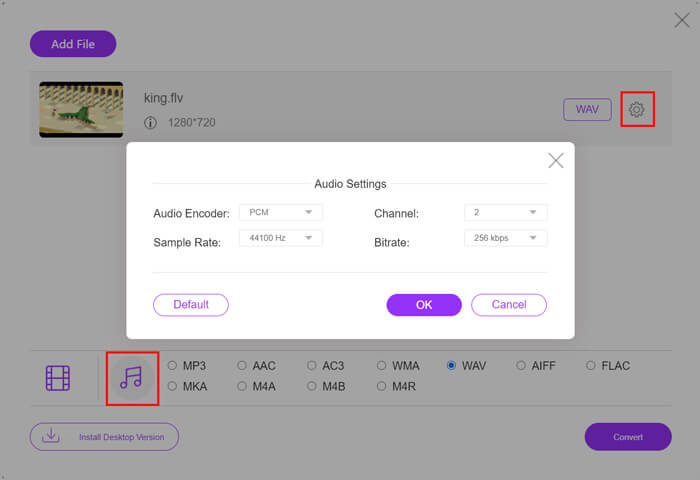
Pasul 4: Înainte de conversia FLV în WAV, poți face clic pe pictograma Settings de lângă formatul de ieșire pentru a personaliza mai multe setări audio. Aici poți ajusta codorul audio, canalul, rata de eșantionare și bitrate-ul. Apoi poți face clic pe butonul Convert pentru a transforma fișierul FLV în audio WAV.
Dacă vrei să convertești FLV în audio, cum ar fi MP3, WMA, WAV etc., ar trebui să faci clic pe fila audio pentru a o bifa.
Partea 2. Convertiți gratuit FLV în WAV
Pe lângă convertoarele FLV online, există și câteva convertoare video gratuite care te pot ajuta să convertești FLV în WAV cu ușurință. Pentru asta, te poți baza pe Free FLV Converter.

Convertor FLV în WAV gratuit
155321+ Descărcări- Convertiți FLV în WAV, AAC, MP3, M4A, MP4, MOV, AVI și multe altele.
- Acceptă toate formatele video și audio utilizate frecvent.
- Suportă cele mai recente procesoare multi-core și accelerări GPU.
- Convertiți unul sau mai multe fișiere FLV fără pierderi de calitate.
Descărcare gratuităPentru Windows 7 sau versiuni ulterioareDescărcare sigură
Descărcare gratuităPentru MacOS 10.7 sau versiuni ulterioareDescărcare sigură
Oferă toate funcțiile de conversie de care aveți nevoie. Următorul ghid vă va arăta cum să transformați FLV în WAV cu acesta.
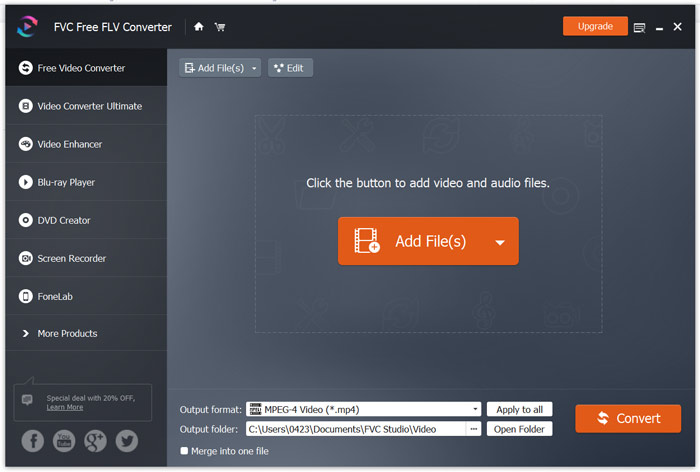
Pasul 1: Descarcă gratuit, instalează și rulează acest convertor FLV în WAV gratuit pe computerul tău. Fă clic pe Add Files pentru a importa fișierul(ele) FLV.
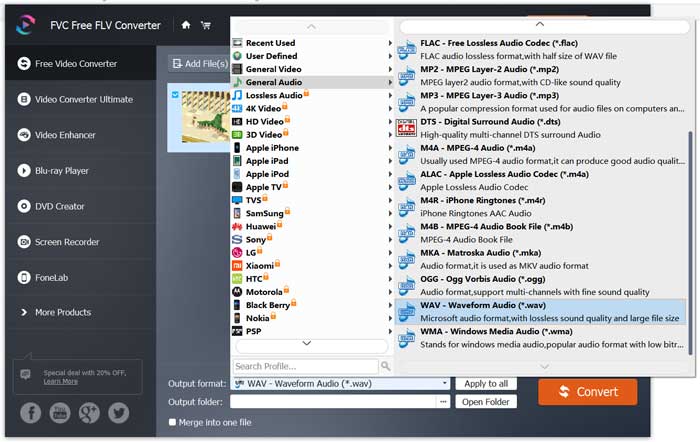
Pasul 2: Fă clic pe Output format și selectează WAV ca format țintă. Apoi alege un folder de destinație potrivit pentru fișiere.
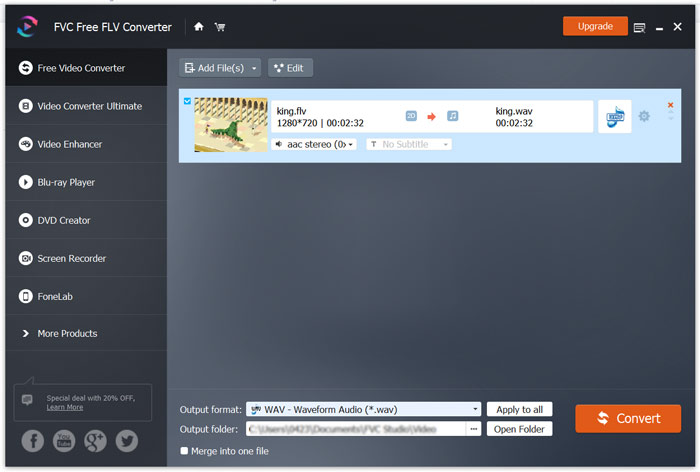
Pasul 3: Fă clic pe butonul Convert pentru a începe conversia FLV în WAV.
Partea 3. Convertiți FLV în WAV cu VLC
Dacă ai instalat pe computer VLC Media Player, te poți baza și pe VLC pentru a converti FLV în WAV. Trebuie să știi că VLC este un player media popular, care include și câteva funcții de bază de conversie și editare.
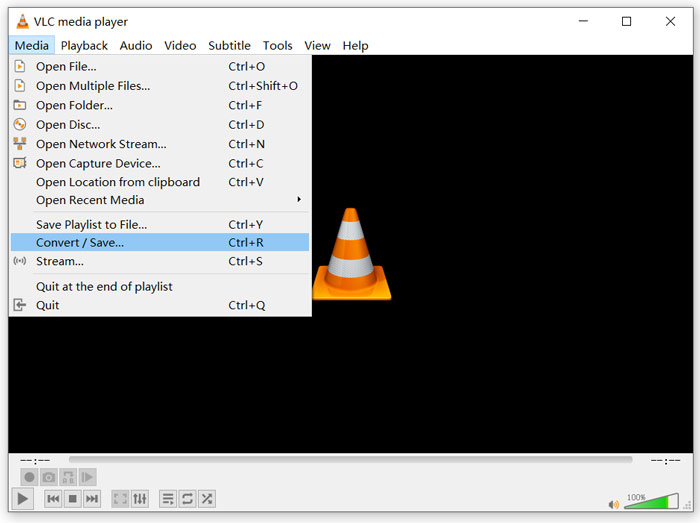
Pasul 1: Deschide VLC Media Player pe computer. Îl poți instala gratuit de pe site-ul VideoLAN. Fă clic pe Media și apoi selectează opțiunea Convert/Save din meniul derulant.
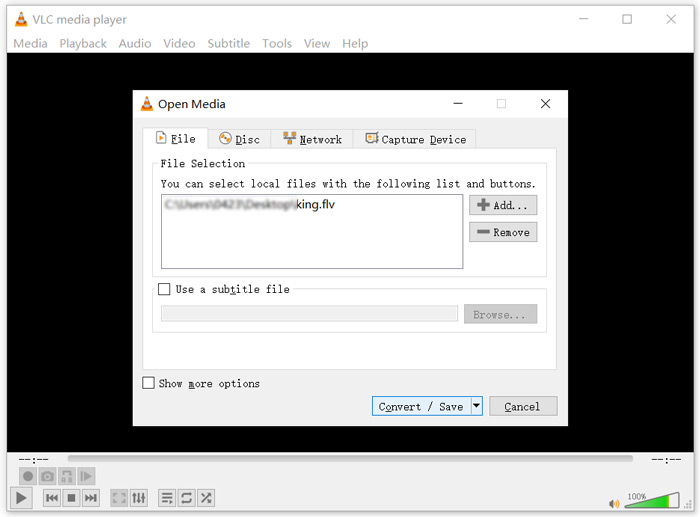
Pasul 2: Acum ești dus în fereastra Open Media. Fă clic pe butonul Add pentru a adăuga fișierul FLV pe care vrei să îl convertești. Apoi fă clic pe butonul Convert/Save pentru a deschide fereastra Convert.
Pasul 3: Bifează opțiunea Display the output sub fila Convert. Apoi selectează un format de ieșire potrivit din lista derulantă Profile. Fă clic pe butonul Browse pentru a alege un folder de destinație potrivit. În acest pas, poți redenumi fișierul de ieșire.
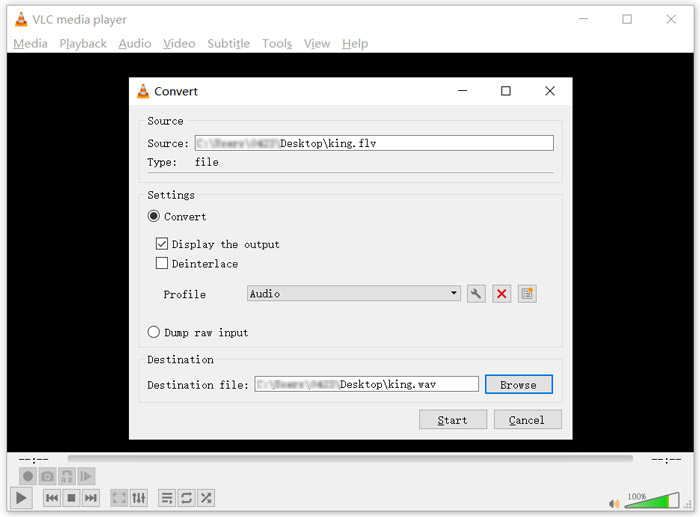
Pasul 4: Fă clic pe butonul Start pentru a începe conversia FLV în WAV. După aceea, VLC va reda automat fișierul WAV convertit. Poți vedea mesajul Converting file în timpul conversiei. Nu închide complet VLC Media Player până când conversia nu s-a încheiat.
Partea 4. Întrebări frecvente despre convertirea FLV în WAV
FLV vs WAV, Care este diferența dintre FLV și WAV?
FLV, Flash Video File, este un fișier video compatibil flash dezvoltat de Adobe Systems. Conține un header scurt, pachete intercalate de video, audio și metadate. FLV este conceput inițial pentru a încorpora fluxuri video în aplicațiile Adobe. Un fișier FLV include de obicei un flux video de 640x360 și un flux audio cu 44,1 KHz, 2 canale, AAC.
Un fișier cu extensia WAV este un format de fișier audio Waveform și este un container care stochează date în segmente. A fost dezvoltat inițial de Microsoft și IBM și stochează audio necomprimat, fără pierderi, ceea ce duce la dimensiuni foarte mari ale fișierelor. Formatul folosește containere pentru a stoca datele audio, numerele de pistă, rata de eșantionare și bitrate-ul.
Cum se convertește FLV în WAV fără software?
Dacă doriți să convertiți FLV în WAV fără niciun software de conversie, puteți alege să modificați extensia de fișier din .flv în .wav.
Cum se descarcă FLV în WAV?
Există un număr mare de aparate de înregistrare a ecranului oferite pe piață care vă pot ajuta să salvați videoclipuri ca fișiere audio pe computerul local.
Concluzie
După ce citești această postare, poți afla 3 metode gratuite de a extrage audio WAV din fișiere FLV. Când ai nevoie să convertești FLV în WAV, poți alege convertorul FLV preferat pentru a face acest lucru.
-
 Cele mai bune 5 playere WAV gratuite pentru Android, iOS și computer
 Cum să redați fișiere WAV pe telefonul Android? Ce jucător poate juca WAV? Această postare împărtășește cele mai bune 5 playere WAV gratuite pentru Android, iPhone, Mac și PC.
-
 Cele mai bune 10 playere video FLV pentru Windows 10/8/7, Mac, iOS și Android pe care trebuie să le încercați
 FLV player vă ajută să accesați cu ușurință fișierele FLV de pe dispozitivul dvs. Windows, Mac, Android, iOS. Consultați cei mai buni jucători de fișiere FLV pe care îi puteți descărca chiar acum.
-
 Cum se convertește WAV în MP3 cu Top 5 convertoare gratuite
 Această pagină este o listă lungă de convertor WAV în MP3 gratuit (iTunes, Audacity, VLC, Windows Media Player și Free Audio Converter) pentru a schimba WAV în MP3 de pe computer.
