


 Video Converter Ultimate
 Screen Recorder
 Reparație video
Instrumente offline și online pentru conversia TRP în FLV despre care ar trebui să știți
TRP este un format de fișier pentru stocarea înregistrărilor TV. Deoarece puține playere pot gestiona acest tip de fișier în versiunea sa originală, este posibil să fie nevoie să îl convertești într-un alt format înainte de redare. Pentru a permite conversia fișierelor TRP în fișiere FLV, va trebui să folosești instrumentul software potrivit. Din fericire, acest lucru devine mult mai simplu folosind software‑ul nostru sau varianta sa online, care nu îți va crea niciun inconvenient pe tot parcursul procesului de conversie. Urmează pașii pe care ți-i vom oferi pentru a converti cu succes clipurile tale TRP în format FLV.

Partea 1. Metoda offline pentru a converti TRP în FLV
Un fișier TRP este în mare parte necunoscut consumatorilor de conținut video și nu este folosit frecvent nici de creatori. Având în vedere acest lucru, majoritatea programelor și instrumentelor online nu acceptă acest tip de fișier video. De aceea, Video Converter Ultimate este un program de luat în considerare ori de câte ori ai nevoie să convertești clipuri video dintr-un format în altul. Acest software poate converti fișierul tău TRP în orice format dorești, cu un singur clic.
Acest instrument de conversie video oferă funcții de editare avansate și are o interfață grafică care este ușor de utilizat, chiar dacă nu aveți cunoștințe sau abilități tehnice. Cu ajutorul acestei aplicații, puteți converti fișiere și puteți beneficia de timpi de conversie super-rapidi și de rezultate de înaltă calitate. Aici vă oferim pașii simpli pe care trebuie să îi urmați:
Pasul 1: Descarcă fișierul .exe făcând clic pe butonul Descărcare gratuită de mai jos, în funcție de sistemul de operare pe care îl folosești. După ce ai terminat descărcarea, deschide fișierul și pornește procesul de instalare. Așteaptă să se termine instalarea, apoi lansează programul.
Descărcare gratuită pentru Windows 7 sau o versiune ulterioară Descărcare securizată
Descărcare gratuită pentru MacOS 10.7 sau o versiune ulterioară Descărcare securizată
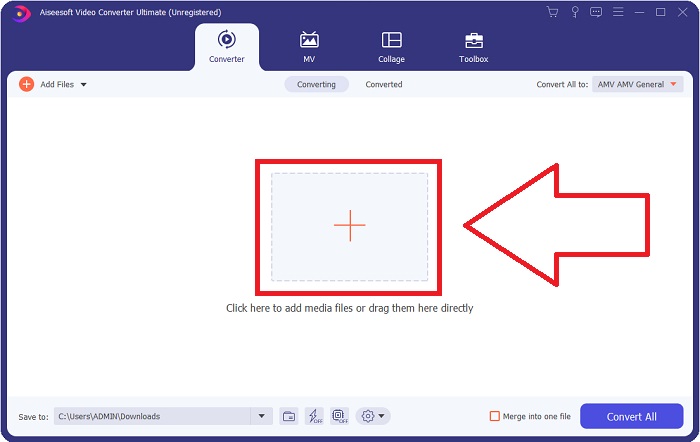
Pasul 2. O interfață va apărea de îndată ce programul pornește. De acolo, fă clic pe butonul + din mijloc și începe să imporți fișierul video pe care vrei să îl convertești sau pur și simplu trage fișierul și plasează-l în fereastră (drag & drop).
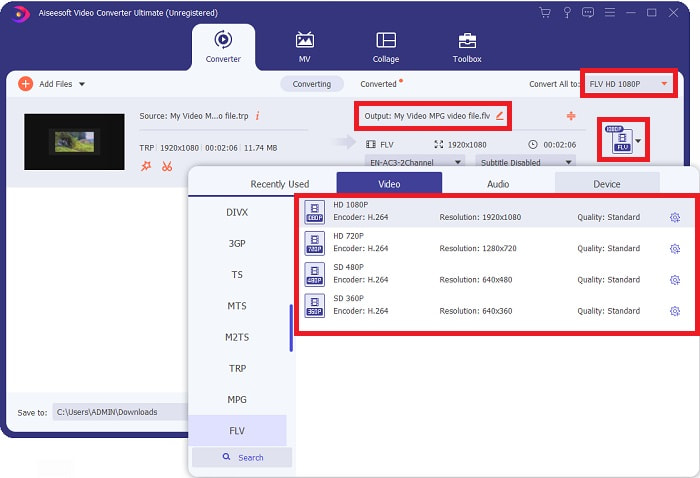
Pasul 3: Vei vedea formatul actual al videoclipului în partea dreaptă a fișierului. Pentru a alege formatul în care va fi convertit videoclipul, fă clic pe el și vor apărea toate formatele disponibile. Caută FLV sau tastează-l în bara de căutare. În partea dreaptă sunt, de asemenea, disponibile opțiuni pentru calitatea video.
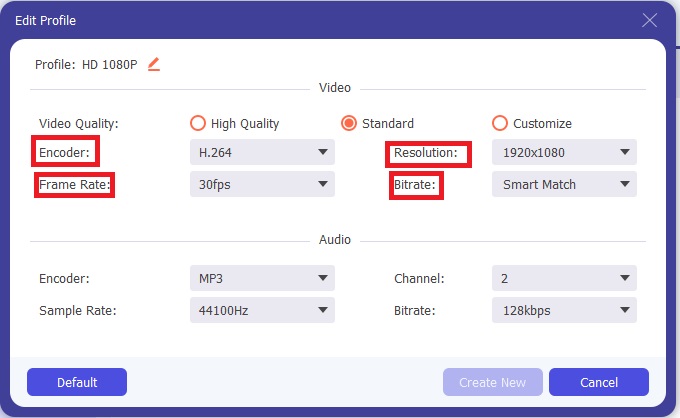
Pasul 4: Pentru funcțiile suplimentare despre care vorbeam, fă clic pe pictograma rotiță din dreapta calității video pe care ai ales-o, iar o altă interfață va apărea. De acolo, poți edita o mulțime de setări video și audio, în funcție de nevoile tale. Fă clic pe butonul Create New pentru a păstra modificările.
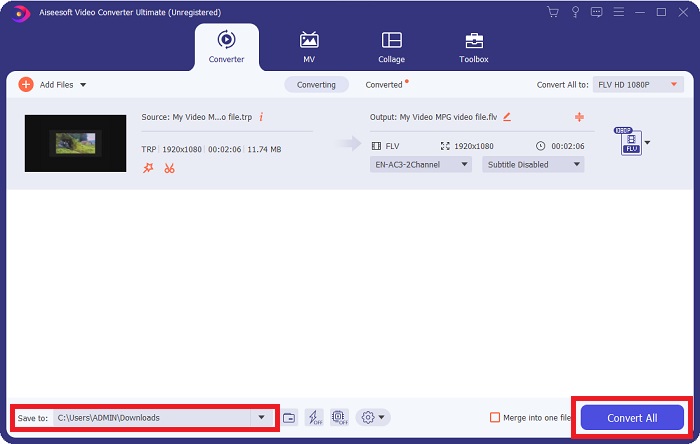
Pasul 5: După ce ai terminat toate ajustările și editările, fă clic pe butonul Convert All din colțul din dreapta jos al interfeței pentru a începe procesul de conversie și așteaptă până se finalizează.
Partea 2. Metoda online pentru a converti TRP în FLV
Convertirea fișierelor video este o altă opțiune de luat în calcul dacă vrei să rezolvi totul folosind un instrument web, fără a instala programul complet. În acest caz, avem și varianta online a software‑ului – FVC Free Video Converter Online. Aceasta oferă în continuare opțiunile suplimentare ale software‑ului, dar nu toate funcțiile. Totuși, își îndeplinește scopul într-un timp rezonabil. Pentru a folosi acest instrument web, urmează pașii de mai jos:
Pasul 1: Accesează convertorul propriu‑zis făcând clic pe acest link. De acolo, poți începe prin a descărca lansatorul de care ai nevoie pentru a importa fișierele. Fă clic pe butonul Add Files to Convert din mijlocul paginii pentru a începe procesul.
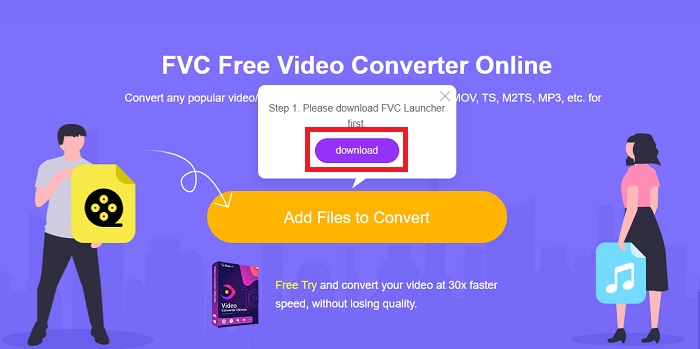
Pasul 2: Fă din nou clic pe butonul menționat și încarcă fișierul video pe care dorești să îl convertești. După ce imporți un fișier, va apărea o nouă interfață care îți arată toate formatele disponibile dintre care poți alege. În acest caz, selectează FLV.
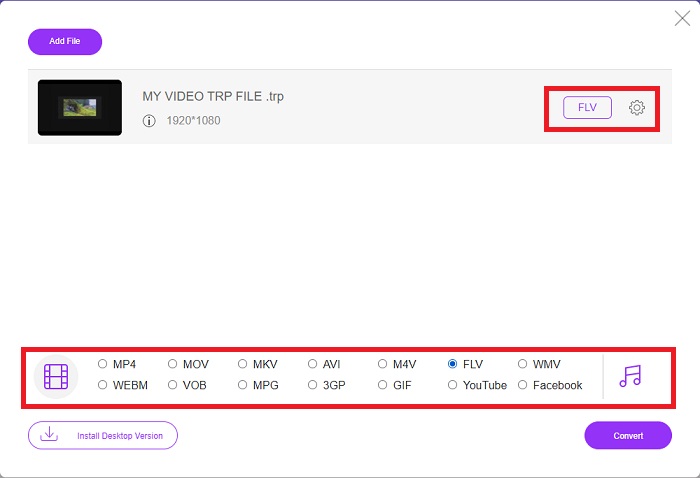
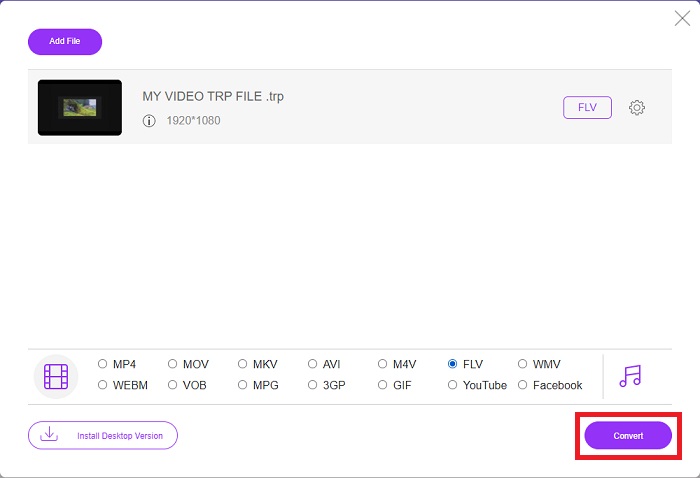
Pasul 3: Pentru opțiunile suplimentare, la fel ca în versiunea software, fă clic pe pictograma rotiță din dreapta. Setările video și audio vor apărea, permițându‑ți să modifici în continuare videoclipul în ceea ce privește rezoluția, rata cadrelor și multe altele. Când ai terminat, fă clic pe OK pentru a salva modificările. În final, pornește procesul de conversie făcând clic pe butonul Convert din colțul din dreapta jos.
Articole similare:
Partea 3. Cunoștințe extinse despre TRP și FLV
Pentru a afla mai multe despre cele două formate menționate, vă oferim informații succinte precum și o comparație a celor două.
Fișierele TRP sunt de obicei asociate cu VLC VideoLAN. Extensia de nume de fișier TRP poate colecta cu MPEG-2 Partea 1 care conține filme de înaltă definiție. Fișierele TRP pot conține și stoca pachete de date trimise ca video și audio digital prin rețele de difuzare video digitală, frecvențe radio sau dispozitive de înregistrare liniară, cum ar fi aparatele de înregistrare video. Fluxuri audio și video multiple, precum și codul de corectare a erorilor, sunt incluse într-un fișier TRP. Utilizatorii pot include, de asemenea, metadate cum ar fi timpul de captare, id-ul camerei și sursa în conținutul fișierului.
Pe de altă parte, un fișier cu extensia .flv înseamnă Flash Video. Extensia de fișier FLV se referă la un fișier video sau audio trimis pe internet folosind Adobe Flash Player sau Adobe Air. Flash Video a fost mult timp formatul video principal pentru aproape toate videoclipurile încorporate de pe internet, inclusiv videoclipurile de pe YouTube, Hulu și diverse alte site-uri. Furnizorii de streaming și dezvoltatorii de software, pe de altă parte, au abandonat Flash în favoarea HTML5 și a altor formate de la întreruperea oficială a Adobe.
| TRP | FLV | |
| Extensie de fișier | .trp | .flv |
| Dezvoltator | Echipa de proiect VideoLAN | Adobe Systems Incorporated |
| Programe de sprijin | ◆ SMPlayer ◆ VLC Media Player ◆ Apple QuickTime Player | ◆ RealPlayer ◆ Apple QuickTime Player ◆ Mplayer ◆ VLC Media Player |
Partea 4. Întrebări frecvente despre conversia TRP în FLV
Cum se deschide formatul video TRP folosind VLC?
Odată ce VLC Media Player a fost instalat pe computer, localizați fișierul video TRP pe hard disk și selectați-l cu butonul din dreapta al mouse-ului. Selectați „VLC media player” din meniul drop-down „Deschide cu”. Sistemul va deschide fișierul video care va fi redat din acest program imediat ce este lansat.
Cum convertesc un fișier FLV în Windows Media Player?
Mai întâi trebuie să selectați fișierul FLV pe care doriți să îl convertiți. Puteți alege WMV ca format în care doriți să convertiți fișierul FLV. Pentru a vă converti fișierul FLV, selectați „Convertire” din meniul derulant.
Pot juca TRP oriunde?
Conversia TRP în format MP4, AVI, MOV, MKV, FLV, WMV și alte formate cunoscute este o opțiune sugerată dacă doriți să redați fișiere TRP peste tot și pe sau pe orice dispozitiv sau player media.
Concluzie
În general, Video Converter Ultimate și omologul său instrument online este cel pe care îl căutați pentru a finaliza întregul proces de conversie, oferind în același timp toate caracteristicile necesare de care aveți nevoie. Nu provoacă inconveniente, plus că este disponibil în orice moment al zilei dacă aveți software-ul instalat pe desktop. Nu veți ști niciodată când veți avea nevoie de un convertor ca acesta, așa că vă recomandăm să utilizați acest software pentru ușurința dvs.
-
 Cel mai simplu ghid despre cum să convertiți TRP în AVI pe Windows și Mac
 Poate că nu sunteți familiarizat cu formatul video TRP și vă întrebați cum veți converti TRP în AVI? Citiți mai departe acest articol pentru a afla detaliile care privesc problema.
-
 3 soluții pentru a converti MTS în FLV gratuit și online
 Doriți să convertiți MTS în FLV? Iată 3 software-uri gratuite de conversie MTS în FLV pe care le puteți încerca să convertiți MTS în FLV pe Mac OS X și Windows 10/8/7.
-
 Cele mai bune modalități de a converti VOB în FLV [gratuit și online inclus]
 Doriți să convertiți un fișier VOB într-un fișier FLV? Puteți finaliza cu ușurință sarcina fie cu desktop, fie cu convertoare online. Citiți acest ghid și aflați cum să transformați VOB în FLV ușor și rapid.
