


 Video Converter Ultimate
 Screen Recorder
 Reparație video
 Descărcare sigură
Cum să comentezi GIF pe fluxul de știri Instagram și pe Reels
GIF-urile sau Graphic Interchange Format sunt imagini animate și combinate sau videoclipuri comprimate pe care le poți folosi pentru a adăuga distracție și divertisment interacțiunilor tale pe rețelele de socializare. Unii folosesc chiar aceste formate de imagine ca meme sau pentru a-și arăta reacțiile la o postare într-un mod amuzant. Dar știai că, înainte să devină populare în 2012, GIF-urile erau pe cale să dispară din lumea internetului? Din fericire, odată cu creșterea numărului de utilizatori ai rețelelor de socializare, aceste imagini animate au fost salvate de la dispariție, deoarece mulți utilizatori le folosesc pentru a condimenta comunicarea virtuală. Ele au ajuns să domine aplicațiile de social media, inclusiv inboxul și secțiunile de comentarii de pe Instagram. Așadar, în acest articol vei învăța cum să comentezi cu GIF pe Instagram.

Partea 1. Instagram acceptă GIF?
Instagram este una dintre aplicațiile populare de rețele sociale în care oamenii își pot partaja și își pot modifica fotografiile estetice cu subtitrări scurte. Această platformă de partajare a fotografiilor a evoluat continuu pentru a îmbunătăți experiența utilizatorului. O astfel de îmbunătățire este utilizarea GIF-urilor, permițând utilizatorilor să adauge un strat suplimentar de creativitate și expresie interacțiunilor lor. Inițial, aplicația era menită doar să trimită un mesaj folosind GIF-uri amuzante sau făcând povești drăguțe IG. Dar acum, puteți comenta deja GIF-uri pe role și postări din fluxul de știri.
Când a lansat Instagram această funcție?
GIF din secțiunea de comentarii Instagram a fost lansat în mai 2023 de Adam Mosseri, șeful companiei, împreună cu CEO-ul Meta Mark Zuckerberg. Introducerea acestei ultime funcții s-a susținut a fi unul dintre reperele pentru fondatorii și coproprietarii Instagram. Ei chiar au abordat modul în care așteaptă să fie pe IG, deoarece comentarea GIF-urilor este obișnuită în secțiunea de comentarii de pe Facebook de ani de zile. Se așteaptă că această realizare va încuraja mai multă implicare în rândul utilizatorilor IG, deoarece aceștia pot folosi GIF-urile pentru a comenta postările și rulourile din fluxul de știri.
Sprijinul are o restricție regională?
Funcția de comentarii GIF a IG a fost limitată la Argentina, Irlanda, Italia, Japonia, Mexic și Statele Unite în timpul perioadei de testare. Deși Meta nu a dezvăluit când această funcție va fi disponibilă pentru toată lumea, ei promit că, dacă această nouă caracteristică a câștigat mult angajament pe platformă, va lansa încet această funcție pentru utilizatorii din întreaga lume. În consecință, nu există date care să spună despre restricția sa regională.
Partea 2. Cum să comentezi GIF pe Instagram
Dacă sunteți nou în descoperirea acestei noi funcții, mai jos sunt pașii pe care îi puteți urma pentru a comenta GIF-ul pe postarea de pe Instagram (cu condiția să vă fi actualizat deja contul de Instagram):
Cum să comentezi GIF-uri pe Instagram Reels:
Pasul 1. Mai întâi, mergi la reel-ul cu care vrei să interacționezi și atinge opțiunea Comentariu.
Pasul 2. Apoi, atinge caseta GIF pentru a comenta cu un GIF.
Pasul 3. După aceea, alege dintre colecția de GIF-uri pe cel cu care vrei să comentezi. Poți răsfoi în detaliu sau poți introduce un cuvânt-cheie pentru vizualul pe care vrei să îl adaugi.
Pasul 4. După ce ai terminat selecția, atinge GIF-ul, iar acesta va fi trimis instantaneu.
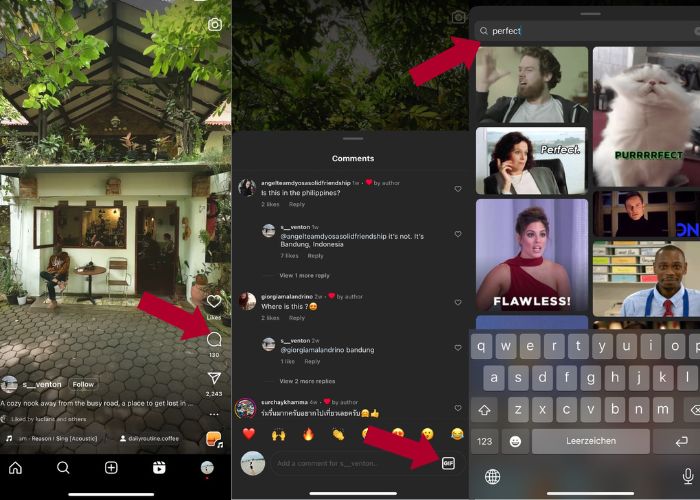
Cum să postezi GIF pe comentarii Instagram:
Pasul 1. Mergi în fluxul de noutăți al prietenilor tăi sau al celorlalți utilizatori de Instagram și atinge fotografia la care vrei să adaugi GIF-ul, apoi apasă pe pictograma Comentariu.
Pasul 2. Apoi, atinge pictograma GIF din caseta de comentarii.
Pasul 3. Caută un GIF sau derulează în jos pentru a vedea mai multe GIF-uri, apoi, după ce ai selectat GIF-ul, întoarce-te la secțiunea de comentarii și verifică dacă a fost adăugat cu succes.
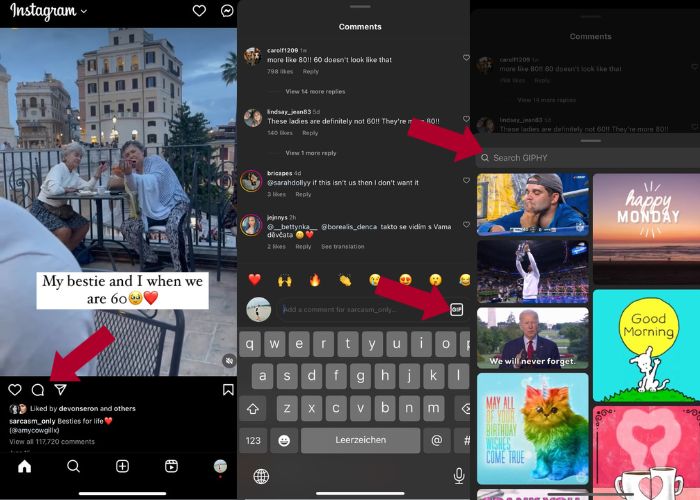
Partea 3. De ce nu pot comenta GIF-uri pe Instagram
Dacă nu puteți adăuga un comentariu pe Instagram folosind GIF, puteți încerca să vă actualizați aplicația. Dacă, întâmplător, nu poți găsi încă butonul GIF, țara ta ar putea fi printre acele regiuni în care Meta nu a lansat încă această nouă funcție. Așa că trebuie să așteptați până ajunge în țara voastră.
Partea 4. Cum să faci un GIF pentru Instagram cu Best GIF Maker
Pentru a-ți personaliza GIF-urile, trebuie să convertești videoclipul tău în format MP4 într-un GIF. De asemenea, trebuie să animezi mai multe imagini pentru a crea fișiere GIF. Pentru asta, lasă Video Converter Ultimate să te ajute. Acest software este un instrument complet de editare video care face editarea și conversia videoclipurilor ușoare. Are un instrument GIF Maker, prin care utilizatorii pot crea instant GIF-uri pentru Instagram. Iar cu ajutorul funcției Loop Animation, vei fi uimit de modul în care această aplicație poate converti imagini statice în GIF-uri.
În plus, acest instrument vine și cu instrumente de editare esențiale pentru a vă îmbunătăți GIF-urile — editați contrastul, saturația, luminozitatea și nuanța acestora. De asemenea, puteți folosi filtrul pentru a seta starea GIF-ului. Și dacă aveți un videoclip lung, îl puteți tăia folosind și acest GIF Maker. Mai mult, acest software vă permite să modificați formatul de ieșire al GIF și rata de cadre. Și cea mai bună parte este că această aplicație are o interfață intuitivă pentru începători.
Și dacă vi se pare că acest convertor video este intimidant, să vă arătăm cum Video Converter Ultimate este atât de ușor de utilizat. Doar urmați pașii de mai jos:
Pasul 1. Instalează și pornește Video Converter Ultimate
Pentru a începe procesul de conversie, descarcă software-ul făcând clic pe butonul Free Download de mai jos și apoi instalează-l. După ce instalarea este gata, poți lansa programul pe computer, așteaptă procesul de configurare și fă clic pe Start Now pentru a începe.
Descărcare gratuităPentru Windows 7 sau versiuni mai recenteDescărcare sigură
Descărcare gratuităPentru MacOS 10.7 sau versiuni ulterioareDescărcare sigură
Pasul 2. Încarcă fișiere media
În interfața aplicației, mergi la fila Toolbox, răsfoiește trusa de instrumente și caută instrumentul GIF Maker. De aici, apasă fie pe Video to GIF dacă dorești să convertești un videoclip, fie pe Photo to GIF dacă vrei să convertești mai multe imagini într-un GIF.
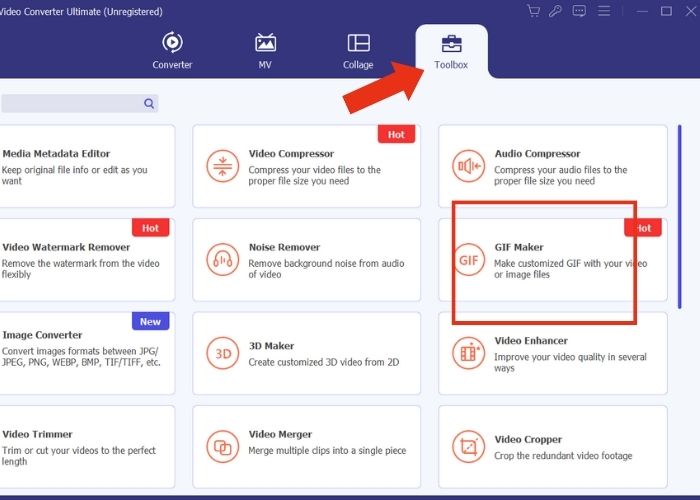
Pasul 3. Modifică fișierul
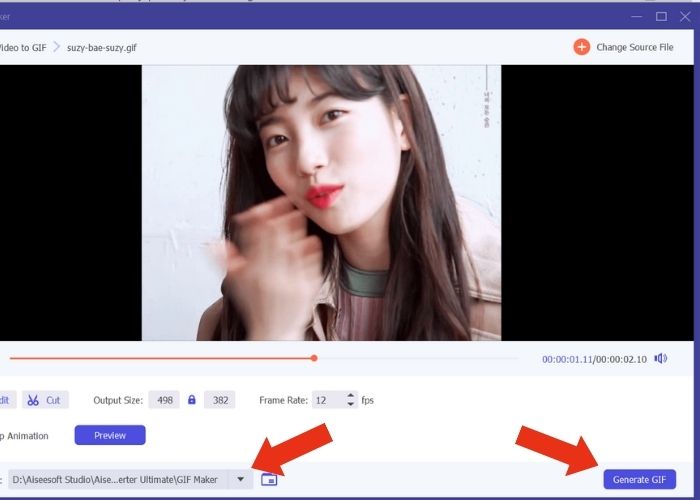
După adăugarea fișierului, configurează proprietățile GIF-ului modificând dimensiunea de ieșire (Output Size) și rata de cadre (Frame Rate). Apoi apasă pe Edit pentru a controla intensitatea culorilor videoclipului sau pentru a adăuga un filtru de îmbunătățire. În continuare, fă clic pe Cut pentru a tăia lungimea fișierelor brute, deoarece majoritatea GIF-urilor nu ar trebui să dureze mai mult de 6 secunde.
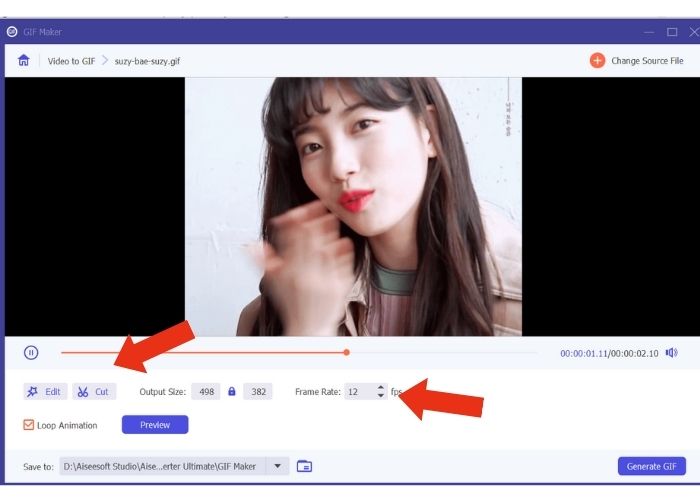
Pasul 4. Exportă și salvează rezultatul
Înainte de a exporta fișierul media, alege fișierul sau folderul în care vrei să salvezi rezultatul. Apoi exportă GIF-ul făcând clic pe butonul Generate GIF. Așteaptă câteva momente cât timp instrumentul îți procesează GIF-ul. După finalizare, va apărea o nouă fereastră în care poți vizualiza rezultatul final.
Partea 5. Cum să încărcați GIF-ul în comentariul Instagram
Acum că aveți deja propriul GIF, această parte vă va arăta cum să încărcați pe site-ul web GIPHY. Iată pașii pe care trebuie să îi faci:
Pasul 1. Creează un cont GIPHY.
Pasul 2. Importă GIF-ul tău deja creat.
Pasul 3. Adaugă etichete (tags) și fă clic pe butonul Upload to GIPHY.
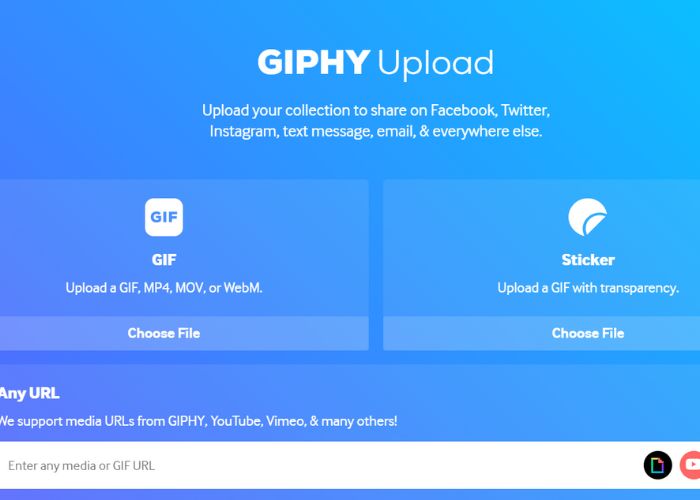
Așteptați câteva zile înainte ca GIF-ul dvs. să fie încărcat în biblioteca GIPHY a Instagram. Aceasta este o activitate de încercare și eroare, în timp ce această metodă ar putea să nu funcționeze în țara dvs.
Lecturi suplimentare:
Redimensionează fotografiile pentru Instagram pe desktop, iPhone sau Android
Redă în buclă un GIF cu cel mai bun program de loop pentru GIF-uri animate pe Windows & Mac
Partea 6. Întrebări frecvente despre cum să postezi GIF în comentariile Instagram
Puteți folosi GIF-uri pentru fotografia de profil Instagram?
Nu. În prezent, GIF-urile de pe Instagram sunt limitate doar la poveștile, mesajele, caseta de comentarii pe Reels și postările din fluxul de știri.
GIF-urile apar în mesajele Instagram?
Da. GIF-urile funcționează și pe mesajele Instagram.
Puteți răspunde cu imagini pe Instagram?
Pentru mesagerie, da, se poate. Cu toate acestea, răspunsul la povești și casete de comentarii pe Reels și Newsfeed nu a fost încă permis.
Cum pui un GIF din camera foto în povestea ta de pe Instagram?
Iată cum să postezi un GIF pe Instagram Story:
Convertește videoclipul în GIF folosind Video Converter Ultimate și salvează rezultatul în galeria telefonului. Apoi, încarcă-l pe site-ul GIPHY și așteaptă câteva zile până când apare în bibliotecă. Folosește eticheta pe care ai introdus-o pentru a căuta GIF-ul tău pre-creat.
De ce nu pot răspunde la un comentariu pe Instagram?
Deocamdată, Instagram acceptă doar comentarea GIF-urilor pe o postare din fluxul de știri și pe role. Din păcate, nu permite utilizatorilor săi să răspundă la un comentariu folosind GIF.
Concluzie
Acum că știi cum să comentezi cu GIF la o postare pe Instagram, poți interacționa mai mult cu prietenii tăi de pe Instagram comentând cu GIF-uri amuzante la postările și reel-urile lor. Poți, de asemenea, să creezi unele folosind cel mai bun convertor video – Video Ultimate Converter. Dar ține minte să comentezi cu GIF-uri cu moderație, altfel riști să fii marcat ca spam.
-
 Cele mai bune 5 site-uri despre cum să salvați un GIF pe iPhone ca video
 Nu pot salva un GIF pe iPhone-ul meu? Rămâneți pe această postare și vă vom oferi soluțiile posibile pentru salvarea GIF-urilor pe iPhone.
-
 [Gratuit și plătit] GIF Speed Changer: alegeri fierbinți din 2023
 Nu sunteți mulțumit de GIF-ul pe care l-ați făcut online, deoarece este plictisitor și lent? Aceasta va fi ziua ta norocoasă pentru că vă prezentăm un articol despre schimbătorul de viteză GIF și detaliile care vă ajută să îl utilizați și să îl stăpâniți.
-
 Cum să adăugați și să faceți un filtru Instagram înainte de a posta imagini și videoclipuri
 Care sunt filtrele de pe Instagram? Cum se aplică? Cum să faci unul? Aceste întrebări vor avea răspunsuri simple în această postare, așa că citiți-le.
