


 Video Converter Ultimate
 Screen Recorder
 Reparație video
 Descărcare sigură
Modalități fără probleme de a schimba JPG în PNG pe care nu le puteți rata
Fișierele care au extensiile .png și .jpg sunt fișiere de imagine. Aceste formate de fișiere pot conține fotografii, desene, capturi de ecran și informații vizuale. Ele includ, de asemenea, și alte tipuri de conținut media. Deoarece sunt două formate de fișier diferite, fiecare are propriile capabilități. Ești norocos dacă vrei să afli date detaliate despre aceste tipuri de fișiere. Acest ghid îți va oferi suficiente informații despre formatele de fișier JPG și PNG. În plus, vei descoperi și cele mai bune moduri de a converti imaginea ta JPG în format PNG. Îți vom pune la dispoziție instrumente utile, online și offline, pe care le poți folosi. De asemenea, vei afla despre avantajele și dezavantajele lor. Astfel, îți vei face o idee despre care convertor de imagini este cel mai eficient pentru tine. Citește acest ghid și află toate informațiile pe care le poți învăța despre cum să convertești JPG în PNG.

Partea 1. Detalii complete despre formatele de fișiere JPG și PNG
Ce este formatul JPG?
Joint Photographic Experts Group, JPG, este un format popular care utilizează un algoritm. Comprimă grafica și fotografiile. Acest format de fișier oferă o compresie considerabilă, ceea ce îl face foarte util. JPG are o dimensiune mică, ceea ce este excelent. Este perfect pentru partajarea pe internet și pentru utilizarea site-urilor web. Un fișier JPG acceptă compresie cu pierderi și culoare pe 24 de biți. În plus, poate afișa 16,8 milioane de culori, păstrând în același timp o dimensiune mică. Este, de asemenea, perfect pentru afișare fotografică. Fotografii folosesc formatul de fișier JPG. Este pentru fotografierea într-un format brut pentru a asigura captura exactă a unei imagini. Deoarece este mic, utilizatorii pot deschide imaginea mai rapid pe majoritatea browserelor. Pe lângă afișajul fotografic, acest format este potrivit și pentru publicarea web. Fișierul JPG este util pentru bloggeri și editori. Oferă un timp mai rapid de încărcare a paginii, astfel încât spectatorii să poată accesa conținutul instantaneu.
Pro
- Dimensiunea mică a fișierului permite transferul instantaneu.
- Saturația și balansul de alb în JPG sunt setate.
- Acest format de fișier este recunoscut în toate browserele.
- Poate oferi o rezoluție de imagine de top.
Contra
- Compresia deteriorează calitatea imaginii.
- Acest format de fișier nu este potrivit pentru imagini cu text sau margini ascuțite.
- JPG nu acceptă imagini stratificate.
Ce este formatul PNG?
Un grafic de rețea portabil, PNG, este un tip de fișier imagine raster. Acest format este evoluția formatului GIF. În 1995, Oliver Fromme a creat formatul PNG pentru a face ceea ce GIF nu poate face. Formatul PNG este fără brevet și are o paletă de culori mai extinsă, spre deosebire de GIF. PNG este unul dintre cele mai populare fișiere de imagine din această epocă. Este, fără îndoială, popular printre designerii web. Poate gestiona fundaluri semi-transparente și transparente. Puteți realiza ilustrații, puteți crea un site web, puteți crea fotografii și multe altele. De exemplu, dacă doriți să puneți o fotografie peste logo, tot ce puteți face este să tăiați sigla. Deoarece fișierul nu este brevetat, puteți deschide și PNG fără licență în orice software de editare a imaginilor. De asemenea, acest format folosește compresie fără pierderi. Înseamnă că compresia nu afectează calitatea imaginii.
Pro
- Formatul de fișier PNG poate gestiona imagini mai detaliate.
- Nu există brevet, așa că puteți deschide imaginile PNG în toate programele.
- După comprimare, imaginea PNG nu va pierde nicio dată.
Contra
- PNG are o dimensiune mai mare decât JPG și GIF.
- Acest fișier nu acceptă modurile de culoare CMYK.
- Are o reacție mai lentă și timpi de încărcare a paginii.
Partea 2. Modalități eficiente de a converti JPG în PNG
Modul 1. Cum să convertiți JPG în PNG folosind FVC Free Image Converter
Conversia unui JPG în PNG este ușoară când folosești FVC Free Image Converter. Acest convertor bazat pe web oferă un proces de conversie simplu. Poți converti fișierul tău JPG în format PNG în doar câțiva pași. Utilizatorii, în special începătorii, pot folosi cu ușurință acest instrument datorită interfeței sale intuitive. De asemenea, are un proces de conversie rapid, ceea ce îl face convenabil pentru toți utilizatorii. Mai mult, poți efectua un proces de conversie în lot. Asta înseamnă că poți converti mai multe fișiere imagine deodată. Poți accesa, de asemenea, acest software online din toate browserele. Include Google, Explorer, Safari, Edge și altele. Software‑ul este, de asemenea, gratuit și sigur de utilizat. Îți șterge automat datele după ce finalizezi conversia și salvezi imaginile.
Pro
- Potrivit pentru începători.
- Oferă o interfață ușor de înțeles.
- Accesibil în toate browserele.
- 100% Gratuit.
- Oferă un proces de conversie în lot.
Contra
- Este nevoie de o conexiune la internet pentru a utiliza convertorul de imagini.
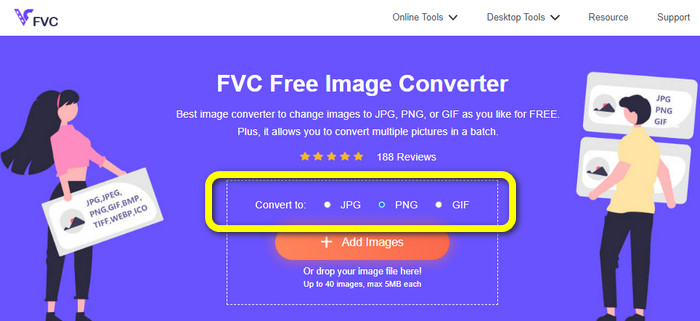
Pasul 1: Vizitează site‑ul FVC Free Image Converter. Navighează la opțiunile de format și alege formatul PNG.
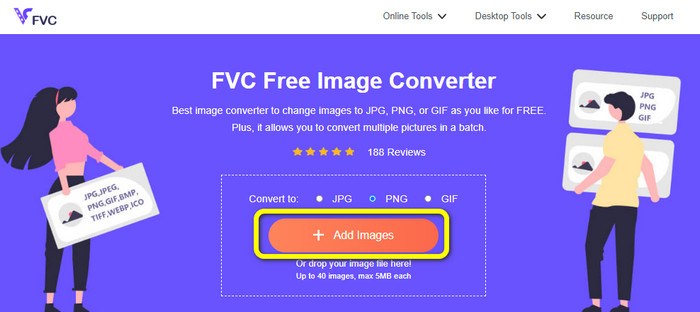
Pasul 2: Apasă butonul Add Images pentru a adăuga imaginea JPG pe care vrei să o convertești.
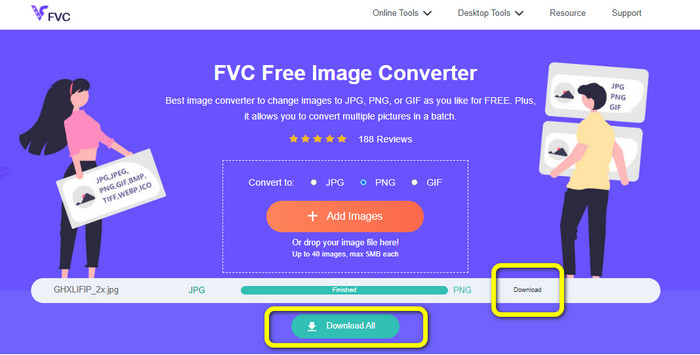
Pasul 3: După ce ai încărcat imaginea JPG, aceasta va trece la procesul de conversie. Așteaptă câteva secunde și apasă butonul Download pentru a salva imaginea.
Modul 2. Cum să convertiți JPG în PNG folosind FreeConvert
FreeConvert este un alt convertor de imagini pe care îl poți folosi online. Te poate ajuta să convertești JPG în PNG online. De asemenea, datorită procedurii ușor de urmat, procesul de conversie devine simplu. Este potrivit pentru toți utilizatorii, în special pentru începători. Mai mult, în acest software este disponibilă conversia în lot. În acest fel, poți converti multe fișiere simultan pentru a economisi mai mult timp. Pe lângă formatul PNG, acceptă și BMP, TIFF, GIF și altele. Totuși, versiunea gratuită are limitări. Dimensiunea maximă a fișierului este de 1 GB. Trebuie să cumperi un abonament pentru a obține o dimensiune maximă mai mare a fișierului. De asemenea, reclame deranjante apar mereu pe ecran.
Pro
- Procesul de conversie lot este disponibil.
- Ușor de operat.
Contra
- Are nevoie de o conexiune la internet pentru a utiliza software-ul.
- Reclamele enervante apar mereu pe ecran.
- Obțineți versiunea cu plată pentru a vă bucura de mai multe funcții grozave.
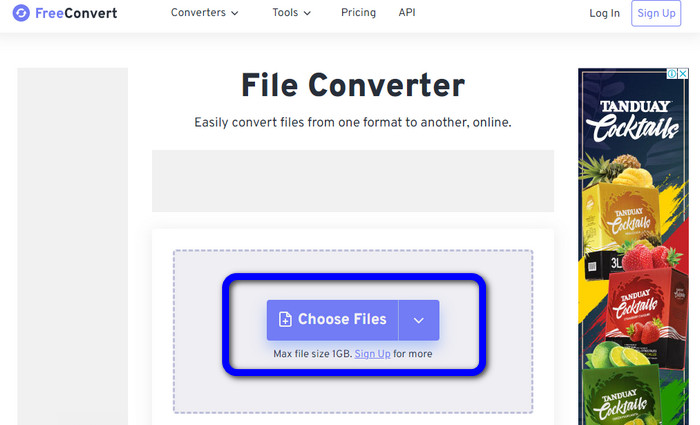
Pasul 1: Mergi pe site‑ul FreeConvert. Apasă butonul Choose Files pentru a încărca imaginea JPG.
Pasul 2: Mergi la opțiunea Output și alege formatul de fișier PNG.
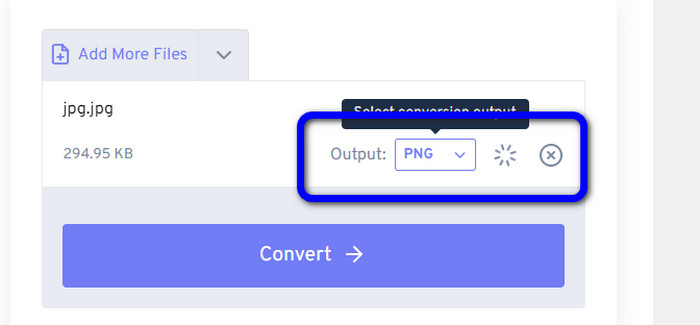
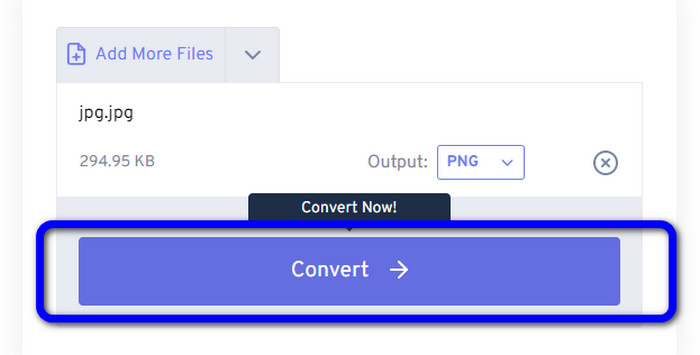
Pasul 3: Apasă butonul Convert pentru a continua procesul de conversie. Apoi, după procesul de conversie, salvează imaginea pe computer.
Modul 3. Cum să convertiți JPG în PNG folosind JPG în PNG
Un alt instrument online pe care îl poți folosi pentru a converti JPG în PNG este JPG to PNG. Îți permite să încarci imagini cu o dimensiune de fișier de până la 50 MB. În plus, poți converti până la 20 de imagini JPG deodată. De asemenea, acest software bazat pe web este ușor de utilizat. Astfel, atât utilizatorii profesioniști, cât și cei fără experiență pot converti imagini. Acceptă diverse formate de fișiere imagine, inclusiv HEIC, WebP, JPG și altele. Totuși, există unele situații în care acest convertor nu funcționează foarte bine. De asemenea, apar reclame deranjante în timpul conversiei imaginilor. Ai nevoie și de acces la internet pentru a converti fișierele imagine.
Pro
- Perfect pentru utilizatorii neprofesioniști.
- Poate converti 20 de imagini simultan.
Contra
- Reclamele sunt enervante.
- Uneori, convertorul nu funcționează bine din anumite motive.
- Aveți nevoie de o conexiune la internet pentru a utiliza instrumentul.
Pasul 1: Vizitează site‑ul oficial JPG to PNG. Apasă butonul Upload Files pentru a insera imaginea JPG.
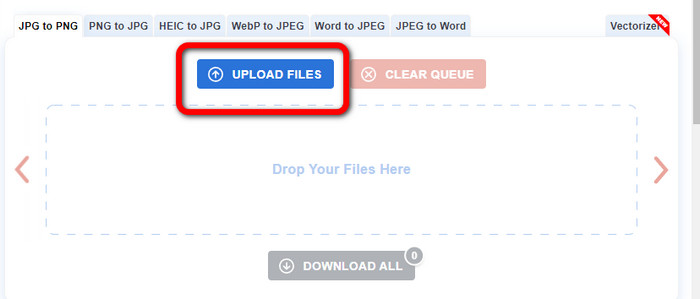
Pasul 2: După ce ai încărcat imaginea JPG, aceasta va fi convertită automat în PNG. Apasă butonul Download după procesul de conversie.

Modul 4. Cum să convertiți JPG în PNG folosind Convertio
Convertio este, de asemenea, un convertor de imagini pe care îl poți folosi online. Acest convertor îți permite să convertești JPG în PNG printr‑o metodă lipsită de complicații. Poți converti fișiere imagine în câteva clicuri. De asemenea, cu ajutorul interfeței sale intuitive, poți urma cu ușurință instrucțiunile. Acceptă și alte formate de imagine în afară de PNG. Acest convertor suportă JPG, SVG, GIF, TIFF, BMP și altele. Totuși, folosind versiunea gratuită, poți încărca doar o imagine cu dimensiunea maximă de 100 MB. Așadar, dacă vrei să convertești mai multe fișiere imagine, cumpără un abonament.
Pro
- Procesul de conversie este ușor, ceea ce este potrivit pentru începători.
- Acceptă diferite formate de imagine, cum ar fi PNG, JPG, TIFF, BMP, SVG și multe altele.
Contra
- Dimensiunea maximă a fișierului de încărcat în versiunea gratuită este de numai 100 MB.
- Este necesară o conexiune la internet.
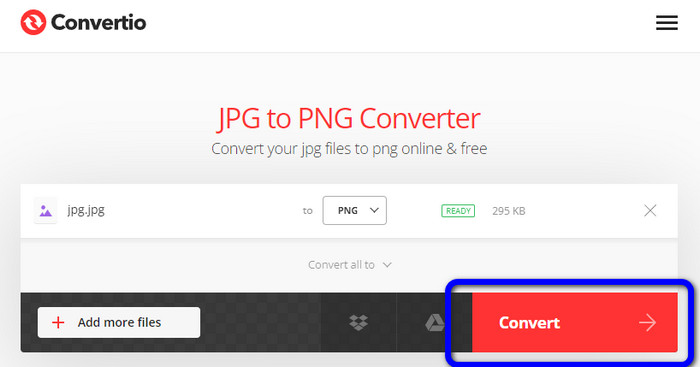
Pasul 1: Intră pe site‑ul Convertio. Apasă butonul Choose Files pentru a încărca fotografia.
Pasul 2: Selectează formatul PNG din opțiunile de format.
Pasul 3: Apasă butonul Convert pentru a converti imaginea JPG în PNG.
Modul 5. Cum să convertiți JPG în PNG folosind Canva
Canva este un convertor online pe care îl poți folosi pentru a transforma JPG în PNG. Îți poți converti fișierele aici fără a pierde din calitate. Poți accesa acest convertor din toate browserele, ceea ce îl face convenabil pentru toți. Însă, dacă nu ai un abonament, funcțiile pe care le poți folosi sunt limitate. Așadar, achiziționarea instrumentului este cea mai bună modalitate de a te bucura de toate funcțiile sale.
Pro
- Accesibil pentru toate browserele.
- Convertiți fișierele fără a pierde calitatea.
Contra
- Are nevoie de o conexiune la internet pentru a converti fișiere imagine.
- Achiziționați instrumentul pentru a vă bucura de mai multe funcții grozave.
Pasul 1: Deschide browserul și accesează site‑ul Canva. Apasă butonul Upload your image din centrul interfeței.
Pasul 2: După ce ai încărcat fotografia, mergi la butonul Download. Apoi selectează formatul PNG din opțiunea File type.
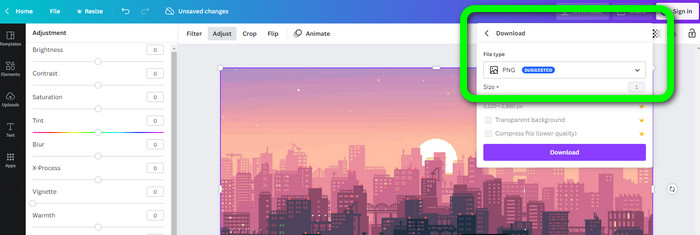
Modul 6. Cum să convertiți JPG în PNG folosind JPG în PNG Converter
O aplicație numită JPG to PNG Converter este, de asemenea, un instrument bazat pe web. Acest program este bun pentru a converti imaginile eficient. Poți converti fișierele în câteva secunde, deoarece are un proces de conversie rapid. Acest convertor de imagini este disponibil și în toate browserele. Din păcate, există momente când convertorul nu funcționează. De asemenea, calitatea imaginii se schimbă după procesul de conversie.
Pro
- Instrumentul este ușor de utilizat.
- Oferă un proces de conversie rapid.
Contra
- Uneori, software-ul nu funcționează bine.
- După procesul de conversie, calitatea imaginii se schimbă.
Pasul 1: Apasă butonul Choose Files pentru a adăuga fotografia JPG.
Pasul 2: Apasă butonul Download pentru a‑ți salva fotografia pe dispozitiv.
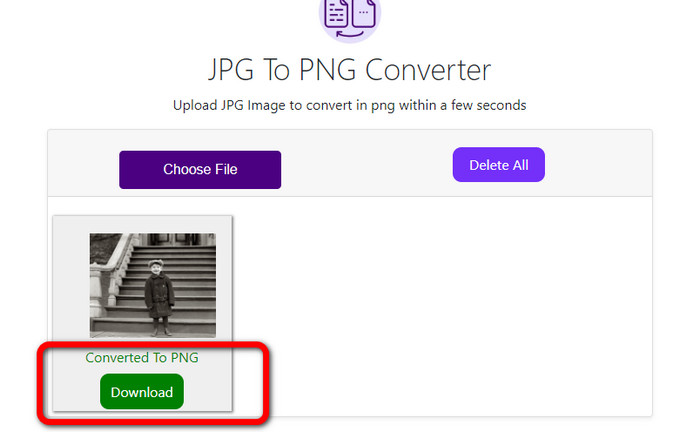
Modul 7. Cum să convertiți JPG în PNG folosind Video Converter Ultimate
Dacă ești în căutarea unui convertor JPEG în PNG, folosește Video Converter Ultimate. Este un software care se descarcă gratuit. Acest convertor de imagini oferă o interfață intuitivă, cu tehnici de bază pentru a converti JPG în PNG. Astfel, utilizatorii profesioniști și cei cu experiență pot folosi acest software. În plus, are un proces de conversie rapid. Poți converti fișiere imagine în câteva secunde. Cel mai bun lucru la acest program este că poți converti mai multe imagini simultan. În acest fel, economisești mai mult timp și convertești mai multe imagini. De asemenea, acceptă numeroase fișiere imagine, precum TIFF, WebP, BMP, JPG etc.
Pro
- Oferă o interfață intuitivă cu pași simpli, făcându-l potrivit pentru toți utilizatorii.
- Descarcat gratuit.
- Procesul de conversie lot este disponibil.
- Accesibil atât pe computere Windows, cât și pe Mac.
Contra
- Obțineți versiunea cu plată pentru a experimenta mai multe funcții uimitoare.
Pasul 1: Descarcă Video Converter Ultimate pe Mac sau Windows. Apoi pornește software‑ul.
Descărcare gratuită pentru Windows 7 sau o versiune ulterioară Descărcare securizată
Descărcare gratuită pentru MacOS 10.7 sau o versiune ulterioară Descărcare securizată
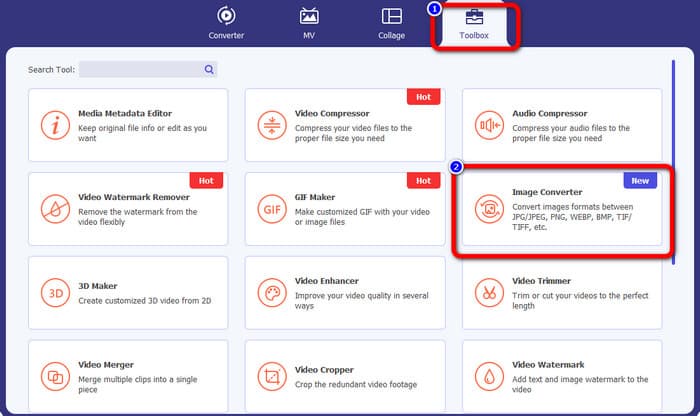
Pasul 2: Mergi la panoul Toolbox și alege funcția Image Converter.
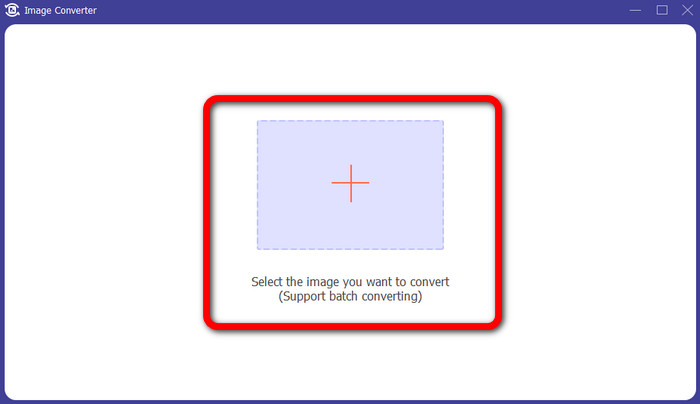
Pasul 3: Apasă pictograma Plus pentru a atașa imaginea JPG.
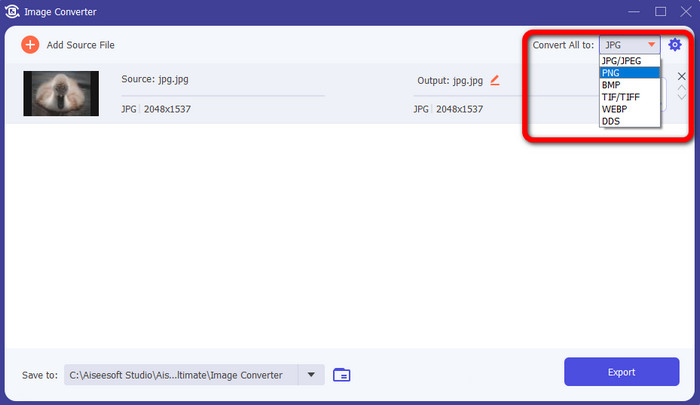
Pasul 4: Selectează formatul PNG din opțiunile de format din colțul din dreapta sus al interfeței.
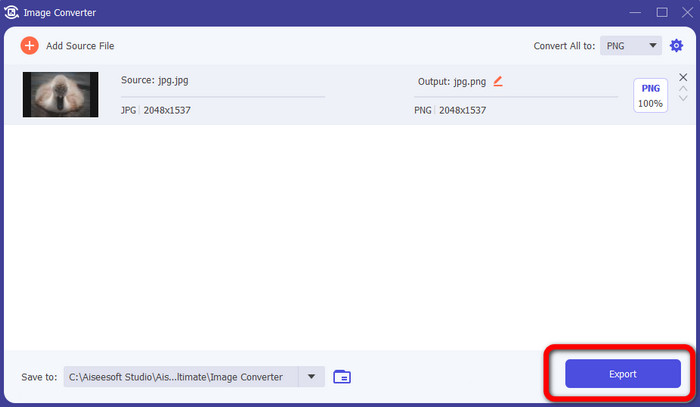
Pasul 5: Apoi, apasă butonul Export. Așteaptă procesul de conversie; îți poți deschide fișierul din folder.
Modul 8. Cum să convertiți JPG în PNG folosind BitRecover JPG Converter Wizard
Un alt instrument offline pentru a converti JPG în PNG este BitRecover JPG Converter Wizard. Acest software este potrivit pentru Windows. De asemenea, este gratuit la descărcare. Cu ajutorul acestui software, îți poți converti imaginea JPG în PNG cu acuratețe. Totuși, acest software este dificil de folosit. Are un proces confuz, ceea ce îl face complicat pentru începători. Procesul de instalare este foarte lent, ceea ce consumă timp.
Pro
- Descărcare gratuită.
- Aplicația este potrivită pentru Windows.
Contra
- Nepotrivit pentru utilizatorii neprofesioniști.
- Procesul de instalare este complicat.
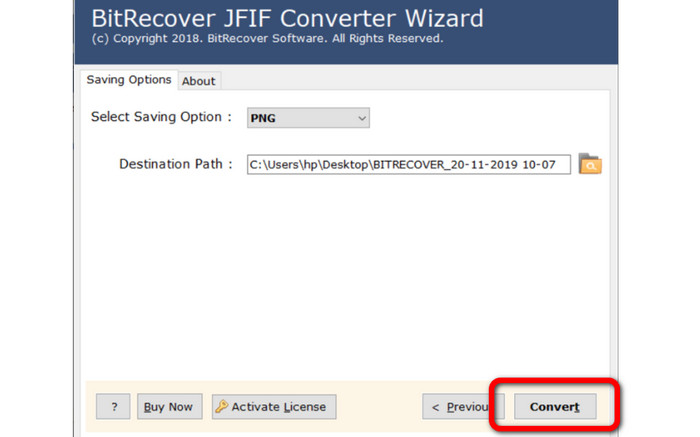
Pasul 1: Instalează instrumentul pe computer. Apasă Select Files sau Select Folders pentru a atașa imaginea JPG.
Pasul 2: Apoi apasă butonul Next. După aceea, mergi la opțiunile de format și selectează formatul de fișier PNG.
Pasul 3: Apasă butonul Convert pentru a începe procesul de conversie.
Partea 3. Întrebări frecvente despre cum să convertiți JPG în PNG
1. De ce ar trebui să convertiți JPG în PNG?
Dacă doriți să creați suport pentru transparență, conversia JPG în PNG este cea mai bună alegere. De asemenea, dacă doriți să editați imagini sau să adăugați straturi, o imagine PNG este potrivită.
2. Care este cel mai simplu mod de a converti imagini JPG în PNG?
Folosește FVC Free Image Converter. Oferă o metodă simplă de a converti JPG în format PNG. Astfel, chiar și utilizatorii fără experiență pot folosi acest convertor de imagini online.
3. PNG este mai bun decât JPG?
Dacă intenționați să vă editați imaginile folosind un software de editare foto, formatul PNG este mai bun. Dar, dacă doriți un fișier imagine mic, puteți utiliza formatul JPG.
Concluzie
Asta e tot! Acestea sunt cele mai eficiente metode despre cum să convertești JPG în PNG. Acest articol ți‑a prezentat, de asemenea, avantajele și dezavantajele lor. În acest fel, vei obține și alte informații esențiale despre fiecare convertor de imagini. Însă, dacă preferi un software cu o metodă simplă, accesibil și sigur, folosește FVC Free Image Converter. Dacă vrei să convertești fișiere imagine folosind computerul, folosește Video Converter Ultimate. Oferă o interfață intuitivă, care este perfectă pentru toată lumea.
-
 Metode despre cum să convertiți imagini în JPG online și offline
 Doriți să convertiți fișierul în format JPG dintr-un motiv oarecare? Atunci acest articol este pentru tine. Vă vom învăța cea mai bună metodă de a vă converti imaginea în JPG
-
 Metode utile pentru a converti cu ușurință imaginile în format PNG
 Căutați cea mai bună modalitate de a vă salva imaginea ca PNG? Acest ghid oferă soluții excelente pentru a converti imaginile în PNG online și offline
-
 Detalii complete despre diferențele dintre JPEG și JPG și PNG
 Această postare vă va oferi suficiente informații despre diferențele dintre JPEG și JPG și PNG. În plus, veți învăța cum să convertiți imagini în aceste fișiere.
