


 Video Converter Ultimate
 Screen Recorder
 Reparație video
 Descărcare sigură
Cele mai excelente modalități despre cum să măriți o imagine pentru imprimare
Mărirea unei imagini se poate face în două moduri. Poți mări o fotografie prin upscaling sau prin creșterea numărului de pixeli ai imaginii. Un alt mod de a mări o imagine este schimbarea dimensiunii reale sau a dimensiunilor fotografiei. Iar în acest ghid îți vom arăta aceste două metode de a mări o fotografie. În funcție de nevoile tale, vei găsi cu siguranță răspunsurile la întrebările tale. Citește acest ghid pentru a afla cum să mărești o imagine pentru imprimare, online și offline.

Partea 1. Măriți imaginea fără a pierde calitatea online pentru imprimare
Sună complicat când auzi pentru prima dată despre mărirea calității unei imagini. Dar, după ce ai citit această postare, cu siguranță îți va fi ușor. Există o mulțime de aplicații care vă pot ajuta să vă măriți imaginea. Dar problema este că sunt atât de multe încât este greu să alegi unul. Din fericire, am găsit o aplicație care vă poate ajuta să măriți o imagine ușor și gratuit.
FVC Free Image Upscaler este o aplicație online excelentă pentru mărirea fotografiilor. Partea bună la aplicațiile online este că nu trebuie să le descarci, ceea ce îți permite să economisești spațiu de stocare. Poți mări imaginea folosind acest instrument online de 2x, 4x, 6x sau 8x. În plus, utilizează un proces de upscaling bazat pe tehnologie AI, care detectează automat părțile cu calitate scăzută ale imaginii și apoi le îmbunătățește.
De asemenea, începătorii pot folosi cu ușurință această aplicație, deoarece are o interfață de utilizator intuitivă. În plus, are un efect de previzualizare care vă permite să verificați rezultatele rezultatelor dvs. înainte de a o salva. FVC Free Image Upscaler este folosit gratuit pe toate browserele web, cum ar fi Google, Firefox și Safari.
Cum se mărește o imagine pentru imprimare folosind FVC Free Image Upscaler
Pasul 1. Accesează browserul și caută FVC Free Image Upscaler în bara de căutare. Poți apăsa pe acest link pentru a fi dus direct pe pagina principală.
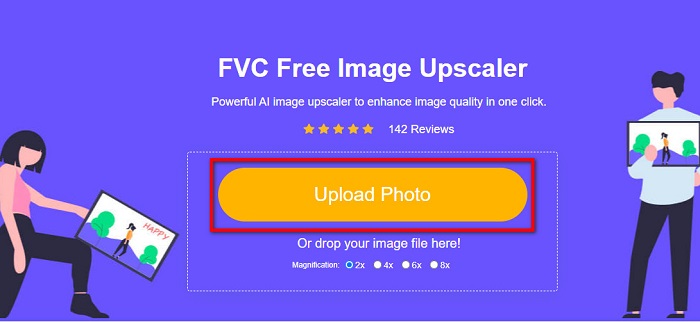
Pasul 2. Iar în interfața principală, apasă butonul Upload Photo pentru a adăuga imaginea pe care vrei să o mărești. Poți, de asemenea, să folosești procedura de drag-drop pentru a încărca imaginea.
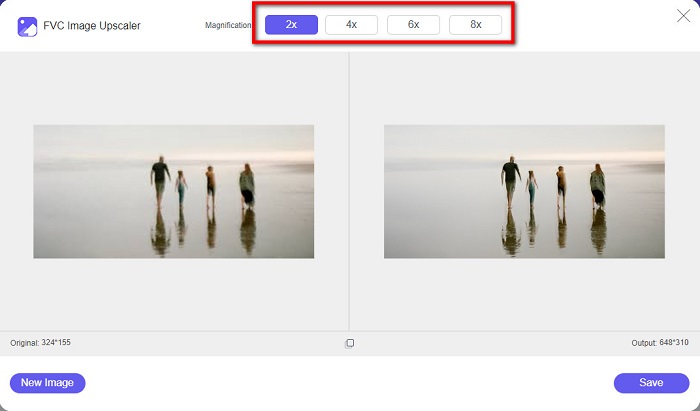
Pasul 3. După ce fișierul este încărcat, vei fi direcționat către o altă interfață. Selectează mărirea pe care o preferi pentru imaginea ta. Poți alege între 2x, 4x, 6x și 8x. Cu cât calitatea imaginii este mai joasă, cu atât trebuie să alegi un factor de mărire mai mare.
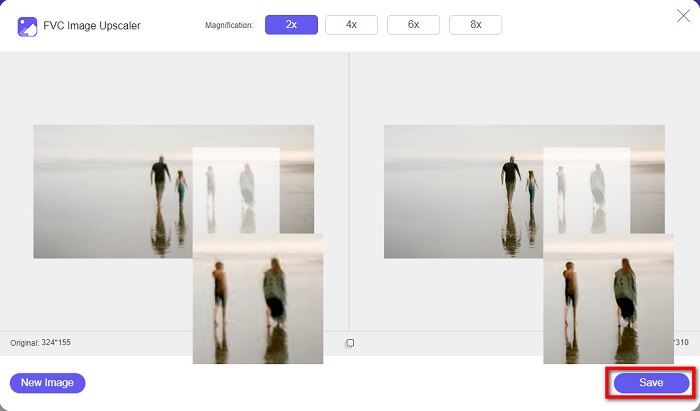
Pasul 4. Plasează cursorul pe imaginea din stânga pentru a vedea rezultatul măririi. Vezi diferențele? Apasă butonul Save din colțul din dreapta jos al interfeței pentru a salva rezultatul pe dispozitivul tău.
Și aceștia sunt pașii simpli despre cum să măriți o imagine pentru imprimare online folosind FVC Free Image Upscaler. Ușor ca o plăcintă, nu? Dar dacă doriți să măriți o fotografie modificând dimensiunile imaginii dvs., citiți următoarea parte.
Partea 2. Cum să măriți o imagine în Photoshop fără a pierde calitatea
Probabil ați dat peste această aplicație când căutați cum să măriți o fotografie. Și Adobe Photoshop este cea mai eminentă aplicație de editare foto de pe internet. Adobe Photoshop este folosit în principal de profesioniști care editează adesea imagini pentru a le publica pe diferite platforme. Cu instrumentele și caracteristicile acestei aplicații, puteți produce cu siguranță rezultate uimitoare. Dar știați că puteți mări o imagine și cu Adobe Photoshop? Da, ai citit bine. Este, de asemenea, un instrument potrivit pentru a extinde imaginile fără a pierde calitatea. Cu Adobe Photoshop, vă puteți mări imaginea modificând rezoluția sau introducând manual lățimea și înălțimea imaginii. Deși Adobe Photoshop este o aplicație pro, caracteristica sa de mărire este ușor de utilizat. Fără prea mult timp, aceștia sunt pașii pentru a mări o imagine folosind Photoshop fără pierderi.
Pasul 1. Mai întâi de toate, descarcă Adobe Photoshop pe computer. Este disponibil pentru aproape toate sistemele de operare, cum ar fi Windows și macOS. După ce aplicația este instalată pe dispozitiv, importă imaginea pe care vrei să o mărești.
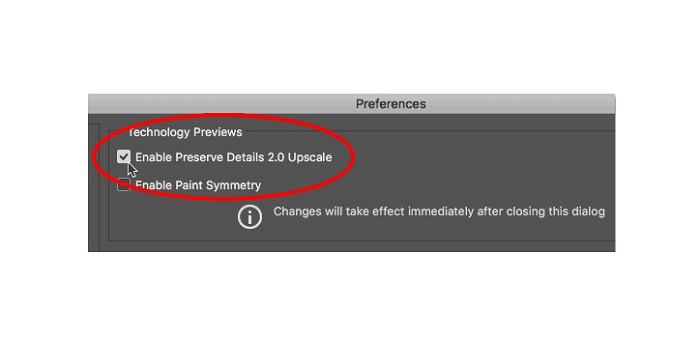
Pasul 2. Apoi activează Preserve Details 2.0. Dacă folosești un computer cu Windows, mergi la panoul Edit din Menu Bar. Dacă folosești un dispozitiv Mac, mergi la meniul Photoshop CC, alege Preferences și apasă butonul Technology Previews. Astfel se va deschide caseta de dialog Preferences la opțiunea Technology Previews. Bifează căsuța de lângă Enable Preserve Details 2.0 Upscale. Apoi apasă OK pentru a închide caseta de dialog la opțiunea Technology Previews.
Pasul 3. În continuare, deschide caseta de dialog Image Size mergând la meniul Image și selectând opțiunea Image Size.
Pasul 4. Atunci când mărim sau facem upscaling unei imagini în Photoshop, dorim să ajustăm dimensiunile fizice ale imaginii sau, cu alte cuvinte, să adăugăm sau să eliminăm pixeli. Prin urmare, asigură-te că opțiunea Resample este selectată.
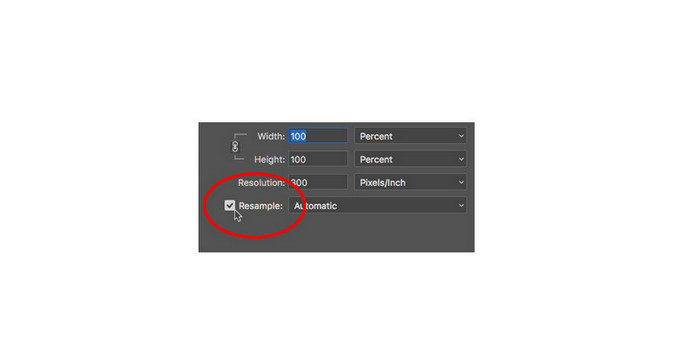
Pasul 5. Apoi modifică height și width ale fotografiei introducând dimensiunile preferate pentru imagine. În mod implicit, lățimea și înălțimea sunt legate între ele, astfel încât, dacă modifici lățimea imaginii, înălțimea se va ajusta în consecință.
Pasul 6. Și, în final, schimbă Resample Method în Preserve Details 2.0. Metoda de Resample implicită este setată pe Automatic. Însă Photoshop nu o va alege atunci când Resample este setat pe Automatic. Așadar, schimbă Resample făcând clic pe Automatic, apoi selectează Preserve Details 2.0.
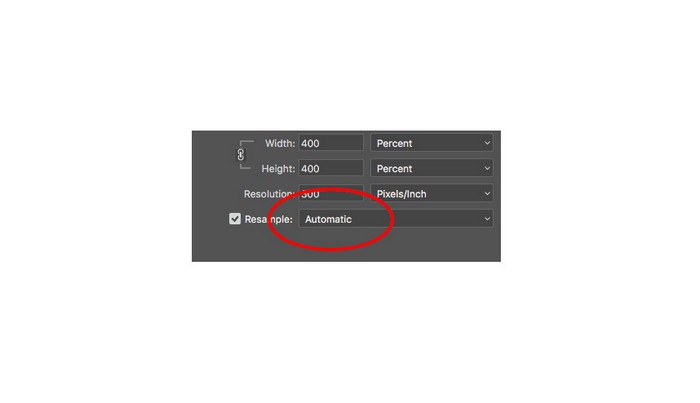
Pasul 7. Acum este momentul să previzualizezi rezultatele. După ce selectezi Preserve Details 2.0, fereastra de previzualizare din stânga se va actualiza și îți va arăta cum va arăta imaginea mărită. Trage imaginea cu mouse-ul în interiorul ferestrei de previzualizare pentru a vedea diferite părți ale acesteia.
Urmând acești pași, veți învăța cu siguranță cum să măriți o imagine pentru imprimare fără a pierde calitatea.
Legat de:
Top 7 cei mai buni măriri de fotografii online și offline
Top 4 programe online și offline pentru mărirea GIF-urilor pe care nu trebuie să le ratezi
Partea 3. Întrebări frecvente despre cum să măriți imaginea fără a pierde calitatea
Pot mări dimensiunea fișierului JPG online?
Poți modifica dimensiunea fișierului unei imagini JPG folosind FVC Free Image Upscaler. Doar mărește factorul de mărire la 6x sau 8x pentru a crește dimensiunea imaginii JPG.
Adobe Photoshop acceptă fișiere PNG?
Da. Fișierele PNG sunt acceptate de multe platforme, inclusiv Adobe Photoshop. Puteți importa aproape toate formatele de fișiere imagine cu Adobe Photoshop, cum ar fi PNG, JPG, JPEG, BMP și WebP.
Mărirea imaginii mele afectează dimensiunea fișierului?
Da, da. Dimensiunea fișierului imaginii dvs. crește deoarece ajustați numărul total de pixeli ai imaginii dvs. sau numărul de pixeli din fiecare inch. Dar dimensiunea fișierului va fi, de asemenea, mai mică atunci când reduceți lățimea și înălțimea imaginii.
Concluzie
Acestea sunt metodele prin care poți învăța cum să mărești o imagine fără pierderi de calitate. Indiferent dacă folosești metoda online sau offline, poți mări imaginea fără a-i compromite calitatea. Însă, dacă vrei o modalitate mai simplă de a mări o fotografie, îți recomandăm să folosești FVC Free Image Upscaler, o aplicație ușor de utilizat.
-
 Cum să redimensionați imaginea în Illustrator în 2 moduri diferite
 Aflați cele mai bune modalități de a redimensiona o imagine în Illustrator. Pentru a începe, descărcați și deschideți aplicația Adobe Illustrator pe computer și urmați acești pași simpli.
-
 6 moduri de a redimensiona o imagine pe web și offline [100% funcționează]
 Cu tutorialul pe care îl adăugăm aici, acum puteți redimensiona cu ușurință o imagine în funcție de dimensiunea preferată. Aflați cum să o faceți aici!
-
 Cele mai bune modalități de a redimensiona fotografia de pe iPhone gratuit și fără instalare
 Redimensionarea unei fotografii de pe iPhone poate fi dificil de învățat. Din fericire, acest articol oferă un tutorial despre cum să schimbați cu ușurință dimensiunea imaginilor.
