


 Video Converter Ultimate
 Screen Recorder
 Reparație video
 Descărcare sigură
O aplicație remarcabilă pentru redimensionarea imaginii - FastStone Photo Resizer
Căutarea pe internet a unui redimensionator de fotografii este ușoară. Mai ales astăzi, există multe programe de editare foto disponibile online. Când vine vorba de redimensionarea și conversia imaginilor, poți găsi numeroase instrumente excelente, atât online, cât și offline. Dar dacă ai dificultăți în a alege unul, îți vom ușura selecția. FastStone este o platformă de editare a imaginilor pe care o poți folosi pentru a-ți redimensiona fotografiile. Iar în acest articol îți vom oferi toate detaliile despre FastStone și cum să folosești FastStone Photo Resizer.

Partea 1. Revizuirea FastStone Photo Resizer
FastStone Photo Resizer este o aplicație de editare a imaginilor obligatorie. Îl puteți folosi pe desktop-ul Windows și îl puteți descărca cu ușurință. În plus, are o interfață curată și ușor de utilizat, ceea ce îl face un instrument ușor de utilizat. FastStone Photo Resizer acceptă diferite formate de imagine, cum ar fi JPEG, BMP, PNG, TIFF și GIF. De asemenea, conține multe funcții de editare pe care le puteți utiliza pentru a converti, redenumi, decupa, adăuga text, schimba culoarea, adăuga filigran și multe altele.
În plus, oferă procesare în lot, în care puteți procesa simultan două sau mai multe imagini. Și dacă doriți să previzualizați conversia pe care o faceți, FastStone vă permite să faceți asta. Puteți descărca gratuit FastStone image resizer pe computerul Windows, dar trebuie să achiziționați aplicația pentru a folosi caracteristicile sale explicite. Urmați tutorialul de mai jos dacă doriți să știți cum să redimensionați imaginile folosind FastStone.
Pro
- Oferă o varietate de funcții și instrumente de editare.
- Are un pret mic.
- Are o interfață de utilizator simplă.
- Are un proces ușor de partajare a fișierelor.
Contra
- Are doar o facilitate limitată de asistență și ajutor.
- Nu este gratuit de utilizat.
- Disponibil numai pe software-ul Windows
Cum să utilizați FastStone Photo Resizer pentru a redimensiona imaginile:
Pasul 1. Mai întâi, descarcă și instalează FastStone Photo Resizer pe desktopul tău cu Windows. După instalarea aplicației, ruleaz-o pe desktop. Apoi, în interfața principală a aplicației, fă clic pe butonul Batch Convert din Meniu pentru a încărca imaginea pe care vrei să o redimensionezi.
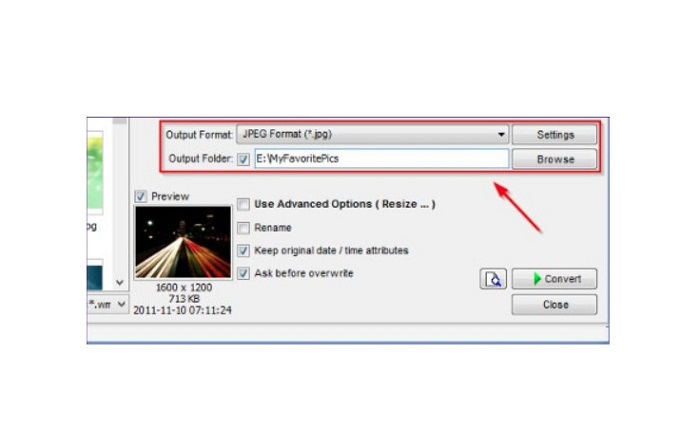
Pasul 2. După ce ai importat imaginea/imaginile, acestea vor apărea în interfață. Apoi, fă clic pe săgeata drop-down Output Format pentru a selecta formatul de fișier de ieșire dorit. Iar pentru a alege destinația fișierului rezultat, apasă butonul Browse de lângă Output Folder.
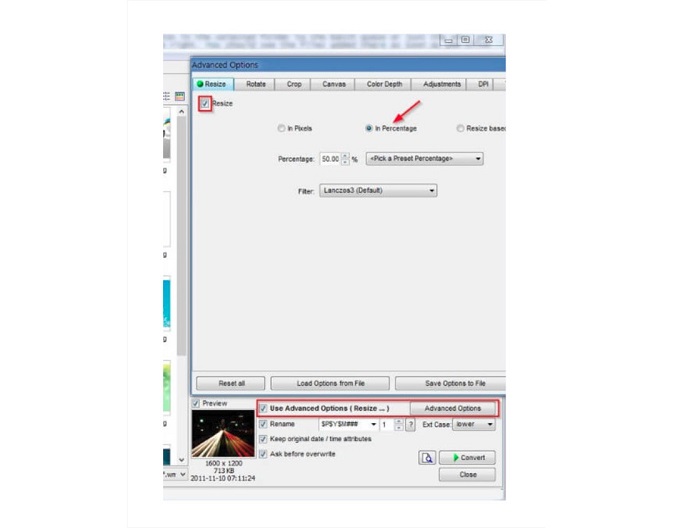
Pasul 3. Apoi, fă clic pe Advanced Options și va apărea o filă nouă. În fila Resize, bifează opțiunea In Percentage pentru a modifica dimensiunea imaginii în funcție de procentaj. Poți selecta un filtru făcând clic pe săgeata drop-down de lângă Filter.
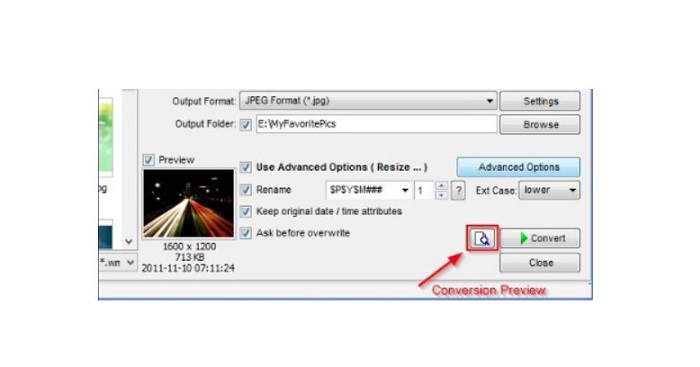
Pasul 4. După aceea, poți previzualiza imaginea și o poți compara cu fișierul original făcând clic pe pictograma Preview de lângă butonul Convert.
Pasul 5. În cele din urmă, apasă butonul Convert pentru a porni procesul de redimensionare. Acesta va converti, de asemenea, fișierul de imagine în formatul pe care l-ai selectat în pasul anterior. După ce FastStone îți redimensionează imaginea, va apărea o nouă fereastră în care vei vedea imaginea de ieșire și dimensiunile acesteia.
Și acesta este sfârșitul tutorialului FastStone Photo Resizer. Urmând pașii de mai sus, vă puteți redimensiona cu ușurință imaginea utilizând FastStone.
Partea 2. Alternative la FastStone Photo Resizer
FastStone Photo Resizer este accesibil numai pe desktop-uri Windows. Și un alt inconvenient este că trebuie să achiziționați aplicația înainte de a accesa celelalte funcții de editare ale acesteia. Deci, dacă preferați să utilizați o aplicație de tuns video disponibilă pe dispozitive Windows, Mac sau Linux și disponibilă online, citiți cu atenție această secțiune.
FVC Free Image Upscaler
FVC Free Image Upscaler este una dintre cele mai utilizate aplicații de redimensionare a imaginilor accesibilă online și pe toate browserele, inclusiv Google, Firefox și Safari. Acest instrument online te poate ajuta și cu imaginile neclare. Dacă ai o fotografie neclară sau de calitate slabă, poți folosi acest instrument online pentru a o clarifica și a-i îmbunătăți calitatea. În plus, îți poți mări imaginea de 2x, 4x, 6x sau 8x. Ceea ce este impresionant la FVC Free Image Upscaler este că utilizează un proces bazat pe tehnologie AI, care detectează automat porțiunile neclare ale imaginii și apoi le îmbunătățește.
În plus, acceptă toate formatele de imagine, cum ar fi PNG, JPG, JPEG și BMP. De asemenea, nu trebuie să vă înregistrați sau să vă conectați pentru un cont pentru a utiliza acest instrument. Și dacă doriți să verificați previzualizarea ieșirii înainte de a o salva, puteți face acest lucru în timp ce utilizați această aplicație. În plus, este sigur de utilizat și convenabil de utilizat. Și, în ciuda faptului că este o aplicație dependentă de internet, are o interfață de procesare rapidă în care nu veți avea greu să încărcați imagini pentru a le redimensiona.
Pasul 1. Deschide browserul și tastează FVC Free Image Upscaler în bara de căutare. Fă clic pe linkul furnizat pentru a merge direct la pagina principală.
Pasul 2. Lansează programul pe desktop făcând clic pe butonul Upload Photo. După lansarea aplicației, dă clic pe butonul Upload Photo pentru a încărca imaginea pe care vrei să o redimensionezi/deblurezi.
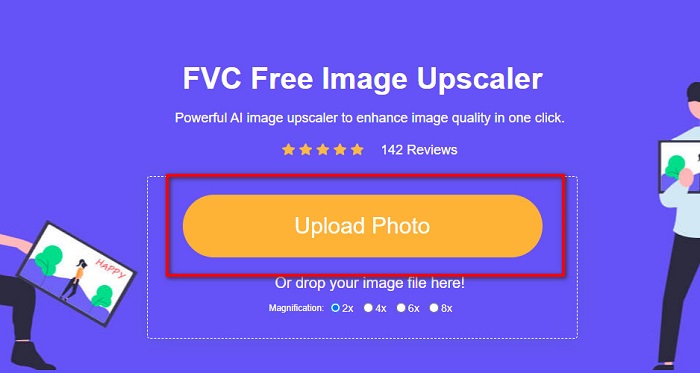
Pasul 3. În continuare, vei vedea presetările de mărire din care poți alege. Poți selecta între 2x, 4x, 6x sau 8x.
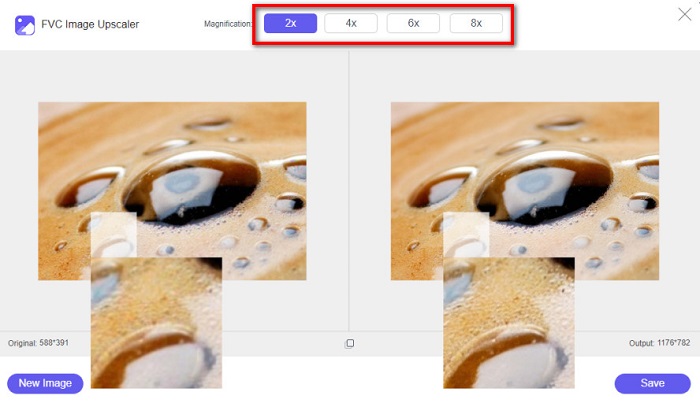
Pasul 4. Mișcă-ți cursorul pentru a vedea previzualizarea imaginii. Iar dacă ești mulțumit de rezultat, fă clic pe butonul Save din colțul din dreapta jos al interfeței.
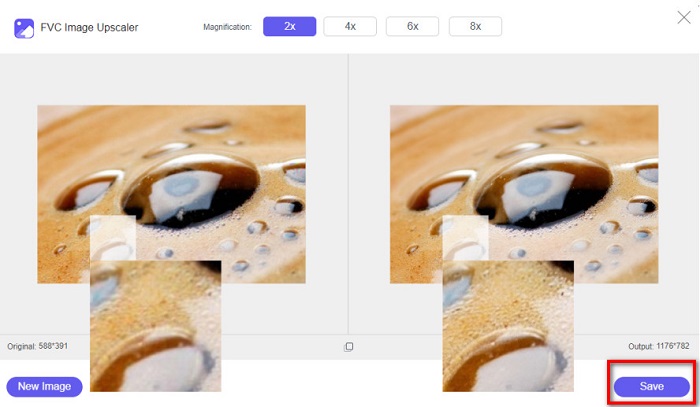
Image Resizer.com
Un alt redimensionator de imagini online excelent pe care îl poți folosi este Image Resizer.com. Image Resizer.com îți permite să redimensionezi imaginea ajustând dimensiunile acesteia. În plus, are o funcție de decupare sau rotire a fotografiei. Este, de asemenea, un instrument ușor de folosit pentru începători, deoarece are o interfață intuitivă. Totuși, conține multe reclame deranjante care te pot distrage.
Pasul 1. În browser, caută Image Resizer.com. Iar în interfața principală a utilizatorului, apasă butonul Select Image pentru a încărca fotografia pe care vrei să o redimensionezi.
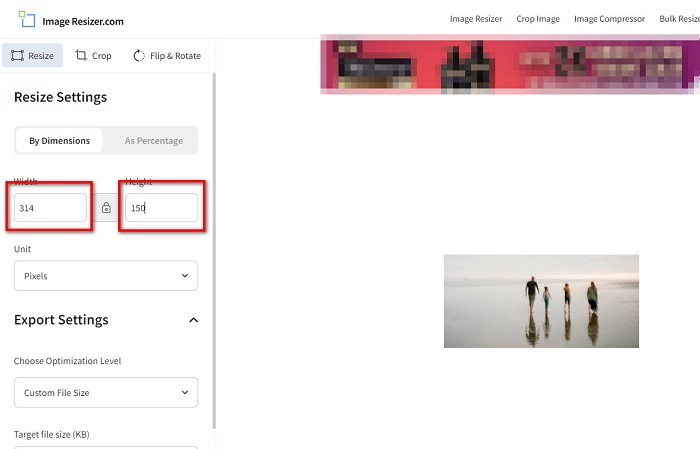
Pasul 2. În următoarea interfață, poți modifica dimensiunile imaginii după dimensiune sau procentaj. Apoi, tastează Width and Height (Lățimea și Înălțimea) pe care le preferi pentru fotografie.
Pasul 3. Când ai terminat de redimensionat imaginea, fă clic pe butonul Resize Image pentru a finaliza procesul.
Partea 3. Întrebări frecvente despre FastStone Photo Resizer
Cât costă FastStone Photo Resizer?
Puteți achiziționa versiunea completă a FastStone Photo Resizer pentru $19.95 (Licență pe viață)
Vizualizatorul FastStone este gratuit?
FastStone Image Viewer este un vizualizator de imagini care este utilizat pentru Microsoft Windows. Puteți utiliza FastStone Image Viewer gratuit și fără taxă.
FastStone Photo Resizer strica calitatea fotografiilor?
Nu. Atunci când optimizezi imaginea folosind FastStone Photo Resizer, nu vei pierde din calitatea acesteia.
Concluzie
FastStone Photo Resizer este o aplicație excelentă dacă vrei să redimensionezi imaginea pe desktopul tău Windows. În plus, are multe funcții de editare și este, de asemenea, un instrument ușor de utilizat. Însă, dacă te întrebi dacă există un FastStone Photo Resizer pentru Mac, răspunsul este nu. Așadar, dacă vrei un redimensionator de fotografii disponibil pe toate platformele, folosește acum FVC Free Image Upscaler.
-
 Ghid complet al Imglarger – Soluție pentru designeri foto
 Imglager este unul dintre cele mai eminente instrumente pentru soluții de imagine. Faceți clic pe această pagină pentru a afla descrierile complete, argumentele pro și contra, prețul și alternativele Imglager.
-
 Cea mai bună aplicație Photo Resizer online, offline, Android și iPhone
 Care sunt cele mai bune aplicații de redimensionare a fotografiilor? Faceți clic pe pagină pentru a afla primele cinci cele mai puternice aplicații de redimensionare a fotografiilor pe care le puteți utiliza pentru a îmbunătăți sau a redimensiona fișierul.
-
 6 moduri de a redimensiona o imagine pe web și offline [100% funcționează]
 Cu tutorialul pe care îl adăugăm aici, acum puteți redimensiona cu ușurință o imagine în funcție de dimensiunea preferată. Aflați cum să o faceți aici!
