


 Video Converter Ultimate
 Screen Recorder
 Reparație video
 Descărcare sigură
Instrucțiuni finale pentru a elimina filigranul Canva [Rezolvat]
Utilizatorii online și profesioniștii care trebuie să producă frecvent fotografii, prezentări și videoclipuri de înaltă calitate folosesc adesea Canva. Acest program are numeroase avantaje, inclusiv o gamă largă de instrumente, șabloane, modele, teme și multe altele. Din păcate, elementele Pro au acum filigrane. Pentru a folosi elementele Pro fără filigran este necesară plata. Din fericire, acest articol îți va arăta cele mai bune metode pe care le poți încerca pentru a elimina filigranele Canva fără a cumpăra elementele Pro. Așadar, parcurge articolul pentru a-ți face o idee despre cum să elimini filigranele Canva.

Partea 1: Cel mai bun instrument online pentru a elimina filigranele Canva
Dacă vrei să înveți cum să elimini gratuit filigranele Canva, poți folosi FVC Free Watermark Remover. Acest instrument bazat pe web poate elimina orice obiect din fotografia ta fără să cheltui niciun ban. De asemenea, îți poate șterge ușor filigranele Canva cu ajutorul unor instrumente de eliminare a filigranului precum Brush, Polygonal și Lasso. Mai mult, poți elimina filigranele și folosind instrumentul de decupare, mai ales atunci când zona cu filigran se află la marginea fotografiei. În plus, nu trebuie să îți faci griji în privința formatului de imagine, pentru că suportă aproape toate formatele, cum ar fi JPG, PNG, BMP și altele. Cu interfața sa intuitivă și metodele de bază, putem spune că FVC Free Watermark Remover este perfect pentru toți utilizatorii, inclusiv pentru începători. Această secțiune te va ajuta să înveți cum să elimini filigranele Canva din fotografia ta folosind toate instrumentele de eliminare a filigranului, precum Brush, Lasso și Polygonal.
Puteți folosi instrumentul Perie dacă doriți să eliminați filigranele ca și cum le-ați peria. Puteți chiar să redimensionați dimensiunea pensulei în funcție de preferințele dvs. Puteți utiliza instrumentul Lasso pentru a selecta porțiuni incluse de imagini sau forme. În cele din urmă, puteți utiliza instrumentul Poligonal dacă doriți să evidențiați filigranele ca o formă dreptunghiulară pentru a le elimina cu ușurință fără a urma modelul filigranului.
Folosind Instrumentul perie
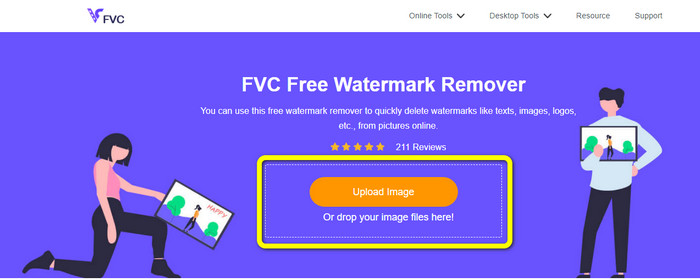
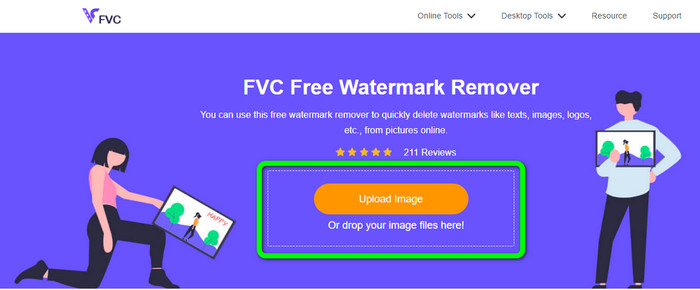
Pasul 1: Primul lucru pe care trebuie să îl faci este să vizitezi site-ul FVC Free Watermark Remover. Apoi, apasă butonul Upload Image pentru a încărca imaginea ta cu filigran Canva. O altă modalitate de a încărca o fotografie este să tragi fișierul imaginii în casetă.
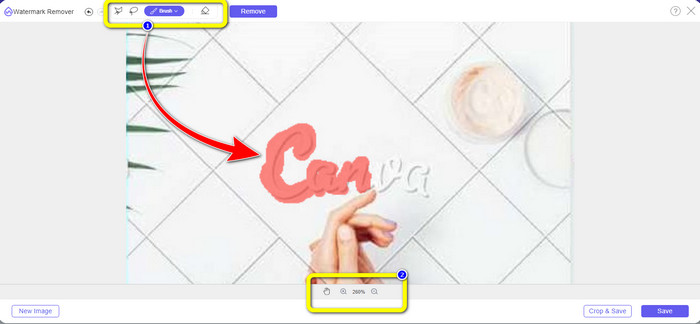
Pasul 2: În prima casetă de sus, selectează instrumentul Brush. Apoi, folosește acest instrument pentru a evidenția filigranele Canva din fotografia ta. Sub instrumentul Brush poți modifica dimensiunea pensulei. Poți micșora sau mări imaginea în a doua casetă de jos pentru a vedea micile filigrane.
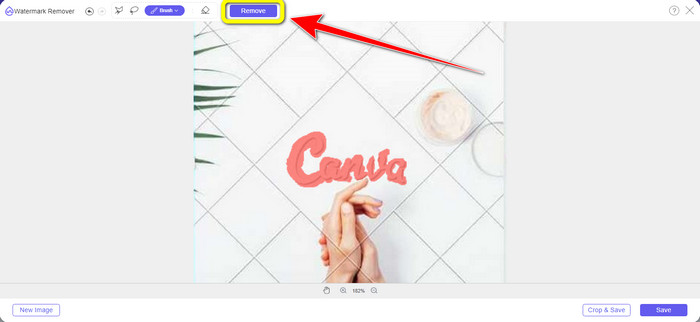
Pasul 3: După ce ai terminat de evidențiat filigranele Canva din fotografie, fă clic pe butonul Remove pentru a trece la procesul de eliminare. Apoi așteaptă câteva secunde.
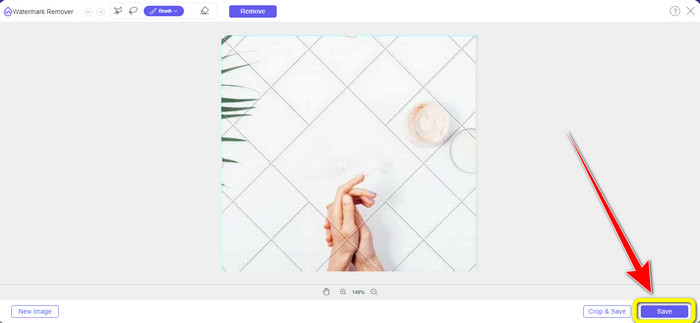
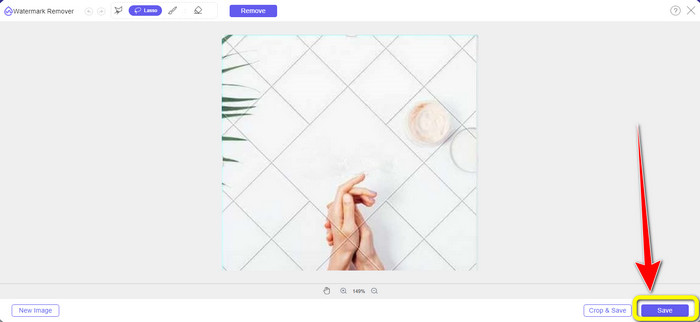
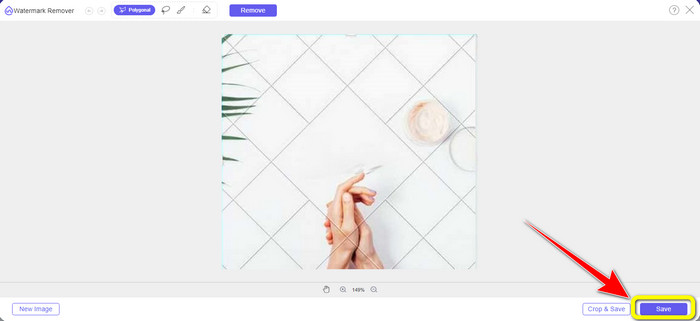
Pasul 4: După procesul de eliminare, vei vedea că filigranul Canva a dispărut deja. Fă clic pe butonul Save pentru a-ți salva fotografia.
Folosind Instrumentul Lasso
Pasul 1: După ce ai încărcat imaginea cu filigran Canva, selectează instrumentul Lasso dintre instrumentele de eliminare a filigranului. Apoi, folosește mouse-ul pentru a evidenția filigranul Canva.
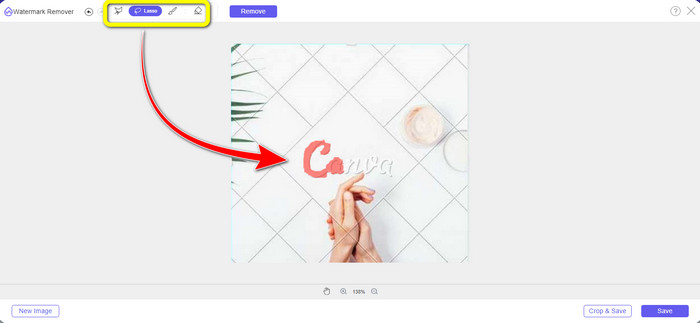
Pasul 2: În caseta galbenă de sub fotografie, poți face clic pe pictograma + sau - pentru a mări sau micșora imaginea și a o vedea clar. Apoi, fă clic pe butonul Remove când ai terminat de evidențiat filigranul Canva folosind instrumentul Lasso.
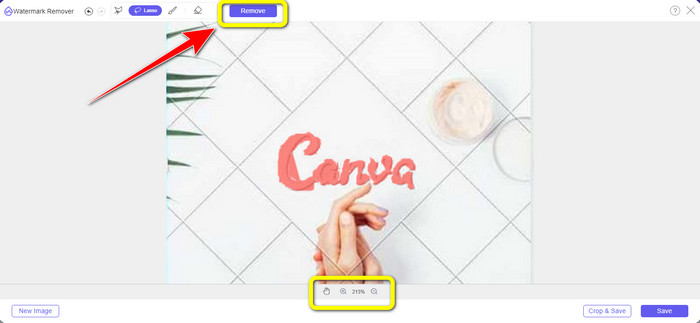
Pasul 3: După procesul de eliminare și când filigranul Canva este șters, fă clic pe butonul Save pentru a salva fotografia finală.
Folosind instrumentul poligonal
Pasul 1: După ce ai terminat de adăugat fotografia în FVC Free Watermark Remover, selectează instrumentul Polygonal dintre instrumentele de eliminare a filigranului.
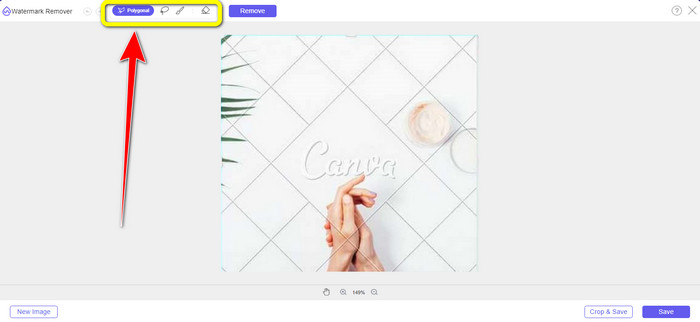
Pasul 2: În această etapă, folosind instrumentul Polygonal, evidențiază filigranul Canva din imagine.
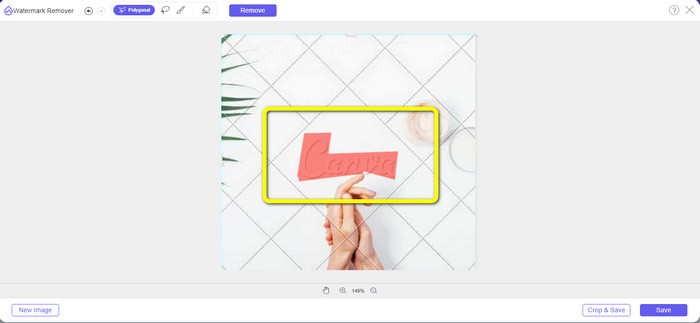
Pasul 3: După procesul de evidențiere, poți deja elimina filigranul Canva făcând clic pe butonul Remove.
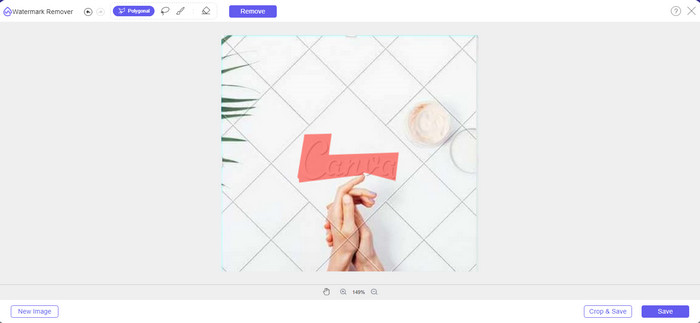
Pasul 4: După procesul de eliminare, poți trece la următoarea și ultima etapă: salvarea fotografiei făcând clic pe butonul Save.
Folosind aceste trei instrumente de îndepărtare a filigranelor, puteți elimina rapid filigranele Canva din fotografia dvs. Să folosim de data aceasta instrumentul Decupare pentru a elimina filigranul Canva din imaginea ta.
Folosind Instrumentul de decupare
Instrumentul de Decupare (Cropping) este cea mai bună modalitate de a tăia filigranele, mai ales dacă zona cu filigran se află pe marginea sau în colțul fotografiei. Urmează ghidul de mai jos pentru a afla cum să elimini filigranele Canva folosind instrumentul de Decupare.
Pasul 1: Fă clic pe butonul Upload Image. Apoi, folderul tău va apărea pe ecran. Alege imaginea cu filigran Canva pe care vrei să o ștergi.
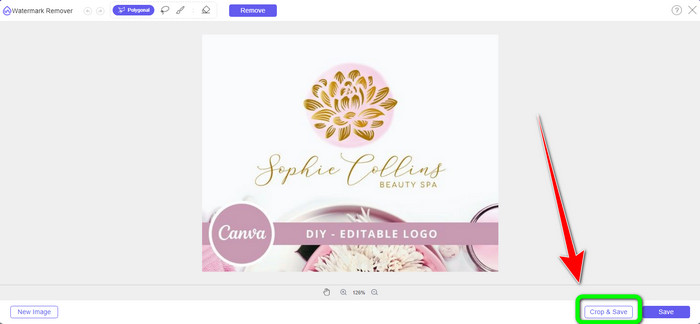
Pasul 2: După ce ai ales fișierul imagine, fă clic pe butonul Crop&Save. Apoi, treci la procesul următor.
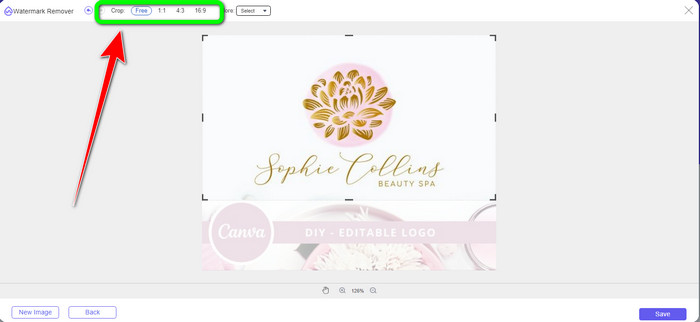
Pasul 3: În această casetă poți alege cum vrei să decupezi fotografia. De asemenea, dacă selectezi opțiunea Free, poți decupa manual imaginea așa cum dorești.
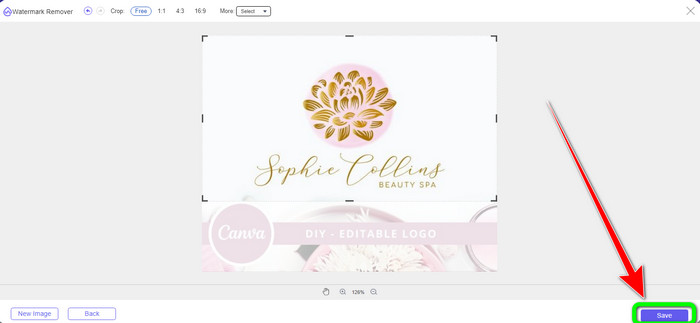
Pasul 4: După ce ai decupat fotografia pentru a tăia filigranul Canva, poți face clic pe butonul Save pentru a salva imaginea finală.
Partea 2: Eliminați filigranele Canva folosind Photoshop
O altă modalitate de a elimina filigranul Canva din imagini este să utilizați Adobe Photoshop. De asemenea, poate șterge orice obiect deranjant din fotografia dvs., inclusiv filigrane, sigle, text, autocolante și multe altele. De asemenea, acest instrument are un proces de eliminare rapid, astfel încât nu trebuie să petreceți mai mult timp eliminând obiectele nedorite din fotografie. Mai mult, software-ul precum Adobe Photoshop este utilizat pe scară largă pentru design grafic, editarea imaginilor raster și artă digitală. Stratificarea adaugă profunzime și versatilitate proceselor de dezvoltare și editare și oferă instrumente de editare esențiale care, atunci când sunt combinate, pot da rezultate remarcabile. Cu toate acestea, Adobe Photoshop nu este ușor de utilizat, mai ales dacă sunteți un utilizator nou. Photoshop este un software de editare avansat, potrivit pentru utilizatorii avansați. Înseamnă că utilizatorii non-profesioniști vor fi complicat atunci când folosesc instrumentul. De asemenea, Adobe Photoshop nu este gratuit. Poate oferi doar o perioadă de încercare gratuită de șapte zile. Apoi, trebuie să cumpărați aplicația pentru a o folosi în mod continuu.
Urmați pașii de mai jos pentru a elimina filigranul Canva folosind Adobe Photoshop.
Pasul 1: Descarcă Adobe Photoshop pe computer și instalează-l. Apoi pornește aplicația.
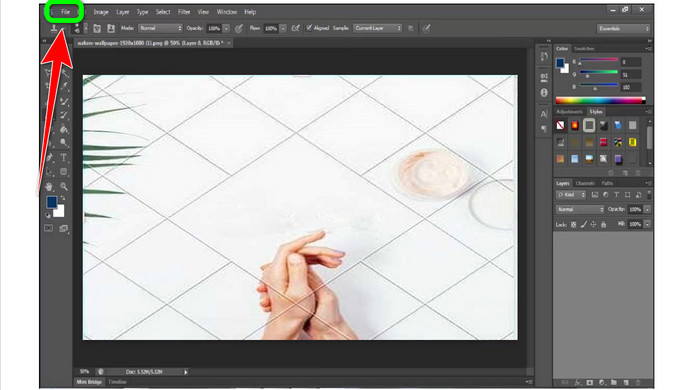
Pasul 2: Mergi la File > Open pentru a insera fotografia cu filigran Canva.
Pasul 3: Pe partea stângă a interfeței, selectează Clone Stamp Tool.
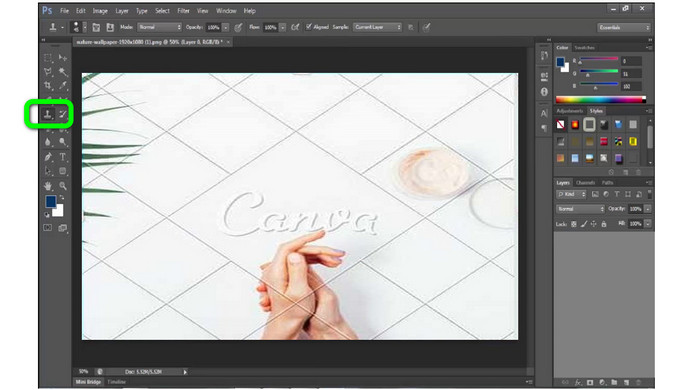
Pasul 4: După ce ai selectat Clone Stamp Tool, folosește mouse-ul pentru a da clic pe filigranul Canva până când ștergi toate filigranele.
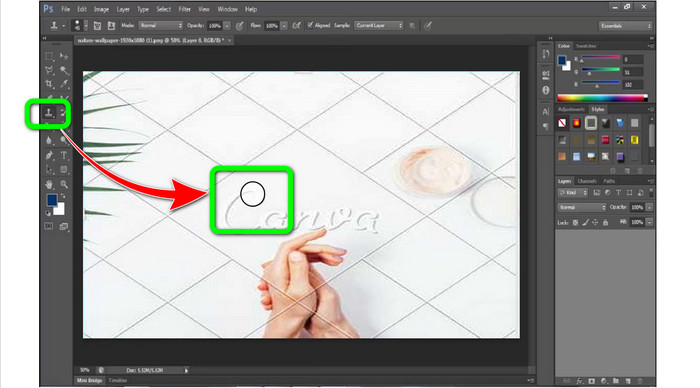
Pasul 5: Când filigranul Canva a dispărut, mergi la File > Save.
În legătură cu:
Pași simpli pentru a elimina filigranul WOW Slider [Rezolvat]
Metode simple pentru a elimina filigranul Shootproof
Partea 3: Întrebări frecvente despre eliminarea filigranelor Canva
1. Cum elimin filigranul gratuit Canva?
Pentru a elimina filigranul din toate modelele dvs., trebuie să cumpărați Canva Pro. O altă opțiune este să utilizați o versiune de încercare gratuită a Canva Pro, care va șterge filigranul. De asemenea, puteți elimina filigranul salvând designul ca fișier PDF sau PNG.
2. Care este diferența dintre Canva și Canva Pro?
În Canva, planul este complet gratuit. Puteți obține șabloane gratuite, machete, elemente grafice, fotografii și multe altele. Dar, în versiunea gratuită, există limitări, cum ar fi lipsa instrumentelor de branding, fără filtre și opțiuni limitate de ieșire. În Canva Pro, există mai multe funcții grozave de care vă puteți bucura. Oferă mai multe șabloane, fotografii de stoc, grafice și videoclipuri. Utilizarea Canva Pro este mai bună decât versiunea gratuită.
3. Care este cel mai bun mod de a elimina filigranul Canva?
Folosește FVC Free Watermark Remover. Acest instrument te poate ajuta rapid să elimini filigranele Canva din fotografia ta. De asemenea, poate șterge alte elemente nedorite, precum logo-uri, texte, emoji-uri etc.
Concluzie
Canva este un instrument fantastic de design grafic. Totuși, lasă filigrane în aproape toate fotografiile. Dar dacă vrei să elimini filigranele Canva, poți folosi FVC Free Watermark Remover. Este gratuit și mai ușor de utilizat decât Photoshop.
-
 Cele mai ușoare metode despre cum să eliminați filigranul din fotografii
 Ești iritat de filigranele de pe fotografiile tale? Nu vă faceți griji! Acest articol va oferi metode simple și ușoare de a elimina filigranele din fotografiile dvs
-
 Modalități de a elimina cu ușurință filigranele Reddit din imagini
 Dacă sunteți aici, este posibil să căutați un excelent dispozitiv de îndepărtare a filigranelor Reddit. În acest caz, vă vom arăta cea mai simplă metodă de a elimina filigranele Reddit
-
 Cum să eliminați filigran în Lightroom Mobile [Rezolvat]
 Doriți să învățați cum să eliminați filigranele din fotografiile din lightroom? Iată cele mai simple metode pe care le puteți încerca folosind telefoanele mobile și computerele
