


 Video Converter Ultimate
 Screen Recorder
 Reparație video
 Descărcare sigură
Cum să redimensionați imaginile în Illustrator pe computerul dvs
Multe editări complicate au devenit răspândite, mai ales odată cu apariția aplicațiilor profesionale de editare foto, precum Adobe Illustrator. Totuși, este încă posibil să faci editări simple cu aceste aplicații puternice. De exemplu, poți folosi în continuare Adobe Photoshop dacă vrei să redimensionezi imaginea. Și știai? Îți poți redimensiona imaginea în Illustrator folosind două metode. Una este prin scalarea manuală a imaginii, iar cealaltă este prin introducerea unor valori numerice pe care le preferi pentru fotografie. Iar în acest ghid îți vom arăta aceste două metode despre cum să redimensionezi imagini în Illustrator.

Partea 1. Cum să redimensionați imaginile în Illustrator
Adobe Illustrator este cel mai folosit software de editare foto de către profesioniști. Această aplicație vă permite să creați rezultate excepționale folosind instrumentele sale sofisticate de desen digital. Este perfect pentru a crea ilustrații bazate pe vectori, pictograme, tipografii, logo-uri și multe altele. În plus, are opțiuni avansate de culoare pentru crearea de palete de culori, scheme de culori gradiente și amestecarea diferitelor culori pentru o imagine uimitoare.
Puteți face multe lucruri cu Adobe Illustrator. Caracteristicile menționate sunt doar câteva dintre numeroasele funcții pe care Illustrator le oferă. Și dacă întrebați dacă Adobe Illustrator vă poate redimensiona imaginea, atunci răspunsul este da. Citiți continuu această parte pentru a afla pașii despre cum să redimensionați imaginile în Illustrator.
Cum să redimensionați o imagine în Illustrator utilizând Image Scaler
Pasul 1. Primul lucru pe care trebuie să‑l faci este să descarci Adobe Illustrator pe computerul tău. După ce ai descărcat și instalat aplicația, pornește‑o pe dispozitiv. Apoi, deschide imaginea în Illustrator navigând la File > Open. Poți, de asemenea, să copiezi și să inserezi imaginea pe un artboard pe care l‑ai deschis deja.
Pasul 2. Apoi, dă clic pe Selection Tool (Cmd V pe tastatură) și fă clic pe imagine pentru a o selecta. După selectare, vor apărea mânere în colțurile imaginii. Aceste mânere arată ca niște pătrate mici albe cu un contur albastru. Cu ajutorul acestor mânere, poți scala/redimensiona imaginea, o poți roti și deforma (shear).
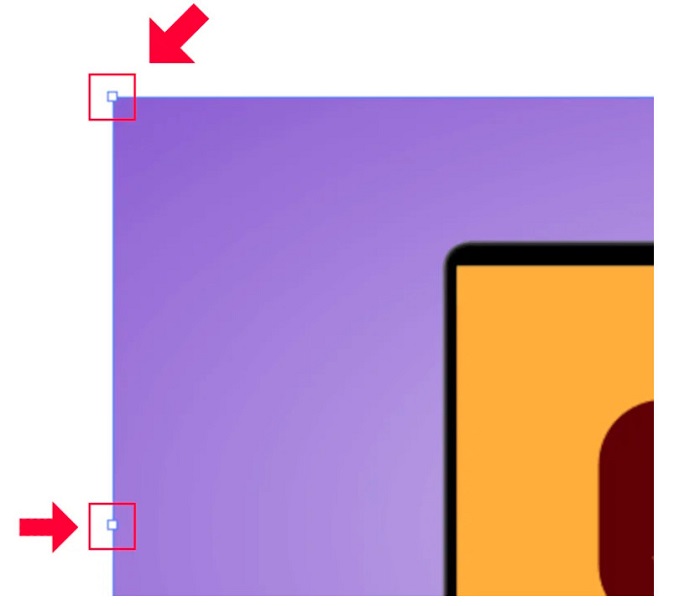
Pasul 3. Pentru a redimensiona imaginea prin scalare, ține apăsat și trage oricare dintre mânere până la dimensiunea dorită. De asemenea, poți bloca raportul de aspect al imaginii ținând apăsată tasta Shift pe tastatură și mișcând cursorul.
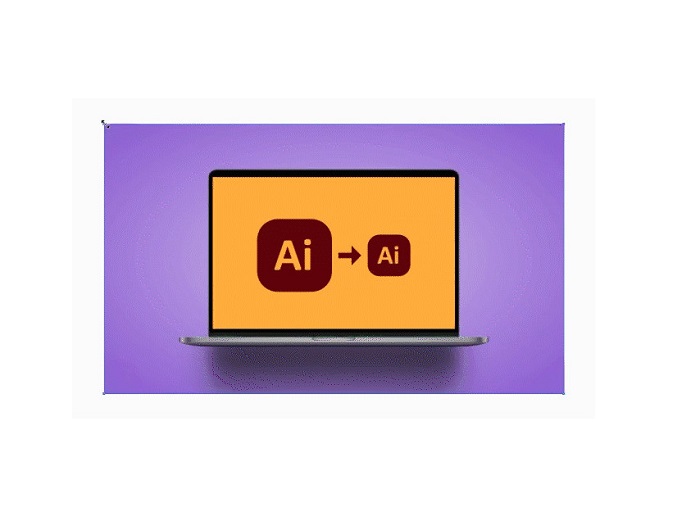
După ce vă redimensionați imaginea în funcție de preferințele dvs., puteți acum să eliberați clic pe mânere.
Cum să utilizați Adobe Illustrator pentru a redimensiona o imagine prin ajustarea valorilor numerice
Acum, vă vom învăța cum să vă redimensionați fotografia introducând valori numerice utilizând meniul Transformare în loc să scalați manual imaginea folosind Instrumentul de selecție.
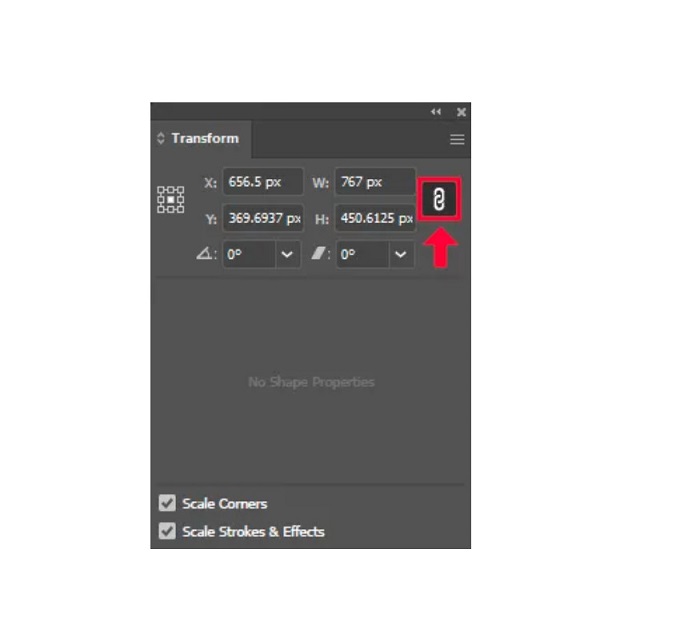
Pasul 1. După ce Adobe Illustrator este deschis pe dispozitiv, deschide meniul Transform făcând clic pe Windows > Transform. Poți, de asemenea, să afișezi acest meniu apăsând Shift + F8 pe tastatură. Iată cum arată meniul Transform.
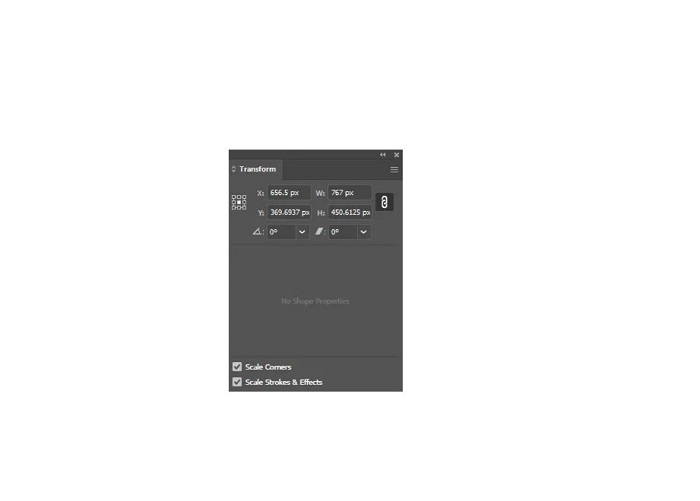
Meniul Transform îți permite să schimbi poziția obiectului în raport cu axele X și Y. Poți folosi acest meniu și pentru a roti, deforma și redimensiona imaginea introducând o valoare numerică.
Pasul 2. Apoi, selectează imaginea pe care o redimensionezi folosind Selection Tool. După aceea, ajustează lățimea și înălțimea în meniul Transform schimbând valorile numerice în funcție de dimensiunea dorită pentru fotografie. Litera W indică lățimea, iar H indică înălțimea imaginii.
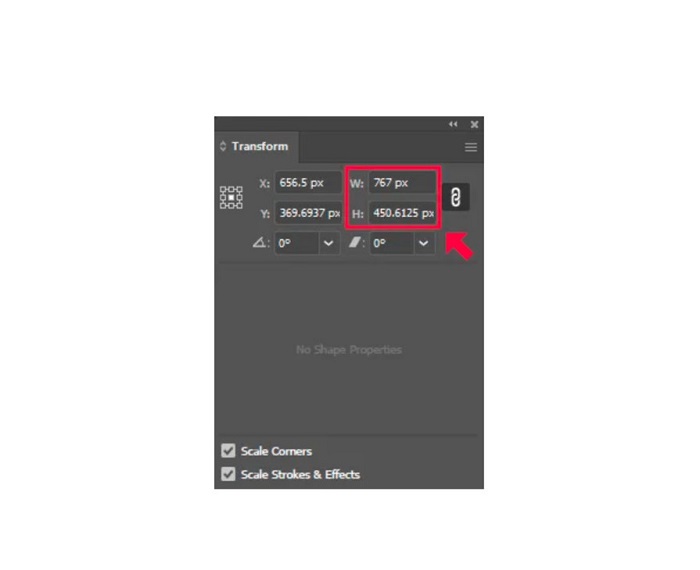
Pasul 3. De asemenea, este de ajutor să blochezi raportul de aspect al fotografiei făcând clic pe pictograma Chain de lângă înălțime și lățime. Când selectezi opțiunea Chain și modifici înălțimea imaginii, lățimea se va ajusta automat.
Sfat. Poți schimba și unitatea de măsură implicită a imaginii. Illustrator folosește pixeli (px) ca unitate de măsură implicită. Poți schimba unitatea astfel:
◆ Centimetri (cm)
◆ Milimetri (mm)
◆ inci (inci)
◆ Procente (%)
Pentru a schimba unitatea de măsură a imaginii, tasteaz‑o după valoarea numerică. După ce modifici valoarea numerică și unitatea imaginii, apasă Enter pe tastatură.
Acum îți vom exporta imaginea. Selectează imaginea folosind Selection Tool, fă clic dreapta pe ea și selectează Export Selection.
După ce selectezi opțiunea Export Selection, va apărea meniul Export for Screens. Acest meniu îți va permite să salvezi imaginea redimensionată într‑un format utilizabil.
Sub miniatură poți previzualiza rezultatul și schimba numele fișierului după preferință. Apoi, în panoul Export to, fă clic pe pictograma dosar pentru a alege locația fișierului exportat. De asemenea, asigură‑te că câmpul Scale este setat la 1x. Apoi, alege formatul de ieșire. Se recomandă folosirea formatului PNG sau JPG.
Și, în final, fă clic pe butonul Export Asset pentru a salva fișierul rezultat.
Uimitor, nu? Adobe Illustrator vă permite să vă editați imaginile după cum doriți. Această parte este, de asemenea, răspunsul dacă căutați cum să redimensionați imaginile în Illustrator fără distorsiuni. Cu toate acestea, această aplicație nu este un instrument ușor de utilizat, deoarece nu are o interfață ușor de utilizat. Prin urmare, dacă doriți să redimensionați/scălcați imaginea folosind o aplicație ușor de utilizat, citiți cu atenție următoarea parte.
Partea 2. Alternativă online pentru Illustrator
Adobe Illustrator este un instrument offline și nu este gratuit. Așadar, dacă doriți să utilizați un redimensionator de imagini fantastic care este gratuit și care vă va ajuta să vă îmbunătățiți imaginea, atunci urmați tutorialul pe care îl vom prezenta mai jos.
FVC Free Image Upscaler este un instrument online de mărire a imaginilor care te poate ajuta să îmbunătățești fotografiile de calitate scăzută. Acest instrument online îți poate îmbunătăți imaginea la o mărire de 2x, 4x, 6x și 8x. În plus, folosește tehnologie AI (Inteligență Artificială) care detectează automat zonele de calitate scăzută ale imaginii și le îmbunătățește. Suportă toate formatele de imagine, inclusiv JPEG, JPG, PNG și BMP. Mai mult, este sigur de utilizat și complet gratuit. Iar cu interfața sa simplă, îți poți redimensiona/scala cu ușurință imaginea.
Cum să redimensionați o imagine folosind FVC Free Image Upscaler:
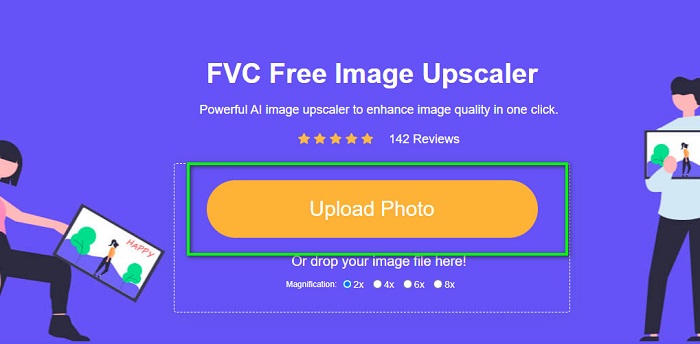
Pasul 1. Caută FVC Free Image Upscaler în browser sau dă clic pe acest link pentru a merge direct la pagina lor principală. Iar pe interfața principală a software‑ului, fă clic pe butonul Upload Photo pentru a lansa aplicația pe dispozitiv.
Pasul 2. Apoi, fă clic din nou pe butonul Upload Photo pentru a importa imaginea pe care vrei să o mărești.
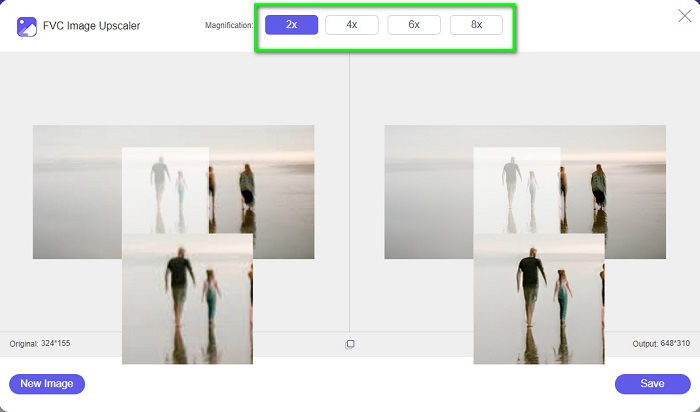
Pasul 3. După ce fotografia este încărcată, selectează presetarea de mărire dorită pentru imagine. Poți alege între 2x, 4x, 6x și 8x.
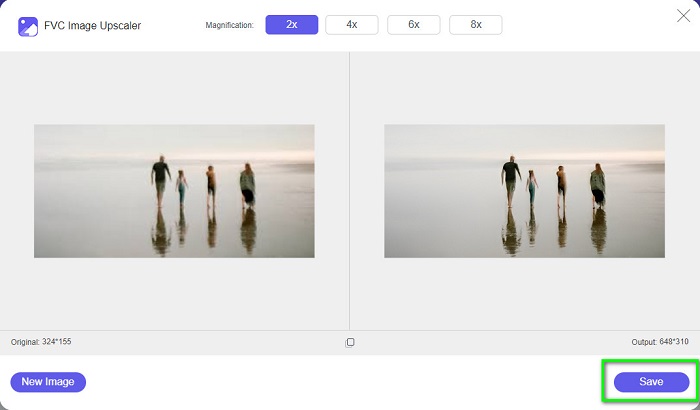
Pasul 4. În cele din urmă, apasă butonul Save pentru a salva rezultatul pe dispozitivul tău.
Legat de:
Cum să folosești GIMP pentru a redimensiona imagini: proces pas cu pas
Cum să redimensionezi fotografii pentru Facebook [Pași rapizi și simpli]
Partea 3. Întrebări frecvente despre cum să redimensionați imaginea în Illustrator
De ce Adobe Illustrator nu va redimensiona imaginile?
Nu puteți redimensiona o imagine în Illustrator, deoarece caseta de delimitare probabil nu este activată. Pentru a activa caseta de delimitare, accesați Vizualizare > Afișați caseta de delimitare. Prin activarea acesteia, acum vă puteți redimensiona imaginea în Illustrator.
Pot redimensiona o imagine în Illustrator fără a pierde calitatea?
Da. Există o modalitate prin care vă puteți redimensiona imaginea cu Adobe Illustrator. Cu toate acestea, de cele mai multe ori, atunci când redimensionați o imagine folosind scalatorul, calitatea imaginii dvs. va fi afectată.
Este Adobe Illustrator gratuit?
Nu. Adobe Illustrator nu este gratuit. Înainte de a utiliza această aplicație puternică de editare a fotografiilor, trebuie să o achiziționați pentru $20.99 pe lună.
Concluzie
Ai învățat cum să redimensionezi imagini în Illustrator urmând metodele pe care ți le‑am arătat. Poate necesita mai mulți pași, dar merită folosit și încercat. Problema cu Adobe Illustrator este că nu este gratuit și are o interfață complexă. Așadar, dacă îți dorești un redimensionator de imagini mai convenabil și gratuit, folosește FVC Free Image Upscaler.
-
 Cum să redimensionați imaginea – Adobe Redimensionați imaginea [Online și Offline]
 Dacă sunteți în căutarea unei imagini de redimensionare Adobe, atunci avem soluția pentru dvs. Vizualizați această postare în detaliu pentru a afla cum să redimensionați imaginile folosind Adobe pe computer.
-
 Cea mai bună aplicație Photo Resizer online, offline, Android și iPhone
 Care sunt cele mai bune aplicații de redimensionare a fotografiilor? Faceți clic pe pagină pentru a afla primele cinci cele mai puternice aplicații de redimensionare a fotografiilor pe care le puteți utiliza pentru a îmbunătăți sau a redimensiona fișierul
-
 Top 7 Pixels Enhancer pentru toate browserele web pe care trebuie să le utilizați
 Dacă doriți să aflați care sunt cele mai bune amplificatoare de pixeli de utilizat, mai bine verificați această postare. Acest articol enumeră șapte cele mai bune îmbunătățiri de pixeli ai fotografiilor pentru toate browserele web.
