


 Video Converter Ultimate
 Screen Recorder
 Reparație video
 Descărcare sigură
Cel mai bun Photo Resizer pentru a redimensiona imaginea pentru Twitter fără pierdere de calitate
„Tweet” este un sunet melodic produs de păsări, dar nu vorbim despre păsări pentru că astăzi, vom discuta despre cea mai frecventă problemă a utilizatorilor de pe Twitter. Acest site web de microblogging are deja peste 217 milioane de utilizatori cărora le-a plăcut să-și împărtășească gândurile, ideile, problemele, perspectivele și multe altele; poti accesa si stiri aici.
Alte companii profită de acest site web pentru că pot ajunge ușor la un public fie prin postarea unei reclame pentru produsele și serviciile lor, fie prin vânzarea acestora. Totuși, mulți utilizatori de Twitter și multe companii au probleme când încarcă imagini aici, deoarece acestea nu se încadrează în dimensiunea standard. Așadar, iată-ne gata să te ajutăm, învățându-te diferite moduri de a redimensiona pozele pentru Twitter folosind instrumente gratuite pe care le poți accesa pe internet sau descărca pe dispozitivele tale mobile.

Partea 1. Modul final despre cum să redimensionați imaginile online pentru Twitter [alegerea editorului]
FVC Free Image Upscaler este un redimensionator de imagini optim pe care îl poți folosi pentru a modifica sau redimensiona pozele pentru Twitter. Priceperea sa de a schimba lungimea și înălțimea pentru a le face potrivite pentru Twitter este cea mai bună dintre toate redimensionatoarele pe care le-am folosit pe piață. Datorită performanței și suportului AI, vei obține cel mai bun rezultat odată ce folosești acest redimensionator pe web. Este disponibil pe dispozitivul meu? Absolut! Poți accesa acest instrument web din orice motor de căutare de pe dispozitivul tău din buzunar. Ești interesat să folosești acest instrument online? Dacă da, urmează tutorialul de mai jos pentru a vedea și a învăța cum să procedezi aici.
Pași pentru a redimensiona imaginea pentru Twitter cu FVC Free Image Upscaler:
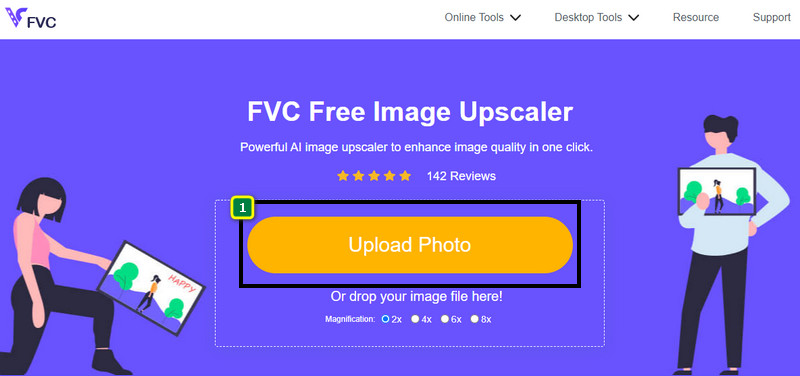
Pasul 1. Deschide instrumentul web făcând clic pe acest link, care te va duce direct pe site-ul oficial al acestui instrument – nu trebuie să-ți faci griji, site-ul este sigur de accesat.
`Pasul 2. Apoi apasă Add Image pentru a încărca aici imaginea de Twitter pe care vrei să o redimensionezi. Așteaptă finalizarea încărcării, timp în care AI-ul detectează algoritmul imaginii tale.
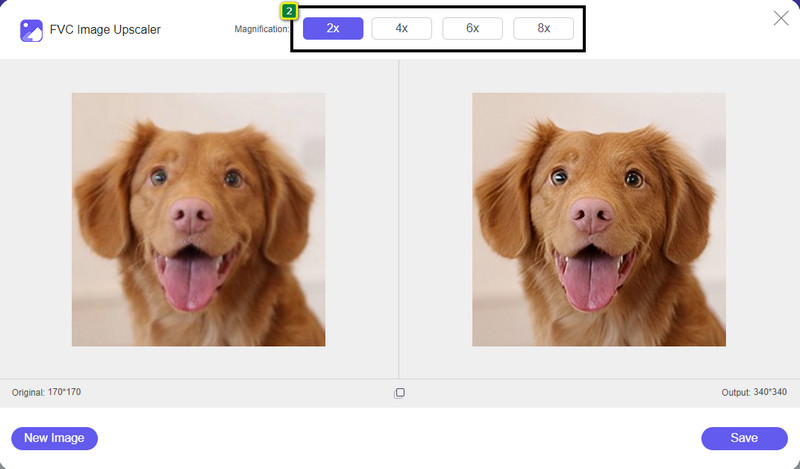
Pasul 3. Pentru a redimensiona imaginea încărcată aici, apasă opțiunea pe care vrei să o folosești. În partea de sus, la mijloc, se află opțiunile despre care vorbim. Cel mai bine este să le încerci pe toate ca să vezi care se potrivește cel mai bine standardului tău.
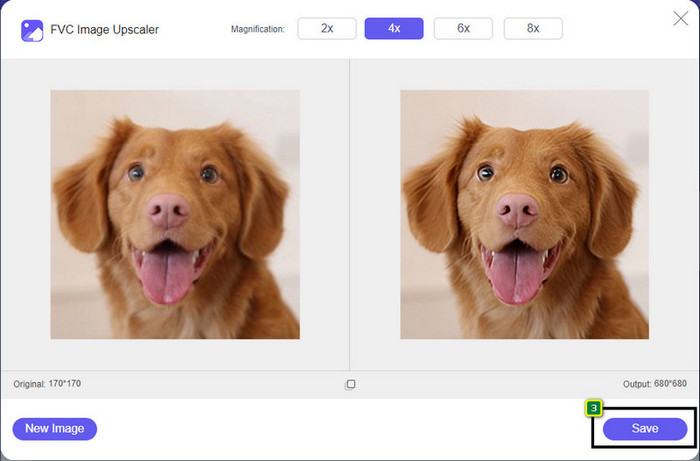
Pasul 4. Pentru a salva versiunea redimensionată pe care ai creat-o aici, apasă butonul Save. Fișierul se va descărca direct pe unitatea ta locală; poți deschide apoi folderul pentru a vedea rezultatul final.
Partea 2. Cum să redimensionați imaginea pe Android pentru Twitter [Cea mai rapidă cale]
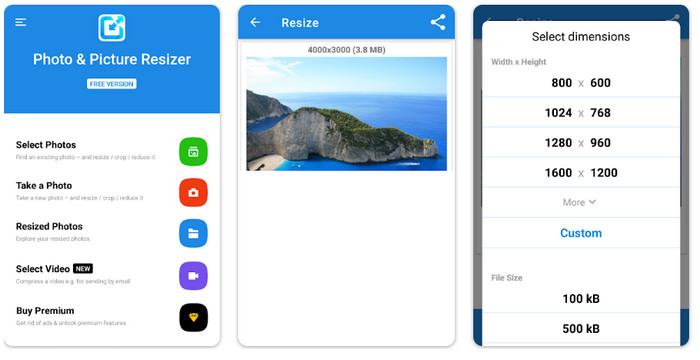
Photo & Picture Resizer este cea mai rapidă metodă de a redimensiona imaginile pentru poza de profil de pe Twitter pe dispozitive Android. Acest editor te poate ajuta să redimensionezi imaginea în funcție de preferințele tale, folosind opțiunile disponibile sau personalizând propriile setări. De asemenea, oferă și alte funcții, cum ar fi micșorarea unei singure fotografii sau procesarea în lot. Odată ce l-ai descărcat, nu vei avea probleme în a înțelege această aplicație datorită felului în care este concepută. Totuși, versiunea gratuită conține reclame și are funcții limitate. Cu toate acestea, aplicația funcționează foarte bine pentru a schimba dimensiunea imaginilor astfel încât să respecte cerințele Twitter.
Pași pentru a redimensiona imaginea pentru Twitter cu Photo & Picture Resizer:
Pasul 1. Descarcă aplicația de redimensionare pe dispozitivul tău, apoi deschide-o; apasă pe Select Photo, apoi pe OK pentru a încărca imaginea pe care vrei să o redimensionezi.
Pasul 2. După ce imaginea este încărcată, selectează pictograma cu patru săgeți pentru a schimba dimensiunea imaginii.
Pasul 3. O listă cu dimensiuni va apărea pe ecran; alege varianta pe care o preferi, iar fotografia va fi redimensionată conform opțiunii dorite – după aceea, redimensionarea va începe automat, iar imaginea va fi salvată în galerie.
Partea 3. Cum să redimensionați imaginea de pe iPhone pentru Twitter [Cea mai ușoară cale]
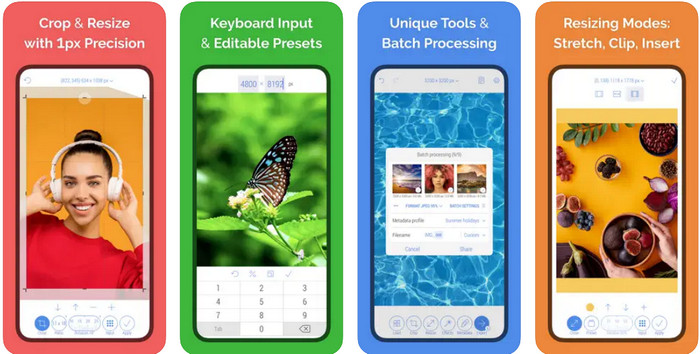
CropSize: Photo Resizer Editor ar putea fi aplicația de care ai nevoie pentru a decupa și redimensiona imaginea la o dimensiune potrivită. Cu acest redimensionator de imagini, poți modifica liber și precis dimensiunile imaginii pentru a o adapta la profilul de Twitter, reclame, postări etc. Aplicația oferă și alte funcții de editare pe care le poți folosi pentru o singură fotografie sau în lot. Așadar, dacă ai nevoie să mărești rezoluția unei imagini de pe iPhone sau vrei să știi cum să redimensionezi o poză pentru Twitter, urmează pașii indicați aici.
Pași pentru a redimensiona imaginea pentru Twitter cu CropSize:
Pasul 1. Caută aplicația de redimensionare în App Store, apoi descarc-o pe iPhone și deschide-o pe dispozitiv.
Pasul 2. După ce ai lansat aplicația, alege imaginea din Album și atinge semnul de bifare.
Pasul 3. Atinge opțiunea Resize pentru a controla dimensiunile imaginii. Aici poți alege un preset, poți trage cursorul de dimensiune relativă sau poți introduce manual un număr specific.
Pasul 4. Atinge butonul de export pentru a salva imaginea redimensionată pe iPhone-ul tău.
Partea 4. Întrebări frecvente despre cum să redimensionați imaginile pentru Twitter
Care este dimensiunea imaginii de profil a Twitter?
Pentru a preveni tăierea Twitter pe imaginea dvs., trebuie să utilizați dimensiunea implicită a profilului de 400 x 400 pixeli cu o dimensiune a fișierului mai mică de 2 MB, astfel încât să nu decupați imaginea. Dimensiunea poate fi mică, dar trebuie să optimizați tot ceea ce doriți pentru acest conținut.
Care sunt formatele de imagine acceptate pe Twitter?
Puteți încărca imagini în format JPEG/JPG, PNG și GIF-uri statice sau în buclă pe Twitter. Dacă imaginile dvs. nu sunt în formatul menționat, va trebui să învățați cum să convertiți cu ușurință imaginile într-un format popular, cum ar fi JPG, PNG și GIF.
Care este pixelul de imagine recomandat pentru antetul Twitter?
Pentru utilizatorii de Twitter care doresc să încarce un antet în contul lor, mai bine setați imaginea la 1500 x 1500 pixeli pentru a se potrivi. Puteți încărca imagini cu o înălțime și o lungime mai semnificative, dar va trebui să tăiați marginile pentru ca imaginea să se potrivească cu antetul.
Concluzie
Pentru a rezuma, acum știți de ce trebuie să redimensionați imaginea pentru Twitter făcând-o să se potrivească standardului pe care Twitter îl stabilește pentru fiecare scop. Va trebui să tăiați imaginea folosind redimensionarea Twitter pentru a o face să funcționeze și să fie potrivită pentru postarea dvs. Prin urmare, va elimina definitiv unele detalii ale imaginii. Dar, dacă o redimensionați, nu ar trebui să vă faceți griji cu privire la decuparea permanentă a imaginii, așa cum l-am introdus pe eșantionul de redimensionare. De asemenea, adăugăm pași despre cum să le folosiți pentru a vă oferi un proces fără probleme de redimensionare a imaginilor de pe web, Android și iPhone. Le poți testa pentru a vedea care funcționează cel mai bine pentru tine. O sugestie despre acest subiect? Menționați-l mai jos și discutați-l cu noi.
-
 Cea mai bună aplicație Photo Resizer online, offline, Android și iPhone
 Care sunt cele mai bune aplicații de redimensionare a fotografiilor? Faceți clic pe pagină pentru a afla primele cinci cele mai puternice aplicații de redimensionare a fotografiilor pe care le puteți utiliza pentru a îmbunătăți sau a redimensiona fișierul.
-
 Cum să redimensionați imaginea – Adobe Redimensionați imaginea [Online și Offline]
 Dacă sunteți în căutarea unei imagini de redimensionare Adobe, atunci avem soluția pentru dvs. Vizualizați această postare în detaliu pentru a afla cum să redimensionați imaginile folosind Adobe pe computer.
-
 Cum să redimensionezi fotografia pentru Facebook [Pași rapidi și simpli]
 Dacă întâmpinați probleme la încărcarea unei imagini de dimensiuni mari pe Facebook, avem o soluție pentru dvs. Finalizați acest articol pentru a afla cum să redimensionați fotografiile pentru Facebook.
