


 Video Converter Ultimate
 Screen Recorder
 Reparație video
 Descărcare sigură
Îndepărtați profesional filigranul Shootproof cu aceste instrumente fantastice
Shootproof este o galerie foto pentru clienți și un site de portofoliu. Dacă cauți imagini minunate online, Shootproof te poate ajuta. Acest site oferă o mulțime de imagini frumoase realizate de vânzători. Shootproof este o afacere cunoscută de partajare a galeriilor pentru fotografi. În plus, le permite fotografilor să își creeze un magazin online pentru fotografiile lor. Însă mulți vânzători adaugă filigrane imaginilor, astfel încât alții să nu poată revendica ușor imaginea. Așadar, dacă ești unul dintre utilizatorii care caută cum să elimine filigranul Shootproof, continuă să citești această postare.

Partea 1. 2 metode despre cum să eliminați fără efort filigranul Shootproof
Îndepărtarea filigranului Shootproof nu este dificilă dacă aveți un dispozitiv de îndepărtare a filigranului potrivit. Și pentru a vă ajuta să alegeți cel mai bun dispozitiv de îndepărtare a filigranelor, am căutat online cel mai folosit dispozitiv gratuit de îndepărtare a filigranelor. Pentru a cunoaște acest instrument, citiți această parte inclusiv.
Eliminator de filigran fără FVC
FVC Free Watermark Remover se numără printre cele mai cunoscute instrumente online de eliminare a filigranelor. Această aplicație online este gratuită și sigură de utilizat. În plus, este accesibilă din toate browserele web, precum Google, Firefox și Safari. Acceptă formatele de imagine standard, inclusiv PNG, JPEG, JPG, BMP și altele. Iar în funcția sa de eliminare a filigranului, poți alege dintre diverse instrumente de selecție pentru a îndepărta filigranul de pe imaginea ta.
Mai mult, mulți începători pot folosi acest dispozitiv de îndepărtare a filigranului deoarece este ușor de utilizat. De asemenea, atunci când exportați imaginea dvs., aceasta va avea formatul de fișier original. De asemenea, acest instrument nu necesită să vă conectați sau să vă înregistrați.
Cum să eliminați filigranul Shootproof folosind FVC Free Watermark Remover:
Pasul 1. Mai întâi, deschide browserul și caută FVC Free Watermark Remover în bara de căutare.
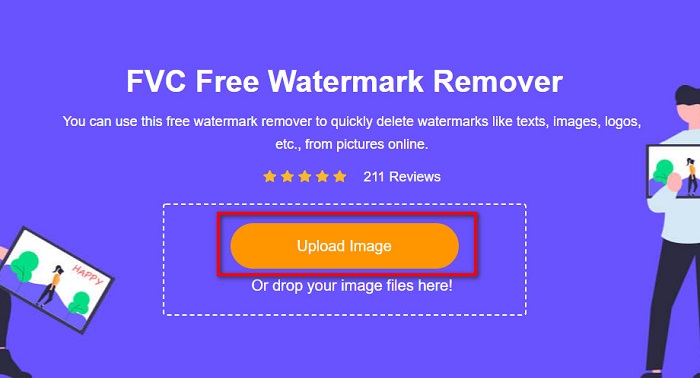
Pasul 2. Apoi fă clic pe butonul Upload Image din interfața principală pentru a încărca imaginea de pe care vrei să elimini filigranul.
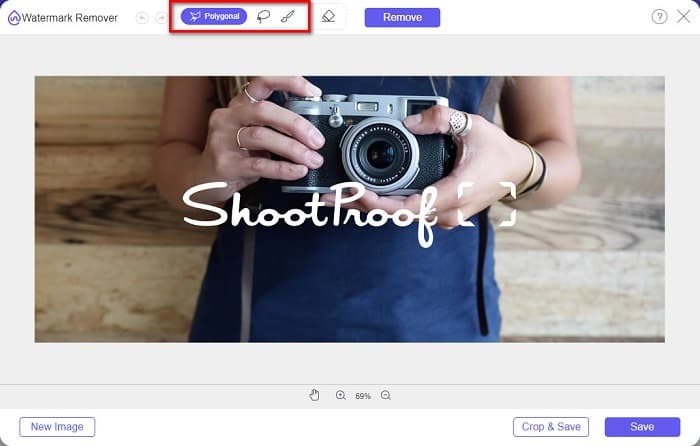
Pasul 3. În continuare, alege instrumentul de selecție pe care vrei să îl folosești pentru a elimina filigranul de pe imagine. Poți alege între Polygonal, Lasso și Brush.
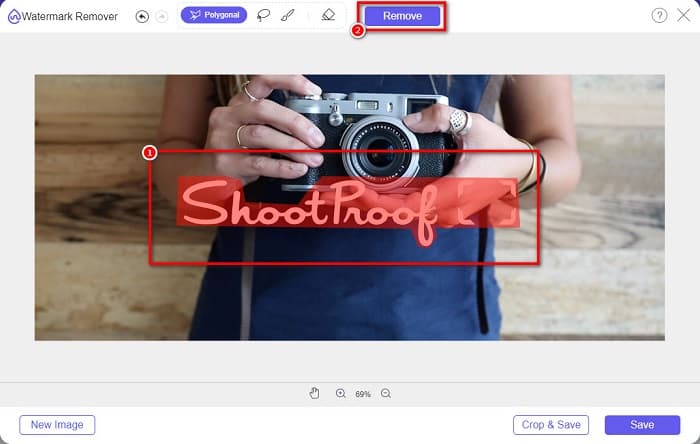
Pasul 4. Apoi trasează zona filigranului de pe imagine. Apoi fă clic pe butonul Remove după ce este selectat. Vei vedea că filigranul a dispărut.
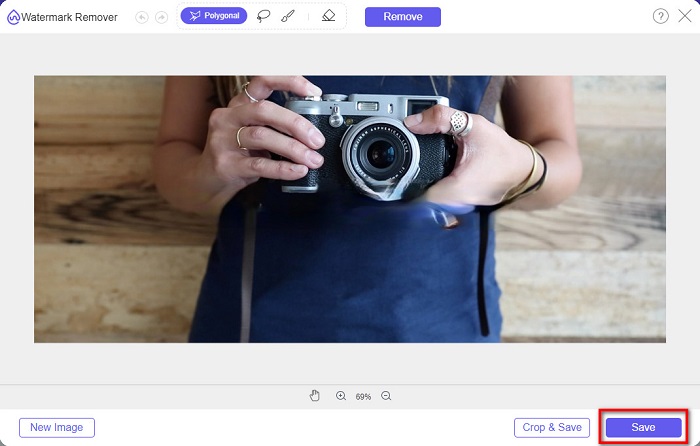
Pasul 5. La final, fă clic pe butonul Save pentru a salva rezultatul pe dispozitivul tău. Și asta e tot! Cu acești pași simpli, poți obține o imagine Shootproof fără filigran.
Apowersoft Online Watermark Remover
Apowersoft Online Watermark Remover este o aplicație online cunoscută pentru eliminarea oricărui filigran de pe imaginea ta. Este o aplicație online ușor de utilizat datorită interfeței sale intuitive. În plus, acceptă cele mai uzuale formate de imagine, precum PNG și JPG. Nu trebuie nici să îți faci griji pentru siguranța fișierelor tale, deoarece acest instrument online este sigur de folosit. Are și o funcție prin care poți elimina filigranele din videoclipuri. Totuși, dacă ai o conexiune la internet lentă, este posibil să întâmpini un proces lent de încărcare și export.
Cum să eliminați filigranul Shootproof folosind Apowersoft Online Watermark Remover:
Pasul 1. Caută Apowersoft Online Watermark Remover în browser, apoi mergi la pagina lor principală. Iar în interfața principală, fă clic pe opțiunea Remove Watermark From Image.
Pasul 2. Apoi, în următoarea interfață, vei vedea o casetă de eliminare a filigranului și o vei plasa peste zona cu filigran.

Pasul 3. Pentru a elimina filigranul de pe imagine, fă clic pe butonul Erase.
Partea 2. Sfaturi despre utilizarea funcției de filigran rezistent la fotografiere
Folosind caracteristica de filigran din Shootproof, puteți adăuga și elimina filigrane de pe imaginea dvs. Dacă doriți să împiedicați alți utilizatori să dețină fotografia dvs., puteți adăuga text pe imagine care servește drept filigran.
Cum să adăugați un filigran pe Shootproof:
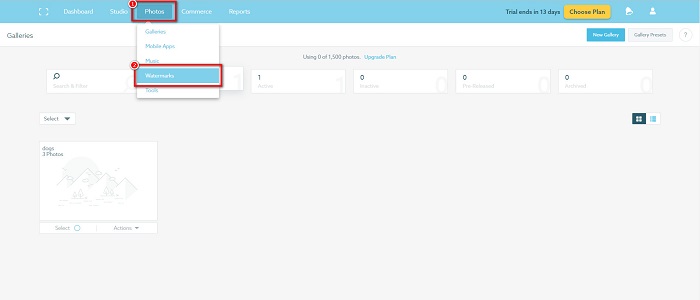
Pasul 1. Mergi la Photos, apoi fă clic pe opțiunea Watermarks.
Pasul 2. Apoi alege între filigran text sau imagine.
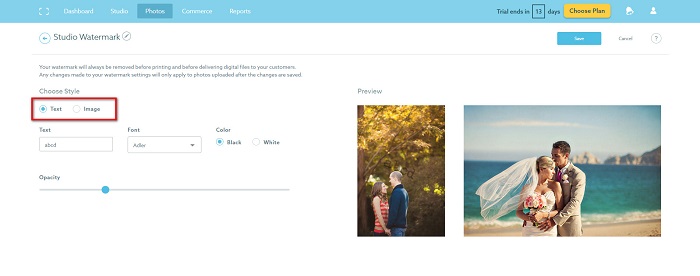
Dacă doriți să utilizați filigranul imaginii, este recomandat să încărcați un fișier PNG de înaltă rezoluție cu fundal transparent. De asemenea, puteți utiliza fișiere JPG.
Pasul 3. În continuare, ajustează Watermark Settings. În Watermark Settings poți selecta poziția filigranului pe fotografie. De asemenea, poți ajusta dimensiunea și opacitatea filigranului.
Pasul 4. La final, fă clic pe butonul Save pentru a aplica setările pe care le-ai făcut.
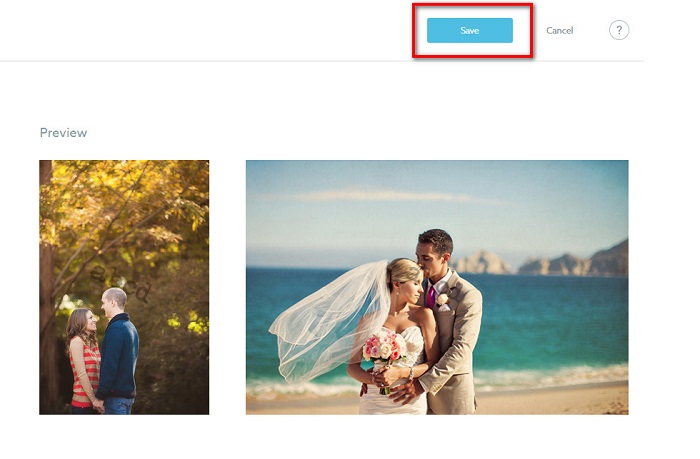
Aplicați un filigran pe imaginile pe care le încărcați.
Pe pagina Filigran, puteți alege un Filigran implicit. De asemenea, puteți activa filigranele pentru toate încărcările viitoare. Puteți schimba acest lucru înainte de a încărca imagini noi.
Și când încărcați fotografii noi în galeria dvs. prin intermediul aplicatorului de încărcare web sau al aplicatorului de încărcare desktop, puteți selecta filigranul pe care doriți să îl utilizați pe ecranul de încărcare.
Cum să eliminați filigranul în Shootproof
Rețineți întotdeauna că editarea sau adăugarea unui filigran existent va afecta numai încărcările viitoare. Modificările pe care le-ați făcut nu vor afecta imaginile aflate deja în galeria dvs. Dar dacă doriți să schimbați filigranul sau să eliminați filigranul Shootproof, puteți reîmprospăta filigranul pentru a-l actualiza în galeria dvs. Iată cum puteți elimina sau schimba filigranul Shootproof.
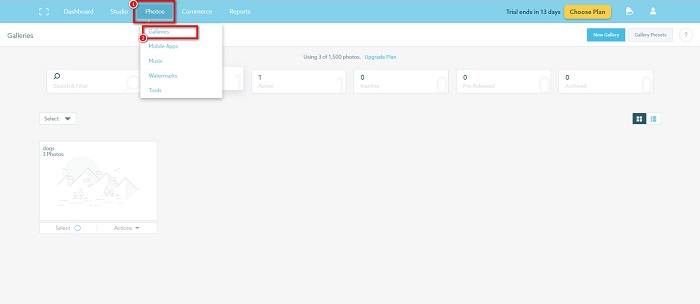
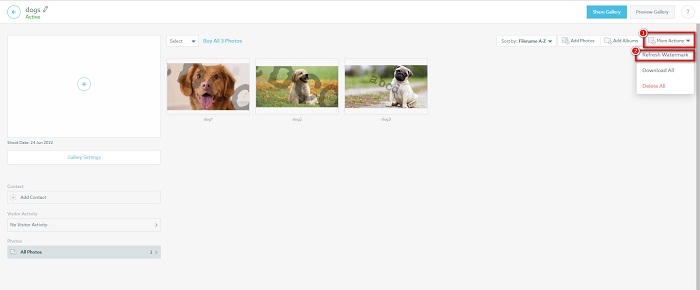
Pasul 1. Mergi la Photos > Galleries, apoi fă clic pe galeria ta.
Pasul 2. În galerie, fă clic pe butonul More Actions din colțul din dreapta sus al interfeței.
Pasul 3. Apoi selectează Refresh Watermark pentru a elimina filigranele din fiecare imagine pe care o încarci.
Pasul 4. Pentru a elimina filigranul, dezactivează bara glisantă. Iar dacă vrei doar să schimbi filigranul, selectează New Watermark.
Pasul 5. La final, fă clic pe Apply Change pentru a salva modificările pe care le-ai făcut.
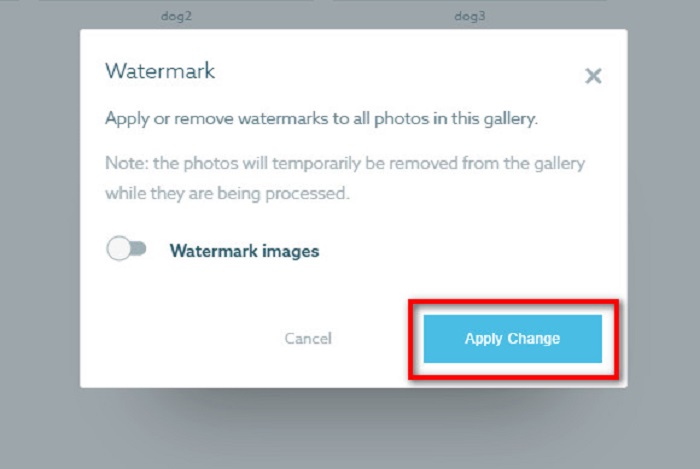
Veți vedea că fotografiile se vor afișa automat ca procesare. Când modificările sunt aplicate, vei vedea că imaginile vor reveni în galeria ta.
Legat de:
Removers Arnold Maya remarcabile pe care nu trebuie să le ratezi
123rf Watermark Removers – Recenzie detaliată a celor mai bune instrumente
Partea 3. Întrebări frecvente despre Shootproof Remove Watermark
Puteți elimina filigranele digitale?
Eliminarea filigranelor digitale invizibile este dificilă. De exemplu, cele încorporate de plug-in-ul Digimarc Photoshop sunt greu de eliminat. Decuparea, redimensionarea, adăugarea de zgomot și estomparea moderată pot să nu funcționeze cu filigranele digitale.
Puteți elimina un filigran de logo dintr-un videoclip?
Da. Este posibil să eliminați un filigran de logo de pe videoclipul dvs. Multe dispozitive de eliminare a filigranelor vă permit să eliminați siglele de pe videoclipuri. Dacă doriți să eliminați o siglă de pe videoclipul dvs., utilizați Video Converter Ultimate.
Afișează Shootproof dacă faceți o captură de ecran?
Shootproof ia mai multe măsuri pentru a proteja fotografiile vânzătorului. Cu toate acestea, Shootproof nu poate împiedica oamenii să facă capturi de ecran ale imaginii tale în galeria ta.
Concluzie
Și asta este tot! Urmând metodele menționate mai sus, poți acum să elimini filigranul Shootproof de pe imaginea ta. Deși eliminarea filigranului pe Shootproof este gratuită, urmarea întregului proces poate fi destul de dificilă. Așa că, dacă vrei să elimini cu ușurință filigranul Shootproof de pe imagine, folosește FVC Free Watermark Remover.
-
 Remarcabil Photobucket Watermark Remover online și offline
 Aflați cum să eliminați filigranul Photobucket din fotografiile dvs. folosind acest uimitor dispozitiv de îndepărtare a filigranului Photobucket. Citiți acest articol pentru a afla modalitățile.
-
 Eliminați cu ușurință filigranul din PDF cu pași simpli
 Eliminați filigranul din PDF urmând acești pași simpli. Aflați cum să eliminați cu ușurință filigranele din fișierul PDF folosind aceste instrumente uimitoare.
-
 Modalități ușoare de a elimina filigranul din imaginile de absolvire
 Doriți să aflați cele mai bune modalități de a elimina filigranele din imaginile de absolvire? Citind acest articol, veți putea ști cum să eliminați cu ușurință filigranele de pe fotografiile de absolvire.
