


 Video Converter Ultimate
 Screen Recorder
 Reparație video
Varietate largă de convertoare diferite pentru MOV în AVI online și offline
MOV este un format dezvoltat de Apple Inc. pentru a fi redat în playerul lor media implicit, și anume QuickTime Player. În acest caz, dacă îți transferi fișierul MOV într-un alt program de pe desktop, cum ar fi Windows sau altele, există șanse mari ca acesta să nu fie acceptat, deoarece este exclusiv pentru utilizatorii de Mac. Așadar, dacă ești unul dintre utilizatorii care întâmpină dificultăți la redarea fișierelor MOV pe desktop, trebuie să continui să citești acest articol pentru a determina ce ar trebui să alegi. Acesta va fi convertorul tău personal care te va învăța să convertești MOV în AVI fără pierderi de calitate și cu siguranță maximă.

Partea 1. Conversia MOV în AVI online fără limitare
Convertor video online FVC gratuit
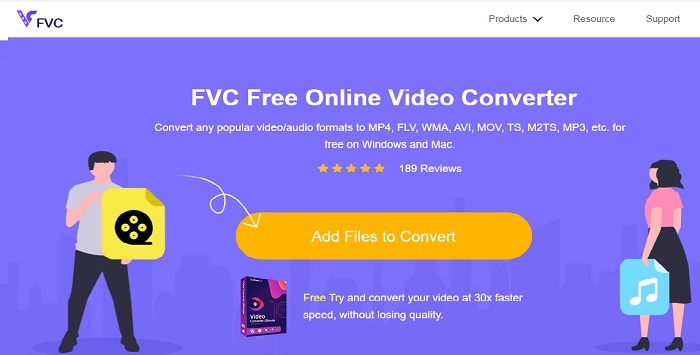
Primul dintre cele mai bune convertoare online este FVC Free Video Converter. Dacă vrei să experimentezi un nou nivel de conversie video sau audio online, atunci acesta este pentru tine. Este unul dintre cele mai bune convertoare gratuite MOV în AVI. Mai mult, dezavantajul este că nu oferă funcții premium ca în versiunea plătită, iar opțiunile de format sunt limitate. Deși poți converti fără limită, nu poate face conversii multiple deodată. Chiar și așa, unealta este gratuită și mai bună decât VLC ca convertor. Vrei să știi cum să folosești această unealtă online? Urmează pașii de mai jos pentru a afla cum să convertești fără efort.
Pasul 1. Apasă pe acest link pentru a merge la site‑ul principal. Nu trebuie să îți faci griji, este sigur și securizat pentru accesare.
Pasul 2. Apasă pe Add Files to Convert pentru a porni programul.
Descărcați versiunea pentru desktop pentru a converti fișiere în lot.
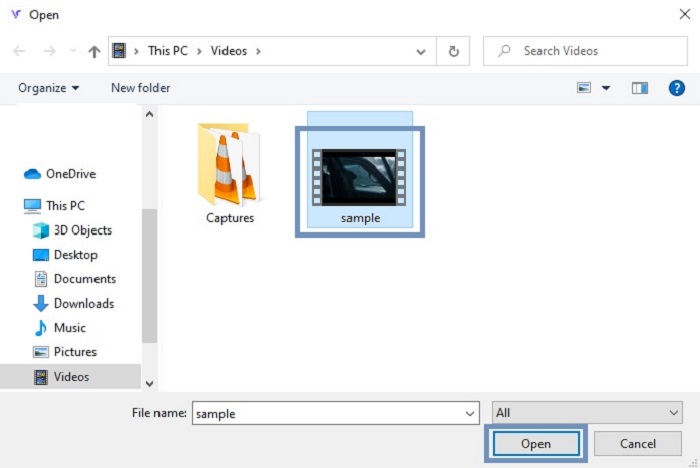
Pasul 3. Alege fișierul MOV pe care vrei să îl convertești și apasă pe OK pentru a continua.
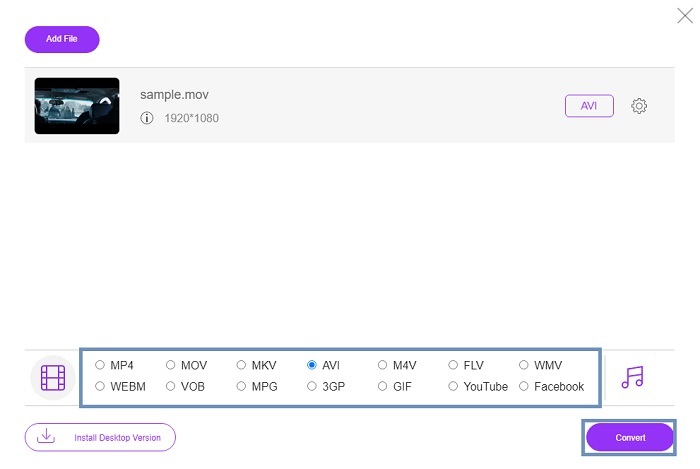
Pasul 4. După ce ai ales formatul AVI sau orice alt format dorești, dă clic pe Convert pentru a începe procesul.
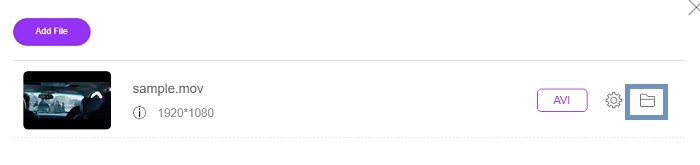
Pasul 5. Așteaptă câteva minute până la finalizare. Apoi apasă pe acest folder pentru a verifica fișierul final acolo.
Partea 2. Conversia MOV în aplicația desktop AVI offline
Dacă conversia online nu este punctul tău forte, atunci trebuie să iei în considerare utilizarea acestor instrumente magnifice de pe desktop. Alegeți cel mai bun convertor pentru a face treaba.
1. FVC Video Converter Ultimate
Dacă vrei să experimentezi o conversie, editare și îmbunătățire „majestuoasă” a fișierelor video și audio, atunci acest FVC Video Converter Ultimate trebuie să fie unealta ta pentru treabă. Convertește formatul tău MOV în AVI fără niciun efort, datorită interfeței sale prietenoase și a faptului că este foarte „ușor”. A devenit convertorul de primă alegere pentru mulți utilizatori de pe internet. Până în prezent, numărul utilizatorilor care descarcă această unealtă a crescut considerabil, atât ca volum, cât și ca nivel de utilizare. Spre deosebire de alte unelte prezentate aici și pe web, doar prin simpla deținere a acestui program este ca și cum ai avea propriul tău briceag elvețian. Deși oferă un pachet complet de funcții, acest software are o politică „plătești înainte de utilizare”. Ceea ce înseamnă că, dacă vrei să îl folosești, trebuie să îl cumperi. Dar nu trebuie să îți faci griji, pentru că este ieftin, iar metoda de plată este sigură și suportă PayPal, transfer bancar, Visa și altele. Dacă ai dubii că aceasta este cea mai bună alegere, de ce nu încerci să citești pașii de mai jos pentru a vedea dacă este convertorul potrivit pentru tine?.
Pasul 1. Descarcă software‑ul pe discul desktopului tău și alege varianta cea mai potrivită pentru sistemul tău. Apoi ajustează preferințele dacă dorești și apasă pe Finish pentru a instala programul pe disc.
Descărcare gratuită pentru Windows 7 sau o versiune ulterioară Descărcare securizată
Descărcare gratuită pentru MacOS 10.7 sau o versiune ulterioară Descărcare securizată
Pasul 2. După procesul de instalare, se va deschide automat. Acesta este un exemplu de interfață.
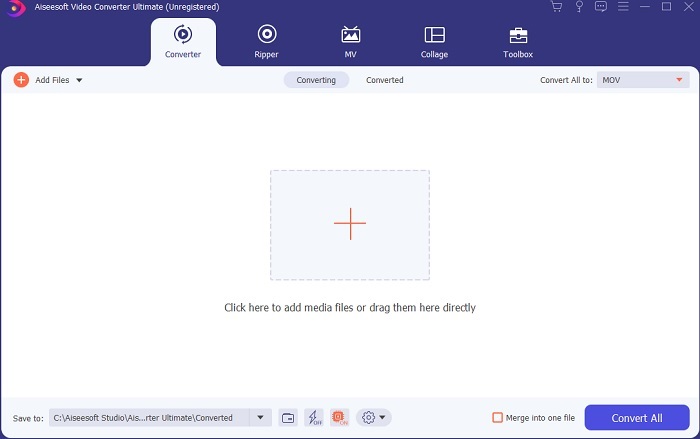
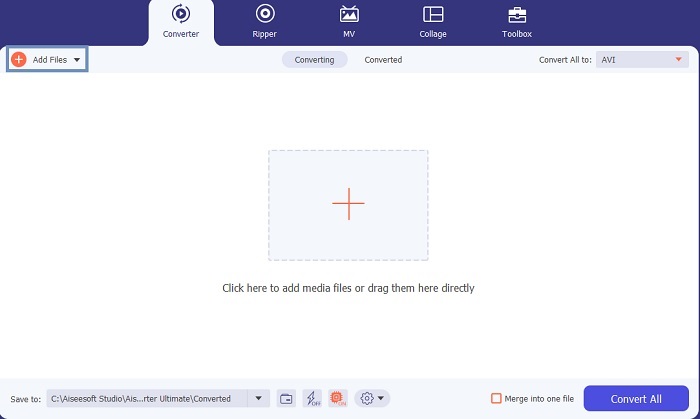
Pasul 3. Apasă butonul Add Files și alege fișierul MOV pe care vrei să îl convertești. Dacă vrei să convertești mai multe fișiere MOV, le poți trage și plasa în interfața uneltei.
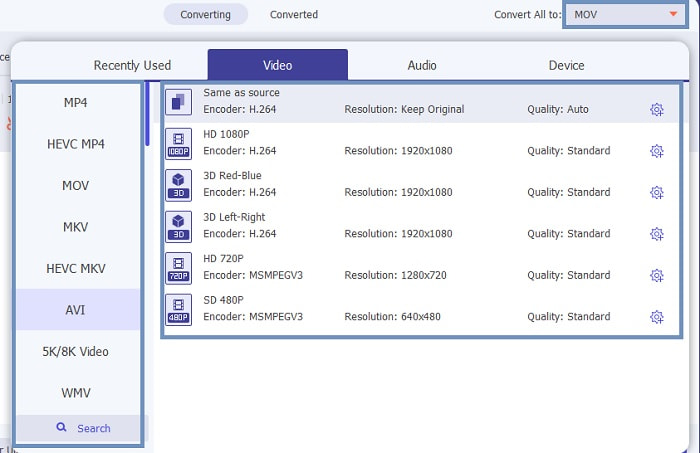
Pasul 4. Selectează formatul dorit din lista din submeniul Convert All to. Există diferite variante dintre care poți alege. Iar pentru a începe conversia, apasă pe Convert All.
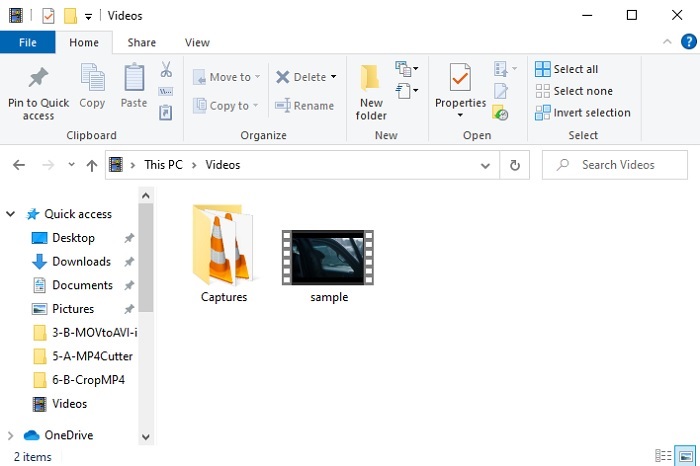
Pasul 5. Acest proces va dura doar câteva secunde, iar când se termină, un explorator de fișiere se va deschide pe ecran. Acolo poți da clic pe fișierul convertit pentru a‑l viziona pe computer. Dacă vrei să adaugi, să îmbunătățești sau să faci ceva special cu videoclipul, poți merge la secțiunea Toolbar și să verifici funcțiile disponibile pentru a‑ți upgrada videourile sau fișierele audio.
2. VLC Media Player
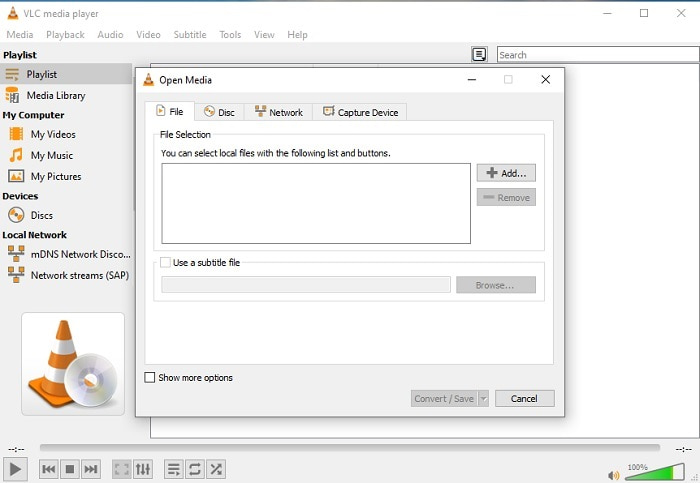
Știai că poți converti MOV în AVI folosind VLC? Da, poți folosi acest player media ca și convertor. Deși poate converti formate, nu este cea mai bună alegere ca și convertor, deoarece nu este prietenos cu utilizatorul, oferă puține instrucțiuni în interfață despre cum se folosește și are mult mai puține formate disponibile. Chiar dacă poate fi unul dintre cei mai buni playere media, a fi cel mai bun convertor nu este punctul său forte. Dar dacă vrei să încerci, poți să îl testezi singur și să îl folosești pentru a‑ți converti fișierele.
3. Pazera
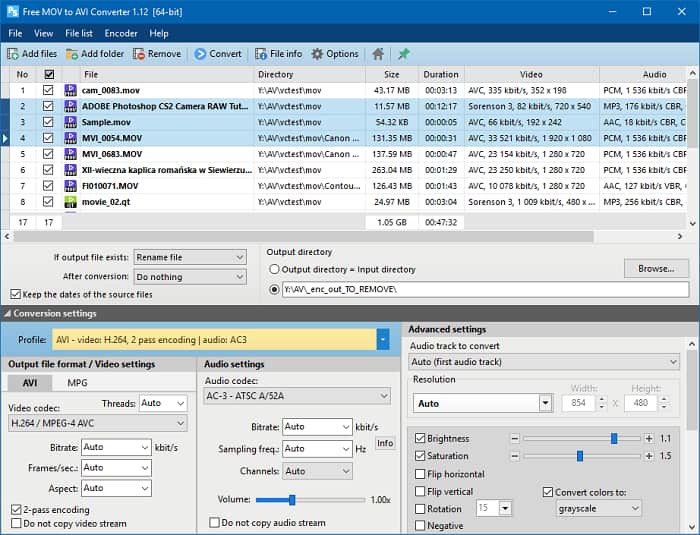
Poți descărca Pazera MOV to AVI Converter gratuit. Această unealtă este ușor de folosit și, chiar dacă nu pare, oferă o conversie de calitate. Însă partea descurajantă este că nu este un multi‑convertor. Spre deosebire de uneltele menționate mai sus, convertorul îți oferă doar experiența unui singur tipar de conversie. Ca să fie clar: dacă descarci un MP4 to AVI converter, atunci aceea este conversia pe care o vei avea. Așadar, dacă ești în căutarea unui convertor „all‑in‑one”, acesta ar trebui să fie ultima ta opțiune. În plus, dacă încerci să accesezi pagina web a uneltei pentru descărcare, vei întâlni multe ferestre pop‑up publicitare, ceea ce este enervant. Trebuie să fii atent dacă încerci să accesezi această unealtă.
Citește mai departe
MOV vs. AVI
Formatul MOV poate fi utilizat pentru stocarea unui film, a unei emisiuni TV, a unui videoclip scurt sau a unui film de acasă. De fapt, este salvat în formatul de fișier QuickTime (QTFF), care a fost introdus de Apple în 1991. Fișierele MOV sunt adesea folosite atunci când oamenii doresc să salveze un videoclip de înaltă calitate.
Bazat pe formatul RIFF (Resource Interchange File Format), formatul AVI a fost introdus de Microsoft în 1992. Poate salva video/audio de înaltă calitate, deoarece utilizează mai puțină compresie. Dar asta provoacă și dimensiunea mare a fișierului AVI, care poate fi o problemă atunci când spațiul este limitat.
Partea 3. Întrebări frecvente despre MOV în AVI
Poate QuickTime să convertească MOV în AVI?
Deși QuickTime este renumit pentru că este playerul media implicit al Mac. Este posibilă conversia prin QuickTime. Puteți verifica acest link dacă doriți să știți cum să convertiți MOV în AVI cu QuickTime.
Care sunt diferențele dintre MOV și AVI?
Prima diferență majoră între cei doi este proprietarul lor. După cum sa spus în primul rând, MOV a fost produs de Apple Inc. ca format unic pentru playerele QuickTime. MOV a devenit popular pentru că este unul dintre cele mai bune formate pe care le puteți utiliza, deoarece stochează și diferite fișiere audio, video și text. AVI a fost dezvoltat de Microsoft pentru a concura cu MOV. Deși acest format este necomprimat. Deci, dacă înregistrați sau descărcați un fișier în acest format, așteptați-vă la o dimensiune mare a fișierului. Deci, dacă doriți să micșorați dimensiunea fișierului, va trebui să-l comprimați. Dar lucrul bun este că produce o ieșire video și audio de foarte înaltă calitate.
Unde pot reda MOV-ul meu convertit în AVI?
Dacă vrei să urmărești noul tău fișier AVI convertit sau fișierul MOV, poți să verifici FVC Free Video Player pentru a‑l viziona. Astfel, chiar dacă nu convertești un fișier MOV în AVI pe Mac sau PC, îl poți urmări mai târziu.
Concluzie
Pentru a încheia „aventura” noastră, este mai clar pentru toți că conversia este una dintre cele mai ușoare sarcini la care oricine poate lua parte. Învățând din acest articol, fiecare dintre noi are de câștigat, deoarece oferă detalii, pași și alternative. Așadar, dacă ești încă confuz în privința uneltei pe care să o folosești ca convertor principal, acest lucru ar trebui să lămurească situația. FVC Video Converter Ultimate este convertorul complet pe care ți l‑ai dorit dintotdeauna. Ideea de a converti, edita, îmbunătăți și crea este concentrată în această unealtă. Atunci ce mai aștepți? Nu trebuie să îți faci griji, deoarece FVC Video Converter Ultimate este convertorul fără rival.
-
 Cele mai bune 4 metode pentru a converti cu ușurință MOV în MP3 pe Windows și Mac
 Când doriți să extrageți fișierele audio MP3 din fișiere MOV, puteți afla mai multe despre cele mai eficiente 4 convertoare MOV în MP3 pentru a obține fișierele dorite din articol.
-
 8 cei mai buni jucători MOV pentru a reda fișiere QuickTime MOV cu calitate originală
 Aflați mai multe despre cele mai bune 8 playere MOV disponibile atât pentru Windows, cât și pentru Mac. Puteți alege cea dorită și potrivită pentru a reda fișiere MOV cu calitatea originală.
-
 MKV în MOV - Cum se convertește MKV în MOV
 Cum convertesc MKV în MOV pe Mac? Poate iMovie să citească MKV? Ce înseamnă formatul MOV? Această postare spune 2 moduri simple de a vă ajuta să convertiți MKV în MOV cu convertoare video gratuite online și profesionale.

