


 Video Converter Ultimate
 Screen Recorder
 Reparație video
 Descărcare sigură
Cum se convertesc videoclipuri MOV în format FLV pe desktop și online
MOV este atât o extensie de fișier, cât și un format video. Un fișier cu extensia MOV este un fișier video Apple QuickTime. Funcționează bine pe iOS și Mac. În plus, Windows 10 include, de asemenea, codecul corespunzător. Totuși, nu este conceput pentru distribuție online. Prin urmare, trebuie să convertești MOV în FLV înainte de a posta pe YouTube sau pe alte site‑uri. Acest articol îți va prezenta două dintre cele mai bune metode legate de acest subiect.

Partea 1: Cum se convertește MOV în FLV pe PC / Mac
Poți deschide aproape toate fișierele MOV în QuickTime, dar acesta nu poate schimba formatul MOV în FLV. Așadar, ai nevoie de un convertor video, cum ar fi FVC Free FLV Converter. Deși este gratuit, îți oferă o mulțime de funcții utile pe care, de obicei, le găsești doar în software profesional.
Caracteristici principale ale celui mai bun convertor gratuit MOV în FLV
- 1. Convertiți fișiere MOV nelimitate în format FLV în lot.
- 2. Protejați calitatea video și audio în timpul conversiei.
- 3. Oferiți o varietate de caracteristici bonus, cum ar fi rezoluția personalizată.
Descărcare gratuităPentru Windows 7 sau versiuni ulterioareDescărcare sigură
Descărcare gratuităPentru MacOS 10.7 sau versiuni ulterioareDescărcare sigură
Inutil să spun că este cea mai bună opțiune pentru a vă converti gratuit fișierele MOV în FLV pe desktop.
Cum se convertește MOV în FLV în lot
Pasul 1: Adăugați fișiere MOV
Pornește cel mai bun convertor MOV în FLV imediat după ce îl instalezi pe computer. Poți descărca software‑ul gratuit de pe site‑ul oficial. Apasă butonul Add File(s) din interfața principală pentru a deschide fișierele MOV pe care vrei să le convertești în software. Apoi videoclipurile vor apărea în panoul bibliotecii. Aici poți previzualiza și edita videoclipurile.

Pasul 2: setați formatul de ieșire
Pentru a schimba formatul de ieșire, dă clic și extinde opțiunea Output format din partea de jos. Mergi la fila General Video, derulează în jos și selectează FLV sau un format înrudit. Poți, de asemenea, să modifici rezoluția și alți parametri în dialogul de profil. Dă clic pe pictograma Gear, iar dialogul de profil va apărea.

Pasul 3: Convertiți MOV în FLV
Apasă butonul Open Folder de lângă caseta Output folder și alege un director specific pentru a salva rezultatul. În cele din urmă, fă clic pe butonul Convert, iar convertorul MOV în FLV se va ocupa de restul. Câteva minute mai târziu, vei găsi fișierele FLV în locația selectată.

Partea 2: Cel mai bun mod de a converti MOV în FLV online
Astăzi avem mai multe moduri ca niciodată de a edita și converti fișiere video. FVC Free Online Video Converter, de exemplu, este un convertor MOV în FLV online, bazat pe web. Îți permite să procesezi gratuit mai multe fișiere MOV fără înregistrare. În plus, nu are limită de dimensiune a fișierului, filigran etc. Dacă ai nevoie să convertești MOV în FLV doar ocazional, urmează pașii de mai jos.
Pasul 1: Vizitează https://www.free-videoconverter.net/free-online-video-converter/ în browserul tău. Este disponibil pentru Chrome, Firefox și alte browsere. Fă clic pe butonul Add Files to Convert pentru a descărca lansatorul.
Descărcați versiunea pentru desktop pentru a converti fișiere în lot.
Pasul 2: Apoi, apasă butonul Add File imediat ce apare lansatorul. Încarcă fișierele MOV pe care intenționezi să le convertești de pe hard disk. Alege FLV în secțiunea de format din partea de jos a lansatorului.
Sfat: Dacă trebuie să schimbi rezoluția, fă clic pe pictograma Settings pentru a deschide dialogul de setări și a o ajusta cu ușurință.
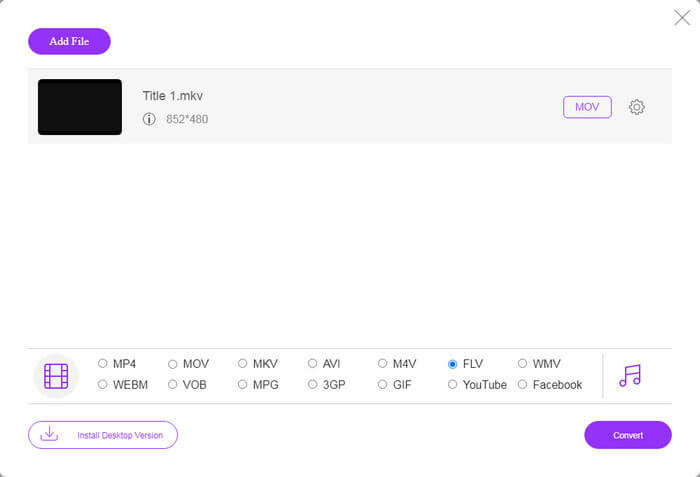
Pasul 3: Apasă butonul Convert pentru a începe conversia MOV în FLV online. Conform testelor noastre, durează doar puțin pentru a finaliza sarcina. Timpul real depinde de conexiunea ta la internet. Apoi descarcă fișierele FLV pe computer.
S-ar putea să vă placă și:
MOV vs. FLV
Formatul MOV poate fi utilizat pentru stocarea unui film, a unei emisiuni TV, a unui videoclip scurt sau a unui film de acasă. De fapt, este salvat în formatul de fișier QuickTime (QTFF), care a fost introdus de Apple în 1991. Fișierele MOV sunt adesea folosite atunci când oamenii doresc să salveze un videoclip de înaltă calitate.
Adobe Flash Player a folosit FLV pentru a furniza conținut video, cum ar fi filme și emisiuni TV. În prezent, Adobe nu mai dezvoltă playerul și recomandă utilizatorilor să-l dezinstaleze din motive de securitate. Cu toate acestea, puteți utiliza în continuare formatul FLV pe multe programe non-Adobe/Macromedia.
Partea 3: Întrebări frecvente despre convertirea MOV în FLV
Cum convertesc MOV în FLV pe Mac?
Nu există nicio modalitate de a converti MOV în FLV pe Mac fără convertoare video terțe. Cu toate acestea, există o mulțime de convertoare MOV în FLV pentru Mac. De asemenea, puteți utiliza aplicații web pentru a produce fișiere FLV din MOV.
Poate converti VLC MOV în FLV?
Da, VLC poate converti MOV în FLV pe Windows, Mac, Linux. Cel mai mare avantaj al VLC este gratuit. Dezavantajul este un flux de lucru complicat. De fapt, caracteristica de conversie este ascunsă profund în bara de meniu.
Care este mai bun, MOV sau FLV?
Răspunsul depinde de scopul tău. Pentru a reda sau edita pe iOS sau Mac, MOV este mai bun decât alte formate. Cu toate acestea, FLV poate produce dimensiuni mici de fișiere și poate funcționa bine pe internet.
Concluzie
Acest ghid a vorbit despre cele mai bune modalități de a vă converti fișierele video MOV în format FLV. Din fericire, există cel puțin două moduri de a face treaba. În primul rând, puteți schimba MOV la FLV cu o aplicație de conversie video web. Dacă aveți nevoie de funcții mai avansate, FVC Free FLV Converter vă poate satisface nevoile. Mai mult decât atât, este complet gratuit de utilizat pe computer. Mai multe probleme? Vă rugăm să ne contactați lăsând mesajul dvs. sub această postare.
-
 Cele mai simple moduri de a converti fișiere WMV în FLV pe PC / Mac
 Cum puteți converti WMV în FLV? În primul rând, trebuie să citiți recomandarea noastră și să găsiți metoda preferată, apoi să urmați ghidul nostru pentru a face treaba rapid.
-
 4 metode verificate pentru a converti TS în FLV pe desktop / online
 Nu puteți deschide TS în mod implicit pe computer sau pe mobil. Singura modalitate de a viziona fișierele video este de a converti TS în FLV sau alte formate cu ghidul nostru concret.
-
 3 soluții pentru a converti MTS în FLV gratuit și online
 Doriți să convertiți MTS în FLV? Iată 3 software-uri gratuite de conversie MTS în FLV pe care le puteți încerca să convertiți MTS în FLV pe Mac OS X și Windows 10/8/7.

