


 Video Converter Ultimate
 Screen Recorder
 Reparație video
3 moduri diferite de a transforma fișierele MPG în MOV pe desktop sau online
Convertirea unui format este esențială, mai ales dacă vom vorbi despre compatibilitate și scopul formatului. La fel ca MPG, acest format stochează date de pe DVD-uri, cum ar fi intercalarea metadatelor, audio și video. Însă, dacă extragi acest format de pe DVD-uri și încerci să îl redai în QuickTime sau să îl editezi în iMovie, nu îl vei putea încărca, deoarece formatul nu este acceptat. Totuși, îți poți converti fișierul .mpg într-un format compatibil, cum ar fi formatul MOV. Acest articol îți va recomanda câteva dintre cele mai bune programe de conversie pe care le poți folosi pentru a converti MPG în MOV pe Mac gratuit și fără a modifica calitatea.

Partea 1. Cum să convertiți MPG în MOV pe Mac și Windows
Primul pe listă este crema cremelor dintre toate convertoarele pe care le poți folosi pentru a învăța cum să convertești MPG în MOV pe Mac sau PC. FVC Video Converter Ultimate oferă cea mai înaltă calitate și cea mai rapidă conversie, pe care o poți realiza în mai puțin de un minut. Mai mult, descarcă acest program dacă nu ai deloc experiență în conversia fișierelor și nu vrei să fii dezamăgit de la prima încercare. Iar dacă ești genul de utilizator care vrea să adauge efecte speciale, să decupeze, să îmbine și să facă și mai mult, verifică secțiunea Toolbox a acestui converter. În plus, dacă ești în căutarea unui software de încredere, ușor de folosit și care să ofere instantaneu un rezultat fenomenal, atunci urmează instrucțiunile de mai jos.
Pasul 1. Descarcă gratuit convertorul MPG în MOV pe Mac sau PC. După aceea, instalează programul și fă setarea rapidă.
Descărcare gratuită pentru Windows 7 sau o versiune ulterioară Descărcare securizată
Descărcare gratuită pentru MacOS 10.7 sau o versiune ulterioară Descărcare securizată
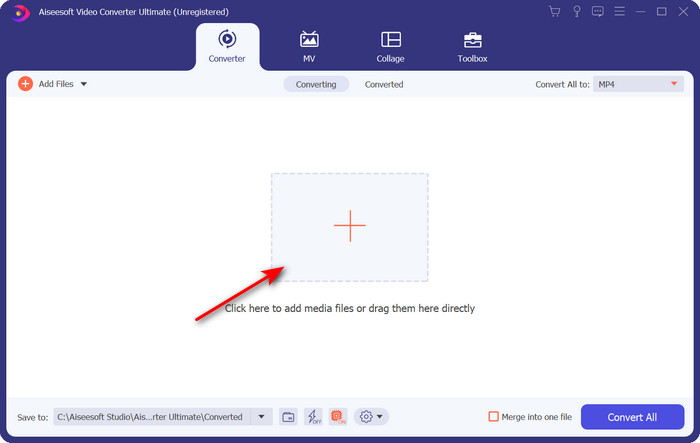
Pasul 2. Pentru a insera fișierul, dă clic pe semnul + aflat în partea centrală a interfeței. Găsește fișierul .mpg în folderul care apare, apoi apasă pe Open și continuă.
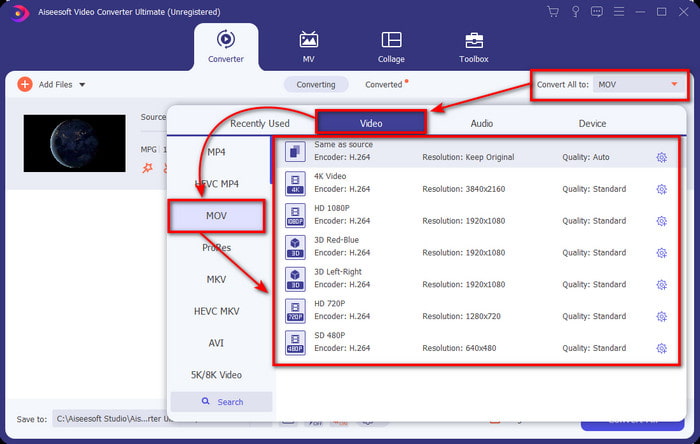
Pasul 3. Apasă butonul drop-down și alege formatul MOV sau orice alt format disponibil în listă.
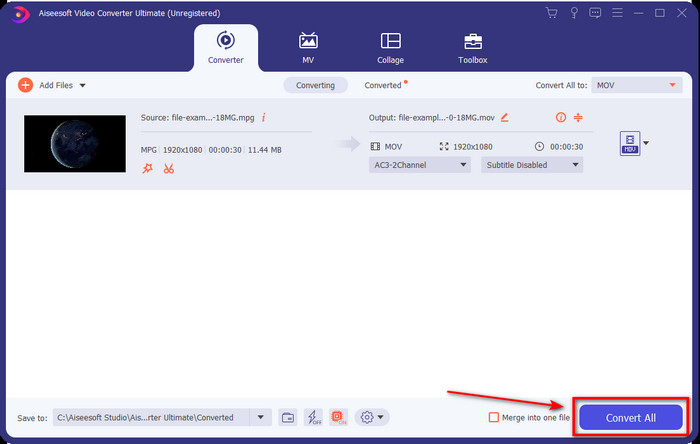
Pasul 4. Când ești gata să începi procesul de conversie, fă clic pe Convert All.
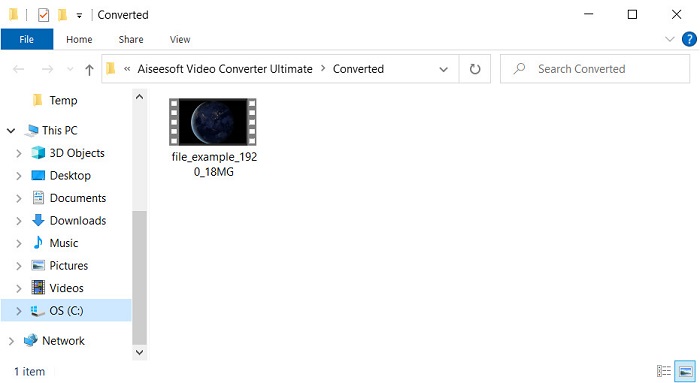
Pasul 5. Fișierul tău .mov va fi gata după câteva secunde, iar dacă folderul se deschide pe ecran, dă clic pe primul fișier pentru a-l viziona sau edita pe dispozitivul tău Apple.
Partea 2. Convertiți MPG în MOV utilizând Quicktime
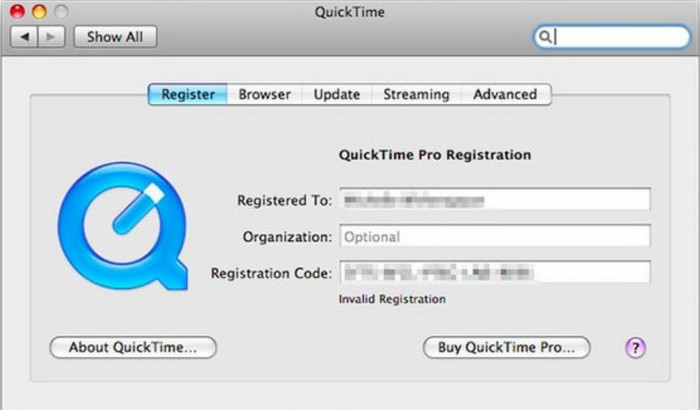
QuickTime Player este un player media nativ creat pentru dispozitivele Apple, capabil să redea aproape orice format video și audio. Dar știai că îl poți folosi și ca convertor? Totuși, funcția de conversie pe care o oferă acest instrument nu este la fel de detaliată ca în cazul primului convertor menționat mai sus. Cu toate acestea, dacă ai un dispozitiv Apple și vrei să convertești MPG în MOV cu QuickTime Player, urmează pașii de mai jos.
Pasul 1. Deschide QuickTime Player pe Mac, dă clic pe File, apoi pe Open File, localizează fișierul .mkv în folder și apasă Open.
Pasul 2. Dă din nou clic pe File, dar de data aceasta alege Export As și selectează rezoluția (numărul de pixeli) disponibilă în listă.
Pasul 3. Pentru a începe convertirea fișierului în QuickTime, apasă pe Save.
Partea 3. Convertiți MPG în MOV folosind convertorul online gratuit de MPG în MOV
Vrei să știi care este cel mai bun convertor MPG în MOV gratuit online, dacă nu vrei să riști descărcarea unui software? Atunci FVC Free Video Converter Online este soluția. Este simplu, disponibil în toate browserele, fără malware și un instrument online de încredere. Toate lucrurile pe care ar trebui să le aibă un convertor simplu sunt disponibile aici. Mai mult, acest software acceptă numeroase formate media și face conversia fără a-ți cere să te conectezi la un cont. Vrei să folosești acest instrument? Atunci urmează pașii simpli de mai jos.
Pasul 1. Apasă pe acest link pentru a merge pe site-ul oficial al FVC Free Video Converter Online.
Pasul 2. Odată ajuns în interfața web, fă clic pe Add Files to Convert. Găsește fișierul .mpg pe care vrei să îl convertești în folder, apoi apasă pe Open.
Descărcați versiunea pentru desktop pentru a converti fișiere în lot.
Pasul 3. După ce ai încărcat fișierul, alege formatul MOV din submeniu.
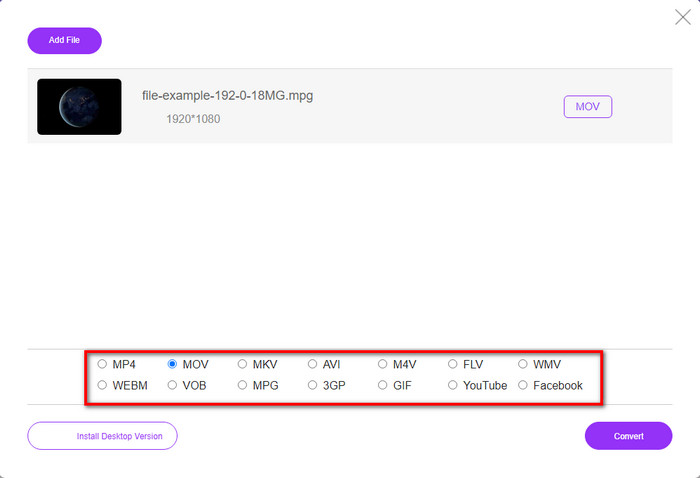
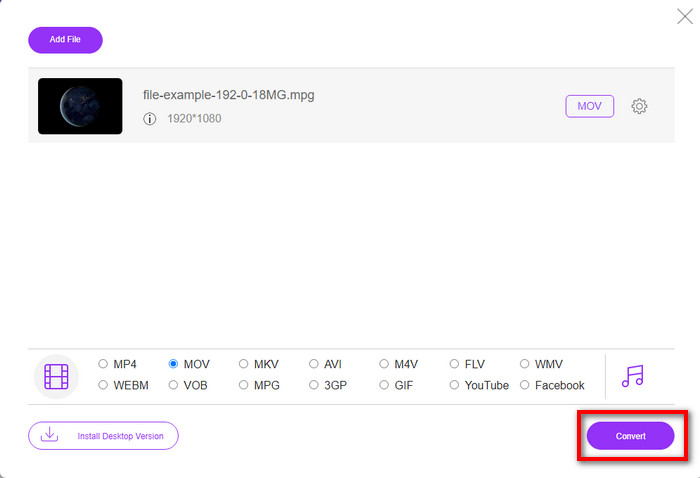
Pasul 4. Din moment ce ai selectat deja MOV, descarcă acum fișierul apăsând pe Convert.
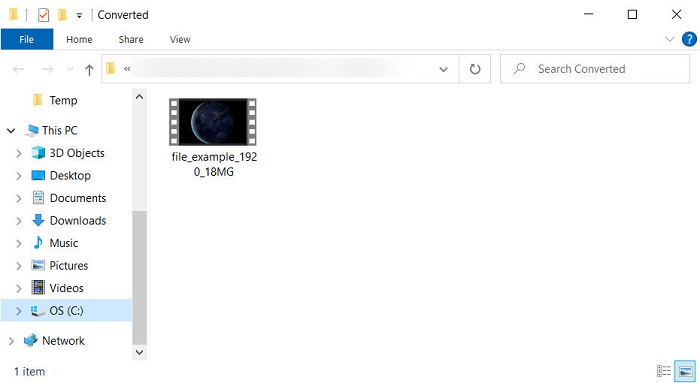
Pasul 5. După conversie, va apărea un folder cu fișierul .mov.
Partea 4. Cunoștințe extinse despre MPG în MOV și de ce trebuie să-l convertim
MPG este un format media binecunoscut care folosește MPEG ca format video digital standard. Acest tip de fișier utilizează de obicei MPEG-1 și MPEG-2 ca codificator de fișiere media. Folosește aceste două compresoare pentru a suporta fiecare deficiență a compresorului, în special pentru stocarea videoclipurilor cu rezoluție mai mare. După cum s-a spus mai devreme, acest format poate conține trei elemente: audio, video și metadate într-un singur flux pentru o distribuție mai rapidă a filmelor pe web.
Dar MOV poate stoca un videoclip de înaltă calitate și un sunet clar, folosit de obicei pentru a edita videoclipul. Spre deosebire de MPG, acest format multimedia multiplex poate ține evidența diferitelor date media, cum ar fi video, audio și subtitrări. Dar codificatorul și decodorul acestui format utilizat în mod obișnuit este MPEG-4.
Cel mai bine ar fi să vă transformați MPG în MOV, deoarece atunci când transferați fișierul pe dispozitivele Apple, acesta nu va fi redat pe Quicktime și nici nu va edita pe iMovie. Deși Quicktime Player și iMovie acceptă MPEG-1 și MPEG-4, celelalte MPEG-uri, cum ar fi MPEG-2 pe care îl folosește un .mpg, nu sunt acceptate. Pentru a-l face compatibil pe dispozitivele Apple este motivul pentru care trebuie să convertiți fișierul în MOV.
MPG vs. MOV
Realizat de Moving Picture Experts Group (MPEG), MPG este un format video digital comun pentru stocarea informațiilor video, audio și metadate. Este destul de util atunci când creați filme pentru partajare pe Internet. Acele fișiere în MPG conțin de obicei compresie video/audio MPEG-1 sau MPEG-2.
Formatul MOV poate fi utilizat pentru stocarea unui film, a unei emisiuni TV, a unui videoclip scurt sau a unui film de acasă. De fapt, este salvat în formatul de fișier QuickTime (QTFF), care a fost introdus de Apple în 1991. Fișierele MOV sunt adesea folosite atunci când oamenii doresc să salveze un videoclip de înaltă calitate.
Partea 5. Întrebări frecvente despre conversia MPG și MOV
Cât timp ar dura convertirea MPG?
Există doi factori care vă pot afecta procesul de conversie. În primul rând, dacă utilizați un convertor online, va depinde de cât de rapid este internetul dvs. Acest proces ar dura mai mult în comparație cu celălalt convertor fără bază. Și în ultimul rând, cu cât este mai mare dimensiunea fișierului, cu atât va dura mai mult pentru a-l converti. Deci, dacă dimensiunea fișierului dvs. .mpg este mare, atunci ați aștepta de obicei să se încheie.
Pot reda fișiere .mpg pe VLC?
VLC este unul dintre playerele media majore pe care le puteți descărca pe toate dispozitivele pentru a reda videoclipuri în format care nu poate fi redat pe playerul media nativ. De asemenea, puteți reda aici toate formatele MPEG-1, MPEG-2, MPEG-3 și MPEG-4.
Comprimarea MPG afectează calitatea?
Comprimarea unui fișier nu ar trebui să afecteze calitatea, deoarece ceea ce faci este doar să îl micșorezi ca dimensiune. Totuși, dacă îți comprimi fișierul .mpg prea mult, calitatea lui se va modifica puțin. Așadar, pentru a evita acest lucru, trebuie să citești acest articol despre top 7 compresoare video pe care le poți folosi.
Concluzie
Pentru a recapitula toate informațiile detaliate menționate mai sus, puteți converti MPG în MOV dacă doriți să utilizați videoclipul pe dispozitivele Apple. Deși software precum Quicktime și iMovie acceptă MPEG-1 și MPEG-4, MPEG-2 și MPEG-3 nu sunt acceptate. Așadar, pentru a-l face compatibil pe dispozitivele Apple, este ideal să îl convertiți. Toate instrumentele menționate aici sunt foarte eficiente și ușor de utilizat dacă convertiți fișierul.
-
 FLV în MPG - Cum să convertiți FLV în MPG pe Mac, PC și online gratuit
 Cum se convertește FLV în MPEG? Pot converti FLV în MPG gratuit? Această postare împarte 3 convertoare video gratuite pentru a vă ajuta să convertiți FLV în MPG fără pierderi de calitate.
-
 Cum să convertiți MPG în format GIF [Online și Offline]
 Doriți să exprimați o emoție mult mai bună? Apoi, trebuie să utilizați GIF în loc. Această scriere vă va învăța cum să convertiți un fișier MPG în GIF pentru a vă exprima sentimentul mult mai bine.
-
 [2022] Alegeri fierbinți ale Convertorului MPG în AVI pentru a vă ajuta să convertiți MPG în AVI
 Te-ai întrebat vreodată despre conversia MPG-ului într-un fișier video AVI doar pentru a-l reda pe playerul tău video? Iată cel mai bun articol pe care îl puteți găsi și care vorbește despre problema de mai sus.

