


 Video Converter Ultimate
 Screen Recorder
 Reparație video
Instrumente utile pe care trebuie să le știți care convertesc SWF în MOV [Rezolvat]
Animațiile video și bazate pe vectori pot fi găsite în fișierele SWF, care sunt create cu software‑ul Adobe Flash. ShockWave Format este un alt nume pentru Small Web Format, care reprezintă abrevierea completă. Fișierele SWF sunt utilizate în mod obișnuit pentru a distribui conținut multimedia pe internet într‑un mod eficient. Mici aplicații web beneficiază de ActionScript‑uri, care pot fi stocate în acest format. Dacă te întrebi dacă există un convertor SWF în MOV gratuit pentru că nu poți reda un fișier cu acest format, acest articol este perfect pentru tine, deoarece îți prezintă cele mai bune și eficiente instrumente pe care le poți folosi pentru a converti fișiere video. Să începem!
Partea 1. Prefață: SWF și MOV
SWF este un tip de fișier folosit pentru a transfera text, video, grafică vectorială și ActionScript pe internet. Pentru a utiliza fișiere SWF este necesar Adobe Flash Player. Formatul de fișier SWF este conceput ca un format de transfer eficient din punctul de vedere al resurselor, care poate fi folosit nu doar pentru transmiterea de elemente grafice, ci și pentru anti‑aliasing și afișare pe ecran, printre altele. Anti‑aliasing‑ul este esențial pentru redarea rapidă a bitmap‑urilor și a proprietăților lor asociate, cum ar fi butoanele interactive, umbrele și animația.
Fișierele MOV sunt însă codate conform specificațiilor de codare Apple QuickTime Movie și standardelor de compresie a datelor, iar fișierele video produse în acest format au extensia .mov. Standardele și criteriile de compresie pentru filme digitale și alte clipuri video au fost dezvoltate exclusiv de Apple. Deoarece aceste fișiere MOV sunt codate cu suport pentru compatibilitate multiplatformă, ele pot fi redate atât pe playere video digitale pentru Mac, cât și pentru Windows. Windows Media Player include, de asemenea, funcționalitate de redare pentru aceste fișiere MOV, care pot fi deschise și vizualizate folosind Apple QuickTime Player sau VLC Media Player atât pe platformele Mac, cât și pe Windows.
| Extensie de fișier | SWF | MOV |
| Tip fișier | Film Flash ShockWave | Film Apple QuickTime |
| Dezvoltat de | Adobe Systems | măr |
| Pro | Animația web este posibilă prin utilizarea unui format vizual liber scriptabil. Deoarece graficele sunt bazate pe vectori, acestea pot fi redimensionate fără dificultate. încărcat într-un timp scurt; | Fiecare fișier are componente audio și video de înaltă calitate, care sunt salvate pe piese independente și pot fi editate atât pentru timp, cât și pentru conținut. Fișierele pot fi vizualizate de multe playere video gratuite diferite. |
| Contra | Utilizare intensivă a procesorului; un videoclip SWF nu poate fi redat până când pluginul Flash nu este instalat pe computer; este nevoie de software scump de realizat, printre altele; | Mediul QuickTime oferă performanțe mai stabile; cu toate acestea, poate fi necesar un codec specific pentru a deschide un fișier.mov. |
Partea 2. 3 Instrumente eficiente de utilizat în conversia SWF în MOV
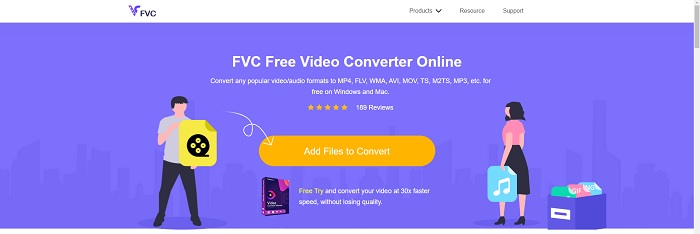
Opțiunea 1. Free Video Converter Online
Cu FVC Free Video Converter Online este posibil să convertești o gamă largă de formate video și audio. Videoclipurile de înaltă definiție pot fi convertite cu ușurință în codecuri precum MP4, FLV și WMV fără pierderi de calitate. Nu trebuie să îți faci griji că vei pierde calitatea atunci când convertești mai multe fișiere video sau audio. Acest convertor video gratuit este bine cunoscut pentru capacitățile sale de conversie și editare, care le permit utilizatorilor să‑și personalizeze videoclipurile după bunul plac.
Pro
- Acceptă numeroase formate de fișiere video.
- Ieșirile convertite sunt de înaltă calitate.
Contra
- Deoarece este un instrument web online, are nevoie de o conexiune mai rapidă pentru a converti fișiere video cu dimensiuni mari.
Opțiunea 2. Conversie gratuită online
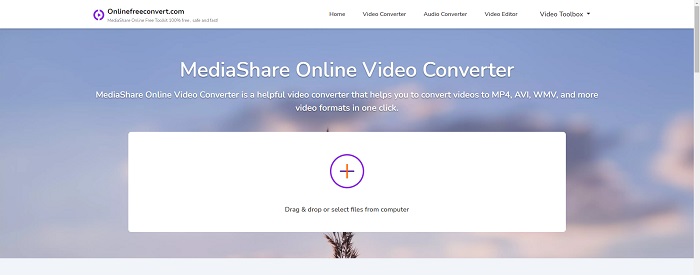
Când vă transcodați videoclipul, această aplicație online gratuită este cea mai bună opțiune. Această aplicație oferă două opțiuni pentru a menține lucrurile simple și ușor de utilizat: tipul de fișier și rezoluția. Urmați instrucțiunile de pe ecran pentru a utiliza acest convertor online.
Pro
- Are o interfață accesibilă și ușor de utilizat.
- Oferă alte instrumente care pot îmbunătăți calitatea video.
Contra
- Nu are multe formate video pe care le suportă.
Opțiunea 3. Orice conv
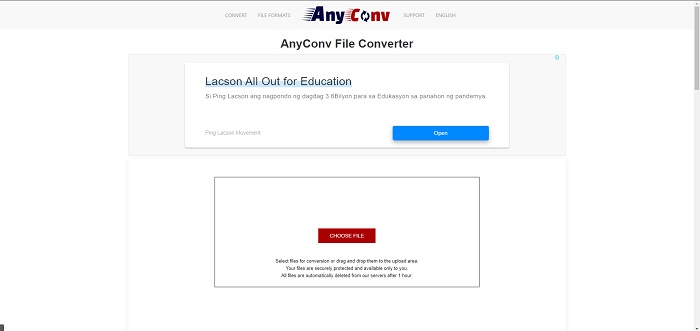
AnyConv este un convertor online cu o interfață de utilizator olandeză. Chiar și ediția comercială a acestei aplicații este gratuită. AnyConv include, de asemenea, o restricție de conversie de 60 de fișiere pe oră. Folosind convertorul online, puteți converti fișiere de până la 50 MB și puteți alege dintre peste 300 de formate de ieșire diferite.
Pro
- Are o gamă largă de formate; acceptă chiar și formatele non-video și audio, cum ar fi documentele.
- Oferă instrucțiuni de utilizare a acestui convertor.
Contra
- Afișează reclame care nu ajută sau nu se potrivesc procesului de conversie sau conținutului în sine.
Partea 3. Cum să convertiți SWF în MOV pe Mac
Acest articol propune Video Converter Ultimate pentru utilizatorii de Mac care doresc să convertească SWF în MOV. Atât versiunea pentru Windows, cât și cea pentru Mac a acestui software sunt disponibile pentru descărcare gratuită. Poate fi utilizat de o gamă largă de persoane, deoarece oferă un instrument ușor de folosit și o interfață simplă. Cu acest program poți converti fișiere dintr‑un format video în altul în aproximativ un minut, lucru care îl diferențiază de alte aplicații de conversie și resurse online. În plus, acest software dispune de o serie de funcții suplimentare care te pot ajuta să îți îmbunătățești și mai mult videoclipul. Presupunând că ai citit descrierea software‑ului, să trecem la treabă:
Pasul 1. Pentru a începe procedura de descărcare, dă pur și simplu clic dreapta pe pictograma Free Download furnizată mai jos. Acest software este compatibil cu computere care rulează atât sistemul de operare Windows, cât și Mac. După ce ai terminat de descărcat software‑ul, îl poți instala și începe să‑l folosești selectând butonul Start Now de pe ecranul principal al programului.
Descărcare gratuită pentru Windows 7 sau o versiune ulterioară Descărcare securizată
Descărcare gratuită pentru MacOS 10.7 sau o versiune ulterioară Descărcare securizată
Pasul 2. După ce ai descărcat software‑ul, ar trebui să îl lansezi. Aceste informații vor fi afișate într‑o fereastră atunci când programul este deschis pentru prima dată.
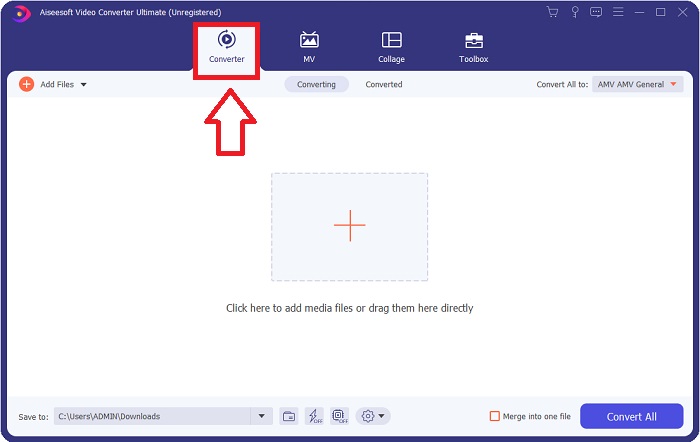
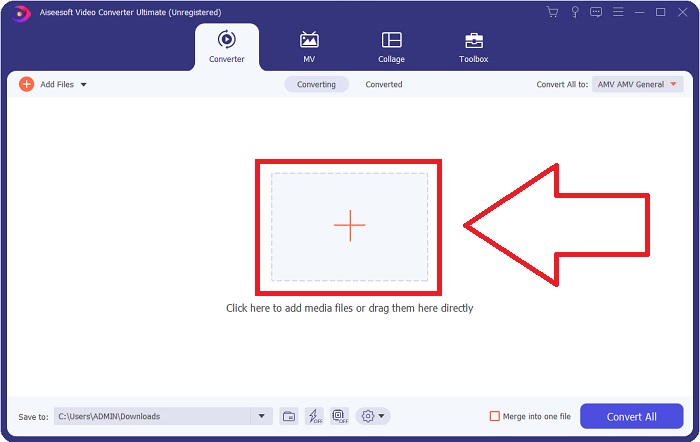
Pasul 3. Procedura de conversie începe cu încărcarea fișierelor pe care dorești să le convertești în convertor. Trage și plasează videoclipul pe care dorești să îl convertești pe semnul + pentru a începe procesul de conversie.
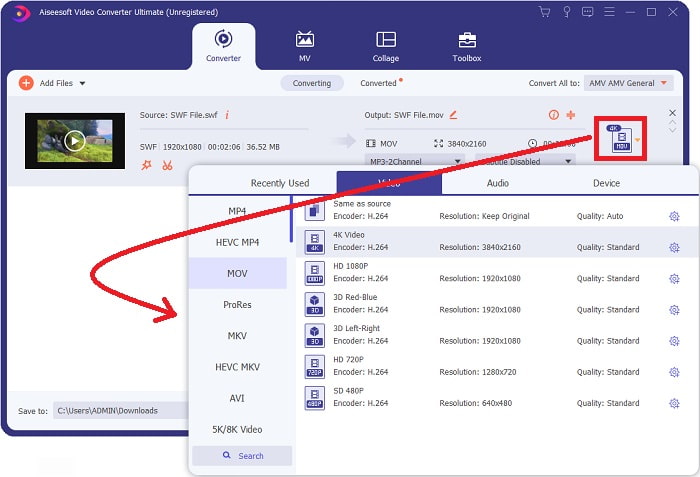
Pasul 4. În partea dreaptă sus a ecranului apare un meniu de opțiuni din care poți alege un format video. Selectează MOV ca format video din lista derulantă care apare. În funcție de fișierul MOV pe care l‑ai selectat, vei putea alege dintre diverse opțiuni de calitate video. Dacă formatul de ieșire dorit nu este disponibil, poți ajusta setările de calitate în Windows. Poți modifica rata de cadre a afișajului și calitatea audio selectând pictograma rotiță din colțul din dreapta sus. Folosește butonul Create New pentru a salva modificările după ce le‑ai făcut.
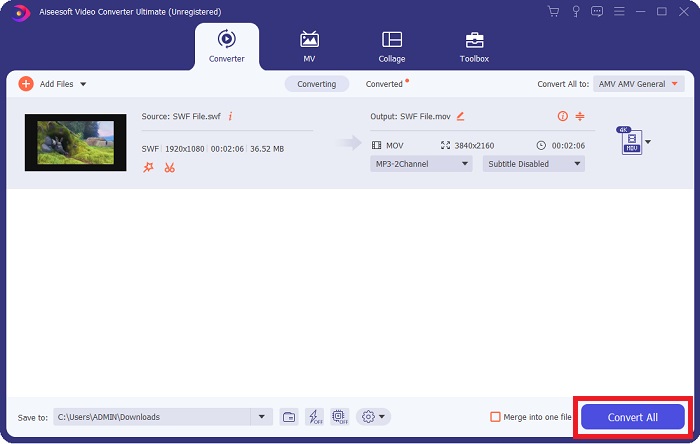
Pasul 5. Când ai terminat de editat videoclipul și este gata de conversie, apasă pe Convert All pentru a începe procesul de conversie.
Articole similare:
Partea 4. Întrebări frecvente despre conversia SWF în MOV
Este SWF un format video?
Animațiile video și bazate pe vectori pot fi găsite în fișierele SWF, care sunt create cu software-ul Adobe Flash. Cu toate acestea, este cunoscut și sub numele de Format Shockwave, care este abrevierea completă a SWF. Dezvoltat inițial de Macromedia, acest format de fișier este acum deținut de Adobe.
Fișierele SWF sunt sigure?
Mai exact, Flash este predispus la o mare varietate de diferite tipuri de vulnerabilități. Datorită faptului că fișierul SWF este descărcat la clienți și rulează pe computerele acestora, serverul dvs. nu este un pericol. Cu toate acestea, chiar dacă încercați să verificați fișierele SWF pentru malware, veți primi doar protecție minimă.
Ce browser acceptă încă Flash 2021?
Adobe Flash va fi depreciat în Firefox 84, următoarea versiune majoră a browserului. Pentru a îmbunătăți viteza și siguranța, Firefox 85 (programat pentru lansare pe 26 ianuarie 2021) va elimina suportul pentru Adobe Flash.
Concluzie
În concluzie, toate aspectele discutate în acest articol trebuie puse în practică folosind software‑ul menționat mai sus. Video Converter Ultimate îți permite să convertești fișiere video cu ușurință și îți poate oferi, per ansamblu, o lucrare de calitate. Spre deosebire de alte instrumente sau programe disponibile pe internet, acest software îți poate oferi o experiență accesibilă, cu rezultate de tip „masterpiece”.
-
 SWF în MP4: Convertiți gratuit SWF în MP4 online și PC
 Cum se deschide fișierul SWF fără Adobe Flash Player? Luați cel mai bun 3 convertor SWF în MP4 gratuit pentru a schimba gratuit SWF în MP4 online și pe PC / Mac în 3 pași.
-
 [2 Soluții] Cum să convertiți cu ușurință SWF în fișiere GIF gratuit
 Când nu reușiți să exportați formatul GIF prin intermediul software-ului Flash, puteți încerca să salvați fișierele în format SWF la început. Apoi, puteți afla 2 modalități ușoare de a converti SWF în fișiere GIF din acest articol.
-
 Cel mai bun convertor GIF pentru a converti GIF animat în format MOV [2021]
 Convertiți-vă GIF în format MOV într-un mod fără efort, fără a afecta calitatea fișierului video. Cu pași și instrumente diferite.
