


 Video Converter Ultimate
 Screen Recorder
 Reparație video
Procesul de conversie a fișierului WebM în MOV: metode fără probleme pe care ar trebui să le cunoașteți
Când vine vorba de producție și streaming, nu orice format video este compatibil cu fiecare platformă digitală. Când încercați să introduceți, să produceți, să încărcați sau să descărcați fișiere relevante, acest lucru poate cauza probleme majore. Apple, de exemplu, nu folosește browserele tradiționale în care am crescut în vremuri – are propria sa platformă numită Safari. De aceea, formatele video care sunt acceptate numai de Google Chrome, Mozilla Firefox, Opera și Microsoft Edge nu sunt întotdeauna accesibile utilizatorilor de Mac din punct de vedere al browserului.
Unul dintre acestea este un fișier video WebM, un format care oferă compresie video deschisă pentru HTML5. Dacă ești utilizator de Mac, ai nevoie de un player media terț pentru a-l viziona. Totuși, formatul de fișier MOV este ceea ce îți dorești dacă vrei să redai videoclipurile fără bătăi de cap, deoarece este dezvoltarea proprie a Apple pentru Apple QuickTime Player. Așadar, ceea ce vrei este să convertești WebM în MOV pe Mac, iar în acest articol îți prezentăm cele mai bune moduri de a face acest lucru.
Partea 1. O prezentare generală: WebM și MOV
Dacă ați fost expus la consumul video și la streaming de ceva timp, trebuie să fi vizionat o mulțime de videoclipuri de diferite formate folosind diferite platforme. S-ar putea să te fi întrebat odată ce reprezintă aceste extensii de fișiere sau cum sunt diferite unele de altele. Cu siguranță ați încercat să redați un anumit videoclip în browser, dar nu o va face, spunând că nu este acceptat. WebM, de exemplu, este acceptat doar de mai multe browsere moderne, cum ar fi Chrome, Firefox și edge, deoarece este de obicei încorporat în pagini web folosind un HTML5
Partea 2. Cel mai bun convertor care ajută la conversia WebM în MOV
Conversia fișierelor video nu este atât de dificilă pe cât ai putea crede. Deși există numeroase programe și aplicații care te pot ajuta, există totuși unul dintre ele care face treaba rapid și ușor. FVC Video Converter Ultimate este un software gratuit la descărcare care îți economisește timpul pierdut căutând pe internet cel mai bun convertor online. Noi vrem să îți aducem direct ce este mai bun. Nu trebuie să îți faci griji în privința formatului videoclipului pe care vrei să îl convertești, deoarece acest software suportă diverse formate și, mai mult, îți oferă o mulțime de opțiuni pentru a-ți edita videoclipul chiar în timpul conversiei propriu-zise. Iată pașii pe care trebuie să îi urmezi pentru a folosi acest program:
Pasul 1: Înainte de procesul de conversie, trebuie mai întâi să descarci programul și poți face acest lucru dând clic pe butonul Descărcare gratuită. Poți alege varianta pentru Windows sau pentru Mac. În acest caz, alege Pentru Mac OS. Așteaptă să se termine descărcarea fișierului .exe și deschide-l după ce s-a finalizat pentru a începe instalarea.
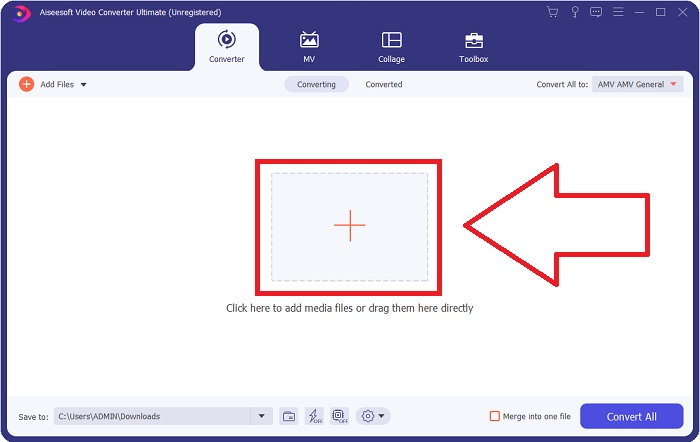
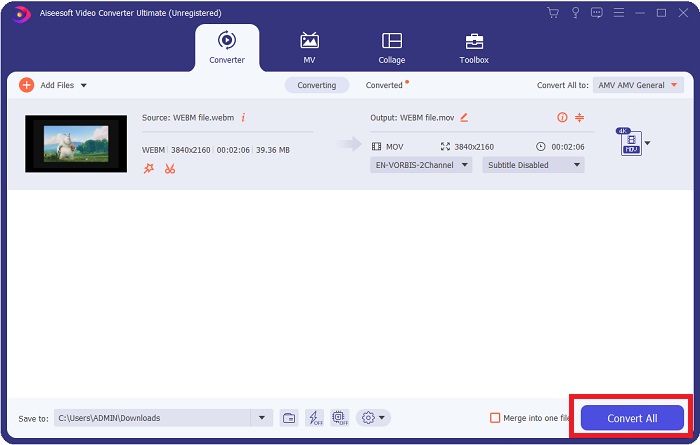
Pasul 2: După ce programul a terminat instalarea, pornește-l și îți va afișa o interfață. Imediat ce software-ul a fost lansat, te vei afla automat în fila Converter. Dacă nu, dă clic pe ea.
Pasul 3: Va exista un buton + în mijlocul interfeței, pe care trebuie să dai clic pentru a importa fișierul video pe care vrei să îl convertești. De asemenea, poți pur și simplu să tragi și să lași fișierele video (drag and drop) cu ușurință.
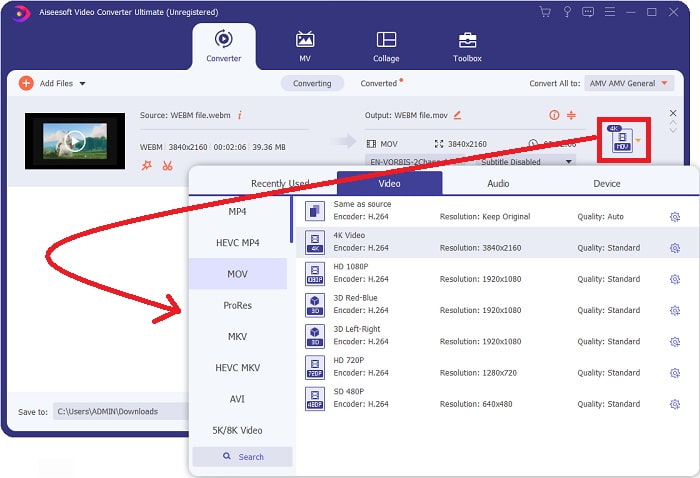
Pasul 4: O altă interfață va apărea după ce videoclipul tău a fost importat cu succes. De acolo, poți vedea în dreapta formatul actual al videoclipului. Lângă el se află o săgeată pentru listă derulantă; dă clic pe ea și vor apărea diverse opțiuni. Poți alege orice format dorești pentru conversie, dar în acest caz selectează MOV. Există opțiuni din care poți alege, precum rezoluția și calitatea audio. Pentru și mai multe setări, dă clic pe pictograma rotiță de lângă calitatea sau rezoluția aleasă și poți edita în continuare videoclipul în funcție de nevoile tale. Pentru a salva modificările făcute, dă clic pe Create New.
Pasul 5: După ce ai terminat și ești mulțumit de modificări, găsește butonul Convert All în colțul din dreapta jos al interfeței și dă clic pe el pentru a exporta videoclipul convertit.
Partea 3. Sfaturi bonus: Alte convertoare online care convertesc WebM în MOV
Metoda 1: Utilizați Free Convert
Dacă nu mai doriți să descărcați software și să continuați deja procesul de conversie, vă putem arăta alternative pentru acesta. Acest lucru se face exclusiv online, în timp ce încă vă oferă caracteristicile de care aveți nevoie pentru nevoile dvs. de editare. Dacă doriți o metodă fără probleme, acest instrument web este o modalitate de a merge.
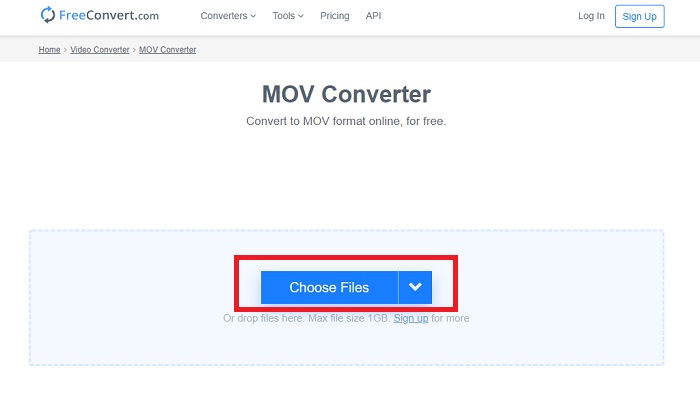
Pasul 1: Mergi pe site și te vei afla într-o interfață în care un buton Choose Files se află în mijlocul paginii. Dă clic pe el pentru a importa fișierul video pe care vrei să îl convertești.
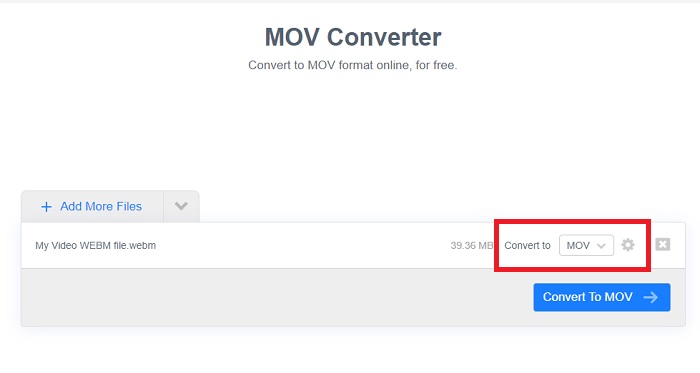
Pasul 2: La fel ca în cadrul programului, poți vedea formatul actual al videoclipului în partea dreaptă, iar lângă el se află o săgeată pentru listă derulantă. Dă clic pe ea și alege dintre formatele în care vrei să fie convertit videoclipul. Pentru mai multe opțiuni, dă clic pe pictograma rotiță pentru a-ți edita mai departe videoclipul. Apasă butonul Apply Settings pentru a păstra modificările făcute.
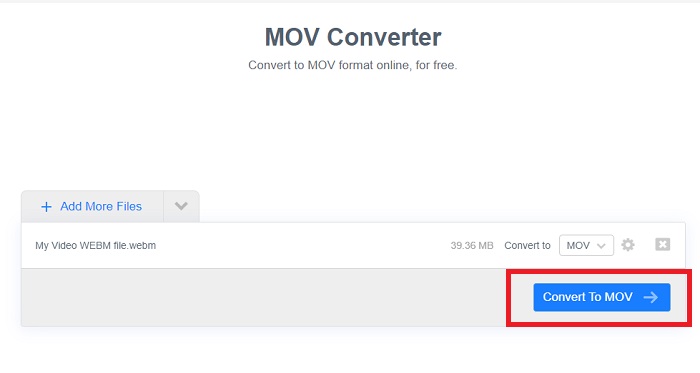
Pasul 3: Dacă ai terminat cu toate modificările, poți începe conversia dând clic pe butonul Convert to MOV aflat dedesubt și așteaptă să se finalizeze. Apoi poți exporta videoclipul convertit dând clic pe Download MOV.
Metoda 2: Utilizați Cloud Convert
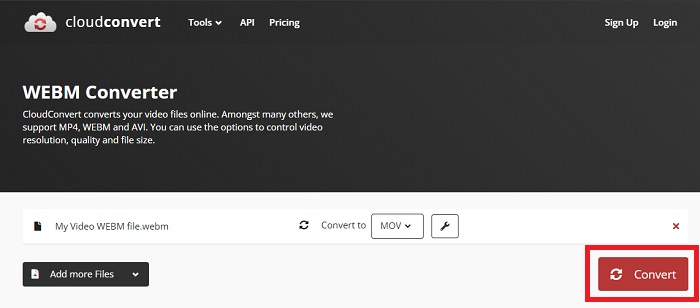
Acest instrument web vă oferă câteva opțiuni suplimentare în timp ce vă convertiți fișierul WebM în MOV online. Nu puteți edita doar rezoluția sau calitatea audio, ci și fps, subtitrări și multe altele. Urmați acești pași simpli pentru a utiliza acest convertor online:
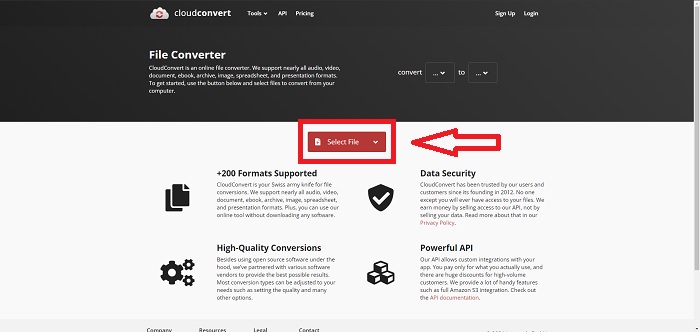
Pasul 1: Mai întâi trebuie să imporți fișierul video pe care vrei să îl convertești, dând clic pe butonul Select File din mijlocul paginii. Dacă vrei să convertești mai multe fișiere simultan, dă clic pe Add more Files.
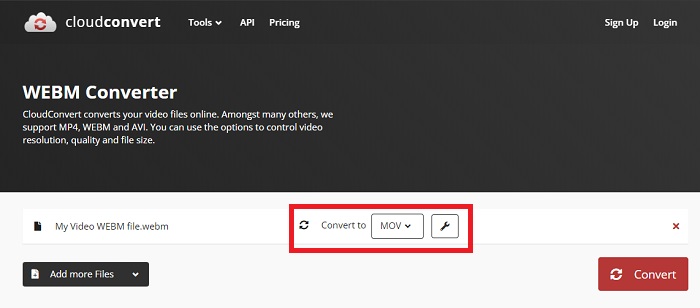
Pasul 2: Lângă fișier poți selecta formatul video printr-un clic pe săgeata listei derulante. De asemenea, apasă pe pictograma cheie (wrench) pentru mai multe opțiuni. De acolo poți edita anumite aspecte ale videoclipului și sunetului. Apoi dă clic pe OK pentru a salva modificările.
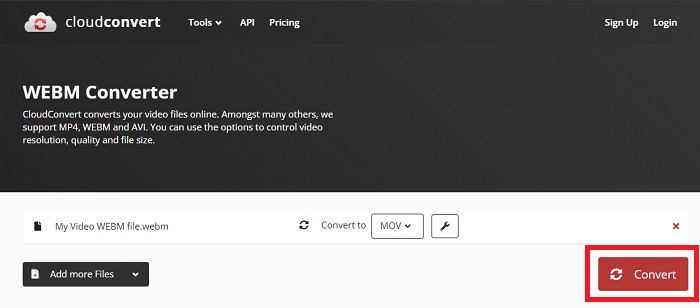
Pasul 3: După ce ai terminat cu toate editările, dă clic pe butonul Convert evidențiat cu roșu și așteaptă finalizarea. În cele din urmă, apasă pe Download evidențiat cu verde pentru a exporta videoclipul complet convertit.
Metoda 3: Utilizați ZamZar Convert
Acest instrument web oferă mai puține opțiuni pentru videoclipul dvs., deoarece convertește doar formatul video și audio. Cu toate acestea, își face treaba mai repede decât celelalte metode menționate. Pentru a utiliza acest convertor online, urmați pașii furnizați:
Pasul 1: În mijlocul paginii există doar trei butoane pe care trebuie să le apeși pentru ca videoclipul tău să fie convertit. Mai întâi, dă clic pe Add files pentru a importa fișierul video.
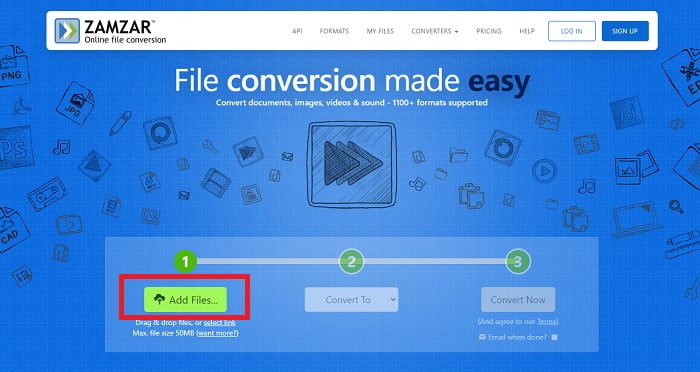
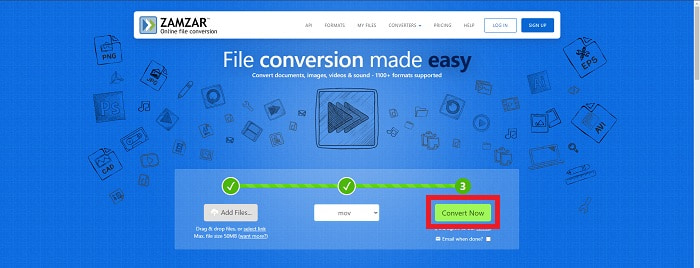
Pasul 2: Cu al doilea buton poți alege ce format video și audio dorești pentru videoclip. În acest caz, selectează formatul MOV.
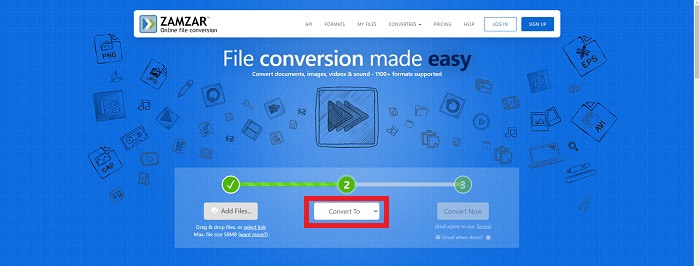
Pasul 3: În cele din urmă, dă clic pe al treilea și ultimul buton, Convert Now, pentru a începe conversia propriu-zisă și așteaptă să se termine. După ce s-a finalizat, dă clic pe Download pentru a exporta în sfârșit videoclipul pe desktop.
Partea 4. Întrebări frecvente despre conversia WebM în MOV
Ce este mai exact formatul WebM?
WebM este un format de fișier media deschis specific web, care include fluxuri video comprimate cu codecuri video VP8 sau VP9, fluxuri audio comprimate cu codecuri audio Vorbis sau Opus și texte WebVTT. Structura fișierelor WebM se bazează pe containerul media Matroska. Majoritatea browserelor web acceptă fișiere WebM, deoarece acestea sunt uneori folosite pe site-uri web HTML5 pentru a reda filme online. De exemplu, YouTube folosește formatul de fișier WebM Video pentru toate videoclipurile de pe pagina lor, variind de la 360p la alte calități extrem de înalte. Wikimedia și Skype sunt la fel.
De ce playere media am nevoie pentru a reda videoclipuri WebM în cazul în care nu vreau să le convertesc în MOV?
Există o alternativă dacă nu vrei să treci prin întregul proces de conversie pentru a reda fișierul tău WebM. Poți folosi o aplicație terță parte sau ceea ce numim cross-platform. Câteva dintre acești playere media terțe sunt VLC, KM Player, Media Player Classic, Winamp, jetAudio Basic, Moovidia, Persian și XBMC, pe care le poți descărca de pe site-urile lor corespunzătoare pentru a reda fișierele WebM.
MOV este de înaltă sau de calitate scăzută?
Redarea video este destul de de înaltă calitate cu fișierele MOV. MOV este deosebit de util, deoarece poate conține medii mixte, cum ar fi imagini, videoclipuri și animații la 360 de grade. De asemenea, conține toate informațiile video și audio. Acest lucru face editarea fișierului mult mai simplă.
Concluzie
Există într-adevăr o mulțime de instrumente pe care le puteți folosi pentru a vă converti videoclipul dintr-un format în altul, indiferent dacă este prin utilizarea unui software sau printr-un instrument web pe care îl puteți găsi online. Cu toate acestea, ele merg mână în mână în ceea ce privește opțiunile sau comoditatea pe care le oferă. Unele doar își fac treaba, iar altele oferă diverse opțiuni din care să alegi. Acest articol se concentrează pe acest lucru pentru a vă ajuta să aflați pe care ar trebui să îl utilizați în funcție de nevoile dvs. De aceea, vă recomandăm cel mai mult Video Converter Ultimate, deoarece oferă toate opțiunile suplimentare pe care s-ar putea să nu știți niciodată când veți avea nevoie de el. Este mai bine să aveți acest software alături de dvs. tot timpul pentru a vă scuti de toate problemele de a găsi un convertor online de fiecare dată când aveți nevoie de unul.
-
 Cum să schimbați GIF în format WebM fără a pierde calitatea fișierelor
 Convertiți-vă GIF-urile într-un format video WebM pentru a avea o etichetă video HTML5. Bazați-vă pe acest instrument de mai jos pentru a afla care este cel mai bun pentru job.
-
 3 moduri de a converti WebM în MP3 fără a pierde calitatea sunetului
 Aveți o problemă deoarece fișierele WebM nu pot fi folosite pentru a reda sunetul pe care îl salvați? Apoi citiți acest articol, deoarece vă oferim un ajutor eficient prin conversia WebM în MP3.
-
 3 software uimitor folosit pentru a converti fișierele WebM în format AVI
 Nu aveți idee cum să convertiți WebM în AVI? Atunci să începem să citim acest articol. După cum specificăm toate detaliile pe WebM și cele trei convertoare pe care le puteți folosi pentru a converti.
