


 Video Converter Ultimate
 Screen Recorder
 Reparație video
 Descărcare sigură
Top convertoare MP3 în M4A: conversie audio rapidă și ușoară
Nu ești mulțumit când asculți fișiere audio de calitate slabă, care nu fac cinste melodiilor tale preferate? Este momentul să îți îmbunătățești experiența de ascultare folosind puterea conversiei MP3 în M4A! Convertind fișierele tale audio în M4A, poți debloca adevăratul potențial al bibliotecii tale muzicale și poți auzi cu urechile tale diferența. În acest ghid, îți vom prezenta beneficiile conversiei MP3 în M4A și îți vom recomanda cele mai bune programe de conversie, pentru a te bucura de un proces lin și eficient. Pregătește-te să îți transformi experiența audio și să îți redescoperi muzica ca niciodată până acum.

Partea 1. Cele mai bune modalități de a converti MP3 în M4A
Iată câteva dintre cele mai bune convertoare audio de la MP3 la M4a. Există o modalitate offline, care este o aplicație desktop, și un alt instrument online, care este un program bazat pe web. Consultați-le pentru a afla mai multe.
1. Video Converter Ultimate
Video Converter Ultimate este un software flexibil, care oferă o gamă largă de funcții pentru conversia fișierelor audio și video. Când vine vorba de convertirea MP3 în M4A, Video Converter Ultimate este o alegere excelentă, oferind utilizatorilor un proces simplu și direct de conversie a fișierelor audio. Instrumentul suportă un număr mare de formate audio, iar tehnologia sa avansată de codec audio asigură un rezultat de înaltă calitate. Fie că ai nevoie să convertești fișiere audio în scop personal sau profesional, Video Converter Ultimate face procesul rapid, astfel încât să te poți concentra pe ceea ce contează cu adevărat – să te bucuri de fișierele tale audio la calitate înaltă.
Pasul 1. Descarcă și instalează programul
Pentru început, selectează unul dintre butoanele Descărcare gratuită, apoi urmează instrucțiunile de pe ecran pentru a salva fișierul pe computer. Următorul pas este să pornești aplicația și să te familiarizezi cu comenzile sale intuitive.
Descărcare gratuităPentru Windows 7 sau versiuni mai recenteDescărcare sigură
Descărcare gratuităPentru MacOS 10.7 sau versiuni ulterioareDescărcare sigură
Pasul 2. Adaugă fișiere audio
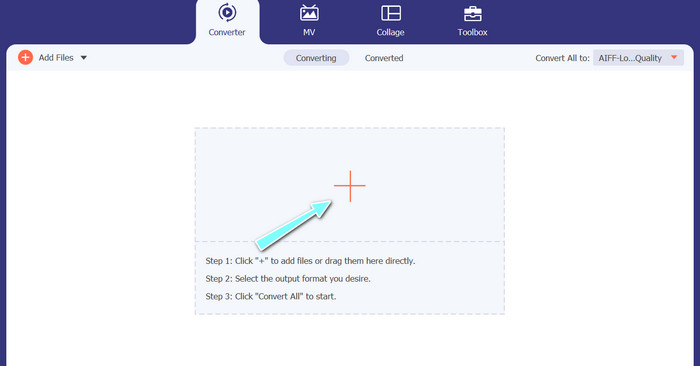
Apoi, selectează semnul plus din interfața principală și navighează până la locația fișierului audio pe care dorești să îl convertești. După ce un fișier este încărcat, o previzualizare a acestuia va apărea în interfața utilizator. Dacă vrei să convertești în lot MP3 în M4A, poți încărca un întreg folder de fișiere.
Pasul 3. Alege un format de ieșire
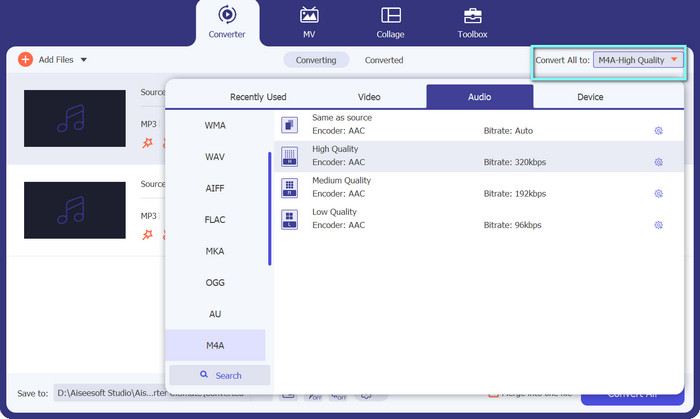
În continuare, alege formatul de ieșire făcând clic pe fila Audio din meniul Profile (situat în colțul din dreapta sus al instrumentului). Poți converti către sau din MP3 folosind fie formatul MP3, fie M4A.
Pasul 4. Salvează fișierul rezultat
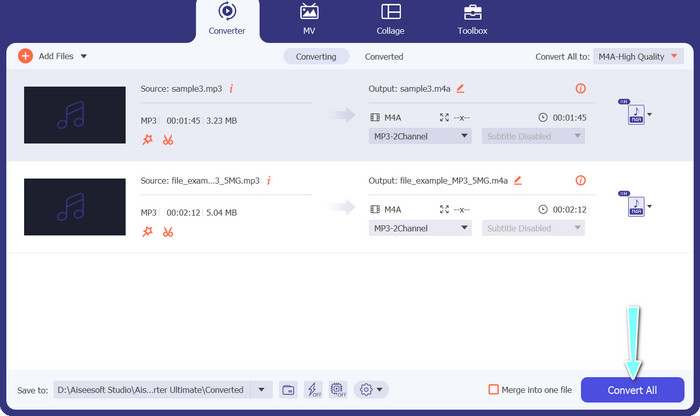
În partea de jos a ecranului, alege folderul de destinație. Când ești gata să începi conversia, dă clic pe butonul Convert All.
2. Convertor video gratuit online
Nu mai ai spațiu pentru un alt program instalat? Nu îți face griji, deoarece poți opta pentru un instrument online care te ajută să convertești fișiere fără să descarci nimic. Aplicația web Free Video Converter Online îți permite să faci conversia direct din browser. În plus, acceptă o mulțime de formate, atât pentru fișiere video, cât și audio. În plus, poți efectua conversii în masă cu acest instrument online. Pe lângă toate acestea, posibilitatea de a personaliza rezultatul fișierului audio este o altă funcție excelentă a acestui instrument. Vezi cum funcționează acest convertor MP3 în M4A online.
Pasul 1. Pentru a începe să folosești Free Video Converter Online, mai întâi deschide browserul tău preferat și accesează direct site-ul.
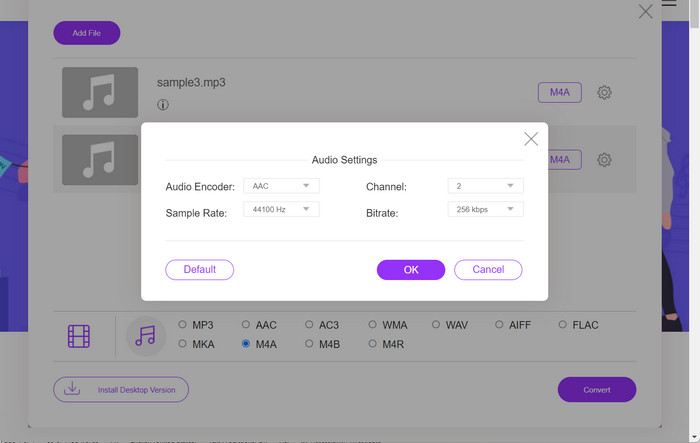
Pasul 2. Apoi, selectează fișierul MP3 pe care dorești să îl convertești în M4A făcând clic pe butonul Add Files to Convert.
Pasul 3. Din opțiunea de format Audio, selectează M4A ca fișier de ieșire dorit. Poți, de asemenea, modifica calitatea sau bitrate-ul fișierului M4A rezultat.
Pasul 4. Apasă pe butonul Convert pentru a începe procesul de conversie. Așa poți converti online MP3 în M4A.
Partea 2. Convertiți MP3 în M4A pe Windows
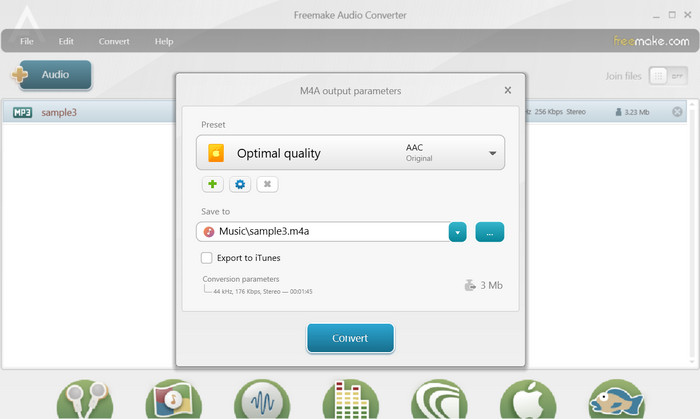
Freemake Audio Converter este un program gratuit și ușor de utilizat, care permite utilizatorilor să convertească fișiere audio în diferite formate, inclusiv M4A, MP3, WAV și multe altele. Cu interfața sa simplă de tip drag-and-drop, utilizatorii își pot adăuga cu ușurință fișierele MP3 și le pot converti în M4A fără setări sau configurații complicate. Instrumentul are, de asemenea, o gamă de opțiuni de personalizare, permițând utilizatorilor să ajusteze parametri precum rata de biți și rata de eșantionare pentru a obține calitatea dorită a ieșirii. Una peste alta, este unul dintre cele mai bune convertoare MP3 în M4A pe care le puteți folosi.
Pasul 1. Descarcă și instalează Freemake Audio Converter pe computerul tău cu Windows.
Pasul 2. Pornește programul și fă clic pe butonul +Audio pentru a adăuga fișierul (fișierele) MP3 în program.
Pasul 3. Selectează M4A din lista de formate disponibile din partea de jos a ferestrei programului. Folosește meniul derulant pentru a alege setările de calitate dorite pentru fișierul de ieșire.
Pasul 4. Alege folderul de ieșire în care vrei să fie salvat fișierul convertit. În final, apasă pe butonul Convert pentru a porni procesul de conversie.
Partea 3. Convertiți MP3 în M4A pe Mac
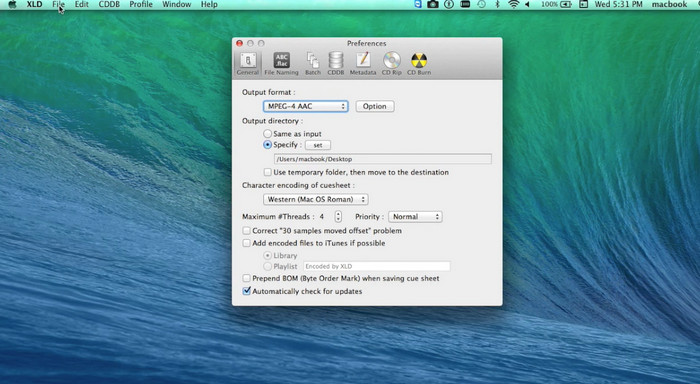
XLD este un program gratuit și ușor de utilizat care permite utilizatorilor Mac să convertească fișiere audio în diferite formate, inclusiv M4A, MP3, FLAC și multe altele. Cu interfața sa simplă de tip drag-and-drop, utilizatorii își pot adăuga cu ușurință fișierele MP3 și le pot converti în M4A fără setări sau configurații complicate. XLD oferă, de asemenea, o gamă de opțiuni de personalizare, permițând utilizatorilor să ajusteze parametri precum rata de biți și rata de eșantionare pentru a obține calitatea dorită a ieșirii.
Pasul 1. Descarcă și instalează XLD pe computerul tău Mac.
Pasul 2. Pornește programul și fă clic pe butonul Open pentru a adăuga fișierul (fișierele) MP3 în program.
Pasul 3. Selectează M4A din lista de formate disponibile în preferințele programului. Poți folosi meniul derulant pentru a alege setările de calitate dorite pentru fișierul de ieșire.
Pasul 4. Apoi, alege folderul de ieșire în care dorești să fie salvat fișierul convertit. La final, apasă pe butonul Convert pentru a începe procesul de conversie. Astfel poți converti gratuit MP3 în M4A pe Mac.
Partea 4. Convertiți MP3 în M4A pe Android
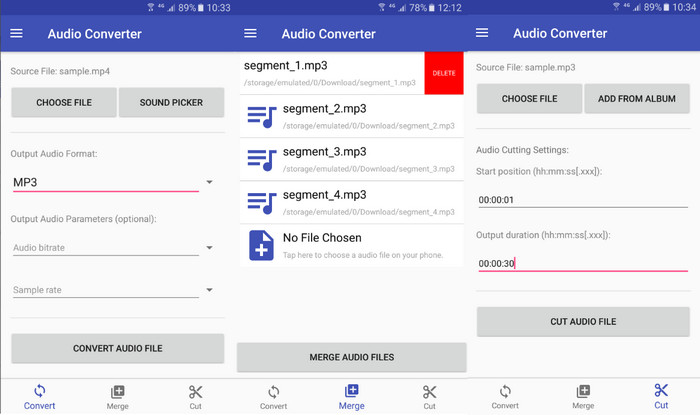
Când vine vorba de conversia fișierelor audio, software-ul gratuit și simplu pentru Android Audio Converter de Online-Convert.com este greu de învins. Utilizatorii pot pur și simplu să gliseze și să plaseze fișierele MP3 în interfața programului pentru a începe procesul de conversie în M4A. Calitatea de ieșire a unui fișier audio poate fi ajustată prin modificarea setărilor precum rata de biți și rata de eșantionare în Audio Converter. Iată pașii pentru a schimba MP3 în M4A pe Android:
Pasul 1. Descarcă și instalează aplicația Audio Converter de la Online-Convert.com din Google Play Store pe dispozitivul tău Android. Pornește aplicația și atinge butonul Convert Audio.
Pasul 2. Apoi, selectează MP3 ca format de intrare și M4A ca format de ieșire.
Pasul 3. Acum, atinge butonul Select Files pentru a adăuga fișierul (fișierele) MP3 în aplicație. La final, apasă butonul Start Conversion pentru a începe procesul de conversie. Atât de simplu este! Acum ai învățat cum să convertești MP3 în M4A pe Android.
Partea 5. Convertiți MP3 în M4A pe iOS
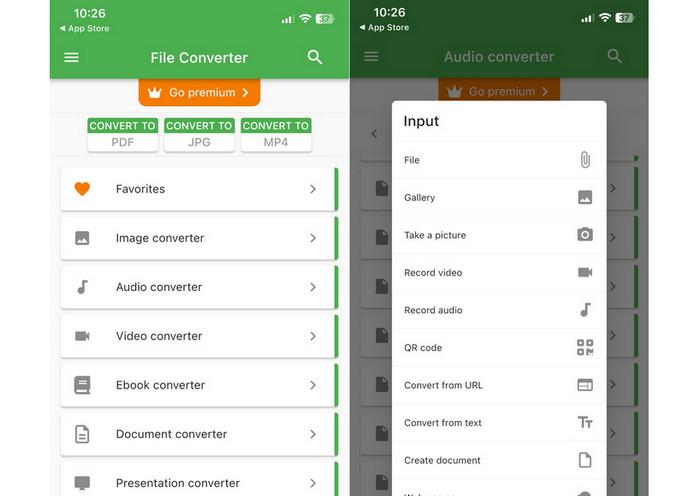
Fișierele audio, cum ar fi MP3, pot fi convertite în formatul M4A mai portabil și fără pierderi cu ajutorul File Converter Free, un software iOS gratuit și simplu. Designul său simplu permite oricui să încarce fișiere MP3 și să le convertească în M4A fără a fi nevoie să se ocupe de setări sau setări.
Pasul 1. File Converter Free poate fi găsit în App Store și este gratuit de descărcat și utilizat. Pornește programul și apasă pe fila Audio.
Pasul 2. Alege MP3 pentru formatul de intrare și de ieșire și M4A pentru formatul AAC de la Apple. Selectează calitatea dorită a fișierului de ieșire folosind meniul derulant. Pentru a importa un MP3 în program, selectează butonul Add File.
Pasul 3. Pentru a începe procesul de conversie, fă clic pe butonul Convert.
Partea 6. Întrebări frecvente despre conversia MP3 în M4A
Pot converti MP3 în M4A utilizând Windows Media Player?
Da, poți converti MP3 în M4A folosind Windows Media Player, însă sunt necesari câțiva pași suplimentari, deoarece M4A nu este un format acceptat în mod implicit de Windows Media Player. Sau poți alege pur și simplu o alternativă la Windows Media Player.
Conversia MP3 în M4A va duce la pierderea calității audio?
Conversia MP3 în M4A poate duce la o uşoară pierdere a calităţii audio din cauza diferenţelor în algoritmii de compresie utilizaţi de cele două formate.
Pot converti M4A înapoi în MP3?
Da, multe programe și instrumente de conversie audio îți permit să convertești M4A în MP3, dacă este necesar. Totuși, ține cont că multiple conversii între formate pot duce la pierderi de calitate.
Concluzie
Conversia MP3 în M4A este un proces valoros pentru oricine dorește să îmbunătățească calitatea și compatibilitatea fișierelor sale audio. Urmând pașii și sfaturile prezentate în această discuție, îți poți converti cu ușurință fișierele MP3 în M4A și te poți bucura de audio de înaltă calitate pe orice dispozitiv.
-
 Gratuit și online | Cum se convertește MP4 în M4A pe Windows / Mac
 Cum convertesc MP4 în M4A online? Pot extrage audio din fișiere MP4? Citiți această postare și veți primi toate răspunsurile despre conversia de la MP4 la M4A.
-
 Cele mai bune instrumente pe care le puteți utiliza pentru a converti în loturi fișiere MP3 în M4R
 Căutați un convertor care să vă transforme fișierul MP3 într-un ton de apel M4R pentru iPhone sau iPad pe lot? Citiți articolul pentru a descoperi unele dintre cele mai bune care există.
-
 5 dispozitive de tăiere MP3 pentru a tăia cu ușurință orice sunet [Actualizat 2023]
 Aveți nevoie de un dispozitiv de tăiere MP3 pentru a tăia sunetul? În acest caz, citiți acest articol, deoarece vă oferim instrumentele pe care vă puteți baza, care oferă o tăiere ușoară pentru audio.
