


 Video Converter Ultimate
 Screen Recorder
 Reparație video
 Descărcare sigură
Cum se convertește WAV în MP3 cu Top 5 convertoare gratuite
WAV, ca format principal utilizat pe sistemele Windows pentru audio și CD-uri brute și necomprimate, are dimensiuni mari. La capetele opuse ale WAV, MP3 este comprimat și de dimensiuni reduse. Mai mult, este mai acceptabil decât WAV în streaming sau în alți jucători.
Având în vedere acest lucru, ajungi la locul potrivit.
Această pagină este ghidul detaliat pentru a converti WAV în MP3 cu primii 5 convertoare gratuite.

Partea 1. Convertiți gratuit WAV în MP3 online
Există multe programe de conversie disponibile, iar primul din listă este Free Audio Converter. Este un instrument online pentru a transforma WAV în MP3. Comparativ cu alte convertoare WAV în MP3 online, acest program gratuit este 100% gratuit, fără niciun fel de reclame, pe calculator cu Windows și Mac. Poți beneficia de acest software de conversie WAV în MP3 astfel:
- 1. Convertiți WAV în MP3 fără limite de dimensiune sau număr.
- 2. Convertiți gratuit WAV în MP3 fără înregistrare.
- 3. Schimbați în format WAV în format MP3 pentru a vă economisi timpul.
- 4. Reglați rata de biți pentru a comprima dimensiunea fișierului de ieșire.
- 5. Extrageți sunetul de fundal din videoclipurile de pe YouTube și din alte filme.
Pașii transcodării WAV în MP4 sunt destul de ușori.
Pasul 1. Deschide acest site pe computerul tău. Dă clic pe Add Files to Convert și descarcă și instalează lansatorul de conversie, care poate combina întregul proces de conversie cu cel de descărcare.
Descărcați versiunea pentru desktop pentru a converti fișiere în lot.
Pasul 2. După instalarea cu succes, va apărea fereastra de dialog Open și trebuie să selectezi fișierul sau fișierele WAV de pe computerul tău pentru a le adăuga în acest program gratuit.
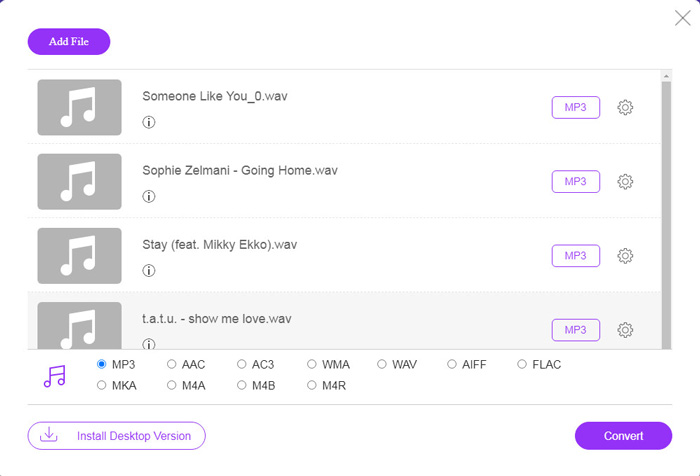
Pasul 3. Bifează căsuța MP3 din partea de jos ca format de ieșire și dă clic pe Convert pentru a alege calea de destinație în care vor fi salvate fișierele MP3 convertite. Apoi dă din nou clic pe Convert pentru a începe conversia online din WAV în MP3.
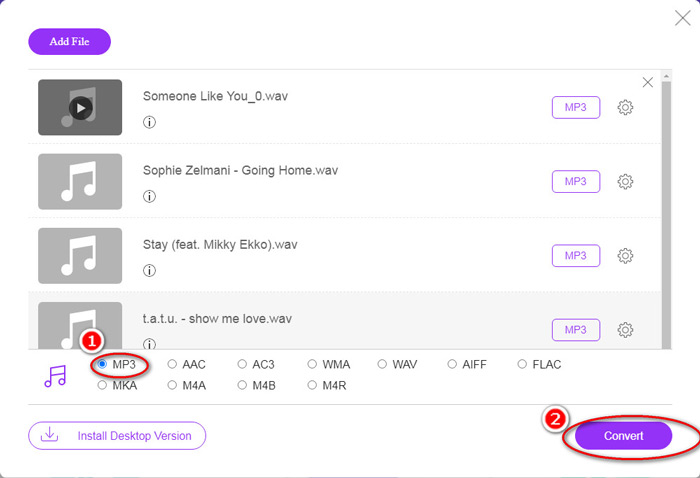
Dacă doriți să comprimați fișierul MP3, trebuie doar să faceți clic pe pictograma roată și să ajustați valoarea bitrate-ului de la 96 la 320 kbps.
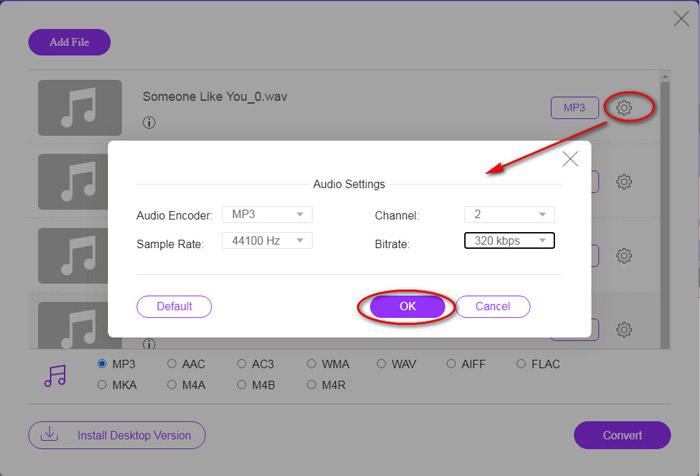
Un avantaj suplimentar al acestei metode este că poți converti video în MP3 pentru a extrage liber orice muzică de fundal.
Partea 2. Convertiți gratuit WAV în MP3 în iTunes
iTunes este un alt freeware pentru a converti WAV în MP3. Cu acest program, puteți converti cu ușurință WAV în MP3, AAC, AIFF și Apple Lossless. Dimpotrivă, poate transforma MP3, AAC, AIFF etc. în WAV.
Urmați pașii simpli menționați mai jos pentru a face cunoștințe.
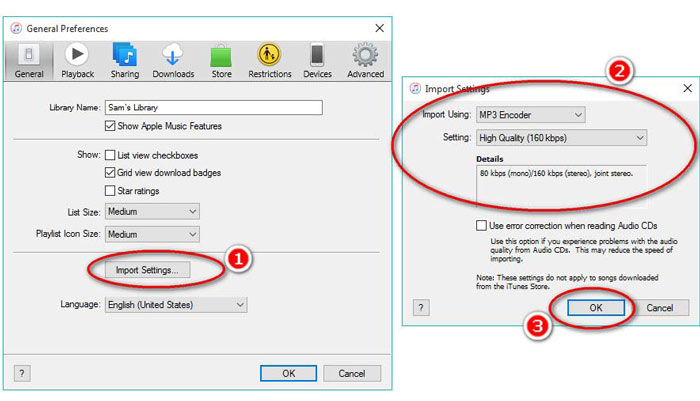
Pasul 1. Rulează iTunes pe computerul cu Windows sau Mac. Dă clic pe Edit în meniu pentru a selecta Preferences. Dă clic pe Import Settings pentru a seta parametrii de ieșire MP3.
Selectează MP3 Encoder din opțiunea derulantă Import Using.
Selectează calitatea MP3 din opțiunea derulantă Settings (de la 16 la 320 kbps).
Dă clic pe OK pentru a salva și închide setările.
Pasul 2. Trage și plasează fișierele WAV în iTunes Library. Selectează melodia sau melodiile WAV pe care vrei să le convertești în MP3, alege File în meniu, selectează Convert, apoi Create MP3 Version.
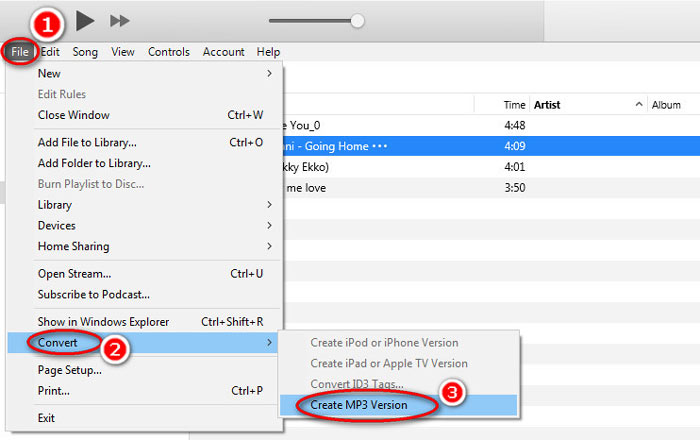
Asta e tot! Noile fișiere MP3 apar în bibliotecă lângă fișierele WAV originale. Poți diferenția cele două versiuni făcând clic dreapta pe fișier și selectând Get Info.
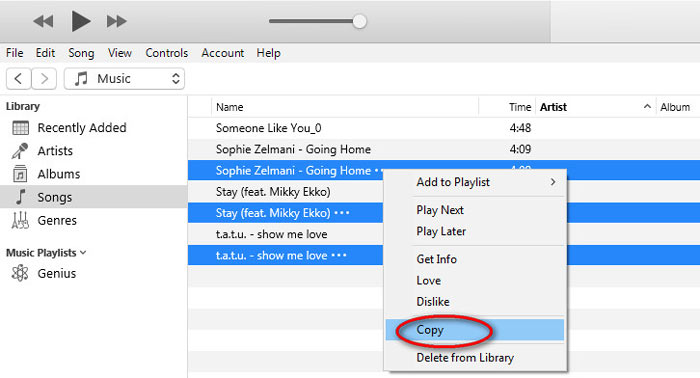
Pasul 3. Apoi poți copia melodiile MP3 create (clic dreapta pe melodii și selectează Copy) din iTunes Library și să le inserezi în alte locații de pe computer.
Este important să ne amintim că iTunes nu gestionează niciun fișier de muzică cu drepturi de copiere.
Partea 3. Convertiți gratuit WAV în MP3 prin Windows Media Player
Windows Media Player, ca player încorporat pe computerul Windows, poate deschide direct fișiere WAV. Aici, efectuează conversia MP3. În afară de conversia WAV în MP3, suportă și CD-uri care conțin conversia WAV audio în MP3.
Iată cum să începeți:
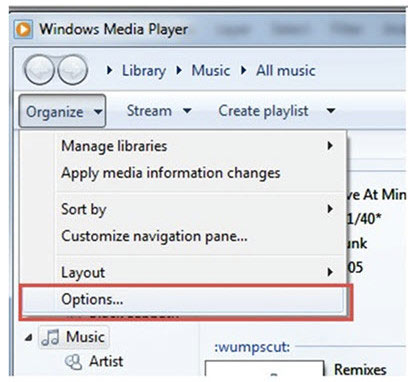
Pasul 1. Rulează Windows Media Player pe computer, găsește fișierele WAV încărcate în bara laterală. Dă clic pe Organize din panoul din stânga al ecranului și apoi pe Options.
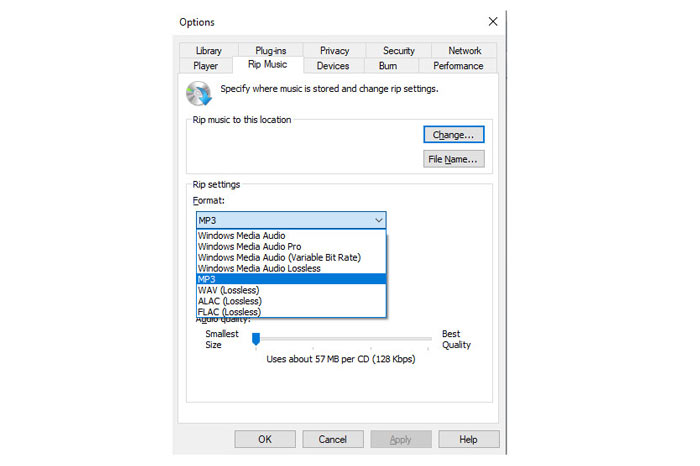
Pasul 2. Accesează fila Rip Music și selectează MP3 la Format în secțiunea Rip settings.
Pasul 3. Opțional, ajustează calitatea audio și dă clic pe Apply pentru a începe transformarea WAV în MP3.
Apoi Windows Media Player va începe conversia, iar fișierele MP3 rezultate vor fi salvate în locația specificată în meniul Rip music to this location din fila Rip Music.
Există doar un singur avertisment: Acest mod de a transforma WAV în MP3 este disponibil doar pentru utilizatorii de Windows 10/8/7, deoarece Windows Media Player funcționează doar pe computer cu Windows.
Partea 4. Convertiți gratuit WAV în MP3 cu VLC
VLC, este posibil să îl utilizați ca player media pentru a deschide fișiere WAV. Cu toate acestea, poate funcționa și ca un convertor WAV, cum ar fi Windows Media Player. Pașii de conversie WAV în MP3 sunt diferiți de cei de pe Windows Media Player.
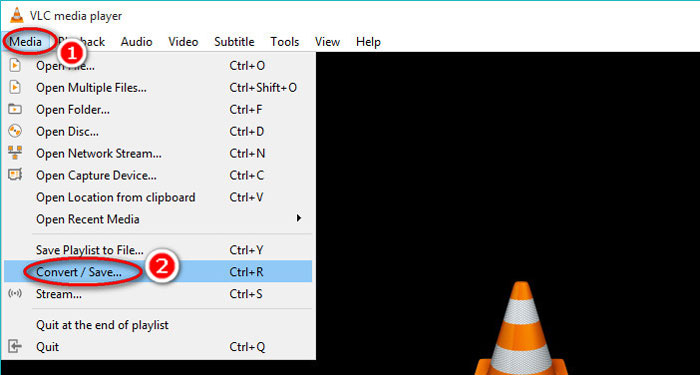
Pasul 1. Rulează VLC pe computer și găsește Media în meniul din partea de sus, apoi selectează Convert / Save pentru a deschide fereastra Open Media.
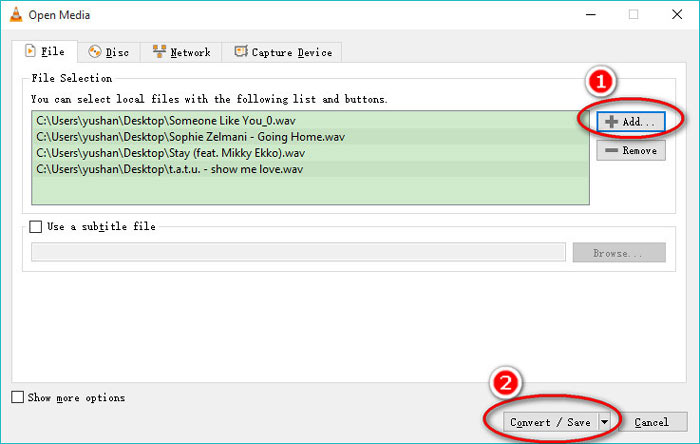
Pasul 2. În fereastra Open Media, dă clic pe Add pentru a importa fișierele WAV pe care vrei să le transformi în MP3. Dă clic pe Convert/Save pentru a continua.
Pasul 3. Dă clic pe săgeata în jos de lângă Profile pentru a selecta MP3 ca fișier de ieșire.
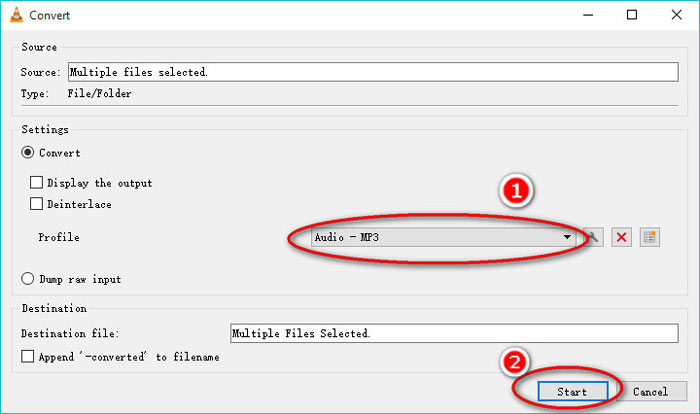
Folosind VLC, poți de asemenea să convertești audio în Vorbis (OGG), FLAC și CD. Poți găsi fișierele MP3 convertite în același folder cu fișierele WAV originale.
Pentru a fi clar: Deși VLC poate fi folosit pe computer și pe telefon mobil, funcția de conversie este doar pentru utilizatorii de computer și nu poți converti WAV în MP3 pe iPhone sau telefon Android.
Partea 5. Convertiți gratuit WAV în MP3 cu Audacity
Audacity este un software gratuit de editare audio cu care trebuie să vă familiarizați. Pe lângă funcțiile puternice de editare, Audacity vă poate ajuta și să exportați WAV în MP3.
Să simplificăm procesul.
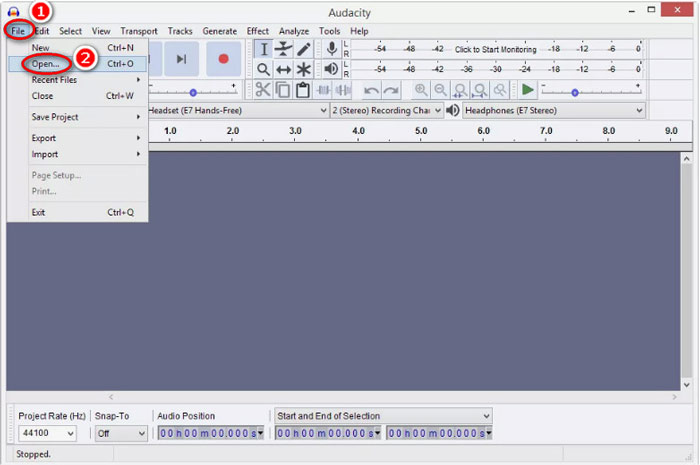
Pasul 1. Descarcă Audacity pe computerul tău Windows sau Mac. Mergi la meniul File din partea de sus și selectează Open pentru a alege fișierul WAV stocat pe computer.
Pasul 2. Din nou, dă clic pe File, selectează Export și Export as MP3.
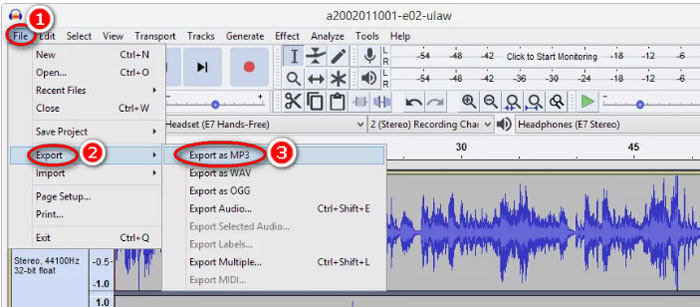
Pasul 3. Selectează locația în care să fie salvat fișierul MP3 convertit, editează opțional etichetele de metadate și dă clic pe OK pentru a începe transformarea WAV în MP3.
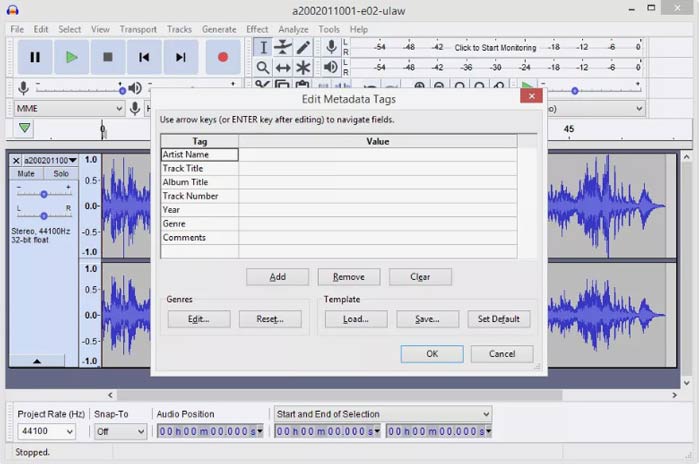
Un lucru ar trebui să observați că Audacity nu permite conversia în lot și trebuie să convertiți WAV în MP3 unul câte unul.
WAV vs. MP3
WAV, cunoscut și sub numele de format WAVE, se bazează pe formatul de fișier de schimb de resurse (RIFF). Este dezvoltat de Microsoft și IBM împreună la începutul anilor 1990. Este o opțiune pentru salvarea sunetului brut, necomprimat în Microsoft Windows. Astfel, fișierele WAV sunt redate mai des pe computerele Windows.
Formatul MP3 a fost lansat în 1993 de Moving Picture Experts Group (MPEG). Era standardul pentru stocarea muzicii, deoarece putea comprima audio la o dimensiune mult mai mică decât alte formate necomprimate. Este încă folosit pe scară largă în zilele noastre, în special pentru distribuirea audio online.
Partea 6. Întrebări frecvente despre convertirea WAV în MP3
WAV VS MP3, care este mai bun?
Care este mai bun depinde de ceea ce ai nevoie.
1. În ceea ce privește dimensiunea fișierului, WAV are o dimensiune mai mare decât MP3.
2. În ceea ce privește calitatea audio, WAV este fără pierderi și necomprimat, în timp ce MP3 este un format cu pierderi, iar WAV oferă o calitate audio mai bună decât MP3.
3. Din punct de vedere al compatibilității, MP3 este utilizat pe scară largă pe serviciile de streaming și pe playere, în timp ce WAV este folosit în principal pe sistemul Windows și pe CD-uri.
Conversia WAV în MP3 își pierde calitatea?
Da. În timp ce convertiți un fișier WAV fără pierderi într-un fișier MP3 cu pierderi, acesta va pierde calitatea.
Puteți auzi diferența dintre MP3 și WAV?
Dacă comparați un fișier MP3 cu rată de biți mai mică cu un fișier WAV cu rată de biți ridicat, puteți auzi o ușoară diferență. Cu toate acestea, odată ce ascultați un fișier MP3 cu bitrate ridicat și un fișier WAV cu bitrate mai scăzut, este posibil să nu primiți o diferență în urechi.
Ar trebui să încărc MP3 sau WAV pe YouTube?
WAV este recomandat pentru a încărca YouTube. Deoarece după ce încărcați un fișier video sau audio pe YouTube, acesta va comprima din nou fișierul încărcat. Pentru a garanta cea mai bună calitate audio, WAV fără pierderi este mai recomandat în comparație cu MP3.
Concluzie
Atât WAV cât și MP3 sunt fișierele audio pe care le întâlnești frecvent. Datorită dimensiunii mari a WAV și a compatibilității mai puțin populare, mulți dintre voi doriți să convertiți WAV în MP3. Această pagină colectează primii 5 convertoare gratuite WAV în MP3 pentru a vă ajuta să transformați WAV în MP3 pe computer.
Ce convertor gratuit WAV în MP3 din această listă veți încerca mai întâi?
Doriți o conversie online gratuită?
Sau poate doriți să transcodați WAV în MP3 pe Windows Media Player?
Oricum ar fi, anunțați-mă în secțiunea de comentarii de mai jos.
-
 Cum pot converti MP4 în WAV online gratuit
 Încercați din greu să convertiți MP4 în WAV? Nu știți ce convertor vă poate ajuta cu asta perfect fără a plăti un ban? Citiți această postare și veți primi răspuns la toate întrebările dvs.
-
 Cum se convertește MP3 în MP4 cu imagine pe Windows 10 și Mac
 Cum se convertește MP3 în MP4 de înaltă calitate? Această postare prezintă 3 metode eficiente și gratuite pentru a schimba MP3 în MP4 cu imagini pe Windows și Mac.
-
 De la 50 MB la 5 MB - Cum să comprimați fișierul MP4 în câteva secunde
 Videoclipul MP4 este prea mare pentru încărcare? Doriți să reduceți dimensiunea videoclipului? Iată 3 moduri eficiente de a comprima un fișier MP4 la dimensiuni mai mici, fără limită.

