


 Video Converter Ultimate
 Screen Recorder
 Reparație video
 Descărcare sigură
Convertiți JPG în MP4 pe Windows/Mac fără a-și pierde calitatea
JPG este cel mai comun format de imagine și îl folosim în diverse scopuri, de la partajarea fotografiilor online până la stocarea instantaneelor digitale pe dispozitivele noastre. Cu compatibilitatea sa pe scară largă și dimensiunea relativ mică a fișierului, JPG a devenit alegerea ideală pentru capturarea și păstrarea amintirilor vizuale în viața de zi cu zi.
Dar, în zilele noastre, crearea de videoclipuri din poze a devenit o tendință. Este, de asemenea, o altă modalitate de a păstra amintirile într‑un mod mai creativ și plin de pasiune. Poți adăuga sunet, tranziții sau pur și simplu un slideshow în format MP4, cu melodia ta preferată pe fundal. Așadar, dacă îți place ideea și intenționezi să transformi JPG în MP4, continuă să citești acest articol și învață cum să le convertești prin 4 metode diferite, fără a le pierde calitatea. Dă frâu liber creativității tale chiar astăzi!

Partea 1: Modul final de a converti JPG în MP4 pe Windows/Mac [Cel mai bun pentru începători]
Cea mai bună modalitate de a converti JPG în MP4 este utilizarea programului FVC Video Converter Ultimate. Acest instrument are o funcție specială numită MV, care le permite utilizatorilor să creeze videoclipuri MP4 de bună calitate din fotografiile lor JPG. Vine cu teme presetate pe care le poți folosi liber, precum și cu diverse efecte și filtre. De asemenea, poți roti și decupa cu ușurință fișierele JPG înainte de a le exporta în MP4. Cel mai distractiv lucru la acest instrument este că poți importa propria coloană sonoră, o poți personaliza cu un filigran și multe altele. În cele din urmă, acest program nu este greu de folosit, având o interfață foarte intuitivă și prietenoasă cu utilizatorul. Pentru a face acest lucru, urmează pașii de mai jos:
Pasul 1. Mai întâi, trebuie să obții software‑ul pentru Windows sau Mac, apoi să îl descarci și să îl instalezi.
Descărcare gratuită pentru Windows 7 sau o versiune ulterioară Descărcare securizată
Descărcare gratuită pentru MacOS 10.7 sau o versiune ulterioară Descărcare securizată
Pasul 2. După aceea, deschide programul și, dintre cele 4 file de sus, dă clic pe MV.

Pasul 3. Acum, când ești în interfața principală a funcției MV, fă clic pe butonul Add File pentru a adăuga fișierele JPG pe care vrei să le convertești în MP4.

Pasul 4. Pentru a adăuga, edita și decupa videoclipul MP4, dă clic pe butonul din partea superioară a butonului Add File. De asemenea, poți alege o temă presetată dând clic pe fila Theme de sus.

Pasul 5. Pentru a decupa și roti imaginile, a adăuga filtre și efecte și a insera un filigran pentru a le face mai personalizate, dă clic pe pictograma Edit de mai jos, iar aceasta te va duce într‑o altă fereastră.

Pasul 6. Dacă totul este setat, fă clic pe butonul Export, unde poți schimba formatul în MP4 și poți modifica rata de cadre, rezoluția și calitatea. De asemenea, poți indica în ce folder vrei să fie salvat fișierul tău convertit din JPG în MP4. În final, pentru a salva fișierul, apasă pe butonul Start Export.

FVC Video Converter Ultimate simplifică transformarea JPG în MP4 cu interfața sa ușor de utilizat, funcțiile personalizabile, temele prestabilite, instrumentele de editare, ieșirea de înaltă calitate și compatibilitatea cu sistemele de operare Windows și Mac. Este într-adevăr modalitatea supremă de a transforma fotografiile plictisitoare în videoclipuri distractive și creative.
Partea 2: Convertiți JPG în MP4 pe Windows 11/10 cu instrumentul implicit Fotografii
Pe Windows 10 și 11, Clipchamp este acum integrat cu aplicația Photos, care permite utilizatorilor să convertească fișiere JPG în MP4. Această integrare facilitează editarea, care apoi poate fi salvată în MP4. Deci, pentru a vă ghida în acest sens, urmați procesul pas cu pas de mai jos:
Pasul 1. Pe Windows, mergi mai întâi la Start Menu și de acolo dă clic pe Photos.
Pasul 2. În aplicația Photos, mergi la Folders în fila din stânga. Ți se va cere să adaugi un folder sau poți pur și simplu să selectezi fotografii din imaginile pe care vrei să le transformi în MP4.
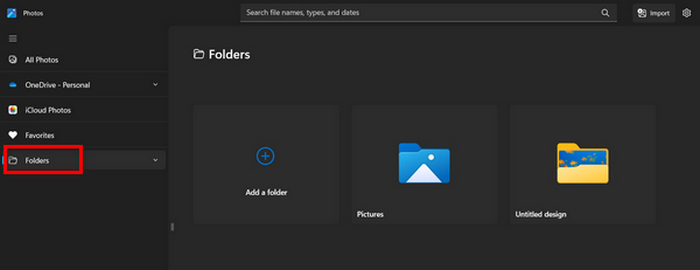
Pasul 3. După ce ai ales pozele JPG pe care vrei să le convertești, fă clic pe pictograma Create a video.
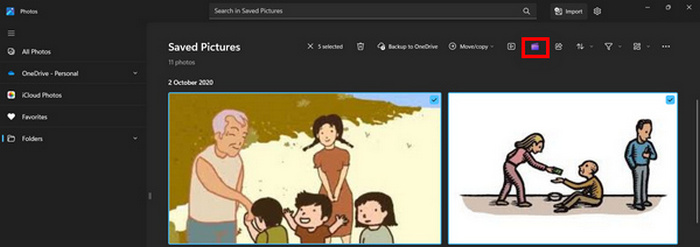
Pasul 4. Într‑o nouă fereastră, vei fi întrebat dacă vrei să adaugi fișiere media la acest videoclip. Dă clic pe Yes to Add Video.

Pasul 5. Acum, trage fișierele media importate pe cronologie. Poți folosi opțiunile de editare din fila din stânga, unde poți adăuga text, alege șabloane și altele. În fila din dreapta, poți adăuga audio, efecte, filtre etc. După ce ai terminat, trebuie doar să dai clic pe butonul Export, iar fișierul MP4 va fi salvat direct pe computerul tău.
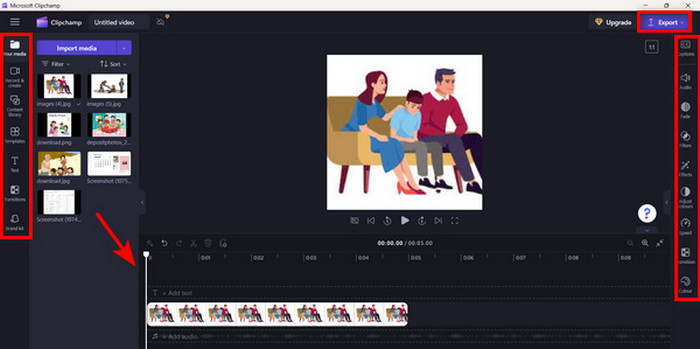
Dacă sunteți un utilizator Windows, această metodă face ca conversia JPG în MP4 să fie foarte rapidă. Cu toate acestea, această metodă ar fi putut fi mai ușoară în comparație cu alte instrumente. De asemenea, nu puteți exporta rezoluția video 2K/4K folosind versiunea sa gratuită și nu aveți acces la alte efecte și filtre bune în comparație cu alte instrumente de conversie.
Partea 3: Convertiți JPG în MP4 pe Mac cu iMovie
Dacă sunteți un utilizator Mac, există o soluție la îndemână pentru a converti JPG în MP4 pentru dvs. Mac are o aplicație încorporată numită iMovie. Aceasta este o aplicație de editare video care oferă editare de bază pentru utilizatorii săi, dar în afară de aceasta, aceasta poate fi folosită și pentru a transforma fișierele JPG în MP4. Trebuie doar să-și importe imaginile, să adauge câteva efecte și filtre, apoi să le salveze ca MP4.
Pasul 1. Pe Mac, deschide aplicația iMovie și dă clic pe Create New.
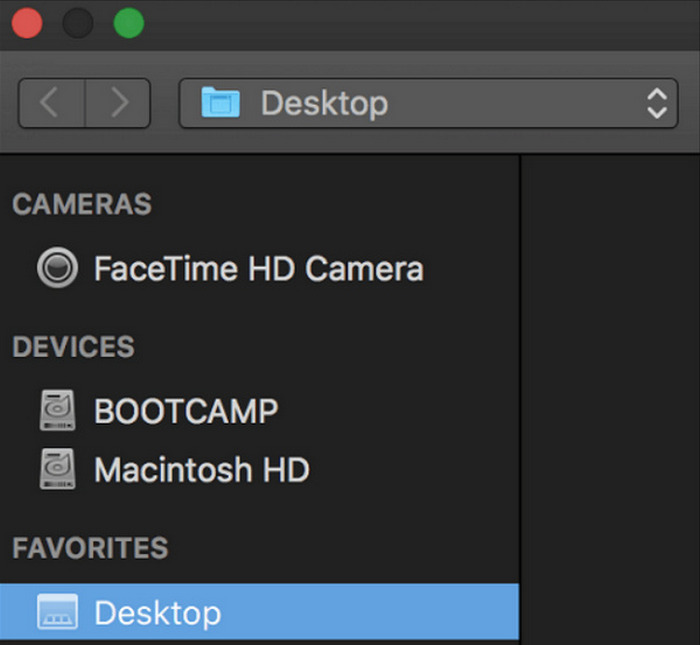
Pasul 2. După aceea, adaugă fișierul JPG în aplicație făcând clic pe butonul Import Media din interfața principală.
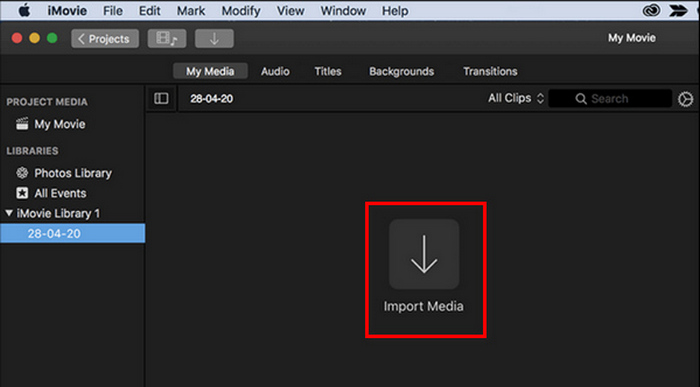
Pasul 3. Acum, caută fișierele JPG pe care vrei să le convertești în MP4.
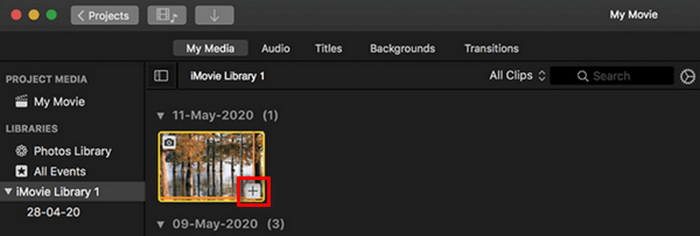
Pasul 4. După ce imaginea JPG apare în interfața aplicației, o poți selecta și vei observa un semn Plus. Apasă pe el pentru a adăuga fotografia pe cronologie.
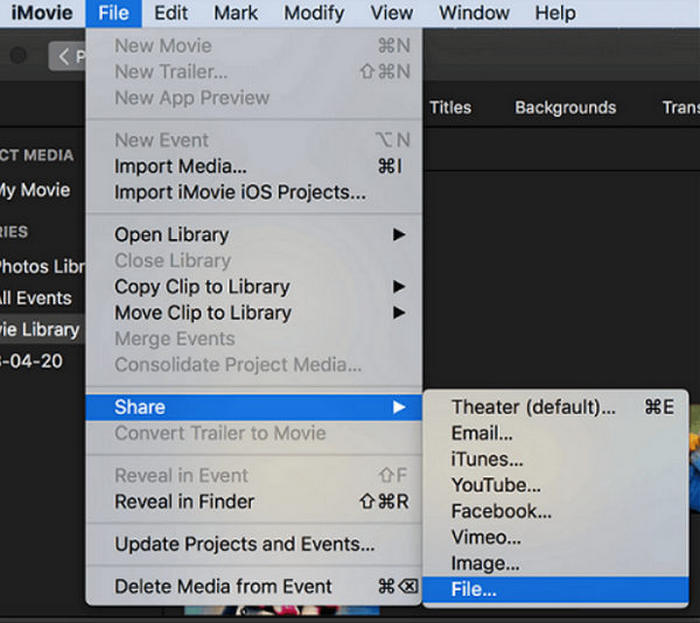
Pasul 5. După ce ai adăugat fișierele JPG pe cronologie, poți trage de colțuri pentru a extinde durata fișierului tău MP4 final. Apoi, dă clic pe meniul File din partea de sus, selectează Share și alege File pentru a‑ți exporta fișierul.
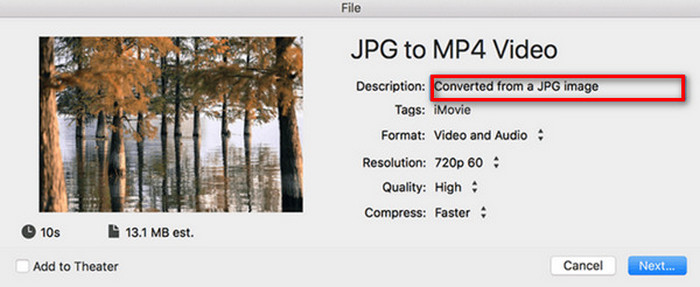
Pasul 6. În final, denumește fișierul MP4 în partea de sus, completează celelalte câmpuri de metadate pentru fișierul video și fă clic pe Next. Selectează locația dorită pentru a salva fișierul MP4 pe care vrei să îl convertești. După ce ai ales locația, va începe procesul de conversie.
iMovie le oferă utilizatorilor de Mac o modalitate comodă de a converti fișiere JPG în MP4, prin interfața sa ușor de folosit și instrumentele de editare integrate. Totuși, poate duce lipsă de funcții avansate în comparație cu alte instrumente de conversie, limitând opțiunile de personalizare și efecte. Deși este potrivit pentru editare de bază, utilizatorii devin tot mai competitivi și creativi, căutând un instrument care să poată răspunde cu adevărat nevoilor și așteptărilor tuturor. De asemenea, acest program nu funcționează pe Windows. Dacă îți place iMovie, găsești aici instrumentele iMovie pentru Windows.
Partea 4: Convertiți JPG în MP4 online
Acum, dacă căutați o altă modalitate de a converti JPG în MP4, atunci conversia lor online ar putea fi pentru dvs. Unul dintre cei mai buni convertoare online pentru aceasta este Online Convert.com. Puteți rula acest instrument din diferite browsere de pe computer și poate fi utilizat cu ușurință datorită interfeței sale intuitive.
Pasul 1. În browserul tău, caută site‑ul Online Convert.com.
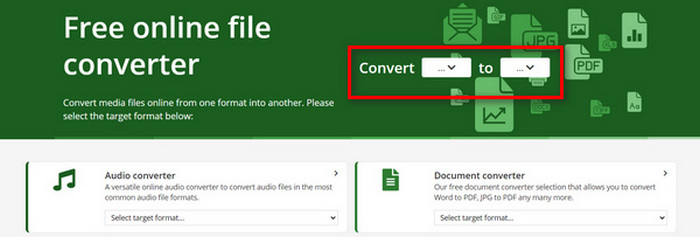
Pasul 2. Odată ajuns pe site, selectează formatele corespunzător. Deoarece vrei să convertești JPG în MP4, alege JPG din butonul drop‑down Convert și MP4 din butonul drop‑down To.
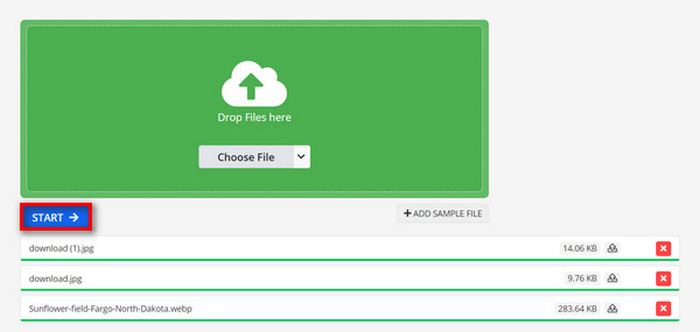
Pasul 3. Apoi, încarcă fișierele JPG pe care vrei să le convertești făcând clic pe butonul drop‑down Choose File, de unde îți poți importa fișierele de pe dispozitiv, din Dropbox, Google Drive sau chiar prin URL.

Pasul 4. În continuare, după ce ai încărcat fișierele JPG pe care vrei să le convertești în MP4, apasă butonul Start.
Pasul 5. La final, descarcă fișierul MP4 făcând clic pe butonul Download.
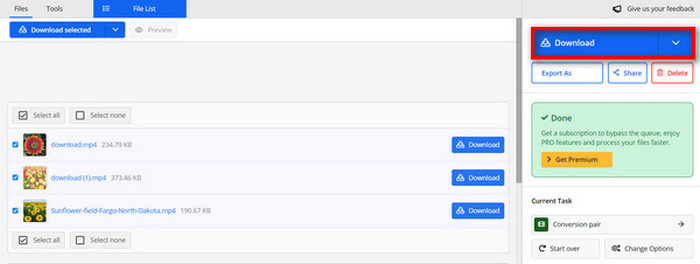
Ieșirea convertită din acest instrument este rezultatul unei setări video prestabilite pe care utilizatorii le-au ajustat manual înainte de a converti fișierele. Deși acest lucru transformă cu ușurință JPG în MP4, nu puteți îmbunătăți direct videoclipul convertit pe baza stilului dvs. creativ.
Partea 5: Întrebări frecvente despre conversia JPG în MP4
Este JPEG la fel cu JPG?
JPEG și JPG sunt, în esență, același format de imagine digitală, ambele extensii de fișier referindu‑se la formatul JPEG creat de Joint Photographic Experts Group, sau JPEG. Află de aici cum să convertești JPEG în JPG.
Când ar trebui să convertesc JPG în MP4?
Ar trebui să convertiți JPG în MP4 atunci când doriți să creați o prezentare vizuală sau să partajați o serie de imagini ca videoclip, cum ar fi crearea de prezentări de diapozitive, albume foto digitale sau diapozitive video. În afară de aceasta, dacă doriți să fiți creativ cu privire la modul în care doriți să fie văzute fișierele dvs. JPG, atunci conversia lor în MP4 este modalitatea supremă de a adăuga tranziții, muzică, suprapuneri de text și alte elemente multimedia.
Cum combin JPG și MP4?
Singura modalitate de a combina JPG și MP4 este prin utilizarea instrumentelor de editare video. Cu această abordare, aveți control deplin asupra aranjamentului, calendarului și personalizării atât a imaginilor, cât și a videoclipului pe care doriți să-l combinați.
Concluzie
Acum este rândul tău! Conversia din JPG în MP4 este o altă modalitate de a păstra amintirile într‑un mod creativ. Așa că, dacă ai fișiere JPG și vrei să le convertești, urmează toate metodele prezentate în acest articol și alege‑o pe cea care ți se potrivește cel mai bine. Începe chiar astăzi și vezi magia cu ochii tăi!
-
 Top 5 tutoriale de top pentru a converti rapid PNG în JPG
 Dacă trebuie să convertiți fișierul PNG în format JPG, puteți afla cele mai bune modalități aici. De asemenea, veți afla diferența dintre formatele de fișiere PNG și JPG.
-
 Metode fără efort despre cum să convertiți SVG în format JPG
 Găsiți cea mai bună modalitate de a converti SVG în JPG? Această postare va oferi câteva tutoriale sigure pe care le puteți încerca. Veți descoperi și convertorul SVG în JPG pentru dvs.
-
 Metode utile despre cum să convertiți cu ușurință TIFF în JPG/PNG
 Nu ratați aceste modalități excelente de a transforma TIF în formate JPG/PNG. Această postare vă va oferi informațiile necesare pe care trebuie să le cunoașteți. Include diferențele lor.
