


 Video Converter Ultimate
 Screen Recorder
 Reparație video
 Descărcare sigură
Convertoare VLC în MP4: cele mai rapide și perfecte instrumente pe care ar trebui să le cunoașteți
VLC Media Player nu este doar un player obișnuit pentru vizionat filme și ascultat muzică, fiind mult mai versatil decât crezi. Dacă ești fan VLC, este foarte probabil să ai o mulțime de filme stocate în biblioteca lui. Știai că poți folosi VLC pentru a-ți converti videoclipurile în diferite formate, precum MP4? Așadar, dacă te-ai gândit vreodată să convertești aceste filme sau videoclipuri din VLC în MP4 pentru a le putea urmări pe telefon sau pe alte dispozitive portabile, atunci ai noroc! Acest articol îți va arăta cel mai rapid și mai simplu proces de conversie pe care îl poți face pe computer. Așadar, trecând direct la subiect, citește în continuare tot conținutul de mai jos pentru a învăța cât mai repede!

Partea 1. Cel mai rapid mod de a converti fișierele VLC în MP4
Dacă ești în căutarea unui software excelent care se ocupă de conversia video impecabil, fără a sacrifica calitatea, atunci nu mai căuta, pentru că îți prezentăm acest FVC Video Converter Ultimate. Acest convertor „ultimate” nu doar transformă rapid videoclipurile VLC în diverse formate, precum MP4, MKV, WMA, AVI, MOV și altele, ci face acest lucru fără nicio pierdere a calității imaginii. În plus, este extrem de rapid, de până la 120x mai rapid, deoarece beneficiază de suport pentru accelerare hardware.
Dar stai, mai sunt! Acest convertor VLC în MP4 se dublează și ca un editor video de top. Editorul vă permite să decupați, tăiați, rotiți, adăugați filigrane și multe alte editări pe care le cunoașteți. În afară de asta, vine cu caracteristici cheie pe care nu vrei să le ratezi. Funcții care vă vor ajuta să creați colaje video uimitoare cu clipurile, fotografiile și melodiile dvs.! Între timp, să trecem la un proces de conversie rapid oferit de FVC prin pașii de mai jos.
Pasul 1. Începem prin a descărca software-ul pe computer. Poți folosi butoanele de Download de mai jos, în funcție de sistemul tău. Da, poți converti VLC în MP4 pe Mac sau Windows cu ajutorul acestui software.
Descărcare gratuită pentru Windows 7 sau o versiune ulterioară Descărcare securizată
Descărcare gratuită pentru MacOS 10.7 sau o versiune ulterioară Descărcare securizată
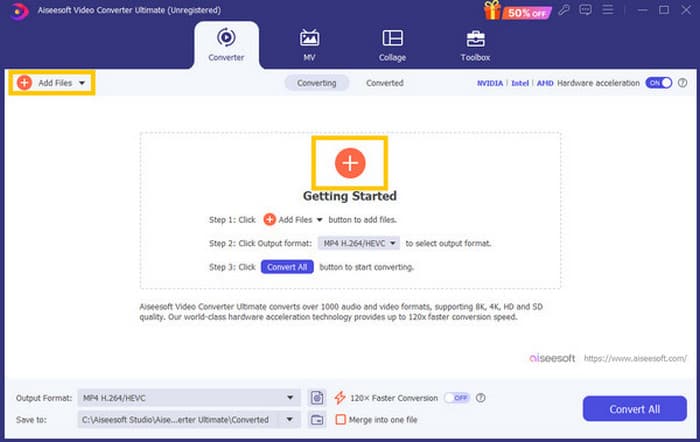
Pasul 2. După instalare, lansează software-ul și începe să imporți toate fișierele VLC pe care trebuie să le convertești. Pur și simplu fă clic pe butonul roșu Plus din centrul interfeței de lucru sau pe butonul Add Files din partea dreaptă sus.
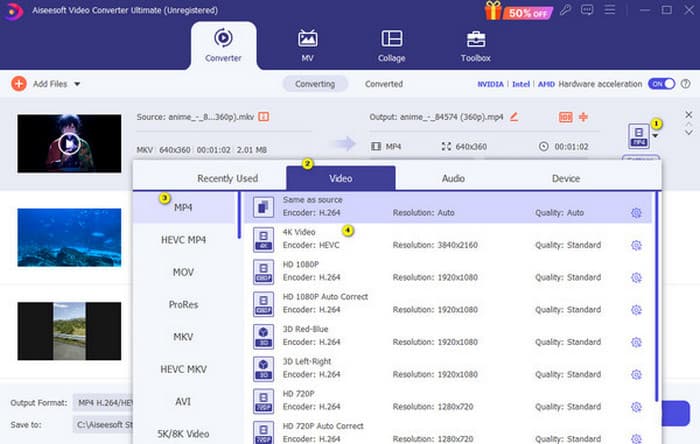
Pasul 3. După importul în masă al fișierelor, este momentul să schimbi formatul de ieșire în MP4. Pentru a face acest lucru, fă clic pe butonul în formă de triunghi inversat din dreptul fiecărui fișier. Apoi mergi la Video > Select MP4 > Select Encoder.
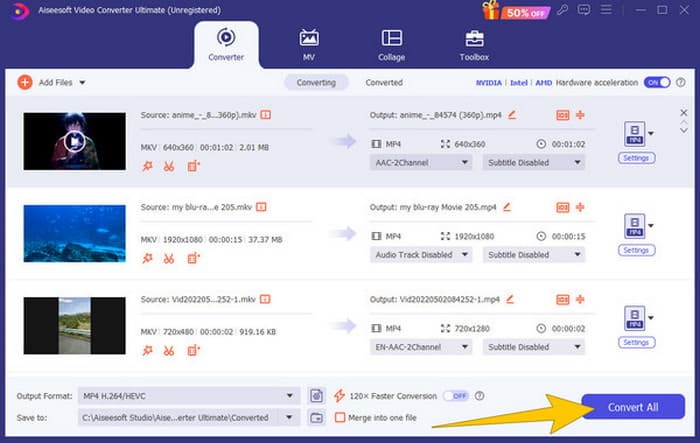
Pasul 4. Atât de simplu: acum poți apăsa pe butonul Convert All pentru a începe procesul de conversie ultra-rapidă.
Pro
- Un software multifuncțional bun pentru conversia, editarea și crearea fișierelor video.
- Oferă o versiune de probă gratuită care vă oferă aceeași putere de conversie.
- Permite conversia în vrac a fișierelor VLC.
- Transformați fișierele VLC la 120 de ori mai rapid.
- Sunt acceptate diferite formate de intrare și ieșire.
Contra
- Va trebui să achiziționați un abonament pentru funcțiile avansate.
Partea 2. Completați pașii pentru a converti fișierele în MP4 în VLC
Deoarece lucrați cu fișiere VLC, este într-adevăr o opțiune bună să le convertiți folosind VLC însuși. Cu toate acestea, spre deosebire de convertorul precedent VLC în MP4, VLC ar putea fi puțin dificil de utilizat când vine vorba de conversie. Acesta este motivul pentru care am făcut procesul mai ușor de urmat cu pașii completi pe care i-am furnizat mai jos.
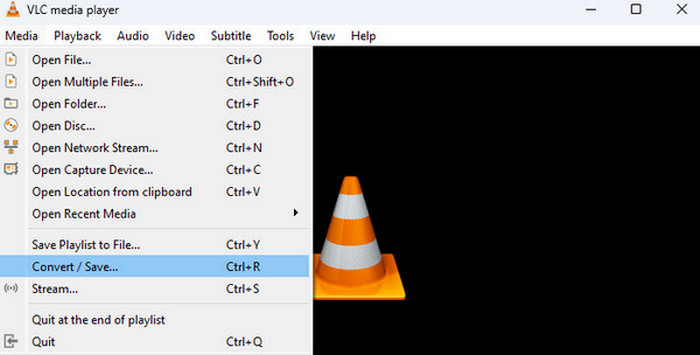
Pasul 1. Deschide VLC pe computer, apoi adu și fișierul video. Cum? Mergi la meniul Media și fă clic pe submeniul Convert/Save.
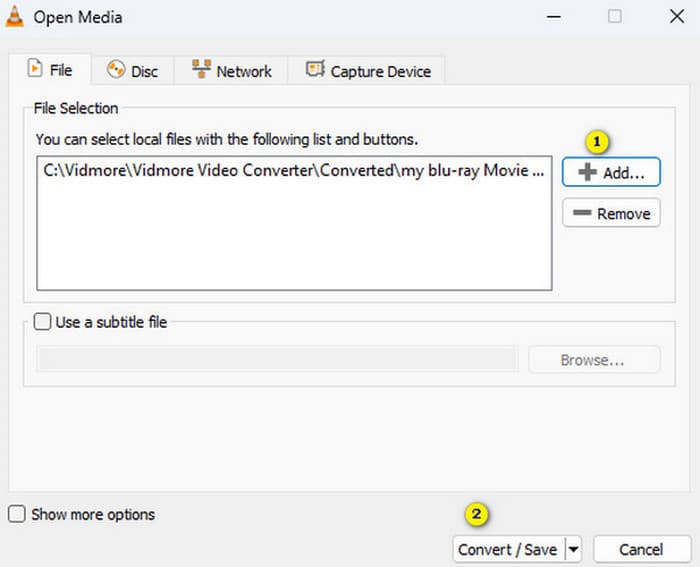
Pasul 2. În fereastra Open Media, fă clic pe butonul +Add pentru a adăuga fișierul. Când fișierul este încărcat, apasă butonul Convert/Save din partea de jos.
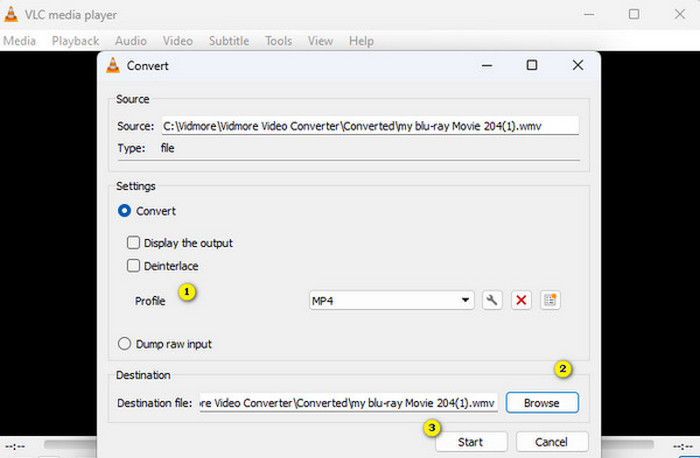
Pasul 3. După aceea, VLC te va duce la următoarea fereastră, unde trebuie să alegi MP4 ca format de ieșire. Pentru aceasta, mergi la secțiunea Profile. Apoi mergi la secțiunea Browse pentru a seta destinația fișierului și apasă butonul Start pentru a începe procesul de conversie.
Pro
- Este un convertor gratuit și un player media.
- Este un convertor multiplatform VLC în MP4.
- Puteți lucra direct cu fișierele VLC fără un instrument terță parte.
- Puteți lucra cu diferite formate video.
Contra
- Procesul de conversie nu este atât de rapid.
- Vine cu o limitare a dimensiunii fișierului la conversie.
Partea 3. Conversia fișierelor din VLC în MP4 online
Presupunând că vrei să faci un pas în plus și să convertești fișiere video online. Dacă este așa, trebuie să înveți cum să convertești fișiere cu FVC Free Video Converter Online. Acest convertor web este creat pentru a face conversia multimedia ușoară și gratuită. Poate converti aproape orice fișier video și chiar audio în diverse formate fără pierdere de calitate. Cu acest convertor, îți poți transforma rapid videoclipurile HD în formate populare, păstrând claritatea lor originală. În plus, îți permite să convertești mai multe fișiere într-un proces de conversie uimitor de rapid!
Acest instrument oferă, de asemenea, funcții de editare prin care puteți ajusta setările video, cum ar fi rata de cadre, rata de biți și rezoluția, precum și setările audio, cum ar fi rata de biți și volumul. Aceasta înseamnă că vă puteți modifica videoclipurile așa cum doriți și să le exportați fără nicio pierdere de calitate! Urmați pașii de mai jos pentru a converti online din VLC în MP4.
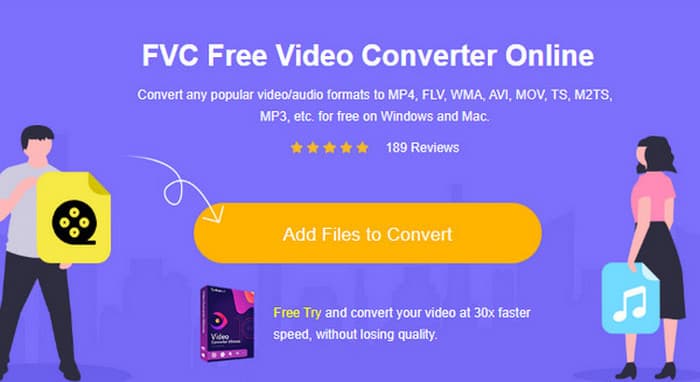
Pasul 1. După ce ai ajuns pe site-ul oficial al convertorului online, fă clic pe butonul Add Files to Convert. Acesta îți va permite să încarci fișierele video inițiale.
Pasul 2. Când fișierele sunt afișate, dă clic pe ele și alege MP4 ca format de ieșire dintre opțiunile afișate în partea de jos a interfeței.
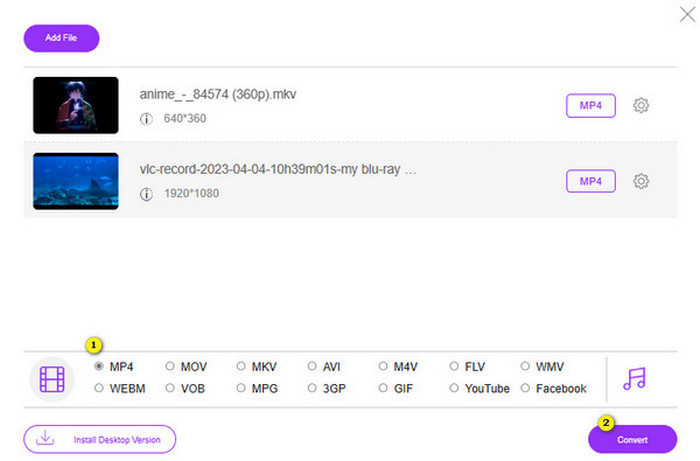
Pasul 3. După ce ai setat toate fișierele pe MP4, este momentul să faci clic pe butonul Convert.
Pro
- Este mult mai accesibil de utilizat.
- Nu necesită nicio instalare de software.
- Puteți converti toate fișierele simultan.
Contra
- Trebuie să aveți o conexiune la internet stabilă pentru un proces de conversie lejer.
Partea 4. Întrebări frecvente despre conversia VLC în MP4
Cum convertești VLC în MP4 pe Mac?
Folosește versiunea pentru Mac a FVC Video Converter Ultimate pentru a-ți converti fișierele video în MP4 fără pierdere de calitate.
Pot folosi VLC pentru a converti videoclipuri criptate sau protejate prin DRM?
Nu. Din păcate, VLC nu poate converti videoclipuri criptate sau protejate prin DRM în MP4 sau în orice alt format.
VLC face o conversie fără pierderi?
VLC oferă opțiuni pentru ajustarea setărilor video și audio pentru a menține cea mai bună conversie fără pierderi.
Concluzie
Vezi tu, conversia fișierelor tale din VLC în MP4 este, de fapt, destul de simplă, atâta timp cât știi ce trebuie făcut. Însă, dacă vizezi viteză și o calitate de top a rezultatului, trebuie să te bazezi pe un convertor puternic, precum FVC Video Converter Ultimate. Acest convertor nu îți va cere să folosești setări detaliate doar pentru a obține rezultate bune, așa cum se întâmplă, de regulă, în VLC.
-
 Procesați pentru a extrage și a înregistra DVD cu VLC pentru a digitaliza formatul redabil
 VLC acceptă numeroase formate de fișiere comprimate audio-video, inclusiv înregistrarea pe DVD-uri. Păstrați mingea în mișcare pentru mai multe discuții și detalii până la final.
-
 Cai excelente posibile | Cum se remediază întârzierea audio VLC [2024]
 Vă este greu să vizionați filmul preferat pe VLC media player din cauza incertitudinii audio? Continuați să citiți acest articol pentru a afla toate modalitățile posibile de a remedia întârzierea audio VLC.
-
 Cum să utilizați VLC pentru a repara videoclipuri | Ghidul tău suprem
 Ai videoclipuri sparte blocate pe fișierele tale? Explorați ghidul final pentru repararea video VLC pentru a vă repara videoclipurile și a le reda cu ușurință.
