


 Video Converter Ultimate
 Screen Recorder
 Reparație video
 Descărcare sigură
5 moduri de a remedia Windows Media Player care nu funcționează pe Windows 7/8/10
Windows Media Player nu mai funcționează. O problemă a făcut ca programul să nu mai funcționeze corect. De asemenea, va reda audio, dar nu și video. Cum se remediază această problemă?
Când Windows Media Player nu mai funcționează, este posibil să primiți eroarea „Windows Media Player a încetat să funcționeze” fără informații specifice despre acesta sau sunteți informat că „Tipul de fișier nu este acceptat”. Chiar și nu există solicitări, iar clicurile dvs. nu funcționează.
There are many reasons causing Windows Media Player not working. The most common problem is that the files are not supported, and it will lead to playing videos without images, or audio, or subtitles. Otherwise, the causes will be very various without any specific prompt. In this case, you have to check all the problems listed in the following article to fix this complex error. But you can also choose the best way to use an alternative video player to watch any video without issues and limitations.

Partea 1: Cel mai bun player media alternativ pe care nu trebuie să-l ratezi
To avoid Windows Media Player not working, you’d better choose a professional alternative. FVC Free Video Player is a free online video player that will solve all of the problems you may encounter when using Window Media Player. It supports playing videos without the limitation of format and resolution. And without downloading any other software, you can play all video formats smoothly.
- 1. Suportă redarea a aproape toate formatele, inclusiv FLV, MKV, RMVB și fișiere DVD sau Blu-ray.
- 2. Redați videoclipuri de înaltă calitate care ating rezoluția 4K.
- 3. Capabil să regleze piesele audio și subtitrările în diferite limbi.
- 4. Faceți o captură de ecran în orice moment când redați videoclipuri.
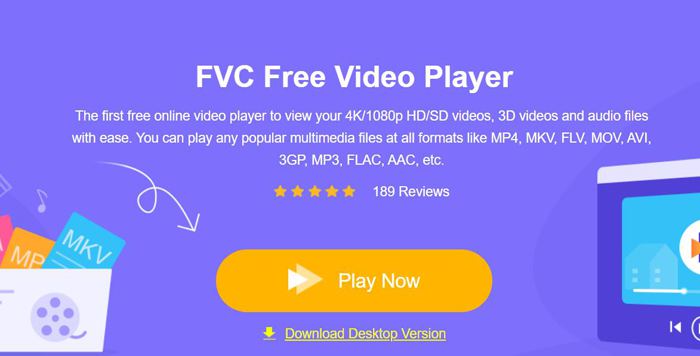
Step 1: Navigate to the website of FVC Free Video Player on any browser. Then click the Play Now button to install the launcher. After a few minutes, click the Play Now button again to start the FVC Free Video Player.
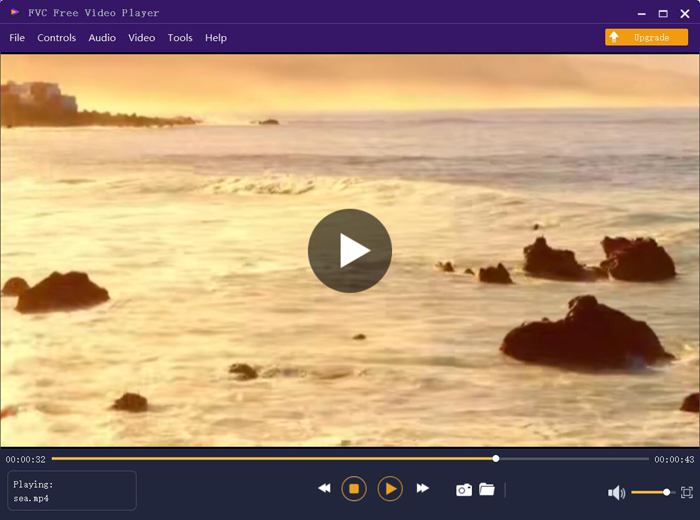
Step 2: Click the Open Files button to choose the desired video. Then it will start playing automatically. In the Control menu, you can see the hotkeys to adjust the volume. And you can also choose the audio or video tracks according to your need. Moreover, if you click the Tools button and choose the Effect option, you can even adjust the hue, brightness, contrast, saturation, and gamma.
Partea 2: Cum se remediază Windows Media Player care nu funcționează pe Windows 7/8/10
Așa cum am menționat anterior, multe motive pot cauza ca Windows Media Player să nu funcționeze și există 3 metode pentru a remedia această problemă în diferite situații.
Metoda 1: Lansați instrumentul de depanare a Windows Media Player
Când Windows Media Player nu răspunde după clicuri, acest mod vă va ajuta să îl rezolvați.
Step 1: Press the Windows and R buttons on your keyboard to start the Run program. Then you should copy and paste msdt.exe -id WindowsMediaPlayerConfigurationDiagnostic in the search bar. Click the OK button to locate to the troubleshooter of Windows Media Player Settings. Then click the Next button to start it.
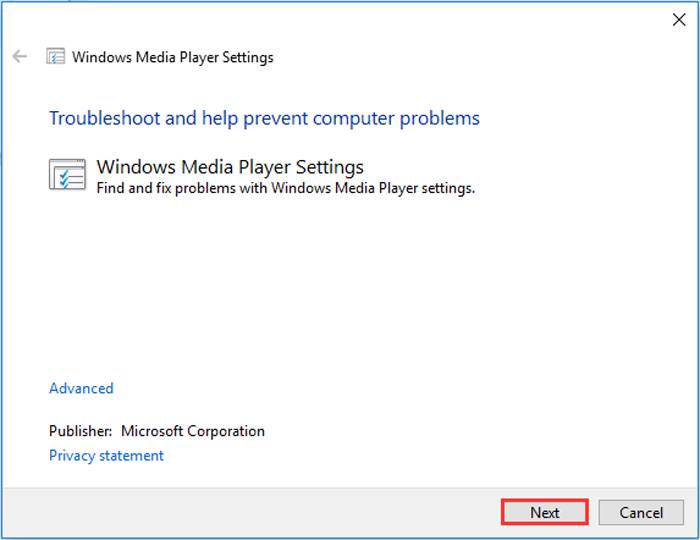
Step 2: After the window pops up, click the Apply this fix button to reset Windows Media Player to the default settings. Then you can try restarting Windows Media Player.
Metoda 2: Instalați alte decodoare pe Windows Media Player
Dacă Windows Media Player nu funcționează cu unele videoclipuri sau audio speciale, puteți descărca decodorul care răspunde pentru a reda aceste videoclipuri.
Step 1: Open Microsoft Store on your computer. Click the Search button, and then input the Video Extension in the search bar. You can download the desired video expansion on your computer.
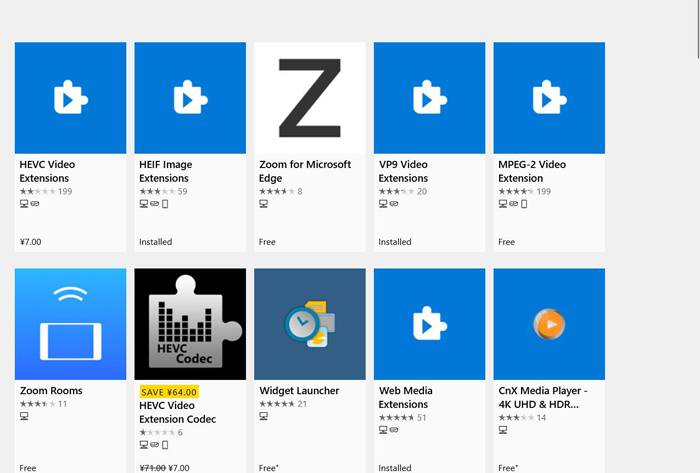
Step 2: After the installation, reopen the videos through Windows Media Player. But you should note that there are still many formats not supported, including FLV, RMVB, etc.
Metoda 3: Reinstalați Windows Media Player.
Dacă metoda menționată nu funcționează, ar trebui să încercați să reinstalați software-ul atunci când Windows Media Player nu mai funcționează.
Step 1: Press Windows and R buttons on your keyboard to open the Run program. Then type optionalfeatures.exe in the search bar. Click the OK button to open or close a function. Then you can cancel the tick of Windows Media Player.
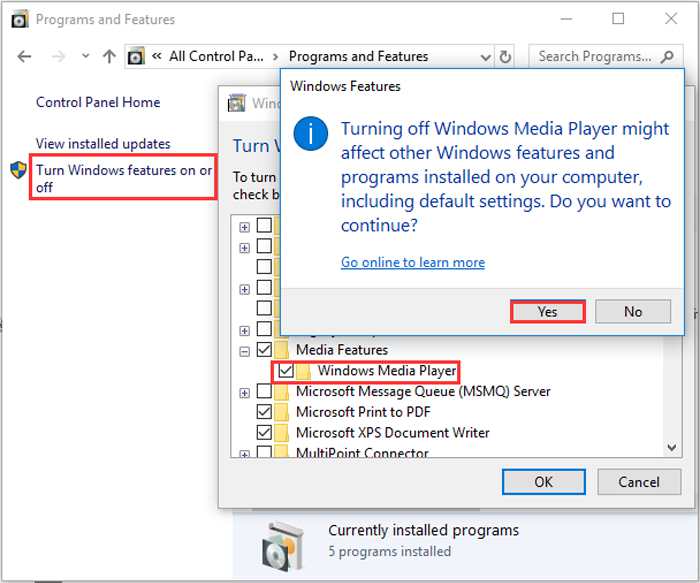
Step 2: Restart your computer and repeat the previous operation. Then tick the Windows Media Player. After that, reboot your computer again, and the software will be installed automatically on your computer.
Cu excepția acestor probleme, Windows Media Player are și multe dezavantaje. Nu puteți regla viteza de redare a videoclipului, iar tastele rapide sunt întotdeauna inutile. Deci, de ce să nu alegeți playerul video online gratuit pentru a rezolva toate problemele?
Partea 3: Întrebări frecvente despre Windows Media Player nu funcționează
1. De ce fișierele video FLV nu pot fi redate pe Windows Media Player?
Although Windows Media Player supports installing multiple decoders to playback videos in some uncommon formats, FLV format is not supported. In this case, you can try downloading Windows Media Player alternatives or converting the video formats.
2. De ce Windows Media Player nu funcționează după actualizările Windows 10?
Poate că Windows Media Player a fost corupt după actualizare. Puteți încerca metoda menționată 3 pentru a reinstala Windows Media Player.
3. Cum se aleg piesele de subtitrare pe Windows Media Player?
Din păcate, nu există nicio opțiune de a alege diferite subtitrări, videoclipuri și piese audio pe Windows Media Player. Puteți alege alte alternative pentru a reda videoclipuri.
Concluzie
Motivele pentru care Windows Media Player nu funcționează vor fi foarte complexe, ceea ce face dificilă soluționarea acestei probleme. Astfel, puteți descărca pur și simplu cel mai bun player media alternativ - FVC Free Video Player pentru a reda videoclipuri fără probleme de înaltă calitate. În acest fel, puteți preveni Windows Media Player să nu funcționeze pentru totdeauna.
-
 Cum să redați DVD pe Windows Media Player în 2021
 De ce DVD-ul meu nu se redă pe Windows Media Player? Cum se joacă DVD pe Windows 7 media player? Această postare împarte 3 moduri de a reda DVD-uri cu sau fără WMP.
-
 6 soluții verificate pentru a remedia videoclipurile care nu se redau pe Chrome
 Pentru a remedia problema că videoclipurile nu se redă pe Chrome, tot ce trebuie să faceți este să citiți soluționarea problemelor noastre și să efectuați soluțiile verificate pe rând.
-
 5 100% Soluții de lucru pentru a remedia videoclipurile care nu se redau pe iPad
 Videoclipurile dvs. nu sunt redate pe iPad? Iată cinci soluții pentru a vă ajuta să scăpați de această problemă și apoi vă puteți bucura cu ușurință de videoclipurile preferate de pe telefon.
