


 Video Converter Ultimate
 Screen Recorder
 Reparație video
 Descărcare sigură
Cum să remediați sunetul de pe iPhone care nu funcționează [3 moduri simple]
Ai încercat nenumărate moduri de a readuce sunetul în videoclipurile tale de pe iPhone, însă tot nu se aude nimic? Ei bine, nu este adevărat că nu există nicio soluție pentru problema sunetului de pe videoclipurile iPhone. Doar că, până acum, ai încercat s-o rezolvi într-un mod în care nu ar trebui făcut. Așadar, în acest articol vom analiza cele mai simple 3 metode de a rezolva problema „iPhone-ul meu nu are sunet la videoclipuri”. Înțelegem că această problemă este cu adevărat enervantă și frustrantă. Dacă te regăsești în această situație și abia aștepți să rezolvi problema sunetului din videoclipurile tale de pe iPhone, citește acest articol, înțelege de ce nu se aude sunetul în videoclipuri și rezolvă problema în consecință.

Partea 1. De ce iPhone-ul meu nu are sunet în videoclipuri
De ce iPhone-ul meu nu are sunet în videoclipuri este într-adevăr o întrebare și o problemă cu care se confruntă mulți. Ei bine, există diverse motive pentru care se întâmplă acest lucru, dar înțelegeți cu adevărat de ce se întâmplă de obicei acest lucru? Următoarele sunt motivele pentru care iPhone-ul nu are sunet la redarea videoclipurilor:
Videoclipul iPhone nu are sunet în fotografii
Photos este o aplicație larg cunoscută de gestionare și editare a fotografiilor realizată de Apple. Este locul în care utilizatorii își pot stoca fotografiile și videoclipurile, le pot vizualiza și edita și multe altele! În timp ce Fotografii este o platformă de renume pentru vizualizarea și redarea videoclipurilor, în unele cazuri redarea videoclipurilor în această aplicație nu are sunet. Următoarele sunt câteva dintre cauzele pentru care videoclipul iPhone nu are sunet în Fotografii:
• Volumul poate fi dezactivat sau setat prea jos. Asigură-te că volumul iPhone-ului este dat mai tare și că butonul lateral pentru sonerie nu este setat pe silențios.
• Fișierul video poate fi corupt, ceea ce face ca pista audio să nu funcționeze corect sau să nu se redea deloc.
• Poate exista o problemă de software sau un bug în aplicația Poze (Photos) care împiedică redarea sunetului.
• Aplicația Poze ar putea avea dificultăți în a citi codec-ul audio al videoclipului, mai ales dacă formatul nu este pe deplin compatibil.
• iPhone-ul poate fi conectat la un dispozitiv Bluetooth, cum ar fi o cască sau o boxă care nu este folosită, iar sunetul este redirecționat către acel dispozitiv.
Videoclipul iPhone nu are sunet în camera foto
Când filmați direct pe iPhone, puteți previzualiza videoclipul redându-l de pe camera foto. Cu toate acestea, unii utilizatori de iPhone nu experimentează niciun sunet atunci când își redă videoclipurile din camera foto, ceea ce îi face să se simtă enervați și nedumeriți de ce videoclipurile lor nu au sunet. Următoarele sunt câteva dintre motivele pentru care sunetul de pe iPhone nu funcționează când este redat în camera foto:
• Microfonul ar fi putut fi blocat sau nu a funcționat corect în timpul înregistrării, ceea ce a dus la lipsa sunetului.
• Dacă iPhone-ul tău este în modul „Nu deranja” (Do Not Disturb), este posibil ca sunetele să nu fie redate atunci când previzualizezi videoclipurile în Galeria foto (Camera Roll).
• iPhone-ul poate fi în modul silențios, ceea ce poate face ca videoclipul să se redea fără sunet.
iPhone nu are sunet Redare videoclipuri în IG
Redarea videoclipurilor pe Instagram poate reprezenta uneori o problemă. Unii experimentează o incapacitate de a reda videoclipul; Există unele cazuri în care doar sunetul nu este redat atunci când videoclipurile sunt redate pe IG. Acum, pentru a înțelege mai bine de ce se întâmplă acest lucru, mai jos sunt motivele pentru care iPhone nu are sunet care redă videoclipuri în IG:
• Instagram poate să fi dezactivat sunetul videoclipului în mod prestabilit, necesitând ca utilizatorii să apese pe pictograma difuzorului pentru a activa sunetul.
• Volumul din aplicația Instagram poate fi redus sau dezactivat, separat de volumul de sistem al iPhone-ului.
• Poate exista un bug temporar sau o eroare în aplicația Instagram, caz în care este necesară repornirea sau actualizarea aplicației.
• O conexiune de rețea slabă sau instabilă poate face ca videoclipul să nu se încarce corect, ceea ce duce la lipsa sunetului.
• iPhone-ul poate fi setat pe modul silențios sau vibrații, ceea ce poate afecta redarea sunetului în aplicația Instagram.
Partea 2. Soluții pentru a remedia niciun sunet pe iPhone care nu funcționează
Acum că înțelegeți câteva dintre motivele pentru care iPhone-ul dvs. nu are sunet în videoclipuri, este timpul să aflați cum să remediați această problemă.
Metoda 1: Utilizarea FVC Video Repair
Când iPhone-ul tău nu are sunet la videoclipuri pentru că redai un fișier video corupt, soluția perfectă este să folosești instrumentul FVC Video Repair. Știm cu toții că atunci când un videoclip este corupt, nu este afectată doar redarea imaginii, ci și sunetul, ducând la probleme precum lipsa completă a sunetului. Coruperea unui fișier video poate perturba sincronizarea dintre pistele audio și video sau poate chiar elimina ori deteriora complet pista audio, rezultând o redare silențioasă. În acest context, instrumentul FVC Video Repair este conceput pentru a rezolva aceste probleme, restaurând atât calitatea vizuală a videoclipului, cât și sunetul însoțitor, asigurând o experiență de redare fluentă și cu sunet.
Pasul 1. Mai întâi, vizitează site-ul lor oficial. Apoi, descarcă instrumentul și instalează-l pe dispozitivul tău.
Descărcare gratuităPentru Windows 7 sau versiuni mai recenteDescărcare sigură
Descărcare gratuităPentru MacOS 10.7 sau versiuni mai recenteDescărcare sigură
Pasul 2. În continuare, adaugă videoclipul deteriorat făcând clic pe butonul Plus roșu, la fel cum ai făcut clic pe butonul Plus albastru pentru a adăuga videoclipul de probă. După aceea, fă clic pe butonul Repair pentru a începe repararea problemei audio.
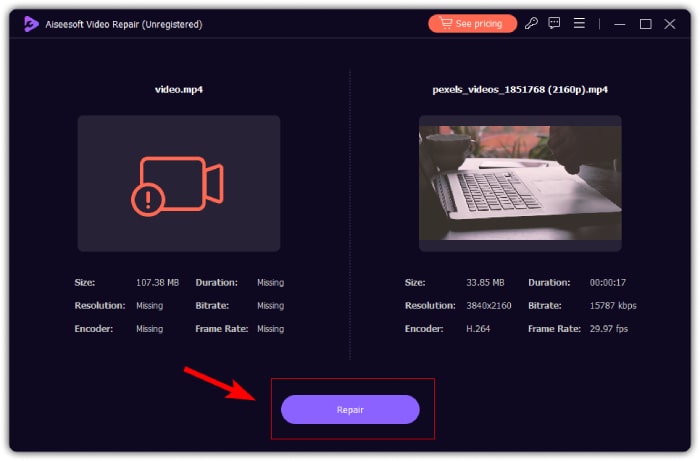
Pasul 3. În cele din urmă, fă clic pe butonul Preview pentru a previzualiza videoclipul reparat și pentru a verifica dacă sunetul a fost restaurat. Dacă procesul de reparare este finalizat cu succes, poți salva fișierul făcând clic pe butonul Save.
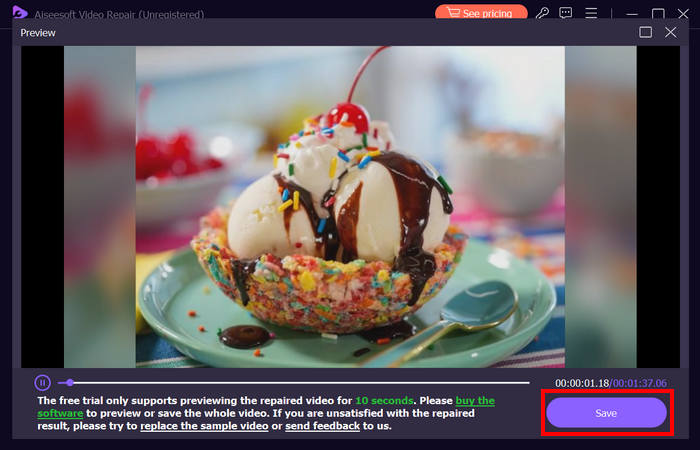
Reparația video FVC poate repara cu adevărat cu ușurință iPhone-ul nu are nicio problemă de sunet la videoclipuri. Cu cel mai recent algoritm AI și detectarea automată a informațiilor vitale și remedierea lor directă, poate restabili eficient sunetul video de pe iPhone.
Metoda 2: Utilizarea FVC Piccked Video Converter Ultimate
Între timp, dacă problema ta se datorează lipsei unei piste audio, ceea ce înseamnă că partea audio a videoclipului este pierdută, coruptă sau nu a fost codificată corect, poți folosi soluția aleasă de FVC, Video Converter Ultimate. Acest instrument te poate ajuta să repari pista audio lipsă prin convertirea videoclipului într-un format compatibil. Pentru a rezolva problema cu iPhone-ul care nu redă sunetul din cauza unei piste audio lipsă, urmează pașii de mai jos:
Pasul 1. Dacă nu ai instrumentul instalat pe computer, descarcă-l și instalează-l mai întâi pe dispozitivul tău.
Descărcare gratuităPentru Windows 7 sau versiuni mai recenteDescărcare sigură
Descărcare gratuităPentru MacOS 10.7 sau versiuni ulterioareDescărcare sigură
Pasul 2. Apoi, adaugă videoclipul al cărui sunet nu se redă pe iPhone făcând clic pe butonul Add Files.
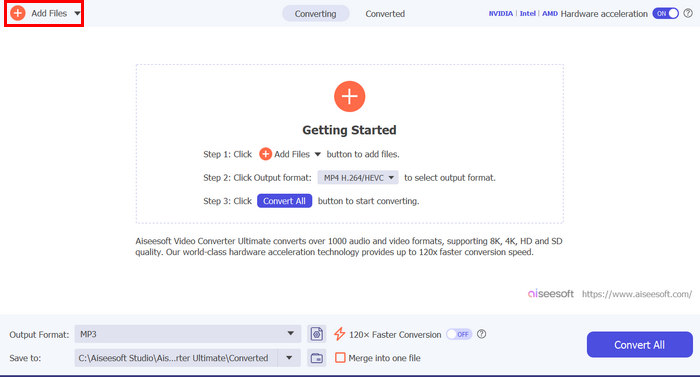
Pasul 3. Acum, fă clic pe Output Format, alege MP3 și selectează din meniu formatul audio dorit pentru videoclipul tău. La final, fă clic pe butonul Convert All pentru a salva fișierul.
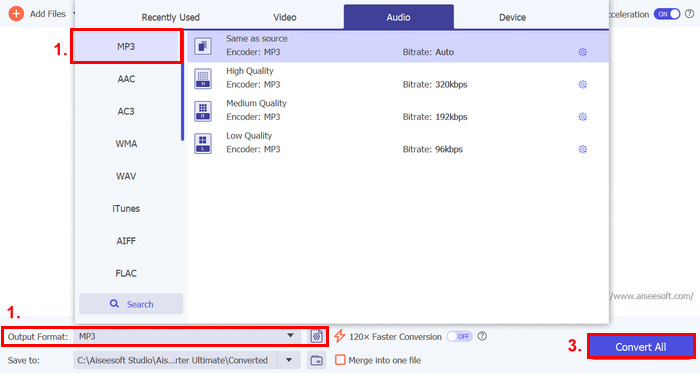
Acest instrument complet cu funcții FVC Video Converter Ultimate este într-adevăr un instrument pentru orice problemă legată de video și audio. Indiferent de problemă, fie un fișier corupt, un codec incorect sau un format neacceptat, acest instrument poate ajuta cu adevărat.
Metoda 3: Reporniți iPhone
Dacă iPhone-ul dvs. are o problemă de sistem care afectează sunetul la redarea videoclipurilor, puteți pur și simplu să reporniți iPhone-ul. În acest fel, puteți reîmprospăta sistemul de operare al dispozitivului, ceea ce poate elimina erorile temporare sau erorile care ar putea cauza problema de sunet. Iată cum puteți pur și simplu să reporniți iPhone-ul pentru a remedia problema iPhone-ului fără sunet la video:
Pentru iPhone X și modelele ulterioare
Pasul 1. Pentru a reporni iPhone-ul, ține apăsat butonul lateral și unul dintre butoanele de volum până când pe ecran apare glisorul de oprire.
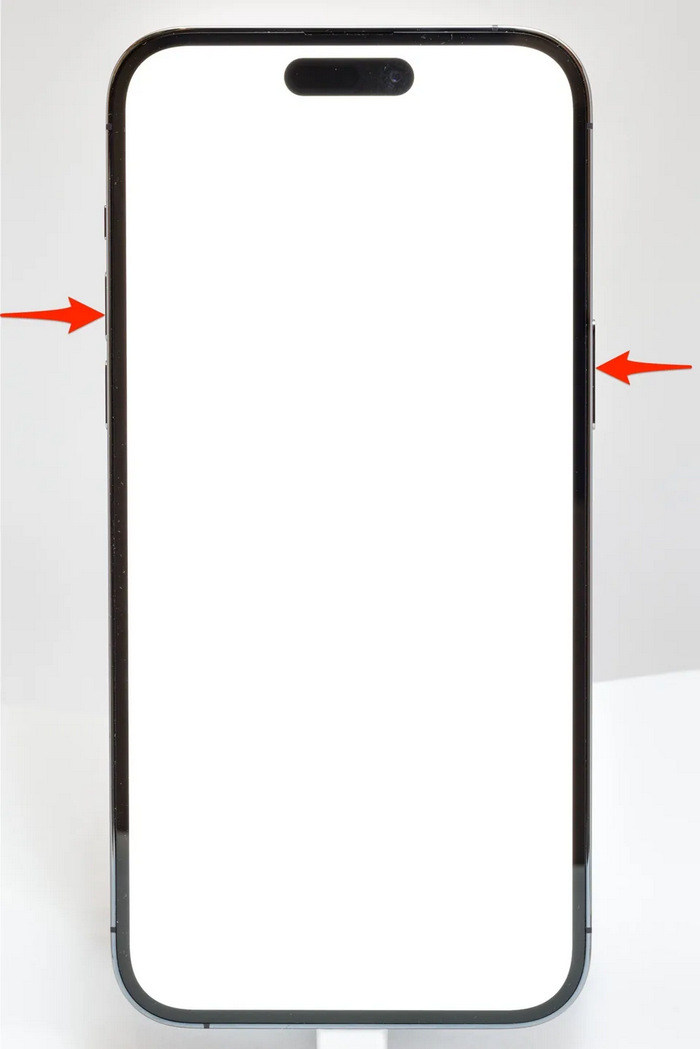
Pasul 2. Glisează pe bara de oprire pentru ca iPhone-ul tău să se închidă.
Pasul 3. Pentru a-l porni din nou, apasă butonul lateral.
Pentru iPhone 6, 7, 8 și SE
Pasul 1. Mai întâi, trebuie să apeși și să ții apăsat butonul lateral.
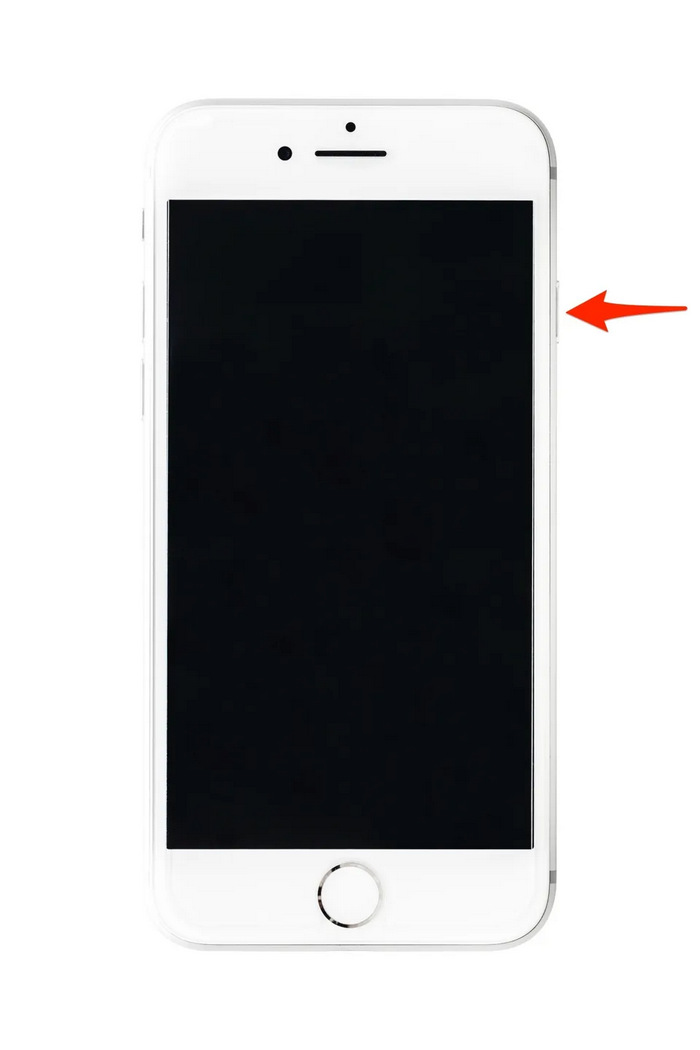
Pasul 2. Așteaptă până când apare glisorul de oprire și glisează pentru a opri dispozitivul.
Pasul 3. Pentru a-l porni din nou, apasă butonul lateral.
Aceste metode sunt simplu de realizat și nu vă va cere să utilizați niciun instrument terță parte. Cu toate acestea, aceasta este o soluție de bază și obișnuită și nu garantează o reparație completă pentru acest iPhone nu are probleme de sunet la video.
Partea 3. Întrebări frecvente despre Stellar Repair for Video
Ce iPhone-uri acceptă sunet Dolby Vision sau DTS?
iPhone-urile din seria iPhone 12 și cele mai noi acceptă Dolby Vision, care îmbunătățește calitatea video cu culori și contrast mai bune. Cu toate acestea, iPhone-urile nu acceptă direct sunetul DTS, deoarece folosesc alte tehnologii audio precum Dolby Atmos.
Puteți juca FLAC auan dio pe iPhone?
Da, puteți reda audio FLAC pe iPhone, dar veți avea nevoie de o aplicație terță parte, cum ar fi VLC sau de un player audio specializat, deoarece aplicația Muzică încorporată a iPhone-ului nu acceptă FLAC în mod nativ.
Videoclipurile vor reda sunet în modul silențios pe iPhone?
Nu, videoclipurile nu vor reda sunet dacă iPhone-ul tău este în modul silențios. Pentru a auzi sunetul, va trebui să dezactivați modul silențios prin răsucirea comutatorului de pe partea laterală a iPhone-ului.
Concluzie
Cauzele problemei „iPhone-ul nu are sunet la videoclipuri” sunt variate, la fel și soluțiile pentru a le remedia. Acum că știi cum să rezolvi această situație, sperăm să nu te descurajezi dacă te mai confrunți cu ea și pe viitor. Însă, deocamdată, dacă ai aceeași problemă, poți încerca oricare dintre metodele prezentate în acest articol.
-
 Top 2 metode pentru a converti FLV în video iPhone gratuit
 Acest ghid concret împărtășește două moduri ușoare de a vă ajuta să învățați cum să convertiți fișiere FLV în video iPhone sau în multe alte formate fără a plăti un ban.
-
 [Rezolvat] Cum să remediați videoclipurile care nu sunt redate pe iPhone cu pași detaliați
 Videoclipurile locale din galerie nu pot fi redate pe iPhone-ul dvs. prin intermediul playerului video implicit? Videoclipurile YouTube online care nu se redă pe iPhone se întâmplă întotdeauna? Iată 5 soluții pentru a vă ajuta în acest articol.
-
 Ghid concret pentru încărcarea videoclipurilor FLV pe YouTube
 Încărcați FLV pe YouTube, dar nu a reușit? Puteți rezolva această problemă pe cont propriu și puteți converti FLV în codecuri acceptate de YouTube urmând ghidul nostru pas cu pas.
