


 Video Converter Ultimate
 Screen Recorder
 Reparație video
 Descărcare sigură
VLC Rip DVD: Cum să convertiți cu ușurință un DVD folosind VLC [2024]
Cu siguranță, vizionarea de filme pe un DVD player a fost cândva parte din viața ta? Spune-ne, unde ai vizionat primul tău desen animat sau film când erai copil? Senzație nostalgică, nu? Astăzi, cu Netflix depășind toate platformele de streaming media, vizionarea de filme nu a fost niciodată mai ușoară și mai accesibilă ca niciodată. Cu aceasta, multe discuri sunt acum trecute cu vederea, așteaptă să se putrezească în timp.
Acum, dacă ești în căutarea unei modalități de a-ți salva colecțiile, singura cale prin care poți face asta este să copiezi fiecare disc cu ajutorul VLC. VLC este un player multimedia gratuit care le permite utilizatorilor să redea, să convertească și să repare diverse tipuri de fișiere video. În plus, acest instrument poate copia DVD-uri, extrăgând conținutul media de pe ele. Așadar, în acest articol am pregătit un ghid care te poate ajuta să copiezi DVD-uri folosind VLC. Pe lângă asta, la finalul articolului te așteaptă o alternativă la VLC, care ar putea oferi funcții mai simple și mai avansate. Ce mai aștepți? Derulează în jos acum și aprofundează acest articol.

Partea 1. Extrageți DVD-ul pe VLC
VLC este o aplicație software de redare media disponibilă pentru utilizatorii Windows, macOS și Linux. Acest instrument este cunoscut pe scară largă pentru caracteristicile sale, permițând utilizatorilor nu doar să reda diverse videoclipuri prin intermediul acestuia, ci și să extragă DVD-ul, făcându-l mai accesibil și mai redat pe diferite dispozitive. Ceea ce face acest instrument este că extrage conținutul de pe disc și apoi îl convertește într-un fișier video digitalizat care poate fi ușor stocat sau partajat.
Preț: complet gratuit 100%
Iată un ghid pas cu pas despre cum să copiezi DVD-uri folosind VLC:
Pasul 1: Mai întâi, trebuie să descarci și să instalezi VLC pe dispozitivul tău. După aceea, introdu discul.
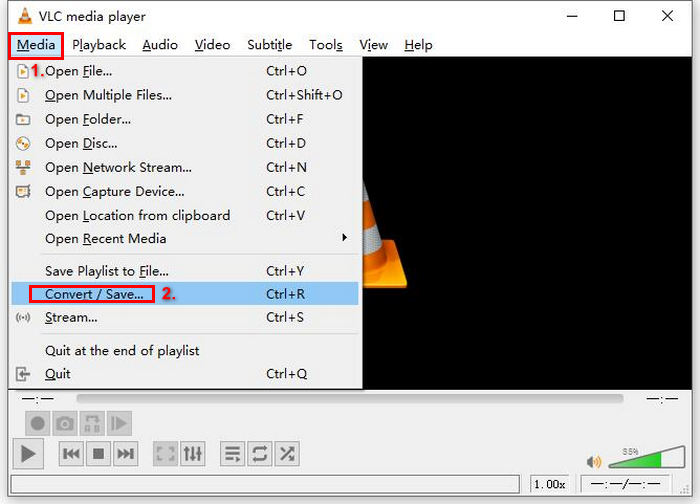
Pasul 2: Apoi, mergi la fila Media și selectează opțiunea Convert/ Save din listă.
Pasul 3: După aceea, dă clic pe Disc din fila de sus, activează opțiunea DVD și selectează DVD-ul pe care vrei să îl copiezi în Disc device.
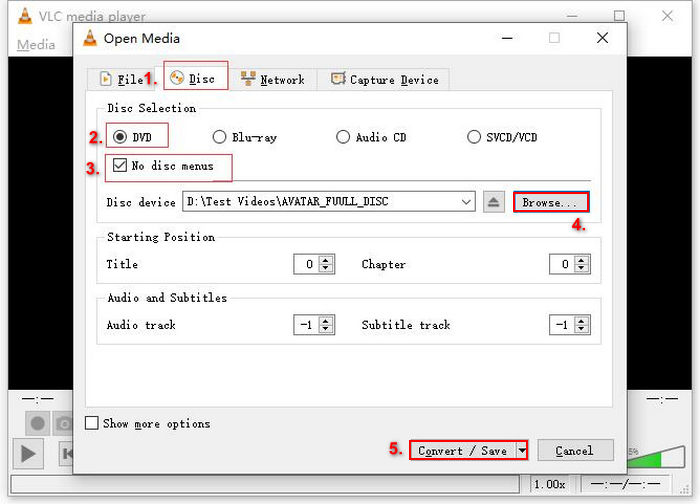
Pasul 4: Acum, dă clic pe butonul Convert/ Save și setează formatul de ieșire la MKV făcând clic pe meniul derulant de profil de mai jos.
Pasul 5: Apoi, în secțiunea Destination de mai jos, dă clic pe Browse, selectează un folder și dă un nume fișierului de ieșire.
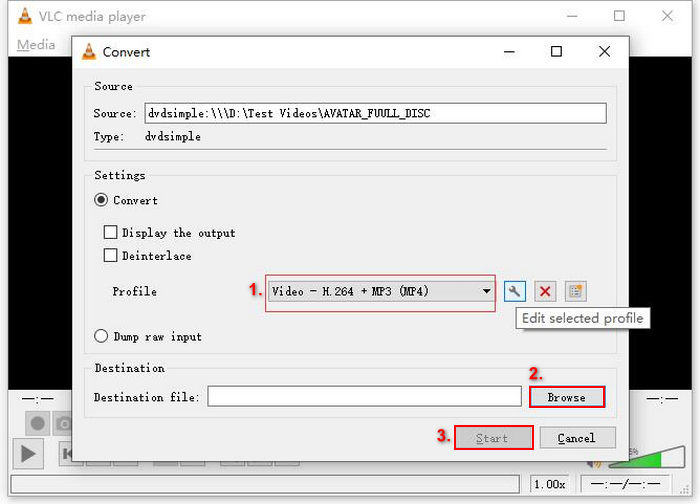
Pasul 6: Când totul este setat, dă clic pe butonul Start pentru a copia DVD-ul cu VLC.
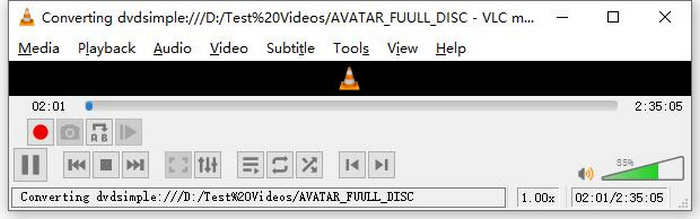
Notă: Poți vedea bara de progres Converting în partea de jos. Pur și simplu așteaptă ca VLC să finalizeze copierea.
Comentariu:
Ceea ce ne place la VLC Media Player este că este cu adevărat fiabil și versatil, mai ales pentru utilizatorii care caută o opțiune gratuită de a extrage DVD-uri. Cu toate acestea, în ciuda acestei caracteristici, interfața sa poate fi puțin tehnică pentru începători, iar procesul poate părea lung în comparație cu software-ul de extracție DVD mai specializat și dedicat. În plus, poate avea probleme cu unele discuri protejate la copiere, limitându-și eficacitatea în aceste cazuri. Cu toate acestea, este încă recomandabil să extrageți DVD-uri pe VLC.
Partea 2. Alternative VLC DVD Ripper
Dacă sunteți în căutarea unui instrument alternativ pentru a extrage DVD-uri în afară de VLC, AnyMP4 DVD Ripper este cea potrivită pentru dvs. Această alternativă la VLC DVD ripper este un instrument complet funcțional care acceptă o serie de formate de ieșire video utilizate pe scară largă, inclusiv MP4, MOV, AVI, MKV și multe altele. Cu acesta, puteți converti cu ușurință DVD-urile în formate digitale pentru redare pe diverse dispozitive fără a pierde din calitate. Capacitatea sa de extragere DVD este remarcabilă, acceptând conversia oricărui DVD, cum ar fi DVD-uri de casă, comerciale, de antrenament și DVD-uri cu 99 de titluri.
Descărcare gratuităPentru Windows 7 sau versiuni ulterioareDescărcare sigură
Descărcare gratuităPentru MacOS 10.7 sau versiuni ulterioareDescărcare sigură
Pași pentru extragerea unui DVD folosind AnyMP4 DVD Ripper:
Pasul 1: Mai întâi, trebuie să descarci și să instalezi instrumentul pe dispozitivul tău. Nu uita să introduci DVD-ul în unitatea DVD a computerului și să aștepți câteva minute până când este detectat.
Descărcare gratuităPentru Windows 7 sau versiuni ulterioareDescărcare sigură
Descărcare gratuităPentru MacOS 10.7 sau versiuni ulterioareDescărcare sigură
Pasul 2: Acum, pornește instrumentul și fă clic pe "Load DVD" pentru a încărca discul.
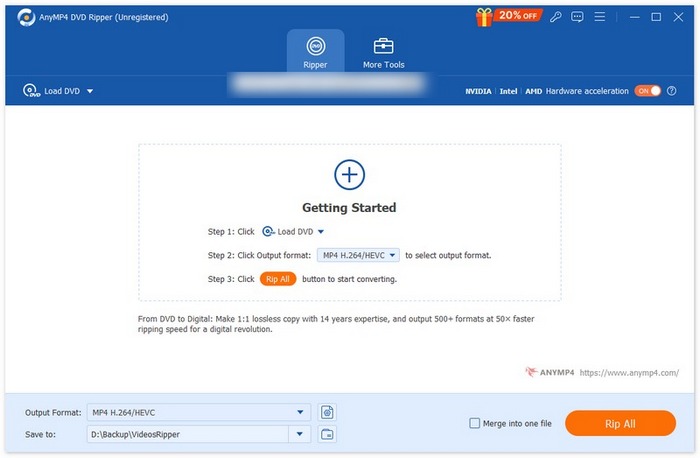
Pasul 3: După aceea, fă clic pe "Output Format" de mai jos și alege formatul video dorit din fila "Video". Prin acest proces, poți transforma DVD-ul într-un fișier video care este mai ușor de accesat și compatibil cu diverse dispozitive. După ce ai terminat, dă pur și simplu clic pe butonul "Rip All" pentru a începe copierea DVD-ului.

Mult mai ușor, nu-i așa? AnyMP4 DVD Ripper este cu adevărat o alternativă excelentă la un ripper de DVD-uri VLC. De la interfața sa, procesul de ripping și alte caracteristici necesare, acest instrument schimbă regulile jocului și este mult mai bun decât modul în care VLC rippează DVD-uri.
Partea 3. Întrebări frecvente despre extragerea DVD-urilor pe VLC
Care este cel mai bun format pentru a extrage un DVD?
Cel mai bun format pentru extragerea unui DVD depinde de dispozitivul utilizatorului. Cu toate acestea, MP4 este un format video utilizat pe scară largă și frecvent. Deci, atunci când extrageți un DVD, cel mai sigur format pe care îl puteți alege este MP4.
Pot extrage un DVD pe Windows 7?
Da. Puteți extrage un DVD pe Windows 7 folosind VLC Media Player. VLC acceptă o varietate de sisteme de operare, inclusiv Windows 7. Când vine vorba de extragerea DVD-urilor pe VLC, trebuie doar să urmați același proces ca și pe alte versiuni de Windows. Dar asigurați-vă că unitatea DVD este funcțională și că VLC este actualizat pentru a evita problemele de compatibilitate.
Cât durează să extragi un DVD?
Timpul necesar pentru a copia un DVD variază în funcție de mai mulți factori. Este esențial să iei în considerare dimensiunea DVD-ului, viteza unității DVD și setările pe care le alegi pentru copiere, de exemplu rezoluția, formatul etc. De obicei, copierea unui DVD standard poate dura între 20 de minute și peste o oră. Copierile de calitate mai ridicată și fișierele de dimensiuni mai mari necesită, în general, mai mult timp de procesare. Dacă vrei să afli viteza de redare în VLC, verifică aici.
Pot extrage DVD-uri protejate la copiere cu VLC?
Nu. Este greu pentru orice software să extragă DVD-uri protejate la copiere din cauza protecțiilor de criptare și de gestionare a drepturilor digitale.
Concluzie
Acum că știi cum să copiezi DVD-uri folosind VLC, nu mai ai niciun motiv să păstrezi toate DVD-urile la nesfârșit. Urmează acest ghid și poți converti toate discurile într-un fișier digital pe care îl poți reda oriunde și pe orice dispozitiv dorești. Între timp, dacă VLC nu funcționează la tine, poți încerca AnyMP4 DVD Ripper ca alternativă. Ești pregătit? Hai să începem și să trecem la copiere.
-
 Cum să transmiteți filme DVD de pe PC / Mac pe TV prin Chromecast
 Nu știți cum să vizionați filme DVD pe TV prin Chromecast? Acest articol arată cel mai simplu mod de a proiecta filme DVD de pe computer pe televizor prin Chromecast.
-
 Android DVD Player – Cum să redați videoclipuri DVD pe telefoanele mobile Android
 Cum să redați fișiere DVD pe telefoanele mobile Android? Există playere DVD Android? În acest articol, veți afla despre 3 moduri de a reda videoclipuri DVD pe telefoane mobile Android cu sau fără driver extern.
-
 Cele mai bune 3 alternative la DVDFab Player pentru a reda videoclipuri DVD pe PC
 Merită cumpărat DVDFab Player? Poate reda videoclipuri 4K? Ce zici de versiunea sa plătită? Acest articol vă va prezenta caracteristicile în detaliu și există cele mai bune 3 alternative la DVDFab Player pentru a alege.
