


 Video Converter Ultimate
 Screen Recorder
 Reparație video
 Descărcare sigură
Cum să înregistrezi pe PS4 prin implicit și cele mai bune alternative
PS4, sau PlayStation 4, i-a impresionat pe mulți jucători cu puterea sa grozavă și performanțele excelente încă de la lansare. Chiar și acum, este încă o parte importantă din viața multor gameri datorită gamei largi de jocuri și a capacității sale de a face mai mult decât simplu gaming. Atunci când joci jocurile tale preferate pe PS4, este perfect normal să vrei să surprinzi acele momente epice pentru a le împărtăși cu alții, nu-i așa? Indiferent de motivele tale, să știi cum să înregistrezi pe PS4 este destul de important. De aceea suntem aici să te ajutăm!
În această postare, vom detalia pașii pe care trebuie să-i urmezi pentru a-ți înregistra jocul pe consola ta preferată folosind modul implicit, împreună cu cele mai bune alternative pe care le poți folosi! Așadar, acordați atenție și urmăriți îndeaproape pentru a vă asigura că ați înțeles bine.

Partea 1. Cum să înregistrați ecranul PS4 la calitate completă, fără limită, în afară de modul implicit
Deoarece PS4 are o limită de timp pentru înregistrare, hai să trecem mai întâi la cea mai bună alternativă. Așadar, cum cauți să îți înregistrezi sesiunile de gaming pe consolă, FVC Screen Recorder este o opțiune de încredere. Acesta este un software desktop care se concentrează pe capturarea gameplay‑ului, împreună cu ecrane, videoclipuri, sunete, telefoane și altele. Cu suport pentru înregistrare fără pierderi la 60 de cadre pe secundă, poți înregistra jocurile lin și la calitate înaltă. În plus, este deosebit de util pentru cei care au ca sarcină capturarea unui gameplay nelimitat. Mai mult, acest FVC Screen Recorder oferă opțiuni de editare și partajare a clipurilor înregistrate pe diverse platforme precum YouTube, Twitter, Facebook, Instagram și multe altele.
Ceea ce este mai interesant este că oferă preferințe în care vă puteți personaliza înregistrările pentru a se potrivi nevoilor dvs. Astfel, fie că este vorba de ajustarea setărilor de ieșire, de curățarea vocii off cu anularea zgomotului sau de încorporarea camerei web într-un mod imagine în imagine, acest instrument vă ascunde! De asemenea, cu funcții precum instantanee, partajare rapidă către site-uri web populare și îmbunătățiri, acest recorder de ecran este încă un instrument versatil pentru jucători. Prin urmare, iată cum să înregistrați un ecran PS4 fără limitări de timp.
Pasul 1. Mai întâi, trebuie să descarci versiunea potrivită a recorder‑ului de joc pe computerul tău și să o deschizi. Înainte să începi înregistrarea, asigură‑te că PS4‑ul tău este conectat la același computer prin screencast Remote Play.
Descărcare gratuităPentru Windows 7 sau versiuni mai noiDescărcare sigură
Descărcare gratuităPentru MacOS 10.7 sau versiuni mai noiDescărcare sigură
Pasul 2. Când se deschide software‑ul de înregistrare, vei avea câteva opțiuni de ales. Dar pentru această sarcină, apasă pe instrumentul Game Recorder. Acum, alege fereastra în care este proiectat PS4‑ul tău apăsând butonul săgeată din prima căsuță de selecție. Apoi, setează liber celelalte opțiuni în funcție de preferințele tale.
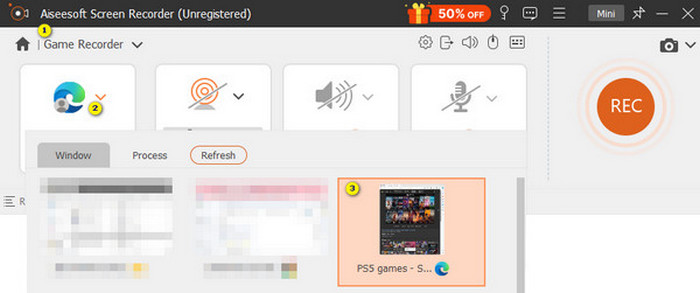
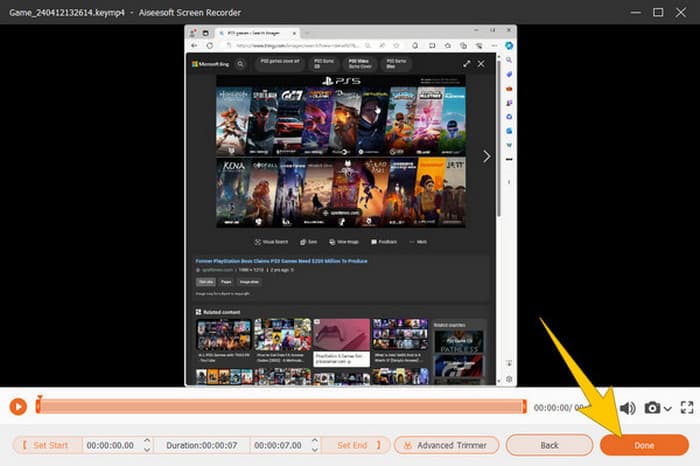
Pasul 3. După configurare, fă clic pe butonul REC pentru a începe înregistrarea. Când ai terminat de înregistrat, apasă butonul Stop. După aceea, software‑ul te va duce la o fereastră unde poți face unele ajustări înregistrării tale. Poți tăia (trim), face capturi de ecran și regla volumul, dacă dorești. Apoi, apasă butonul Done pentru a continua salvarea fișierului.
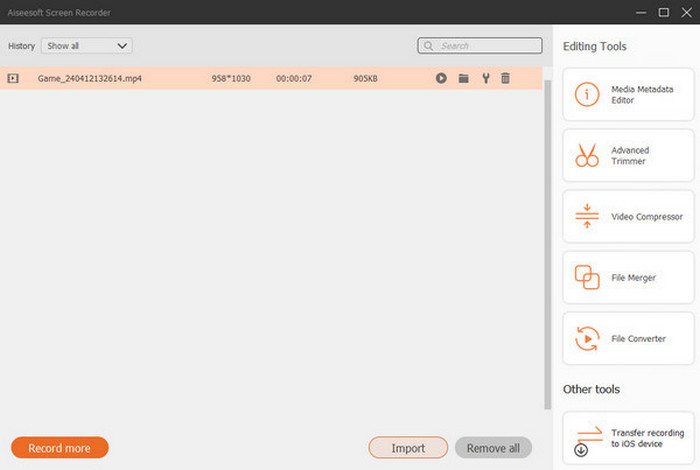
Pasul 4. După ce videoclipul este salvat, va apărea o fereastră nouă. Poți încerca să dai clic dreapta pe jocul înregistrat, apoi să alegi o setare avansată pe care vrei să o aplici. De asemenea, poți alege să îl distribui pe platforma dorită, dacă vrei. Așa poți înregistra ecranul PS4 fără nicio limită.
Partea 2. Cum să înregistrezi pe PS4 în mod implicit
În afară de recorder‑ul de joc de la terți, ai și un recorder integrat în PS4. Acum, să trecem la pașii de utilizare a recorder‑ului PS4 integrat.
Pasul 1. Pornește PS4‑ul și selectează jocul pe care vrei să îl înregistrezi. Apoi intră în jocul ales și începe să te joci. Când ești gata să începi înregistrarea, apasă pur și simplu de două ori rapid pe butonul Share de pe controller.
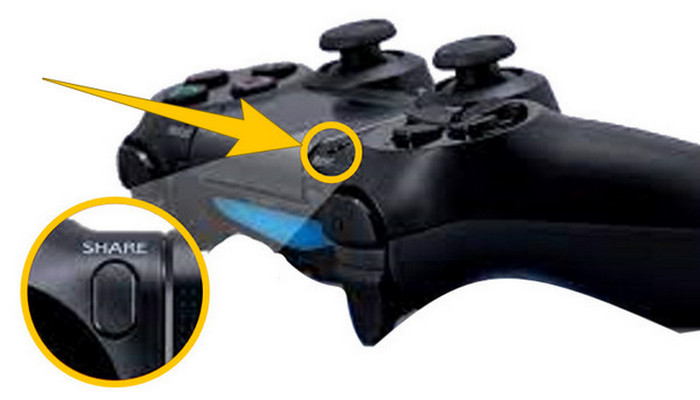
Pasul 2. Vei fi notificat că înregistrarea a început. Dar cum oprești înregistrarea gameplay‑ului pe PS4 după ce ai terminat? Pentru asta, trebuie doar să ții apăsat butonul Share mai mult timp.
Pasul 3. După aceea, vezi înregistrarea accesând Main Menu și apoi selectând Capture Gallery din opțiunile afișate.
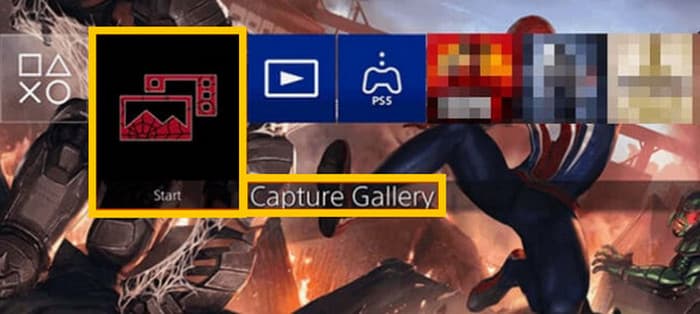
Partea 3. Cum să înregistrezi jocul pe PS4 utilizând un card de captură
O altă alternativă populară la recorderul PS4 implicit este utilizarea unui card de captură. Sigur! O cartelă de captură vă va ajuta să vă conectați PS4 la alte dispozitive și vă va permite să înregistrați totul pe PS4. Dacă nu știați despre acest da, atunci continuați să citiți și urmați instrucțiunile pe care le oferim mai jos.
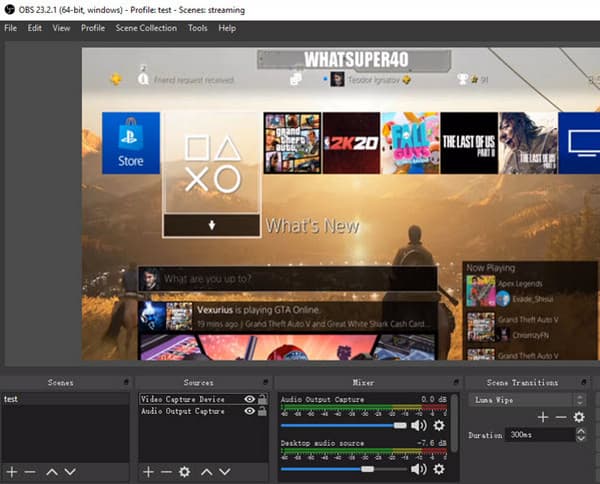
Pasul 1. Conectează placa de captură la PS4, la computer și la monitorul TV prin HDMI. Apoi, asigură‑te că pe computer este instalat OBS pentru ca înregistrarea să funcționeze.

Pasul 2. Acum configurează PS4‑ul navigând la Settings și selectând System, apoi System Information. De acolo, bifează opțiunea Enable HDCP.
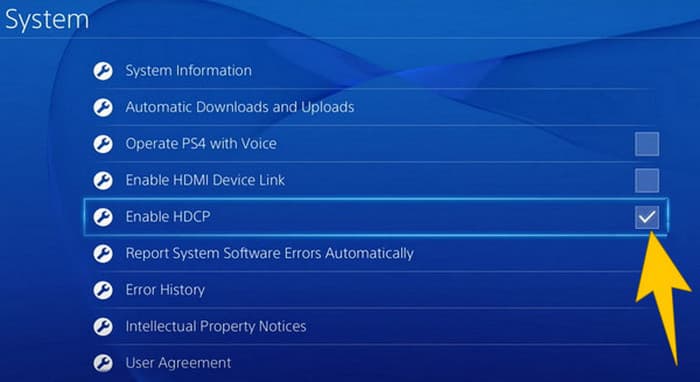
Pasul 3. Lansează OBS, apoi mergi la Source Section>Plus>Video Capture Device, și apoi fă clic pe butonul OK. Acum poți apăsa butonul Start Recording și începe să te joci pentru a înregistra gameplay‑ul. Pentru a opri înregistrarea, apasă oricând butonul Stop Recording.
Partea 4. Întrebări frecvente despre înregistrarea pe PS4
Cum să oprești înregistrarea jocului pe PS4?
Pentru a opri înregistrarea jocului folosind recorderul implicit al PS4, trebuie doar să apăsați lung butonul Partajare. După apăsarea acestui buton, veți vedea opțiunea Opriți înregistrarea pe ecran. Faceți clic pe el pentru a-l aplica.
Am nevoie de software special pentru a utiliza o cartelă de captură pe PS4?
Da. Practic, ai nevoie de un software special precum OBS pentru ca placa de captură să funcționeze cu PS4‑ul tău. În afară de asta, vei avea nevoie și de dispozitive de afișare și conectori, precum cabluri HDMI și USB, pentru a realiza cu succes înregistrarea ecranului folosind o placă de captură.
Care sunt limitările înregistrării pe PS4 pe reportofonul încorporat?
Este adevărat că funcția de înregistrare încorporată pe PS4 are limitări la înregistrare. Cele mai comune limite sunt în lungimea și calitatea jocului înregistrat.
Concluzie
Acestea sunt instrucțiunile despre cum să înregistrezi pe PS4. Poți înregistra folosind metoda integrată a consolei, o placă de captură și software specializat, optim pentru înregistrarea ecranului. Însă nu vrem să treci cu vederea limitările recorder‑ului integrat, care te împiedică să surprinzi înregistrări lungi și de calitate. În același mod, plăcile de captură pot avea și ele limitări, în funcție de hardware‑ul computerului și capacitatea de stocare. Așadar, dacă nu vrei ca aceste limitări să te încurce, alege FVC Screen Recorder ca cea mai bună opțiune.
-
 Cum să înregistrați cascadorii epice, clutches sau tutoriale pe Minecraft
 Vrei să știi cum să-ți înregistrezi cascadorii pe Minecraft? Atunci citiți acest articol așa cum vă oferim.
-
 Cum să înregistrezi pe PS5 în 2 moduri finale fără limită
 Acest articol vă va arăta modalități excelente de a învăța cum să înregistrați jocul pe PS5. Modalități implicite și nelimitate se găsesc în acest ghid de articol! Așa că citește-l acum!
-
 Ghid detaliat despre cum să redați fișiere MKV pe PS4 [Actualizat 2024]
 Citind acest articol veți afla câteva modalități despre cum să redați MKV pe PS4 și cum să convertiți fișierul video în cazul în care videoclipul nu va fi redat.
