


 Video Converter Ultimate
 Screen Recorder
 Reparație video
 Descărcare sigură
Mod simplificat de a înregistra Blu-ray pe OBS Studio și alte instrumente posibile
Discul Blu-ray stochează cea mai înaltă calitate pe care o poate oferi un disc. Poate salva un videoclip cu o rezoluție de până la 1080 pixeli. La fel ca în cazul audio, produce un sunet cristalin, mai bun decât CD-urile. De asemenea, nu trebuie să îți faci griji în privința fișierelor de volum mare pe Blu-ray, deoarece are foarte mult spațiu. În continuare, OBS Studio este un program open-source, gratuit, care poate fi descărcat. Acceptă platforme precum Windows, macOS și Linux. În plus, este perfect pentru înregistrarea audio și video a ecranului computerului tău. Unii utilizatori consideră dificilă înregistrarea de pe Blu-ray în studio. Așadar, rămâi pe loc și citește articolul pentru a afla cum să înregistrezi filme Blu-ray cu OBS și ce recorder profesionist ar trebui să folosești pentru a obține un video de înaltă calitate.

Partea 1. Cum se înregistrează filme Blu-ray cu OBS Studio
Cunoscut pentru a fi un instrument puternic fără streaming, OBS Studio primește actualizări regulate din cauza sponsorilor lor influenți Youtube, Twitch, Facebook, API.video, own3d.pro și multe alte platforme. Nu este nevoie să vă faceți griji cu privire la streaming din cauza acestor platforme majore. Pe de altă parte, își construiește numele ca fiind cel mai complex instrument de înregistrare și mai puțină îndrumare. Dar dacă doriți streaming simplu, nu este nevoie să vă scufundați în setări complicate. Mai mult, transformați-vă în dificultate în gestionabil citind acest articol pentru pașii și detaliile despre OBS Studio.
Iată câțiva pași despre modul de utilizare a OBS Studio:
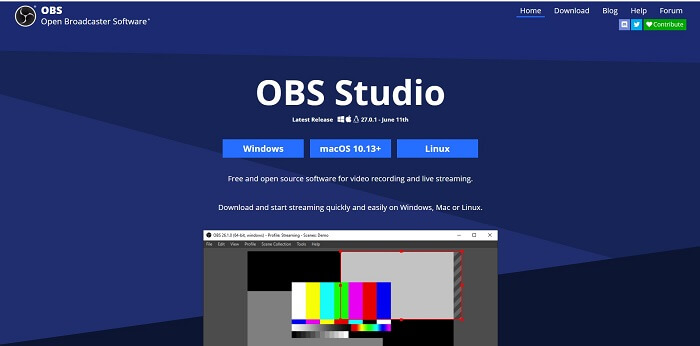
Pasul 1. Deschide browserul. Apoi alege ce sistem de operare folosești în prezent, descarcă programul, configurează-l, instalează-l și apoi apasă pe Finish pentru a lansa unealta.
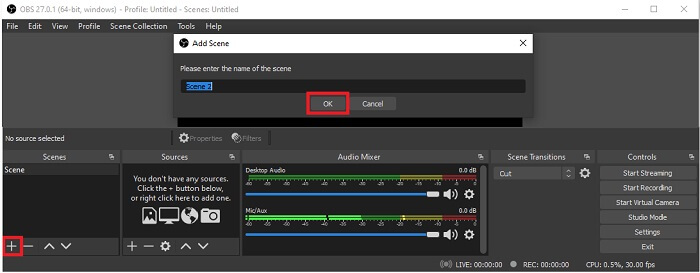
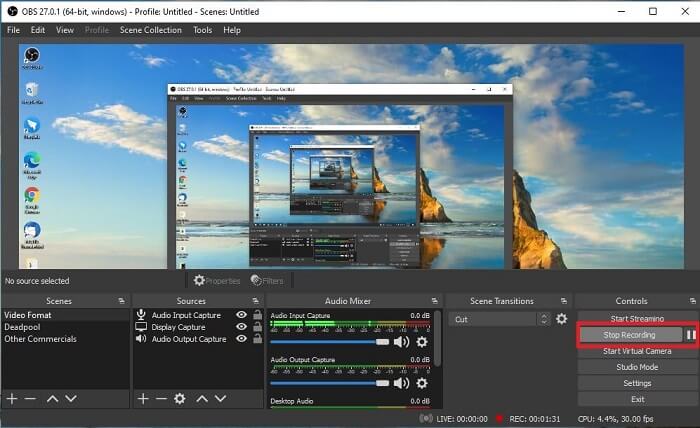
Pasul 2. Mergi la panoul Scenes, dă clic pe pictograma Add pentru a adăuga o scenă, apoi denumește-o. Apasă pe OK pentru a continua.
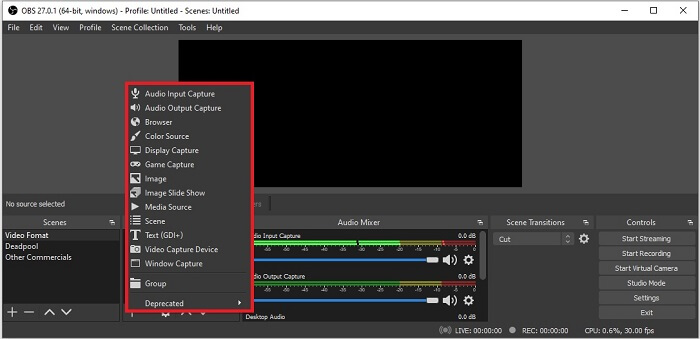
Pasul 3. Mergi la panoul de surse. Dă clic pe pictograma Plus, apoi vor apărea mai multe opțiuni. Iată câteva opțiuni de bază enumerate aici. Audio Input Capture pentru a-ți înregistra vocea prin microfon. Apoi, Audio Output Capture pentru a înregistra sunetul care iese din sistem. Iar Display Capture pentru a înregistra întregul ecran. În cele din urmă, Game Capture pentru a-ți înregistra montajele de jocuri. Apasă pe OK pentru a salva. După ce ai adunat toate sursele necesare, ajustează volumul în fila Audio Mixer.
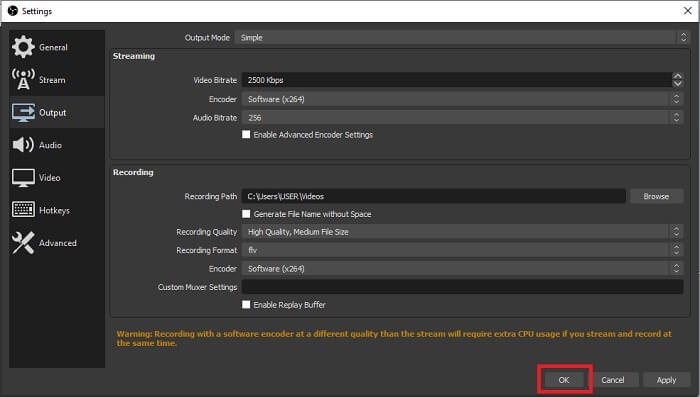
Pasul 4. Apasă pe butonul Settings din Control Panel, în partea dreaptă jos a interfeței. Mergi la fila Output, setează formatul și ajustează opțiunile în funcție de nevoi. Configurează și celelalte opțiuni, apoi apasă pe OK pentru a salva.
Pasul 5. Apasă pe butonul Start Recording și începe înregistrarea. La fel, când înregistrarea s-a terminat, apasă în partea dreaptă jos, în același loc unde ai apăsat pentru a începe înregistrarea. Poți verifica fișierul înregistrat în File Explorer.
Pro
- Costumul său pentru înregistrarea oricăror videoclipuri și streaming live.
- Nu vă oferă o încercare gratuită. Pentru că este gratuit.
- Oferă o mulțime de opțiuni de ales.
Contra
- Nu este cea mai bună alegere pentru un începător, deoarece există multe de configurat.
- Nu acceptă editarea video, deci va trebui să instalați un alt instrument pentru editare. Și instrumentul în sine are 85,6 MB, care este cel mai mare spațiu de stocare pe care îl are un recorder de ecran.
Partea 2. Metoda online pentru a captura Blu-ray cu OBS Alternative
Studiul OBS este într-adevăr o alegere bună pentru înregistrare și streaming. Dar instrumentul are multe în interfața sa, deci este o problemă pentru noul utilizator să înregistreze. Iată un instrument online alternativ pe care îl puteți utiliza.
FVC Free Screen Recorder (Instrument online)
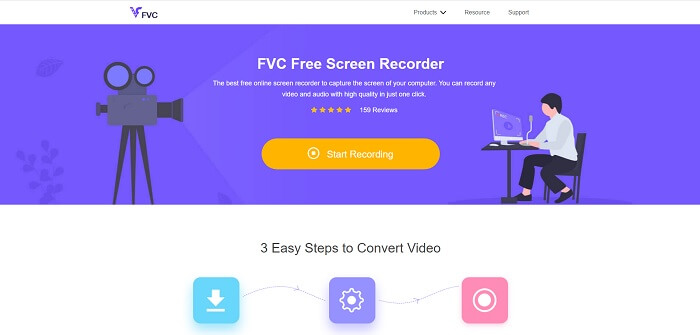
Un instrument online gratuit, mai puțin complicat pentru utilizator, este FVC Free Screen Recorder. Funcționează la fel ca înregistrarea Blu-ray în OBS Studio, dar este mai ușor de folosit datorită barei flotante ușor de gestionat. Acest instrument detaliat și precis te ajută să înregistrezi orice tip de platformă video sau audio disponibilă. Oferă sunet clar și ieșire video în înaltă definiție, pe care o poți salva pe Blu-ray. În loc să descarci un fișier mare și să-l folosești o singură dată, de ce să nu încerci această unealtă online? Acum hai să vedem cum funcționează. Mai jos sunt câțiva pași despre cum să folosești această unealtă online.
Pasul 1. Deschide browserul și vizitează https://www.free-videoconverter.net/free-screen-recorder/. Apoi, apasă pe butonul Start Recording pentru a lansa unealta online. O bară plutitoare va apărea pe ecran după lansarea uneltei.
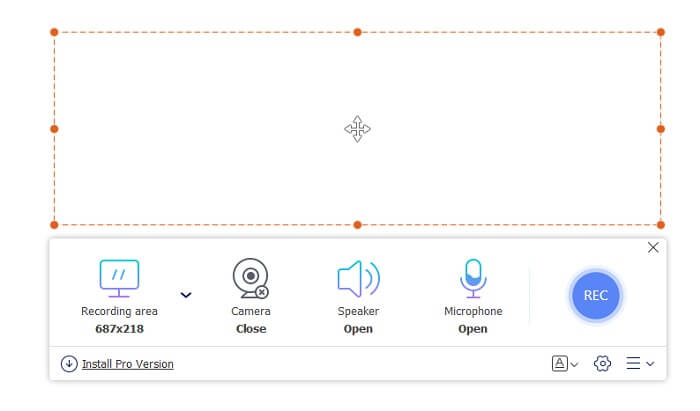
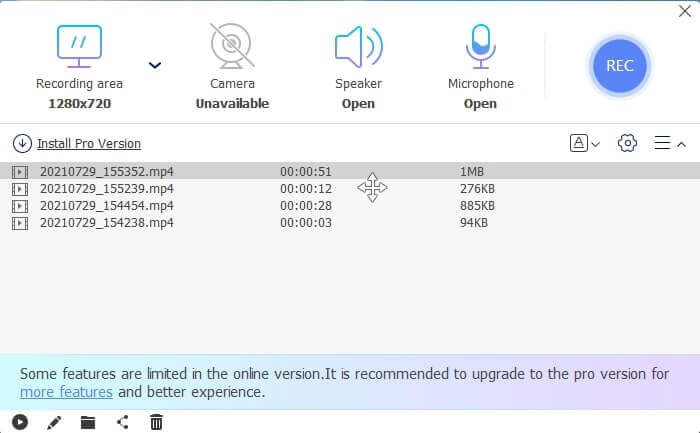
Pasul 2. În bara plutitoare există 4 panouri diferite din care poți alege. Poți ajusta dimensiunea cadrului sau poți selecta ecran complet. Apoi, apasă pe pictograma Speaker pentru volumul sistemului. De asemenea, îți poți adăuga vocea și imaginea dacă pornești Microphone și Webcam. Dacă nu vrei să le adaugi, le poți dezactiva. Apoi apasă pe butonul rotund REC pentru a începe înregistrarea.
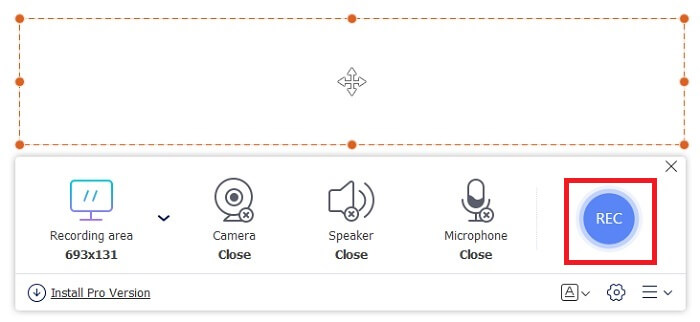
Pasul 3. Când înregistrarea este gata, apasă pe butonul pătrat pentru a opri înregistrarea. Toate înregistrările făcute sunt listate în history dropdown. Dă clic pe primul videoclip înregistrat, deoarece acela este cel mai recent.
Pro
- Deschideți sursa gratuită online. Fără descărcare, deci fără probleme.
- Cel mai bun înregistrator de ecran pentru servicii online care acceptă toate platformele.
- Ușor de utilizat datorită instrucțiunilor sale on-point ale instrumentului.
Contra
- Are nevoie de o conexiune la internet pentru ca instrumentul să funcționeze.
- Funcțiile premium nu sunt acceptate gratuit.
Partea 3. Cel mai bun înlocuitor OBS pentru a înregistra filme Blu-ray
Un alt cel mai bun disc Blu-ray de pe OBS Studio este acest FVC Screen Recorder. Dacă doriți să înregistrați online și offline și disponibile pentru toate platformele, atunci aceasta este pentru dvs.
FVC Screen Recorder
Spre deosebire de OBS Studio, acest instrument este ușor de utilizat, cu o bară de instrumente gestionabilă. FVC Screen Recorder este una dintre cele mai bune alternative pentru înregistrare. Include funcții precum OBS, care sunt mai precise și ușor de înțeles. De exemplu, înregistrați ecranul, camera web, sunetul și sunetul sistemului și multe altele. Acest instrument are, de asemenea, funcția de blocare pe care obs nu o are. Cu excepția faptului că acest instrument este plătit pentru utilizare. De asemenea, dacă beneficiați de acest recorder de ecran, atunci faceți alegerea corectă.
Urmați pașii de mai jos cu privire la modul de utilizare a acestui instrument pe deplin.
Pasul 1. Apasă pe butonul de descărcare pentru a instala software-ul, apoi configurează preferințele dorite și apasă pe Finish pentru a continua. După aceea, unealta va porni.
Descărcare gratuităPentru Windows 7 sau versiuni mai noiDescărcare sigură
Descărcare gratuităPentru MacOS 10.7 sau versiuni mai noiDescărcare sigură
Pasul 2. Apasă pe Video Recorder. Vor apărea apoi 4 panouri diferite. În primul panou poți ajusta dimensiunea cadrului pentru a schimba raportul de aspect sau poți apăsa pe Full pentru a înregistra întregul ecran. Al doilea panou, Webcam, este destinat înregistrării feței tale în timpul înregistrării ecranului. Următorul panou este System Sound, care înregistrează sunetul sistemului. În cele din urmă, un microfon pentru a introduce vocea ta în videoclip. Apasă pe butonul cu formă de disc pentru a începe înregistrarea.
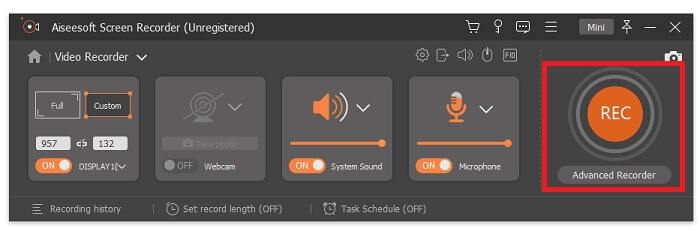
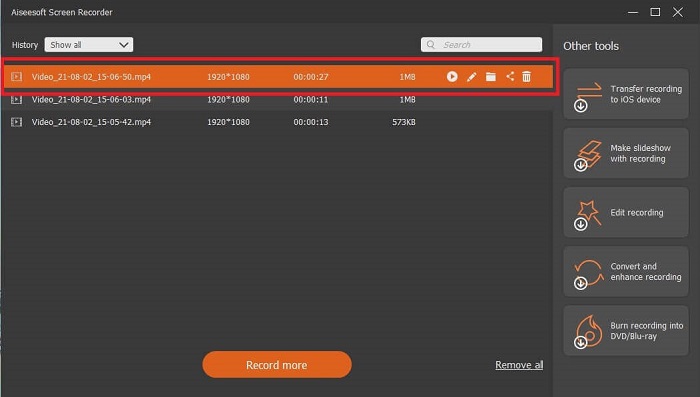
Pasul 3. Dacă înregistrarea video este terminată, apasă pe butonul pătrat pentru a opri. Apasă pe butonul Play pentru a reda videoclipul înregistrat.
Pro
- Are această caracteristică unică a ceea ce numim Lock-in screen pentru a evita deranjamente în timpul înregistrării.
- Poate înregistra timp de 24 de ore fără nicio disfuncție audio-video.
- Stocare și ușor de utilizat datorită formatului de date comprimat și informațiilor ușor de executat.
Contra
- Pentru a o achiziționa, trebuie plătit fie o lună, un an sau o viață.
- Trebuie descărcat de pe site pentru al utiliza.
Lecturi suplimentare
1. Înregistrează videoclipul ecranului cu VLC Media Player
2. Înregistrează ecranul cu sunet pe Mac folosind QuickTime
Partea 4. Întrebări frecvente despre înregistrarea Blu-ray pe OBS Studio
Care este diferența dintre Blu-ray, DVD-uri și CD-uri?
Principala diferență între fiecare format de disc optic este ieșirea și spațiul de stocare pe care îl poate stoca singur. Se afirmă că un CD poate stoca până la 700 MB de fișier, un DVD poate stoca până la 4,7 GB de date, în timp ce Blu-ray poate stoca până la 25 GB. În unele cazuri, un Blu-ray dual-layer poate susține 50 GB de date. De asemenea, are un strat de disc triplu și un strat cvadruplu.
OBS este un instrument gratuit? Este sigur să descărcați?
Da, OBS Studio este un instrument gratuit, fără taxe ascunse. De asemenea, îl puteți descărca pe toate platformele diferite. Un alt Da, este protejat de malware, viruși, viermi, piraterii browserului și multe altele.
Ce codecuri video acceptă Blu-ray?
Pentru video: MPEG-2, MPEG-4 AVC și SMPTE VC-1.
Pentru audio: Linear PCM (LPCM), Dolby Digital® (DD), Dolby Digital® Plus (DD+), Dolby® TrueHD, DTS Digital Surround® și DTS-HD®.
Concluzie
La urma urmei, la sfârșitul zilei, înregistratoarele de ecran sunt utile datorită capacității lor. OBS este o alegere bună pentru înregistrare, dar datorită diferitelor opțiuni, îl face pe utilizator să ghicească și să întrebe dacă o face corect. Dar datorită listei online și offline, care acceptă toate diversele platforme. Acum ai puterea de a alege. A alege ce este cel mai bun pentru tine.
La fel ca FVC Screen Recorder. Este un instrument ușor de utilizat și on-point, care îl ajută pe utilizator să înregistreze oricând și oriunde. Chiar dacă este un instrument de plată pentru utilizare. Cu toate acestea, merită fiecare bănuț cheltuit. Nu uitați să nu vă stresați cu greu de utilizat dacă ușor de utilizat poate face mai bine.
-
 Acțiune! Screen Recorder Review - Contra, pro și cea mai bună alternativă
 Action Screen Recorder este software-ul dorit pentru înregistrarea jocurilor pentru a captura videoclipuri despre joc? Aflați mai multe detalii din recenzie și alternativa acesteia din articol.
-
 3 cele mai bune înregistratoare de apeluri Facebook pentru computere, iOS și Android
 Când doriți să înregistrați apeluri Facebook pentru a salva lucruri valoroase, există o mulțime de înregistratoare de apeluri Facebook din care să alegeți. Aici puteți afla cele mai bune 3 instrumente pentru a înregistra apeluri video Facebook pentru PC, iOS și Android.
-
 Top 6 înregistratoare WAV gratuite disponibile pentru Windows și Mac
 Cel mai bun software de înregistrare WAV pe care îl împărtășim în acest articol are o varietate de caracteristici utile, care vă ajută să captați profesioniști audio și vocali.
