


 Video Converter Ultimate
 Screen Recorder
 Reparație video
 Descărcare sigură
Top 5 înregistratoare WebM pentru a înregistra video WebM în calitate înaltă
Extensia de fișier WEBM este folosită de obicei de browserele web. Majoritatea sunt browsere moderne, precum Google Chrome, Opera, Firefox, Safari și Edge. De obicei, aceste browsere sunt site-uri HTML5 care acceptă transmisia video live. Un exemplu bun este YouTube, Twitch și alte platforme media. Acest format suportă rezoluții video de la 360p până la cea mai înaltă rezoluție. Dacă ar fi să comparăm acest format, este un format comprimat, similar cu MKV, MOV și MP4. Diferența constă în conținutul fișierului pentru fiecare format. Atât Windows, cât și Mac pot reda acest tip de fișier, cu condiția ca playerul să aibă codecurile și pluginurile potrivite. Între timp, dacă cauți o modalitate mai bună de a înregistra sau obține fișiere WebM, consultă lista celor mai bune înregistratoare WebM de mai jos.

Partea 1. Cel mai bun înregistrator WebM: FVC Screen Recorder
Obțineți cel mai simplu mod de a face instantanee, de a înregistra ecranul și de a înregistra fișierele video WebM în trei pași simpli cu FVC Screen Recorder. Acest înregistrator de ecran .webm pentru Windows și Mac poate înregistra site-uri WebM precum YouTube, apeluri Skype și streaming live, iar alte site-uri acceptă formatul WebM. Înregistrați-vă jocul în direct, fără a compromite calitatea videoclipului. În plus, puteți înregistra video, audio și microfon. Nu s-a garantat niciun zgomot de fundal, deoarece înregistrează sunetele sistemului. Deci, experimentați înregistrări fără probleme și caracteristici excelente de editare pentru tutorialul dvs. video cu înregistrarea ecranului FVC. Pe de altă parte, iată cum utilizați instrumentul.
Pasul 1. Descarcă FVC Screen Recorder folosind butoanele de descărcare de mai jos.
Descărcare gratuităPentru Windows 7 sau versiuni mai noiDescărcare sigură
Descărcare gratuităPentru MacOS 10.7 sau versiuni mai noiDescărcare sigură
Pasul 2. Instalează și pornește aplicația după ce urmezi asistentul de instalare.
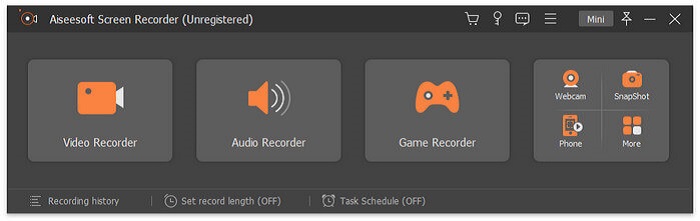
Pasul 3. De îndată ce apare bara plutitoare, dă clic pe Video Recorder.
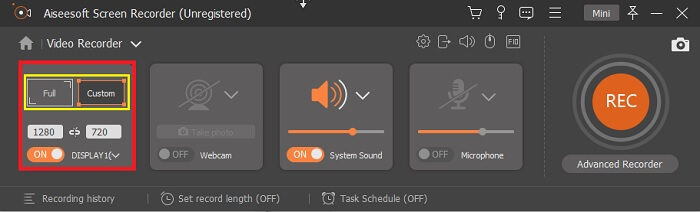
De acolo va apărea o nouă fereastră. De această dată, dă clic pe Custom sau Full Screen. Dacă alegi „Custom”, ajustează dimensiunea cadrului la mărimea dorită.
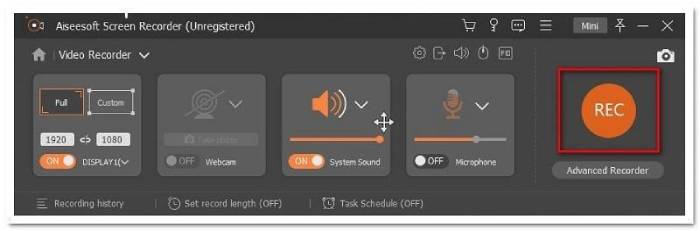
Pasul 4. Pentru a începe înregistrarea, dă clic pe butonul REC și continuă activitatea ta obișnuită.
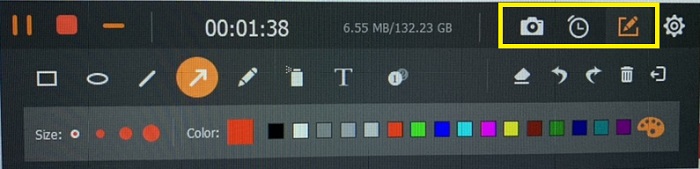
Apoi puteți adnota, adăuga săgeți și trimite text la înregistrare.
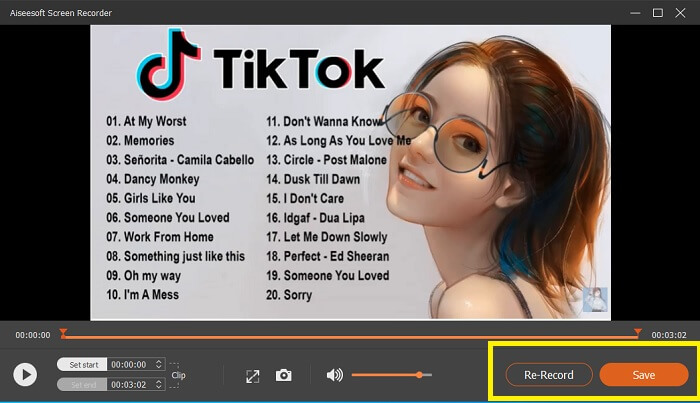
Pasul 5. Apoi, dă clic pe butonul pătrat roșu pentru a opri înregistrarea. Va apărea o fereastră nouă care îți va permite să alegi între a salva și a reînregistra. Pentru a verifica înregistrarea, consultă lista din partea de jos a barei plutitoare.
Partea 2. Alte înregistratoare WEBM populare pentru computerul dvs.
1. FVC Free Screen Recorder
Caracteristică distinctivă: Fără malware. 100% sigur
Dacă primul instrument nu te-a mulțumit, este posibil să cauți unul mai practic. FVC Free Screen Recorder este instrumentul potrivit dacă vrei să profiți de funcții excelente fără să cheltuiești bani. Deși se știe că instrumentele gratuite produc o calitate mai scăzută comparativ cu cele premium, acest instrument ridică ștacheta puțin mai sus. Poate produce videoclipuri de înaltă calitate și un sunet clar ca cristalul, în ciuda faptului că este gratuit. Pe lângă asta, este ușor de utilizat. Urmează pașii de mai jos pentru a afla mai multe despre el.
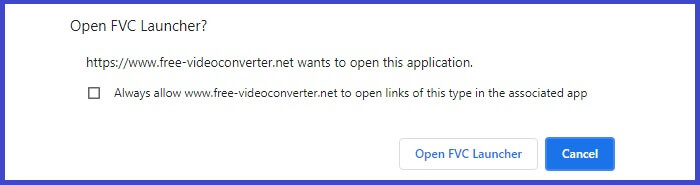
Pasul 1. Deschide aplicația pe PC-ul tău folosind browserul web. Nu contează ce browser folosești, acest instrument este suficient de flexibil pentru a fi accesat de oriunde. Dă clic pe link pentru a ajunge direct pe pagina oficială.
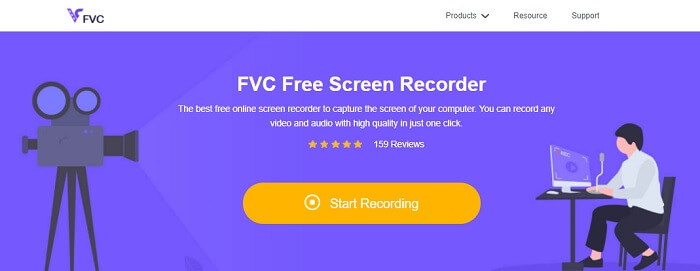
Pasul 2. Pornește instrumentul făcând clic pe butonul Start Recording.
Pasul 3. După pornirea instrumentului, vei vedea bara plutitoare. Ajustează cadrul pentru a redimensiona raportul de aspect, apoi începe înregistrarea făcând clic pe butonul REC.
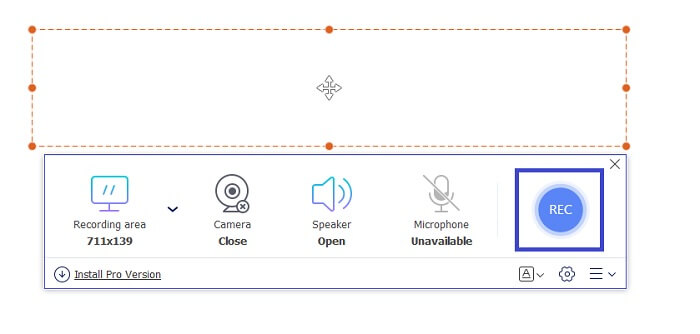
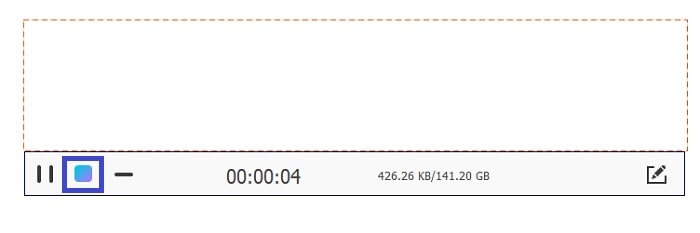
Pasul 4. Între timp, pentru a opri înregistrarea, dă clic pe butonul pătrat afișat în imaginea de mai jos.
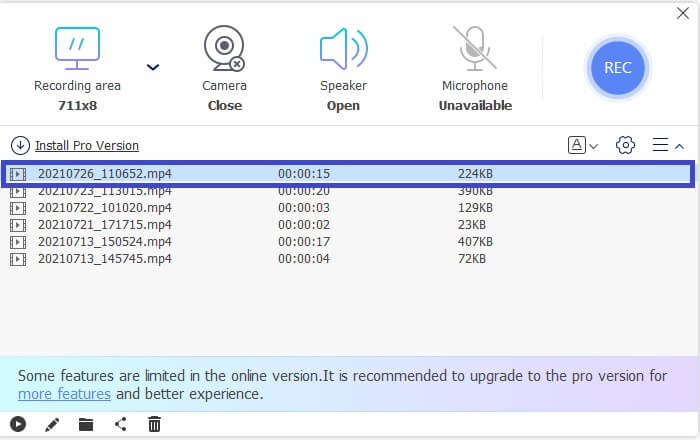
Pasul 5. Pentru a vedea fișierul pe care l-ai înregistrat, verifică lista de sub bara de instrumente plutitoare.
Pro
- 100% protejat de malware.
- Este flexibil în ajustarea raportului de aspect, a ratei de biți și a ratei de cadre.
- Imagine în imagine acceptată.
Contra
- Nu acceptă accelerarea hardware.
2. Tiny Take
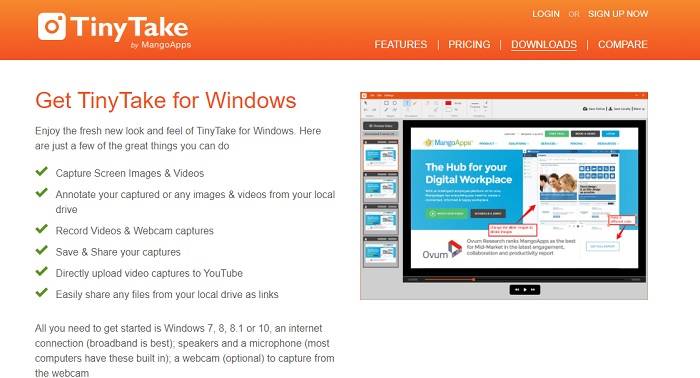
Caracteristică distinctivă: Este acceptată colaborarea sau munca la distanță.
TinyTake este un instrument de înregistrare video și capturare gratuită a ecranului dezvoltat de Mango Apps. Tiny Take oferă soluții excelente pentru capturarea simplă a ecranului sau înregistrarea întâlnirilor profesionale sau personale. Ceea ce a făcut acest instrument popular este funcția de colaborare în care puteți lucra de la distanță, puteți partaja în bloc fișiere, puteți utiliza funcții de adnotare și stocare pe termen lung și Galerie (online).
Pro
- Poate captura imagini și videoclipuri de pe unitatea dvs. locală.
- Distribuiți-l direct pe YouTube.
- Adnotați în timpul înregistrării.
Contra
- Fără funcție de fereastră de blocare.
3. Screencast-O-Matic
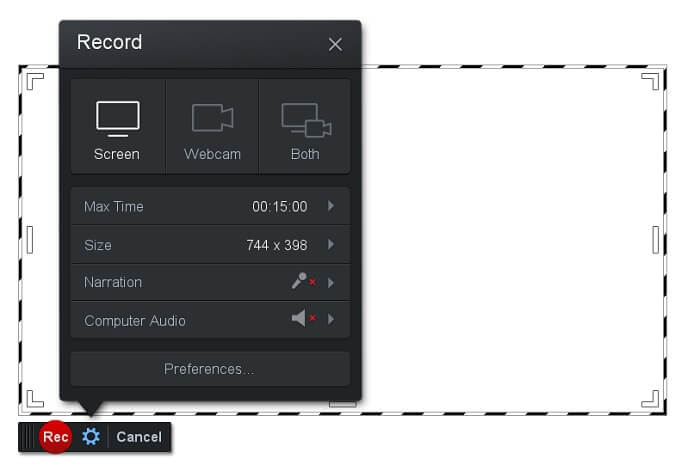
Caracteristică distinctivă: Instrumentul are o interfață ușor de utilizat și de navigat. Foarte intuitivă.
Screencast-O-Matic este unul dintre cele mai utilizate programe de către mulți utilizatori. Ce poate face este să înregistreze ecranul computerului gratuit, după înregistrare (crearea unui cont). Este recomandat să creezi un cont pentru a folosi versiunea gratuită. În plus, dezvoltatorul a inclus o funcție prin care îți poți edita videoclipul direct înainte de export. Te poți baza pe biblioteca internă de materiale stock a instrumentului pentru a-ți găsi inspirația și a continua să îți îmbunătățești videoclipurile. De asemenea, poți face capturi de ecran și distribui tot conținutul pe conturile tale de social media.
Pro
- Are o funcție de găzduire în cloud.
- Încărcați un videoclip pentru editare.
- Conținut gazdă.
Contra
- Este necesară înregistrarea.
4. Screencastify
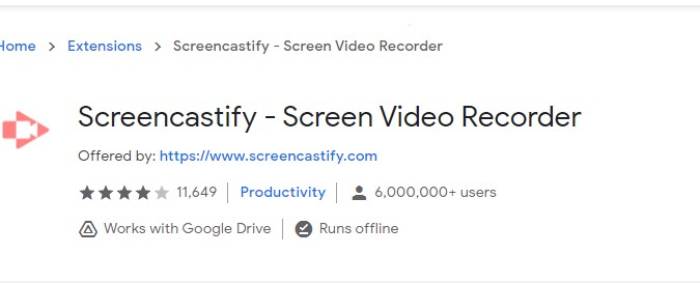
Caracteristică distinctivă: Extensie pentru browser web
Să dăm o mică diversitate listei. Screencastify este un instrument dependent de web, în special o extensie pentru browserul Chrome. Acest lucru este folosit în principal de educatori și studenți. În principal datorită simplității instrumentului și a capacității de adnotare care menține educatorul și elevul să se concentreze în clasă. Majoritatea oamenilor care studiază prin Udemy și astfel de site-uri de învățare folosesc acest înregistrator de ecran. Dacă faceți același lucru, puteți lua în considerare utilizarea acestuia. Între timp, aici sunt informații mai detaliate despre instrument.
Pro
- Compatibil cu toate platformele media.
- Conținut gazdă.
- Încărcați un videoclip pentru editare.
Contra
- Deși este un acces ușor, deoarece depinde de browser, poate fi, de asemenea, dezavantajos.
- Are nevoie de multe permisiuni pentru ao folosi.
Partea 3. Întrebări frecvente despre WebM Recorder
De ce fișierul meu WebM nu se va deschide?
Înțeleg confuzia, poate crezi că folosești un browser modern și totuși nu redă fișierul. Ai încercat să verifici dacă rulezi cea mai recentă versiune a browserului? Dacă nu, te rog actualizează-l. Este unul dintre cele mai frecvente motive pentru care un videoclip nu pornește. Dar reține că acestea sunt câteva dintre versiunile acceptate de fișierul WebM: Chrome 6, Firefox 4 și Internet Explorer 9 și versiunile superioare. Sau poți încerca să folosești playere WebM pentru a te ajuta să le deschizi.
De ce nu pot reda videoclipuri WebM pe Mac-ul meu?
Aș recomanda să descărcați VLC player sau VLC pentru pluginul Mac OS X. Trebuie să aibă un procesor Intel pe 64 de biți.
Partea 4. Diagrama comparativă
| Caracteristică | FVC Screen recorder (Premium) | FVC Screen Recorder gratuit | TinyTake | ScreenCast-O-matic | ScreenCastify |
| Înregistrare audio și video |  | | | | |
| Funcție de editare video | | |  | | |
| Funcția de blocare a ferestrei | | | | | |
| Caracteristică adnotatoare | | | | | |
| WebM acceptat | | | | | |
| Malware Safe | | | | | |
| Rata de biți ajustabilă și raportul de aspect | | | | | |
Concluzie
Toate instrumentele de înregistrare WebM examinate în acest articol sunt fiabile și eficiente. Trebuie doar să vedeți ce instrument se potrivește cerințelor computerului și sistemului de operare. Majoritatea oamenilor vor merge pe un teren sigur folosind o aplicație bazată pe web. Dar este totuși chemarea ta de a decide.
-
 Înregistratorul audio fără părtinire Cinch Review și cea mai bună alternativă
 Cinch Audio Recorder este cel mai bun mod de a descărca muzică de pe site-uri de streaming. Aflați mai multe despre recenzie imparțială și cea mai bună alternativă din articol.
-
 Top 5 Cele mai bune înregistratoare de mouse și tastatură pentru Windows și Mac
 Iată primele cinci cele mai bune programe de înregistrare a mouse-ului și a tastaturii, care vă pot salva mișcările mouse-ului și clicurile de pe tastatură și pot repeta evenimentele.
-
 Top 4 înregistratoare de ecran AVI gratuite pentru a captura imagini video ca fișiere AVI
 Pentru a înregistra ecranul în fișiere AVI de înaltă calitate, articolul identifică și a distribuit primele 4 înregistratoare de ecran AVI gratuite din această postare. Aflați mai multe detalii pentru a-l găsi pe cel dorit în consecință.
