


 Video Converter Ultimate
 Screen Recorder
 Reparație video
 Descărcare sigură
Cum să faci capturi de ecran pe Samsung S23 ca un profesionist în cel mai scurt timp
În peisajul digital de astăzi, smartphone‑urile au devenit indispensabile. Ele servesc drept dispozitive pentru a surprinde momente de neprețuit, a stoca informații esențiale, a purta conversații semnificative și a distribui conținut amuzant cu cei dragi. Prin urmare, a ști cum să faci capturi de ecran ale acelor momente face parte dintr‑o experiență universală. Smartphone‑uri precum Samsung Galaxy S23 sunt dispozitive puternice care pot face lucruri extraordinare și sunt capabile de mult mai mult decât simple capturi de ecran. În acest articol, vom analiza diferite metode de realizare a capturilor de ecran pe Samsung S23 folosind funcțiile sale de vârf; îți vom oferi cunoștințele necesare pentru a valorifica la maximum capabilitățile de captură de ecran ale dispozitivului tău, cu precizie și ușurință. Ce mai aștepți? Continuă să citești acest articol pentru a‑ți perfecționa modul de realizare a capturilor de ecran și pentru a debloca întregul potențial al Samsung Galaxy S23 în cel mai scurt timp!

Partea 1. Cum să faceți o captură de ecran pe Samsung S23 cu instrumentul implicit
Capturarea unei capturi de ecran pe Samsung S23 este un proces simplu. Instrumentul implicit furnizat de dispozitiv face destul de ușor să faceți capturi de ecran. La fel ca și în cazul altor smartphone-uri, funcționalitatea de a face capturi de ecran se bazează pe utilizarea butonului de pornire și a tastelor de volum. Această caracteristică vă permite să faceți capturi de ecran direct de pe telefon în doar câteva secunde.
Pasul 1. Deschide aplicația sau mergi la pagina de care vrei să faci o captură de ecran.
Pasul 2. Apasă simultan butoanele fizice Power și Volum jos de pe telefon pentru a captura ecranul.
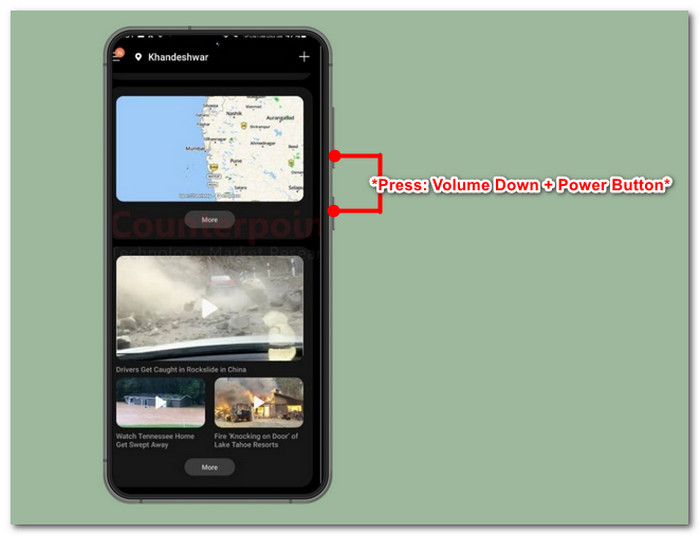
Pasul 3. Ai realizat cu succes o captură de ecran folosind unealta implicită. Pentru a‑ți vedea captura, mergi la Galerie.
Această metodă se aplică tuturor telefoanelor Android pentru a face o captură de ecran.
De la combinații clasice de butoane până la comenzi avansate prin gesturi, stăpânirea artei capturii de ecran pe Samsung S23 folosind instrumentul implicit este ușor. Indiferent dacă doriți să salvați un mesaj important, să capturați un moment memorabil sau să împărtășiți conținut amuzant cu prietenii, Samsung S23 o poate face.
Partea 2. Cum să faci capturi de ecran în Samsung S23 fără butonul de pornire
Nu trebuie neapărat să folosiți butonul fizic. Există și alte metode disponibile, cum ar fi realizarea de capturi de ecran din interiorul telefonului însuși. Acest lucru poate fi realizat prin utilizarea Bixby sau Google Assistant, precum și prin gesturile Palm Swipe. În această parte, ne vom concentra în mod special pe cum să folosiți Palm Swipe pentru a vă captura ecranul.
Pasul 1. Pentru a putea folosi captura de ecran cu Glisare cu palma, trebuie mai întâi să o activezi din Setările telefonului.
Pasul 2. În Setările telefonului, mergi la Funcții avansate > Mișcări și gesturi.
Pasul 3. Odată ajuns în setările Mișcări și gesturi, activează opțiunea Glisare cu palma pentru captură.
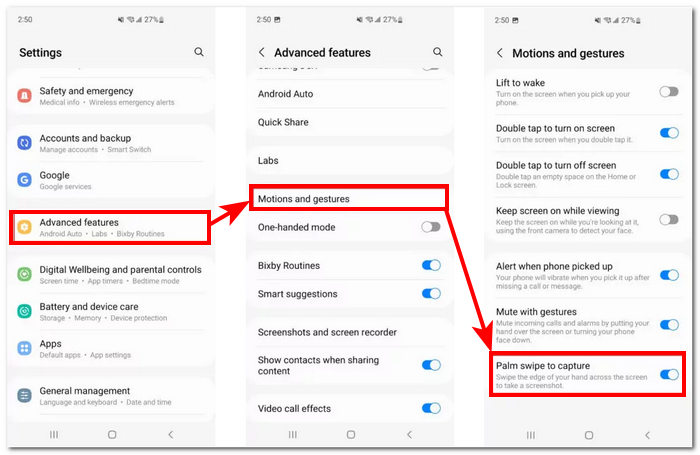
Pasul 4. După ce ai activat funcția, pentru a o testa, încearcă să glisezi cu palma de‑a lungul marginii ecranului.
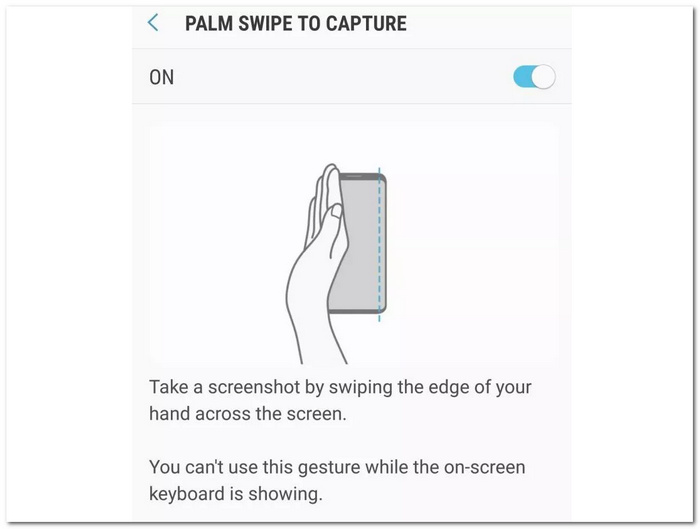
Funcția de gest Palm Swipe pentru capturi de ecran poate să nu fie preferată de toată lumea, dar este o adăugare atentă a Samsung. Această caracteristică rezolvă problema de a nu mai putea face o captură de ecran dacă butonul de pornire sau unul dintre butoanele de volum nu mai funcționează. Prin urmare, această caracteristică asigură că capacitatea utilizatorului de a face capturi de ecran nu este compromisă.
Partea 3. Cum să faceți capturi de ecran pe Samsung S23 cu software desktop
Realizarea capturilor de ecran cu ajutorul unui software pentru desktop este o metodă interesantă atunci când vrei mai multe detalii fine și un control sporit asupra capturilor tale. Folosind flagship‑ul tău Samsung S23, este firesc să utilizezi și un software de același calibru cu dispozitivul tău. Acest software este Screen Recorder, ales de FVC. Acest program îți permite să proiectezi ecranul smartphone‑ului pe computer pentru a face capturi de ecran sau, și mai bine, pentru a înregistra ecranul, deoarece software‑ul este potrivit pentru realizarea de capturi de ecran, înregistrări video ale ecranului, audio, video și jocuri. Când folosești acest software pentru a face capturi de ecran pe Samsung S23, ai avantajul de a putea ajusta rezoluția capturii, ceea ce se potrivește perfect cu un dispozitiv de top precum S23.
Pasul 1. Instalează pe computer software‑ul pentru capturi de ecran de pe telefon și lansează programul după finalizarea instalării.
Descărcare gratuităPentru Windows 7 sau versiuni mai noiDescărcare sigură
Descărcare gratuităPentru MacOS 10.7 sau versiuni mai noiDescărcare sigură
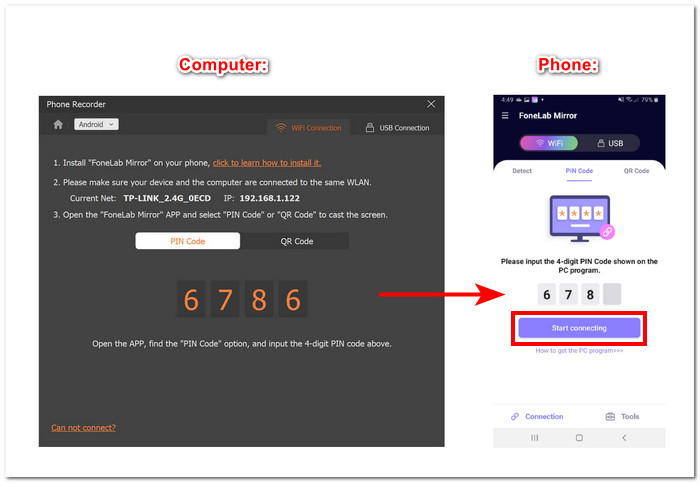
Pasul 2. Fă clic pe butonul Phone din interfață, apoi selectează Android Recorder, deoarece folosești un dispozitiv Samsung S23.
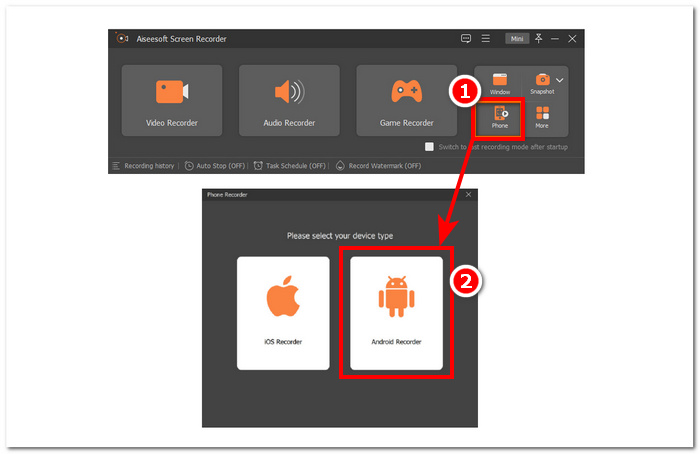
Pasul 3. Asigură‑te că ai descărcat FoneLab Mirror pe smartphone și că atât Samsung S23, cât și computerul sunt conectate la aceeași rețea WLAN pentru a putea proiecta ecranul telefonului pe computer.
Pasul 4. După ce ai proiectat cu succes ecranul, poți face clic pe butonul Snapshot pentru a realiza o captură de ecran a ecranului Samsung S23.
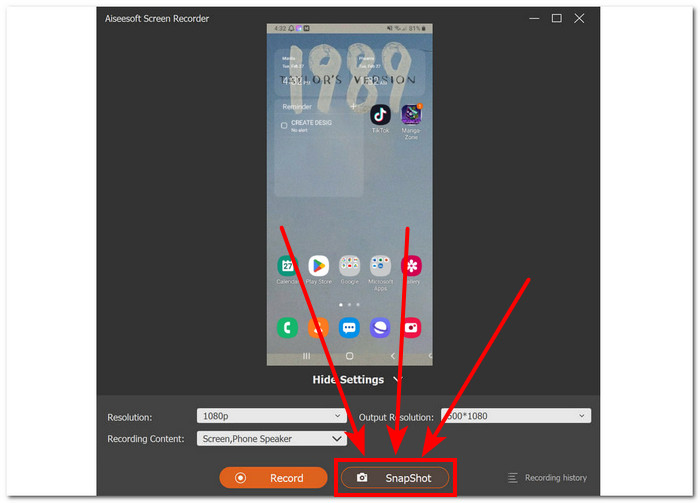
Screen Recorder se dovedește a fi un instrument fiabil și profesionist, nu doar pentru capturi de ecran obișnuite. Acest instrument le oferă utilizatorilor o calitate ridicată la fiecare captură realizată cu ajutorul său. În timpul utilizării software‑ului, ai de asemenea posibilitatea să schimbi rezoluția pentru a evita un rezultat neclar, care ulterior ar putea necesita folosirea unui instrument de mărire a dimensiunii imaginii pentru a remedia problema.
Partea 4. Întrebări frecvente despre cum să faceți capturi de ecran pe Samsung S23
Pot personaliza setările capturii de ecran pe Samsung S23?
Da, puteți personaliza setările capturii de ecran pe Samsung S23. Puteți ajusta opțiuni precum locul în care sunt salvate capturile de ecran, dacă includ sau nu o previzualizare și dacă captează informații suplimentare, cum ar fi conținutul care poate fi derulat.
Cum accesez capturile de ecran pe care le-am făcut pe Samsung S23?
După ce faceți o captură de ecran, o puteți accesa imediat din panoul de notificări. În plus, puteți găsi toate capturile de ecran în dosarul Capturi de ecran din aplicația Galerie sau în albumul Capturi de ecran dacă utilizați un manager de fișiere.
Pot captura capturi de ecran de defilare pe Samsung S23?
Mai multe modele Samsung S23 oferă capacitatea de a capta capturi de ecran cu defilare. Pentru a face o astfel de captură de ecran, puteți mai întâi să faceți o captură de ecran obișnuită folosind metoda implicită. Apoi, localizați opțiunea Captură mai mult sau o caracteristică similară care vă va permite să derulați și să capturați conținut suplimentar care este posibil să nu fi fost vizibil pe ecran în momentul capturii de ecran inițiale. Această caracteristică poate fi destul de utilă pentru a captura pagini web mai lungi, chat-uri și alt conținut.
De ce Samsung S23 meu nu face capturi de ecran?
Dacă Samsung S23 nu face capturi de ecran, asigurați-vă că utilizați combinația de butoane sau gestul corect și că software-ul dispozitivului este actualizat. Dacă problema este încă nerezolvată, încercați să reporniți dispozitivul sau contactați asistența Samsung pentru asistență suplimentară.
Pot edita sau partaja capturi de ecran direct după ce le fac pe Samsung S23?
După ce faceți o captură de ecran, o puteți edita sau partaja rapid fără a fi nevoie să navigați prin Galeria dispozitivului dvs. Odată ce faci captura de ecran, pe ecran va apărea o notificare. Pur și simplu atingeți notificarea și vă va duce direct la captura de ecran. De acolo, puteți face orice modificări necesare sau le puteți partaja cu alții fără nicio întârziere.
Concluzie
Înțelegând și valorificând la maximum funcțiile de captură de ecran ale Samsung Galaxy S23, poți surprinde și distribui cu ușurință momente memorabile, informații importante și conținut amuzant. Acest ghid îți oferă cunoștințe despre folosirea combinațiilor de butoane implicite și explorarea funcțiilor avansate, precum gestul de glisare cu palma și soluțiile software pentru desktop. Cu aceste informații, îți poți perfecționa modul de realizare a capturilor de ecran și poți debloca întregul potențial al Samsung Galaxy S23 în cel mai scurt timp!
-
 Cum să faceți capturi de ecran pe laptopul Toshiba fără efort gratuit
 Descoperiți cele trei moduri simple de a face o captură de ecran pe un laptop Toshiba și de a captura gratuit tot conținutul dvs. preferat pe laptopul dvs. Toshiba.
-
 Cum să decupați capturile de ecran pe Mac [Ghid pentru începători 2025]
 Nu vă mulțumiți cu capturi parțiale! Aflați pașii simpli pentru a face capturi de ecran de derulare pe Mac. Capturați cu ușurință pagini web sau documente întregi în cel mai scurt timp.
-
 Cum să faci capturi de ecran de derulare pe Firefox fără efort
 Căutați modalități de a decupa capturile de ecran pe Mac-ul dvs.? Noi'vă avem acoperit! În acest articol, aflați cele 3 metode pe care le puteți utiliza pentru a redimensiona capturile de ecran cu ușurință.
