


 Video Converter Ultimate
 Screen Recorder
 Reparație video
Cele mai simple 4 moduri de a converti fișierul F4V în format de fișier media AVI
Macromedia a introdus F4V, iar mai târziu, Adobe l-a dezvoltat pentru a concura cu stocarea video modernă, de înaltă calitate. De asemenea, este creat ca un format de înlocuire pentru FLV, deoarece FLV are o limitare. O explicație suplimentară este că fișierul F4V utilizează formatul de fișier media de bază ISO cu un codec H.264 pentru a reduce dimensiunea fișierului. Deși formatul conține o ieșire de înaltă calitate, F4V are o compatibilitate mai mică decât celălalt format. Și nu numai atât, dar și acest format a fost eliminat treptat, deoarece Adobe Flash Player s-a retras deja.
Așadar, dacă ai aceeași problemă ca și alții, deoarece fișierele lor .f4v nu pot fi redate pe media player-ul lor, continuă să citești mai jos. Am adunat diferite instrumente care te vor ajuta să redai fișierul .f4v ce nu poate fi redat, convertind formatul în AVI. Iar acum, să trecem mai departe și să vedem cum să convertești F4V în AVI folosind instrumentele online și offline disponibile.

Partea 1. Aflați cum să convertiți F4V în AVI cu Fenomenalul Convertor F4V în AVI
Dacă ești în căutarea celui mai bun convertor care să te ajute cu această problemă, atunci FVC Video Converter Ultimate este soluția. Am testat noi înșine acest instrument și am citit câteva comentarii; „ultimate” nu este doar un nume, ci și performanța și funcțiile software‑ului sunt de nivel „ultimate”. De asemenea, una dintre cele mai impresionante funcții pe care le oferă acest instrument este conversia rapidă și accelerarea hardware, astfel încât utilizatorii acestui software nu vor trebui să aștepte mult.
De asemenea, dacă vrei să creezi GIF‑uri, să accelerezi sau să încetinești videoclipurile, să le redai invers, să amplifici sunetul etc., acest instrument îți pune la dispoziție funcții avansate. Totuși, va trebui să plătești pentru el înainte de a‑l putea folosi, dar nu trebuie să‑ți faci griji, deoarece nu vei cheltui mai mult de o sută de dolari. Așadar, dacă ești încă în faza în care decizi dacă să cumperi acest instrument, încearcă să citești pașii de mai jos și convertește fișierul F4V în AVI urmând instrucțiunile de mai jos.
Pasul 1. Înainte de a putea folosi acest instrument puternic, trebuie să‑l descarci pe desktop. Apoi instalează‑l și fă configurarea foarte rapid; apasă pe Start Now pentru a deschide programul.
Descărcare gratuită pentru Windows 7 sau o versiune ulterioară Descărcare securizată
Descărcare gratuită pentru MacOS 10.7 sau o versiune ulterioară Descărcare securizată
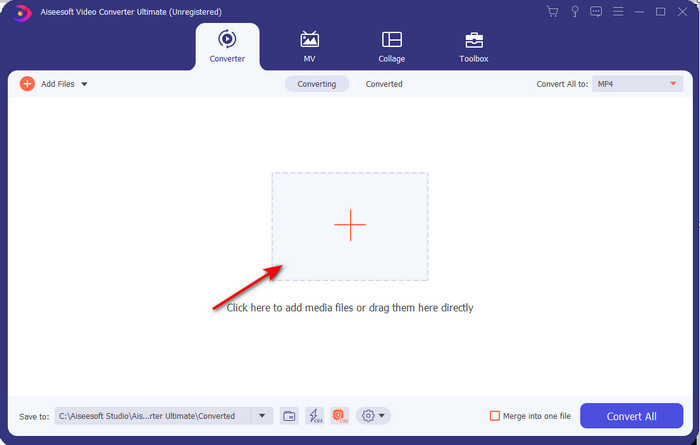
Pasul 2. Dacă instrumentul este deja deschis, mergi la Add Files sau apasă butonul +, apoi va apărea un folder; caută fișierul cu extensia .f4v și fă clic pe Open.
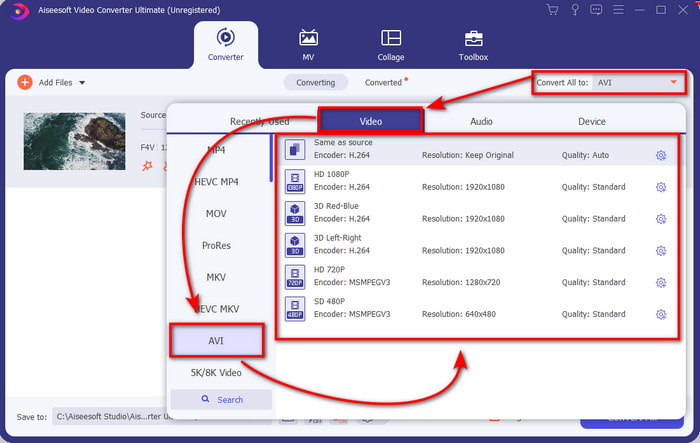
Pasul 3. După ce ai introdus fișierul, apasă pe Convert All to în partea din dreapta sus a interfeței și alege formatul AVI.
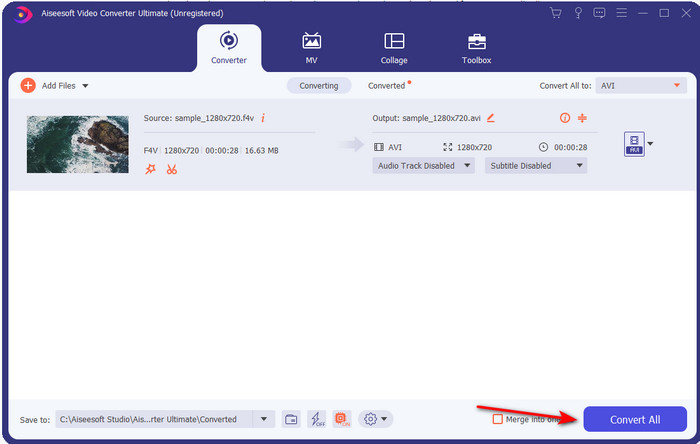
Pasul 4. Acum, pentru a începe procesul de conversie, apasă pe Convert All. Așteaptă câteva minute pentru a transforma fișierul F4V în AVI.
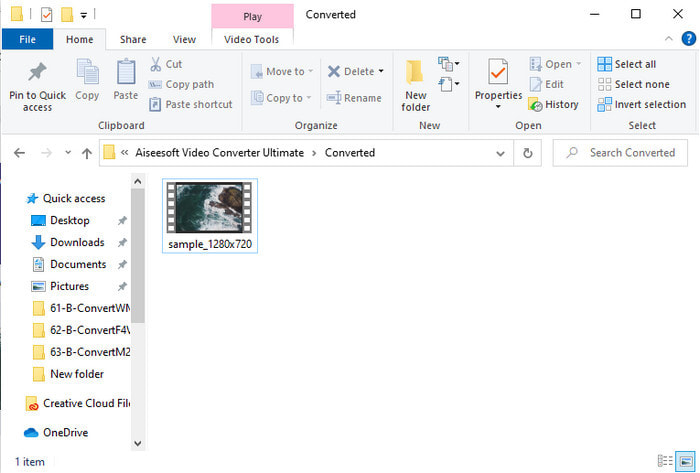
Pasul 5. Un folder se va deschide automat pe desktop cu fișierul .f4v convertit aici. Fă clic pe fișierul video pentru a viziona pe desktop ceea ce înainte nu putea fi redat sau transferă‑l pe telefon, dacă dorești.
Partea 2. Aflați cum să convertiți F4V în AVI online cu cele 3 convertoare web disponibile
1. FVC Free Video Converter Online
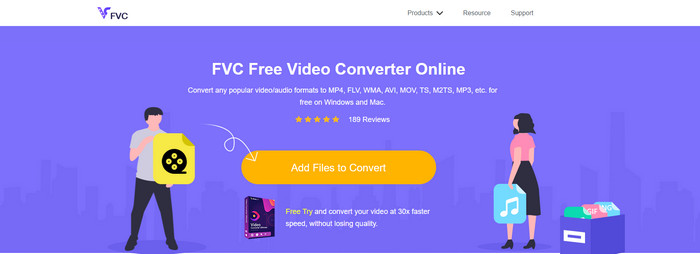
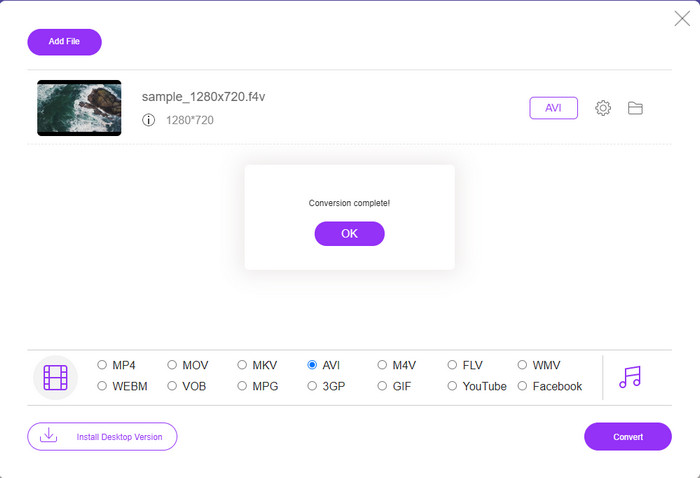
Dacă vrei să știi care este cel mai bun convertor web, FVC Free Video Converter Online ar putea fi alegerea potrivită. Toate funcțiile pe care ți‑ar plăcea să le folosești sunt disponibile aici: poți modifica bitrate‑ul și fps‑ul videoclipului pentru a‑l face de calitate înaltă înainte de conversie. Milioane de utilizatori de internet au lăudat deja performanța generală a acestui instrument web. De asemenea, această unealtă online acceptă o gamă medie de formate dintre care poți alege și pe care le poți încărca. Totuși, nu îți permite să‑ți faci videoclipul să arate fantastic, așa cum permite varianta Ultimate. Cu toate acestea, dacă vrei să încerci să convertești F4V în format AVI, urmează pașii de mai jos.
Pasul 1. Fă clic pe acest link pentru a merge la FVC Free Video Converter Online.
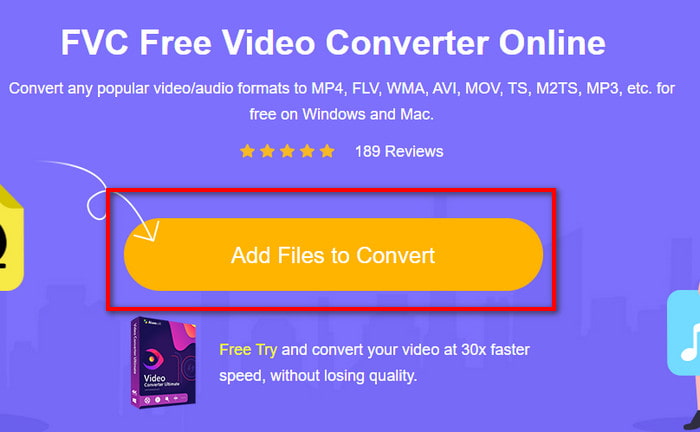
Pasul 2. Apoi apasă pe Add Files to Convert pentru a lansa instrumentul și selectează fișierul pe care vrei să‑l convertești într‑un nou format din folder, făcând clic pe Open.
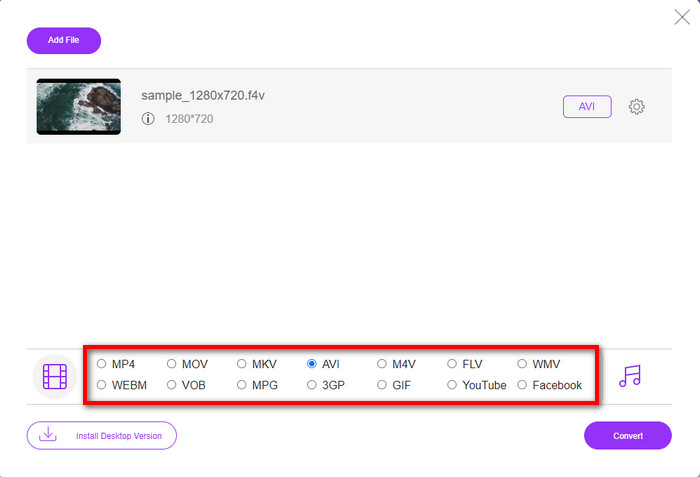
Pasul 3. După ce fișierul a fost încărcat, alege formatul AVI în partea de jos, dintre formatele în care vrei să îl convertești.
Pasul 4. După ce ai selectat formatul AVI, este momentul potrivit să pornești conversia făcând clic pe butonul Convert.
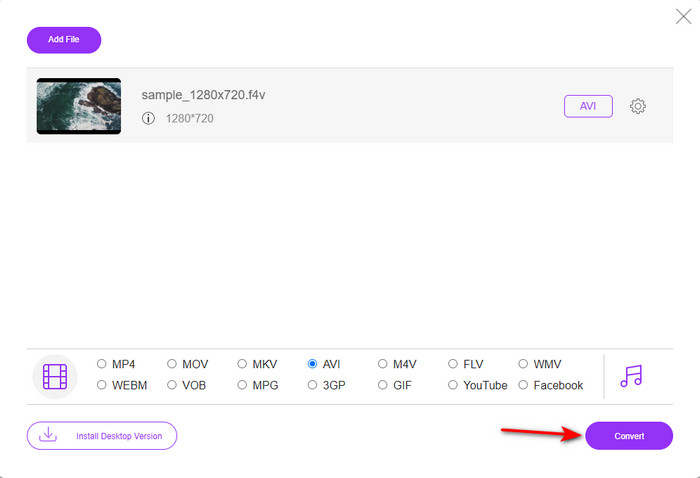
Pasul 5. Așteaptă câteva minute pentru descărcarea fișierului, apoi va apărea un folder cu fișierul convertit.
2. Zamzar
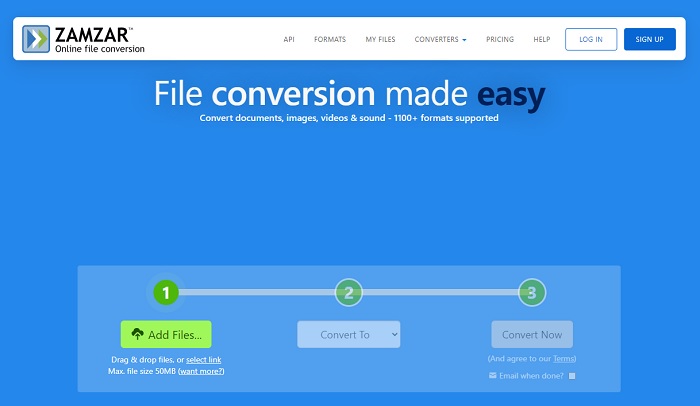
Un alt convertor alternativ pe care îl poți folosi online este Zamzar. La fel ca orice convertor, acest instrument are nevoie de o conexiune la internet pentru a fi utilizat sau accesat. Toate instrumentele web prezentate aici au nevoie de internet pentru a alimenta conversia. Deoarece mulți utilizatori îl folosesc, Zamzar a devenit popular pentru că acceptă multe formate pe care le poți folosi și alege. De asemenea, este gratuit, însă există o limitare privind dimensiunea fișierului pe care îl poate converti. Așadar, dacă fișierul tău .f4v are mai mult de 50 MB, nu îl poți converti aici, după cum este specificat mai jos. Iar dacă fișierul tău este mai mic de atât, poți încerca să‑l folosești pentru a converti F4V în AVI online urmând procedura de mai jos.
Pasul 1. Deschide browserul și caută Zamzar.
Pasul 2. Apasă pe Add Files și localizează fișierul pe care vrei să‑l convertești. Apoi alege formatul AVI la „Convert to”, după aceea fă clic pe Convert.
Pasul 3. Așteaptă finalizarea procesului; apoi va apărea o nouă interfață, iar tu fă clic pe Download pentru a salva fișierul.
3. ConvertFiles
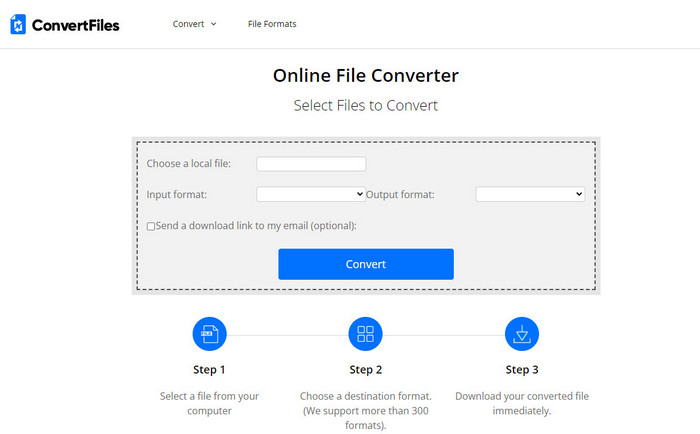
Dacă vrei un proces de conversie mai simplu, care durează doar câteva minute, încearcă să folosești ConvertFiles. Instrumentul funcționează foarte bine în timpul conversiei și după conversie. Totuși, reclamele strică experiența cu acest instrument, deoarece sunt foarte multe pe interfața web. De asemenea, procesul durează mai mult comparativ cu alte convertoare online și offline. Dimensiunea fișierului pe care îl poți încărca aici este mult mai mare decât la Zamzar. Așadar, dacă vrei să folosești acest instrument pentru a converti fișierul F4V în AVI, urmează acești pași.
Pasul 1. Intră în browser și caută ConvertFiles, apoi deschide site‑ul.
Pasul 2. Fă clic pe Choose a Local File pentru a deschide folderul și a localiza fișierul, apoi, la Output Format, apasă pe AVI. Apoi fă clic pe Convert pentru a porni conversia.
Pasul 3. După conversie, fă clic pe URL‑ul evidențiat cu albastru, care te va duce într‑o nouă pagină web. Fă clic pe acest link pentru a descărca formatul convertit.
Partea 3. Ce format este mai bun; F4V vs. AVI
Ei bine, F4V și AVI își fac treaba ca container în cel mai bun caz. Cu toate acestea, există multe dintre aceste formate în comun și scopul lor nu este același. De exemplu, dacă doriți să stocați un videoclip de înaltă calitate într-un fișier de dimensiune mică și să păstrați și să protejați datele video DRM MPEG-4, F4V este cea mai bună alegere. Dar să presupunem că doriți să stocați un videoclip de înaltă calitate care acceptă redarea media sincronizată. În acest caz, trebuie să alegeți formatul AVI, deoarece are un container diferit atât pentru audio, cât și pentru video. În ciuda acestui fapt, dimensiunea fișierului AVI este prea mare pentru a fi gestionată de multe dispozitive și chiar de desktop-uri, deoarece este necomprimat.
Partea 4. Întrebări frecvente despre conversia F4V în AVI
Conversia F4V scade rezoluția după conversie?
Rezoluția videoclipului trebuie să-și păstreze calitatea inițială chiar și după ce îl convertiți într-un nou format. În unele cazuri, mulți utilizatori simt că calitatea F4V-ului lor a devenit mai scăzută. Unul dintre motive trebuie să fie că rata de calitate pe care o setați este scăzută sau instrumentul pe care îl utilizați nu acceptă videoclipuri 1080 sau 4k.
De ce nu poate fi redat F4V pe playerul meu media?
Acest format poate fi redat în mai multe media playere, dar nu toate media playerele îl acceptă. Așadar, dacă vrei să vizionezi videoclipul în acest format, cea mai bună alegere este să‑l convertești într‑un nou format sau să găsești un nou media player terț pentru a‑ți viziona videoclipurile F4V.
Trebuie să comprim F4V pentru a-l reduce dimensiunea?
Dimensiunea fișierului F4V nu este atât de mare în comparație cu formatul AVI. Totuși, dacă încerci să comprimi acest container de fișiere, există șansa ca calitatea videoclipului să scadă. Aici poți învăța cum să compresezi videoclipurile tale F4V.
Concluzie
Pe măsură ce încheiem acest articol, acum avem o perspectivă asupra a ceea ce este F4V și de ce trebuie să îl convertiți. Toate software-urile online și offline menționate în acest articol funcționează bine. Deși toate instrumentele sunt grozave, FVC Video Converter Ultimate se remarcă în continuare printre celelalte. Deoarece acest software funcționează bine chiar și, nu aveți o conexiune la internet, iar acest instrument poate finaliza procesul de conversie într-o clipită. Deci, acum, dacă doriți să experimentați conversia fenomenală despre care vorbim, atunci descărcați-o acum.
-
 Cum se convertește TS în AVI / MKV / MOV / WMV online și gratuit pe Win / Mac
 Doriți să convertiți rapid fișiere TS în AVI / MKV / MOV / WMV? Acest articol prezintă convertoare video online și offline cu ghid complet. Poate puteți obține cel mai bun convertor TS gratuit aici.
-
 [Gratuit și online] 7 moduri de a converti MTS în AVI pe computer Mac/Windows
 Cum se convertește MTS în AVI cu ușurință? În acest ghid, veți găsi 7 moduri gratuite și ușoare de a converti fișiere MTS în AVI pe Windows sau Mac fără pierderi de calitate.
-
 Tutorial pentru a converti fișiere MP4 în fișiere AVI cu 7 convertoare video gratuite
 Doriți să obțineți toate modalitățile gratuite de a converti videoclipuri AVI în MP4? Nu trebuie să ratați acest articol. Iată 7 moduri de a converti fișierele AVI în MP4 gratuit pe Windows, Mac, iPhone, Android și online.
