


 Video Converter Ultimate
 Screen Recorder
 Reparație video
 Descărcare sigură
Instrucțiuni simple despre cum să convertiți OGV în MKV
Vrei să știi cum să convertești OGV în MKV și să îl deschizi într‑un alt player media? Atunci ești norocos, pentru că acest articol îți va prezenta aplicații excelente, împreună cu pașii de bază pentru conversia diferitelor tipuri de fișiere. De asemenea, nu trebuie să îți faci griji: aceste instrumente merită folosite și nu te vor dezamăgi. Așadar, cel mai bine este să trecem direct la subiect, ca să nu te mai ținem în așteptare. Hai să descoperim aceste metode și să citim imediat acest articol.

Partea 1: Informații despre formatul OGV și MKV
Înainte de a converti fișierul OGV în format MKV, să oferim mai întâi informațiile lor valoroase.
Ce este OGV?
Ogg Vorbis (OGV) este un format și un codec de container multimedia gratuit, open-source, nebrevetat. Aparține formatului Ogg și familiei de codeci, pe care fundația nonprofit Xiph.Org a creat-o pentru a prelua codecuri patentate. OGV poate direcționa în timp (TDM) text (subtitrări) și metadate. În plus, la compresia cu pierderi și fără pierderi, acceptă streaming.
Ce este MKV?
MKV este un container open-source care poate conține material media care a fost comprimat folosind diverse codecuri. Are multe avantaje față de containerul tradițional AVI, inclusiv capacitatea de a include piese audio și subtitrări în multe limbi care pot fi comutate fără întreruperea redării și căutarea și derularea rapidă a fișierelor. În plus, formatul este ușor de modificat, ceea ce face simplă extragerea datelor audio și video.
Partea 2: Cum să convertiți OGV în MKV fără pierderi
Dacă ești aici ca să înveți cum să convertești OGV în MKV fără pierderi de calitate, atunci ești în locul potrivit. Cel mai bun convertor descărcabil pe care îl poți găsi este Video Converter Ultimate. Este unul dintre cele mai fiabile convertoare pentru calculatoarele tale Windows și Mac. De asemenea, acest instrument acceptă peste 100 de formate, precum FLV, MP4, M4V, MOV, SWF, AVI, MTS și altele. Nu se limitează doar la conversia videoclipurilor. Poți converti și formatele de imagini, deoarece suportă JPG, PNG, GIF, WEBP etc. Partea cea mai bună este că poți converti fișiere de până la 30 de ori mai repede, spre deosebire de alte instrumente cu o viteză normală de conversie. În plus, acest instrument permite conversia în lot, ceea ce înseamnă că poți adăuga mai multe fișiere video și le poți converti într‑un singur proces.
În plus, există mai multe lucruri pe care le puteți face cu fișierul dvs. OGV. Dacă doriți să redimensionați videoclipul deoarece dimensiunea fișierului este prea mare, atunci puteți utiliza această aplicație deoarece oferă o funcție Video Compressor prin care puteți modifica dimensiunea videoclipului. Există mai multe funcții de care vă puteți bucura pentru a vă îmbunătăți fișierul OGV înainte sau după convertirea acestuia în format MKV.
Funcții
◆ Convertiți formate video, cum ar fi MP4, M4V, AVI, FLV și peste 1000 de altele.
◆ Furnizați diverse teme pentru crearea unui videoclip muzical.
◆ Crearea unui colaj este disponibilă.
◆ Capabil să combine audio și video.
◆ Oferă diverse funcții pentru îmbunătățirea videoclipurilor, cum ar fi îmbunătățirea video, eliminarea filigranului, controlerul vitezei video etc.
◆ Permite modificarea vitezei unui videoclip.
Pro
- Are o interfață ușor de înțeles, care este perfectă pentru începători.
- Procesul de conversie este de 30 de ori mai rapid.
- Oferă conversie în lot.
- Convertiți fișiere fără a pierde calitatea.
Contra
- Trebuie să obțineți versiunea pro pentru a experimenta funcții extraordinare.
Pentru a converti formatul de fișier OGV în MKV utilizând Video Converter Ultimate, urmați ghidurile detaliate de mai jos.
Pasul 1: Descarcă Video Converter Ultimate pe Mac și Windows. Rulează aplicația după finalizarea procesului de instalare.
Descărcare gratuită pentru Windows 7 sau o versiune ulterioară Descărcare securizată
Descărcare gratuită pentru MacOS 10.7 sau o versiune ulterioară Descărcare securizată
Pasul 2: După lansarea aplicației, selectează panoul Converter. Există două opțiuni pentru a adăuga fișierul OGV. Poți face clic pe butonul Add Files sau pe semnul Plus.
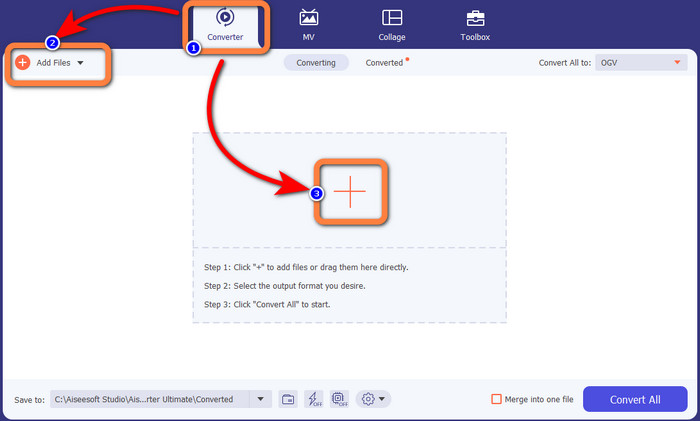
Pasul 3: Mergi la opțiunile de format făcând clic pe pictograma de listă derulantă de lângă Convert All to și selectează formatul de fișier MKV pentru pasul următor.

Pasul 4: Ultimul pas este să îți convertești fișierul făcând clic pe butonul Convert All. Apoi poți salva videoclipul în format MKV.
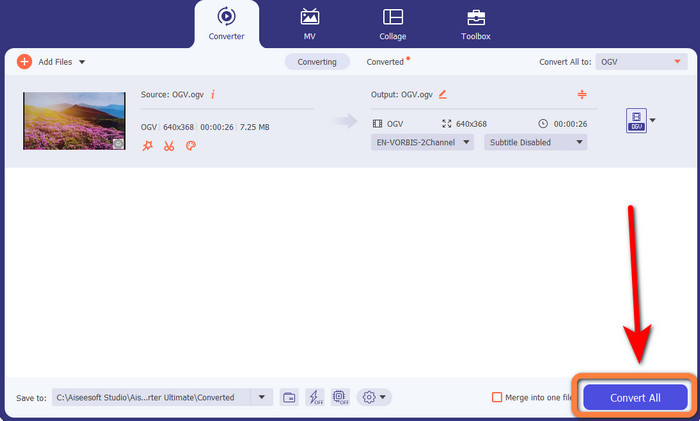
Partea 3: Soluții online ușoare pentru a converti OGV în MKV
Folosind Converthelper
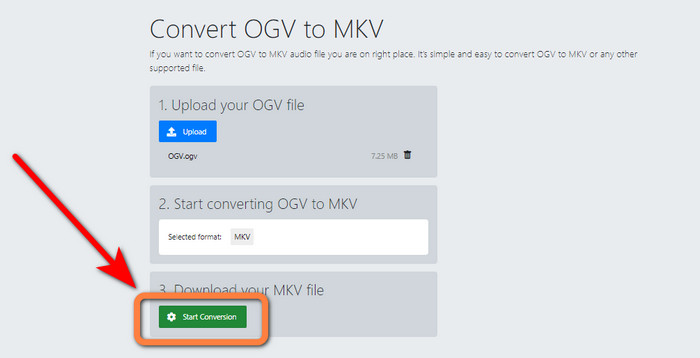
Dacă ești impresionat de Video Converter Ultimate, este liniștitor să știi că vei fi mulțumit și de utilizarea Converthelper. Acest instrument online îți permite să convertești OGV în MKV ușor și eficient. De asemenea, acceptă diverse tipuri de fișiere, precum WMA, FLV, AVI, MP4, 3GP și altele. Are și metode de bază pentru conversia fișierelor, astfel încât nici măcar un începător nu va întâmpina dificultăți în utilizarea acestei aplicații online. În plus, acest convertor video gratuit poate converti și videoclipurile fără pierderi de calitate. În acest fel, te asiguri că videoclipul tău arată la fel din punct de vedere al calității. Totuși, există unele situații în care Converthelper nu funcționează bine, mai ales atunci când ai o conexiune la internet lentă. De asemenea, procesul de conversie este mai lent, ceea ce este consumator de timp pentru utilizatori. Încearcă să convertești fișierul tău OGV în MKV folosind acest software.
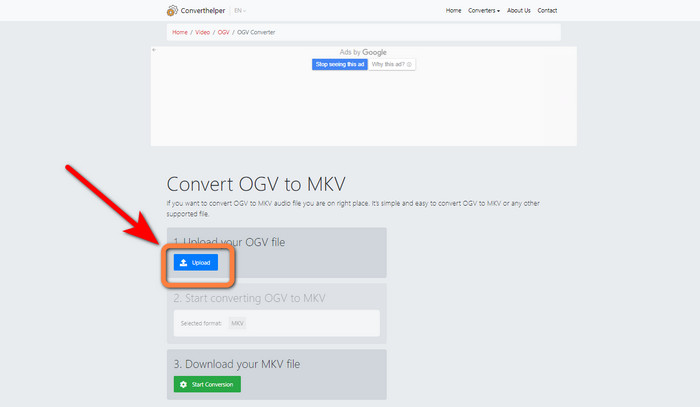
Pasul 1: Trebuie să accesezi site‑ul web Converthelper. Apoi, fă clic pe butonul Upload și importă fișierul în format OGV.
Pasul 2: Mergi la numărul 2. Selectează formatul de fișier MKV din opțiunile de format.
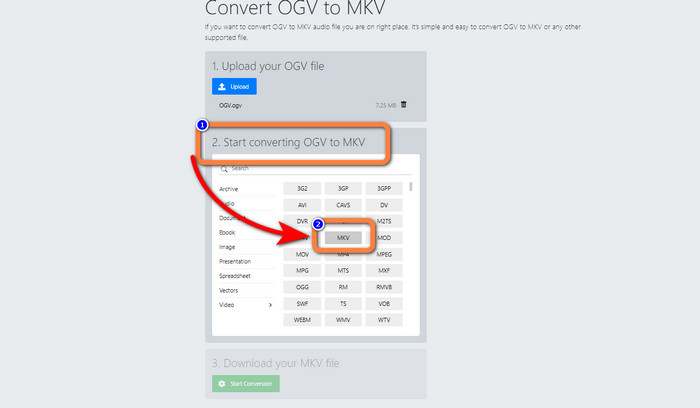
Pasul 3: Pentru ultimul pas, fă clic pe butonul Start Conversion și așteaptă procesul de conversie. Acest instrument îți permite, de asemenea, să convertești OGV în FLV.
Folosind FreeConvert
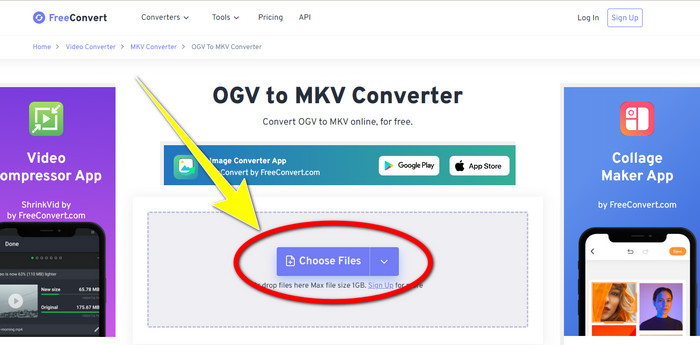
FreeConvert îți permite să convertești OGV în MKV instantaneu. De asemenea, poți folosi acest instrument pentru a converti și alte formate de fișiere, precum MP4, WMV, AVI, WEBM, 3GP, MOV etc. Are pași simpli pentru conversia fișierelor, ceea ce îl face perfect pentru începători. Pe lângă conversie, FreeConvert poate și să comprime videoclipuri, imagini, fișiere audio, documente și altele. În plus, îți poți edita videoclipul cu ajutorul instrumentelor de editare, cum ar fi decuparea video și tăierea video. Din păcate, în ceea ce privește conversia, poate procesa doar fișiere de maximum 1 GB. Astfel, poți converti doar un număr limitat de fișiere. Trebuie să achiziționezi un abonament dacă vrei să mărești dimensiunea maximă a fișierului. De asemenea, este o aplicație bazată pe web, deci este esențial să ai o conexiune la internet. Urmează pașii de mai jos pentru a converti OGV în MKV.
Pasul 1: Accesează site‑ul FreeConvert. Fă clic pe butonul Choose File pentru a adăuga fișierul OGV.
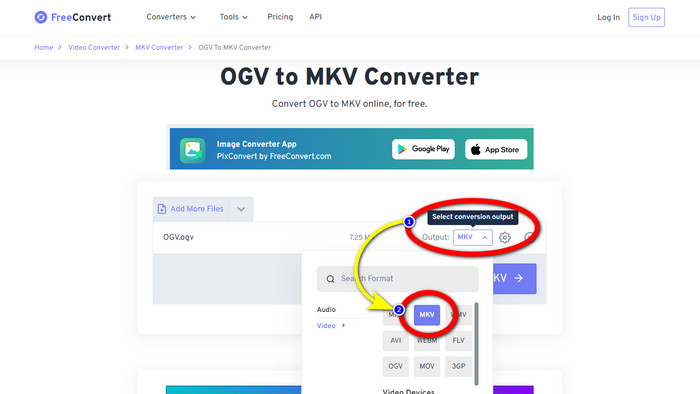
Pasul 2: Următorul pas este să mergi la butonul Output. Fă clic pe el pentru a vedea opțiunile de format și selectează formatul de fișier MKV.
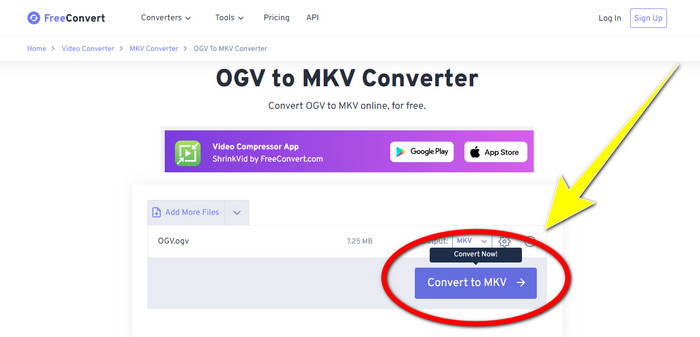
Pasul 3: După selectarea formatului de fișier MKV, fă clic pe butonul Convert to MKV. Apoi va începe procesul de conversie și îți va salva videoclipul final.
Partea 4: Întrebări frecvente despre conversia OGV în MKV
1. Pot folosi FFmpeg pentru a converti OGV în MKV?
Desigur că poți. Descarcă FFmpeg. Este un instrument bazat pe linie de comandă care poate converti diverse fișiere video, inclusiv OGV, MKV, MOV, MP4, AVI și altele.
2. Este MKV un format comun?
Majoritatea dispozitivelor actuale sunt compatibile cu formatul. Numeroase piese audio și subtitrare pot fi stocate într-un singur fișier folosind formatul MKV sau Matroska Video. Este incredibil de apreciat pentru păstrarea filmelor. Fișier de dimensiuni destul de mici și video de înaltă calitate.
3. Este OGV un OGG?
Nu. OGG este un format open-source care este folosit de containerul OGV. Unul dintre obiectivele principale ale dezvoltării OGG a fost acela de a fi liber de restricțiile privind brevetele de software. Un flux video cu sau fără audio care a fost comprimat folosind metoda Opus, Vorbis, Theora sau Speex este stocat folosind extensia de fișier OGV.
Concluzie
Utilizarea instrumentelor online pentru a converti OGV în MKV este eficientă, dar nu poți ignora faptul că apar mereu reclame enervante în timpul conversiei. Așadar, dacă vrei să convertești fișiere fără să fii deranjat de reclame, poți folosi Video Converter Ultimate.
-
 Top 4 cele mai bune soluții pentru conversia MXF în MKV [Rezolvat]
 Cunoașteți aceste patru metode grozave de a converti cu ușurință MXF în MKV online și offline. Aplicațiile incluse în această postare vă pot ajuta să convertiți fișiere fără probleme.
-
 4 moduri de a converti MPG în MKV utilizând convertoare online/offline
 Căutați un convertor ușor de utilizat care să poată converti fișiere MPG în MKV? Acest articol enumeră cele mai bune și mai simple modalități de a converti rapid fișiere MPG în MKV
-
 Cele mai ușoare modalități de a converti MOV în MKV gratuit pe Mac
 Doriți să convertiți MOV în MKV gratuit pe Mac? Citiți acest articol pentru a afla cele mai simple și mai simple modalități de a vă converti fișierul MOV în MKV.
