


 Video Converter Ultimate
 Screen Recorder
 Reparație video
 Descărcare sigură
Transformarea YouTube în ton de apel: convertirea simplă
Te-ai săturat să fii notificat de tonuri de apel fade și repetitive pe dispozitivul tău mobil? Ce-ar fi să începi să folosești acel ton la modă, antrenant și vesel de pe YouTube? Nu știi cum? Ei bine, te ajutăm noi, pentru că soluția este convertirea lor, iar norocul tău abia începe: am enumerat programe și instrumente online concepute pentru convertirea videoclipurilor de pe YouTube în tonuri de apel. Începe să convertești videoclipuri YouTube chiar de azi și transformă-ți tonul de apel zilnic din plictisitor în plăcut.

Partea 1. Convertiți linkul YouTube în ton de apel MP3
Te întrebi cum să faci un videoclip YouTube ton de apel? Ei bine, pentru această parte, vă vom arăta cum să convertiți un videoclip YouTube într-un ton de apel MP3 prin copierea și lipirea linkului și utilizând un instrument de conversie bazat pe web precum Y2Mate. Procesul durează aproximativ trei pași, asigurând o conversie simplă pentru a vă economisi timp și a seta tonul de apel nou convertit.
Pasul 1. Copiază linkul videoclipului YouTube ales, pe care vrei să-l convertești într-un ton de apel. Poți face acest lucru printr-un browser pe desktop sau din aplicația YouTube de pe mobil.
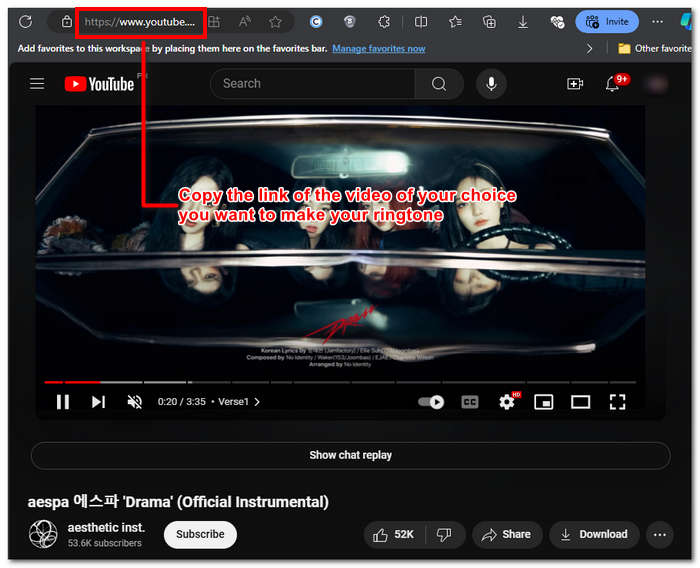
Pasul 2. Accesează Y2Mate.com și lipește linkul videoclipului YouTube în câmpul dedicat.
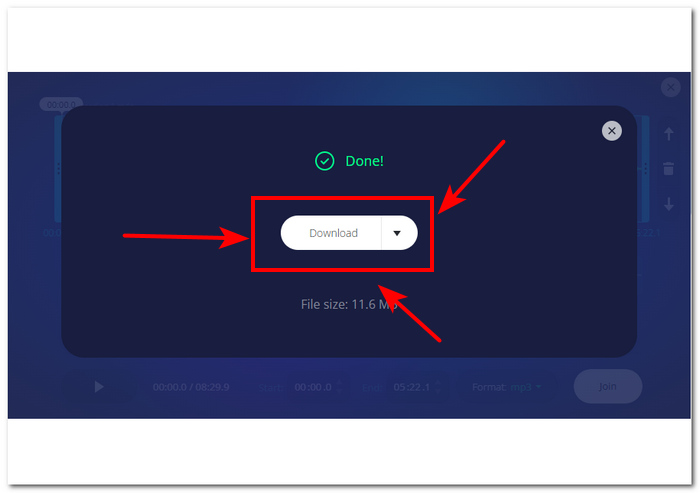
Pasul 3. Apoi, dă clic pe butonul Audio și apoi pe butonul Download pentru a converti fișierul și a-l salva pe dispozitivul tău.
Acest pas funcționează și pe telefoanele mobile, deoarece puteți utiliza browserul telefonului mobil.
Partea 2. Personalizați videoclipul YouTube în ton de apel MP3 pentru Android/iPhone
Dacă vrei să descarci un videoclip de pe YouTube, să-l transformi în ton de apel și să-l personalizezi pentru o notă mai personală, atunci un instrument software este soluția ideală. FVC-picked Video Converter Ultimate este un instrument all-in-one care poate converti, îmbunătăți, comprima și chiar edita fișiere video și audio, cu suport pentru până la 1000 de formate. În plus, este integrat cu o tehnologie de procesare de mare viteză, pentru a asigura conversia rapidă fără pierdere de calitate.
Se presupune că sarcina este personalizarea unui fișier video YouTube înainte de a-l converti într-un ton de apel M4R sau MP3. Astfel, software-ul vă poate ajuta să scurtați durata de timp, să adăugați efecte de estompare și să eliminați părțile pe care le considerați inutile, realizând o personalizare completă care corespunde perfect preferințelor dvs. într-un ton de apel.
Înainte de a vă personaliza tonul de apel, ar fi trebuit să descărcați videoclipul de pe YouTube. Dacă nu ați descărcat videoclipul pe dispozitiv, puteți utiliza Y2Mate pentru a face acest lucru.
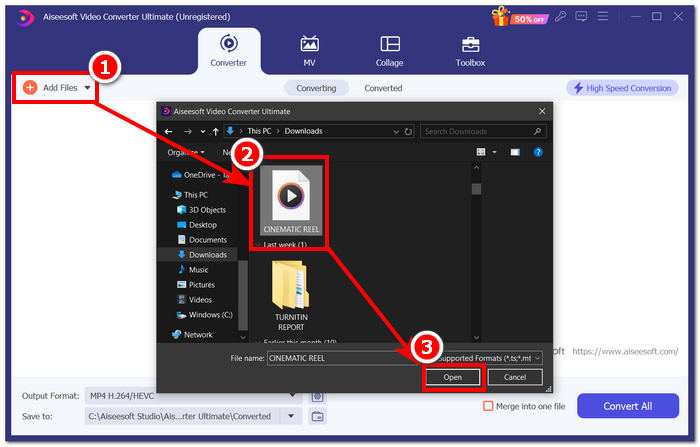
Pasul 1. De pe desktop, descarcă și instalează FVC-picked Video Converter Ultimate pe dispozitivul tău. Deschide programul pe dispozitiv și încarcă videoclipul YouTube descărcat făcând clic pe linkul Add Files din partea stângă sus a interfeței.
Descărcare gratuită pentru Windows 7 sau o versiune ulterioară Descărcare securizată
Descărcare gratuită pentru MacOS 10.7 sau o versiune ulterioară Descărcare securizată
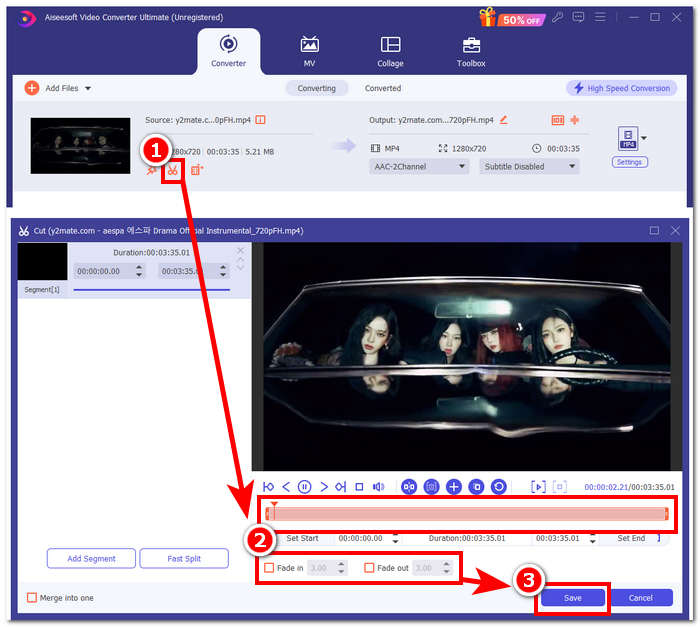
Pasul 2. După ce videoclipul se află în program, fă clic pe pictograma foarfecă de lângă video pentru a începe personalizarea tonului de apel. Când apare o nouă fereastră pe ecran, poți adăuga efecte de fade la tonul de apel și îl poți scurta trăgând bara cursorului de la stânga la dreapta. Când ai terminat de personalizat, fă clic pe butonul Save.
Pasul 3. După ce ți-ai personalizat tonul de apel, schimbă-i formatul de fișier din MP4, un format video, într-un format MP3 propriu-zis, pentru ca acesta să apară ca fișier audio pe dispozitiv.
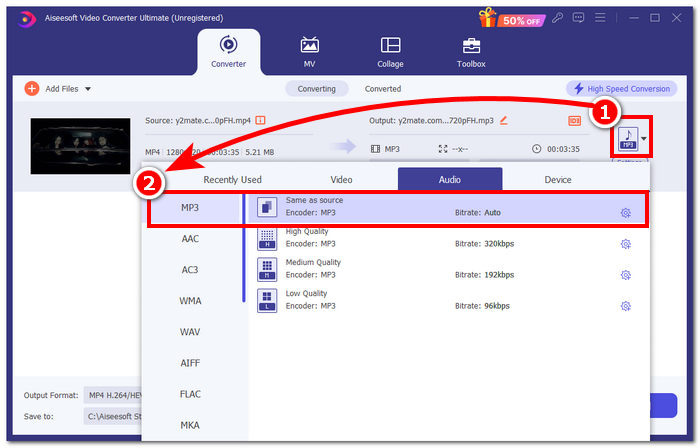
Pasul 4. Fă clic pe butonul Convert All pentru a începe procesul de conversie și a salva automat tonul de apel pe dispozitiv. După ce conversia s-a încheiat, tonul tău de apel va fi în folderul de descărcări.

Partea 3. Setați videoclipul YouTube la Ton de apel MP3
iPhone
După crearea tonurilor de apel pentru iPhone, setarea unui ton de apel pe iPhone este un proces destul de complicat comparativ cu Android. iPhone-urile nu au suport integrat care să simplifice procesul de setare a unui ton de apel nou provenit din altă sursă. Totuși, acest lucru nu ne oprește să găsim metode de a face un ton de apel MP3 convertit de pe YouTube, pe iPhone, pas cu pas.
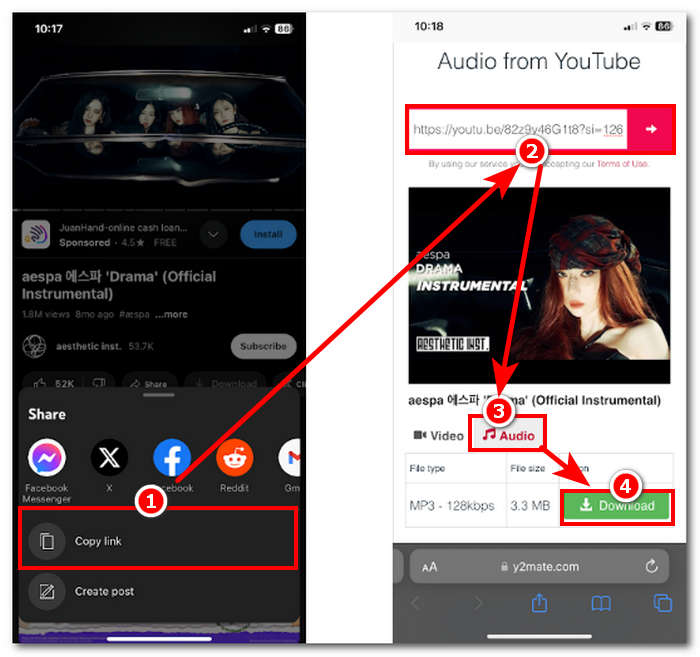
Pasul 1. Copiază linkul videoclipului din aplicația YouTube de pe iPhone-ul tău.
Pasul 2. Lipește URL-ul în instrumentul de conversie preferat, în Safari. Nu uita să alegi mai întâi opțiunea Audio, astfel încât filmul să fie convertit în MP3 înainte de a atinge butonul Download.
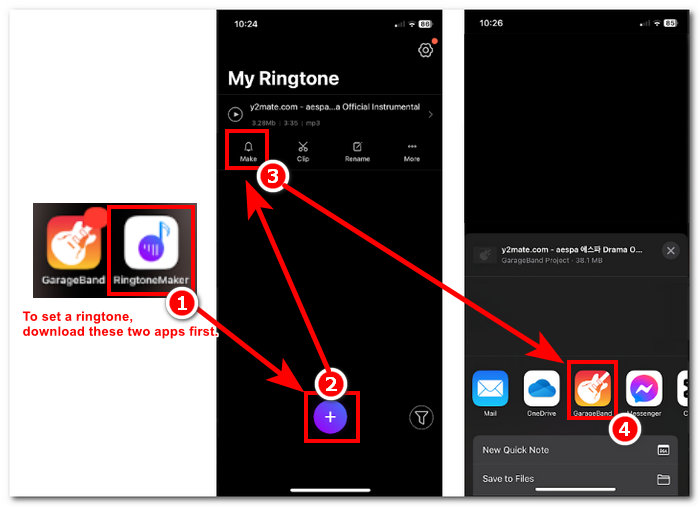
Notă: Asigură-te că ai instalat aplicațiile GarageBand și RingtoneMaker înainte de a trece la pasul următor.
Pasul 3. Deschide aplicația RingtoneMaker și încarcă în aplicație tonul de apel YouTube descărcat. După ce este încărcat, atinge butonul Make Ringtone și selectează aplicația GarageBand pentru a continua.
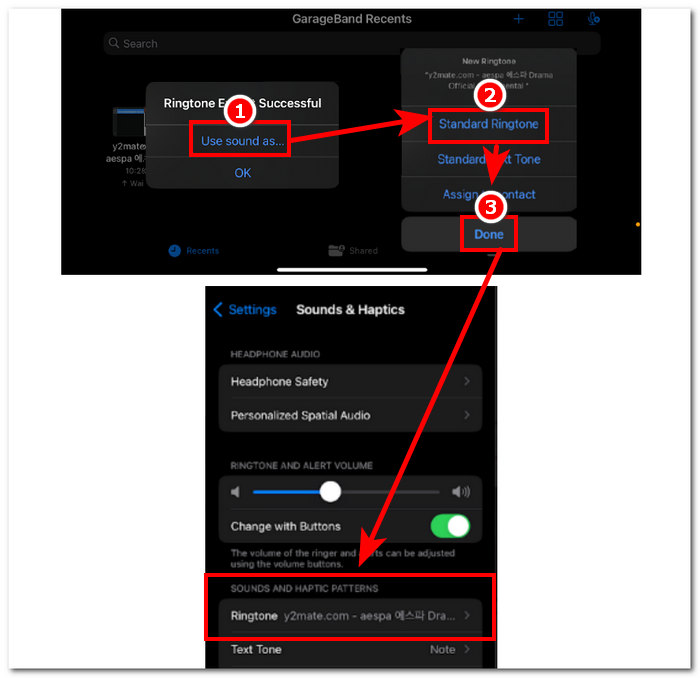
Pasul 4. După ce ești redirecționat în aplicația GarageBand, atinge tonul de apel importat în aplicație, apoi urmează această navigare: Share > Ringtone > Export.
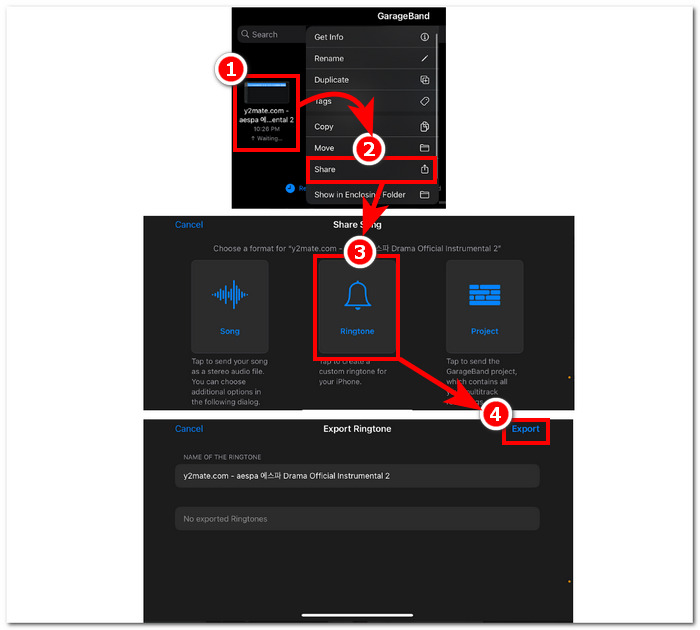
Pasul 5. După ce ai terminat exportul, folosește sunetul ca ton de apel standard și apasă butonul Done. Pentru a verifica dacă ți-ai setat cu succes noul ton de apel, accesează Settings > Sound & Haptics. Numele fișierului ar trebui să apară în secțiunea Ringtone.
Android
Conversia YouTube în ton de apel MP3 pe Android este la fel de simplă ca și configurarea acestuia. Datorită funcțiilor sale încorporate, Android permite utilizatorilor săi să seteze un ton de apel, făcând procesul mult mai ușor și mai convenabil. Astfel, utilizatorii mai trebuie să descarce și să convertească videoclipul YouTube folosind instrumentul online Y2mate.
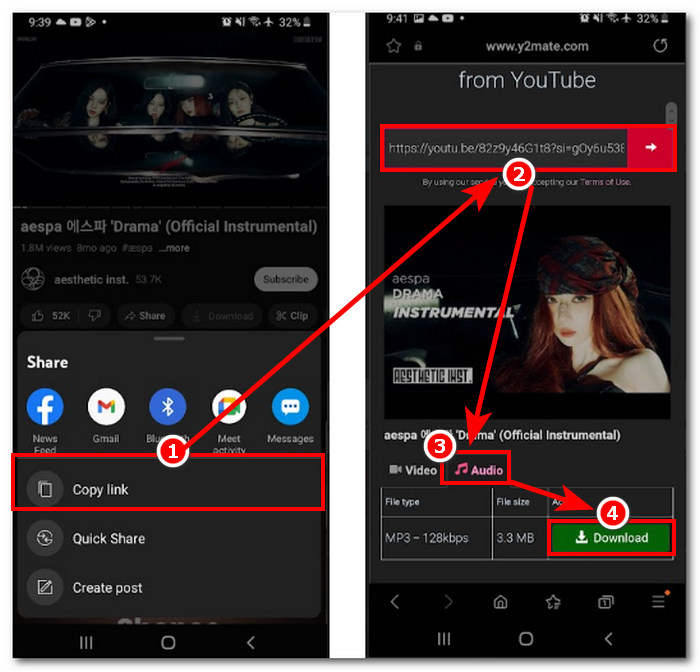
Pasul 1. Din aplicația YouTube, copiază linkul videoclipului din care vrei să faci un ton de apel.
Pasul 2. Din browser, lipește linkul în instrumentul de conversie preferat. Înainte de a face clic pe butonul Download, nu uita să selectezi mai întâi secțiunea Audio, astfel încât videoclipul să fie convertit în MP3.
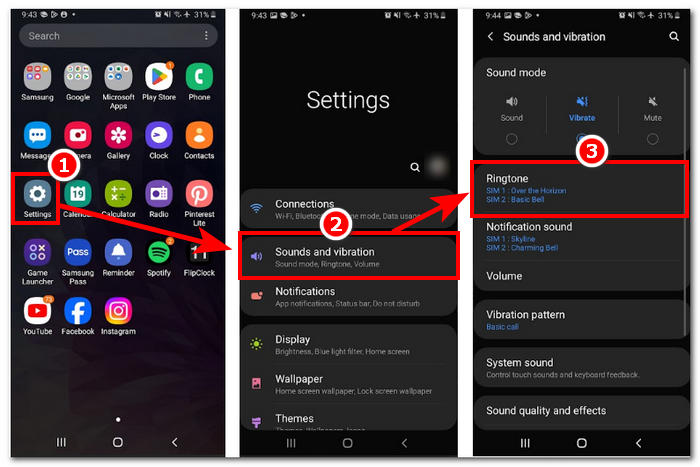
Pasul 3. Accesează setarea pentru Ton de apel a telefonului pentru a seta noul fișier audio convertit ca ton de apel. Urmează acești pași de navigare: Settings > Sound and Vibration > Ringtone.
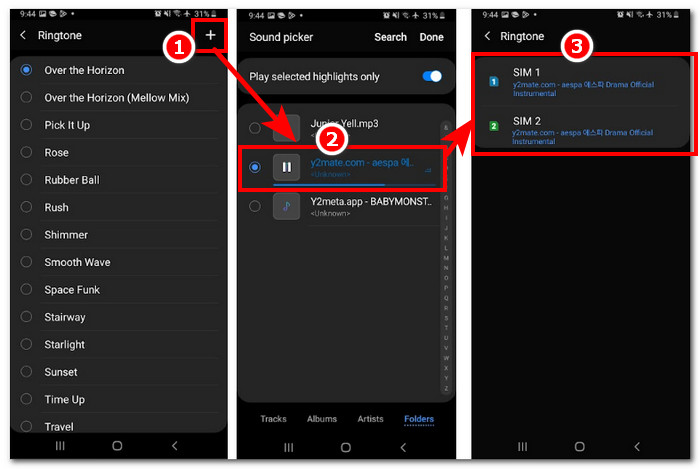
Pasul 4. Odată ce ești în setarea Ringtone, adaugă noul tău ton de apel apăsând butonul + aflat în partea dreaptă sus a ecranului. Și astfel, ai setat cu succes un nou ton de apel provenit dintr-un videoclip YouTube.
Partea 4. Întrebări frecvente despre tonul de apel de la YouTube la MP3
Ce instrument AI convertește YouTube în MP3?
Multe instrumente AI din lista A pot converti în mod eficient videoclipurile YouTube în MP3. Unele opțiuni populare sunt YTMP3.cc și ClipGrab.
Ce este aplicația de conversie YouTube în MP3?
O aplicație YouTube în MP3 este un instrument care poate fi descărcat pe dispozitivul mobil al unui utilizator. Astfel de aplicații de conversie sunt TubeMAte, VideMate și Snaptube.
Cum salvezi audio de pe scurtmetraje YouTube?
YouTube interzice descărcarea ilegală de audio, de unde și conținutul de pe platformă. Pentru a salva ilegal audio de pe scurtmetraje YouTube, utilizatorii se bazează pe instrumentele de conversie online și pe înregistrarea ecranului telefonului.
Concluzie
Convertirea unui videoclip YouTube într-un fișier MP3 pentru a-l folosi ca ton de apel poate fi un proces destul de complicat, mai ales pentru un începător sau pentru cineva fără experiență tehnică. De aceea, urmarea atentă a pașilor de mai sus îi poate ajuta pe utilizatori să își creeze tonul de apel cu ușurință. Sunt oferite opțiuni despre cum să convertești un videoclip YouTube și să faci un ton de apel folosind software-ul online Y2Mate pentru dispozitive Android și iPhone, precum și un instrument software, FVC-picked Video Converter Ultimate, pentru funcții avansate de personalizare.
-
 MOV VS MP4 - Pe care îl alegeți?
 MOV VS MP4, care este mai bun? Această postare spune diferența dintre MP4 și MOV, astfel încât să puteți obține alegerea mai bună de utilizat pentru fișierele dvs. video.
-
 FLAC vs. MP3: ce format de fișier audio domnește suprem
 Această postare va compara diferențele cheie dintre FLAC și MP3. Aceasta include calitatea sunetului, dimensiunea fișierului, compatibilitatea și multe altele.
-
 Cum să convertiți MP3 în M4A pentru o calitate îmbunătățită a sunetului
 Îmbunătățiți calitatea fișierelor muzicale prin conversia MP3 în M4A cu sfaturile și trucurile noastre de experți. Ghidul nostru oferă instrucțiuni pas cu pas și software recomandat.
