


 Video Converter Ultimate
 Screen Recorder
 Reparație video
 Descărcare sigură
Cum se îmbină fișierele M4V? Iată cele mai rapide soluții 2
Fișierele M4V, cunoscute și sub numele de fișiere video MPEG-4, sunt de obicei descărcate din iTunes. Ele sunt foarte similare cu fișierele MP4, deoarece ambele folosesc formatul container MPEG-4. Este foarte posibil ca tocmai să fi descărcat câteva clipuri video incomplete în format M4V din iTunes și apoi să vrei să unești fișierele M4V într-o singură poveste completă, fără întreruperi. Cum poți combina fișierele M4V? Acest articol își propune să îți ofere două metode pentru a face asta eficient și fără pierdere de calitate a imaginii.

Partea 1: Soluția cea mai rapidă - Folosiți o fuziune M4V gratuită online
Pentru cea mai rapidă soluție, poți folosi FVC Free Online Video Merger, care nu îți va lua mult timp să înveți pașii și setările. Trebuie doar să încarci instrumentul în browser, să adaugi fișierele M4V și apoi să dai un singur clic pentru a îmbina fișierele M4V.
Funcții principale
- • Îmbinați fișierele M4V de orice sumă și orice dimensiune într-un singur fișier gratuit.
- • Interfață ușor de utilizat și procese intuitive de pre-fuzionare.
- • Puteți salva fișierele M4V combinate sub alte 9 formate majore.
- • Nu lăsați filigran în videoclipurile M4V combinate.
- • Încărcați fișierele de orice dimensiune în doar 1 secundă.
Pași pentru a îmbina online fișiere M4V gratuit
Pasul 1. Dă clic aici pentru a încărca FVC Free Online Video Merger. Pe pagina instrumentului online, dă clic pe butonul Upload Videos to Merge din centrul ecranului.
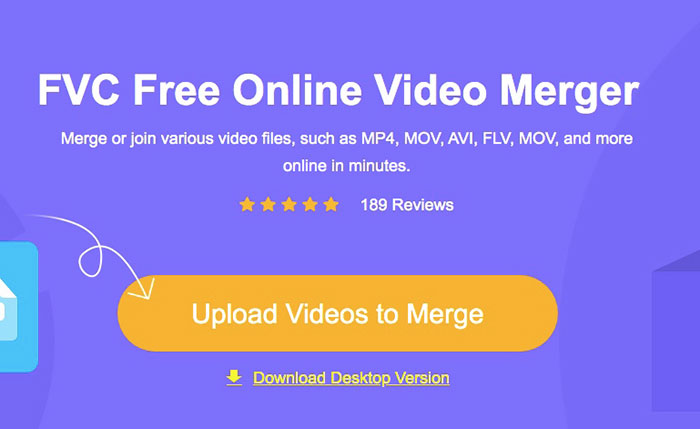
Notă: Instrumentul îți va cere să descarci și să instalezi un launcher dacă îl folosești pentru prima dată. După ce ai instalat launcher-ul, dă din nou clic pe butonul Upload Videos to Merge.
Pasul 2. Acum ar trebui să apară fereastra Open. Aici trebuie să selectezi fișierele M4V și apoi să dai clic pe butonul Open din partea de jos a ferestrei.
Pasul 3. După încărcarea fișierelor M4V, poți ajusta ordinea fișierelor M4V eliminându-le pe cele existente și inserând altele noi în pozițiile dorite.
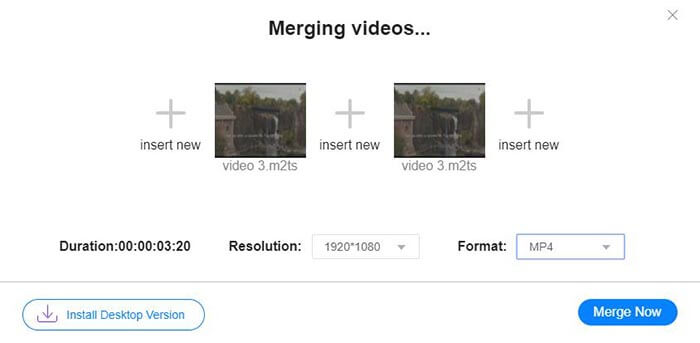
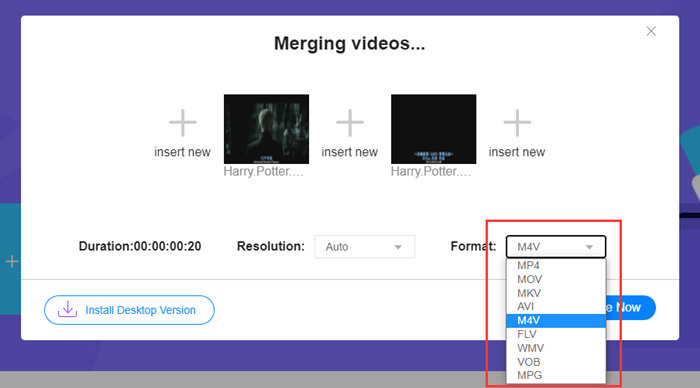
Pasul 4. Pentru a păstra fișierul îmbinat în format M4V, trebuie să alegi M4V din lista Format. Poți, de asemenea, să alegi oricare dintre formatele listate pentru a converti videoclipul M4V rezultat.
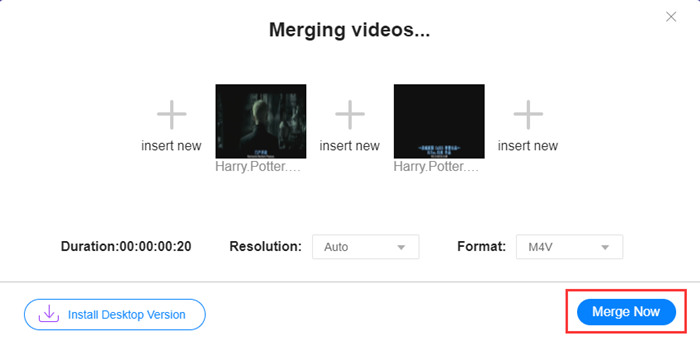
Pasul 5. Dă clic pe butonul Merge Now pentru a începe combinarea fișierelor M4V. Instrumentul îți va cere apoi să alegi destinația fișierului de ieșire.
Când vedeți mai jos notificarea de succes, videoclipul îmbinat este salvat pe computer.
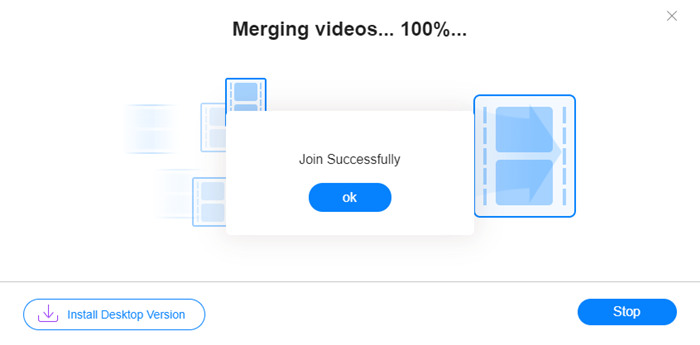
Ai aflat deja cea mai rapidă modalitate de a combina fișiere M4V. Totuși, această metodă îți permite doar să legi videoclipurile unul după altul, fără a te ajuta să tai capetele nedorite, ceea ce poate duce la perioade cu ecran negru în video. Poate că ai nevoie și de următoarea metodă, care îți permite nu doar să unești fișierele M4V, ci și să le tai fără cusur. Poți comprima fișiere M4V aici.
Partea 2: O metodă de îmbinare perfectă a fișierelor M4V
Pentru a obține un videoclip complet și fluid, simpla alipire a fișierelor M4V cap la cap nu este suficientă. Trebuie, de asemenea, să tai segmentele nedorite de la început și de la sfârșit. Așadar, este nevoie de un instrument de editare video. Ai numeroase opțiuni dintre care poți alege, însă noi îți recomandăm Video Converter Ultimate. Motivul este simplu: este ușor de utilizat, iar funcțiile sale sunt suficient de puternice.
Funcții principale
- • Îmbinați, tăiați, rotiți, decupați și adăugați efecte videoclipurilor M4V.
- • Tehnologia de accelerare hardware ajută la finalizarea îmbinării fișierelor M4V de 70 de ori mai rapid.
- • Filtre abundente și colecție de efecte pentru a vă înfrumuseța videoclipurile
- • Utilizați amplificatorul video încorporat pentru a vă îmbunătăți calitatea videoclipului
- • Transformați-vă videoclipurile în 3D și bucurați-vă de ele cu ochelarii dvs. 3D
Descărcare gratuită pentru Windows 7 sau o versiune ulterioară Descărcare securizată
Descărcare gratuită pentru MacOS 10.7 sau o versiune ulterioară Descărcare securizată
Pași pentru a îmbina fără întreruperi fișierele M4V
Pasul 1. Instalează și lansează Video Converter Ultimate. Dă clic pe butonul Add Files sau trage fișierele în interfață pentru a adăuga videoclipurile.
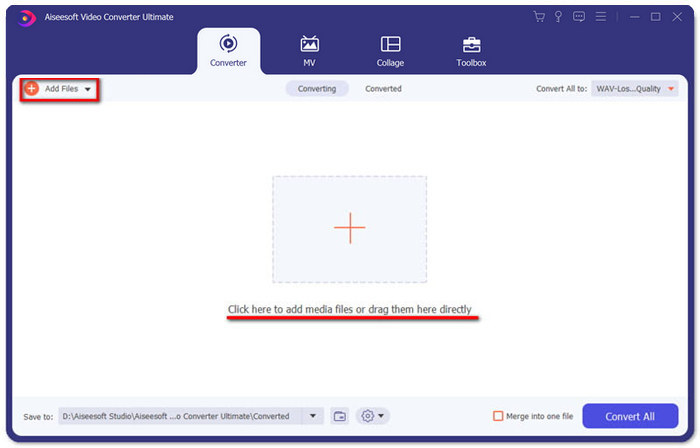
După ce le-ai adăugat, poți trage fișierele în sus și în jos pentru a le reordona. De asemenea, trebuie să bifezi căsuța Merge into one file, pentru ca programul să nu convertească videoclipurile adăugate separat.
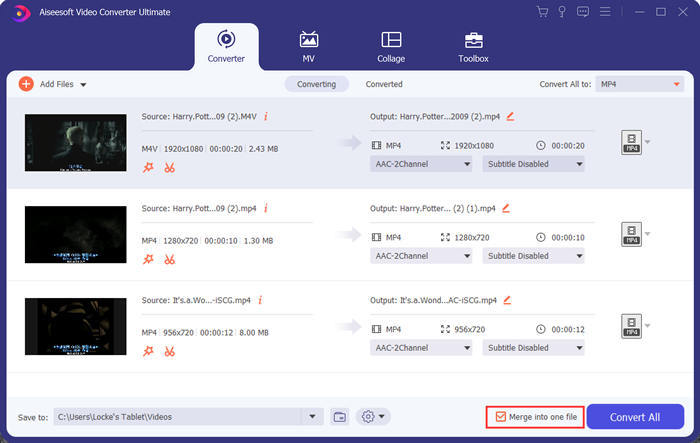
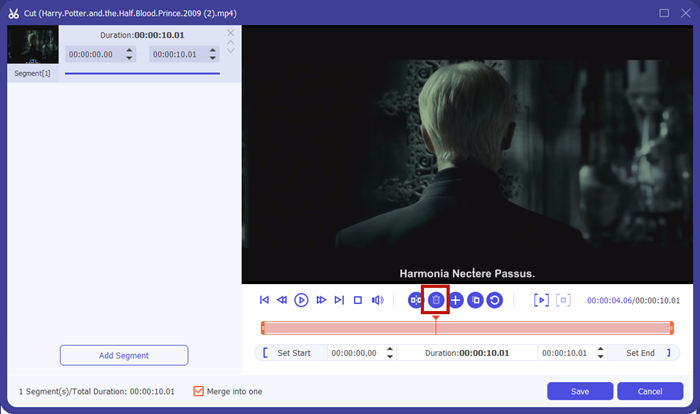
Pasul 2. Pentru a folosi funcția de tăiere, poți da clic pe pictograma Cut de pe un videoclip adăugat.
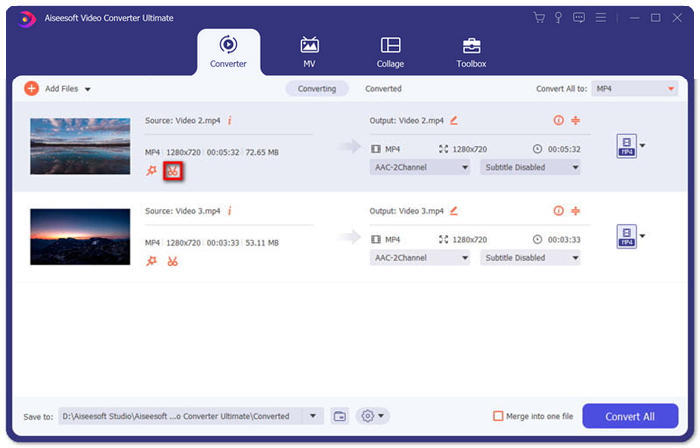
În interfața Cut, poți tăia cu ușurință părțile nedorite ale unui videoclip. Trebuie doar să selectezi un segment stabilindu-i punctele de început și de sfârșit, apoi să dai clic pe pictograma coș de gunoi pentru a-l elimina.
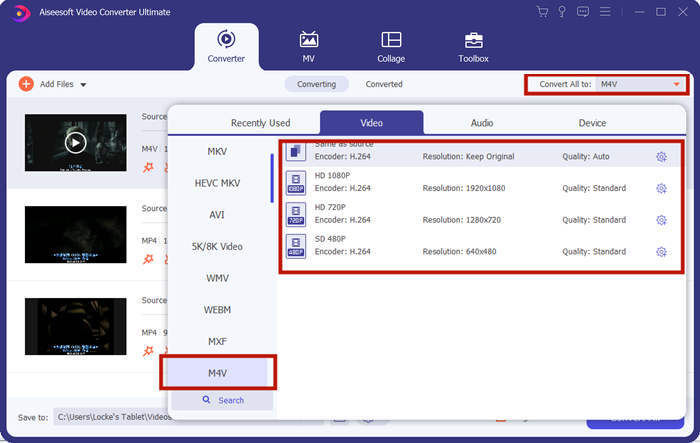
Pasul 3. Înapoi în interfața principală, poți alege fișierul de ieșire. Dă clic pe săgeata în jos de lângă Convert All to. Apoi poți selecta M4V sau alte formate ca format de ieșire.
Pasul 4. Dă clic pe butonul Convert All din colțul din dreapta jos al programului și așteaptă ca programul să unească fișierele M4V.

Când fuziunea este terminată, veți vedea o notificare de succes. Apoi, puteți găsi fișierul M4V combinat în folderul de destinație. Mai sus sunt două metode pentru a uni fișiere video M4V. De asemenea, am concluzionat mai jos câteva dintre cele mai frecvente întrebări.
Partea 3: Întrebări frecvente despre alăturarea fișierelor M4V
Ce este un fișier M4V?
M4V, proiectat de Apple, este denumit uneori și Fișier video iTunes. Este similar cu MP4, deoarece ambele se bazează pe MPEG-4. Cea mai specială caracteristică a M4V este că iTunes ar putea adăuga protecție DRM pentru a preveni distribuirea neautorizată a videoclipurilor iTunes.
Cum se deschide un fișier M4V?
Dacă nu este protejat prin DRM, un fișier M4V poate fi redat în VLC, QuickTime, Windows Media Player și multe alte playere media. Uneori funcționează și simpla schimbare a extensiei .M4V în .MP4 pentru a-l deschide. Totuși, un fișier M4V cu protecție DRM poate fi redat doar pe dispozitive autorizate.
Pot elimina protecția DRM dintr-un fișier M4V?
Da, poti. Puteți găsi nenumărate programe de eliminare DRM pe piață. Iată câteva dintre acestea: TunesKit DRM M4V Converter, Aimersoft DRM Media Converter, Requiem DRM Remover, Ondesoft iTunes Convertert, Apple Music Converter.
Concluzie
Acest articol a prezentat două modalități eficiente de a uni mai multe fișiere video M4V într-unul singur. Pentru cea mai rapidă soluție, FVC Free Online Video Merger este cea mai bună alegere. Îl poți folosi fără a descărca niciun program. Procesul de încărcare se poate finaliza imediat. Dar dacă îți dorești o calitate mai bună sau vrei nu doar să combini fișierele M4V, ci și să le tai, poți apela la Video Converter Ultimate. Îți oferă funcții de editare puternice, iar interfața este prietenoasă pentru începători. Dacă ai descoperit soluții mai bune, ne-ar plăcea să le aflăm. Lasă-ne doar un comentariu mai jos.
-
 Cum se convertește M4V în MP4 cu / fără DRM
 6 moduri de a converti gratuit M4V în MP4 (eliminarea DRM este inclusă)
-
 5 cei mai buni jucători M4V pentru a reda cu ușurință fișiere M4V pe computere / telefoane mobile
 Top 5 jucători M4V pentru Windows / Mac / Android / iOS pe care ar trebui să-i cunoașteți
-
 Cum să extrageți MP3 din M4V cu 4 metode excelente pe care ar trebui să le cunoașteți
 Convertor M4V în MP3 - 4 cele mai bune metode pentru a extrage MP3 din fișiere M4V
