


 Video Converter Ultimate
 Screen Recorder
 Reparație video
Top 7 editori de metadate pentru Windows și Mac
Adăugarea etichetelor cu ajutorul unui editor de metadate este esențială, mai ales dacă vrei să protejezi fișierul de persoanele care ar putea pretinde că este opera lor. Chiar dacă nu adaugi un filigran, etichetele îl protejează. Totuși, nu toate editoarele de taguri pot adăuga ușor etichete la fișierele noastre video, audio, foto și documente, astfel că alegerea instrumentului potrivit poate fi o provocare pentru oricare dintre noi. Din acest motiv, poți continua să citești acest articol, deoarece acoperim totul pentru tine. Înțelege diferitele instrumente care pot edita cu ușurință etichetele fișierului tău.

Partea 1. 3 a celui mai bun editor de metadate pentru videoclipuri și audio pe desktop [offline]
1. Video Converter Ultimate [Cel mai recomandat]
Fără niciun dubiu, Video Converter Ultimate este un editor de metadate video potrivit și excelent pentru Mac și Windows, odată ce îl descarci. Acest instrument este preferat de milioane de utilizatori, numărul lor fiind în continuă creștere, pentru a modifica rapid metadatele oricărui fișier video și audio. Spre deosebire de alte instrumente menționate, acesta te poate ajuta în mai multe sarcini precum conversie, editare, creare de MV, colaje și altele; toate aceste funcții și caracteristici sunt într-un singur instrument. Dacă te-ai săturat să descarci și să testezi mai multe programe pentru funcțiile lor „ultimate”, acum este șansa ta să instalezi acest instrument pe desktop pentru orice sarcină legată de fișiere video și audio. Vrei să încerci software-ul „ultimate”? În acest caz, poți citi informațiile de mai jos pentru a afla cum să adaugi metadate la fișierul tău media ca un profesionist.
Pasul 1. Descarcă software-ul pe Windows sau Mac, fă clic pe butonul de descărcare de mai jos și așteaptă finalizarea procesului de descărcare. După ce ai descărcat software-ul, poți da clic pe fișier pentru a-l instala. Urmează pașii de instalare, apoi apasă Start Now pentru a începe.
Descărcare gratuită pentru Windows 7 sau o versiune ulterioară Descărcare securizată
Descărcare gratuită pentru MacOS 10.7 sau o versiune ulterioară Descărcare securizată
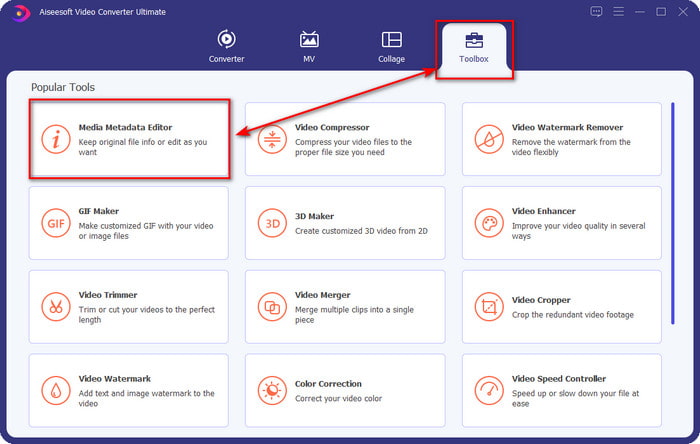
Pasul 2. Pentru început, mergi la secțiunea Toolbox și fă clic pe Media Metadata Editor din lista care apare.
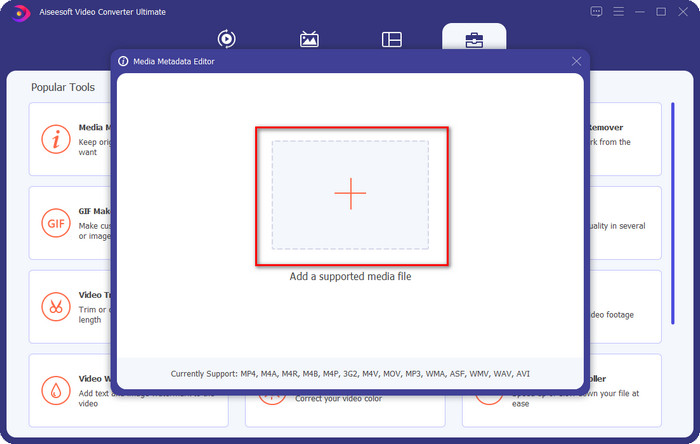
Pasul 3. Apasă butonul add pentru a deschide gestionarul de fișiere, găsește fișierul media și fă clic pe Open pentru a-l încărca.
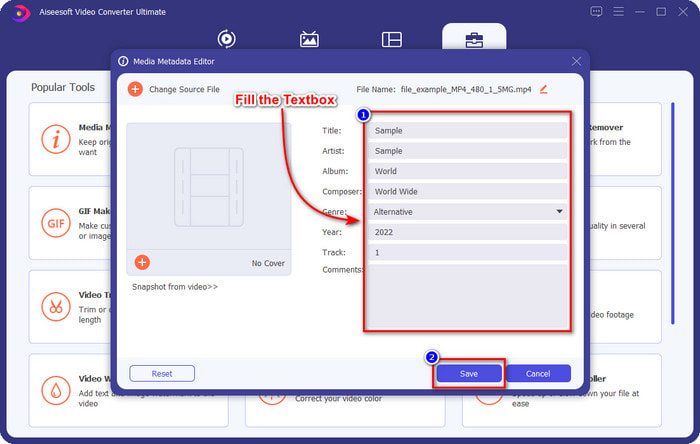
Pasul 4. În caseta de text, poți da clic și introduce informațiile pe care vrei să le adaugi drept tag sau metadate. Apoi apasă Save pentru a aplica metadatele sau etichetele pe care le-ai adăugat. Atât de simplu, adăugarea de metadate la fișierul tău media devine ușor de gestionat cu ajutorul acestui instrument.
2. MP3Tag
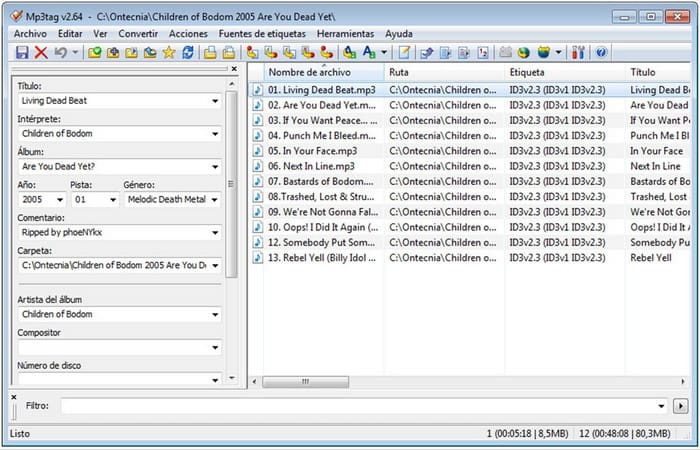
MP3tag este unul dintre excelentele editoare de metadate pentru Mac pe care le poți descărca. Dacă vrei muzică bine organizată, acest software este potrivit pentru această sarcină. Programul a demonstrat deja că modificarea metadatelor unui fișier audio este ușoară și poate fi făcută de oricine. Cu acest instrument, poți adăuga aproape toate informațiile importante de care ai nevoie pentru a-ți proteja fișierele audio de pe Mac. Deși numele software-ului se concentrează pe MP3, el poate edita tagurile și altor fișiere audio. Totuși, dacă folosești acest instrument, noile modificări nu sunt salvate automat, astfel că va trebui să le salvezi manual, iar în cazul unei întreruperi de curent, etichetele pe care le-ai adăugat sunt șterse.
Pasul 1. Descarcă și deschide MP3tag pentru a începe să adaugi etichete.
Pasul 2. Fă clic pe File și localizează fișierul audio în folder.
Pasul 3. Adaugă informațiile în partea dreaptă și apasă Save.
3. Proprietăți pe Windows
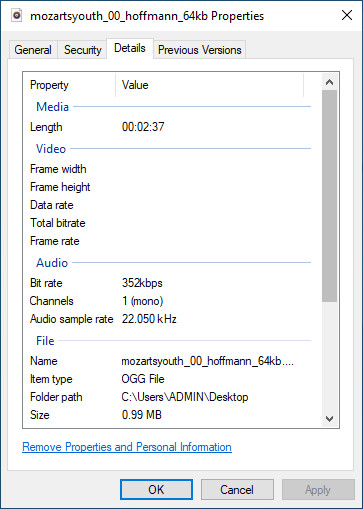
Dacă sunteți în căutarea unui editor de metadate accesibil pe Windows 10, vă sugerăm să utilizați Proprietăți pe Windows. Această funcție nu este atât de mult ca editorul de etichete prezentat pe care îl puteți utiliza pe listă; această funcție vrea să fie simplă, să editeze și să salveze etichetele. Deși instrumentul nu este mai bun decât alții, este considerat o alegere excelentă pentru editarea oricărui fișier media cât mai repede posibil. Chiar dacă instrumentul este simplu, încă nu este la fel de bun ca celălalt editor de etichete pe care îl puteți descărca sau utiliza pe web. Cu toate acestea, merită să încercați să utilizați instrumentul.
Pasul 1. Mai întâi, găsește fișierul media al cărui metadata vrei să îl editezi.
Pasul 2. Fă clic dreapta, găsește opțiunea Properties și apoi apasă pe Details.
Pasul 3. Adaugă etichetele pe care vrei să le atribui fișierului media și apasă OK pentru a salva.
Articole similare:
Cel mai bun editor de metadate FLV
Cel mai bun editor de metadate MP3
Partea 2. 2 a celui mai bun editor de metadate pentru fotografii de pe web
1. Picvario
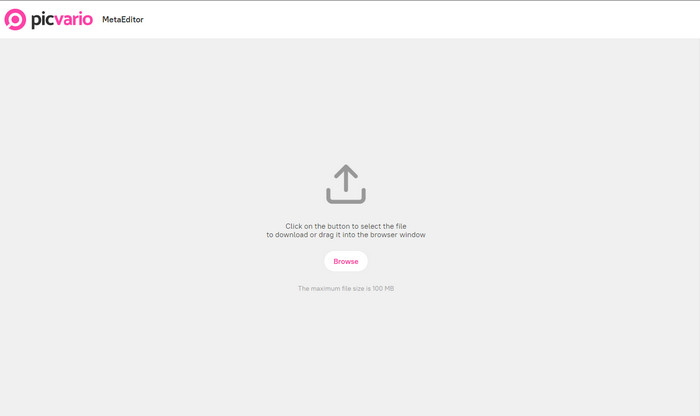
Picvario este un editor de metadate foto la care poți avea acces pe web. Acest instrument online poate modifica etichetele odată ce le-ai încărcat aici. La fel ca MP3tag, poți adăuga doar informații limitate, însă acest instrument este bazat pe web. Nu este prea mult de lăudat la acest instrument online, deoarece nu oferă o funcție unică pe care să nu o poți găsi și în alte părți. De asemenea, înainte de a putea modifica sau adăuga metadate la fotografia ta, trebuie mai întâi să te înregistrezi.
Pasul 1. Deschide browserul și caută Picvario. Creează un cont pe site-ul lor oficial și conectează-te.
Pasul 2. Fă clic pe Import, găsește imaginea în folder și apasă butonul adjust pentru a adăuga etichetele imaginii. Fă clic pe Apply când ai terminat.
Pasul 3. Fă clic pe butonul download pentru a salva imaginea cu etichete.
2. theXifer
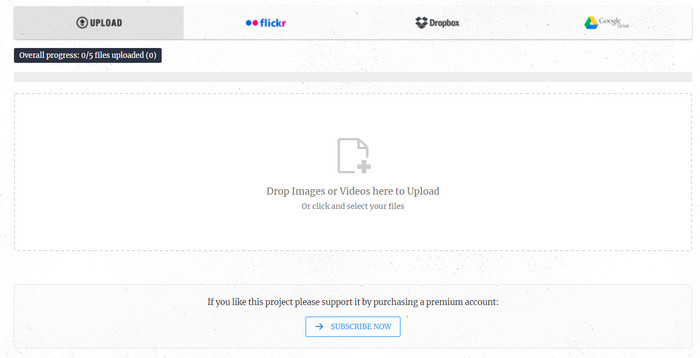
theXifer este un editor de metadate pentru imagini și filme la care poți avea acces gratuit pe web, dar îți poți face și abonament. Cu acest instrument online, poți adăuga locația exactă ca metadata în imagine, precum și alte informații importante de care ai nevoie. Spre deosebire de Picvario, acest instrument poate adăuga mai multe informații la imagine. Totuși, există o limită specifică privind dimensiunea fișierului și de câte ori poți utiliza instrumentul pentru a efectua editarea metadatelor. Chiar dacă aceste limitări îl trag puțin înapoi, este totuși considerat unul dintre cei mai buni competitori în ceea ce privește editarea metadatelor pentru imagini și videoclipuri.
Pasul 1. Caută instrumentul și deschide-l. Încarcă fișierul trăgându-l și plasându-l în fereastra instrumentului online, apoi fă clic pe EXIF.ME.
Pasul 2. Editează etichetele completând câmpurile cu informațiile de care ai nevoie.
Pasul 3. Fă clic pe Go EXIFING pentru a descărca imaginea cu metadatele incluse.
Partea 3. 2 a celui mai bun editor de metadate pentru documente sau PDF [Online și Offline]
Metadate automate
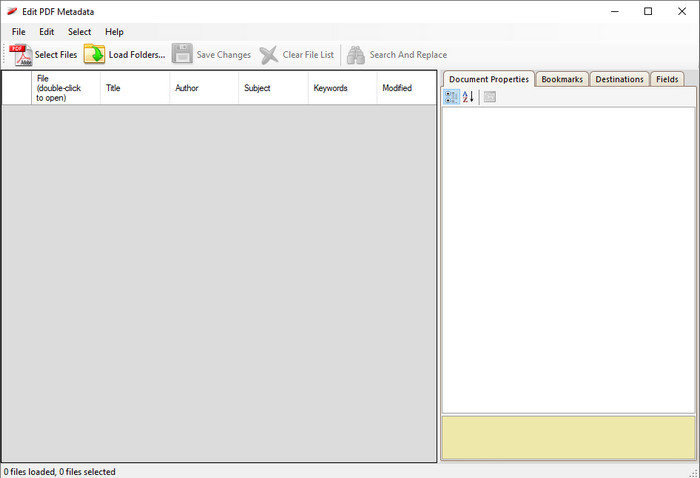
Auto Metadata este un editor de metadate gratuit pe care îl poți descărca pe Windows. Îți permite să editezi cu ușurință mai multe metadate ale fișierelor PDF sau documentelor. Etichetele pe care le poți adăuga sunt Title, Author, Subject, Producer și Keywords, dacă ai nevoie de ele în PDF. De obicei, un PDF nu are nevoie de prea multe informații, spre deosebire de fișierele media, cum ar fi videoclipurile, fișierele audio și fotografiile pe care le ai. Cu acest instrument, poți de asemenea să vezi mai întâi metadatele fișierului PDF înainte să le editezi; informațiile adăugate în PDF pot fi vizualizate aici. Deși poți vedea și alte etichete în editorul tău PDF, nu toate tagurile sunt prioritizate de acest instrument, dar ține minte că poți totuși să modifici metadatele PDF-ului cu acest software.
Pasul 1. Importă fișierul PDF în Auto Metadata.
Pasul 2. Fă clic pe meniul Edit, apoi pe Set Properties for Selected Record.
Pasul 3. După ce ai modificat metadatele PDF-ului, poți acum să apeși Save Changes pentru a aplica etichetele actualizate pe care le-ai adăugat.
Sejda
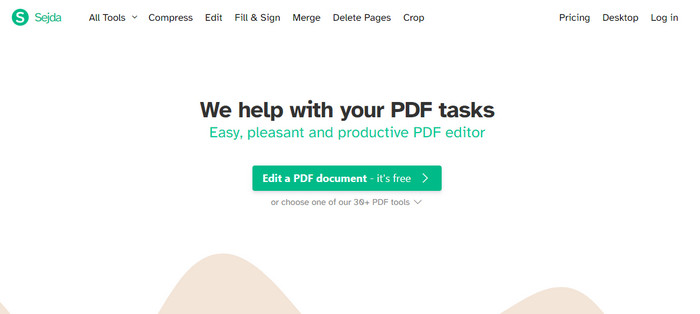
Dacă nu vrei să descarci un editor de metadate pentru PDF, poți folosi în schimb Sejda. Toate funcțiile de editare de care ai nevoie pentru PDF sunt disponibile aici, inclusiv conversie, combinare, ștergere de pagini etc. Datorită simplității sale, mulți utilizatori au descărcat deja versiunea offline. Deși instrumentul online are și o versiune offline, ne vom concentra tot pe el, deoarece acest instrument online oferă funcții excelente. Chiar dacă instrumentul te poate ajuta în sarcinile tale, utilizatorii îl consideră mai puțin atractiv din cauza anumitor limitări, cum ar fi numărul de pagini PDF la care poți lucra. Dacă vrei să încerci acest instrument, urmează pașii de mai jos.
Pasul 1. Deschide Sejda și fă clic pe Upload PDF Files.
Pasul 2. Aplică informațiile de care ai nevoie în PDF; poți adăuga câmpuri noi, dacă vrei.
Pasul 3. Apasă Update PDF Metadata pentru a salva.
Partea 4. Întrebări frecvente despre cel mai bun editor de metadate
Care sunt metadatele cruciale pe care ar trebui să le adaug la fișier?
Titlul și numele autorului sunt cel mai ușor de recunoscut, mai ales după bibliotecă sau folder. Dar puteți fi mai specific cu fișierul adăugând alte informații care vă vor ajuta să determinați care este fișierul și să adăugați protecție.
Metadatele au o limită?
Fie online sau offline, unele software limitează metadatele pe care le puteți adăuga pe fișier. Deci, dacă doriți să adăugați multe informații despre fișierul dvs., acesta va fi mai bun, ușor de recunoscut și chiar mai bun decât înainte.
De ce adăugarea de metadate la fișier devine mare ca dimensiune?
Metadatele sunt o parte a elementului pe video, audio, imagine, PDF, etc. Deci, dacă adăugați metadate la fișier, nu trebuie să fiți șocați deoarece metadatele pe care le adăugați vor extinde dimensiunea fișierului media.
Concluzie
Acum că cunoaștem diferitele editori de metadate pentru video, audio, imagine și PDF, este timpul să alegeți. Cu acest articol, avem acum o minte clară cu privire la abilitățile editorului individual care, fără îndoială, vă pot ajuta. Oricare ar fi sarcina ta în ceea ce privește metadatele, acesta este articolul perfect numai pentru tine. Dar dacă doriți să schimbați metadatele pe video și audio, trebuie să alegeți instrumentul suprem datorită simplității și rezultatelor sale profesionale. Pentru a afla mai multe, trebuie să descărcați software-ul și să îl utilizați!
-
 Cum să editați proprietățile fișierelor WAV pe Windows 10/11 și Mac [Rezolvat]
 Căutați o modalitate de a edita proprietățile fișierelor dvs. WAV pe Windows 10/11? Această întrebare va avea un răspuns dacă vei continua să citești acest articol.
-
 Cele mai bune editori de etichete ID3 pe Windows/Mac/iOS/Android [Dovedit]
 Editarea etichetelor ID3 este o problemă pentru dvs.? Dacă da, acest articol este pentru tine. Citiți detaliile complete de mai jos despre editorii de etichete ID3 de utilizat.
-
 Cum să schimbați detaliile fișierului pe Windows 10/11 [Cea mai ușoară cale]
 Trebuie să știți cum să schimbați detaliile fișierului pe Windows 10/11? Dacă da, acesta este articolul potrivit pe care trebuie să-l citiți cu detaliile importante și instrumentele de utilizat.
