


 Video Converter Ultimate
 Screen Recorder
 Reparație video
 Descărcare sigură
Eliminați filigranul Animotica de pe videoclipuri într-un mod fără efort
Animotica este un editor video popular pentru Windows, îndrăgit de toată lumea, deoarece oferă un rezultat spectaculos odată ce îl folosești. Datorită interfeței și funcțiilor sale prietenoase, chiar dacă ești amator în editarea video, poți crea un rezultat fantastic, comparabil cu ceea ce pot realiza profesioniștii în videoclipurile lor. Nu e de mirare că numele acestui instrument se află printre editorii video de top pe care îi poți folosi pe Windows. Indiferent cât de bun este, mulți utilizatori tot întâmpină o problemă în timpul utilizării, iar filigranul lăsat pe video este principala preocupare a multora. În loc să îți faci griji, de ce nu citești acest articol pentru a elimina filigranul Animotica? Ți-am atras atenția? Atunci citește detaliile de mai jos pentru a afla mai multe despre cum să faci acest lucru în mod eficient.

Partea 1. Cum să eliminați filigranul din videoclipul Animotica folosind cele 3 moduri pe care trebuie să le cunoașteți
FVC Video Converter Ultimate [Cel mai recomandat dispozitiv de îndepărtare a filigranelor video]
FVC Video Converter Ultimate oferă cel mai bun rezultat pentru eliminarea filigranului din videoclipul tău. Chiar dacă nu ești la fel de priceput ca alți editori video, poți obține în continuare un rezultat fantastic odată ce te obișnuiești cu el—nu trebuie să îți faci griji, deoarece poți deveni rapid un utilizator avansat al acestui instrument. Performanța sa este incomparabilă față de alte programe de eliminare a filigranului pe care le poți descărca sau folosi pe internet. Așadar, dacă vrei să vezi cum să elimini filigranul dintr-un video Animotica folosind acest instrument, poți urma tutorialul pe care l-am adăugat mai jos pentru a-l parcurge pas cu pas.
Pasul 1. Mai întâi, descarcă software‑ul pe desktop și alege versiunea care se potrivește sistemului tău de operare. Apoi urmează procesul de instalare și deschide programul pentru a continua.
Descărcare gratuită pentru Windows 7 sau o versiune ulterioară Descărcare securizată
Descărcare gratuită pentru MacOS 10.7 sau o versiune ulterioară Descărcare securizată
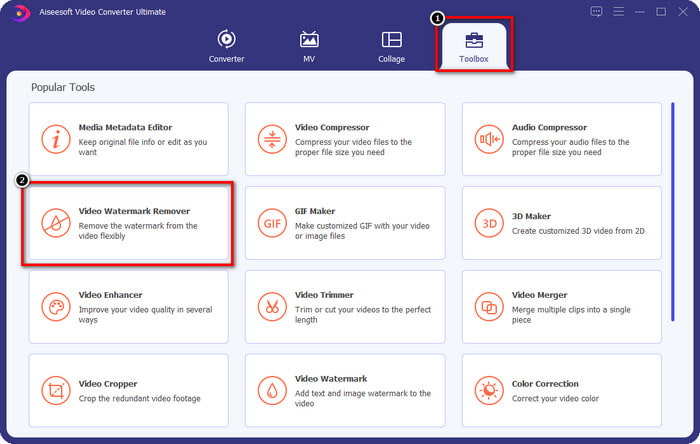
Pasul 2. După ce ai deschis aplicația, mergi la Toolbox și deschide Video Watermark Remover. Există mai multe funcții și opțiuni pe care le poți folosi în secțiunea Toolbox; le poți explora mai târziu, dacă dorești.
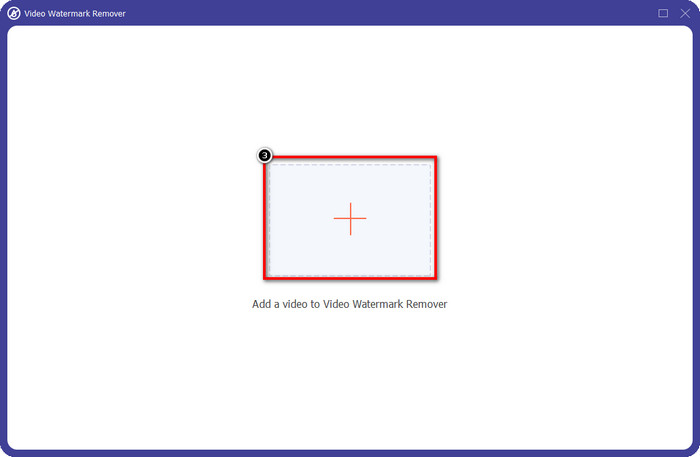
Pasul 3. Fă clic pe pictograma + pentru a încărca videoclipul pe care l-ai editat în Animotica. Găsește fișierul video pe care l-ai exportat cu filigran în folderul afișat pe ecran, apoi fă clic pe Open pentru a-l încărca.
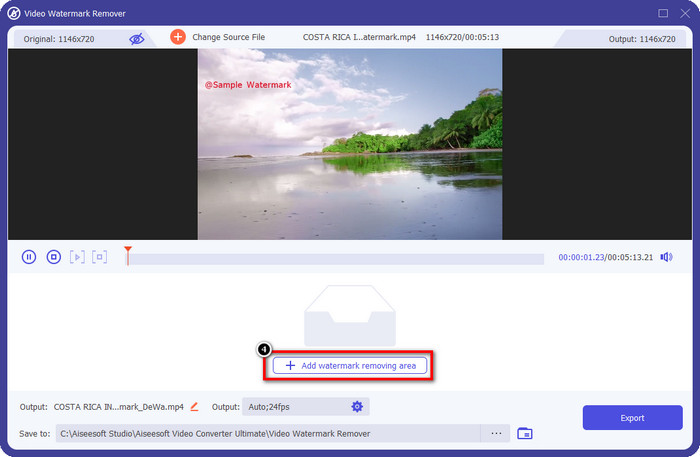
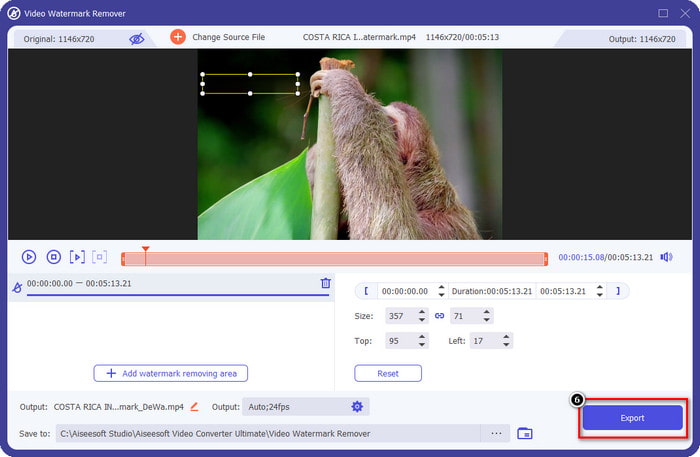
Pasul 4. În fereastra care va apărea, fă clic pe Add Watermark Removing Area pentru a deschide o altă fereastră în care vei trasa zona filigranului.
Pasul 5. Aici, plasează dreptunghiul peste filigran pentru a-l acoperi și asigură-te că este complet acoperit. Poți redimensiona caseta de selecție dacă este prea mică sau prea mare pentru filigran.
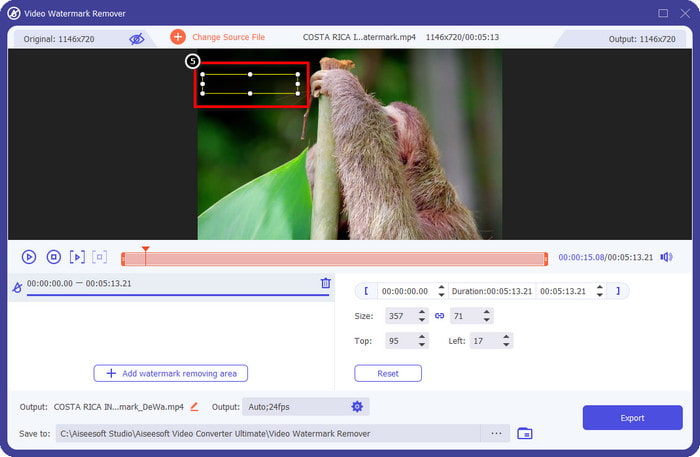
Pasul 6. Acum poți salva videoclipul Animotica fără filigran făcând clic pe butonul Export aflat în partea dreaptă jos a interfeței.
Articole similare:
UkeySoft Video Watermark Remover
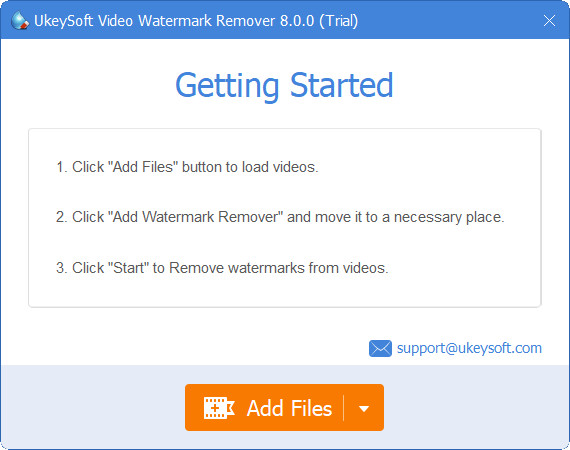
Poți descărca gratuit UkeySoft Video Watermark Remover pentru a elimina filigranul din videoclipul tău. Acest instrument este disponibil pe Windows, ceea ce înseamnă că, dacă ești utilizator de Windows, îl poți descărca liber și poți profita de avantajele sale pentru eliminarea filigranului. La fel ca alte programe de eliminare a filigranului, acest instrument oferă un rezultat de calitate și nu reduce calitatea videoclipului importat după export.
Cu toate acestea, dacă utilizați versiunea accesibilă a acestui instrument, unele limitări vă pot împiedica, cum ar fi nu puteți încărca un videoclip aici pentru mai mult de un minut gratuit. Iată un ghid complet despre eliminarea gratuită a filigranului Animotica.
Pasul 1. Pentru a descărca software‑ul pe desktop, accesează site‑ul oficial și fă clic pe butonul de descărcare pentru a‑l obține pe Windows‑ul tău.
Pasul 2. Deschide programul de eliminare a filigranului, apoi fă clic pe Add Files pentru a încărca videoclipul care are filigran.
Pasul 3. Fă clic pe Add Watermark Remover și plasează caseta de selecție peste filigran. Apoi fă clic pe pictograma check pentru a începe eliminarea filigranului din videoclip.
Pasul 4. Pentru a salva modificările pe care le-ai făcut și videoclipul Animotica fără filigran, fă clic pe Next.
Apowesoft Watermark Remover Online
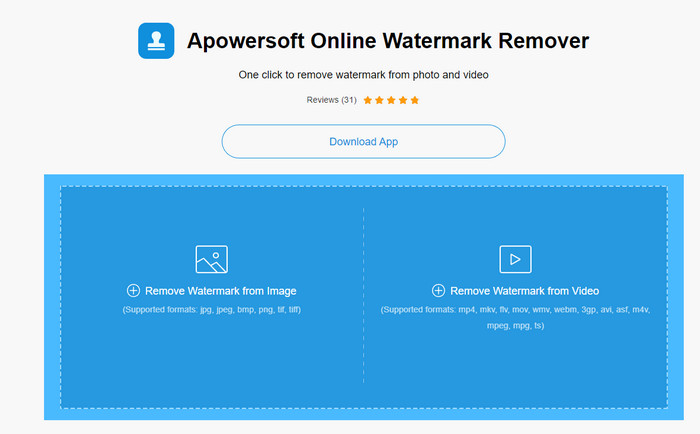
Apowersoft Watermark Remover Online este un program dedicat eliminării filigranului pe care îl poți accesa online, dacă nu dorești să descarci un software de eliminare a filigranului pe dispozitiv. Deoarece este accesibil pe web, compatibilitatea acestui instrument este mult mai mare pe diferite sisteme de operare. Chiar dacă este accesibil online, performanța sa este la fel de bună ca a altor programe de eliminare a filigranului pe care le poți folosi sau descărca pe computer. La fel ca alte instrumente puternice, și acest program are dezavantaje, cum ar fi numărul limitat de formate video acceptate, dependența de internet și altele.
Dar dacă acest instrument ți-a atras atenția, mai jos este un tutorial despre eliminarea rapidă a filigranului Animotica din videoclipul tău cu instrumentul online.
Pasul 1. Pentru a accesa programul online de eliminare a filigranului, îl poți căuta în browserul tău web și apoi să îl deschizi.
Pasul 2. Apasă Remove Watermark From Video, apoi selectează fișierul video care are filigran. Așteaptă procesul de încărcare, deoarece poate dura mai mult timp, în special dacă ai o conexiune la internet lentă.
Pasul 3. După încărcarea fișierului video, plasează forma dreptunghiulară peste filigran pentru a acoperi filigranul din videoclip.
Pasul 4. Acum că filigranul țintă este selectat, fă clic pe Erase pentru a elimina filigranul din zona dreptunghiulară.
Partea 2. Întrebări frecvente despre cum să eliminați filigranul Animotica
Cât costă Animotica Light?
Prețul Animotica Light este de $6.99. Prețul acestuia va depinde în continuare de regiunea Microsoft Store. Include câteva funcții minore pe care le puteți utiliza și care nu sunt incluse în versiunea gratuită, cum ar fi ieșirea totală HD, fără filigran, toate tranzițiile, rata de cadre nelimitată și altele.
Este o alegere excelentă pentru a beneficia de Animotica Pro?
Pentru $15.99, acest instrument este o alegere bună pentru începătorii care doresc să facă editări de bază care oferă caracteristici și funcții extraordinare de care vă puteți bucura. Cu versiunea pro, puteți exporta videoclipuri la o calitate de până la 2160 (4k) cu 60 FPS, funcții complete de editare și multe altele.
De ce filigranul Animotica devine neclar?
Majoritatea instrumentelor estompează filigranul de pe videoclipul dvs. pentru a le face invizibile. Totuși, dacă te uiți mai mult la el, vei observa că lasă reziduuri care ar putea înrăutăți vizualul. Deci, utilizați un dispozitiv de îndepărtare a filigranului care nu estompează filigranul odată ce exportați, așa cum produce FVC Video Converter Ultimate.
Concluzie
Într-adevăr, toate instrumentele pe care le menționăm în acest articol au puncte forte și puncte slabe diferite în eliminarea filigranului Animotica. Înainte de a încheia acest articol, ce instrument veți folosi ca dispozitiv de îndepărtare a filigranului? Să presupunem că încă nu te-ai decis ce să folosești. În acest caz, vă sugerăm să alegeți cel mai bun dispozitiv de îndepărtare a filigranului, deoarece este cel mai puternic instrument de a elimina filigranul de pe orice videoclip și de a face mai multe sarcini la o singură descărcare. Sperăm să răspundem la întrebările dumneavoastră cu acest articol. Tutorialul de mai sus vă va ajuta să eliminați filigranul de pe videoclip, astfel încât să vă puteți bucura de vizionarea unui videoclip de înaltă calitate fără filigran.
-
 Aflați cum să eliminați Movavi Watermark gratuit [Must Have!]
 Exportarea unui videoclip sau a unei imagini pe Movavi va lăsa un filigran, dar este posibil să o eliminați? Pentru a învăța cum să eliminați filigranul gratuit, citiți acest lucru.
-
 3 moduri simple de a elimina filigranul Fiverr pe Windows și Mac
 Sunteți pe pagina potrivită dacă căutați o aplicație care poate elimina filigranul Fiverr. Citiți această postare pentru a afla cum puteți elimina cu ușurință filigranul Fiverr.
-
 Cum să eliminați filigranul Lomotif folosind aceste instrumente minunate
 Doriți să aflați cum să eliminați filigranul Lomotif din videoclipul dvs.? Citiți acest articol pentru a cunoaște cele mai remarcabile metode de eliminare online și offline.
